
Build an Autocomplete Search Component in React and TypeScript
How to show suggestions of data from an API Rest

Nowadays, one of the most widely used components of a website is the search engines with autocomplete or suggestions.
It is usually the first component with which the user interacts since it is more practical to perform a search and go directly to what we need. These components are essential in sites such as e-commerce for a good user experience.
In this tutorial, we will build a simple search component that offers users suggestions about what they are typing without third-party libraries.
What is Autocomplete Search?
Autocomplete is a pattern used to display query suggestions.
An autocomplete search, also called “predictive search” or “autosuggest,” is a component that the user types in the input field that will suggest various predictions or possible results of how the search might be completed.
Autocomplete works with a search engine that learns and improves the suggested results as it is fed by the searches its users perform.
In this case, we will not see more about search engines because it is out of the scope of the tutorial. If you want to learn more about this topic, you can look at this site. Without further ado, let’s get to programming.
Setting Up Autocomplete search
We create our application with vite with the following command:
yarn create vite autocomplete-search --template react-tsWe install the dependencies that we will need in the project:
yarn add @nextui-org/reactIn this case, I am only going to use a third-party library for the styles you can use whatever you want:
- nextui a Javascript/CSS framework
After that, we create the following folder structure for the project:
src/
├── components/
│   └── ui/
│       ├── Autocomplete.tsx
│       ├── Autocomplete.tsx
│       ├── index.ts
│       └── ui.module.css
├── hooks/
│   └── useAutocomplete.ts
├── ts/
│   └──interfaces/
│      └── Country.interface.ts
├── App.tsx
└── main.tsx
Components
AutocompleteWrapper.tsx This component is only used as a container or wrapper of Autocomplete.tsx and is where we are going to request the data we need.
We use the restcountries API for the tutorial and only use English-speaking countries so that the query will be as follows:
https://restcountries.com/v3.1/lang/engAutocomplete.tsx This is the main component, and it has two sections. The first section is the input element, and the second is the list of suggestions.
Usually, a <ul>or <ol>element is used, but in this tutorial, we will use Rows components inside a Next UI Card component.
First, we create the types we need. The API returns us a large amount of data that we will not use, so simplifying the information and the types would look like this:
export type Country = {
  name: Name
  flags: Flags
}
type Name = {
common: string
}type Flags = {
png: string
svg: string
}After that, we will create the following states:
searchedValue — Here, we will store the text user is typing.
suggestions—Here, we will store the suggestions that match what the user writes.
selectedSuggestion — Here, we will store the option selected by the user.
activeSuggestion — Here, we will store the index of the suggestions shown. We will use it to know which suggestion is selected by the keyboard.
Now, we need to create the functions that will react to the events of the input element and the results list.
handleChange() This function will be executed every time the user types something in the input element. We’ll validate if what is entered isn’t an empty value. Otherwise, we’ll set the states to their initial values.
If the value received in the input element isn’t empty, the function will be executed and display the suggestions that match the value entered.
handleClick() This function will be executed when the user selects a suggestion; we save the selected value and set the remaining states to their initial values.
handleKeyDown() This function will be executed when an event is detected on the keyboard, so you can browse through the suggestions and select one.
Finally, we add a useEffect to focus on the input element when the component is mounted.
That’s all! We already have an autocomplete search we can use in any project by passing the input reference and the data to filter.
As an additional step and good practice, we will take the functionality to a custom hook, and our component will be cleaner and more readable.
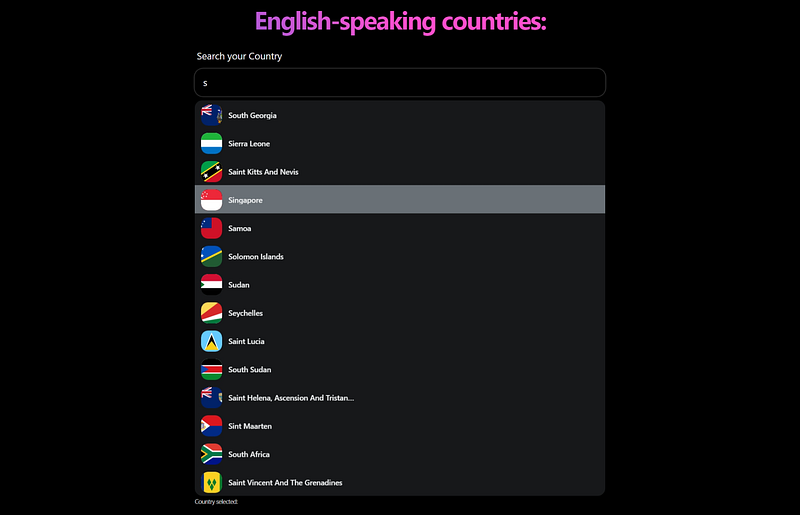
The app looks like this:
Repo
Conclusion
We have created a simple search component by applying filters to the data received this search could get more and more complicated depending on the case. After capturing the selected value, you could add more functionality, such as displaying the details of the country selected.
I hope this tutorial has been useful for you and that you have learned new things in developing this application.
Read More
Want to Connect?Love connecting with friends all around the world on Twitter.


