Apple’s Trident Productivity System is Surprisingly Useful
Organize, Think and Reflect
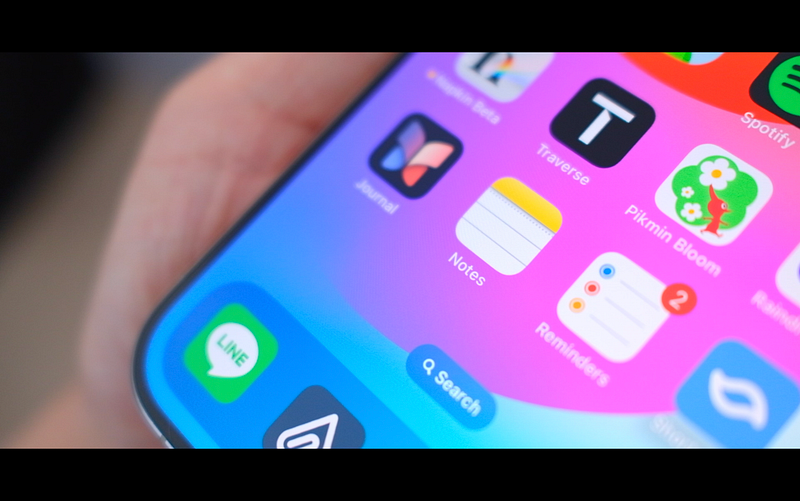
I’ve tried many apps to see what they can do, but I’ve been hearing more and more about Apple’s productivity tools. To be honest, with all the apps out there, I thought they were maybe too simple at first. But it turns out Apple has been quietly adding new stuff to their apps, and now, they’ve built a pretty robust productivity system.
Apple Notes
Linking to Another Note
Apple Notes might look simple, but it’s stuffed with features that make it incredibly useful for everyday tasks. For example, the latest update has added a bunch of new features like linked notes.
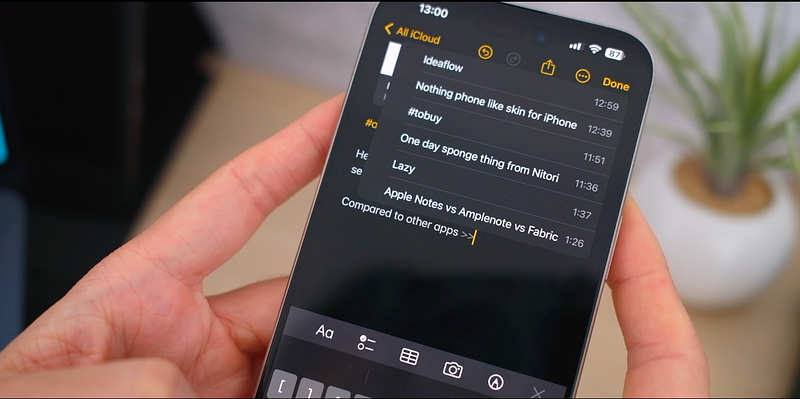
It allows you to link notes together like a personal web of ideas. It helps you keep track of related thoughts and notes without getting lost.
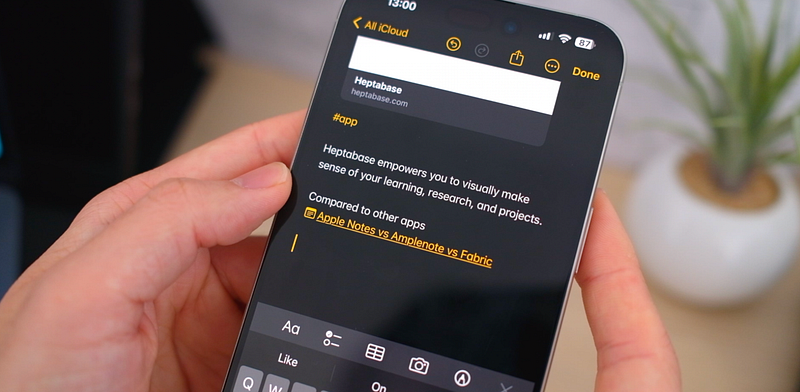
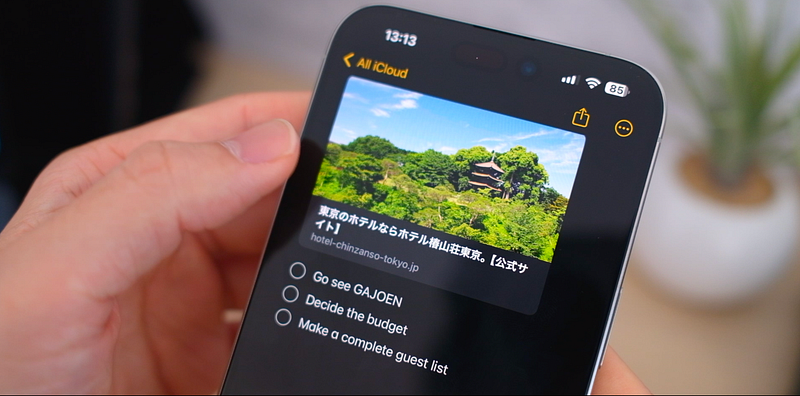
For example, if I’m planning an event and have different notes for the guest list, venue options, and tasks, I can link them all up.
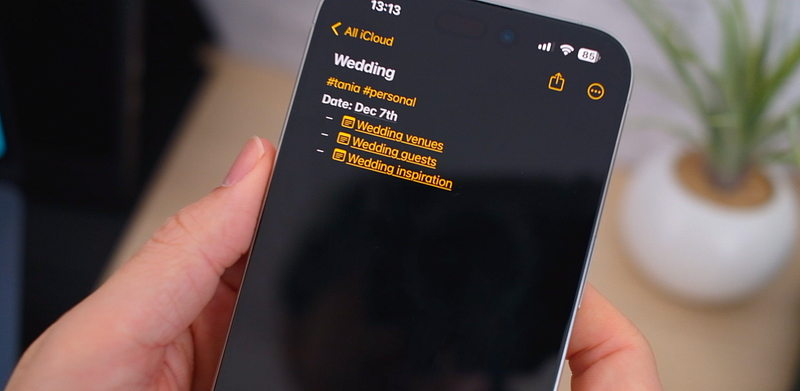
This way, when I look at my venue options, I can tap a link that takes me to the guest list in an instant. It makes it so much easier to find what I need without having to search through a sea of notes.
Read: Top 8 Incredible AI Note-Taking Apps
Quick Notes
Quick Notes is another smart feature that I love — just swipe or tap and you get to jot down anything quickly, whether that’s while browsing the web or in the middle of another task, and it even grabs the URL of the website you’re on which helps you remember where you got the idea from.

Then the note shows up again when you visit that site, reminding you of what you were thinking last time you were there, which I find super neat.
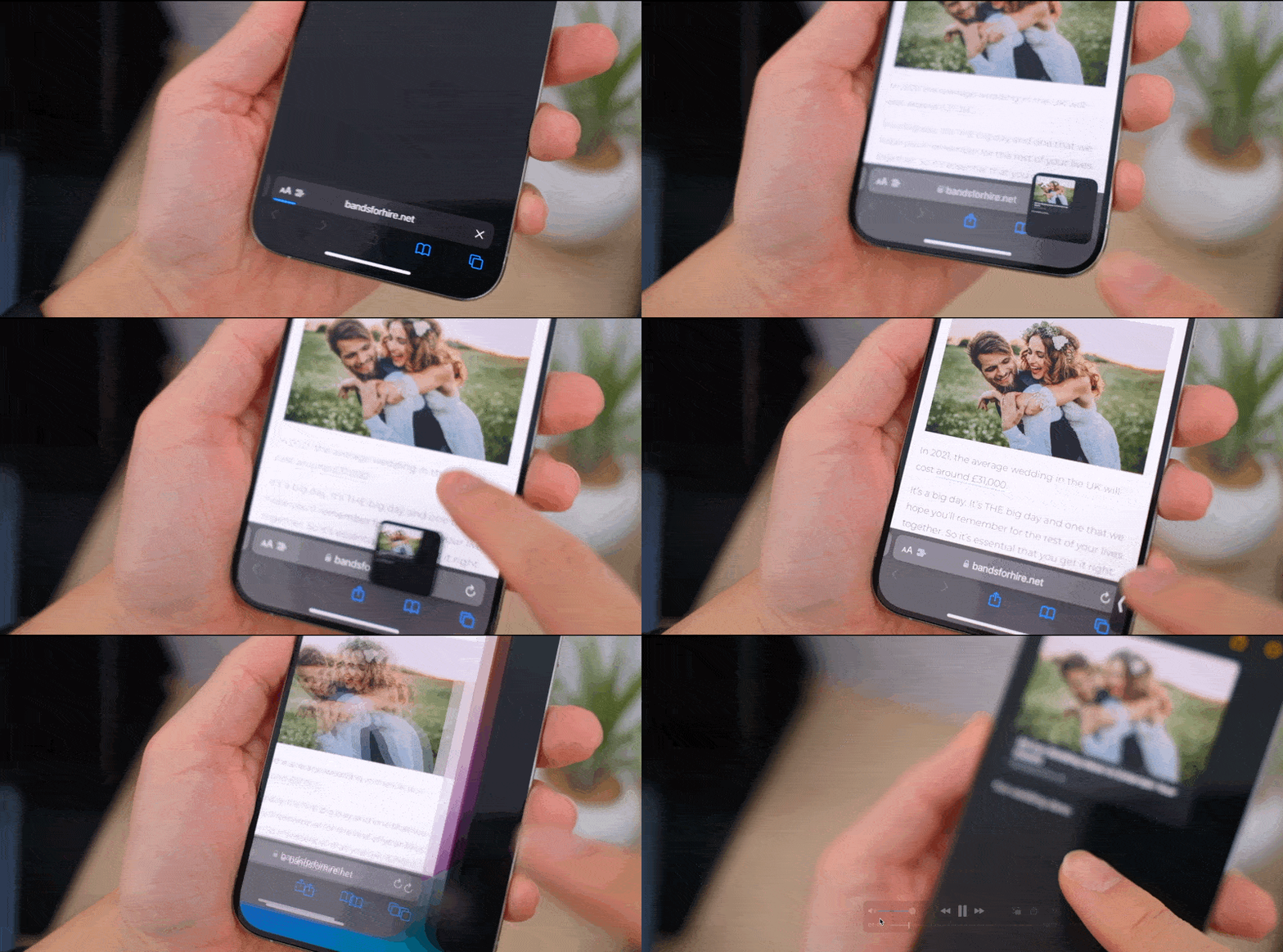
Because of this feature, you can even use Apple Notes as your bookmark manager. Combined with tags, I think it will be great for managing links from the internet:
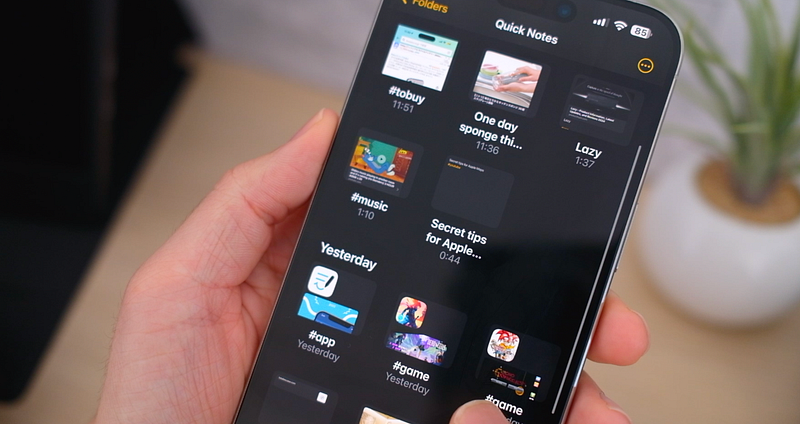
Creating a Quick Note is a breeze. On my Mac, it’s as simple as hitting a keyboard shortcut. On my iPhone, I use the share sheet or Control Center to start a Quick Note. And no matter how I create them, all my Quick Notes end up in their own special folder within the app, so they’re easy to find later when I need them. It’s a straightforward, helpful way to make sure I never lose those sudden thoughts again.
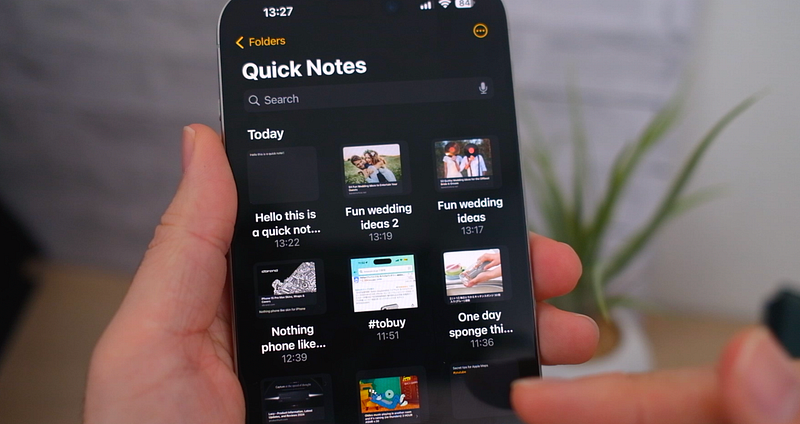
Check list and Tables
With just a few taps, I can create a checklist that is great for keeping track of tasks and project progress.
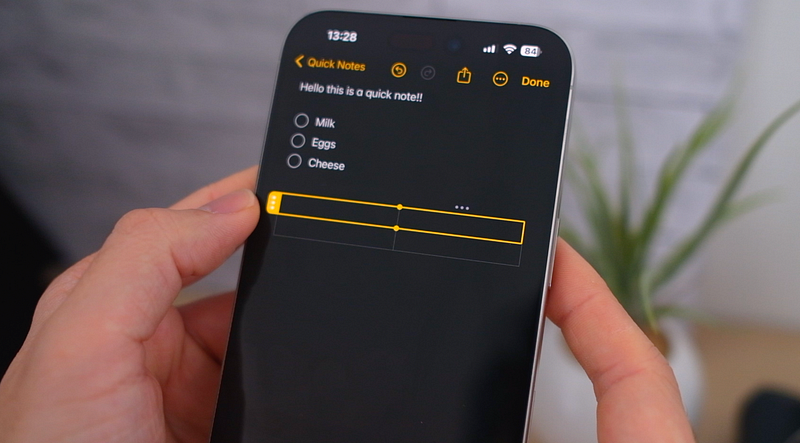
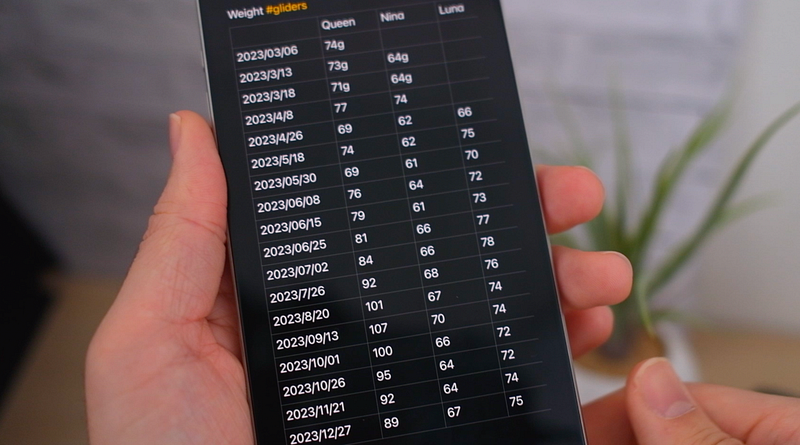
You can also add tables, and tweaking them is intuitive — more columns, more rows. You can easily have a structured view of whatever you’re organising, be it expenses, weight, or whatever you want.
Gallery View
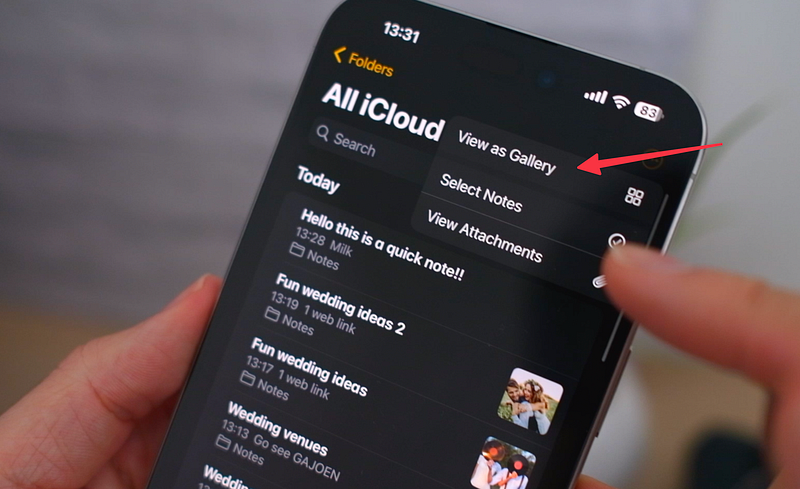
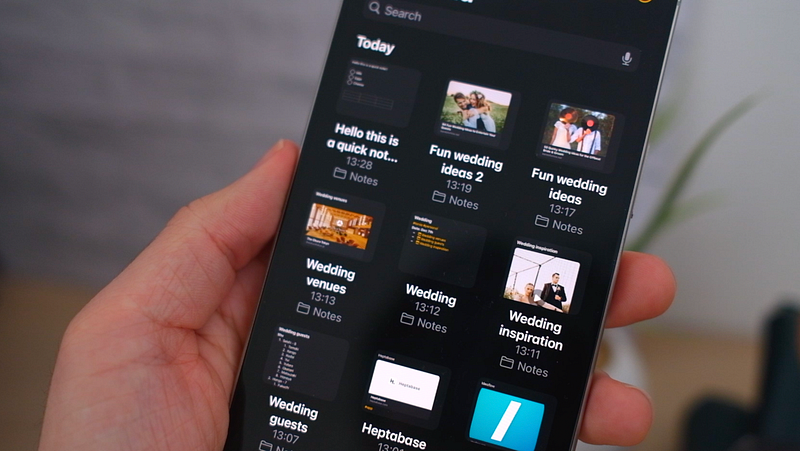
Apple Notes currently has two view options. The list view and the Gallery View. It does’t make a huge difference in my opinion, but I’d say I prefer the gallery view because I get to see the content of each note as well which is useful for finding what I’m looking for.
Folders and Smart Folders
When it comes to keeping things tidy, there is regular folders and smart folders. Regular folders are just that — places where I drop my notes on different topics or projects.
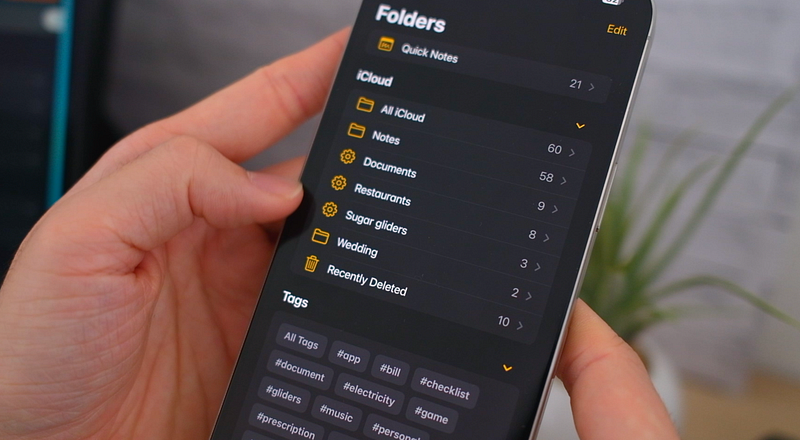
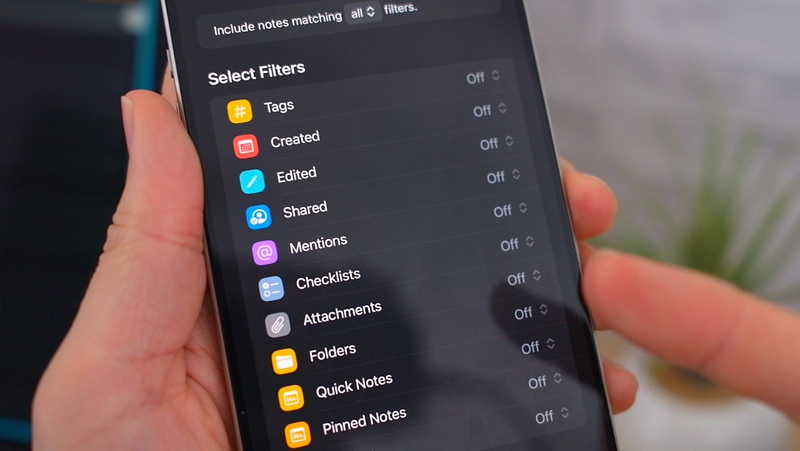
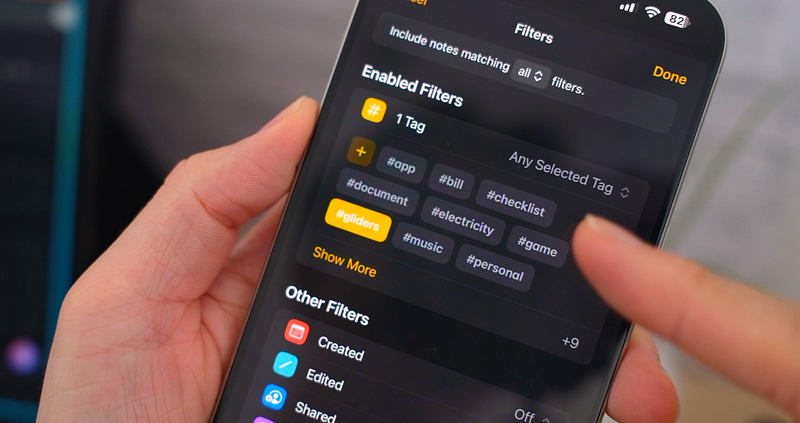
However, the smart folders, those are much more customisable. They use tags or different types of filters to sort my notes automatically:
For example, I made a smart folder called Restaurants which automatically collects any notes with the Restaurant hashtag.
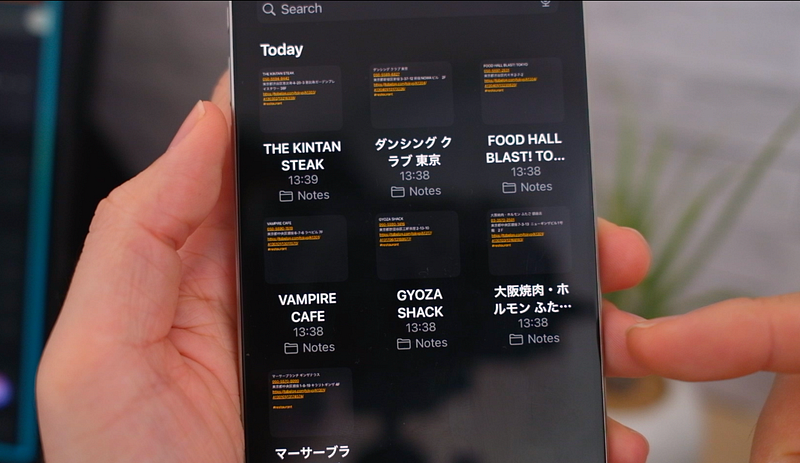
Similarly, you can create smart folders with different filters too like shared notes, notes with your mention, notes with checklist and so on. So you can create a lots of different rules for your smart folders. This mix of simple yet smart features can make Apple Notes a great platform for keeping your thoughts and projects in line without getting bogged down by complications.
Read: 5 Best Apps to Organize Your Life (That Aren’t Notion)
Locked note
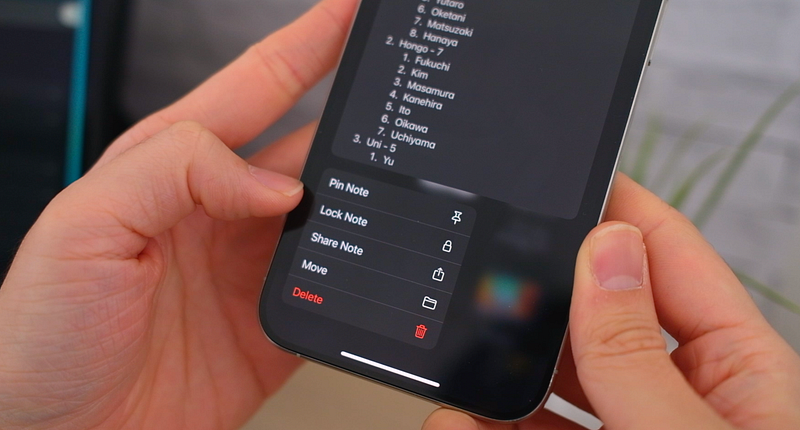
You can also lock any note if it contains sensitive information. This means I can jot down anything from a personal journal entry to sensitive work info, lock it with a password, and then easily unlock it with FaceID or TouchID. It’s that extra layer of privacy that makes a big difference.
Scan Documents and Photos and Markup
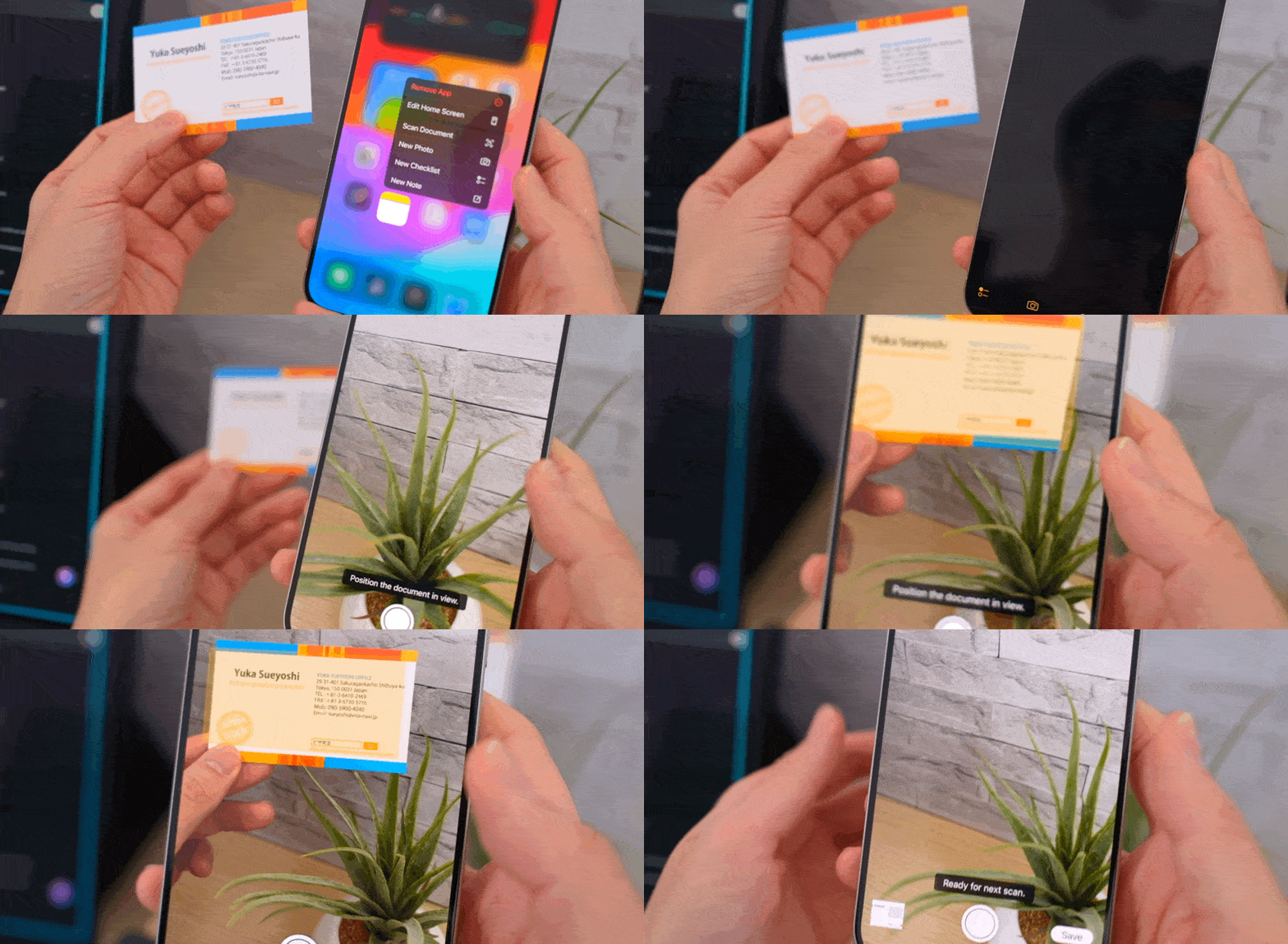
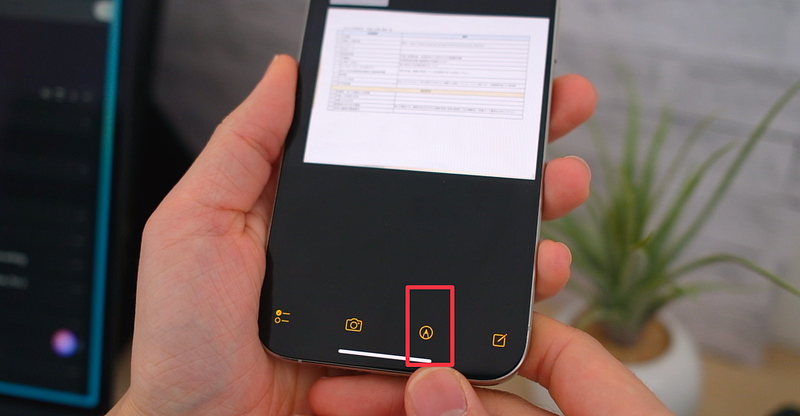
Also if you want to get rid of paper clutter, it has the document scanning feature. I can scan receipts, forms, or pages from books right into my notes using my iPhone’s camera. It’s actually super quick and simple — I just tap and hold the icon, select ‘Scan Documents’, and the app practically does the rest. It recognises the document, captures it, and lets me add a few tags if necessary.
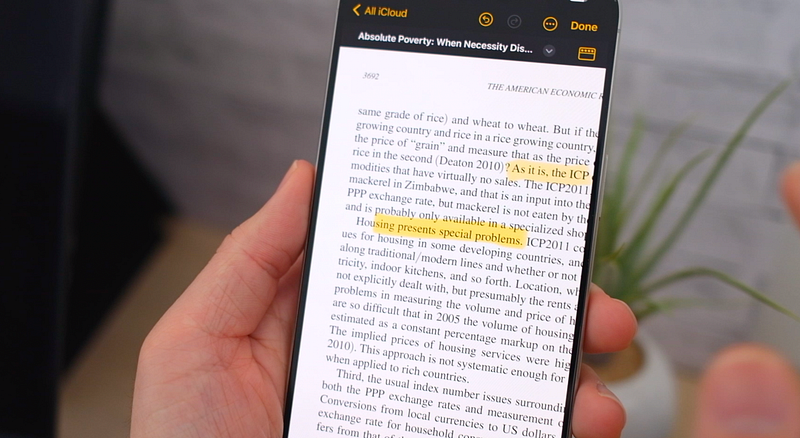
Now, if you want to mark up a scanned document, you can do it directly in the app. Just tap the pencil icon, and you can draw, highlight and add text.
And with the latest updates, even PDFs can be annotated; if you upload PDF files, you can edit them right within the app.
Share Notes and Folders
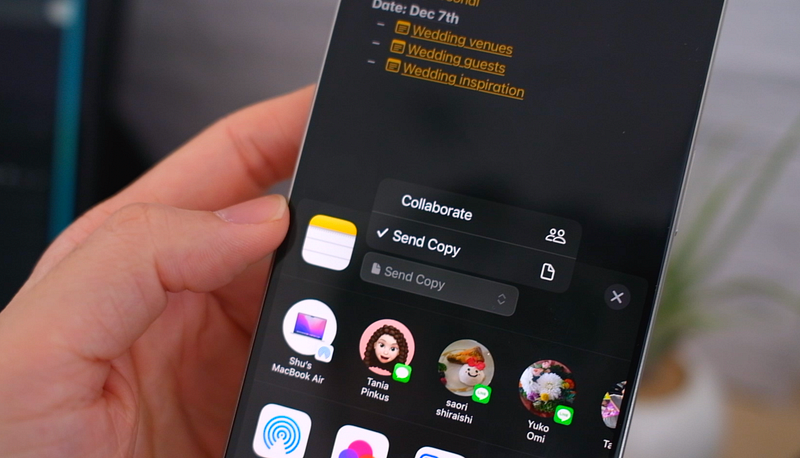
But where Apple Notes shines for me is in how easily I can collaborate with other people. If I’m planning a group event or collaborating on work, I can share a note with a tap, so you can brainstorm, write and edit together.
Apple Journal
Apple Journal is the latest addition to their app library, which seems perfect because a smartphone is such an integral part of our daily lives, which makes it an ideal place for a personal journaling app.

It looks kind of basic, but it’s actually pretty good. What I love the most about it is that it uses machine learning to create personalised suggestions based on your recent activities like where you went, the photos you took and the people you met:
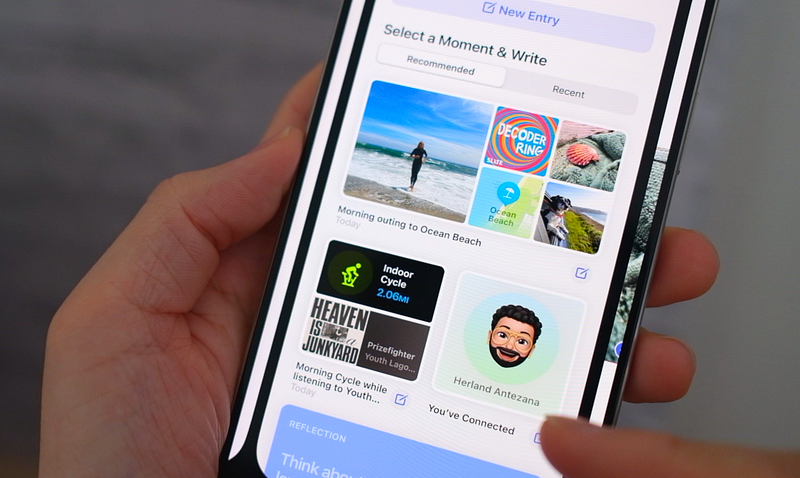
This is great to make it easier for you to start writing, especially when you have no idea what to write about, which I think is a common problem for people who are just getting started with journaling. Even if you don’t necessarily write anything, looking back at your activities and photos is really fun and interesting too.
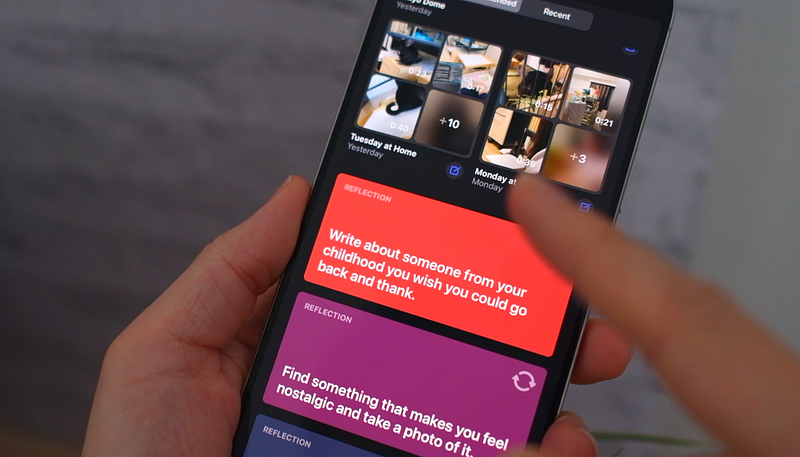
Also if you don’t want to type, you can use voice dictation. This way, you can journal faster and even while doing something else like cooking or driving. And obviously, your journal is private and only for yourself. So you can lock it with a password or your face.
Apple Reminders
I’ve used Apple’s Reminders app only when I wanted to share a todo list with my wife who also has an iPhone. But, I have to admit, it’s actually becoming one of the best free todo apps out there.
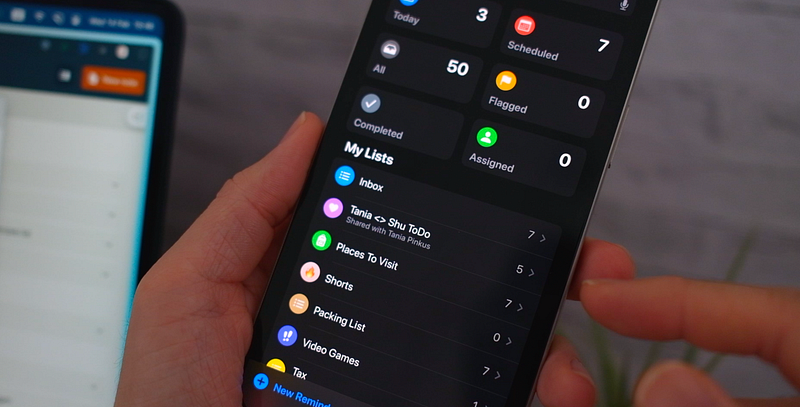
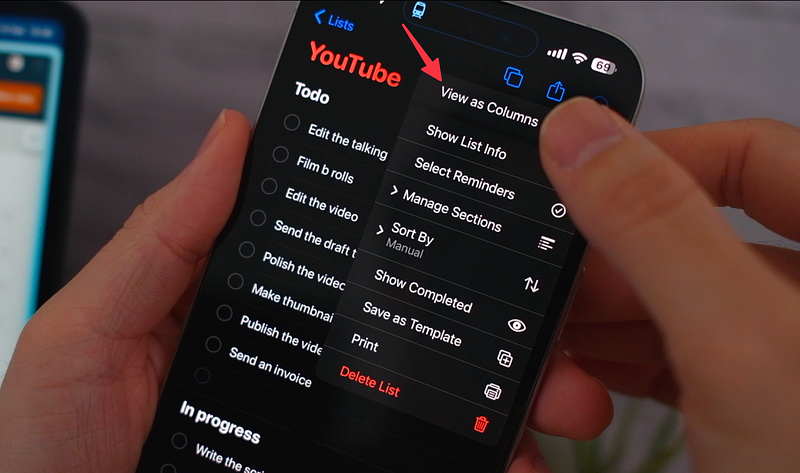
Columns
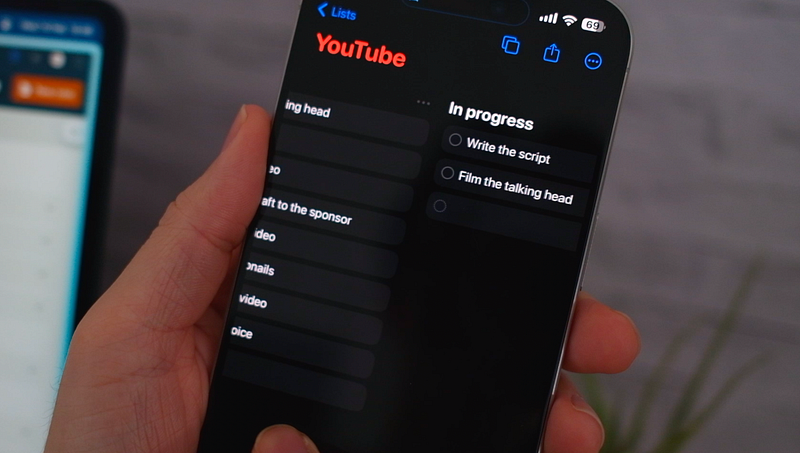
For example, now it has Columns View for Sections, which is a great way to organise tasks visually. You can transform your to-do lists into a kanban board that makes it easy to track progress. Personally, I prefer kanban-style to the traditional list view.
Templates
Also Apple recently introduced templates, which takes the hassle out of writing down routine items each time. You can save any lists as a template and then just use them again and again.
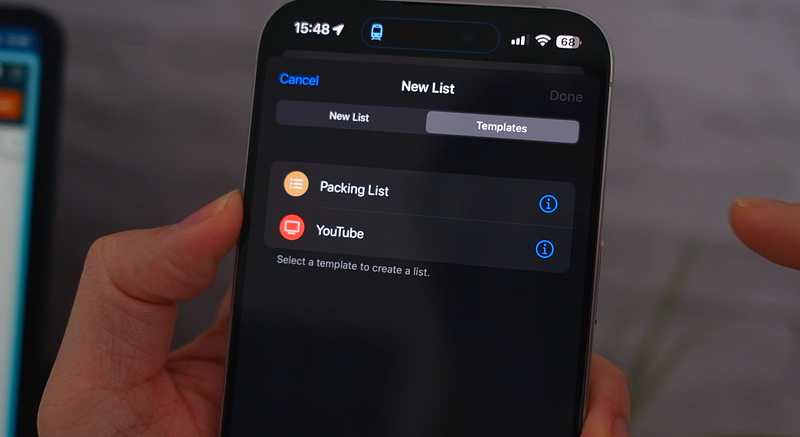
But since most people use this app for grocery list, it has a built-in grocery list template:
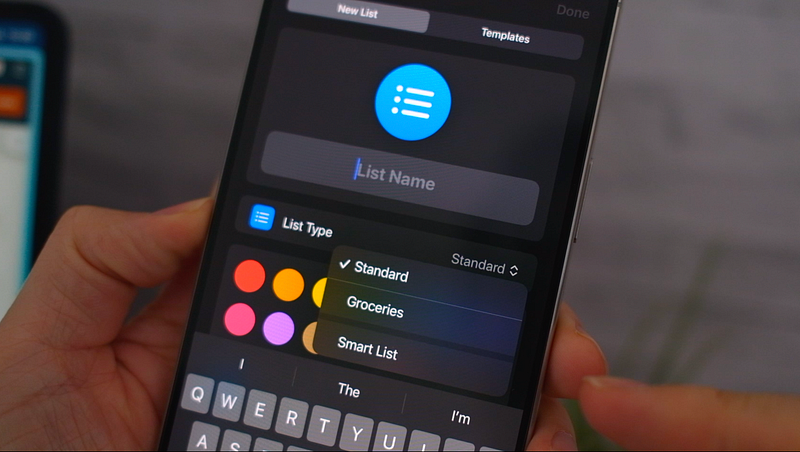
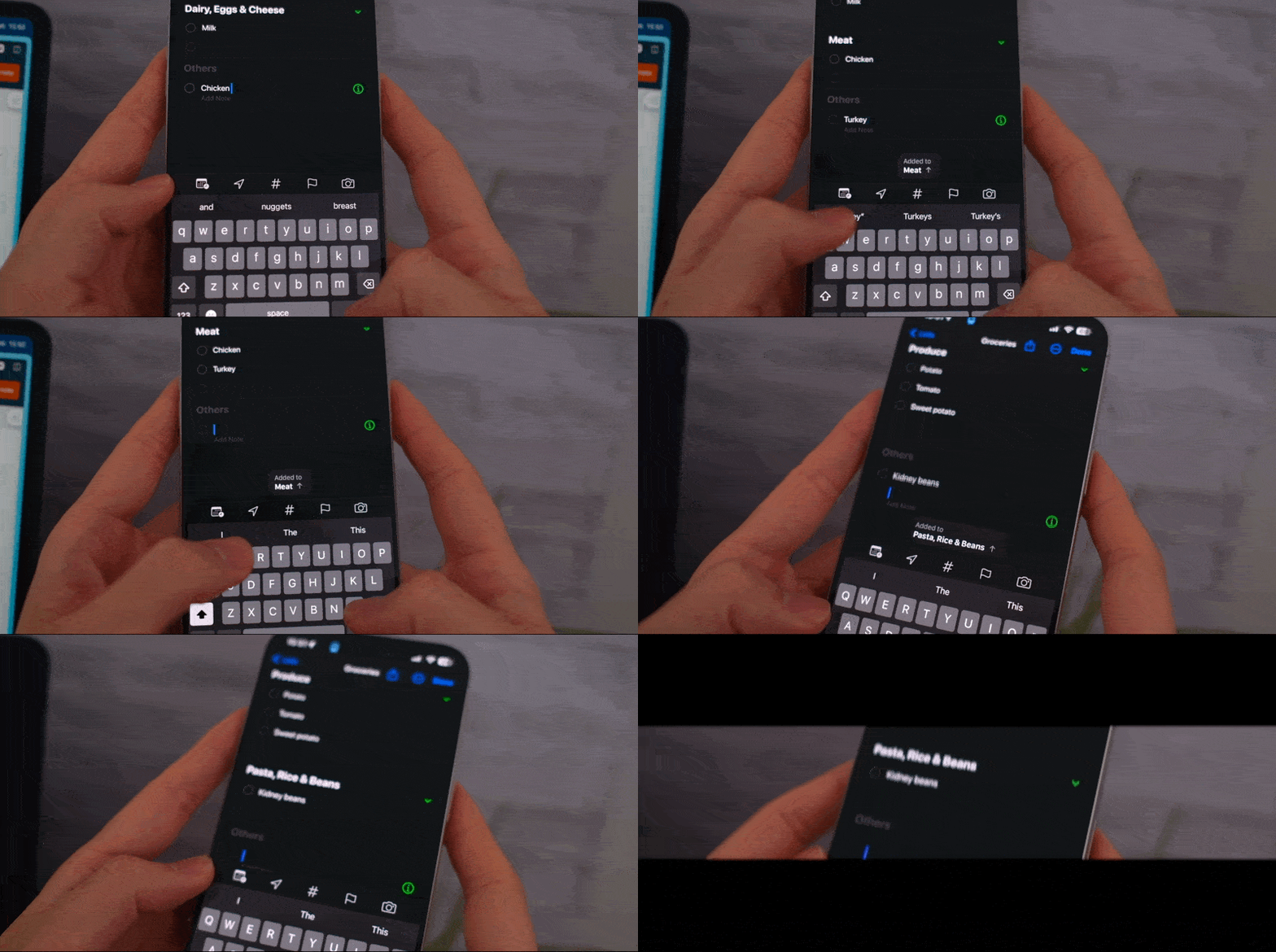
So as you add new items to your list, it will automatically categorises and reorders them for you like dairy, produce, meat and frozen food, which makes shopping a lot easier.
Subtasks
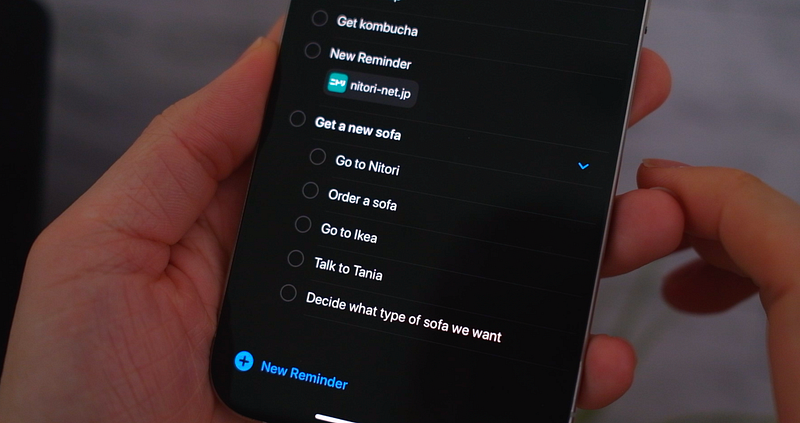
Subtasks are also a one of my favourite features. I find it super useful when I find some tasks overwhelming. I can use subtasks to break them down into more manageable chunks. It turns an huge project into smaller, achievable steps, making it easier to get started and maintain momentum.
Custom Reminders
Also, there are many options to customise the todos in this app. For example, I love early reminders — they essentially notify you ahead of time, which helps you to be ready for what’s coming. This way, you don’t have to have those last-minute rushes to meet deadlines.
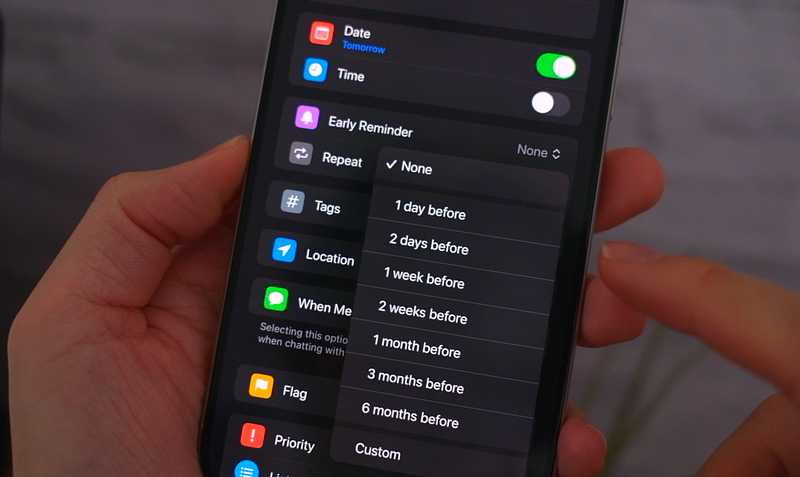
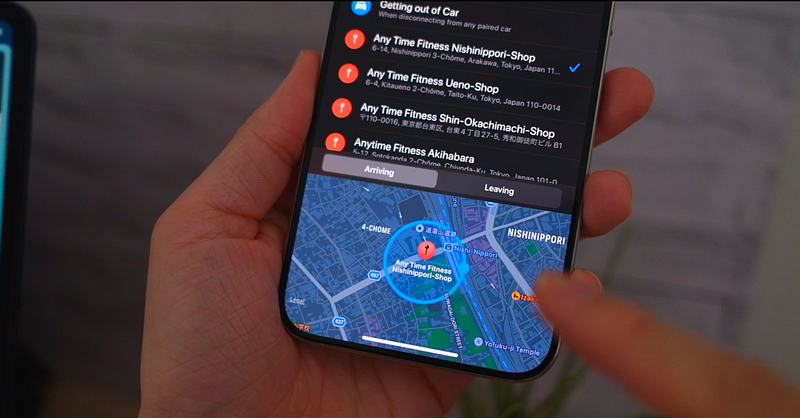
Also, location reminders are a game-changer for someone who remembers things they need to do based on where they are. They are set to trigger when you arrive at or leave a location. For example, they remind you to grab milk on the way out of the gym or start a task when you arrive at the office.
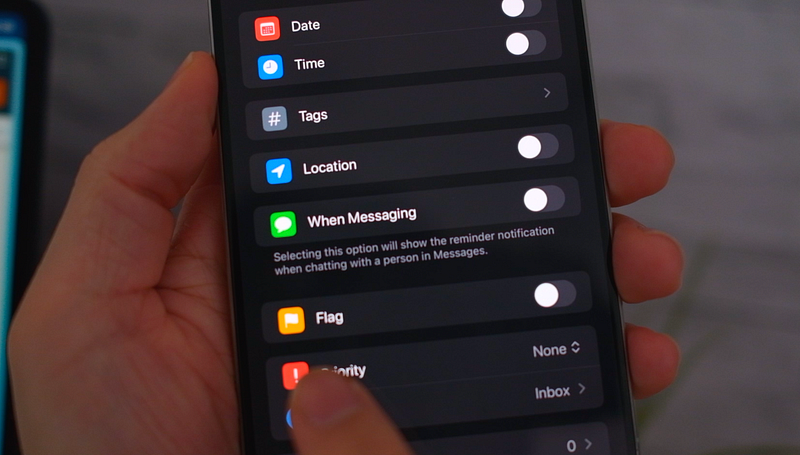
Another clever feature that I’ve never seen in any other app is this seamless integration with the Message App. You can set reminders to be triggered when you’re messaging someone. This is so useful when you have something you need to mention to someone.
Using these features has been straightforward and effective. For instance, I’ll set an early reminder for a friend’s birthday gift a week in advance, so there’s always enough time for picking out something thoughtful.
Or, if there’s an errand to run, I set a location-based reminder, so as soon as I walk near the pharnacy, my phone reminds me to get some medicines I need.
For meetings, if there’s an agenda or issue I need to bring up, I’ll use the ‘When Messaging’ function to drop a reminder. And the next time I’m texting with a colleague or friend, I get a prompt with the reminder.
Smart Lists
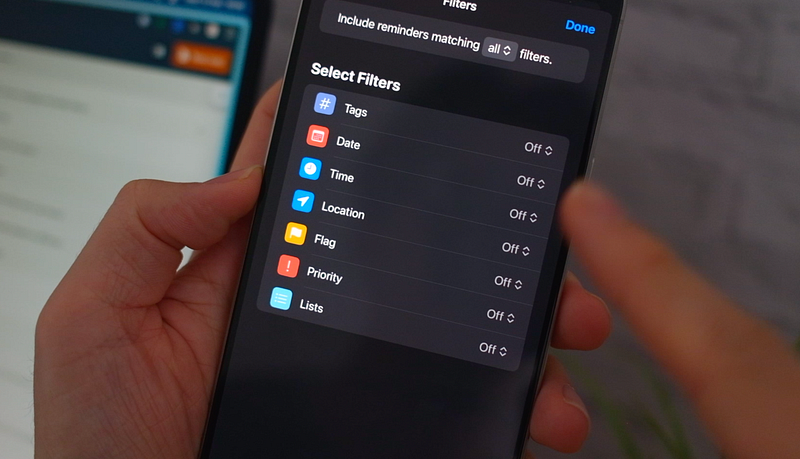
Also if you want to create more customised lists, you can use smart lists. This lets you make lists based on criteria you set. For example, if you want to see a list of all your important todos, you can make a filter for that. Similarly, if you want to see a list of tasks when you’re home, you can create a location filter so it shows only your home tasks. There are many ways to use this feature to make lists more useful.
Create new ones based on old entries
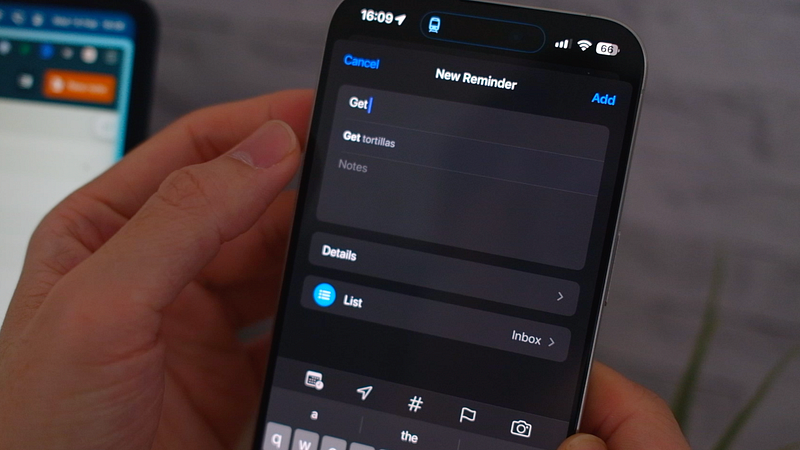
On top of these, there are lots of small but useful features. For instance, when you’re creating a new reminder, it gives you suggestions based on your past entries. This way you don’t have to type out the same reminder over and over.
Widgets on Mac and iPhone
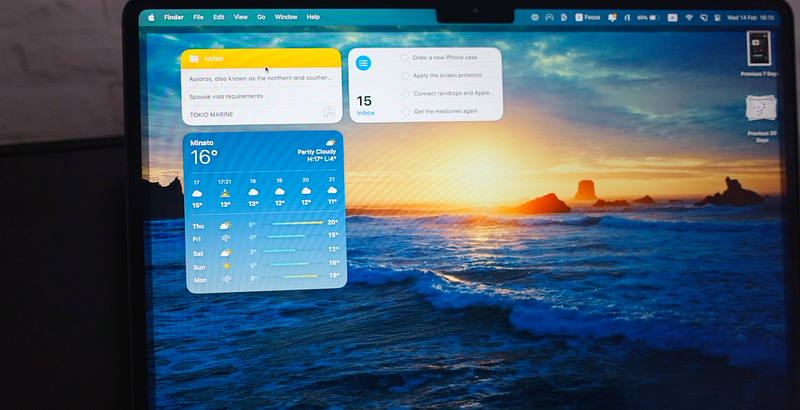
By the way if you have a Mac, the new update now lets you create widgets on your desktop so you can see your reminders and notes at a glance. And it’s not just the Apple apps, but also third-party apps too.