
Promotion Ideas
Another Way to Promote Your Stories & Publications
Use Flipboard to curate your favorite stories into a Flipboard Magazine, or become a Flipboard Publisher to stream your Medium publication or blog to one.
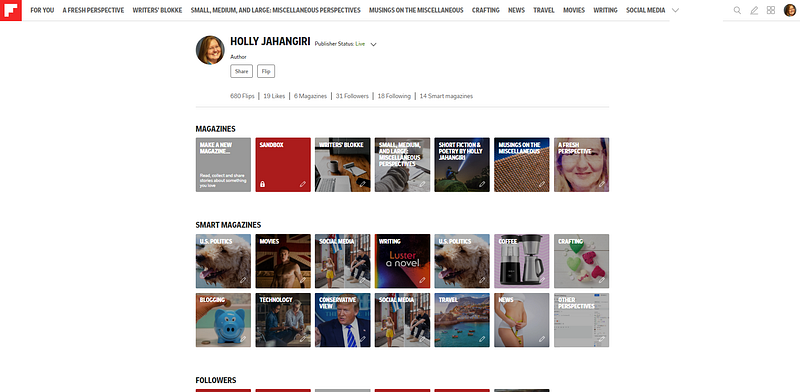
What is Flipboard?
Flipboard is a place to discover and share content you enjoy. “Over the years,” they say, “in partnership with the world’s greatest publishers and with you, our community, we’ve built a curated experience with a plurality of voices, where people can find quality stories on any interest, investing in their lives and their passions.”
Flipboard is curated by individuals, like you and me, and by publishers, like CNN, Medium, or your favorite bloggers. Including me.
How to Sign Up
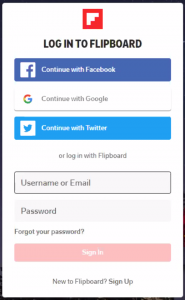
Signing up with Flipboard is easy. And it’s free. Just go to flipboard.com. You can Sign up using the link at the bottom of the dialog shown here, or you can sign in using Facebook, Google, Twitter, or a registered email account if you already have one.
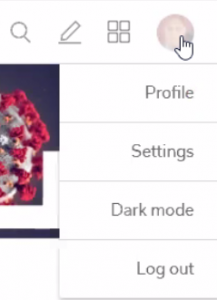
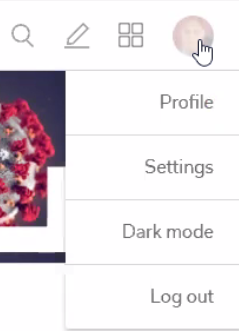
Once you’ve joined and logged into Flipboard, click on your profile picture (or the gray circle) at the upper right corner of the screen to display the drop-down menu shown below:
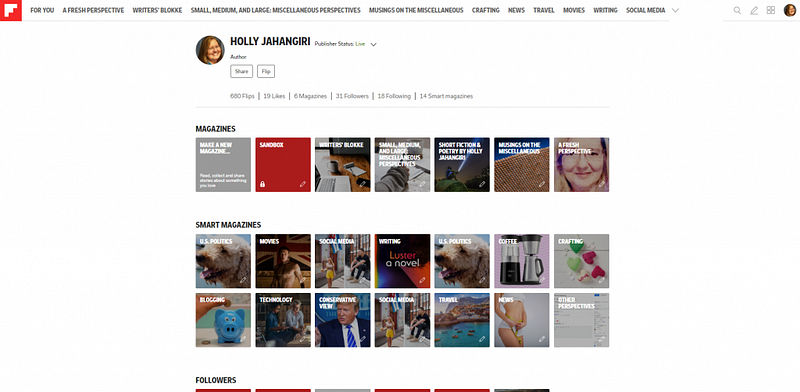
Click Profile. Here’s an example of what you might see — but with fewer Magazines, until you create some!
How to Use Flipboard
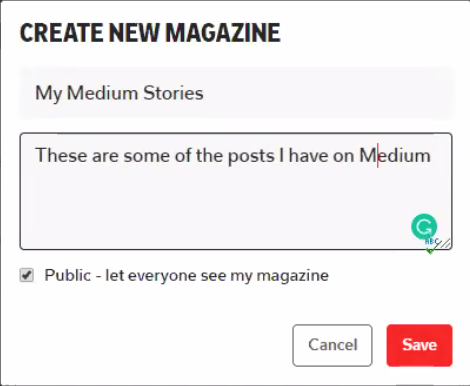
Start by clicking Make a New Magazine (the first square below Magazines). Add a Title and give it a Description. If you want to keep your Magazine private and not publicly viewable and shareable, click to deselect the checkbox next to Public — let everyone see my magazine.
Next, start flippin’! There are several ways to do this:
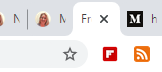
Browser extension:
Share buttons (if available on the website — see the bottom of this post, for example, and feel free to try it out):

Manually, using the URL and the pencil icon (upper right corner, next to the magnifying glass — search icon) on Flipboard:
Use any of those, and you will see this dialog (if you are using the last method listed above, you’ll be asked to enter the URL; the other methods will prepopulate the link and show a preview image):
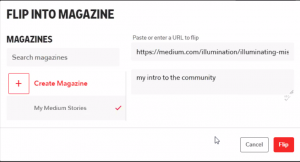
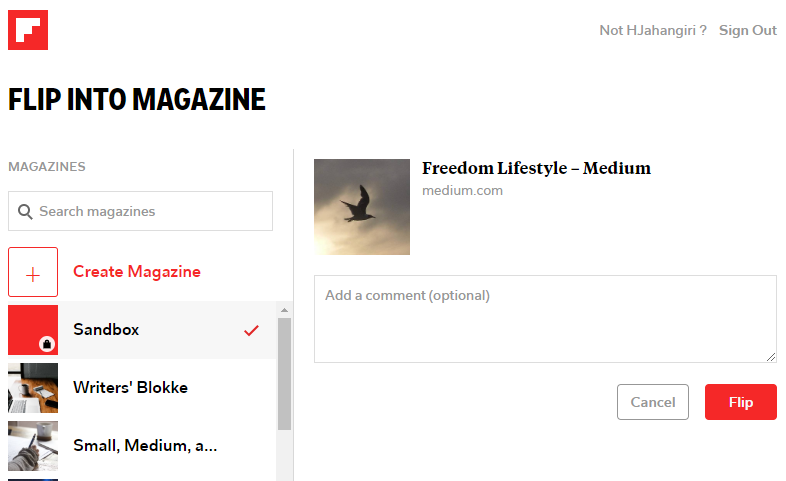
You can, optionally, add a comment — perhaps a note about why you found the content interesting or why you think others might enjoy it. Then, click Flip (or Cancel).
What is a Publisher on Flipboard?
In theory, any producer of content with an RSS feed can apply to be a Publisher. This allows you to automatically publish RSS feeds to a Magazine, (you’ll see one additional option, Source, in your Magazine options). An RSS feed updates as new content is added to the source site, and a Publisher account lets you pipe that content directly to your Magazine, rather than having to “flip” each individual story manually, one at a time.
Make sure that the content in your RSS feed meets Flipboard’s standards before applying, and have your RSS feed URL handy. If you don’t know what the RSS feed URL is, use a browser extension like get-rss-feed-url-extension (that one’s for the Chrome browser, but there are many). If you know how to View Source in your browser, you should see something near the top of the page — if it’s a page with dynamic content — that references a /feed/ For example:
<link id=“feedLink” rel=“alternate” type=“application/rss+xml” title=“RSS” href=“https://medium.com/feed/<publicationname>”>
The RSS feed URL, then, would be https://medium.com/feed/<publicationname>. When I applied, several years ago, review and approval took months. Be patient, if you do decide to apply.
How to Sign Up as a Publisher
Click on your profile picture (or the gray circle) at the upper right corner of the screen to display the drop-down menu shown below:
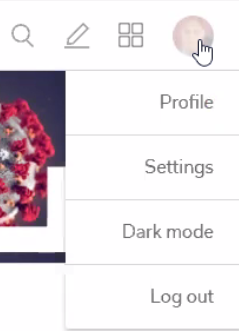
Click Settings. Scroll down to the Account Settings section, then click Become a publisher.
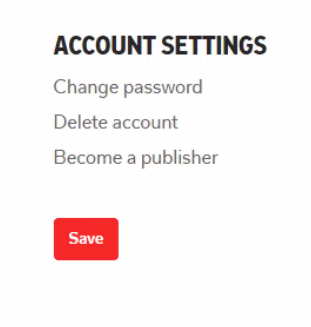
You will need to add an RSS feed to your publication, and wait for Flipboard to review your application.
A Few Tips
Note that Medium itself is a Publisher on Flipboard; do not use Flipboard to publish Magazines with any RSS feeds but your own publication’s feeds!
Just follow https://flipboard.com/@Medium on Flipboard to get all the latest Medium-curated Stories, there.
You can flip any web pages, articles, blogs, or stories you like from the Internet as a regular user — one at a time.
Also, keep in mind that if you want to publish your own Medium Profile RSS feed on Flipboard, Medium treats all your comments as Stories, and they will all appear in the same feed. This is not a great experience for your readers, so I would recommend setting up your personal Magazine — no Publisher account needed! — and manually flipping any stories you want to showcase there: yours and other writers’.
I want to thank Rasheed Hooda for being a good sport, late one evening, and letting me capture a few of the screenshots from his PC over Zoom, to ensure that there were no significant differences in functionality between Publisher accounts, like mine, and regular user accounts, like the one I asked him to sign up for. These instructions were first requested by Bob Jasper (so you should go read his Stories and thank him for the inspiration), and a number of the Editors and Writers at ILLUMINATION asked me to post them here on Medium.


