
Angular Material Button Click (& More Events) with TypeScript
Angular Material Buttons have many events that can fire. In this tutorial we will explore the TypeScript typing for events such as click, mousedown, mouseenter, and more. We will also look at the available values on the event object.
An IDE such as VS Code has good tools for examining the type definition of button events. You can usually click into the event definition file by hovering over the TypeScript Event. Here’s a screenshot of the event definition file:

Full code for this tutorial is in the Resources section.
Angular Material Button Click Event
The Angular Material Button click event is simple to code for. First we bind the click event to the template, then we quote the template statement. The template statement is also known as the event handler. Here's the code:
//event-button.html <button mat-raised-button (click)="onClick($event)" > Ultimate </button> //event-button.ts export class EventButton { onClick(event: Event) { console.log("click", event); } }The mat-raised-button property applies Angular Material styling to the button and does not affect the click event. In fact, Angular button clicks are the same when using Angular Material components as they are in any other Angular component library (or just plain Angular).
Notice the event that was passed to the onClick handler has a type of Event. This is an interface that extends _Event:
type __Event = typeof globalThis extends { onmessage: any, Event: any }_Event has many common event properties on it like currentTarget and functions like preventDefault.
In my demo app I clicked the button and logged the event. We can see the object below:
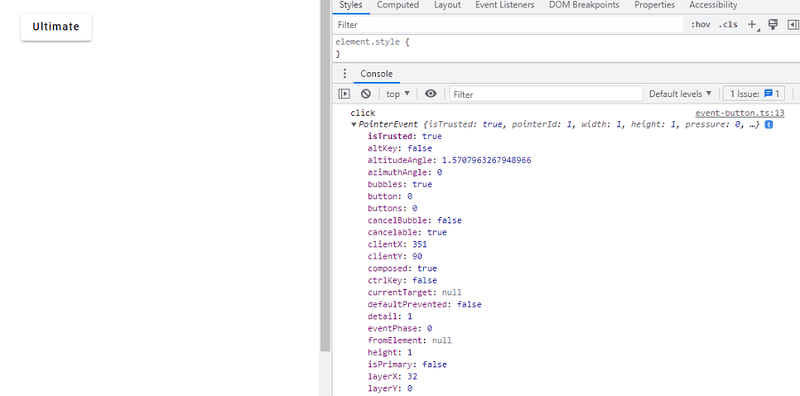
Some of the most useful information can be seen above, such as the clientX and clientY. These two properties are the horizontal and vertical points of the mouse click.
Another important property on the event object is target.innerText. Often we need to use the text of a clicked element or identify the element in some way as a user clicks in an application.
A common use case for button click is to open a Snackbar component.
Angular Material Button Click with Extra Props
We can add additional props to the Angular Button click by passing them into the event handler. Here’s code where I pass the event object and an additional string:
//event-button.html <button (click)="onClick($event, 'test')" >Ultimate</button> //event-button.ts onClick(event: Event, testParam: string) { console.log("click", event); console.log(testParam); }This code first logs the text “click”, then the event object, and finally the string “test”.
Angular Material Button MouseDown and MouseUp Events
The mousedown and mouseup events are similar to the click event. They have the same Event type. Here's the code:
//event-button.html <button (mousedown)="onMouseDown($event)" (mouseup)="onMouseUp($event)" >Ultimate</button> //event-button.ts onMouseDown(event: Event) { console.log("mouse down", event); } onMouseUp(event: Event) { console.log("mouse up", event); }We can see in the screenshot below that the same event data is logged for mouse down as the data in a button click event:

Interestingly, I called event.stopPropogation() on the mouse down up event to see if that would eliminate the click event trigger. It did not. I believe stopPropogation is only effective in stopping the event from bubbling up to higher elements in the DOM and is not intended to limit multiple events firing on a single element.
Angular Material Button MouseEnter and MouseLeave Events
The Angular Material Button mouseenter and mouseleave events take the same event typescript typing as the click event. Here's the code:
//event-button.html <button (mouseenter)="onMouseEnter($event)" (mouseleave)="onMouseLeave($event)" > Ultimate </button> //event-button.ts onMouseEnter(event: Event) { console.log("mouse enter", event); } onMouseLeave(event: Event) { console.log("mouse leave", event); }Once again, the object is logged with the mostly same data as a click event:

However, one new field I see populated is the fromElement. It contains element data such as element type and element classes.
Angular Material Button Drag Events
Angular Material Buttons can have a drag event bound in the template. However, I have been unsuccessful in trigger the drag event in the demo app. Here’s the code:
//event-button.html <button (drag)="onDrag($event)">Ultimate</button> //event-button.ts onDrag(event: Event) { console.log("drag", event); }A drag event should be possible on html buttons. In fact, I created a draggable button in React’s Material UI component library. This is the counterpart to Angular Material.
If the drag event fires, it will have the same event type and behavior as the other events in this demo.
Here is full code for this demo. Check out how to style Angular Material button color and Angular Material button hover color.
//event-button.html <button mat-raised-button (click)="onClick($event, 'test')" (mousedown)="onMouseDown($event)" (mouseup)="onMouseUp($event)" (mouseenter)="onMouseEnter($event)" (mouseleave)="onMouseLeave($event)" (drag)="onDrag($event)" > Ultimate </button> //event-button.ts import { Component } from "@angular/core"; import { DemoMaterialModule } from "../material-module"; @Component({ selector: "event-button", templateUrl: "event-button.html", styleUrls: ["event-button.scss"], standalone: true, imports: [DemoMaterialModule] }) export class EventButton { onClick(event: Event, testParam: string) { console.log("click", event); console.log(testParam); } onDrag(event: Event) { console.log("drag", event); } onMouseDown(event: Event) { console.log("mouse down", event); } onMouseUp(event: Event) { console.log("mouse up", event); } onMouseEnter(event: Event) { console.log("mouse enter", event); } onMouseLeave(event: Event) { console.log("mouse leave", event); } }Considering a Medium subscription?
If this article was helpful and you want to sign up for a Medium subscription, please consider doing so through my referral page. This supports me financially so that I can continue creating excellent dev articles.


