

An illustrator’s review of iPad Pro VS Wacom. Plus my favourite drawing apps.
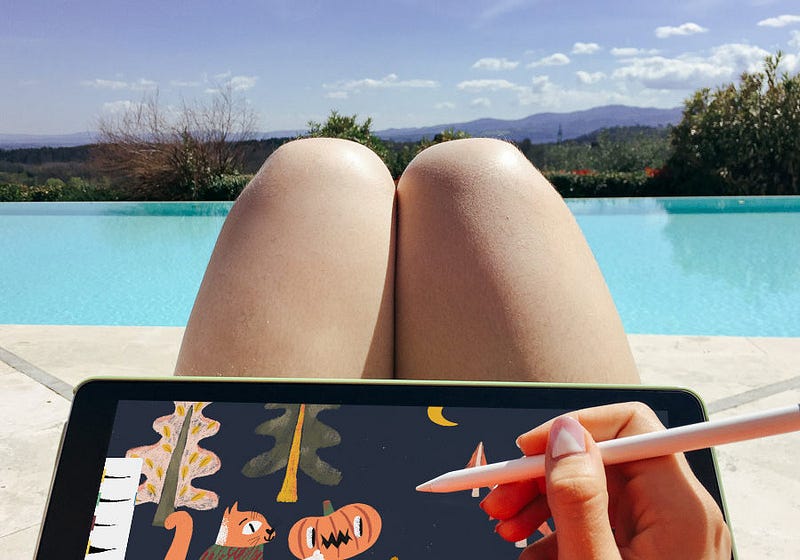
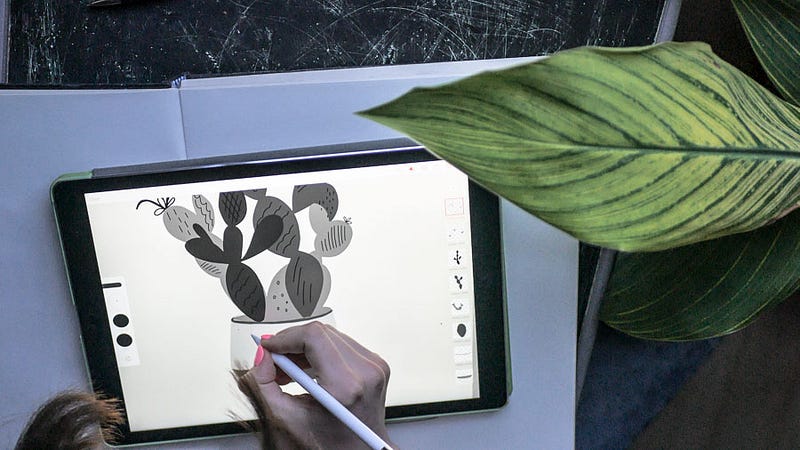
Portable and easy to use, iPad Pro helped me draw and deliver illustrations while on the aeroplane, on the beach, in bed and in beautiful cafes around the globe. Creating print-ready illustration on the go is now possible with an initial investment into an iPad Pro, Apple Pencil, and a few free Adobe apps. Thanks to these new tools being an illustrator don’t mean living an isolated home-bound experience like it used to be.
How is iPad Pro better than pen and paper?
I purchased the iPad Pro after my first illustrated picture book, Make a Face, was finished. Until then, all my illustrations were created on paper using crayons and pens. And by the way, I did enjoy experimenting with traditional tools, their textures and feel. The problem for me was the stress that came with using traditional media for commissioned work. I felt immense pressure to execute a drawing perfectly the first time around. Moreover, the whole process took a very long time. I had to scan each drawing and clean it up digitally in Photoshop — a painstaking process. I needed a faster option that would give me peace of mind.
Choosing a digital tablet: Wacom or iPad?
So, you have decided to purchase a drawing tablet. What should you go for: a Wacom or an iPad Pro?
Each of these tablets has their pros and cons and a few distinctive differences.
1. The ability to see the image that you are drawing directly on the tablet.
When you purchase an iPad Pro you would be able to see the image that you are drawing, as if it was on paper. To get the same effect with a Wacom tablet you will have to go for a higher spec Cintiq or Mobile Studio Pro tablet, which works out more expensive than an iPad Pro.
2. Portability.
iPad Pro functions independently from your laptop or PC, so you will have a self-sufficient drawing device everywhere you go. To get the same effect with a Wacom tablet you will need to get a Wacom MobileStudio Pro, as the rest of the models have to be plugged into a computer in order to mirror the screen.
3. Software choice
Wacom is used to mirror the screen of your laptop or PC, so you will essentially be using the desktop version of the software such as Illustrator or Photoshop. iPad Pro is a mobile device, so you would be able to use various apps which have been specifically adapted to deliver smooth mobile drawing experience. Recently, there has been some development in animation apps for iPad Pro, which is also very useful for a contemporary illustrator.
4. Functionality
You don’t have to use your iPad Pro only for drawing. It will come in useful in other life scenarios, such as checking emails, sharing images on social networks, editing videos and lots more! With Wacom, you will not be able to use it for anything else.
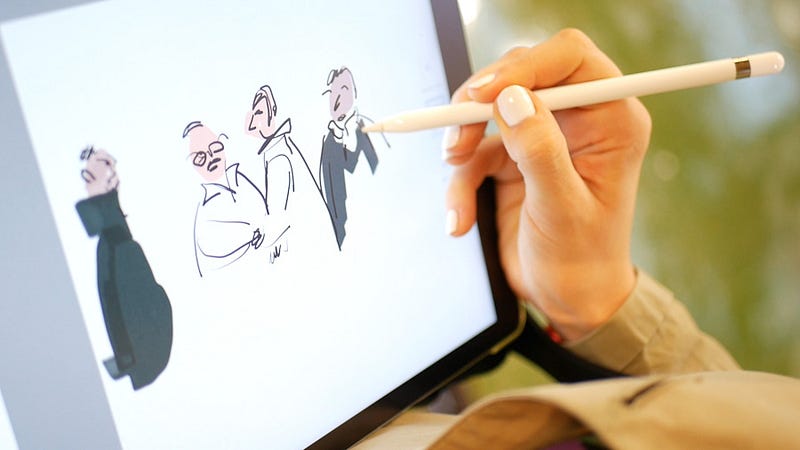
Let’s compare the two types of tablets in detail.
The ease of drawing with a stylus.
Wacom tablets are renowned for their realistic and precise drawing experience. This brand has been specialising in digital tablets for artists for many years. However, how much more “professional” is Wacom and how different does its surface feel? If you try an iPad Pro in the store you will notice that its surface is much more slippery. I know plenty of illustrators who like it, but if you are after a more paper-like feel then you can buy a cheap matt screen sticker (I use this one) which will add grip to the screen. Apple is also constantly improving the Apple Pencil, which in itself is quite a sophisticated tool. I personally don’t feel that buying an iPad Pro is less professional than using a Wacom, no wonder it has the word “PRO” in the name.
PS: I initially purchased an iPad Pro because it was the only iPad that worked with Apple Pencil at the time. My model is 12.9 inch 2005 with 128 GB storage. It’s 5 years old and it still works urgently fine. Right now you don’t need to purchase a pro version, as Apple Pencil will work with any iPad. If your budget is limited, it’s totally fine to buy an older version of Pro. Or go for a normal iPad instead.
Software and file resolution.
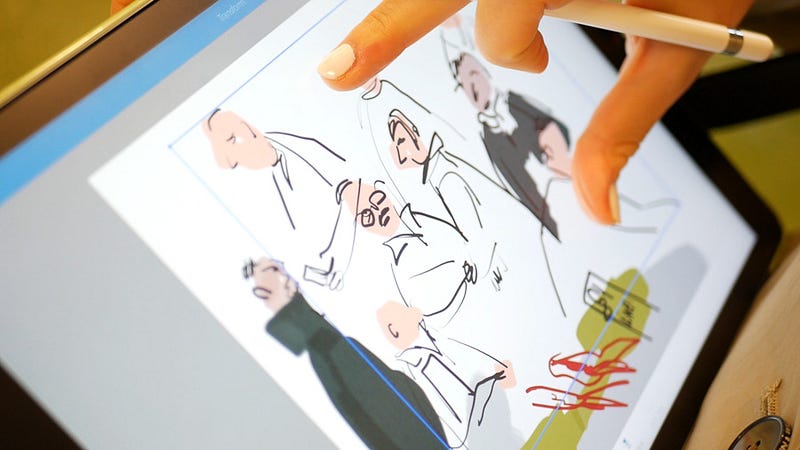
The next argument that the Wacom supporters usually give is that Wacom works with full versions of Illustrator and Photoshop, providing excellent choice in file resolution and functions. And indeed, there was a limit in file sizes and resolutions available in apps when iPad Pro first came out. However, the situation is different now. Firstly, Procreate app has always offered a good choice in image resolution and formats. Moreover, Adobe CC developed some amazing iPad apps. You can now get Adobe Fresco, which works with any size and resolution and offers mind blowing tools and brushes. The two older Adobe drawing apps are Adobe Photoshop Sketch and Adobe Photoshop Draw. They seamlessly integrate with Adobe desktop apps through Creative Cloud. With all these apps you will be able to draw in both vector and raster graphics.
Final thoughts:
When choosing between Wacom and Apple iPad Pro, ask yourself the following questions:
- Do I want to draw in full desktop version of Photoshop with all its functions? If the answer is yes, then Wacom is more suitable for you. Saying that, Astropad app lets you mirror your iPad Pro display, thus turning it into a Cintiq tablet. Using Astropad is a bit more cumbersome than using a Wacom in my opinion, but it is absolutely fine for smaller jobs.
- How important is it to be able to draw anywhere I want? If you want a light tablet that you can take with you anywhere, iPad Pro is perfect for you.
- Do I like to try new mobile apps? If the answer is yes, you will have a lot of fun testing various drawing and animation apps available for iPad Pro. If, however, the thought of exploring new technology gives you more stress than excitement, then you might find it easier to learn how to use Wacom, which simply mirrors a desktop version of Photoshop.
- In terms of choosing the size of a tablet, think what you usually feel comfortable working on. I have always liked big sheets of paper to draw on that’s why I went for a gigantic 12.9 inch iPad. However, you might be comfortable working on a smaller canvas.
In any case, don’t take my word for it. Take a trip to your local Apple store and test the new iPad Pro out for yourself. All the ones that I saw in the shop had Adobe Fresco installed — ready for testing.
My favourite drawing apps for iPad Pro
As promised, here is a list of all the apps I use every day to create my illustrations. Most of these apps are free, you only need to register with an Adobe account to use them.
Although to be completely honest sometimes I still find it easier to draw outlines on paper and then trace them on the iPad, most of the time I create all my artwork with Adobe vector and raster apps. There are other great alternatives on the market, but I like to use Adobe because I am already paying for Creative Cloud membership and the apps integrate beautifully with Adobe desktop software and Behance.
Here are my top 5 digital products that will set you up for creating beautiful digital art.
Adobe Fresco
This is a brand new app from Adobe released in 2019.
Adobe Fresco blows my mind with every new update. Some of its latest features that I love are:
1. Multicolour eyedropper tool
It creates an effect of mixed paint on the brush and makes your digital painting look extremely real.
Bonus: you can use a multicolour eyedropper tool to create custom brushes.
2. Live brushes
These bad boys act like real watercolours and real oils. They blend together seamlessly and you can even use transparent colour to “add water” and blur your illustrations.
3. Adobe Photoshop blending modes and masking tools.
You can use masks and paint inside later like in the desktop version of photoshop, which makes this app extremely powerful for illustrators.
Adobe Draw
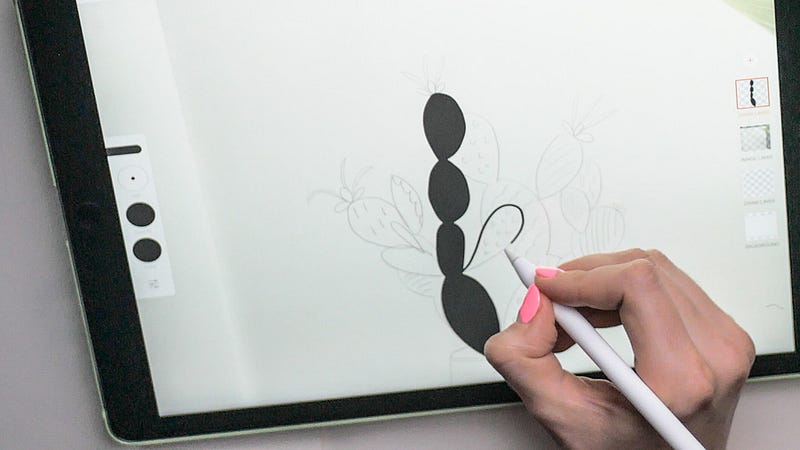
Adobe Illustrator Draw is a drawing app that allows you to sketch in vector graphics. I really like it because I can make graphics of any size and I can edit them easily afterwards in the desktop version of Illustrator. The function “send to desktop” opens the iPad drawing on your desktop with all the layers preserved. It literally just appears on your computer screen with one click! Also, you can save artwork as PDF, share to Behance, or copy the layers and move them to Adobe Sketch to add lovely raster textures and colours. Another thing that is totally awesome is that I can draw shapes with a finger and it makes me feel like Matisse.
Adobe Sketch
Adobe Photoshop Sketch is a raster drawing app, and the best thing about it is that you can use lovely textures and brushes which look shockingly real. To be honest, it is nothing like its better “brother” Adobe Fresco. But if you are a complete beginner to iPad art, it’s an easier app to use. One great function that I use a lot is called ‘paint inside layer’ (something like making a layer mask in Photoshop), which lets you colour inside a shape. Sketch includes the same sharing option as Draw, and did I mention the amazing function to automatically create a timelapse of your drawing so that you can share your work in progress?
Kyle Brush
All Adobe CC apps now come with Kyle’s brushes included in the package for free. Kyle’s brushes are truly incredible (thanks Kyle), and versatile. You used to be able to buy extra sets of brushes from Kyle’s website and load them into the Fresco app (or Photoshop), giving you thousands and thousands of brushes that mimic every existing traditional media. But now that Kyle joined Adobe, you will automatically get access to his brushes with your Adobe CC subscription.
Adobe Capture
I am absolutely useless at colour theory. I do not know how colours work, and I usually choose colours based on whether I like them or not. I figure I am not the only person struggling with this, as Adobe came up with another great app called Adobe Capture, which helps you capture and organise colour palettes among other amazing things. Are you looking to snap colour palettes while in cathedrals of Florence or London flower markets? Adobe Capture makes it as easy as taking a photograph and then using it to create an editable five colour palette. The palette is automatically synchronised across all your devices and desktop software. Bonus: it also creates mind-blowing seamless patterns from anything you photograph and traces objects into vector art. The future is here.
Astropad — for those, who miss the complete Photoshop experience.
If all these new apps are not cutting it for you or you are a hardcore Photoshop fan, then there is a solution for you too. Astropad, a desktop and iPad app, helps you mirror your computer display on an iPad, turning it into a version of Wacom Cintiq tablet. For a small one-off fee, you will be able to use your iPad with Photoshop and Illustrator. Astropad also offers a monthly subscription price option for more advanced service. I paid for the standard one, and there is a tiny lag when using the app. However, it has been useful for certain things, especially hand lettering.
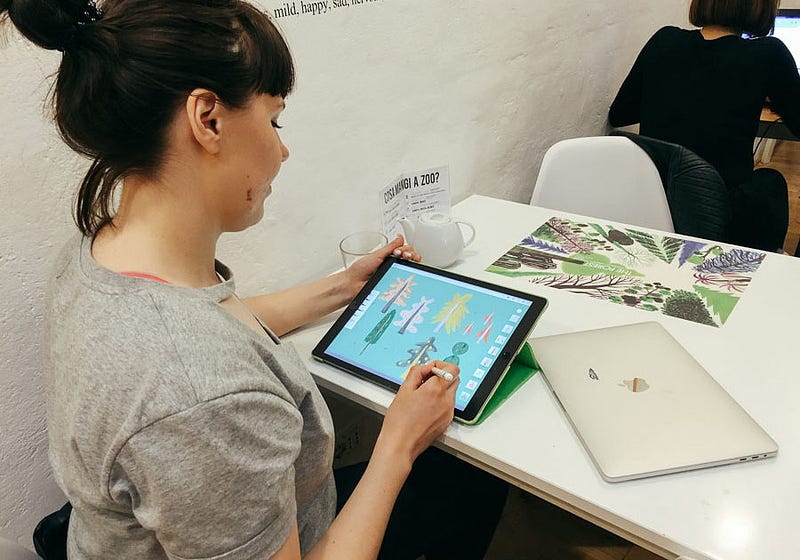
Give these tools a try and see for yourself. I am quite glad that some illustrators choose to stick with traditional tools which make their artworks so warm and expressive. For me personally, working on an iPad took the stress out of my job. I am now able to create and edit my drawings with ease. The apps are constantly evolving whilst adding new features, so this is an exciting time to join the emerging iPad community of digital creators.
What is your experience like with digital art? Let me know in comments!