avatarAbdelfattah Sekak

Free AI web copilot to create summaries, insights and extended knowledge, download it at here

5229

Abstract

n>;

<span class="hljs-keyword">export</span> <span class="hljs-keyword">async</span> <span class="hljs-keyword">function</span> <span class="hljs-title function_">POST</span>(<span class="hljs-params">req: Request</span>) { <span class="hljs-comment">// Extract the messages from the body of the request</span> <span class="hljs-keyword">const</span> { messages } = <span class="hljs-keyword">await</span> req.<span class="hljs-title function_">json</span>(); <span class="hljs-comment">// Request the OpenAI API for the response based on the prompt</span> <span class="hljs-keyword">const</span> response = <span class="hljs-keyword">await</span> openai.<span class="hljs-title function_">createChatCompletion</span>({ <span class="hljs-attr">model</span>: <span class="hljs-string">"gpt-3.5-turbo"</span>, <span class="hljs-attr">stream</span>: <span class="hljs-literal">true</span>, <span class="hljs-attr">messages</span>: messages, });

<span class="hljs-comment">// Convert the response into a friendly text-stream</span> <span class="hljs-keyword">const</span> stream = <span class="hljs-title class_">OpenAIStream</span>(response);

<span class="hljs-comment">// Respond with the stream</span> <span class="hljs-keyword">return</span> <span class="hljs-keyword">new</span> <span class="hljs-title class_">StreamingTextResponse</span>(stream); }</pre></div><h1 id="e43f">Creating UI Components</h1><p id="b171">The AI SDK incorporates hooks like <code>useChat</code> and <code>useCompletion</code> for your client components. To use the edge runtime directly, we will create a wrapper with a React Server Component:</p><p id="0eae">In <code>app/page.tsx</code> on the server component side, implement the Chat component and export the runtime as 'edge':</p><div id="837c"><pre><span class="hljs-comment">// app/page.tsx</span>

<span class="hljs-keyword">import</span> <span class="hljs-title class_">Chat</span> <span class="hljs-keyword">from</span> <span class="hljs-string">"./chat"</span>;

<span class="hljs-keyword">export</span> <span class="hljs-keyword">const</span> runtime = <span class="hljs-string">"edge"</span>;

<span class="hljs-keyword">export</span> <span class="hljs-keyword">default</span> <span class="hljs-keyword">function</span> <span class="hljs-title function_">Page</span>(<span class="hljs-params"></span>) { <span class="hljs-keyword">return</span> ( <span class="language-xml"><span class="hljs-tag"><<span class="hljs-name">div</span> <span class="hljs-attr">className</span>=<span class="hljs-string">"h-full w-full p-8 flex"</span>></span> <span class="hljs-tag"><<span class="hljs-name">Chat</span> /></span> <span class="hljs-tag"></<span class="hljs-name">div</span>></span></span> ); }</pre></div><p id="6658">Next, in the client-side <code>app/chat.tsx</code>, embrace the 'use client' directive and the <code>useChat</code> hook from 'ai/react'. This hook fuels dynamic chat functionality:</p><div id="1095"><pre><span class="hljs-comment">// app/chat.tsx</span>

<span class="hljs-string">"use client"</span>; <span class="hljs-keyword">import</span> { useChat } <span class="hljs-keyword">from</span> <span class="hljs-string">"ai/react"</span>;

<span class="hljs-keyword">export</span> <span class="hljs-keyword">default</span> <span class="hljs-keyword">function</span> <span class="hljs-title function_">MyComponent</span>(<span class="hljs-params"></span>) { <span class="hljs-keyword">const</span> { messages, input, handleInputChange, handleSubmit } = <span class="hljs-title function_">useChat</span>({ <span class="hljs-attr">api</span>: <span class="hljs-string">"/api/chat"</span>, });

<span class="hljs-keyword">return</span> ( <span class="language-xml"><span class="hljs-tag"><<span class="hljs-name">div</span> <span class="hljs-attr">className</span>=<span class="hljs-string">"bg-gray-100 p-4 rounded shadow-md m-auto w-full"</span>></span> <span class="hljs-tag"><<span class="hljs-name">ul</span> <span class="hljs-attr">className</span>=<span class="hljs-string">"space-y-2"</span>></span> {messages.map((m, index) => ( <span class="hljs-tag"><<span class="hljs-name">li</span> <span class="hljs-attr">key</span>=<span class="hljs-string">{index}</span> <span class="hljs-attr">className</span>=<span class="hljs-string">"p-2 rounded bg-white shadow text-gray-700"</span>></span> <span class="hljs-tag"><<span class="hljs-name">span</span> <span class="hljs-attr">className</span>=<span class="hljs-string">"font-semibold"</span>></span> {m.role === "user" ? "User: " : "AI Assistant: "} <span class="hljs-tag"></<span class="hljs-name">span</span>></span> {m.content} <span class="hljs-tag"></<span class="hljs-name">li</span>></span> ))} <span class="hljs-tag"></<span class="hljs-name">ul</span>></span>

  <span class="hljs-tag">&lt;<span class="hljs-name">form</span> <span class="hljs-attr">onSubmit</span>=<span class="hljs-string">{handleSubmit}</span> <span class="hljs-attr">className</span>=<span class="hljs-string"

Options

"mt-4"</span>></span> <span class="hljs-tag"><<span class="hljs-name">label</span> <span class="hljs-attr">className</span>=<span class="hljs-string">"block text-gray-700 text-sm font-bold mb-2"</span>></span> Write here ... <span class="hljs-tag"><<span class="hljs-name">input</span> <span class="hljs-attr">value</span>=<span class="hljs-string">{input}</span> <span class="hljs-attr">onChange</span>=<span class="hljs-string">{handleInputChange}</span> <span class="hljs-attr">className</span>=<span class="hljs-string">"w-full p-2 mt-1 rounded border shadow-sm"</span> /></span> <span class="hljs-tag"></<span class="hljs-name">label</span>></span> <span class="hljs-tag"><<span class="hljs-name">button</span> <span class="hljs-attr">type</span>=<span class="hljs-string">"submit"</span> <span class="hljs-attr">className</span>=<span class="hljs-string">"mt-2 bg-blue-500 hover:bg-blue-700 text-white font-bold py-2 px-4 rounded focus:outline-none focus:shadow-outline"</span> ></span> Submit <span class="hljs-tag"></<span class="hljs-name">button</span>></span> <span class="hljs-tag"></<span class="hljs-name">form</span>></span> <span class="hljs-tag"></<span class="hljs-name">div</span>></span></span> ); }</pre></div><p id="ce7a">With this assembly, the server-side Page function returns the Chat component configured with edge runtime. In contrast, the client-side component harnesses the <code>useChat</code> hook for dynamic chat functionality.</p><h1 id="f923">Running the Application</h1><p id="a77b">You’re only one step away from having your chatbot up and running! Start your application with this command:</p><div id="056c"><pre>npm run dev</pre></div><figure id="2c81"><img src="https://cdn-images-1.readmedium.com/v2/resize:fit:800/1*7JnAOP5ZCuGEoTEsk7-shA.png"><figcaption></figcaption></figure><p id="fec2">Your AI-powered chatbot is now live! Thanks to AI and OpenAI-Edge, creating user interfaces that make a real impact has never been simpler. Now, you can develop and deploy AI-based user interfaces in your Next.js applications.</p><p id="9ea7">Feel inspired? Great! Now, go forth and unleash the power of AI to create engaging and intelligent chatbots for your business. And don’t forget to stay tuned for Part II, where we’ll amp up our chatbot with embeddings!</p><p id="5e04">You can access the complete source code for our custom chatbot on GitHub</p><h2 id="fd15">GitHub Repo</h2><div id="b3b9" class="link-block"> <a href="https://github.com/abdelfattah-sekak/custom-chabot"> <div> <div> <h2>GitHub — abdelfattah-sekak/custom-chabot</h2> <div><h3>Contribute to abdelfattah-sekak/custom-chabot development by creating an account on GitHub.</h3></div> <div><p>github.com</p></div> </div> <div> <div style="background-image: url(https://miro.readmedium.com/v2/resize:fit:320/0*jMob1GtAsDsrzoPX)"></div> </div> </div> </a> </div><h2 id="cfa3">Part II</h2><div id="1456" class="link-block"> <a href="https://medium.com/@abdelfattah.sekak/all-you-need-to-build-your-custom-chatbot-with-nextjs-openai-and-supabase-part-ii-7e4270cb5ddf"> <div> <div> <h2>All You Need to Build Your Custom Chatbot with Next.js, OpenAI, and Supabase : Part II</h2> <div><h3>Hey there, friends! Do you recall our fascinating conversation in Part I about crafting custom chatbots? If you enjoyed…</h3></div> <div><p>medium.com</p></div> </div> <div> <div style="background-image: url(https://miro.readmedium.com/v2/resize:fit:320/0*7gxbVtRa4G3OEkoM)"></div> </div> </div> </a> </div><p id="e9f5"><b><i>If you find yourself with any questions or simply wish to chat, don’t hesitate to share your thoughts below or reach out to me directly at:</i></b></p><p id="f579"><b>Email</b> : [email protected]</p><p id="767f"><b>LinkedIn</b> : <a href="https://www.linkedin.com/in/abdelfattah-sekak-760847141/">https://www.linkedin.com/in/abdelfattah-sekak-760847141/</a></p><h1 id="42fd">In Plain English</h1><p id="a620"><i>Thank you for being a part of our community! Before you go:</i></p><ul><li><i>Be sure to <b>clap</b> and <b>follow</b> the writer! 👏</i></li><li><i>You can find even more content at <a href="https://plainenglish.io/"><b>PlainEnglish.io</b></a><b> 🚀</b></i></li><li><i>Sign up for our <a href="http://newsletter.plainenglish.io/"><b>free weekly newsletter</b></a>. 🗞️</i></li><li><i>Follow us on <a href="https://twitter.com/inPlainEngHQ"><b>Twitter</b></a></i>, <a href="https://www.linkedin.com/company/inplainenglish/"><b><i>LinkedIn</i></b></a>, <a href="https://www.youtube.com/channel/UCtipWUghju290NWcn8jhyAw"><b><i>YouTube</i></b></a>, and <a href="https://discord.gg/GtDtUAvyhW"><b><i>Discord</i></b></a><b><i>.</i></b></li></ul></article></body>

All You Need to Build Your Custom Chatbot with Next.js, OpenAI, and Supabase: Part I
Photo by Jason Leung on Unsplash

Ever thought about having a powerful yet easy-to-build chatbot that could be trained with your own data for your business? Get excited, because that’s exactly what we’ll cover in this Part I of our two-part series on how to create a custom chatbot in Next.js using OpenAI and Supabase! In Part II, we’ll add depth to the chatbot by utilizing embeddings.

Vercel AI SDK offers an extraordinary set of tools to build AI-powered user interfaces using Next.js and OpenAI’s API. In this educational blog post, we’ll explore how to set up AI and OpenAI-Edge in your Next.js application.

Prerequisites

Before jumping into action, ensure you have the following:

  • Node.js 18+ installed on your local development machine.
  • An OpenAI API key. You can get one by signing up on the OpenAI website.

Creating a Next.js Application

Let’s kick off our journey by creating a brand-new Next.js application. Run the following command in your terminal. This command generates a new directory called my-ai-app and sets up a basic Next.js application inside it:

npx create-next-app custom-chatgpt --tailwind

Now, navigate to the shiny, newly created directory:

cd custom-chatgpt

Installing Dependencies

To prep our environment, install the AI and OpenAI-Edge dependencies. OpenAI-Edge is preferred over the official OpenAI SDK since it’s compatible with Vercel Edge Functions:

npm install ai openai-edge

Configuring the OpenAI API Key

Time to connect your application to the OpenAI engine. Create a .env.local file in your project root and add your OpenAI API key. This key allows your application to communicate with the OpenAI service:

OPENAI_API_KEY=your_api_key_here

Setting Up OpenAI

We have to set up a route handler in Next.js for managing OpenAI. Create a file called utils/openai.ts and import the essential components:

// utils/openai.ts

import { Configuration, OpenAIApi } from "openai-edge";

const config = new Configuration({
  apiKey: process.env.OPENAI_API_KEY,
});

export const openai = new OpenAIApi(config);import { Configuration, OpenAIApi } from "openai-edge";const config = new Configuration({ apiKey: process.env.OPENAI_API_KEY,});export const openai = new OpenAIApi(config);

Creating an API Route

Our next step is to create a Next.js route handler in a new file called app/api/chat/route.ts. This handler employs the Edge Runtime to generate chat messages through OpenAI, passing them back to Next.js:

// app/api/chat/route.ts

import { openai } from "@/utils/openai";
import { OpenAIStream, StreamingTextResponse } from "ai";
export const runtime = "edge";

export async function POST(req: Request) {
  // Extract the `messages` from the body of the request
  const { messages } = await req.json();
  // Request the OpenAI API for the response based on the prompt
  const response = await openai.createChatCompletion({
    model: "gpt-3.5-turbo",
    stream: true,
    messages: messages,
  });

  // Convert the response into a friendly text-stream
  const stream = OpenAIStream(response);

  // Respond with the stream
  return new StreamingTextResponse(stream);
}

Creating UI Components

The AI SDK incorporates hooks like useChat and useCompletion for your client components. To use the edge runtime directly, we will create a wrapper with a React Server Component:

In app/page.tsx on the server component side, implement the Chat component and export the runtime as 'edge':

// app/page.tsx

import Chat from "./chat";

export const runtime = "edge";

export default function Page() {
  return (
    <div className="h-full w-full p-8 flex">
      <Chat />
    </div>
  );
}

Next, in the client-side app/chat.tsx, embrace the 'use client' directive and the useChat hook from 'ai/react'. This hook fuels dynamic chat functionality:

// app/chat.tsx

"use client";
import { useChat } from "ai/react";

export default function MyComponent() {
  const { messages, input, handleInputChange, handleSubmit } = useChat({
    api: "/api/chat",
  });

  return (
    <div className="bg-gray-100 p-4 rounded shadow-md m-auto w-full">
      <ul className="space-y-2">
        {messages.map((m, index) => (
          <li key={index} className="p-2 rounded bg-white shadow text-gray-700">
            <span className="font-semibold">
              {m.role === "user" ? "User: " : "AI Assistant: "}
            </span>
            {m.content}
          </li>
        ))}
      </ul>

      <form onSubmit={handleSubmit} className="mt-4">
        <label className="block text-gray-700 text-sm font-bold mb-2">
          Write here ...
          <input
            value={input}
            onChange={handleInputChange}
            className="w-full p-2 mt-1 rounded border shadow-sm"
          />
        </label>
        <button
          type="submit"
          className="mt-2 bg-blue-500 hover:bg-blue-700 text-white font-bold py-2 px-4 rounded focus:outline-none focus:shadow-outline"
        >
          Submit
        </button>
      </form>
    </div>
  );
}

With this assembly, the server-side Page function returns the Chat component configured with edge runtime. In contrast, the client-side component harnesses the useChat hook for dynamic chat functionality.

Running the Application

You’re only one step away from having your chatbot up and running! Start your application with this command:

npm run dev
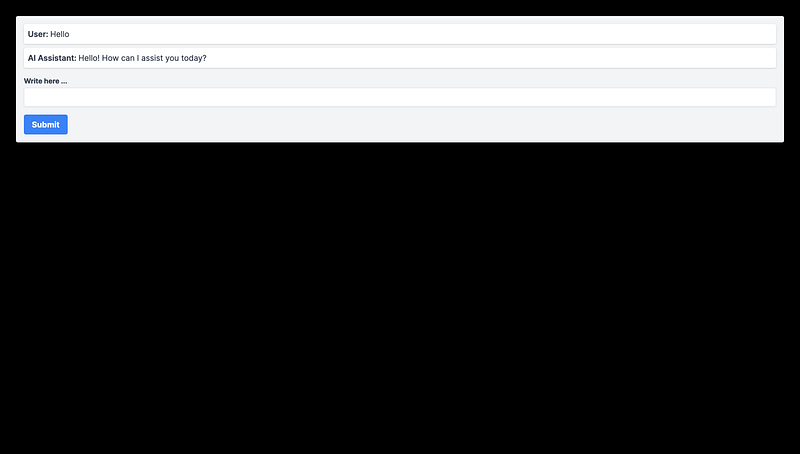
Your AI-powered chatbot is now live! Thanks to AI and OpenAI-Edge, creating user interfaces that make a real impact has never been simpler. Now, you can develop and deploy AI-based user interfaces in your Next.js applications.

Feel inspired? Great! Now, go forth and unleash the power of AI to create engaging and intelligent chatbots for your business. And don’t forget to stay tuned for Part II, where we’ll amp up our chatbot with embeddings!

You can access the complete source code for our custom chatbot on GitHub

GitHub Repo

Part II

If you find yourself with any questions or simply wish to chat, don’t hesitate to share your thoughts below or reach out to me directly at:

Email : [email protected]

LinkedIn : https://www.linkedin.com/in/abdelfattah-sekak-760847141/

In Plain English

Thank you for being a part of our community! Before you go:

ChatGPT
Front End Development
Programming
Technology
Artificial Intelligence
Recommended from ReadMedium