
Pandas read_csv() tricks you should know to speed up your data analysis
Some of the most helpful Pandas tricks to speed up your data analysis

Importing data is the first step in any data science project. Often, you’ll work with data in CSV files and run into problems at the very beginning. In this article, you’ll see how to use the Pandas read_csv() function to deal with the following common problems.
- Dealing with different character encodings
- Dealing with headers
- Dealing with columns
- Parsing date columns
- Setting data type for columns
- Finding and locating invalid value
- Appending data to an existing CSV file
- Loading a huge CSV file with
chunksize
Please check out my Github repo for the source code.
1. Dealing with different character encodings
Character encodings are specific sets of rules for mapping from raw binary byte strings to characters that make up the human-readable text [1]. Python has built-in support for a list of standard encodings.
Character encoding mismatches are less common today as UTF-8 is the standard text encoding in most of the programming languages including Python. However, it is definitely still a problem if you are trying to read a file with a different encoding than the one it was originally written. You are most likely to end up with something like below or DecodeError when that happens:

The Pandas read_csv() function has an argument call encoding that allows you to specify an encoding to use when reading a file.
Let’s take a look at an example below:
First, we create a DataFrame with some Chinese characters and save it with encoding='gb2312' .
df = pd.DataFrame({'name': '一 二 三 四'.split(), 'n': [2, 0, 2, 3]})df.to_csv('data/data_1.csv', encoding='gb2312', index=False)Then, you should get an UnicodeDecodeError when trying to read the file with the default utf8 encoding.
# Read it with default encoding='utf8'
# You should get an error
pd.read_csv('data/data_1.csv')
In order to read it correctly, you should pass the encoding that the file was written.
pd.read_csv('data/data_1.csv', encoding='gb2312')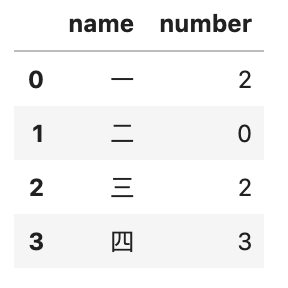
2. Dealing with headers
Headers refer to the column names. For some datasets, the headers may be completely missing, or you might want to consider a different row as headers. The read_csv() function has an argument called header that allows you to specify the headers to use.
No headers
If your CSV file does not have headers, then you need to set the argument header to None and the Pandas will generate some integer values as headers
For example to import data_2_no_headers.csv
pd.read_csv('data/data_2_no_headers.csv', header=None)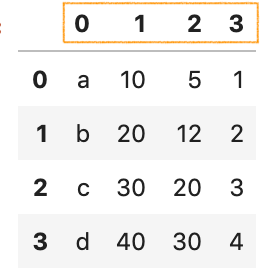
Consider different row as headers
Let’s take a look at data_2.csv
x1,       x2,      x3,     x4
product,  price,   cost,   profit
a,        10,      5,      1
b,        20,      12,     2
c,        30,      20,     3
d,        40,      30,     4
It seems like more sensible columns name would be product, price, … profit, but they are not in the first row. The argument header also allows you to specify the row number to use as the column names and the start of data. In this case, we would like to skip the first row and use the 2nd row as headers:
pd.read_csv('data/data_2.csv', header=1)3. Dealing with columns
When your input dataset contains a large number of columns, and you want to load a subset of those columns into a DataFrame, then usecols will be very useful.
Performance-wise, it is better because instead of loading an entire DataFrame into memory and then deleting the spare columns, we can select the columns we need while loading the dataset.
Let’s use the same dataset data_2.csv and select the product and cost columns.
pd.read_csv('data/data_2.csv',
            header=1,
            usecols=['product', 'cost'])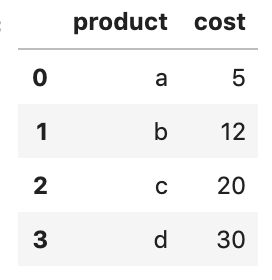
We can also pass the column index to usecols:
pd.read_csv('data/data_2.csv',
            header=1,
            usecols=[0, 1])
4. Parsing date columns
Date columns are represented as objects by default when loading data from a CSV file.
df = pd.read_csv('data/data_3.csv')
df.info()RangeIndex: 4 entries, 0 to 3
Data columns (total 5 columns):
# Column Non-Null Count Dtype
--- ------ -------------- -----
0 date 4 non-null object
1 product 4 non-null object
2 price 4 non-null int64
3 cost 4 non-null int64
4 profit 4 non-null int64
dtypes: int64(3), object(2)
memory usage: 288.0+ bytesTo read the date column correctly, we can use the argument parse_dates to specify a list of date columns.
df = pd.read_csv('data/data_3.csv', parse_dates=['date'])
df.info()<class 'pandas.core.frame.DataFrame'>
RangeIndex: 4 entries, 0 to 3
Data columns (total 5 columns):
# Column Non-Null Count Dtype
--- ------ -------------- -----
0 date 4 non-null datetime64[ns]
1 product 4 non-null object
2 price 4 non-null int64
3 cost 4 non-null int64
4 profit 4 non-null int64
dtypes: datetime64[ns](1), int64(3), object(1)
memory usage: 288.0+ bytesSometime date is split up into multiple columns, for example, year, month, and day. To combine them into a datetime, we can pass a nested list to parse_dates.
df = pd.read_csv('data/data_4.csv',
                 parse_dates=[['year', 'month', 'day']])
df.info()RangeIndex: 4 entries, 0 to 3
Data columns (total 5 columns):
# Column Non-Null Count Dtype
--- ------ -------------- -----
0 year_month_day 4 non-null datetime64[ns]
1 product 4 non-null object
2 price 4 non-null int64
3 cost 4 non-null int64
4 profit 4 non-null int64
dtypes: datetime64[ns](1), int64(3), object(1)
memory usage: 288.0+ bytesTo specify a custom column name instead of the auto-generated year_month_day, we can pass a dictionary instead.
df = pd.read_csv('data/data_4.csv',
                 parse_dates={ 'date': ['year', 'month', 'day'] })
df.info()
If your date column is in a different format, then you can customize a date parser and pass it to the argument date_parser:
from datetime import datetime
custom_date_parser = lambda x: datetime.strptime(x, "%Y %m %d %H:%M:%S")pd.read_csv('data/data_6.csv',
parse_dates=['date'],
date_parser=custom_date_parser)For more about parsing date columns, please check out this article
5. Setting data type
If you want to set the data type for the DataFrame columns, you can use the argument dtype , for example
pd.read_csv('data/data_7.csv',
                 dtype={
                     'Name': str,
                     'Grade': int
                 })
6. Finding and locating invalid values
You might get the TypeError when setting data type using the argument dtype
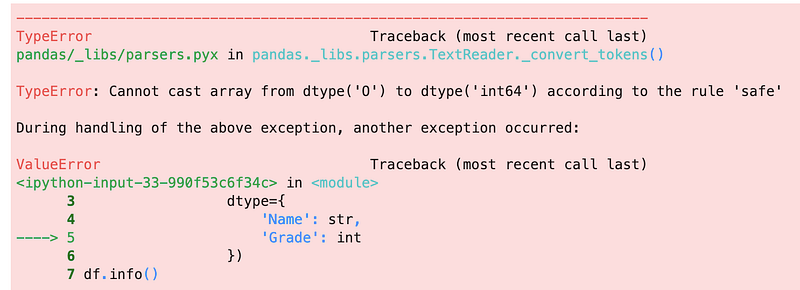
It is always useful to find and locate the invalid values when this error happens. Here is how you can find them:
df = pd.read_csv('data/data_8.csv')is_error = pd.to_numeric(df['Grade'], errors='coerce').isna()df[is_error]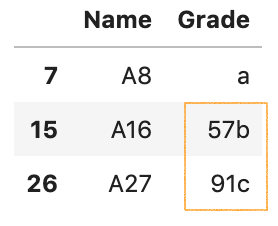
7. Appending data to an existing CSV file
You can specify a Python write mode in the Pandas to_csv() function. For appending data to an existing CSV file, we can use mode='a':
new_record = pd.DataFrame([['New name', pd.to_datetime('today')]],
columns=['Name', 'Date'])new_record.to_csv('data/existing_data.csv',
mode='a',
header=None,
index=False)8. Loading a huge CSV file with chunksize
By default, Pandas read_csv() function will load the entire dataset into memory, and this could be a memory and performance issue when importing a huge CSV file.
read_csv() has an argument called chunksize that allows you to retrieve the data in a same-sized chunk. This is especially useful when reading a huge dataset as part of your data science project.
Let’s take a look at an example below:
First, let’s make a huge dataset with 400,000 rows and save it to big_file.csv
# Make up a huge datasetnums = 100_000for name in 'a b c d'.split():
df = pd.DataFrame({
'col_1': [1]*nums,
'col_2': np.random.randint(100, 2000, size=nums)
}) df['name'] = name
df.to_csv('data/big_file.csv',
mode='a',
index=False,
header= name=='a')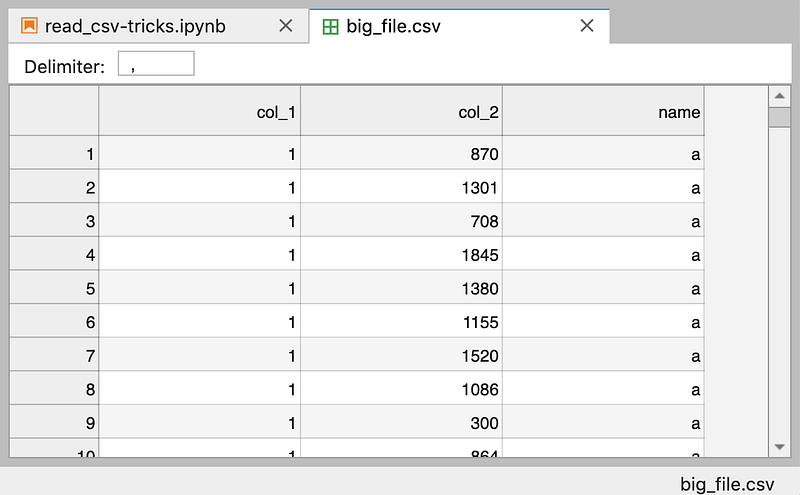
Next, let’s specify a chucksize of 50,000 when loading data with read_csv()
dfs = pd.read_csv('data/big_file.csv',
                  chunksize=50_000,
                  dtype={
                      'col_1': int,
                      'col_2': int,
                      'name': str
                  })
Let’s perform some aggregations on each chunk and then concatenate the result into a single DataFrame.
res_dfs = []
for chunk in dfs:
    res = chunk.groupby('name').col_2.agg(['count', 'sum'])
res_dfs.append(res)pd.concat(res_dfs).groupby(level=0).sum()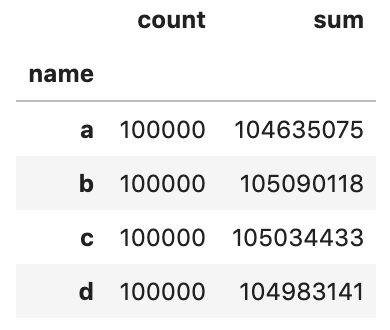
Let’s validate the result against a solution without chunksize
pd.read_csv('data/big_file.csv',
              dtype={
                  'col_1': int,
                  'col_2': int,
                  'name': str
              }).groupby('name').col_2.agg(['count', 'sum'])
And you should get the same output.
That’s it
Thanks for reading.
Please checkout the notebook on my Github for the source code.
Stay tuned if you are interested in the practical aspect of machine learning.
Here are some related articles
- 4 tricks you should know to parse date columns with Pandas read_csv()
- 6 Pandas tricks you should know to speed up your data analysis
- 7 setups you should include at the beginning of a data science project.
References
- [1] Kaggle Data Cleaning: Character Encoding


