avatarClive Wilson

Free AI web copilot to create summaries, insights and extended knowledge, download it at here

3314

Abstract

of the author</figcaption></figure><p id="5481">A ‘zip’ file is a compressed file archive. It’s a convenient way of both compressing files to take up less space and also combining multiple files into one ‘archive’. A zip can contain as little as a single file or as much as an entire multi-folder/multi-file structure.</p><p id="c214">Click the button.</p><p id="60ed">You won’t immediately see the download begin. Instead, you’ll be taken to another screen, like this:</p><figure id="2a3f"><img src="https://cdn-images-1.readmedium.com/v2/resize:fit:800/1*NnZ3HvB4QP3to0M-H7qczw.jpeg"><figcaption>Image courtesy of the author</figcaption></figure><p id="a1f0">Click the ‘Export’ button. You’ll see a message saying they have received your export request and that you’ll get an email with download instructions soon.</p><p id="f989">The email you’ll receive looks like this:</p><figure id="79c4"><img src="https://cdn-images-1.readmedium.com/v2/resize:fit:800/1*9mFBIf3Vq2M2GoD2uSZt2g.jpeg"><figcaption>Image courtesy of the author</figcaption></figure><p id="f523">Now click the highlighted text ‘Download my archive’ and, lo-and-behold, you’ll finally see a dialogue box asking where you’d like the ‘medium-export.zip’ file to be saved.</p><h2 id="064d">Accessing your data</h2><p id="8019">To make use of the zip archive, you should first unzip it. On a Windows PC, right-click the zip and select ‘Extract All’. On a Mac, double click the zip.</p><p id="f3c5">The zip contains multiple folders, each of which contains one or more ‘.html’ files. These are web pages that will display lists of your content and other information. Clicking the links within the pages for your posts, for example, will take you to pre-formatted web pages displaying showing articles.</p><p id="b37e">Here’s what the folder contains (as the banner image):</p><figure id="e4b6"><img src="https://cdn-images-1.readmedium.com/v2/resize:fit:800/1*wA_0TxUHXuTvnbOAbxx9Qw.jpeg"><figcaption>Image courtesy of the author</figcaption></figure><h2 id="2e79">Articles</h2><p id="fb49">Your published articles are in the ‘posts’ folder. It’s not just your articles though, it’s everything you’ve ever written and published, including all your comments, listed in reverse chronological order, so the oldest appears at the top.</p><p id="d971">You’ll need to go through all the files picking out which are articles and which are comments, but they’re all there, which is no bad thing.</p><p id="5b68">If you click on an article file, it will open it in a browser tab/window, and display it almost exactly as it does in Medium. Even the images will be present, although these are not downloaded with the export archive. The images are stored on Medium’s servers in what’s called a ‘CDN’ — a storage facility just for images.</p><p id="450d">If you want to keep a copy of the images used in your articles, right-click (control-click) to download them individually. Just be aware the file names won’t make sense.</p><h2 id="b4d9">What, and whom, are you following?</h2><p id="bf63">We all forget what and whom we’re following. But not anymore.</p><p id="6703">In the ‘pubs-following’ folder is a file (or files) containing a list of all the publications you follow, including a link to each one.</p><p id="77b0">In the ‘topics-following’ folder is e

Options

very topic you follow.</p><p id="7380">In the ‘users-following’ folder is, yes, you guessed it…</p><h2 id="02c5">More interesting information</h2><p id="3e99">The ‘interests’ folder is really useful as it contains files for publications, tags, topics and writers you’ve shown interest in, not necessarily followed. So if you’re looking for someone you found a while ago, but you can’t quite remember their name, it’ll be on the writers list.</p><p id="dea5">Imagine wanting to know which articles you clapped for and how many claps you gave. You’ll find that in the ‘claps’ folder. Every article or comment, how many claps you gave, the time, the date, and a link to the article.</p><p id="451a">Which of your articles earned you money, and how much did you earn? The answers are all there in the ‘partner-program’ list.</p><p id="976a">We all bookmark articles we want to come back to, and probably rarely do. Every article you’ve bookmarked is here, under (you guessed it) ‘bookmarks’, complete with the time, date and a link to the article.</p><p id="ad49">Finally, and my favourite; highlights. How many times have you highlighted a sentence because it resonated with you, so you could return to it later? Hundreds, I suspect. Well, every single highlight you’ve ever made is here, with times, dates and links. How amazing is that?</p><figure id="657d"><img src="https://cdn-images-1.readmedium.com/v2/resize:fit:800/1*qIZ3Ecm8kTz201lIyF_uWw.png"><figcaption></figcaption></figure><h2 id="9daf">Why export your data?</h2><p id="a391">Aside from the wealth of knowledge that you'll now spend hours and hours poring over, the main benefit is having all that information — all <b><i>your</i></b> content — completely under your control, not someone else’s.</p><p id="3dd2">Cloud storage becomes more reliable and more stable every day, and it’s inevitable that we come to rely on it. Whether you use Google Drive, OneDrive, iCloud, DropBox, or any of the dozens of other offerings, it’s also good to keep a local copy of what’s really important to you.</p><p id="327c">Medium provides this export facility in a completely open and transparent way, and I respect them a great deal for doing so.</p><p id="3bc4">Take advantage of this feature. Download your content now and do so at least once a month. The data is cumulative, so you can delete previous versions.</p><figure id="0377"><img src="https://cdn-images-1.readmedium.com/v2/resize:fit:800/1*qIZ3Ecm8kTz201lIyF_uWw.png"><figcaption></figcaption></figure><h2 id="432c">About the author: Clive Wilson</h2><div id="8c7e" class="link-block"> <a href="https://readmedium.com/an-introduction-from-clive-wilson-f6adac5d15e7"> <div> <div> <h2>A bit about Clive Wilson</h2> <div><h3>From school dunce to Mission Impossible and beyond</h3></div> <div><p>medium.com</p></div> </div> <div> <div style="background-image: url(https://miro.readmedium.com/v2/resize:fit:320/1*DQGhE1sUZAqgEjzx_VS0xA.jpeg)"></div> </div> </div> </a> </div><figure id="367e"><img src="https://cdn-images-1.readmedium.com/v2/resize:fit:800/1*qIZ3Ecm8kTz201lIyF_uWw.png"><figcaption></figcaption></figure></article></body>

MEDIUM DATA EXPORT

Afraid Of Losing Your Medium Content? Export Your Data Now.

Who knew the export files contained so much information?
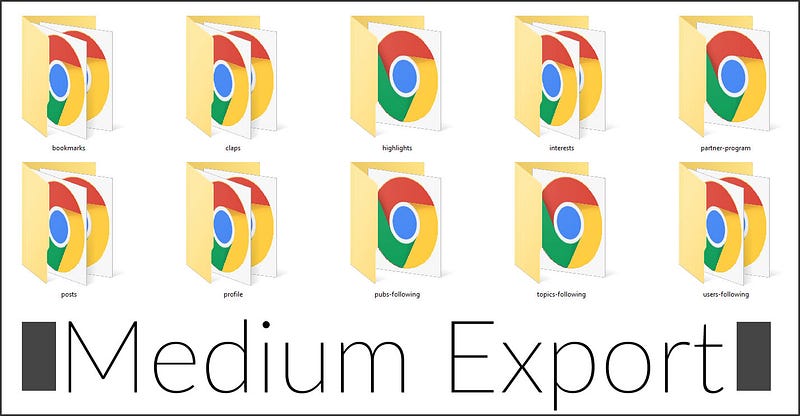
Image courtesy of the author

Medium holds a lot of content that belongs to us. We entrust them with storing the content we lovingly create, in the certain knowledge they will look after it, care for it and always make it available to us.

But what if something goes wrong?

In October 2014, DropBox reported a technical issue had caused some data to be lost. The email they sent to all affected account holders said, “We’re reaching out to let you know about a Selective Sync issue that affected a small number of Dropbox users. Unfortunately, some of your files were deleted when the Dropbox desktop application was shut down or restarted while you were applying Selective Sync settings.”

Sorry, can you say that again? “Unfortunately, some of your files were deleted.”

WTF? Isn’t keeping my files safe your sole purpose in life, DropBox?

In August 2015, lightning struck a utility grid near one of Google’s cloud storage data centres in Belgium. Not once, not twice, not three times, but FOUR times in the same week. Google lost a small amount of stored data because of the strikes. No big deal, perhaps, except they lost it. I mean permanently lost, never to be recovered.

It happens. Yes, you’re paying for a service (some are free, of course, but it’s still a service). And yes, they do their best. The technology is incredible, but it’s really only computers and hard drives and memory and wires, not dissimilar to your home or office network, only much bigger and much harder to manage.

You can’t rely 100% on the safety or security of content which is stored elsewhere, and definitely not if it’s only in one location as it is with Medium if you don’t keep copies.

Medium Export

Once I’d published around 15 articles on Medium, I decided to take a look at the export tool. You know, the export tool? No? OK, I thought not.
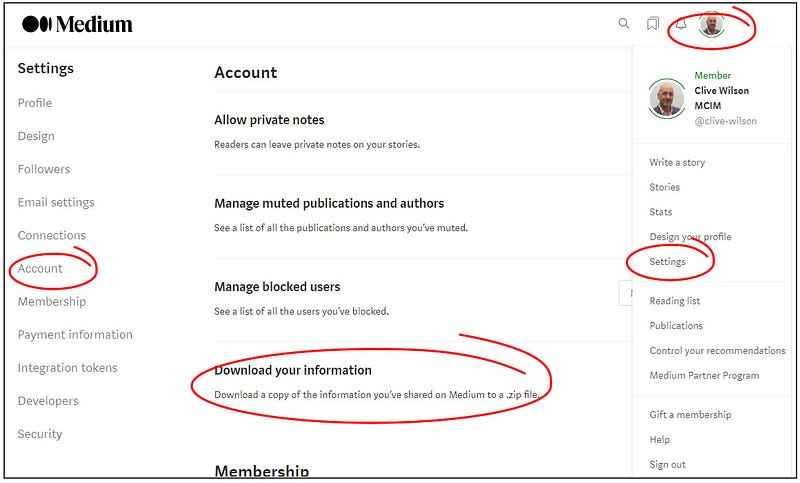
Image courtesy of the author

Here’s how to get to it and how to use it.

Click on your profile icon, then ‘Settings’, then ‘Account’, then ‘Download your information’. Medium doesn’t call it ‘export’ at this point, but that’s exactly what it will do.

Simple, this process is. Short, it ain’t. But it’s well worth the effort.

To the right of ‘Download your information’ (obscured by the drop-down menu in the above image) is a ‘Download .zip’ button:

Image courtesy of the author

A ‘zip’ file is a compressed file archive. It’s a convenient way of both compressing files to take up less space and also combining multiple files into one ‘archive’. A zip can contain as little as a single file or as much as an entire multi-folder/multi-file structure.

Click the button.

You won’t immediately see the download begin. Instead, you’ll be taken to another screen, like this:
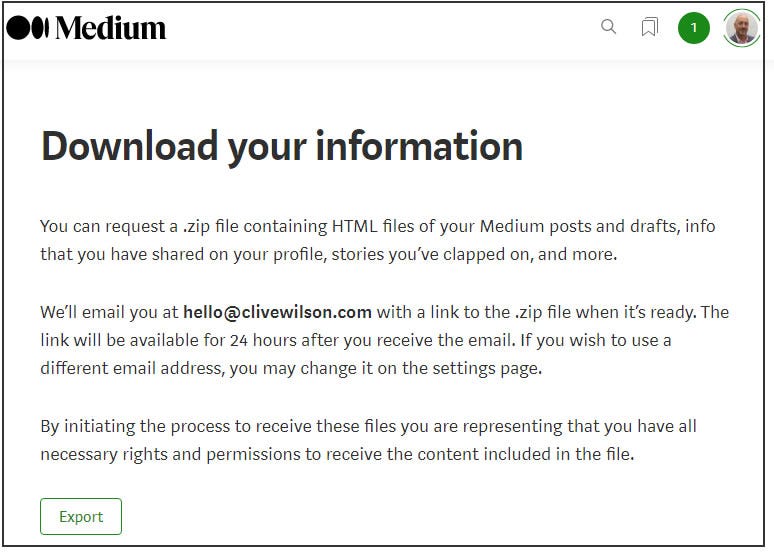
Image courtesy of the author

Click the ‘Export’ button. You’ll see a message saying they have received your export request and that you’ll get an email with download instructions soon.

The email you’ll receive looks like this:
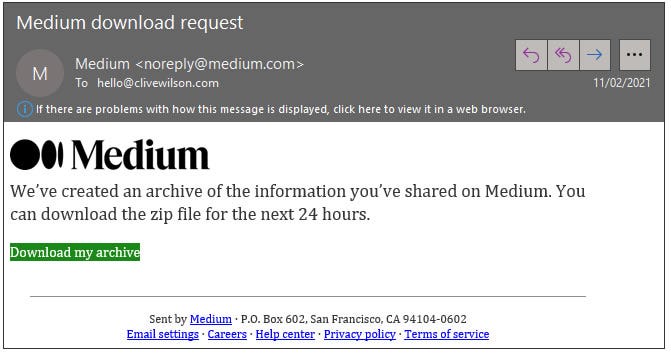
Image courtesy of the author

Now click the highlighted text ‘Download my archive’ and, lo-and-behold, you’ll finally see a dialogue box asking where you’d like the ‘medium-export.zip’ file to be saved.

Accessing your data

To make use of the zip archive, you should first unzip it. On a Windows PC, right-click the zip and select ‘Extract All’. On a Mac, double click the zip.

The zip contains multiple folders, each of which contains one or more ‘.html’ files. These are web pages that will display lists of your content and other information. Clicking the links within the pages for your posts, for example, will take you to pre-formatted web pages displaying showing articles.

Here’s what the folder contains (as the banner image):
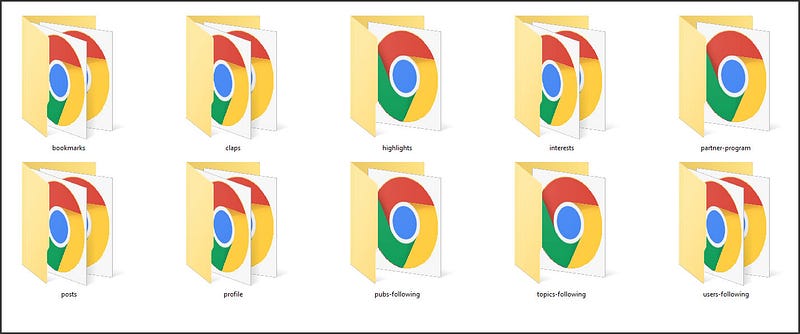
Image courtesy of the author

Articles

Your published articles are in the ‘posts’ folder. It’s not just your articles though, it’s everything you’ve ever written and published, including all your comments, listed in reverse chronological order, so the oldest appears at the top.

You’ll need to go through all the files picking out which are articles and which are comments, but they’re all there, which is no bad thing.

If you click on an article file, it will open it in a browser tab/window, and display it almost exactly as it does in Medium. Even the images will be present, although these are not downloaded with the export archive. The images are stored on Medium’s servers in what’s called a ‘CDN’ — a storage facility just for images.

If you want to keep a copy of the images used in your articles, right-click (control-click) to download them individually. Just be aware the file names won’t make sense.

What, and whom, are you following?

We all forget what and whom we’re following. But not anymore.

In the ‘pubs-following’ folder is a file (or files) containing a list of all the publications you follow, including a link to each one.

In the ‘topics-following’ folder is every topic you follow.

In the ‘users-following’ folder is, yes, you guessed it…

More interesting information

The ‘interests’ folder is really useful as it contains files for publications, tags, topics and writers you’ve shown interest in, not necessarily followed. So if you’re looking for someone you found a while ago, but you can’t quite remember their name, it’ll be on the writers list.

Imagine wanting to know which articles you clapped for and how many claps you gave. You’ll find that in the ‘claps’ folder. Every article or comment, how many claps you gave, the time, the date, and a link to the article.

Which of your articles earned you money, and how much did you earn? The answers are all there in the ‘partner-program’ list.

We all bookmark articles we want to come back to, and probably rarely do. Every article you’ve bookmarked is here, under (you guessed it) ‘bookmarks’, complete with the time, date and a link to the article.

Finally, and my favourite; highlights. How many times have you highlighted a sentence because it resonated with you, so you could return to it later? Hundreds, I suspect. Well, every single highlight you’ve ever made is here, with times, dates and links. How amazing is that?

Why export your data?

Aside from the wealth of knowledge that you'll now spend hours and hours poring over, the main benefit is having all that information — all your content — completely under your control, not someone else’s.

Cloud storage becomes more reliable and more stable every day, and it’s inevitable that we come to rely on it. Whether you use Google Drive, OneDrive, iCloud, DropBox, or any of the dozens of other offerings, it’s also good to keep a local copy of what’s really important to you.

Medium provides this export facility in a completely open and transparent way, and I respect them a great deal for doing so.

Take advantage of this feature. Download your content now and do so at least once a month. The data is cumulative, so you can delete previous versions.

About the author: Clive Wilson

Knowhow
Your Data
How To
Data Export
Illumination
Recommended from ReadMedium