
Day 6: Automating Tasks with Bash Scripts: Part 2
Welcome back to our DevOps in 90-Days series on automating tasks with Bash scripts! In Part 1, we covered the basics of creating and running simple scripts. Today, we’re diving deeper into advanced scripting techniques that will help you streamline your workflow and harness the full power of Bash.
1. Functions: Modularizing Your Scripts
Functions are a fantastic way to organize your code and promote reuse. They allow you to encapsulate logic that can be called multiple times throughout your script. Here’s a quick example:
#!/bin/bash
greet_user() {
    echo "Hello, $1!"
}
greet_user "Alice"
greet_user "Bob"
In this script, we will define a function greet_user that takes a parameter and greets the user. You can call this function with different arguments, reducing code duplication.
2. Using Arrays for Data Management
Bash arrays can be incredibly useful for managing lists of items. Let’s say you want to process multiple files:
#!/bin/bash
files=("file1.txt" "file2.txt" "file3.txt")
for file in "${files[@]}"; do
    echo "Processing $file"
    # Add your processing logic here
done
This script uses an array to hold the names of files and iterates through them, allowing for scalable file handling.
3. Conditionals and Error Handling
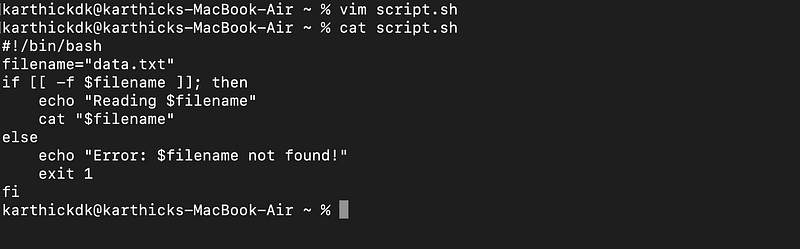
Error handling is crucial for robust scripts. Bash allows you to use conditional statements to manage different execution paths. Here’s an example of checking if a file exists before trying to read it:
#!/bin/bash
filename="data.txt"
if [[ -f $filename ]]; then
    echo "Reading $filename"
    cat "$filename"
else∂
    echo "Error: $filename not found!"
    exit 1
fi
This script checks if data.txt exists. If it doesn’t, it provides an error message and exits with a non-zero status, indicating failure.
4. Looping and Iterating Over Data
Loops are essential for iterating over data, and Bash offers several types: for, while, and until. Here’s how you might use a while loop to read lines from a file:
#!/bin/bash

count=0
while IFS= read -r line; do
    echo "Line $count: $line"
    ((count++))
done < "input.txt"
This script reads input.txt line by line and echoes each line with its corresponding line number.
5. Scheduling Scripts with Cron
Once you’ve created your scripts, you might want to automate their execution. Cron jobs are a great way to schedule scripts to run at specific times. You can edit your crontab with:
crontab -e
Add a line like the following to run your script every day at 2 AM:
0 2 * * * /path/to/your/script.shThis command ensures that your script runs automatically, saving you time and effort.
6. Debugging Your Scripts
Even the best scripts can have bugs. Use set -x at the beginning of your script to enable debugging, which will print each command before executing it:
#!/bin/bash
set -x

# Your script logic here
This feature can be invaluable for identifying issues in your code.
Advanced Shell Scripting Techniques
1. Error Handling and Exit Codes
Robust scripts should handle errors gracefully. You can utilize exit codes to signal success or failure. The convention is to return 0 for success and non-zero for errors. Use trap to handle signals and clean up resources:
#!/bin/bash

trap 'echo "An error occurred. Exiting..."; exit 1;' ERR
# Example function that may fail
function risky_operation() {
    # Simulating an error
    false
}
risky_operation
In this script, if risky_operation fails, the trap will catch the error, print a message, and exit the script.
2. Input Validation
To ensure that your script runs smoothly, validate user inputs. This is especially important when expecting arguments or user input:
#!/bin/bash

if [[ $# -ne 1 ]]; then
    echo "Usage: $0 <filename>"
    exit 1
fi
filename=$1
if [[ ! -f $filename ]]; then
    echo "Error: $filename does not exist!"
    exit 1
fi
echo "Processing $filename..."
This script checks if the correct number of arguments is provided and validates if the specified file exists before proceeding.
3. Process Management
Managing background processes and jobs is vital for advanced scripts. Use & to run a process in the background and wait to wait for it to finish:
#!/bin/bash
long_running_process() {
    sleep 5
    echo "Process finished"
}
long_running_process &
pid=$!
echo "Waiting for process $pid to complete..."
wait $pid
echo "Done!"
This script starts a long-running process in the background and waits for its completion, allowing you to perform other tasks simultaneously.
4. Regular Expressions and String Manipulation
Bash provides powerful string manipulation capabilities. Use regular expressions for pattern matching and extraction:
#!/bin/bash
input="User: Alice, Email: [email protected]"
if [[ $input =~ User:\ ([^,]+),\ Email:\ ([^ ]+) ]]; then
    user=${BASH_REMATCH[1]}
    email=${BASH_REMATCH[2]}
    echo "Extracted User: $user, Email: $email"
else
    echo "No match found."
fi
This script extracts the user and email from a formatted string using regex, demonstrating the power of pattern matching.
5. Advanced Data Structures: Associative Arrays
Bash 4.0 introduced associative arrays, allowing you to use string keys. This is particularly useful for configuration settings or mapping values:
#!/bin/bash

declare -A colors
colors[red]="#FF0000"
colors[green]="#00FF00"
colors[blue]="#0000FF"
for color in "${!colors[@]}"; do
    echo "$color: ${colors[$color]}"
done
This script defines an associative array and iterates over its keys and values.
6. Using External Tools
Often, you can enhance your scripts by integrating with external command-line tools like awk, sed, grep, or jq for JSON processing. Here’s an example using jq to parse JSON:
#!/bin/bash

json='{"name": "Alice", "age": 30}'
name=$(echo "$json" | jq -r '.name')
age=$(echo "$json" | jq -r '.age')
echo "Name: $name, Age: $age"
This script extracts values from a JSON object using jq, showcasing how to work with structured data.
7. Creating Modular Scripts
For large projects, consider splitting scripts into multiple files or modules. You can source other scripts to reuse functions:
# helper.sh
function greet() {
    echo "Hello, $1!"
}

# main.sh
#!/bin/bash
source ./helper.sh
greet "Alice"
This modular approach helps keep your scripts organized and maintainable.
8. Debugging Techniques
Debugging can be tedious, but there are tools to make it easier. Besides set -x, you can use set -e to make your script exit on any command failure, helping catch issues early:
#!/bin/bash
set -e

# Rest of your script...
Additionally, use shellcheck to analyze your scripts for common pitfalls and best practices.
Conclusion
In this second installment of our Bash scripting series, we explored functions, arrays, conditionals, loops, and debugging. These advanced techniques will empower you to create more efficient and robust scripts.
Stay tuned for Day 7, where we’ll cover integrating Bash scripts with other tools and languages for even greater automation power. Happy scripting!


