iOS / iPhone
Add a ‘Shut Down’ Button to Your iPhone’s Home Screen to Quickly Power Off or Disable Biometrics
Nobody knows about this secret iPhone feature—until now
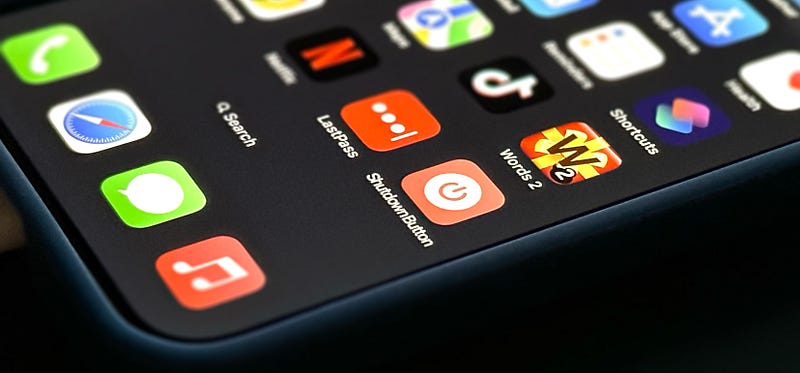
There are plenty of ways to turn off your iPhone or quickly disable Face ID or Touch ID biometric authentication, but this is the only way you’ll be able to do either from a button on your Home Screen.
It’s a hidden feature that’s been available since iOS 13, and nobody knows about it. Some people have gotten close to finding it, but it’s somehow stayed off the radar for as long as it’s been around. At least, according to my googling.
It all comes down to one of my favorite things to toy with on my iPhone — URL schemes. Though the latest software for iPhone, iOS 16.4, has another way to go about it, but it’s just as fast and won’t disable Face ID or Touch ID without powering down. You can skip to Method 2 below if you’re interested in that.
Method 1: Use a URL Scheme to Power Off or Disable Biometrics (iOS 13 and later)
Most URL schemes for Settings preferences won’t do anything but open or highlight menu items. One of the outliers just happens to simulate pressing the “Shut Down” button in the General settings, and that can be turned into a convenient shortcut on your Home Screen to tap whenever you want to power off your iPhone or prevent biometric authentication from working.
If you don’t want to create the shortcut yourself, you can install it from the link below. It only contains two meager actions, so I can assure you it’s safe to run.
- Install the Shutdown Button shortcut (iCloud link)
This shortcut has been tested to work on iOS 13, iOS 14, iOS 15, and iOS 16, as well as iPadOS 13, iPadOS 14, iPadOS 15, and iPadOS 16.
If you download the shortcut, you can skip to Step 6 below. Otherwise, follow all the steps to build and configure your shutdown button.
Step 1: Start a New Shortcut
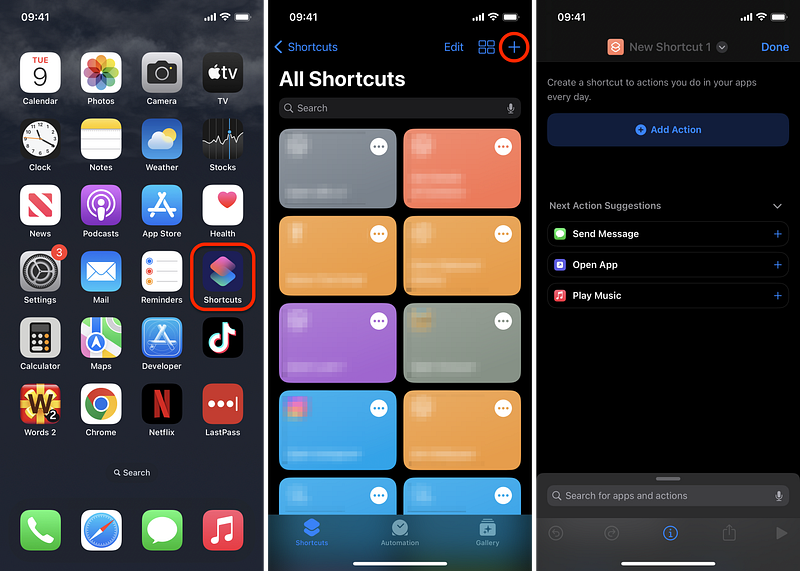
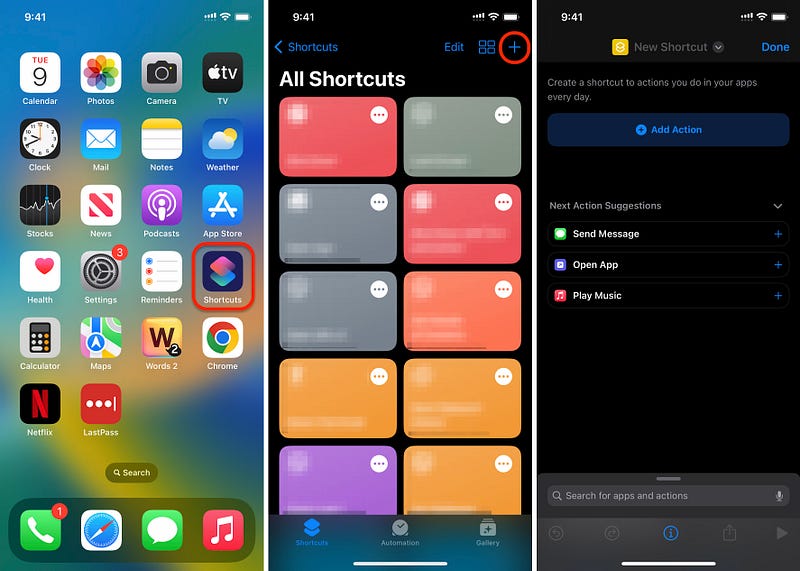
Open the Shortcuts app to the Shortcuts tab and tap the + button to create a new project.
Step 2: Add the URL Action
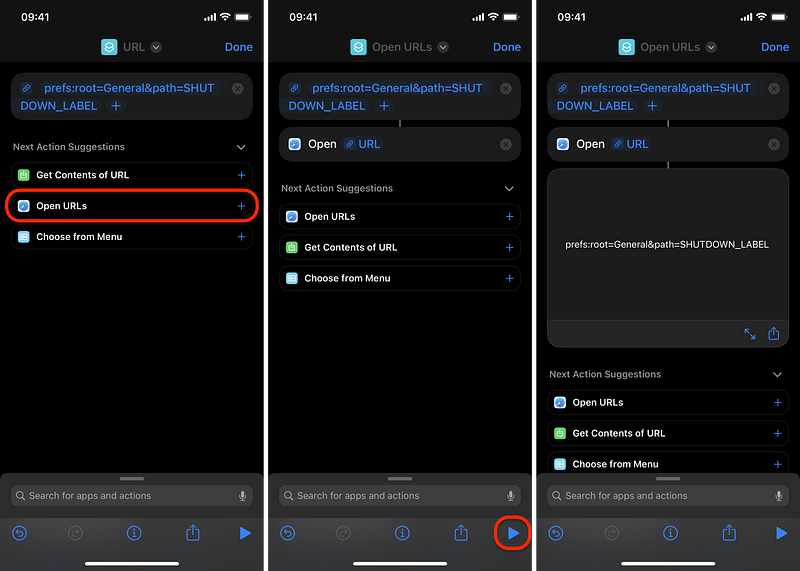
Tap + Add Action or the search bar at the bottom, then hunt for and select the URL action. After adding it, tap the apple.com spot in the box, change it to the following URL scheme, and tap done on the keyboard.
prefs:root=General&path=SHUTDOWN_LABEL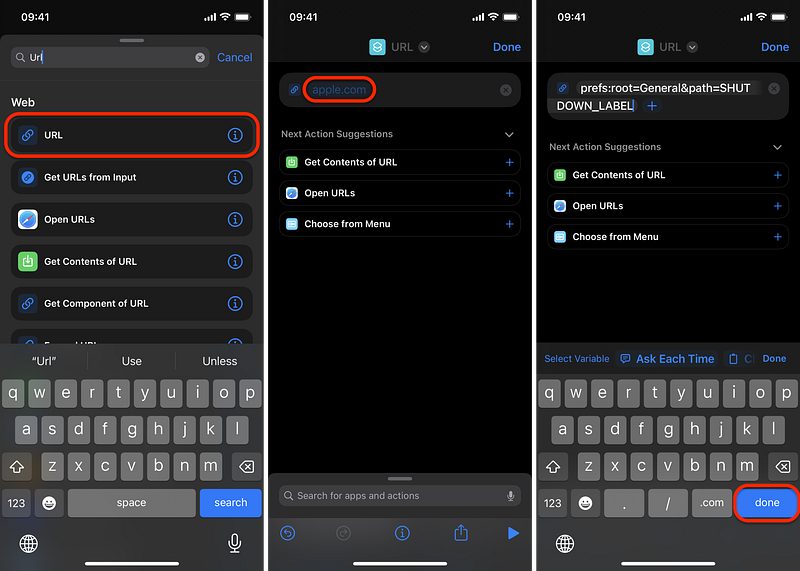
Step 3: Add the Open URLs Action
Search for and select the Open URLs action. It may be available as a suggestion directly below your first action in the workflow. Feel free to hit ▶︎ (the play button) to ensure it works, which will send you directly to the power-off menu.
Step 4: Rename the Shortcut
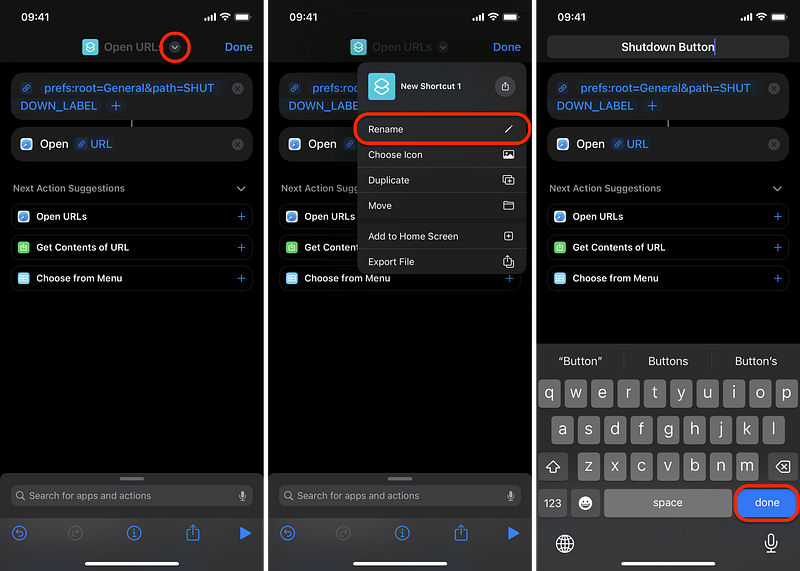
Tap the ⌄ (down arrow) next to the shortcut’s name at the top, choose Rename, enter a suitable title (I chose “Shutdown Button”), and hit done on the keyboard.
Step 5: Change Its Icon
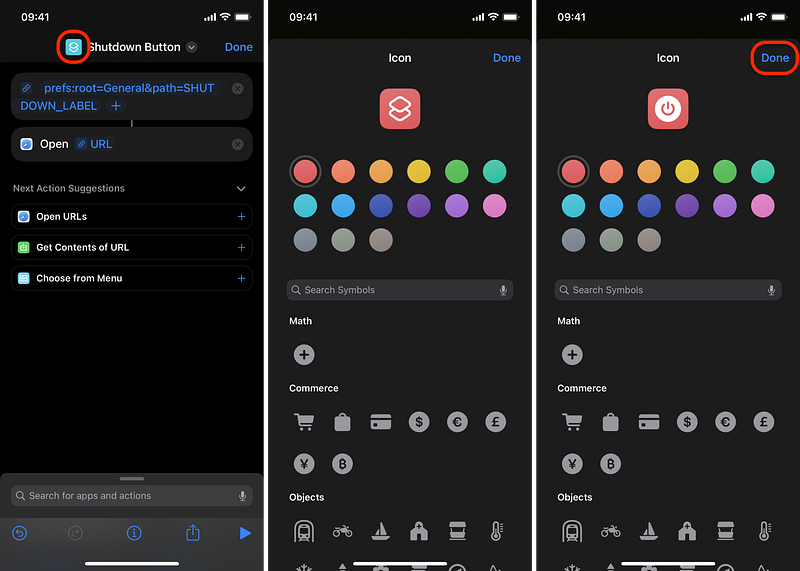
Optionally, you can tweak the shortcut’s icon to something reminiscent of a power switch. Tap the icon at the top, then choose a different color and glyph. Hit Done to continue.
Step 6: Add the Shortcut to Your Home Screen
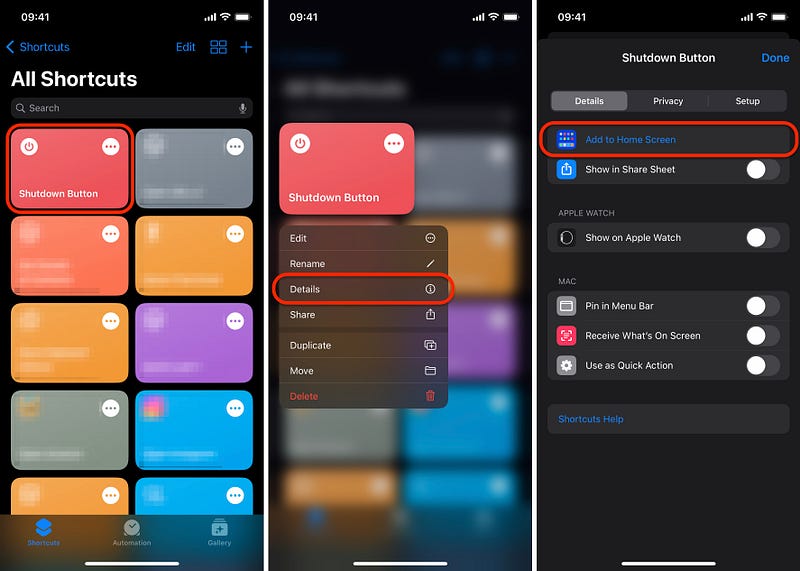
Now add your new power button shortcut to your Home Screen for easy access. If you’re in the editor, tap ⓘ in the toolbar, hit Add to Home Screen, then choose Add. The icon will immediately appear on your Home Screen, ready to use. You can move it to a more suitable spot if needed.
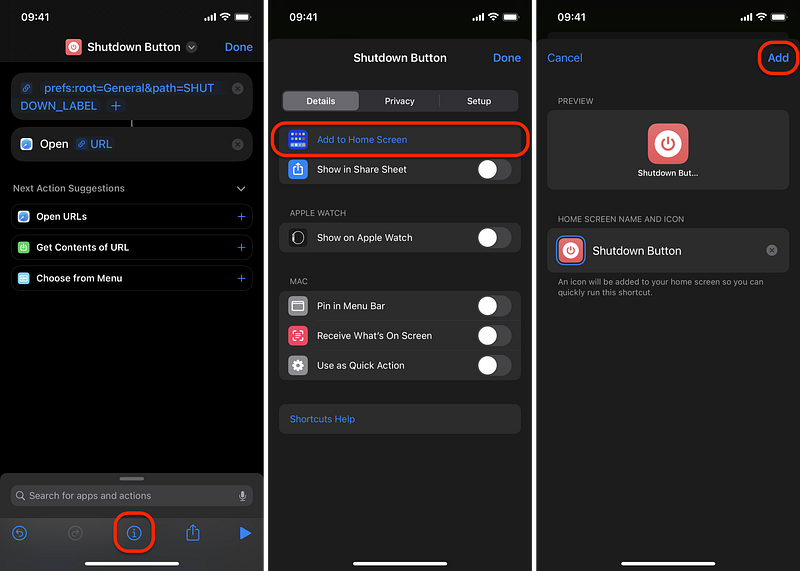
If you’re on the Shortcuts tab, like after downloading the premade shortcut, you can long-press the Shutdown Button shortcut, tap Details, hit Add to Home Screen, and then choose Add.
Step 7: Use It
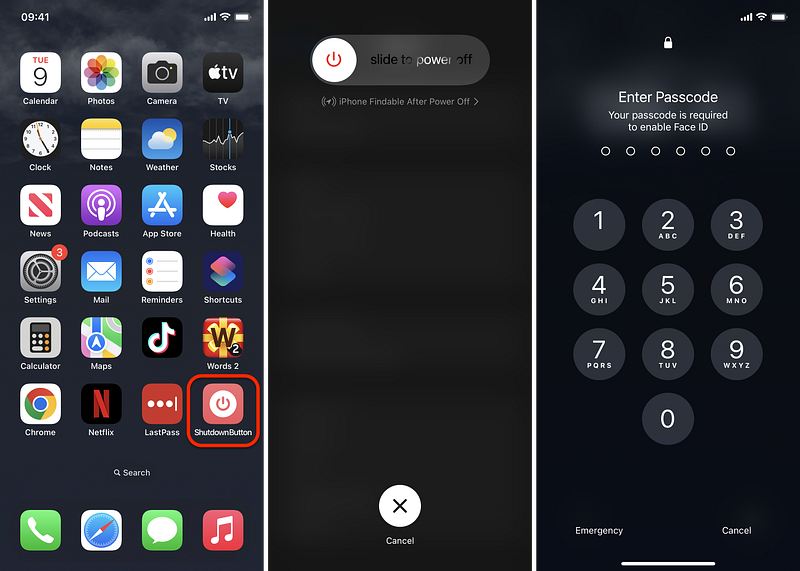
Whenever you tap the Shutdown Button icon on your Home Screen, your iPhone will — in the blink of an eye—open the Settings app to the General menu before the power off menu takes over the screen.
At this point, your iPhone is locked, and your passcode is required before you can reenable Face ID or Touch ID. You can keep your iPhone locked, hit Cancel to unlock it with your passcode, or slide the switch to power off your iPhone.
Method 2: Use the New Shut Down Action to Power Off (iOS 16.4 and later)
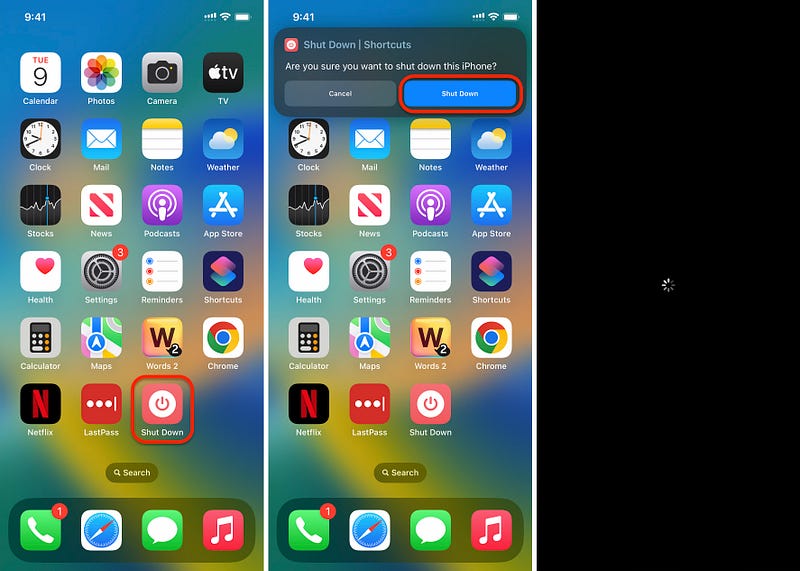
Apple added some really cool shortcut actions on iOS 16.4, like “Set Always On Display” and “Lock Screen,” but there’s also a new “Shut Down” action. This is pretty great if you only want a Home Screen button to help you power off your iPhone. However, it won’t lock your iPhone and disable Face ID or Touch ID biometrics as the URL scheme does.
Step 1: Start a New Shortcut
Open the Shortcuts app to the Shortcuts tab and tap the + button to create a new project.
Step 2: Add the URL Action
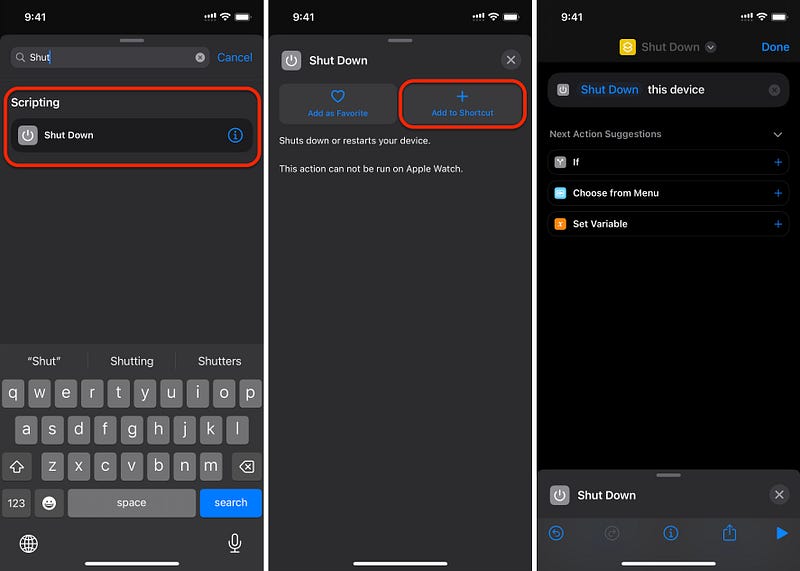
Tap + Add Action or the search bar at the bottom, then hunt for and select the Shut Down action. That’s the only action you need for this shortcut.
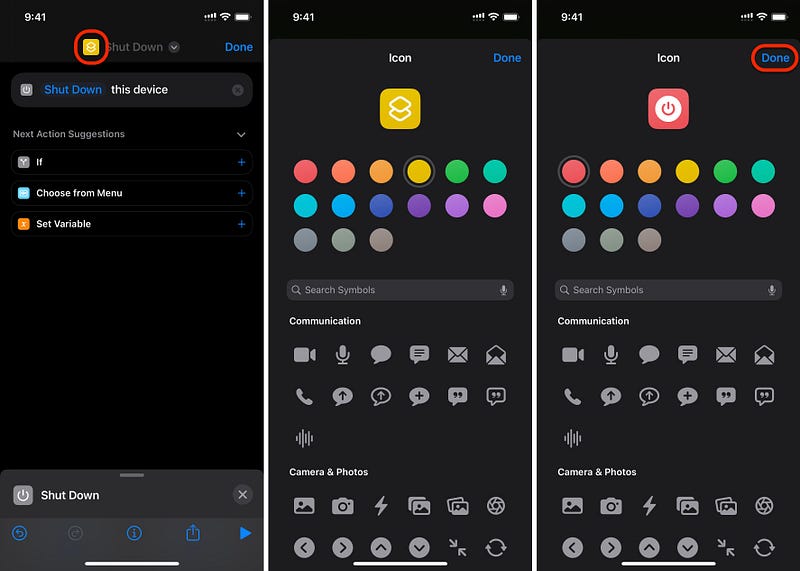
Step 3: Change Its Icon
Optionally, you can tweak the shortcut’s icon to something reminiscent of a power switch. Tap the icon at the top, then choose a different color and glyph. Hit Done to continue.
Step 4: Add the Shortcut to Your Home Screen
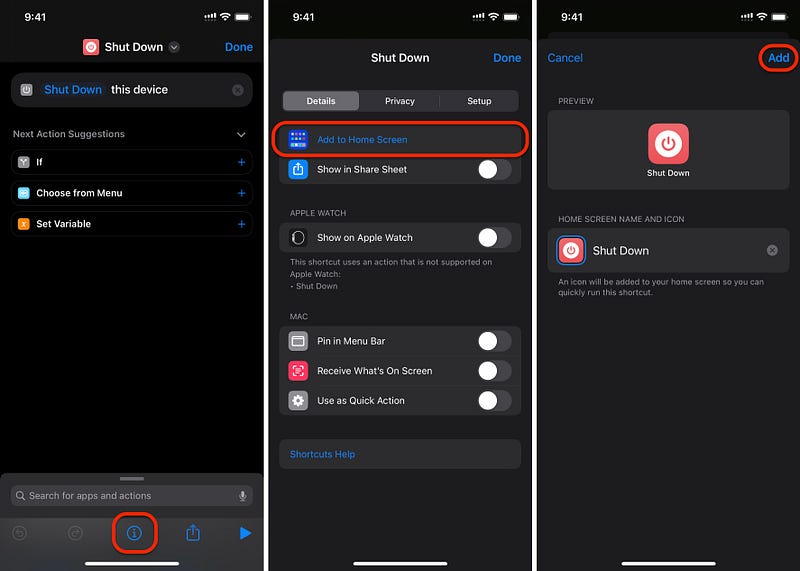
Now add your new power button shortcut to your Home Screen for easy access. If you’re in the editor, tap ⓘ in the toolbar, hit Add to Home Screen, then choose Add. The icon will immediately appear on your Home Screen, ready to use. You can move it to a more suitable spot if needed.
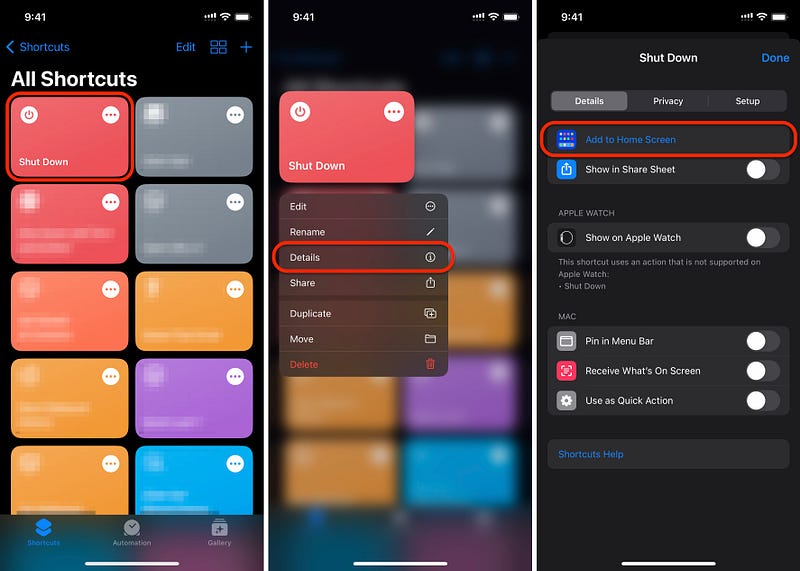
If you’re on the Shortcuts tab, like after downloading the premade shortcut, you can long-press the Shutdown Button shortcut, tap Details, hit Add to Home Screen, and then choose Add.
Step 5: Use It
Whenever you tap the Shut Down icon on your Home Screen, a notification appears at the top asking you to either Cancel or Shut Down your iPhone. Tap Shut Down to power off your iPhone. Simple.
Unlike the URL scheme method above, it won’t immediately lock your iPhone and disable Face ID or Touch ID biometrics. So if you want a multipurpose Home screen button that can do both, use Method 1 above.