
S-GPT: The iPhone Shortcut That Connects ChatGPT with Native iOS Functions
Let ChatGPT access your clipboard, music, calendar, and other apps to increase productivity.
Imagine you could use ChatGPT the way you use Siri on your iPhone.
You could not only do all the things possible with ChatGPT (GPT-3.5/GPT-4) but also ChatGPT would have access to the clipboard, music, reminders, calendar, and other native apps available on the iPhone.
The good news is that we don’t need to wait years until Apple implements this on the iPhone, but use a shortcut called S-GPT. In this article, we’ll see how to install S-GPT and all the things we can do with it.
How to Install S-GPT on Your iPhone
To install this shortcut follow the two steps below.
Step 1: Set up your OpenAI account
To connect any of the models ChatGPT uses (GPT-3.5/GPT-4), first, we need to add a payment method to our OpenAI account. Why? We need to use the OpenAI API key, which isn’t free, but in my experience, it doesn’t cost more than $1 per month (this may vary based on your use).
To add a payment method visit the OpenAI website and go to the Payment Methods inside the Billing section.
If you’re concerned about the potential expenses this could have, you can customize the Usage Limits by adding a hard limit and soft limit, which represent the maximum amount you’re willing to spend and the amount in which you’ll get a notification email, respectively.
Then, you need to go to the API keys section and generate an API key that will be used later in this tutorial.
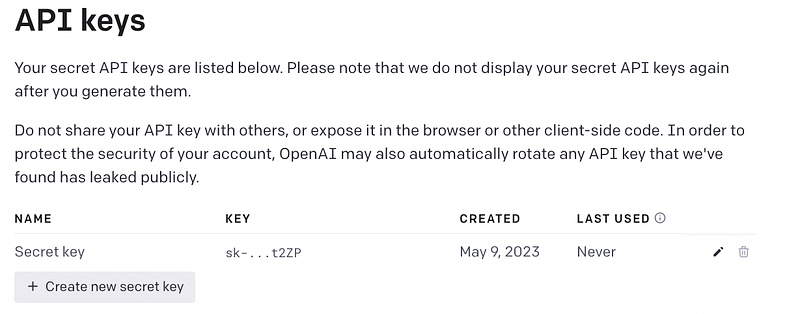
Note that your API key won’t be shown again, so make sure you save it in a notepad or elsewhere.
Step 2: Download the S-GPT Shortcut
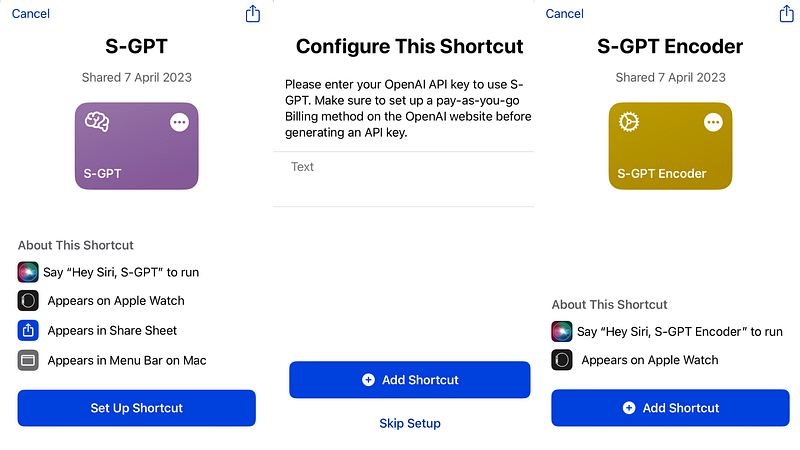
Now you need to download S-GPT and S-GPT Encoder. The first is the actual shortcut we’ll use, while the second is necessary for S-GPT to work. In case you see a blank page on Safari after clicking on the previous links, just click on “Open in the shortcuts app” which should be on top.
Once you’re in the Shortcuts app you need to click on “Set Up Shortcut” and add the API key we generated before.
Things you can do with S-GPT
Once S-GPT is installed, you can start using it from the Shortcuts app or you can even add it to the home screen by clicking on the 3 dots, share button and “Add to Home Screen.”
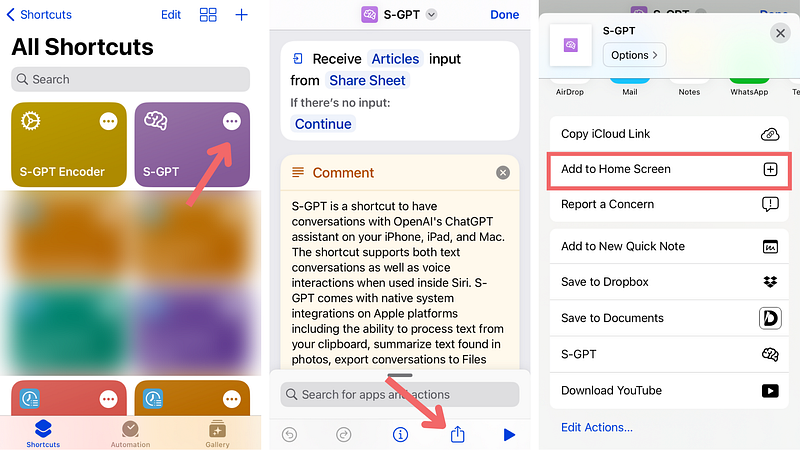
After this, you’ll see the S-GPT icon on your Home Screen.
Here are some cool things you can do with S-GPT on your iPhone.
Summarize text
With this iPhone shortcut, you can summarize any text you come across on your phone.
You can copy the whole text you wish to summarize and then tell S-GPT to “Summarize the text copied to the clipboard” or you can simply copy the link and ask to “Summarize the article linked in the clipboard.”
Here’s how I summarized one of my Medium articles using S-GPT.
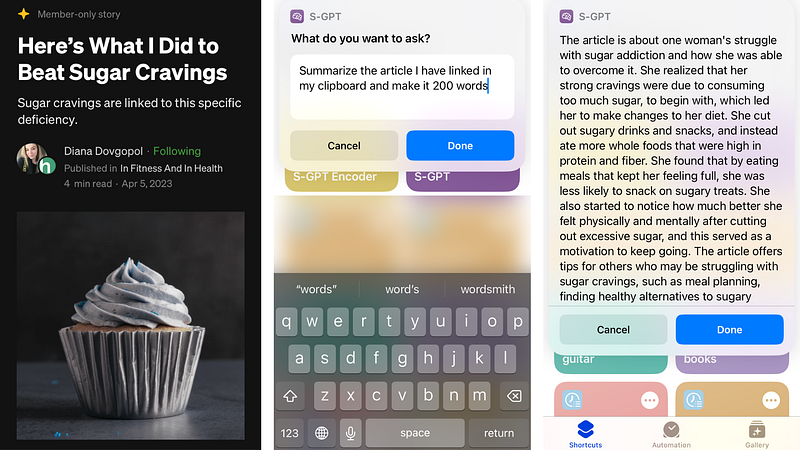
In case you want to export the summarization, you only need to type “Export chat.”
In general, S-GPT can do many tasks ChatGPT is able to do, but the cool thing about S-GPT is that it integrates ChatGPT with native iOS functions such as the calendar, music, and files app.
To access that functionality you need to use trigger words in your prompt. For example, the trigger word used to connect to the clipboard in iOS with ChatGPT was “clipboard.”
Below you’ll find other trigger words you can use.
Triggers
- Reminders and Calendars: S-GPT can look at your schedule and tell you which days are too busy. Although you can do the same with Siri, with S-GPT you can go one step further by adding another request like information about a trip, and obtain a plan based on your schedule. Trigger: “my schedule”
- Music: S-GPT can create a playlist in the Apple Music app for any list of songs returned by ChatGPT. For example, you can ask “Make me a playlist with 5 rock songs from the 80s.” Trigger: “playlist”
- Files, Finder, Translation (Export actions): In case you want to do something with the response given by S-GPT, you can say “export chat” to be presented with a list of actions such as copying the full chat to the clipboard, saving it to a text file, and translating it to a different language. Trigger: “export chat”
That’s it! Now it’s time for you to explore S-GPT on your iPhone.
Artificial Corner’s Free ChatGPT Cheat Sheet
We’re offering a free cheat sheet to our readers. Join our newsletter with 20K+ people and get our free ChatGPT cheat sheet.
Loved this story and want to support me as a writer? Consider signing up for Medium. If you sign up with my link, I earn a small commission at no cost to you! And you’ll get full access to all stories on Medium.


