
A Power User’s Guide to Google Drive for Remote Work
How to use Google Drive’s hidden features, upgrades, and extensions to get more done from just about anywhere
Thanks to the global shutdown, a lot more people are learning just how hard it is to actually work from home. And sure, the first few days of not wearing pants to “work” may have felt like a nice change of pace, but that feeling quickly fades when deadlines start piling up.
We’re all in this “remote work” thing for the long haul. It’s not just for us freelancers anymore. And if you’re one of the record 3.28 million Americans that filed for unemployment this week, the right remote work setup can be the tool that helps you launch that much-needed freelance business or side hustle for a little extra income.
The good news is that most people can still get “real” work done from home. And that’s because you already have access to one of the best remote working software platforms in the world.
And it’s connected to your Gmail account.
Here’s an in-depth power user’s guide to Google Drive so you can optimize Drive like a professional to work from just about anywhere.
Best Google Drive remote working features
Let’s start with a quick overview of Google Drive’s best features for remote work so you know what you’ve got out of the box. All of these are included in the free version that comes with your Gmail account:
- 15GB of free cloud storage. I strongly recommend upgrading to 100GB of storage for $1.99 (more on that in a sec), but 15GB is a good start.
- Email large files (up to 10GB). Just select the “Share with Drive” option in your email to get around dinky 25MB email attachment limits.
- Work on documents and spreadsheets offline. This is huge for remote work when you can’t get a reliable signal or you know you’re going offline (like a long flight). The best part is that files automatically sync the changes you made when you’re back online.
- Optical character recognition. This feature feels like magic. Basically, you can pull the text from any PDF (and even many photos and images) into a text document with a single click. Just upload the PDF or image to Drive and right-click to open is as a Google Doc. Ta-da. Text.
- Use hundreds of professional templates. You don’t have to design your own invoice or editorial calendar or timesheet because Google Drive has a library of templates for anything you might need.
- Customizable sharing settings. You control who sees what with granular sharing settings for each file and folder. Share with individuals whole organizations (using company emails), or even share a file by making it live online with a searchable URL.
- Control access to files. Choose between three levels of access: “view only,” “can comment,” or “can edit” to give access while still maintaining control of changes and edits in a systematic way
- Seamless tagging directly to their inbox. Add comments and assign files and tasks directly from documents with alerts that go from a specific part of a file directly to the recipient’s inbox
- Compatible with Microsoft Office (and just about everything else). No more converting files. Comfortably use Word, Excel, and more with seamless compatibility to and from Google Drive
You can work remotely with clients and most companies using just those features listed above. Heck, if you get familiar with the advanced sharing and tagging features and how to send large files via email with Drive, you’re already on your way to becoming a remote work rock star.
Is Google Drive perfect? Of course not. But it’s easy to use, compatible with just about every office and client, easily fits into your workflow (especially if you use Gmail and Google Calendar), and roughly 1.5 billion people already have a Google account so there’s no onboarding lag like you see with other programs like Asana or Trello.
And that’s just the basics. It gets a lot better once you download some extensions and dive into the advanced settings. So let’s get into it.
Here are some of my favorite in-depth Google Drive tips, tricks, workflows, hacks, and workarounds if you want to get the most out of Google Drive.
9 advanced Google Drive tips for remote workers
Get excited, because this is going to be nerdy, but helpful as all heck.
Upgrade your free account (100GB storage for $1.99/month)
Yes, Google Drive is free, but if you’re a professional you need more than 15GB of cloud storage. Remember, that 15GB limit also includes your inbox with all those attachments and archived emails. You need more.
Upgrading your Google Drive cloud storage lets you keep more client assets, images, PDFs, and files handy without stressing about storage. And quintupling your cloud storage space for just $2/month is a deal.
I’ve been using the 100GB paid account for the past few years, and it’s great. For $24 a year I can reference detailed client style guides, store massive PDFs and asset folders in the cloud to work from any device without thinking about it. I can also share my drafts and final documents for review with editors all over the world without ever leaving my Google account. It’s great, honestly.
As a travel writer, I mainly work with text documents (aka “small file sizes”) so I’ve never been close to going over my 100GB storage limit, but that may not be the case for you. (I’m currently at 58GB which includes all of my client work and assets over the past five years, along with my personal projects and inbox).
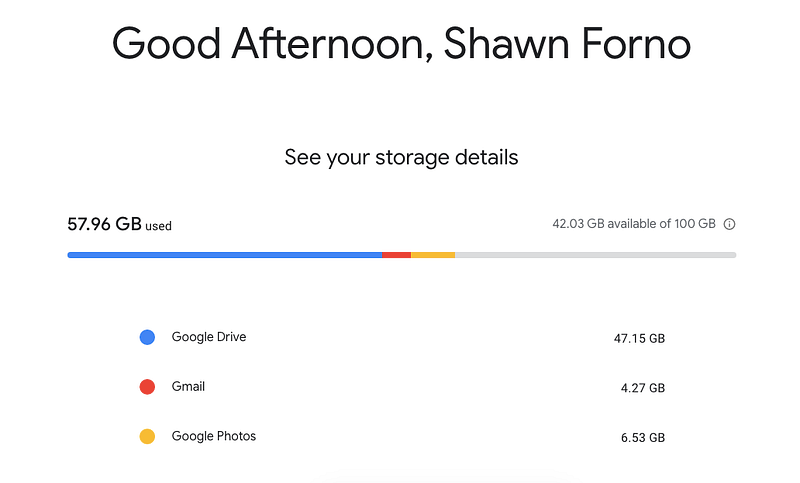
If you’re a photographer or a video editor, 100GB probably won’t be enough for you to send massive files, but it can still be a great place to connect collaborate with clients.
And you can always upgrade Google Drive cloud storage to:
- 200GB — $4.39/month
- 2TB— $12.49/month
- 10TB—$124.99/month
Always create native Google Drive files
Speaking of storage limits, the easiest way to save space in your Drive account is by creating native files instead of uploading documents and spreadsheets.
“Native” files are simply the Google-branded analogs of other popular Microsoft Office products and third-party programs. For Drive, that means using Google Docs instead of Word, Google Sheets instead of Excel, and Google Slides instead of Powerpoint.
Google Drive files are all compatible with Microsoft products (you can cut and paste text and formulas to and from Docs and Sheets), but because they’re “native” Google Drive files, they don’t count against your cloud storage limit.
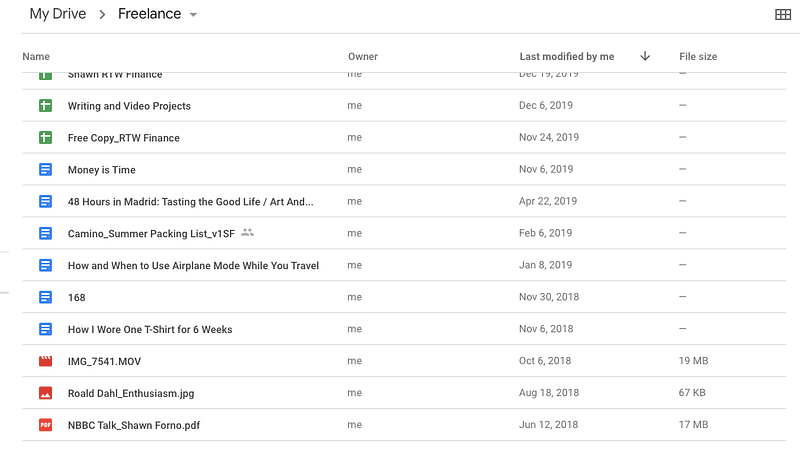
Always create native files directly within Drive (just right-click to add a new file) and you’ll never waste a single kb of space. The more you know…
How to use advanced Google Drive sharing settings
Obviously, a big part of working remotely is easily and seamlessly sharing your work with the right people. But it’s also important to share the right level of access with those people.
You don’t want a client to come in and edit your article without tracking changes or someone from another department accidentally erasing a key section without you knowing.
Here’s how to use advanced sharing settings to control access to files via Google Drive:
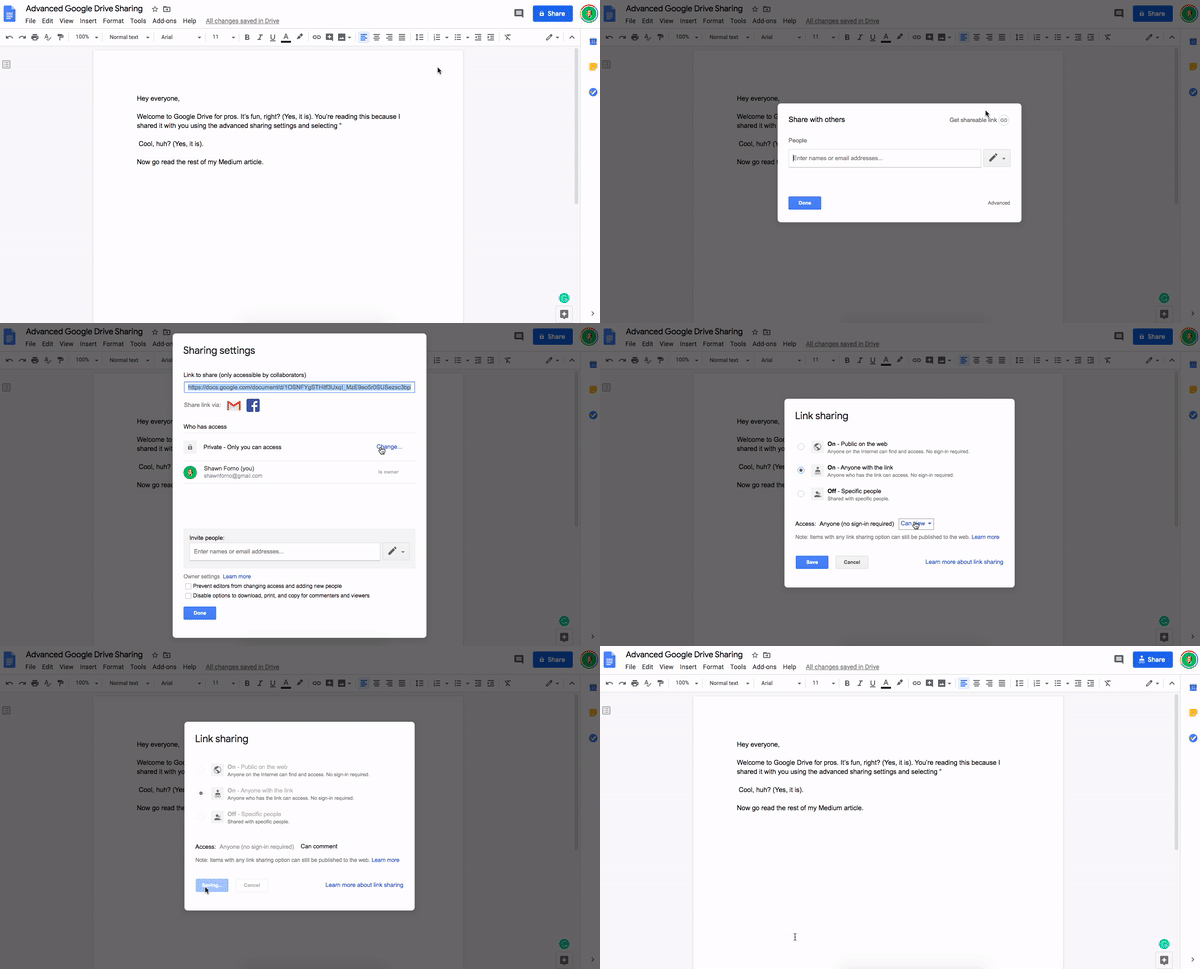
- Click on the blue “Share” button
- Click “Advanced” in the bottom right corner
- Change who has access (specific people, anyone with the link, or public on the web)
- Adjust access (can view, comment, or edit)
- Save
Now you can add or remove people as needed and change access without having to leave your Google account.
How to see the complete edit history and revert to older versions of a file
Sometimes people mess up. Sometimes you lose stuff. Don’t sweat it. With Drive you can see who made changes and even revert to an older (better) version of any file with a few clicks.
Just right-click on a file in Drive to see a quick snapshot of who owns the file, when the latest version was made, file size etc.
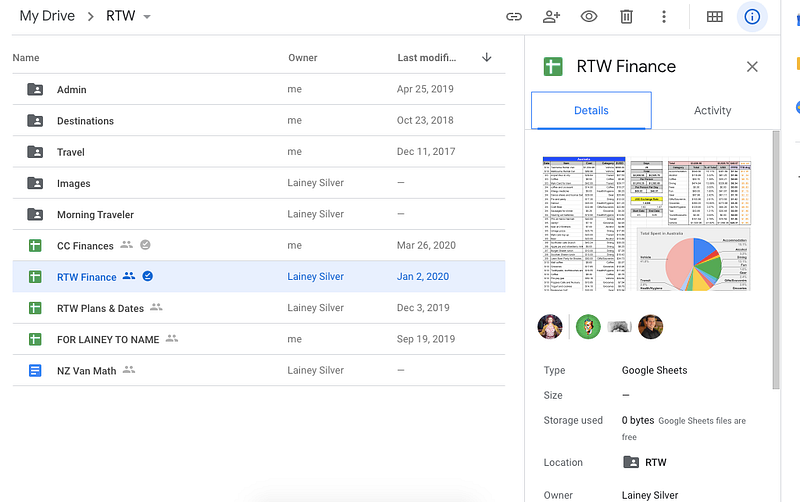
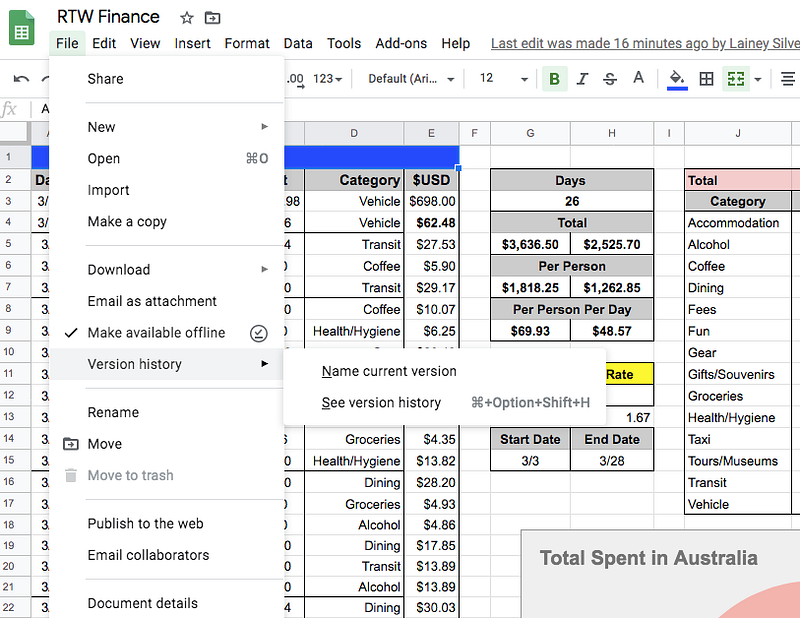
If you want to get more detailed, open the file and select:
File > Version history > choose which version you want.
You can even name a version if you think you’ll have to go back to it one day.
How to share large files via email with Google Drive
This might be an old tip for some of you, but it’s a big deal if you don’t know how to share large files over email.
Basically, most email clients (like Gmail) limit the size of email attachments to around 25MB. (That’s small in case you were wondering). The Outlook attachment limit is even smaller at 20MB.
If you need to send multiple photos, a video, or other large media files you have to resort to sending individual emails (ugh), complicated cloud storage options like Dropbox, or compressing files which can be confusing for some people and still might not fit under the small attachment limit.
Luckily, the solution to sending large email attachments is simple. Don’t send attachments at all.
Send a Google Drive link.
You can use the sharing settings we just walked through to send people an email with a clickable link that will take them directly to whatever file you just shared, even if it’s massive.
You can also share files and folders directly from the email (in Gmail) by uploading the file to your Drive account and then clicking the “Insert Files Using Drive” icon.
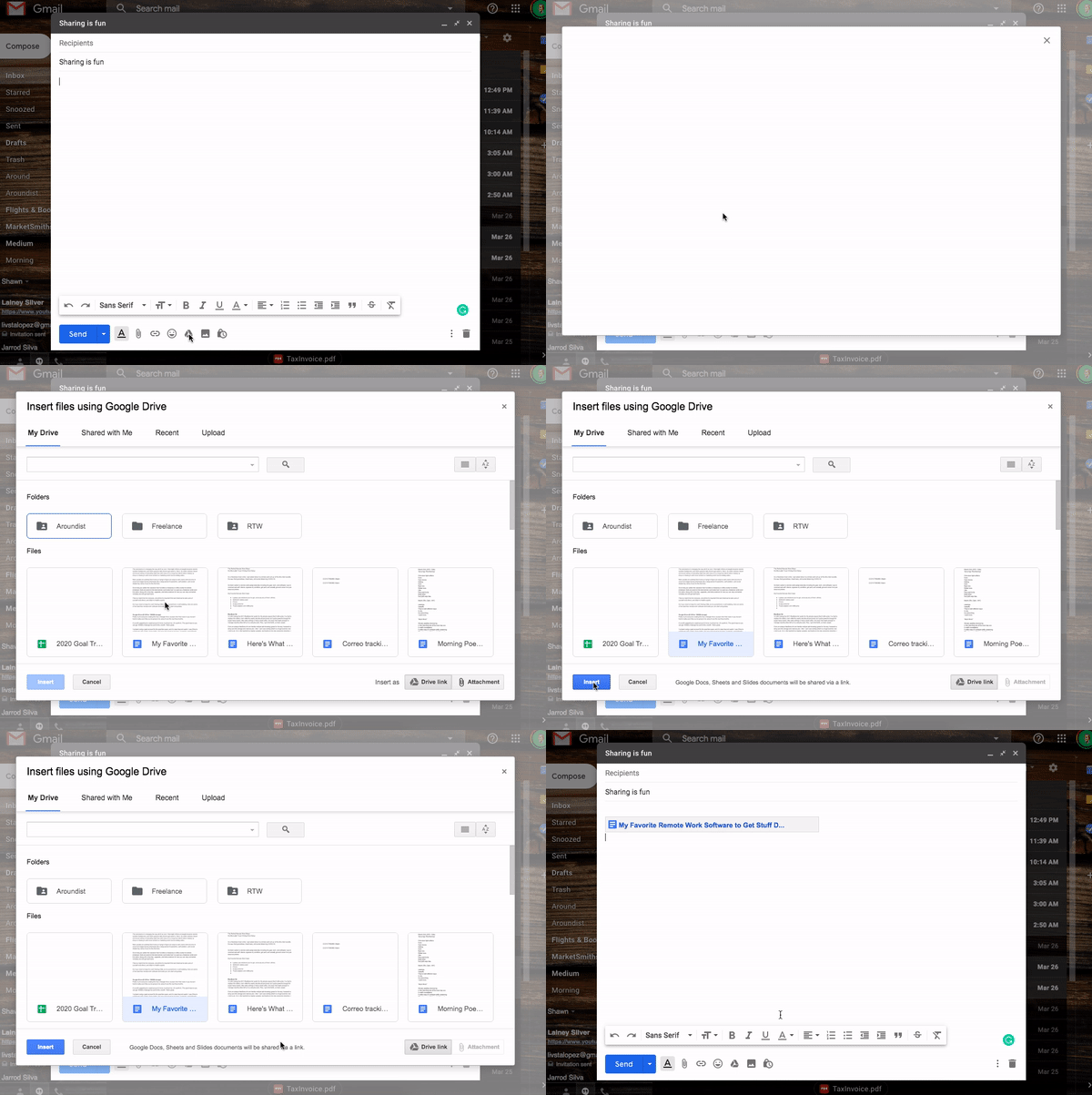
You can share as many files and folders as you like via email. If you reach your 25MB limit it will share the file as a clickable link. You never have to worry about file size again.
How to enable offline mode for Google Drive files
My favorite Drive feature is the ability to work on articles and spreadsheets when I’m offline. It means I never have to use Microsoft Word ever again.
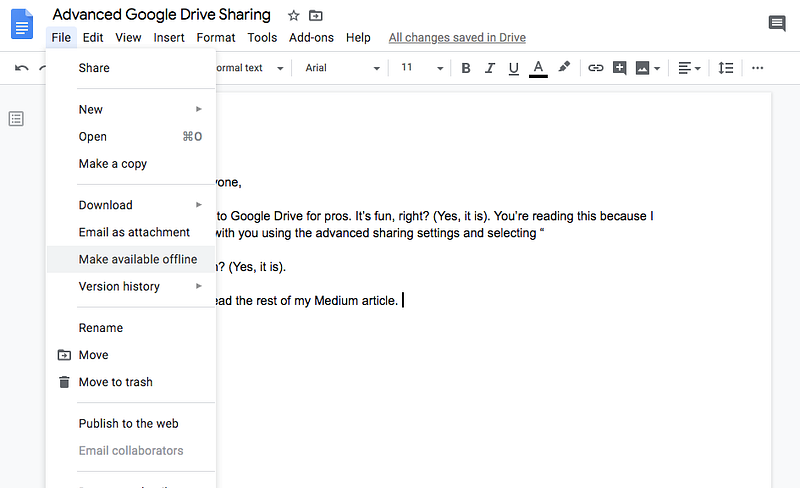
To turn this on, simply enable “Make available offline” in the Files settings of the file or folder you want to work on when you’re not connected. You can also toggle this from the main Google Drive file menu. The best part is that changes are automatically synced up once you’re back online.
Offline mode is great for long travel days, but it also works when the internet is down or your connection is patchy. Aka, you don’t have to stop working just because your wifi sucks.
How to save articles, images, and links to Google Drive from your browser
Chrome is a bloated browser (sorry, not sorry), but it comes with a ton of great extensions. One of the best extensions is Save to Drive Google Chrome extension.
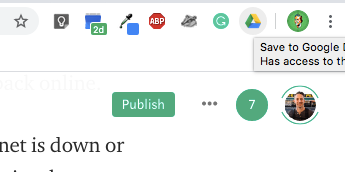
Basically, just give the extension access to your Google Drive account and you can save images and webpages directly to your Drive account without ever leaving the tab you’re on.
Pro tip: Organize these links in a folder for optimal long-term use.
How to track your remote work hours with Google Drive (Clockify)
If you’re a freelancer or hourly remote worker you know the joys of tracking your hours for invoices. Huzzah. But it doesn’t have to be that hard.
Another great third-party integration is Clockify.
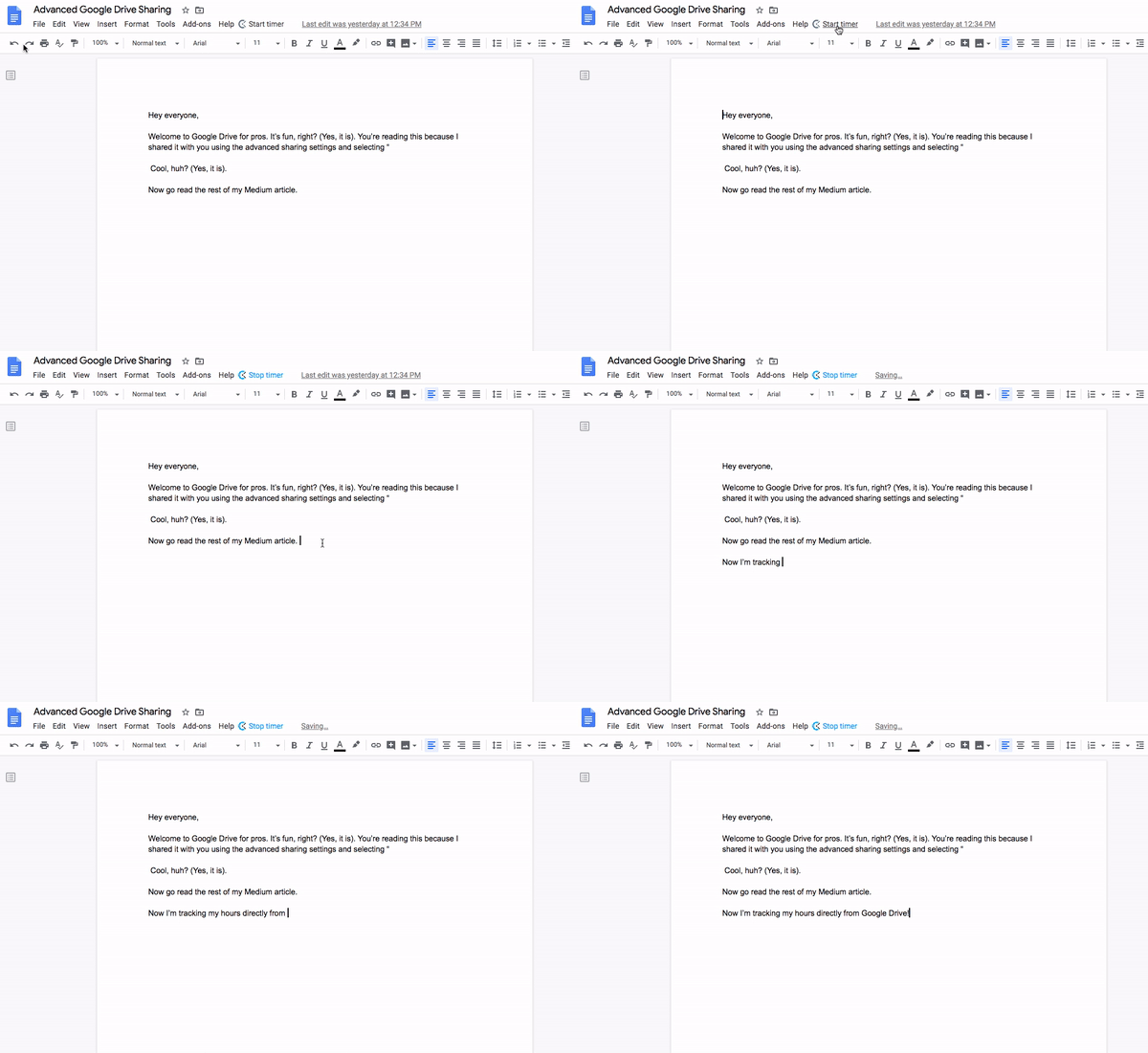
Once you give Clockify access to your Drive account a small “Start timer” icon will appear at the top of your Google Drive files. If you’re on the clock, simply start the timer. Stop when you’re done. It’s super easy.
You can check your times by clicking on the extension icon and even send timesheet reports to your clients or boss.
Empty your trash folder to free up space
If you’re getting close to your storage limit on Google Drive (either 15GB on the free account or 100GB paid), you can probably clear up a ton of space by emptying your trash.
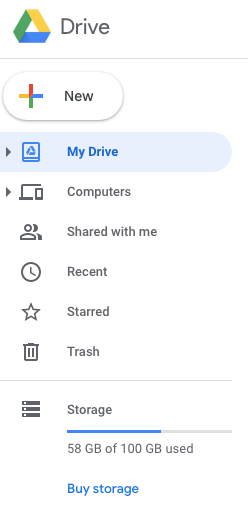
Not everyone knows that Google Drive keeps all of your “Trash” files indefinitely until you physically empty the trash folder. I didn’t know. When I emptied mine for the first time a while back (oops) I freed up nearly 20GB of dead client assets and old drafts I didn’t need.
Alternatively, it’s nice to know that if you delete something it’ll be there forever until you clean out your trash folder. So that’s a nice bonus for all the packrats out there.
Google Drive is the best free remote work software tool
I’ve been a freelance writer for the past eight years, and while I’ve used my fair share of cloud storage, collaboration, editing calendar, and project management tools like Slack, Trello, Dropbox, and Asana, none of them have ever been as central to my client relationships, editorial workflow, and business as Google Drive.
In fact, it’s not even close.
If you’re any kind of writer, blogger, copywriter, or editor Google Drive can dramatically increase your client management workflow. But now millions of other people that have never had to work remotely have to upgrade their remote skills in a hurry.
Don’t waste time learning the shortcuts and features of a “productivity” platform that only a handful of people use. Learn with the tool you have right now, for free, in your inbox. You’ll not only start crushing more work than you ever thought possible, you’ll future-proof your remote work skills for not just this job, but any remote work you do for yourself or companies down the line.
Hopefully, you learned a thing or two about a software platform you may have been ignoring all these years. If you have any advanced Google Drive tips, extensions, or cool hacks, let me know in the comments below. I love that stuff.
Good luck out there, everyone.
Shawn Forno is a freelance copywriter, content manager, travel writer, and blogger with over twelve years of experience. He loves to talk about himself in the third-person. You can check out his writing portfolio or his super-duper helpful travel articles for more helpful tips and tricks for writers and travelers.


