
HOW-TO-TORIAL
Read Your Story To Listeners
Or let an A.I. voice read it and add the audio track to your story
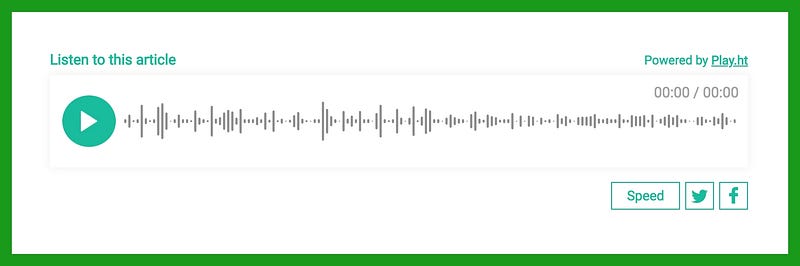
I’ve been experimenting with adding an audio player to my published stories. It reads the text aloud in my own voice or a voice I choose from a variety of male and female-sounding options. Not only does this make stories accessible to people with impaired vision, it allows my writing to be shared as a podcast. It’s an easy way to connect with a wider audience. The basic process is very simple.
Why add audio?
Making your story accessible to folks with vision impairments or who prefer to listen rather than read can expand your audience. In addition, hearing your personal stories in your own voice can be more powerful, humorous, or entertaining. Depending on the type of story, authors may prefer to record their own voice or to choose a ‘robot’ voice. Either way, your story will be heard in a new way.
Five easy steps to converting your writing to an audio track
- Click on the link below and install the play.ht Chrome browser extension.
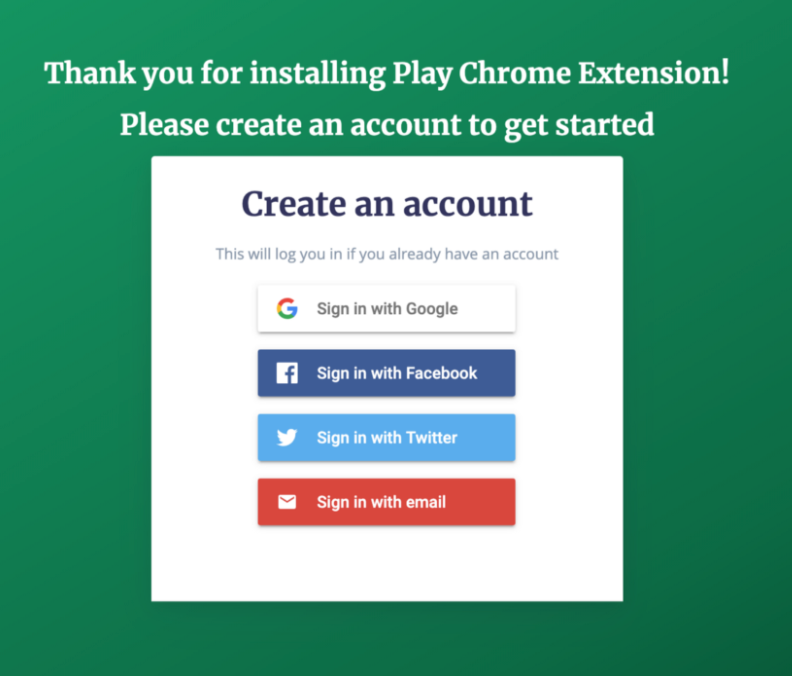
2. Sign in with your choice from the following accounts: Google, Facebook, Twitter or email.
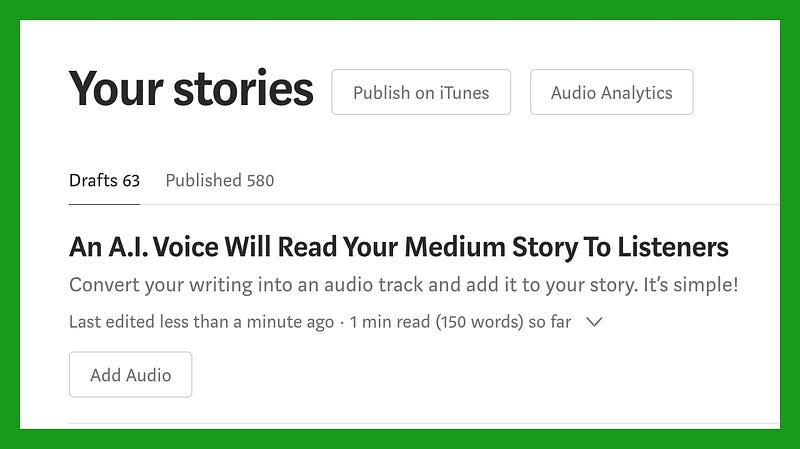
3. After signing in, open your ‘drafts’ or ‘published’ folder, whichever the story you want to work with is located in. You’ll notice new buttons add options for your stories. Tap the ‘Add Audio’ button beneath the title of the story you want to experiment with.
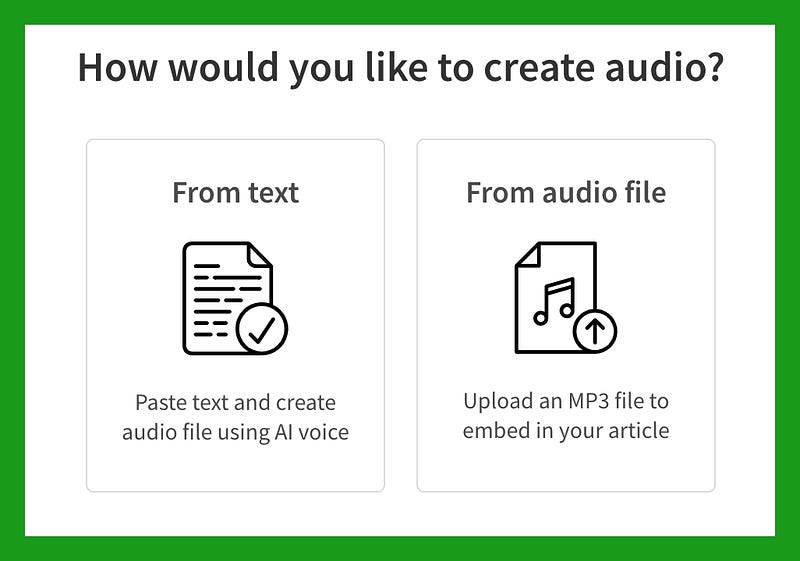
4. Select the option ‘From text’ to choose an A.I. (artificial intelligence) voice or ‘From audio file’ to choose an mp3 recording of your own voice.
(If you don’t know how to create an mp3 of your own voice to upload, stay tuned for next tutorial).
5. Choose your voice recording. (Examples are included at the end).
If you choose your own mp3, follow the prompts and the audio player will be added to your story after it uploads.
If you choose from the A.I. voices in play.ht. click the ‘convert’ button. When you return to the story in your ‘drafts’ or ‘published’ folder you will notice the audio player has been added.
Note: There is a selection of free voice options as well as ‘premium’ voices marked with an asterisk. Premium voices can be purchased. I was content choosing a free voice named Noah in my experiment.
Important notes
The audio player will automatically be added underneath your title and subtitle, thus the image you’ve chosen to display will be misplaced and won’t show in previews. To fix this cut and paste the image back to its usual place directly beneath your title. The audio player will be bumped to appear beneath your featured image.
I don’t recommend adding audio recordings to stories in which visual aids such as screenshots, drawings or graphs play a large role. For example, to get the most value from this instructional article, readers will rely on the screenshots. A listener may not be able to learn the process of adding an audio player by only hearing a voice reading the text.
Please comment with your questions and I’ll do my best to reply and help. Have fun experimenting with audio tracks and let me know what you think!
Listen to the first (funny) story I added my voice to.
Listen to a string of haiku read by an A.I. voice named Noah.

Rachael Ann Sand writes about life’s lessons and experiences including educational, humorous, and personal pieces. Thought provoking, informative, and often entertaining, her writing style is infused with personality. Her passion for the next generation extends to all living things.
Join my email newsletter to stay in touch!


