avatarDaniel Hollick

Free AI web copilot to create summaries, insights and extended knowledge, download it at here

3903

Abstract

b83e25e813edadfeafd224af7ec.js" allowfullscreen="" frameborder="0" height="undefined" width="undefined"> </div> </div> </figure></iframe></div></div></figure><p id="a45c">He we are initialising the <code>state</code> with a mock of the data our server will send. We are doing this because it allows us to set up a our component as if there is data there, before it has been fetched from the server. We’ll get more into that next.</p><p id="ba32">Go ahead and edit the <code>return</code> so it looks like this:</p> <figure id="5cc0"> <div> <div>

            <iframe class="gist-iframe" src="/gist/danhollick/d70396707f7fcbcb892f2ffdd9135bfe.js" allowfullscreen="" frameborder="0" height="undefined" width="undefined">
          </div>
        </div>
    </figure></iframe></div></div></figure><ol><li>We are returning a bunch of html here that we want our component to display, but you’ll notice that on line 9 of the gist we have some <code>{ }</code>. In JSX (this html-like syntax React uses) we use them to indicate that we are going to write JavaScript. 

The JavaScript we are writing is a <code>.map()</code> on every item in our <code>images</code> array, inside our <code>state</code> object. We are telling React that for every item in our <code>images</code> array, produce the following html. Each item is passed down to this html so we can access its properties. This would have thrown an error if we didn’t initialise our <code>state</code> to have a mock of this structure as <code>state</code> would not have contained an array.</li><li>What is <code>key={i}</code> doing here? Well React needs to keep track of each chunk of html it generates here and the only way to do that is to assign each one a unique key. We are using the <code>index</code> of the array as our key. Notice the <code>{ }</code> that tells React that that value will come from JS. (There are plenty of reasons why you shouldn’t use the index of your array as a key, but for this simple case it’ll do.) It’s also worth noting that a <code>.map()</code> like this can only have one html child element, hence why we made sure to wrap our children in the parent <code>div</code>. If you don’t need a <code>div</code>, you can use a <code><React.Fragment/></code> to get around this.</li><li>Here we are passing down the properties of the array to the children elements. The <code>url</code> is being used as the <code><img/></code> source and the name is being used as the text value in the <code><p/></code></li></ol><p id="b006">So that’s all gravy, but now we need to actually fetch the data from our server. Add this <code>componentDidMount()</code> method to our component:</p> <figure id="6214"> <div> <div>

            <iframe class="gist-iframe" src="/gist/danhollick/87ece0952f677a579eca26d18eaa0f89.js" allowfullscreen="" frameborder="0" height="undefined" width="undefined">
          </div>
        </div>
    </figure></iframe></div></div></figure><ol><li><code>componentDidMount()</code> is what is known as a life-cycle method in React. All it does is allow us to do <i>something </i>when our component becomes a part of the DOM (basically when it becomes visible).</li><li>The <i>something </i>we are doing is fetching some data from our server. Remember that our client is configured to use our server, running on <a href="http://localhost:3001/"><code>http://localhost:30</code>01/</a>, as a proxy. So when we tell it to <code>fetch(‘/frames’)</code> we are telling it to go to <a href="http://localhost:3001/"><code>http://localhost:3001/</code></a><code>frames</code> and return the response.</li><li><code>.then()</code> is a chaining method used on promises. That’s not really critical to understand, but it allo

Options

ws us to sequentially do stuff once the <code>fetch</code> has returned a result. “Hey, when you get that thing do this… and then this…. and then this…” The first thing we are doing is parsing the response as JSON.</li><li>Now that we have the data we need, we call <code>this.setState()</code> which is a built in method for updating the <code>state</code> object in React. The argument it takes is the updated <code>state</code> object. Importantly it makes sure that the component is re-rendered after the <code>state</code> object is updated, so that it actually displays the results of the change. Never directly edit <code>state</code> without using <code>setState()</code>. We pass in <code>{ images: data }</code> where <code>data</code> is our JSON response from the server. This syntax might be a bit tricky to get, but it’s called object de-structuring. The details aren’t super important but it looks for something with a key matching <code>images</code> inside the <code>state</code> object and then we update it’s value with <code>data</code></li></ol><p id="dcf8">If you hit save and run <a href="http://localhost:3000/">http://localhost:3000/</a> you should see this:</p><figure id="30e7"><img src="https://cdn-images-1.readmedium.com/v2/resize:fit:800/1*NNXYkxDP2r7Zjxd4PNbBiw.png"><figcaption></figcaption></figure><p id="2773">Woohoo, it worked. But it looks a bit shit. So before we are done, we need to add some styling to our html. There are a bunch of ways to do this, but the simplest is to write some styles in objects and add them as inline styles to our elements. Update <code>App.js</code> to look like this:</p> <figure id="731f"> <div> <div>

            <iframe class="gist-iframe" src="/gist/danhollick/39b338b00996c51bfff54abe3381bf62.js" allowfullscreen="" frameborder="0" height="undefined" width="undefined">
          </div>
        </div>
    </figure></iframe></div></div></figure><p id="858b">We have a bunch of style objects declared outside of our component, which we then attach to the relevant html components using inline styles.

Notice that the styles in the objects have a different syntax to normal CSS? To make the styles work this way we have to remove the <code></code> in property names and values and use <code>camelCase</code> instead. We also use <code>,</code> to separate styles rather than <code>;</code> and remove unit types like <code>px</code>. It takes a bit of getting used to if you want to use this regularly.</p><p id="a19e">Now if you hit refresh you should see:</p><figure id="c221"><img src="https://cdn-images-1.readmedium.com/v2/resize:fit:800/1*4l4QakHI1UTotrvXScz1wA.png"><figcaption></figcaption></figure><p id="65fa">Boom. We’re done. If you want to you can work on displaying different parts of the document. Maybe try create a rudimentary inspector that shows the attributes of each element in greater detail. Or don’t. You do you.</p><p id="5b4b">Thanks for reading. Hope it was helpful. If you want more super long, boring content like this make sure to follow me here. If you want some short-form boring content, follow me on twitter.</p> <figure id="cbd8"> <div> <div> <img class="ratio" src="http://placehold.it/16x9"> <iframe class="" src="https://cdn.embedly.com/widgets/media.html?type=text%2Fhtml&amp;key=a19fcc184b9711e1b4764040d3dc5c07&amp;schema=twitter&amp;url=https%3A//twitter.com/danhollick/status/1045688640960180224&amp;image=https%3A//i.embed.ly/1/image%3Furl%3Dhttps%253A%252F%252Fpbs.twimg.com%252Fprofile_images%252F772716760420192256%252FzolPi_ki_400x400.jpg%26key%3Da19fcc184b9711e1b4764040d3dc5c07" allowfullscreen="" frameborder="0" height="281" width="500"> </div> </div> </figure></iframe></div></div></figure></article></body>

A designer’s guide to the Figma API

Part 7 of 7 — Finishing up.

You can find the code for this tutorial here:

Jesus, this has been a marathon. If you think reading it was tough… I have no recollection of a time before I started writing this. But if you are still here — congratulations. You beautiful nerd.

Bringing everything together.

Okay, so brief recap of that state of things since Part 6:

  • We have our server on port 3001, which upon request talks to the Figma endpoint and spits out some data. Inside that data are some image urls we need.
  • We have a React client, running in a development server on port 3000. It is set to use our 3001 server as a proxy.

We need to configure our React application to take the data from our server and display it. Simple.

Before we crack on, we have some things to fix. Open up server.js and edit the app.use method to look like this:

We made two changes:

  • Changed the path to /frames. We don’t necessarily want to use the route path, so we are just changing it to something that makes sense.
  • Removed JSON.stringify() from the response. We are going to handle the formatting on the client, so no need to send it as a string.

Quick note: Using one big app class like we are doing for the purpose of this completely defeats the point of using React. Our app is simple enough to get away with it, but you really want to split things up into modular components.

Okay, we’re good to go. Open up client/src/App.js and delete everything between lines 8 and 23. It should look something like this:
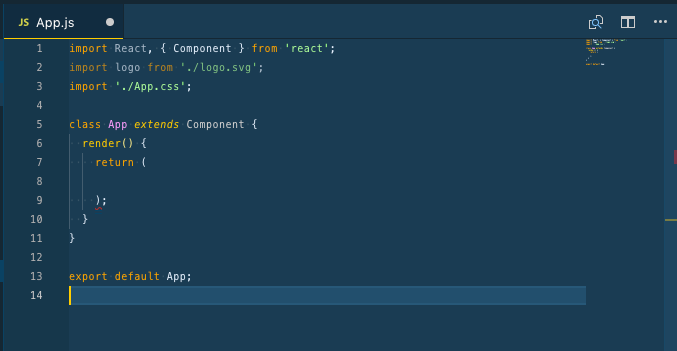
All we did was delete the boilerplate so we can add our own. This has left us with an empty class which React uses to create Components.

The first thing our component needs is some state. You can think of state as a sort of memory for our component — we use it to store stuff that the component needs while it is around. We need to save the response we get from the server in state.

Edit the class so it looks like this:

He we are initialising the state with a mock of the data our server will send. We are doing this because it allows us to set up a our component as if there is data there, before it has been fetched from the server. We’ll get more into that next.

Go ahead and edit the return so it looks like this:

  1. We are returning a bunch of html here that we want our component to display, but you’ll notice that on line 9 of the gist we have some { }. In JSX (this html-like syntax React uses) we use them to indicate that we are going to write JavaScript. The JavaScript we are writing is a .map() on every item in our images array, inside our state object. We are telling React that for every item in our images array, produce the following html. Each item is passed down to this html so we can access its properties. This would have thrown an error if we didn’t initialise our state to have a mock of this structure as state would not have contained an array.
  2. What is key={i} doing here? Well React needs to keep track of each chunk of html it generates here and the only way to do that is to assign each one a unique key. We are using the index of the array as our key. Notice the { } that tells React that that value will come from JS. (There are plenty of reasons why you shouldn’t use the index of your array as a key, but for this simple case it’ll do.) It’s also worth noting that a .map() like this can only have one html child element, hence why we made sure to wrap our children in the parent div. If you don’t need a div, you can use a <React.Fragment/> to get around this.
  3. Here we are passing down the properties of the array to the children elements. The url is being used as the <img/> source and the name is being used as the text value in the <p/>

So that’s all gravy, but now we need to actually fetch the data from our server. Add this componentDidMount() method to our component:

  1. componentDidMount() is what is known as a life-cycle method in React. All it does is allow us to do something when our component becomes a part of the DOM (basically when it becomes visible).
  2. The something we are doing is fetching some data from our server. Remember that our client is configured to use our server, running on http://localhost:3001/, as a proxy. So when we tell it to fetch(‘/frames’) we are telling it to go to http://localhost:3001/frames and return the response.
  3. .then() is a chaining method used on promises. That’s not really critical to understand, but it allows us to sequentially do stuff once the fetch has returned a result. “Hey, when you get that thing do this… and then this…. and then this…” The first thing we are doing is parsing the response as JSON.
  4. Now that we have the data we need, we call this.setState() which is a built in method for updating the state object in React. The argument it takes is the updated state object. Importantly it makes sure that the component is re-rendered after the state object is updated, so that it actually displays the results of the change. Never directly edit state without using setState(). We pass in { images: data } where data is our JSON response from the server. This syntax might be a bit tricky to get, but it’s called object de-structuring. The details aren’t super important but it looks for something with a key matching images inside the state object and then we update it’s value with data

If you hit save and run http://localhost:3000/ you should see this:
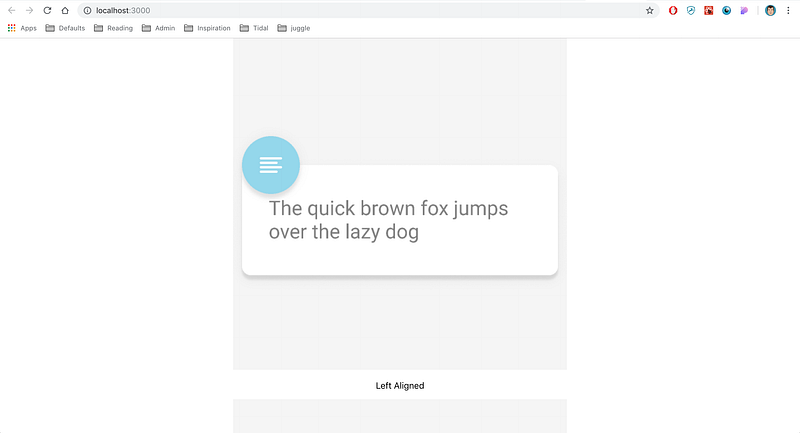
Woohoo, it worked. But it looks a bit shit. So before we are done, we need to add some styling to our html. There are a bunch of ways to do this, but the simplest is to write some styles in objects and add them as inline styles to our elements. Update App.js to look like this:

We have a bunch of style objects declared outside of our component, which we then attach to the relevant html components using inline styles. Notice that the styles in the objects have a different syntax to normal CSS? To make the styles work this way we have to remove the in property names and values and use camelCase instead. We also use , to separate styles rather than ; and remove unit types like px. It takes a bit of getting used to if you want to use this regularly.

Now if you hit refresh you should see:
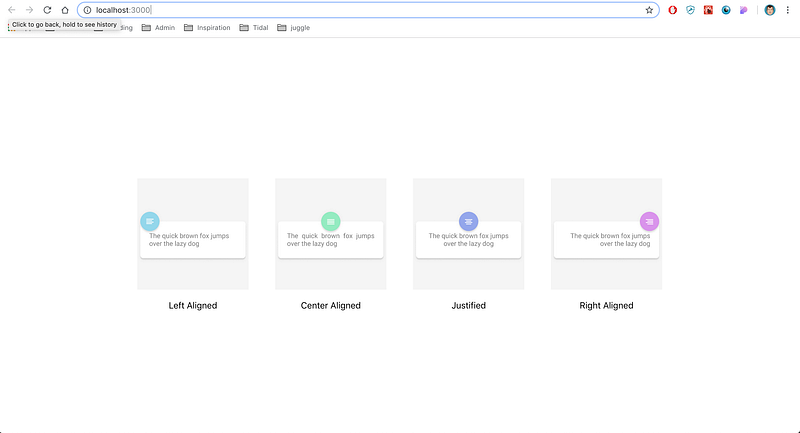
Boom. We’re done. If you want to you can work on displaying different parts of the document. Maybe try create a rudimentary inspector that shows the attributes of each element in greater detail. Or don’t. You do you.

Thanks for reading. Hope it was helpful. If you want more super long, boring content like this make sure to follow me here. If you want some short-form boring content, follow me on twitter.

React
API
JavaScript
UI
Figma
Recommended from ReadMedium