
A deep dive into an initial Kotlin build.gradle.kts
An introduction to plugins, repositories & dependencies with side-notes on BOMs, the JetBrains namespace, why `java-library` is (almost) redundant & why JCenter is dangerous
Have you heard about the Kotlin Primer? It’s an extensive, hands-on and detailed guide to the Kotlin language full of unique and original explanations, interactive exercises, and concrete recommendations based on experience. It will transform anyone who knows Java into a Kotlin expert within a matter of days. Check it out!
This is the third article in a series about building a Kotlin project with Gradle configured using the Kotlin DSL. In the previous one, we talked about installing Gradle and running gradle init for the first time. We briefly described the files and folders that Gradle generates, except for the most interesting one, build.gradle.kts. If you didn’t follow the article, you can take a look at the source code here.
In this article, I want to focus exclusively on the contents of build.gradle.kts.
build.gradle.kts
With Gradle 6.0.1, these are the contents I get after gradle init:
plugins {
    // Apply the Kotlin JVM plugin to add support for Kotlin.
    id("org.jetbrains.kotlin.jvm") version "1.3.41"

    // Apply the java-library plugin for API and implementation separation.
    `java-library`
}

repositories {
    // Use jcenter for resolving dependencies.
    // You can declare any Maven/Ivy/file repository here.
    jcenter()
}

dependencies {
    // Align versions of all Kotlin components
    implementation(platform("org.jetbrains.kotlin:kotlin-bom"))

    // Use the Kotlin JDK 8 standard library.
    implementation("org.jetbrains.kotlin:kotlin-stdlib-jdk8")

    // Use the Kotlin test library.
    testImplementation("org.jetbrains.kotlin:kotlin-test")

    // Use the Kotlin JUnit integration.
    testImplementation("org.jetbrains.kotlin:kotlin-test-junit")
}
As you can see, the configuration is declared using various functions defined in the Kotlin DSL. I won’t attempt to cover them comprehensively, as it would take too long and basically turn the article into a copy of the Kotlin DSL documentation, but I will walk you through the lines that Gradle generated so you get a sense of what each line means.
The script contains three main blocks — plugins, repositories and dependencies — so let’s quickly introduce what those are.
Plugins are just what you would expect them to be. A plugin usually defines a set of custom tasks to help accomplish a given goal, but it can also define new functions you can use in the build script, or include additional configuration. We’ll actually create one of our own in a future article, when we talk about publishing to MavenCentral.
Some plugins are built into Gradle and can be included just by accessing a predefined property, such as the java-library plugin, while 3rd party plugins are added using the id function, like the kotlin.jvm plugin.
Dependencies are external components which are needed for your project to function. To quote the Gradle docs, “Every dependency declared for a Gradle project applies to a specific scope”. This means that, for example, some dependencies should are needed for compiling source code, while others only need to be available when executing tests, which is precisely the difference between the implementation and testImplementation functions.
Dependency management is a very rich subject that is at the heart of Gradle, and delving fully into its complexities is far beyond the scope of these articles. While you don’t need to worry too much about that when starting out, at some point (especially if you plan on creating libraries) you should read the Gradle Docs on this subject.
Artifact dependencies are resolved against binary repositories. Think of binary repositories as code repositories (e.g. GitHub), but instead of being used for publishing code, they are used to publish built artifacts of your code. Usually, public repositories such as JCenter or MavenCentral are used, with these two receiving special treatment in the form of dedicated functions available in the repository block, but Gradle is able to use many other types (we’ll take a close look at this when we talk about deploying to MavenCentral).
Let’s go through each of these blocks and explain their contents.
The plugins block
Gradle automatically adds two plugins for us — the kotlin.jvm plugin and the java-library plugin.
The kotlin.jvm plugin was added by Gradle because we chose Kotlin as our implementation language during gradle init. It defines tasks such as compileKotlin and compileTestKotlin and allows you to compile Kotlin code to JVM bytecode. There are other similar plugins that allow you to target other platforms, such as JavaScript or Android, or define a multiplatform project.
The version of the plugin corresponds to the version of Kotlin you want to use in your project. Gradle 6.0.1 sets this to 1.3.41, while the newest version of Kotlin at the time of writing is 1.3.61 — feel free to change this to the version that’s current when you’re reading this.
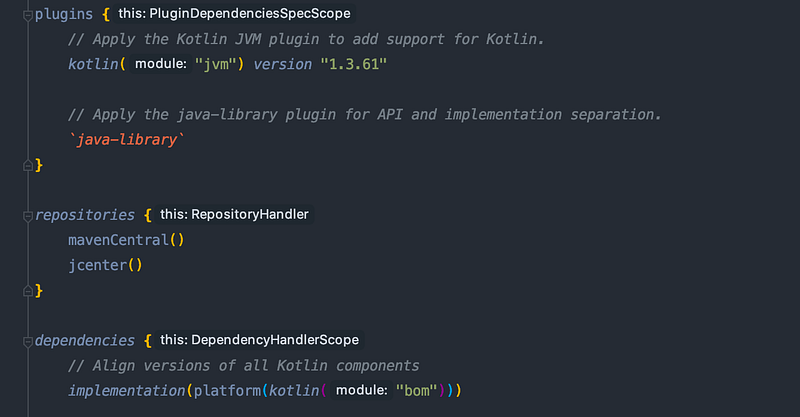
It’s also nice to know that the plugin block offers the kotlin function, which calls id with the org.jetbrains.kotlin prefix and allows us to make our code more concise:
kotlin("jvm") version "1.3.61"Much nicer.
The java-library plugin was added because we chose “Library” as the type of project in gradle init. According to the docs, it allows you to specify the way dependencies are used in your library by providing configurations such as api() and implementation(), among others. This is specific to library development, and explaining the details is beyond the scope of this article, but you can find more information in the Gradle docs. If you’re interested in fine-tuning dependency resolution for your consumers, definitely check out Gradle Module Metadata. A related theme is maintaining compatibility in Kotlin libraries and I highly recommend this quick read to everyone.
Since we’re pretending we’re developing a library and plan on publishing it to MavenCentral, we’ll keep the plugin included.
As an interesting side note, as of 01/2020, it seems like this plugin doesn’t actually do anything except deprecate legacy configurations, such as
apiElements,compileand others. Other than that, it behaves exactly like the Java plugin, which it extends. Since the Kotlin plugin also extends the Java plugin, everything included by the Java plugin is already included by the Kotlin plugin.
As a consequence, including
java-libraryin a Kotlin project is currently redundant from a functionality standpoint. However, there is no official statement to the same effect, so I will continue to include the plugin throughout the articles.
EDIT: I asked about this on the Gradle forums and have since received an answer from James Justinic that sheds some light on this. The Kotlin plugin does indeed do some stuff when the java-library plugin is included.
The repositories block
Gradle automatically adds JCenter to every new Kotlin project. Since JCenter contains everything MavenCentral does, this seems like a reasonable thing to do, however there are serious security concerns with this setup. Unlike MavenCentral, where the submission process is fairly stringent and ownership of namespaces must be proved, publications to JCenter are not subjected to the same scrutiny. This makes JCenter much easier to use, while at the same time also making it much easier to misuse.
Long story short, I would recommend to use MavenCentral or other repositories when you can, and make sure Gradle tries to resolve against them before trying to resolve against JCenter by listing JCenter last in the dependencies block. So let’s add MavenCentral:
repositories {
    mavenCentral()
    jcenter()
}
The dependencies block
Gradle supports declaring different types of dependencies, but by far the most common are modules in public repositories like MavenCentral. Module dependencies are specified by GAV coordinates, which stands for GroupId, Artifact, Version, each separated from the other by a :. There is additional logic available for specifying the version, e.g. as a range, or as an exclusion (e.g. anything except a certain version). It is worth knowing that specifying a version means that the component must be at least that version, not exactly that version.
Alternatively, the version can be omitted entirely and specified instead using dependency constraints. This is essentially how Gradle deals with platforms, which are mentioned bellow.
Depending on the context the dependency is needed in, the GAVs are passed to one of a number functions, such as implementation or testImplementation (the technical term Gradle uses to model these contexts is Configurations, and you can define your own if you want).
Gradle included 4 dependencies by default:
dependencies {
    // Align versions of all Kotlin components
    implementation(platform("org.jetbrains.kotlin:kotlin-bom"))

    // Use the Kotlin JDK 8 standard library.
    implementation("org.jetbrains.kotlin:kotlin-stdlib-jdk8")

    // Use the Kotlin test library.
    testImplementation("org.jetbrains.kotlin:kotlin-test")

    // Use the Kotlin JUnit integration.
    testImplementation("org.jetbrains.kotlin:kotlin-test-junit")
}
Except for the first, they should be fairly self-explanatory. The second implementation call includes the Kotlin standard library for JDK8 and we’ll address the final two libraries in a separate article, where we’ll talk more about setting up tests.
When you read through online resources, you might come across different standard libraries being included in someone else’s build. This article by Martin Bonnin does a great job of explaining the different flavors you can encounter, and which to use.
You’ve probably noticed that none of the dependencies have versions specified, which is precisely where the first dependency comes into play.
Software bill of materials (BOMs) don’t specify a dependency on a module or file, but instead are a list of version constraints for other components. They define what is called a platform, which is basically a list of components with specific versions that are known to play well together and/or form a useful unit of functionality. It’s worth mentioning that not all of the dependencies listed in the BOM actually have to be included in your projects — it’s basically a way of saying “If you use any of these modules, use this version”.
As this is not a normal dependency and requires different treatment, it is necessary to wrap the GAV coordinates of the BOM in a call to platform, which does several things behind the scenes. Alternatively, you can use the enforcedPlatform function, which specifies that the versions defined by the platform must be respected and cannot be overridden.
In our case, including a specific version of the Kotlin BOM prescribes the same version for “built-in” Kotlin libraries such as stdlib, reflection, annotations and the like. It saves us from having to type out the version for every such Kotlin dependency, and makes sure we don’t accidentally import different versions of components. In other words, if you include kotlin-bom:1.3.61, you get version 1.3.61 of all the aforementioned components.
At this point, you should be wondering how the version of the Kotlin BOM is deduced, since it is also not specified. The only place we ever deal with versions is the Kotlin plugin, so one is tempted to suspect that it has something to do with custom logic defined in the plugin, and indeed this is so.
This snippet means that, if unspecified, the version of any module that is part of the Jetbrains Kotlin GroupId (
org.jetbrains.kotlin) will be the same as the version of the Kotlin plugin. As a consequence, specifying the versions through the Kotlin-BOM is actually redundant, as the BOM does not currently define a version for a library outside of this GroupId. However that could potentially change in the future, and in any case I think it is good practice to include the BOM anyway.
The kotlin function available in the plugins block has a counterpart in the scope of the dependencies block (careful, they are not the same function and behave a little differently) and we can use it to make things more concise:
dependencies {
    // Align versions of all Kotlin components
    implementation(platform(kotlin("bom")))
// Use the Kotlin JDK 8 standard library.
implementation(kotlin("stdlib-jdk8")) // Use the Kotlin test library.
testImplementation(kotlin("test")) // Use the Kotlin JUnit integration.
testImplementation(kotlin("test-junit"))
}Kudos to nwillc who pointed out that you can also group the dependencies in a list and then just map the implementation type over them, to avoid having to type it over and over again.
Whew, what a load. If you made it this far, congratulations, you now know enough to take a closer look at setting up tests in Kotlin, which we’ll tackle in a future article (WIP).
You can take a look at the current state of the code here.


