
CODEX
A Bash Template(cheat sheet) is very Useful
How a Bash Template Speeds Up my Work

As a PaaS developer, writing shell scripts is inevitable, though I only need to write them very occasionally, once a month maybe. I can’t say it is tough but admit it is not easy. The reasons are
- It takes your effort to adapt to the syntax since it is different from commonly used high-level languages.
- To be proficient in writing, you need to master more built-in variables.
- Debug is always not easy.
- Be cautious about error control. Extra attention is required when it comes to files deletion.
Deeply addicted to Google at the beginning of my writing shell scripts, I did it in low efficiency. “Time to step out of the comfort zone,” I said to myself. There are always rules, conventional syntax, and tools that help you be a real shell script “writer.” Here’s my experience of no longer being a Google dependant.
- Rely on a template. It is most conventional shell scripts’ structure and content, around which you can do subsequent modifications.
- Make a list with things easy to confuse or difficult to remember. By reviewing the list time after time, you gradually “carve” them into your brain cells.
- Check shell script with tools.
- Do the final test and run it in prod⛑.
Since I only write bash script currently, the whole article focuses on bash only.
Template
The above shows the template I use most, including the most commonly used components.
- Error processing
- Parameter handling
- Method definition
- Examples of
if,for,switch, and other commands
In Shell, errors can be very trivial, but you have to handle them well if you want to get it right. To be more detailed, the following are what I encountered when writing a shell.
- How to avoid the bash5 on Mac issues? Simply use
!/usr/bin/env bashinstead of!/bin/bash. - How to judge whether the parameter is followed by a value or is just a switch? Look for the
:inwhile getopts “h?b:d:” OPT;. - When are spaces required in the
ifstructure? They are needed almost in between all[,param,flag, etc. - Is
Readonly for reading files from a directory? No, it can also read user input. - How to define variables, use variables, quote variables in strings? And how to get variables in the pass-in methods? The template covers most of them.
In this way, I can make whatever modifications to my shell scripts on this template. It is handy, isn’t it?
Things hard to remember
Of course, a template cannot contain all the content needy; otherwise, the entire template will be very bloated and less readable. Therefore, it is effective to list the contents that I rarely use and hard to think of once needed.
mktemp and trap
mktemp creates temporary files, while trap deletes temporary files.
Generally, we use mktemp to create temporary files when running the script. And trap is the corresponding operation to delete them after use, similar to defer in Go.
The difference between declare, readonly, let
We can define variables by all these three commands.
Both readonly and declare can be used to declare read-only variables, while the latter offers more options, such as-x, which is equivalent to exporting environment variables.
Variables defined by let are mutable and can perform arithmetic expressions and assign multiple variables on one line simultaneously.
$ let v1=13 v2=14$ echo $v113
$ v1=15$ echo $v115
The difference between [], {}, (), (()), [[]]
They are all used in pattern extension but in different scenarios.
[]indicates an in-range selection or a selection of multiple values, which can be used in combination with!,^,?, etc., such as[a-zA-Z],[abc],[!0–9]etc.{}expands to all the values in{}, and multiple{}can be nested and combined. It also represents the range, which can also be in reverse order.
$ echo {a, b, c}a b c$ echo {j{p, pe}g, png}jpg, jpeg, png$ echo {3..1}3 2 1()is commonly used to nested execute other commands, similar to``.
$ echo $(date)(( ))only applies in arithmetic calculation expression.
$ echo (( 1 + 1 ))2
[[]], can be replaced by[], so it is rarely used.[[:alpha:]]and[a-zA-Z]have the same effect, with the latter clearer and more readable.
Special variables
$0:Script file name.
$1~$9:Correspond to the parameters, from the first one to the ninth.
$#:Total number of parameters.
$@:All parameters, separated by spaces in between.
$*:All parameters, separated by the first character of the variable $IFS value. It is a space in default but can be customized.
$?: Exit status of the last command. Usually 0 or 1, exit 1 means an abnormal exit and exit 0 indicates success. Or last executed function return value.
$$: Expand to the process ID of the shell.
$!: ID of the most recent executed process.
LINENO: Line number in the current script.
FUNCNAME: An array and index[0] is the current function.
BASH_SOURCE: An array and index[0] is the current script.
There are other special variables in bash that are less commonly used. If you have an interest, you can enrich the list. But always picking up the familiar ones and testing them before use is a good way to keep from misuse.
String ops
String operation is a must for every language. For Bash, there’s no complicated APIs and functions, so you only need to be familiar with some special usages.
- Calculate length:
${#str} - Get substring:
${str:1:3} #1 offset, 3 len; offset starts from 0 and offset can be -1 - Delete pattern match from head:
${str#pattern} # shortest match` or `${str##pattern} #longest match - Delete pattern match from tail:
${str%pattern}and${str%%pattern} - Replace pattern match:
${str/pattern/replace}and${str//pattern/replace} - To uppercase:
${str^^} - To lowercase:
${str,,}
Again, string operations are too many to list them all.
Env variables
The most common env variables are,
- BASHPID: ProcessID
- BASHOPTS: Parameters
- HOME: current user home directory
- HOST
- IFS: delimiter, default is space
- PS1: Shell prompt
- PWD: current working directory
- USER: current user name
- UID: current userid
- SHELLOPTS: current set command params
&& and || between multiple commands
When executing shell scripts, we often need to execute multiple commands continuously. No pipeline relationship in between though, there is logical continuity. Simply put, the success or failure of the previous command execution decides the next command’s execution. Judging by $? == 0 after each execution will be redundant, and we can use the && and || commands combination instead.
Cmd1 && Cmd2means that Cmd2 can be executed only if Cmd1’s execution is successful.Cmd1 || Cmd2is the opposite, that is, Cmd2 can only be executed if Cmd1 fails.
Set command
We usually start the shell scripts with the set command. It is almost impossible to memorize the entire command list, which is very long, but at least we can try to keep the commonly used one in mind.
First, the must-have ones, an option of almost every qualified script, are as below.
-echange the default behavior of bash of ignoring failure and continuing execution and terminates when an error occurs.-o pipefail, a supplement to-e, is what we add when-efails in encountering pipeline,-Ecomplement to-e, the latter causestrap’s incapability to catch the function’s errors.-uchange bash’s default behavior of ignoring non-existing variables and report errors in time.
Other commonly used ones
-xoutput the executed command. It shows the executable command in advance with a+at the beginning of each line. Thus, when debugging a certain section of the program, you can just addset -xat the beginning andset +xat the end to view only the relevant commands.-ncheck the syntax without executing the command.-vprint each line of input and turn off with+v.
Lint
In addition to the set command -n mentioned above, there are many open-source tools that we can adopt to check and format. I only list two of them here.
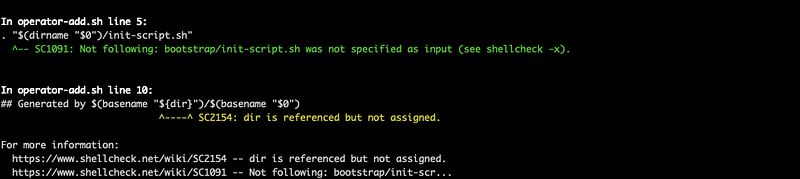
- ShellCheck, a syntax check tool.
Install brew install shellcheck on mac, and test a script.
- Shfmt is a tool written in Go to format shell scripts.
Installation: go get mvdan.cc/sh/v3/cmd/shfmt ( Go1.14+ required)
Format: shfmt -l -w script.sh
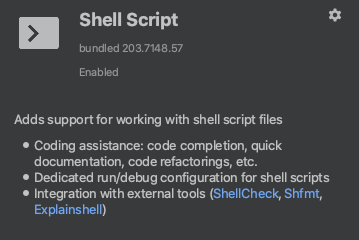
Shell Scripts plugin is available on Intellij, including the above two tools.
Test and Debug
Now I have excluded syntax issues. Generally speaking, testing shell scripts completely depends on the code logic, and we can basically make it through with set -x.
If set -x is not enough, bash supports enabling the built-in debugger by extdebug option to debug the script step by step. You can take the if condition to embed this option into the code, avoiding repeated modification.
if [[ -v DEBUGGER ]]; thenshopt -s extdebugfiYou can debug a script using$ DEBUGGER=1 bash script.sh from the command line.
At the end
This is my experience in years of writing shell scripts, which helps me quit Google addiction. As time goes by, the code quality and speed are greatly optimized. There are other ways to improve efficiency, such as shortcut keys, editing mode adjustments (using vim), which are irrelative to syntax, so I don’t include them here, and maybe we can have a discussion later.
Thanks for reading!


