
Leonardo AI: Free and Best Alternative to Midjourney
Here are some reasons to use Leonardo AI instead of Midjourney.
As you might know, Midjounrney stopped free image generation probably because of too many fake accounts created on Discord.
Since Midjounrney access is limited to only paid subscribers now, I want to share with you another AI art tool that’s as good as Midjourney and it’s free — Leonardo AI.
Leonardo AI works pretty much like Midjourney, but it has some extra features that we’ll see in detail in this article.
Leanardo AI is free to use: Here’s how to jump the waiting list
Leonardo AI is free and super user-friendly. Unlike Midjourney, where you had to hassle with Discord registration, Leonardo has its very own website. Talk about convenience!
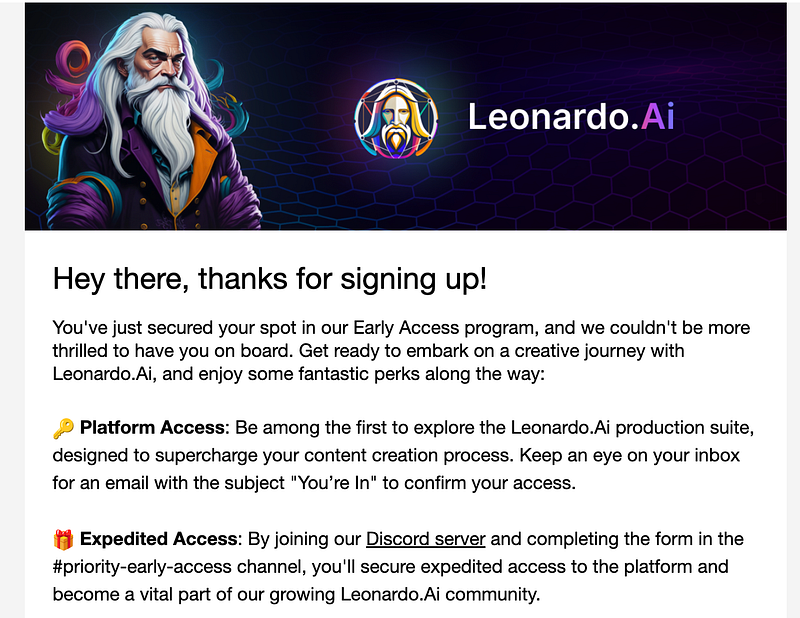
All you have to do is go to its website, leave your email address, and join the waiting list. Then, you need to wait for your invitation, which can take anywhere from a few days to a couple of weeks (it took me 2 days to get access).
Note: If you’re itching to jump the waiting list and speed things up, you can hop on Discord and complete the form. That way, you can get yourself on the list in a jiffy without twiddling your thumbs for too long.
And here’s the cherry on top: it won’t cost you a dime! You get around 25 free attempts every day to play around with it.
Pretty cool, isn’t it?
Leanardo AI is easier to learn than Midjourney
Learning how to use Leanardo AI is so simple that even a child could handle it.
When I first started using Midjourney, it took me some time to learn how to use it. I even showed both tools to my mom (who happens to be computer-savvy), and she found Leonardo to be easier to navigate than Midjourney.
Unlike Midjourney, Leonardo provides a panel where you can conveniently adjust settings and image sizes (This means there’s no need to manually input them).
You click on “AI Image Generation” and a panel opens in front of you. All you have to do is set the desired parameters and AI will do the rest of the work for you.
Leonardo AI Improves Your Prompts
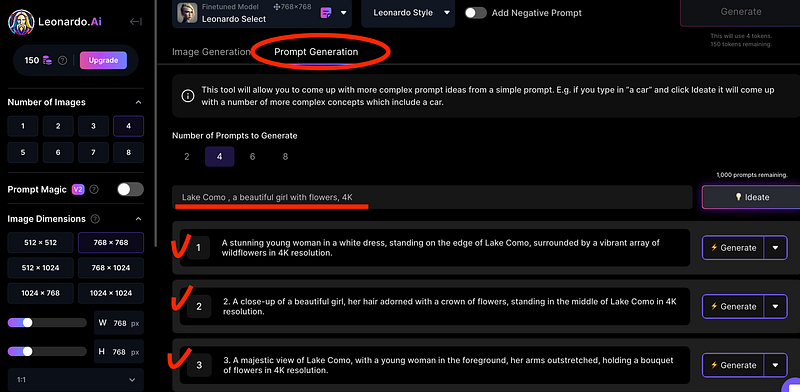
Leonardo AI’s interface is split into 2 sections: Image Generation and Prompt Generation.
On Image Generation, you enter your prompt and create an image, while on Prompt Generation, Leonardo will offer its improved version of your prompt.
In the example below, it adds details to my prompt.
Prompt: Lake Como, a beautiful girl with flowers, 4K
And here is what I got.
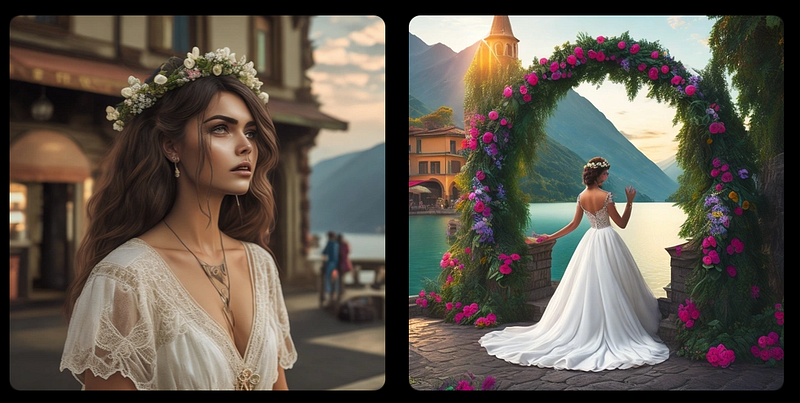
I got a girl, flowers and Lake Como. And it took me only 4 token credits out of 150.
Here’s another prompt I used.
Prompt: cute pikachu pokemon as a jedi, high quality, cartoon sticker
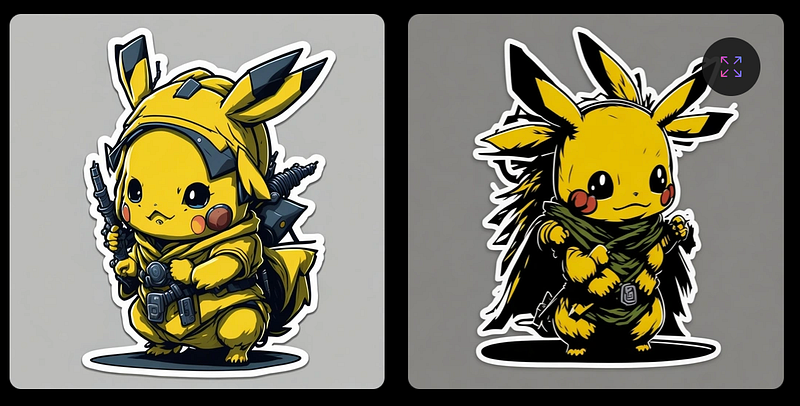
Leonardo AI has features you wouldn’t find on Midjourney
With Leonardo, you can instantly modify your image by enhancing its quality, adding details, or removing the background.
- Umzoom Image: Unzoom makes the image bigger by completing the picture properly. It’s very cool if you have some kind of landscape image like on the example below. In this case, Leonardo harmoniously completed the houses, the wall, and the flowers (costs 5 tokens)
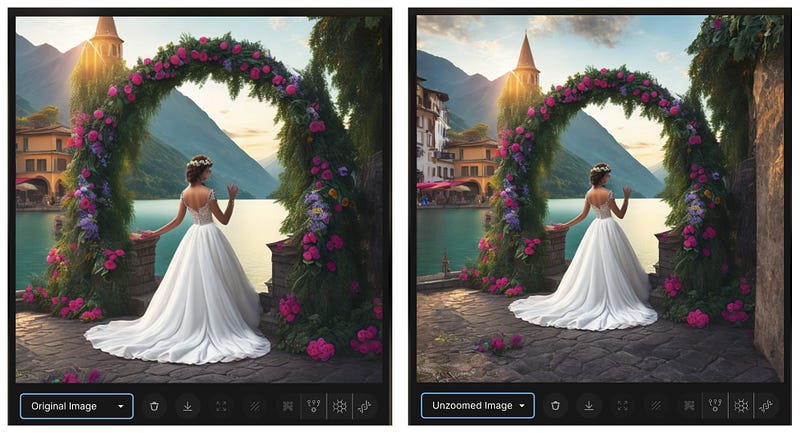
Note: If your image is minimalistic, or have no background, Leonardo is more likely to make a framed image poster like in the image below.
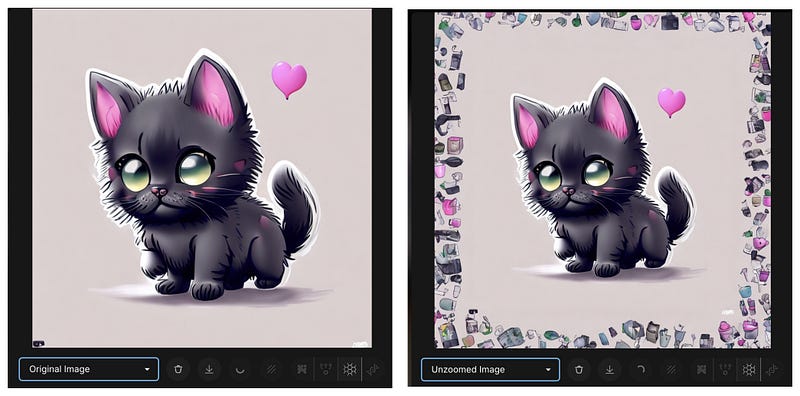
2. Remove Background: Everything is clear here. Leonardo removes the background from your image. A very handy feature especially when you make stickers or combine multiple images. And here’s what it looks like. (costs 2 tokens)
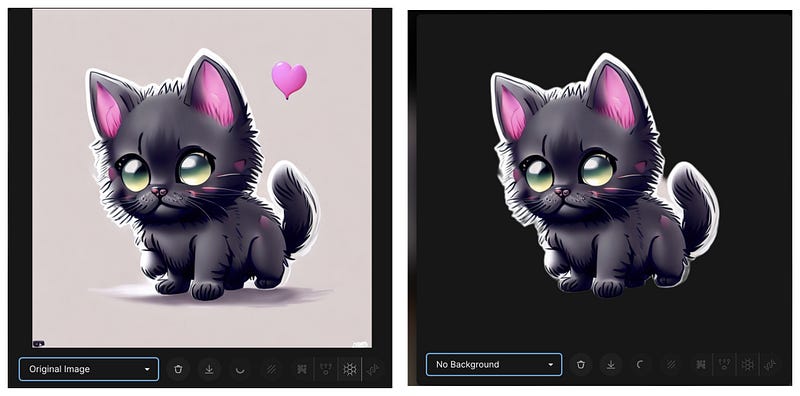
I would also like to mention that Leonardo performs exceptionally well in this regard and efficiently crops images. It excels particularly when dealing with images featuring a minimalist background.
3. Alternate Upscaled Image: The image remains the same, with only minor details altered. There is little noticeable difference between the pictures (costs 5 tokens).
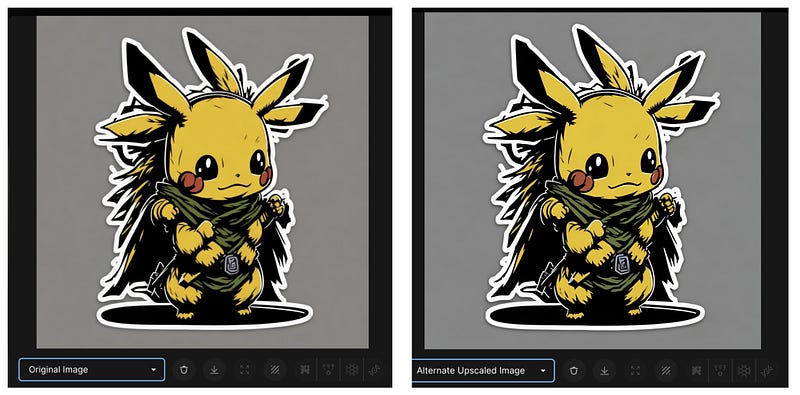
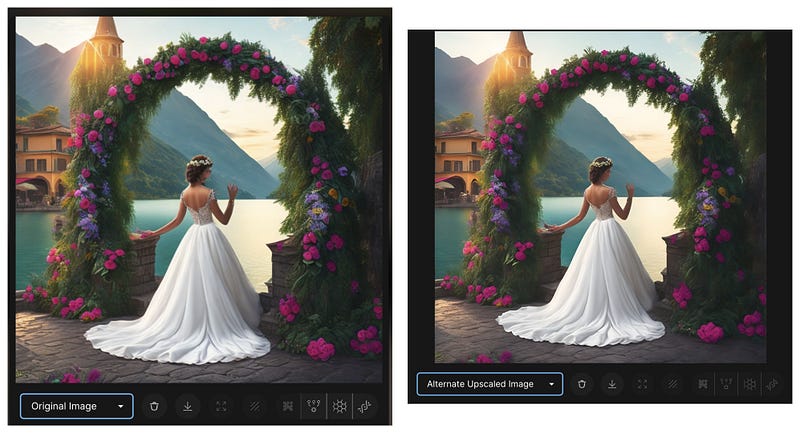
4. HD Smooth Upscaled Image: When you don’t need details in an image, choose this feature. This feature smoothes small details (costs 5 tokens)
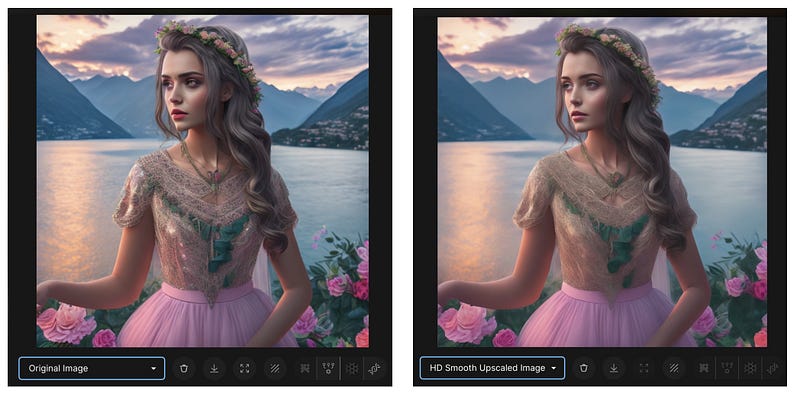
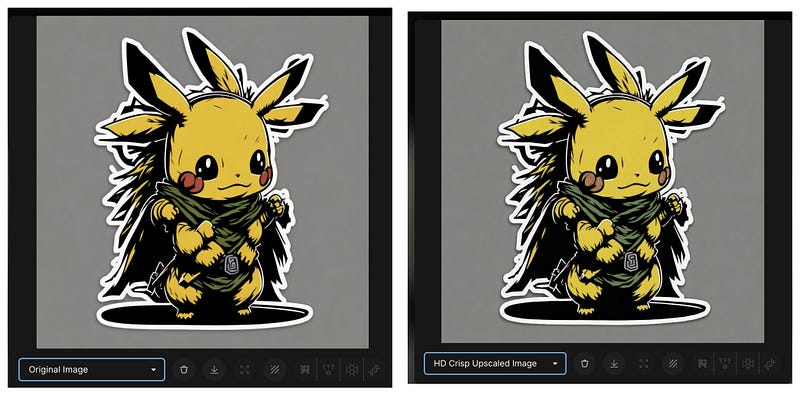
5. HD Crips Upscale Image: This feature balances image enhancement. It subtly reduces color saturation while enhancing clarity (costs 5 tokens).
AI Canvas: AI Canvas is a standalone complete image editing tool. With it, you can complete your images with a proper element or, on the contrary, remove unnecessary ones (the cost depends on the generation size)
To use AI canvas, follow these steps:
- Select the desired image
- Go to “Edit in Canvas”
- Select “Draw Mask” and select the area where you want to make changes
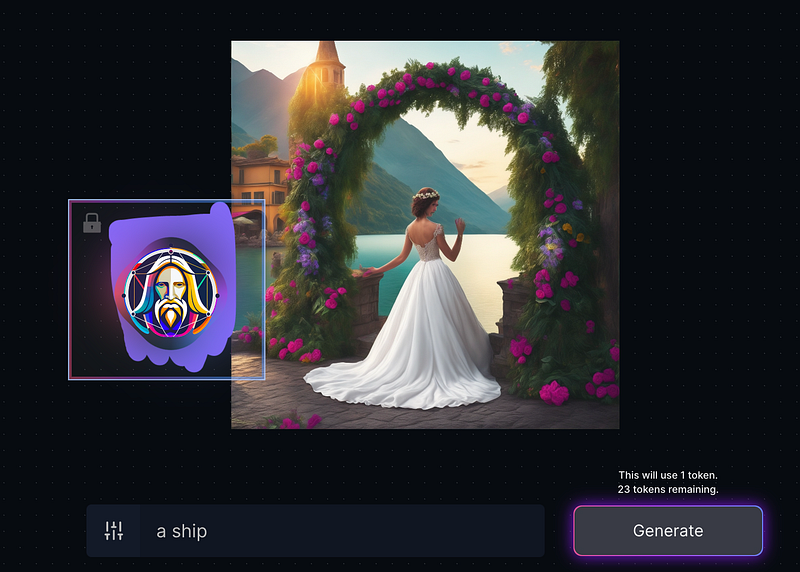
- Write down a prompt
- Click “Generate”
As you can see, the tool adds more details to the picture. Now you can zoom in/out, move your selection area and continue prompting.
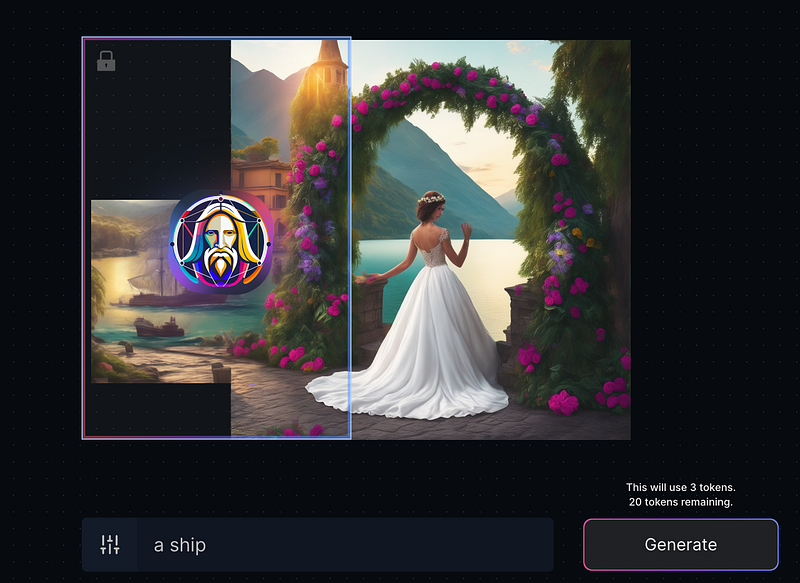
Finally, move your selection area to the needed place (without making a mask) to finalize the picture.
Note that the bigger the generation size, the more tokens it will cost.
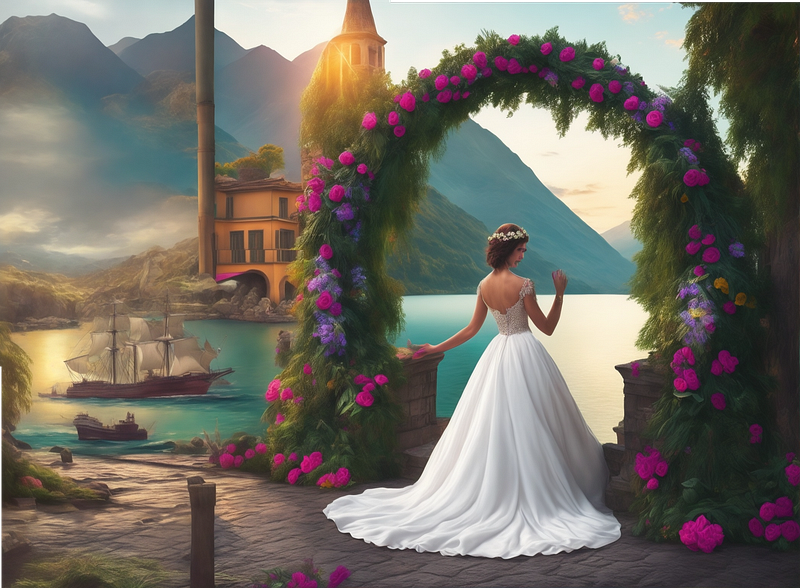
Here is my final picture.
The Final Verdict: Leonardo AI or Midjourney?
When it comes to choosing between Leonardo AI and Midjourney, it really depends on what you’re looking for.
To be honest, I’m a huge fan of MidJourney. The images it creates always blow my mind with their incredible detail and overall cohesiveness.
But hey, don’t dismiss Leonardo AI just yet! It’s not just about generating images. It has a bunch of cool tools like object removal, changing backgrounds, and enhancing images. I’m talking about total control over your images! It’s also a functional AI tool worth considering if you’re looking for a free alternative to MidJourney.
Artificial Corner’s Free ChatGPT Cheat Sheet
We’re offering a free cheat sheet to our readers. Join our newsletter with 20K+ people and get our free ChatGPT cheat sheet.
If you enjoy reading stories like these and want to support me as a writer, consider signing up to become a Medium member. It’s $5 a month, giving you unlimited access to thousands of Python guides and Data science articles. If you sign up using my link, I’ll earn a small commission with no extra cost to you.