
8 Ways I Make My Life Easier With Apple Notes and Reminders
Straightforward tricks for a productive lifestyle
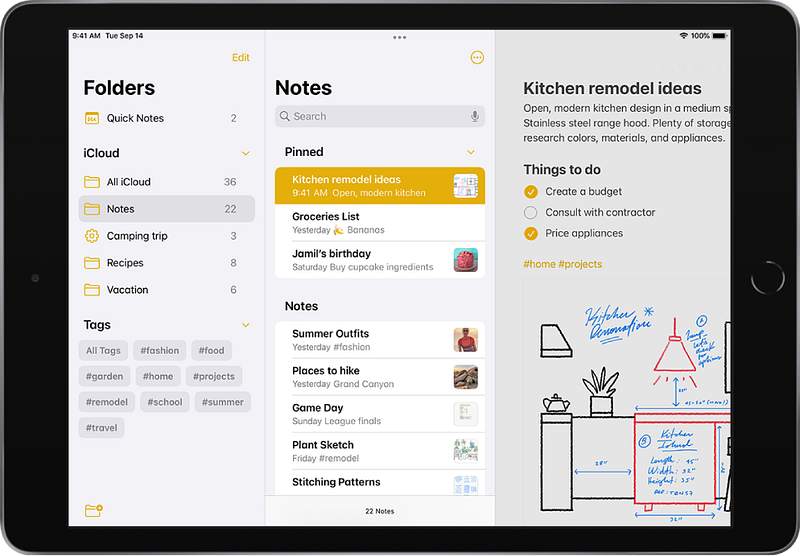
Setting up repetitive reminders
I tend to subscribe to a lot of apps and services temporarily.
For example, subscribing to a free trial of an app for two weeks or subscribing to Netflix until I finish watching a series.
While this usually helps me save a ton of money, sometimes I forget that I have subscribed for these apps and end up paying for more months.
To avoid this, I use the repetitive reminders feature in the Reminders app and set up the reminder to repeat hourly.
This way, even if I am caught up with other things on the day I am supposed to cancel my subscriptions, I would eventually see one of the hourly reminders and will cancel it.
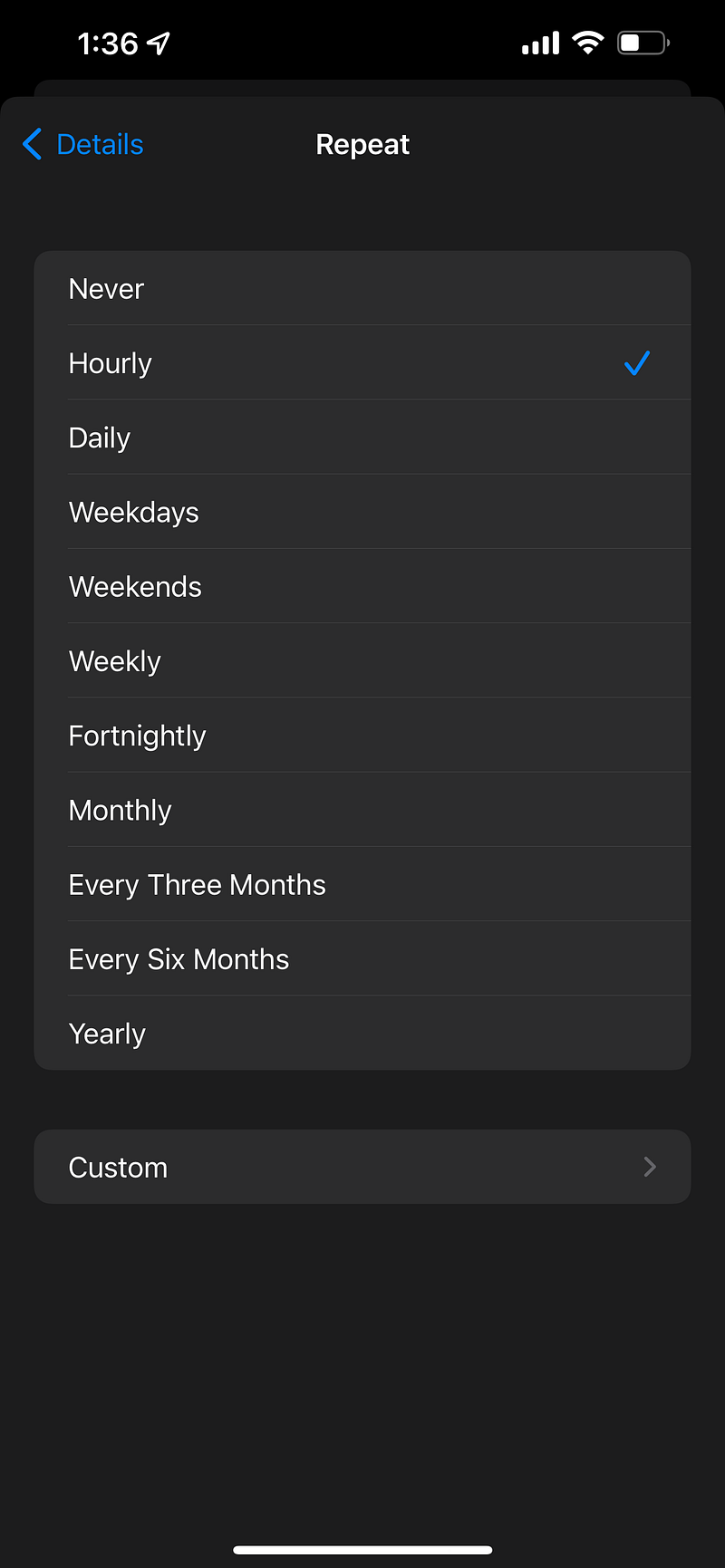
It also helps if you schedule the reminder a day before the subscription actually expires so that you don’t miss the deadline and end up paying for an extra month.
Apart from reminding you to cancel subscriptions, repetitive reminders are also a great way to remind yourself to do other vital things in your life like drinking water, watering your plants, and even feeding your children.
To use the repetitive reminders feature, just set a time for your reminder when you are creating a new one and select a frequency by clicking on the Repeat option.
It is incredible; try it, and it will undoubtedly make your life easier.
Using location-based reminders
Let’s all do a fun activity and count the number of times we have forgotten to charge our watches after we reach home or send an email after we get to work? Mine is like at least ten times a month.
To forever avoid this mishap, I once again took the help of the Reminders app on my iPhone, this time through a feature called Location-based reminders.
To create a location-based reminder, create a reminder from the Reminders app like you usually do, but this time, enable the Location option under the details page.
You can select any location you want, your home, office, or the supermarket, and then save the reminder.
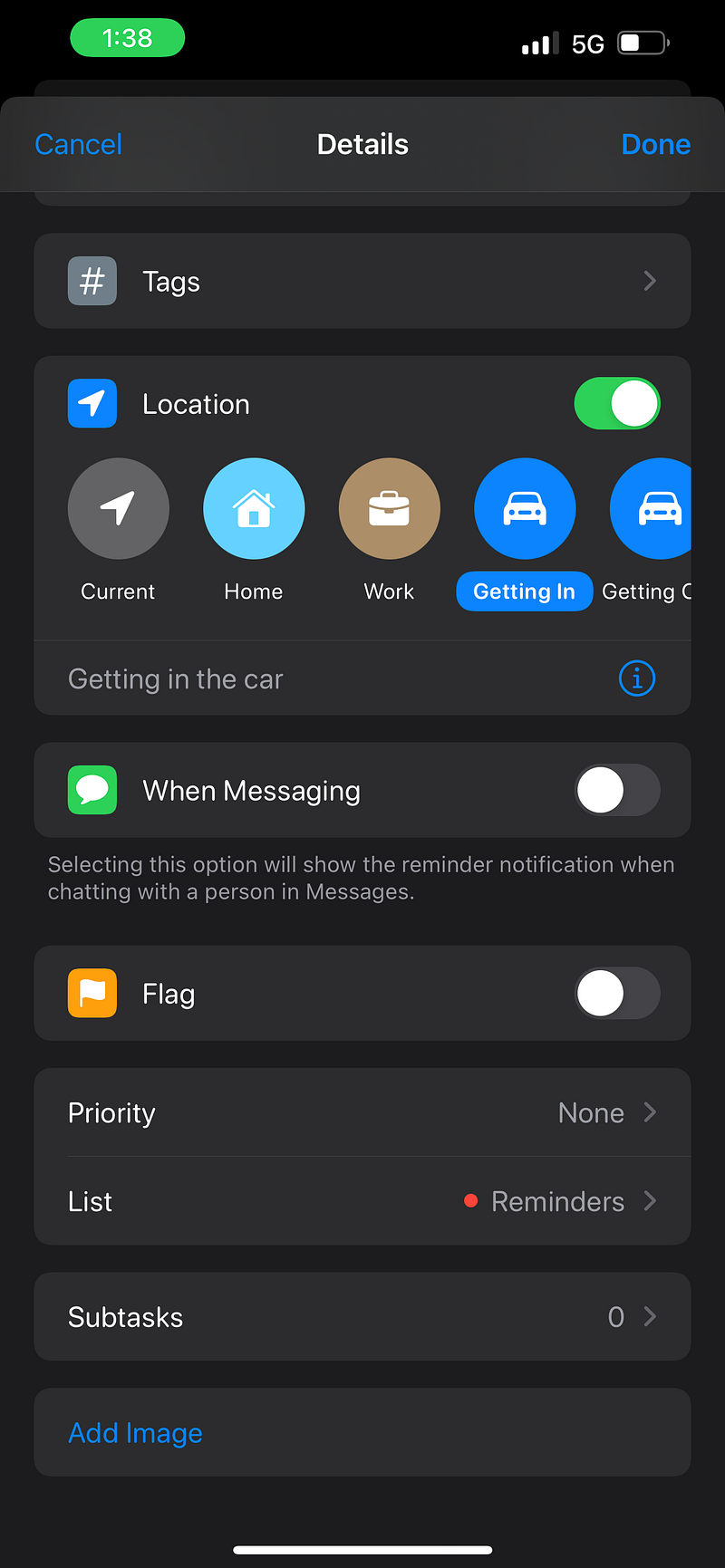
For example, create a location-based reminder to charge your Apple Watch for your home location. Your iPhone will automatically remind you to charge your watch as soon as you reach your home, thus avoiding the frustration of waking up to a switched-off Apple Watch the following day.
You could also customize the location-based reminders to be triggered when your iPhone connects or disconnects to a particular car.
This way, you can be reminded if you want to pick something up on the way to your home or get a reminder of why you are going to the job you hate when you leave your home in the morning.
Saving Twitter threads and blog posts to the Notes app
I enjoy reading and spend a lot of time online on Twitter, Quora, Medium, Apple News, etc. You get the gist.
However, the problem is that I also enjoy doing many other things like Gaming, watching my favorite series, sleeping, etc.
So, I usually tend to save my reading during my morning commute and just save anything interesting I come across during the rest of the day to a folder in Apple Notes.
This way, I can go through it later when I get the time and not miss out on essential pieces of content like the one you are reading right now.
Click the share icon on the content page you want to read later, click share via and then select the Notes icon. Finally, you can click on the Save to option to save the content to a folder in your Notes app.
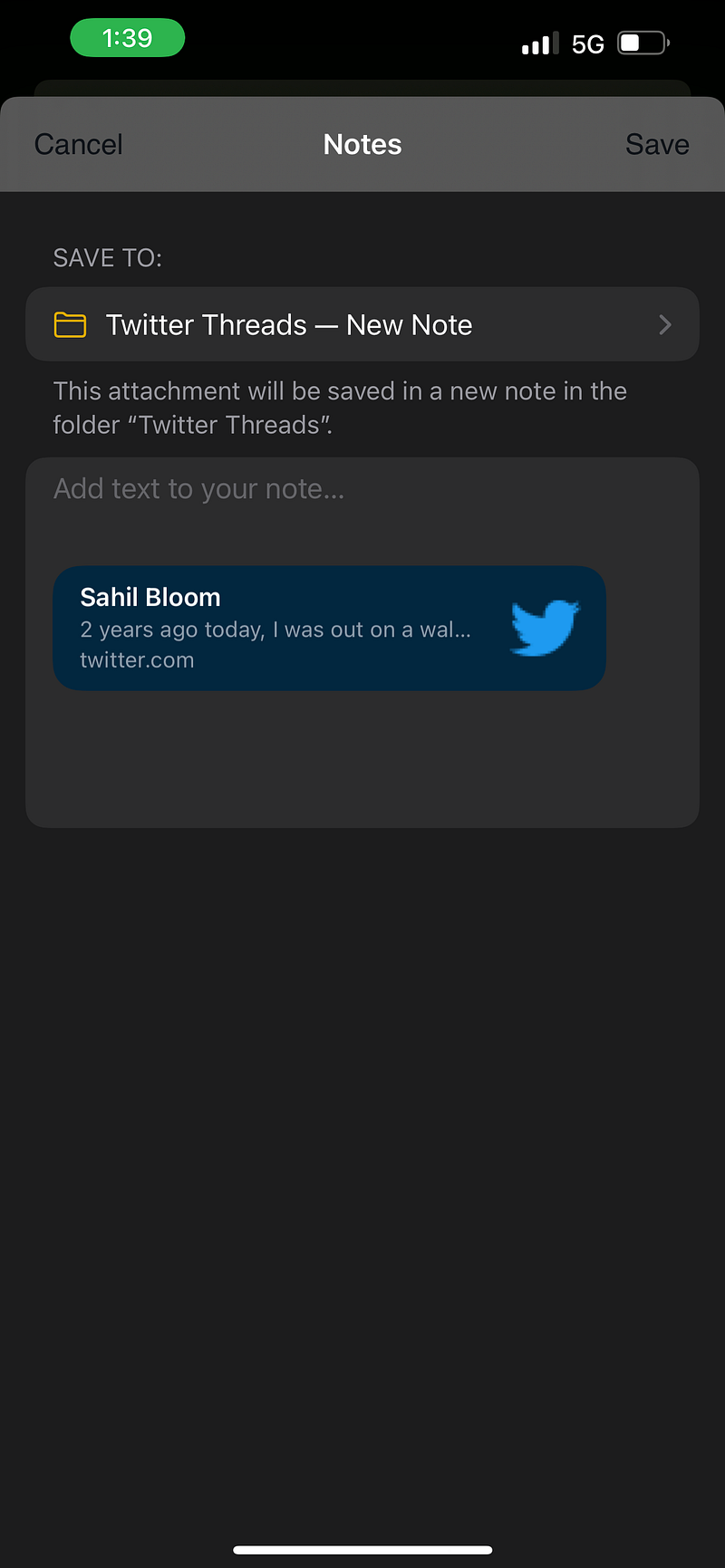
I personally have a separate folder for Twitter threads, a folder for exciting tech news, etc., and I save the content I find in the appropriate folder.
If you don’t find the Notes icon in the Share via sheet, then click on More, and you can add it from the list of suggestions on the next page.
Making use of to-do lists within notes
One of my favorite features of the Apple Notes app is the ability to create a to-do list within the Notes page.
So, if you are working on a new blog post, a YouTube video, or even an assignment or a project, you can create a to-do list on the same page with the list of all the items you need to cover.
This makes it easier to keep track of everything and gives you a sense of achievement as you start crossing things on the list.
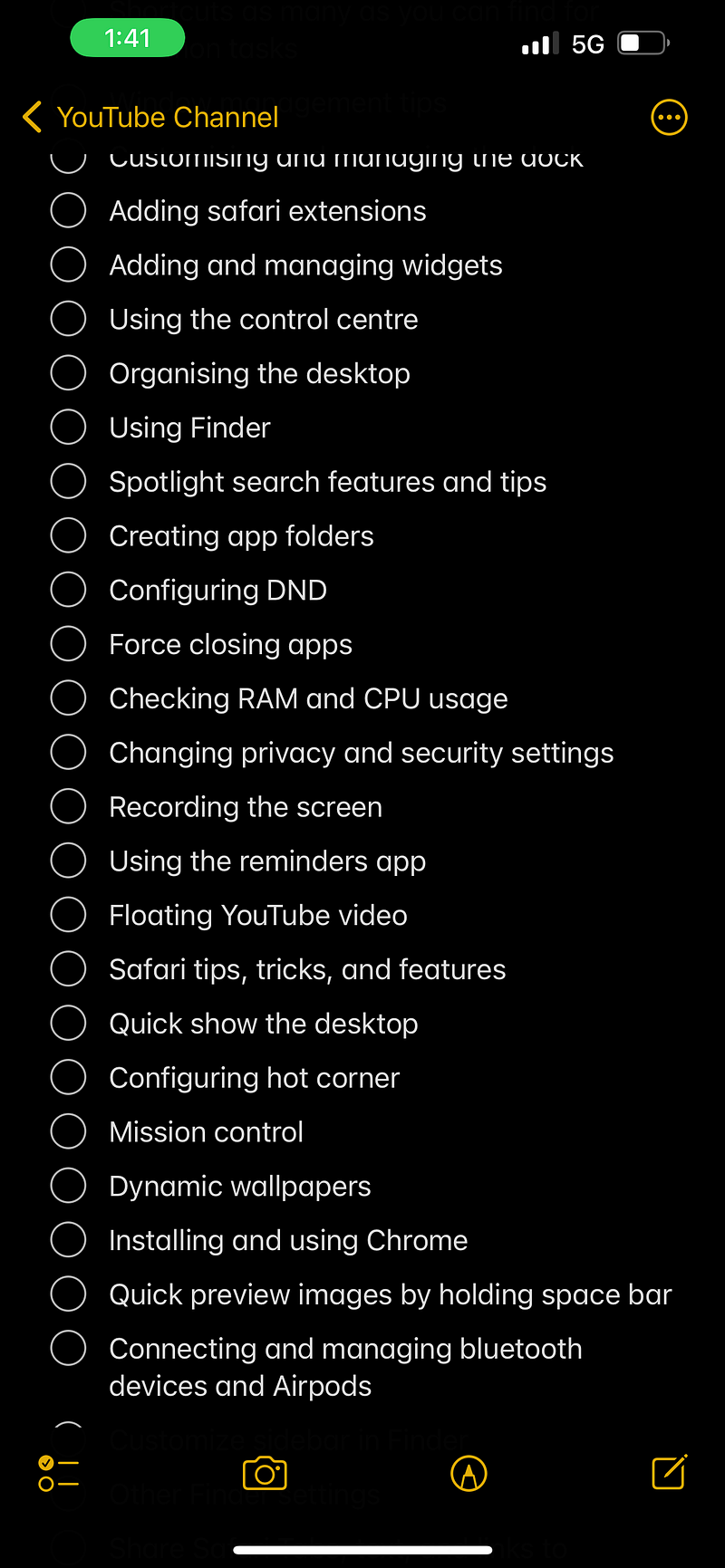
Also, creating a To-do list within a new note is very simple, just click on the list icon at the bottom of the page and start typing.
You also can enable automatic sorting of the to-do list, which will add all the ticked items to the bottom of the list, making it easier to focus on the pending tasks.
Preparing blog, podcast, and YouTube video scripts
The Notes app is a great place to store all your research and scripts and refer to them from any of your Apple devices.
Since the Notes app is integrated into the system, it is effortless to quickly share content from any app on your iPhone, iPad, or Mac.
Also, with iCloud, you can instantly sync your content across all your devices.
For example, if I am out and about and suddenly get an exciting idea or a tidbit for one of my blog posts, I quickly open the Notes app on my iPhone and note it down. Then, once I reach home, I open the note on my Mac and build upon that idea.
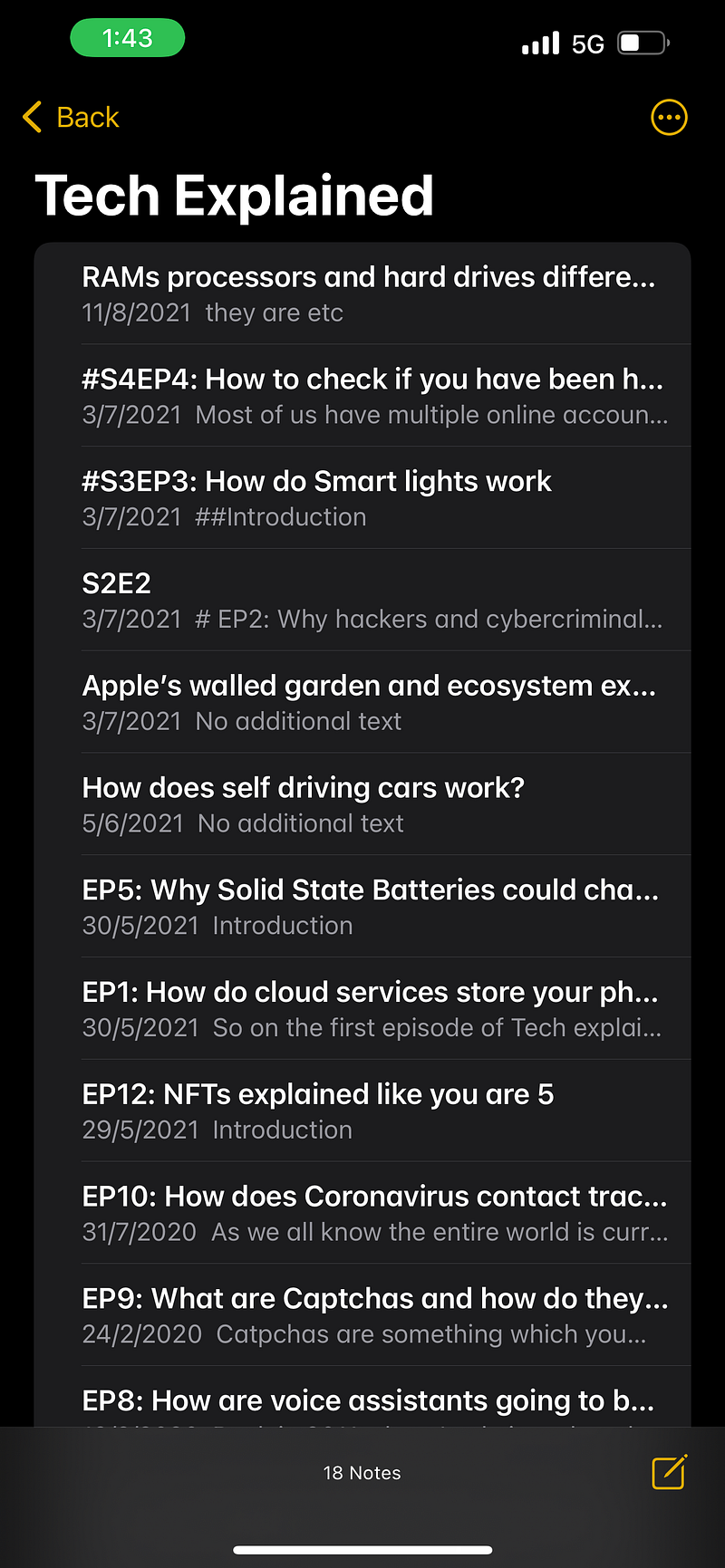
I also use the continuity camera option to take any relevant photos for my blogs or YouTube videos and add them directly to my Blog post ideas folder.
I wish the Notes app had an option to directly export your Notes to a web page or a blogging platform option instead of copying and pasting your content and later working on the formatting options.
It would make life so much easier, and you can just use the Apple Notes app as a central hub for all your content creation needs.
Using my Apple Watch as a shopping list
The Apple Watch comes in handy whenever I go grocery shopping as it is much more convenient to quickly glance at and manage my shopping list directly from my wrist instead of constantly checking my phone.
As you might already know, you can also share this list with your friends or family members so they can also add items to the list.
Adding a reading list, travel list, wishlist, etc
Talking about lists, apart from the shopping list, I also use the Reminders app for managing several other lists in my life.
For instance, a reading list with a list of books and articles I want to read, with relevant links, a travel list with things I need to pack, places I plan to visit, things to do, etc.
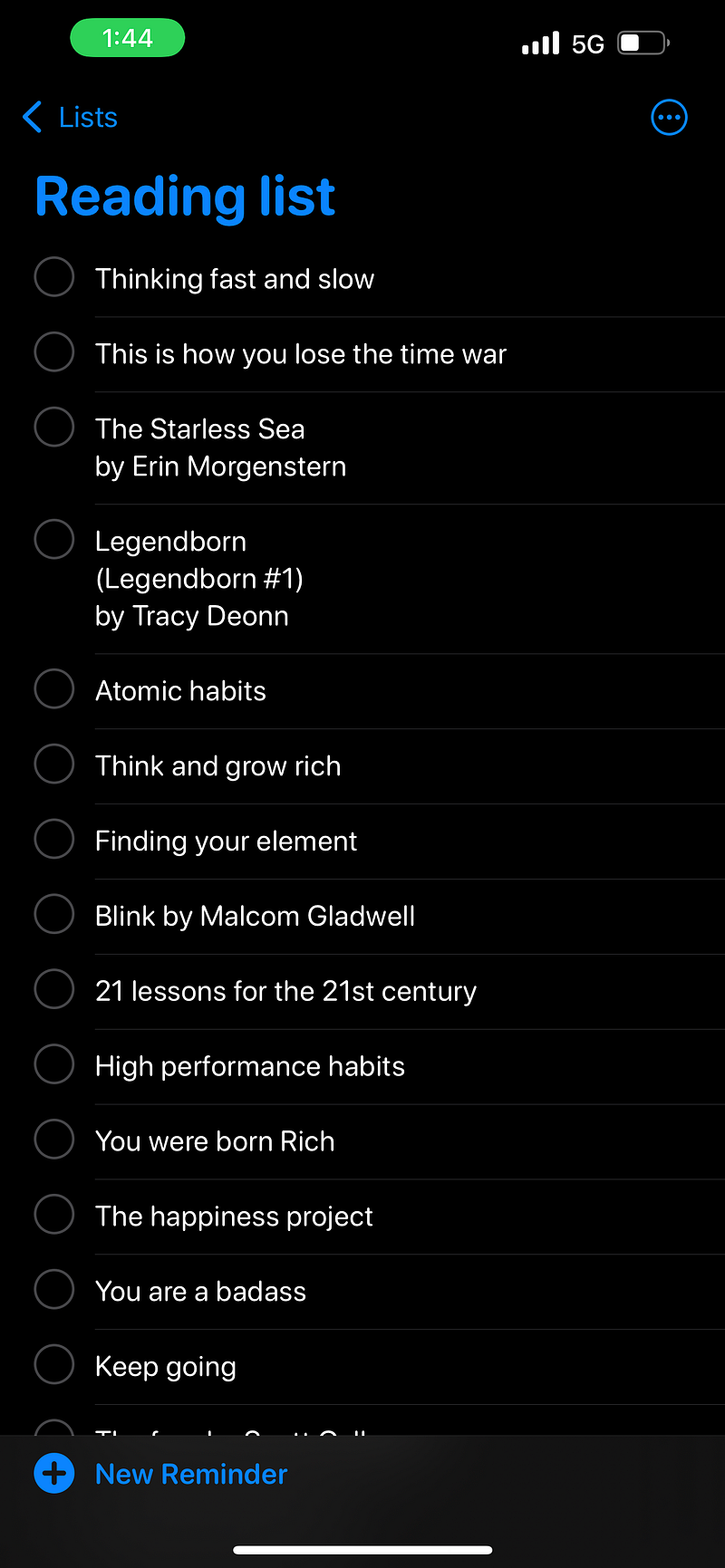
I also have a sort of a wishlist and a watchlist where I maintain a list of things I wish I could do one day, like buying certain things or doing certain activities, and a watchlist that includes all the TV series and movies want to watch.
I know you can just add it to the queue of whatever streaming app or service you use to maintain a watchlist. Still, I tend to use multiple apps at a time, and it is easier to keep track of everything I want to watch in one place in the Reminders app and quickly tick off the things I have finished watching.
Taking notes as quickly as possible with the Apple Pencil
This is exclusively for people who own an Apple Pencil and an iPad.
I don’t even count the number of times I was reading or watching something on my Mac with my iPad on my desk and quickly tapped on the iPad screen with my Apple Pencil to note something down instantly.
This option becomes even more helpful if you use the palette's text conversion tool, which instantly converts all your handwritten notes to editable text.
With the iOS 15 update, Apple also introduced an option called Quick note, which allows you to quickly create a new note from anywhere on your iPad by simply swiping the bottom corner of your iPad with your hand or your Apple Pencil.
I use this feature a lot whenever I research something in Safari or watch a YouTube video and quickly want to make a note of something.
I hope you got some valuable insight from how I use the Apple Notes and Reminders app on my Apple devices and would be able to implement some of these into your daily workflow to make your life slightly more manageable.
If you also have any unique or interesting ways you use these apps to improve your life, please share them in the comments sections, and I would love to steal them for my workflow.
Subscribe to Medium!
Join the Medium membership program to access unlimited articles across Medium on your favorite topics like Tech, Business, Productivity, and directly support The Useful Tech and all of your favorite publications!
All of this, and it only costs $5 a month, which is approximately just $0.16 a day!


