

Tip & Tricks for Flutter: Part 1
8 Useful Tips for Better UX in Flutter
Humanity always pays attention to complex matters, but mostly little improvements make the difference.
Your app may work perfectly—crazy fast, no exceptions, no errors, no crashes—as expected. But if you don’t give the users a smooth, helpful experience, your product will be a regular app, not an awesome one. Even worse, users may be dissatisfied with the experience and go crazy over time. (For example, not closing the keyboard after clicking on the search button.)
So let’s make our apps stand out, then!
1. Make your scrollable widgets always scrollable.
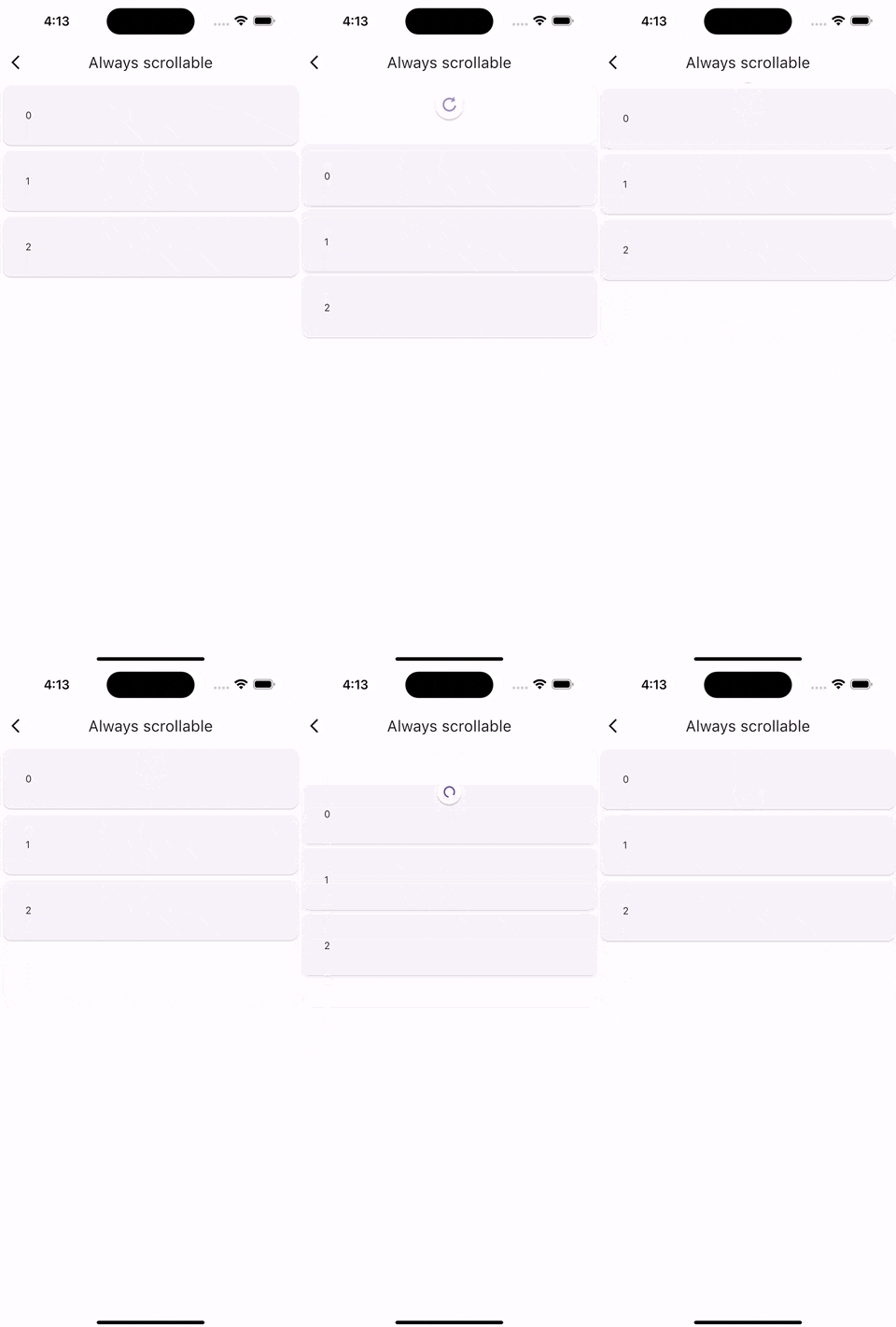
BouncingScrollPhysics is great! But if we don’t have enough items to extend beyond the view, it will not bounce at all. It kind of makes sense, actually.
But what if we want to refresh the list?
To create the bounce/overscroll effect regardless of the size of the items, we should use the AlwaysScrollableScrollPhysics with it.
2. Autofocus on open
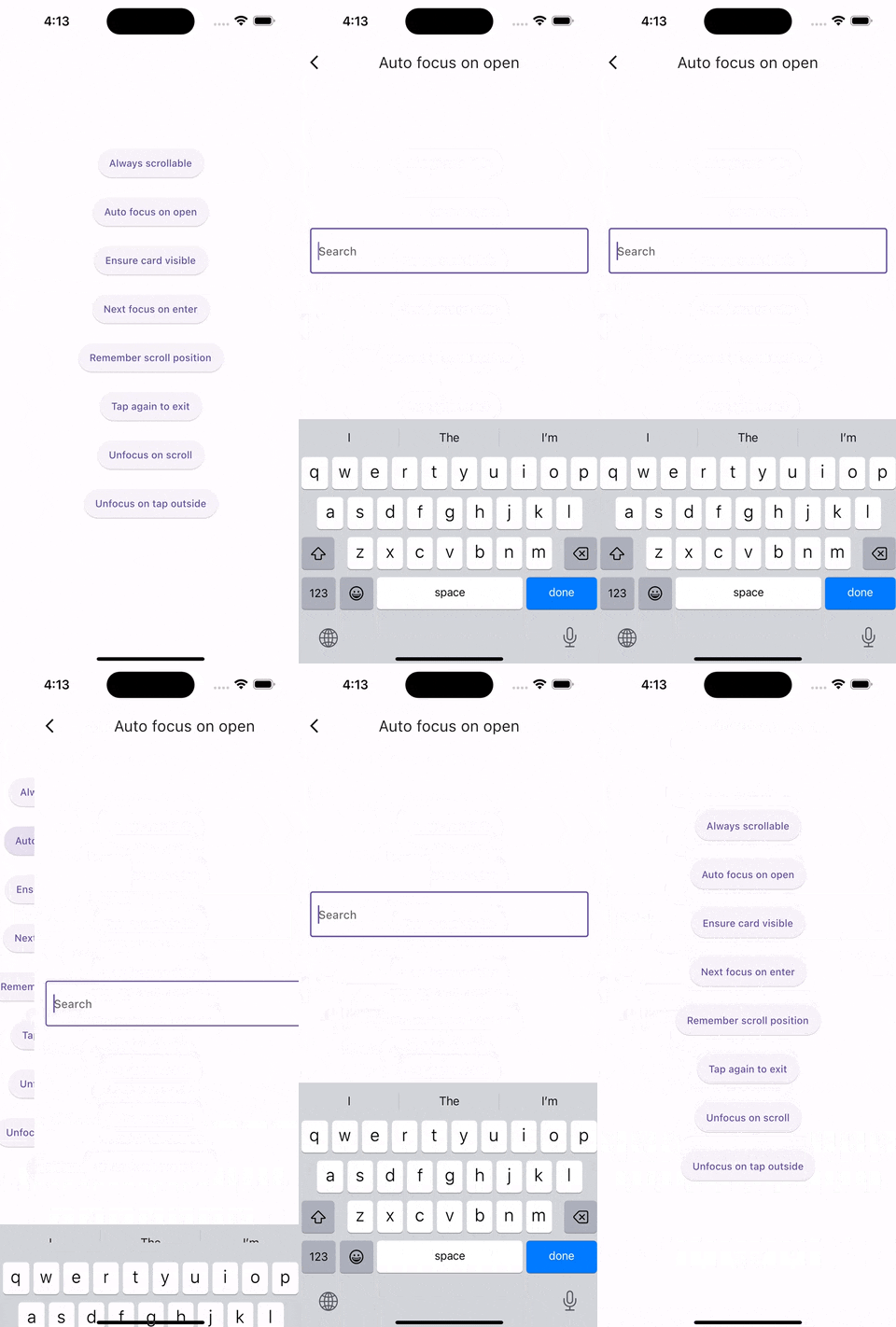
Sometimes we want to use a page only for filling out a text field.
It can be a search field or an email. We want to focus it as soon as it opens because we know the user will eventually focus it, so why bother the user by making them take the extra step of tapping on the text field?
3. Ensure the text field is visible.
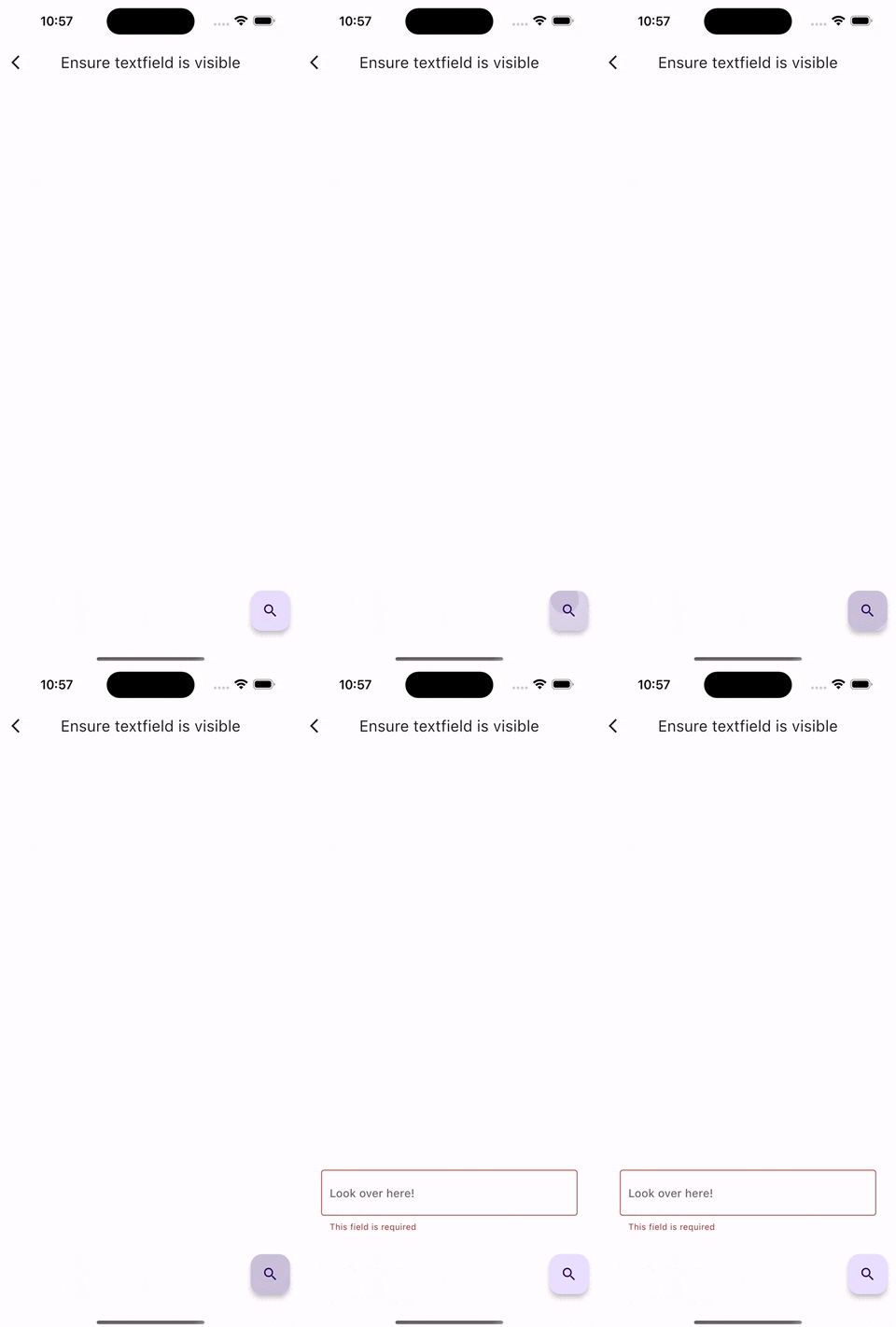
Let’s assume we have a form and need to validate some inputs. The user will click on the submit button, but wait, the button doesn’t work because some fields are not validated.
The user may not understand that because these fields are not visible on the screen at that moment. That may cause some dissatisfying experiences.
But no worries, preventing it is pretty simple! Then let’s see how!
4. Focus on the next widget when entering or submitting.
That one is pretty straightforward. You typed your name, and you want to go to the second text field on enter. That’s expected of everyone, and they should get that too!
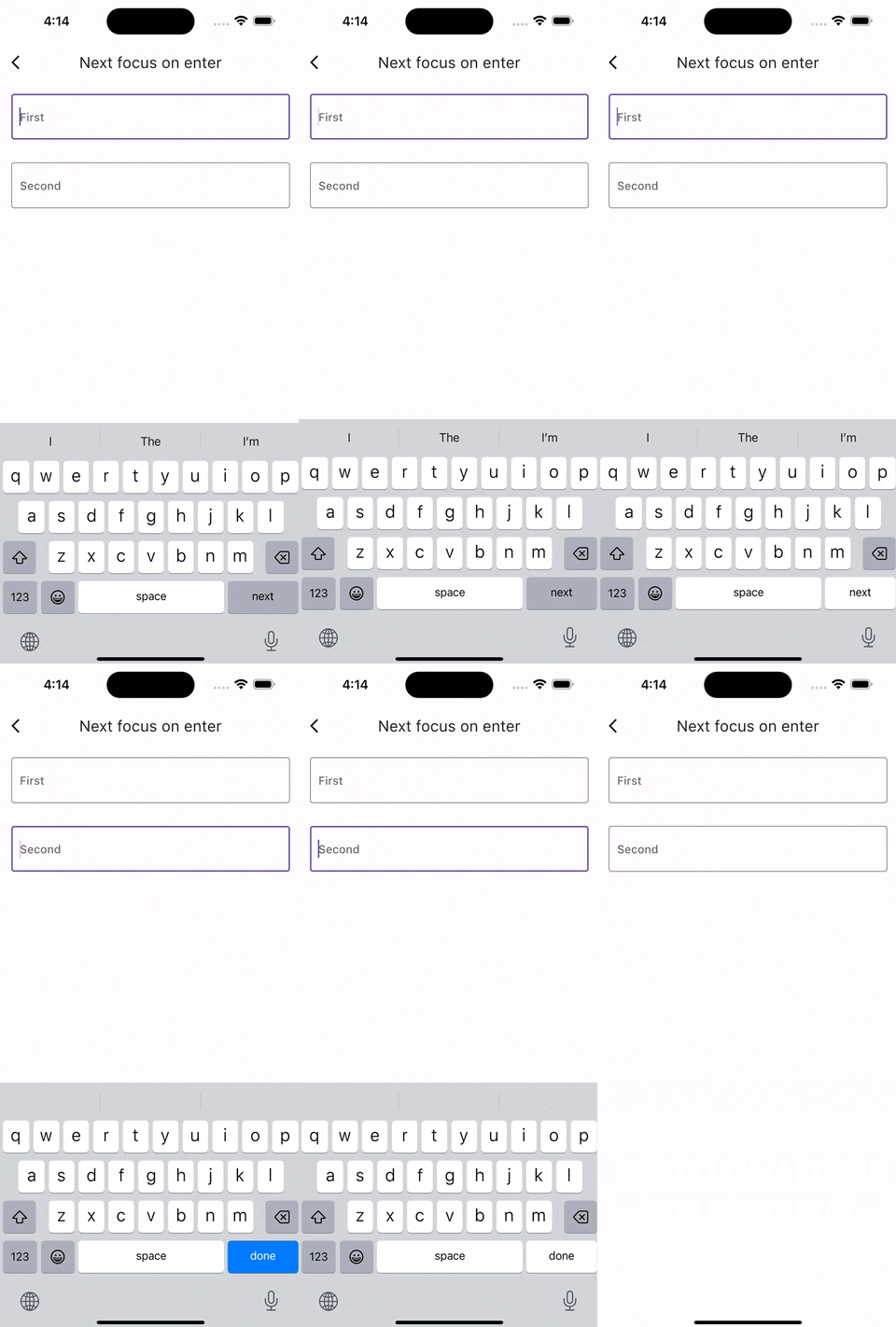
I also noticed something: many people use FocusNode for that. There is nothing wrong with FocusNode, but we don’t really need that either. We can simply set a textInputAction, and here we go! Using FocusNode is an extra step that we don’t need.
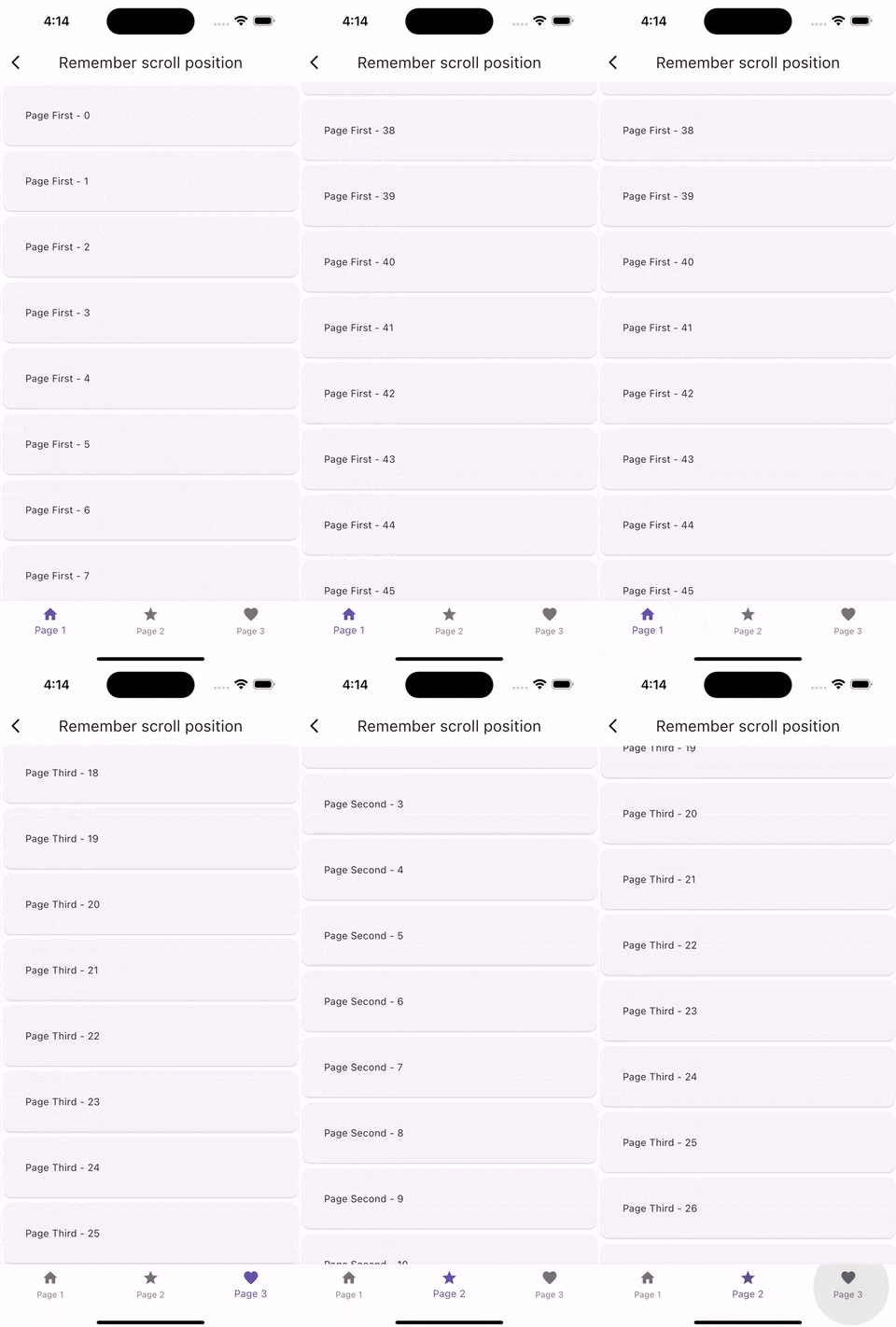
5. Remember the scroll position.
Assume that you were scrolling on a page and clicked on a card to see details or switched to another tab. Then go back to the list again, but you see that position is reset, and you had to start over again! What a disaster!
6. Tap again to exit.
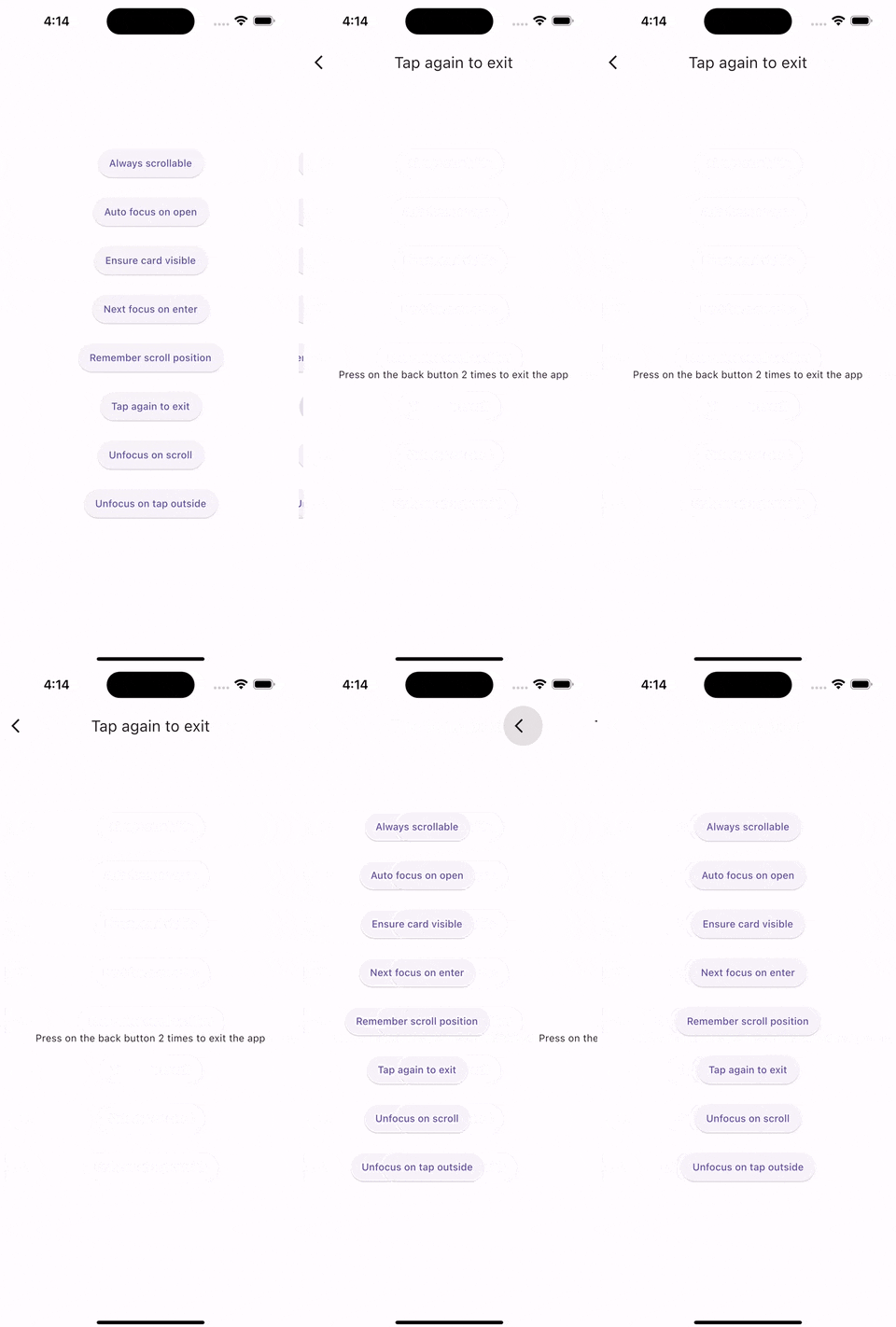
Android users may accidentally click on the back button while they’re on the home page, and the app will immediately go to the background.
Would that be a good experience for them?
I’ll leave you with this question alone and show you how you can easily prevent this from happening!
(Sorry for the bad example, I was too lazy to switch to an Android emulator to demonstrate the case with a physical back button.)
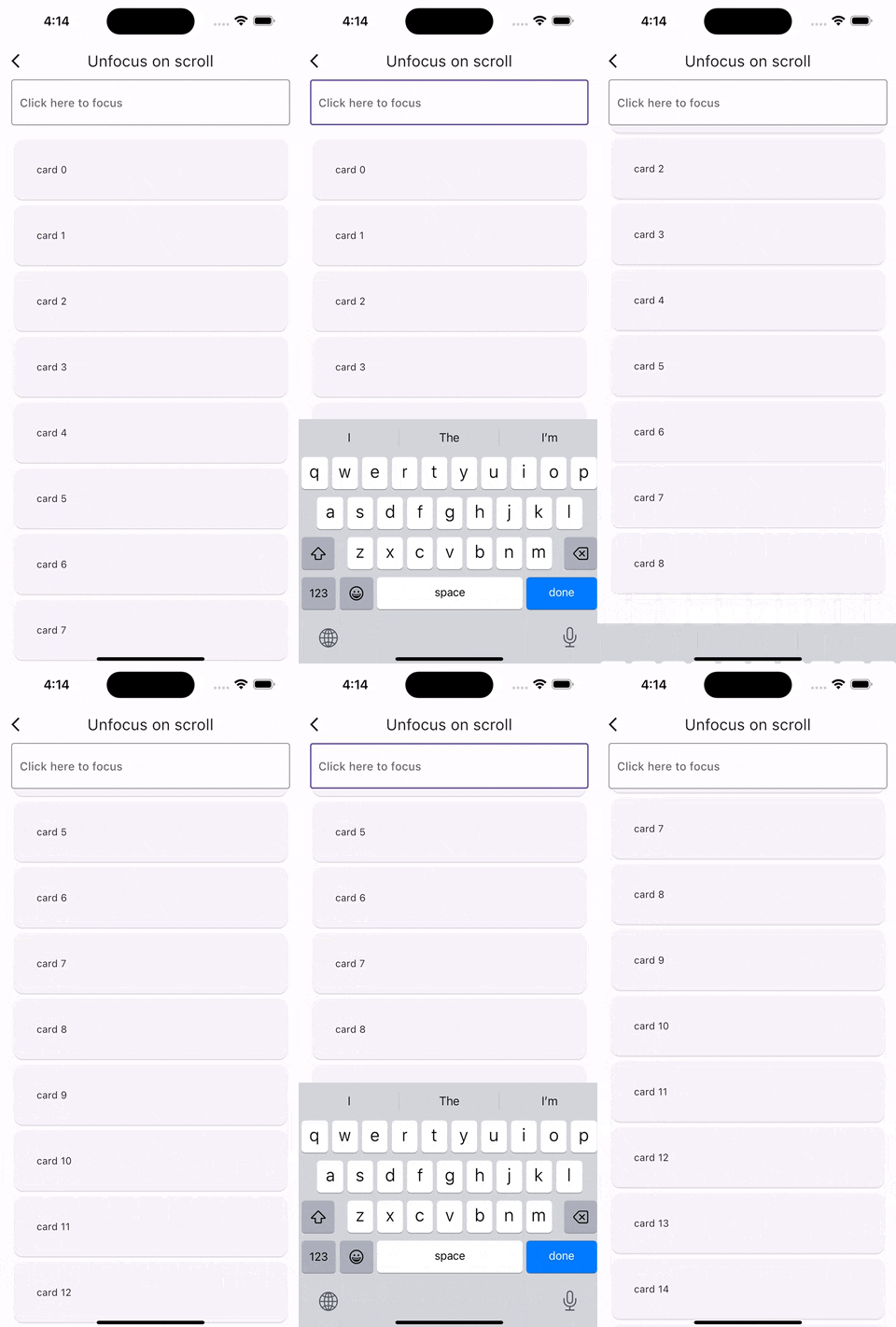
7. Unfocus on scrolling.
We have typed, we have entered, and we want the keyboard to leave us alone with the content. That’s all we want! Please don’t spare it from us!
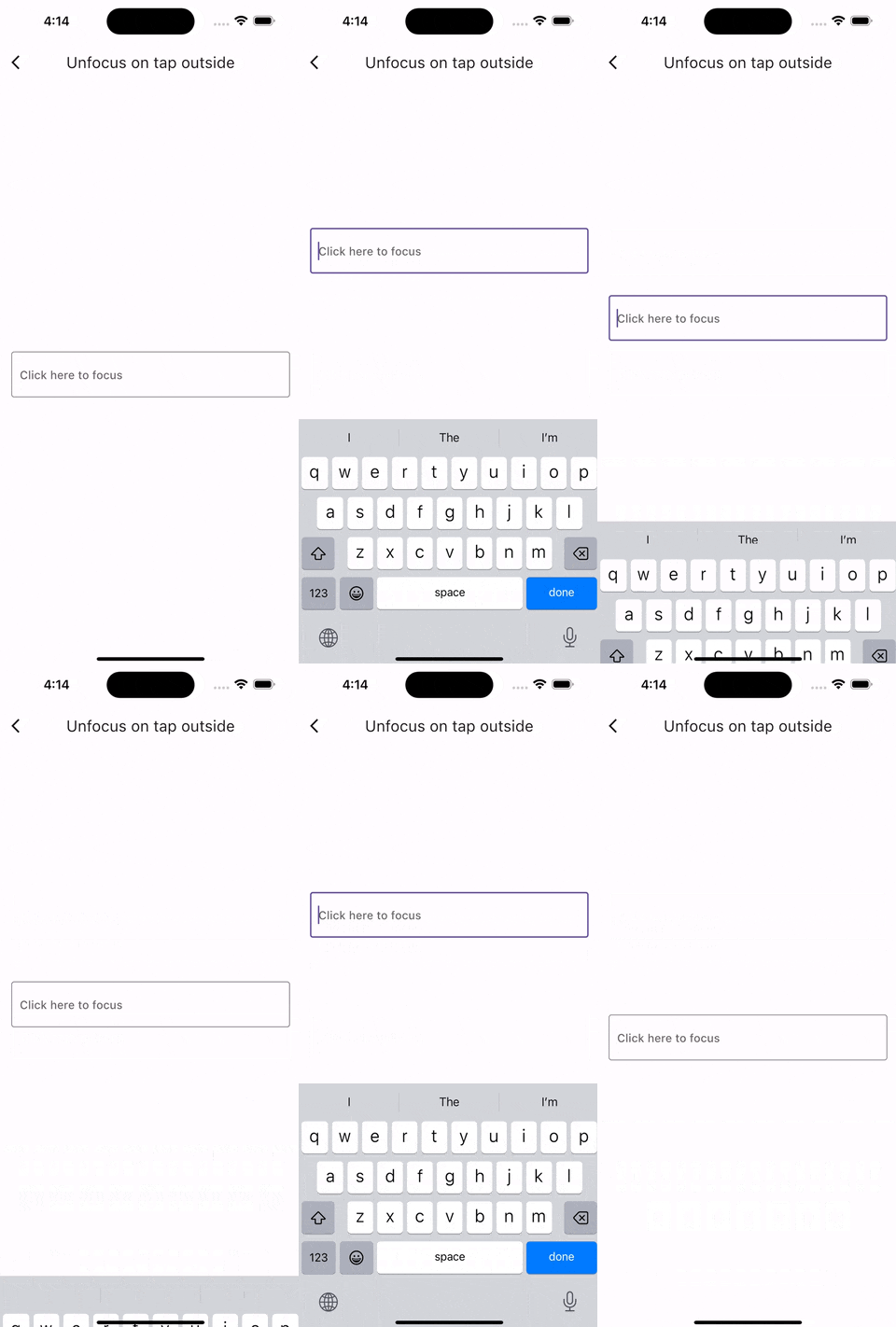
8. Unfocus on taping outside.
If we don’t want to drive the users crazy, we should also let them close the keyboard when they tap outside of the text field.
Lastly
There is no magic, they are just little details.
Pay attention to the little details then people think that you’re a magician!
— A Magician
Github Project
Take it and leave your claps!
Thank you for reading!
I think I will extend this article into a series.
You can follow me and keep yourself posted on the new parts!
Please don’t forget to click on the 👏 button and have a fluttery day!
You can also support my articles with my referral link, too.


