
8 Quick Tips on Manipulating Index with Pandas
Advance your pandas skills

If you use Python as your data processing language, it’s very likely that pandas is one of the most used libraries in your code. The key data structure in pandas is DataFrame, which is a spreadsheet-like data table consisting of rows and columns. When we process DataFrames, we often need to deal with indices, which can be tricky. In this article, let’s review some quick tips about processing indices with pandas.
1. Specify the index column when reading
In many cases, our data source is a CSV file. Suppose that we have the file named data.csv that has the following data.
date,temperature,humidity
07/01/21,95,50
07/02/21,94,55
07/03/21,94,56
By default, pandas will create a 0-based index for the rows for us, as shown below.
>>> pd.read_csv("data.csv", parse_dates=["date"])
        date  temperature  humidity
0 2021-07-01           95        50
1 2021-07-02           94        55
2 2021-07-03           94        56
However, it’s possible that we directly specify the index column during the importing by setting the index_col parameter to the applicable column.
>>> pd.read_csv("data.csv", parse_dates=["date"], index_col="date")
            temperature  humidity
date
2021-07-01           95        50
2021-07-02           94        55
2021-07-03           94        56
2. Set index with an existing DataFrame
After reading the data or some other data processing steps, you may want to set the index manually. We can use the set_index method.
>>> df = pd.read_csv("data.csv", parse_dates=["date"])
>>> df.set_index("date")
            temperature  humidity
date
2021-07-01           95        50
2021-07-02           94        55
2021-07-03           94        56
In this method, you specify which column(s) to be the new indices. Two things are worth to note.
- This method will create a new DataFrame by default. If you want to change the index inplace, you run
df.set_index(“date”, inplace=True). - If you want to keep the column after which is set to the index, you can run
df.set_index(“date”, drop=False).
>>> df.set_index("date", drop=False)
                 date  temperature  humidity
date
2021-07-01 2021-07-01           95        50
2021-07-02 2021-07-02           94        55
2021-07-03 2021-07-03           94        56
3. Reset index after some manipulations
When you process your DataFrame, some manipulations, such as drop rows, index selecting, will result in a subset of the original index. To re-produce a continuous index, you can use the reset_index method.
Typically, we don’t need to keep the old index, so we want to set the drop parameter to True, which means that this operation will drop the old index. In a similar fashion, if you want to reset the index inplace, don’t forget to set the inplace parameter to True, otherwise, a new DataFrame will be created.
4. Convert index to columns from the groupby operation
The groupby method is versatile and has many applications. For instance, let’s continue to work with the df0 DataFrame that we created in the last step by adding a grouping column.
With the grouping variable and columns as indices, the created DataFrame is not necessary the DataFrame that you need. Instead, chances are that you may want these indices to be columns. There are two approaches that will complete the desired operation, as shown below. Personally, I prefer the second approach, which just involves two steps.
>>> df0.groupby("team").mean().reset_index()
  team         A         B         C
0    X  0.445453  0.248250  0.864881
1    Y  0.333208  0.306553  0.443828
>>> df0.groupby("team", as_index=False).mean()
  team         A         B         C
0    X  0.445453  0.248250  0.864881
1    Y  0.333208  0.306553  0.443828
5. Reset index after sorting
Sorting is a very common operation during data processing. When we sort rows, by default, the rows will keep their respective indices. However, it’s maybe not the desired behavior. If you want to reset the index after sorting, you can simply set the ignore_index parameter in the sort_values method.
6. Reset index after removing duplicates
When we deal with real-life datasets, it’s often the case that there might be duplicate records. As a result, we need to remove these duplicates. After the removal, we also want to have the index in the desired order (e.g., ascending, incremental). Using a similar approach, we can take advantage of the ignore_index parameter in the drop_duplicates method.
For simplicity, let’s just suppose that each team should have only one record for the df0 DataFrame.
>>> df0
          A         B         C team
0  0.548012  0.288583  0.734276    X
1  0.342895  0.207917  0.995485    X
2  0.378794  0.160913  0.971951    Y
3  0.039738  0.008414  0.226510    Y
4  0.581093  0.750331  0.133022    Y
>>> df0.drop_duplicates("team", ignore_index=True)
          A         B         C team
0  0.548012  0.288583  0.734276    X
1  0.378794  0.160913  0.971951    Y
As shown above, only the first record for each team is kept in the generated DataFrame after removing the duplicates by the “team” column. Importantly, because we set ignore_index to True, the new DataFrame uses a new set of index in the 0-based manner.
7. Direct assignment of the index
When you have an existing DataFrame, it’s possible that you need to assign the index with a different data source or from a separate operation. In this case, you can directly assign the index to the existing DataFrame.
>>> better_index = ["X1", "X2", "Y1", "Y2", "Y3"]
>>> df0.index = better_index
>>> df0
           A         B         C team
X1  0.548012  0.288583  0.734276    X
X2  0.342895  0.207917  0.995485    X
Y1  0.378794  0.160913  0.971951    Y
Y2  0.039738  0.008414  0.226510    Y
Y3  0.581093  0.750331  0.133022    Y
8. Ignore the index when writing to a CSV file
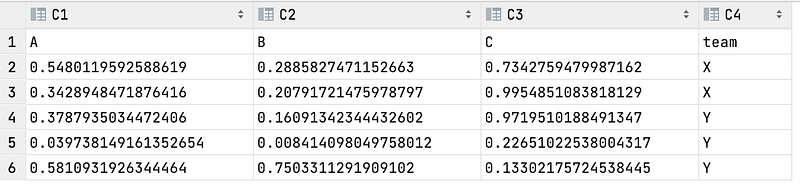
Not everyone uses Python or pandas, so we often need to export data to a CSV file for sharing purposes. In many cases, the DataFrame has the 0-based index. However, we don’t want to have it in the exported CSV file. In this case, we can set the index parameter in the to_csv method.
>>> df0.to_csv("exported_file.csv", index=False)The exported CSV file will look like below. As you can see, the index column isn’t included in the file.
Conclusions
In this article, we reviewed the most common operations with indexing in pandas. Getting familiar with them is very helpful for your data processing work with pandas. Certainly, I didn’t talk about the MultiIndex, which can be a topic for a future article.


