8 Factors for Effective Use of Obsidian Tags, Links, and Folders
Aesthetics, search, graph view, plugin usage, flexibility, and future-proofing preferences will impact how you use Obsidian.md tags, links, and folders.

How to use (or not) Tags, Links, and Folders— the perennial debate. There are a myriad of ways to use these organizational tools, and just as many articles and videos on the topic, many of which are linked at the end of this article.
For example, here is some of the advice from very experienced Obsidian users. You’ll quickly note that what works for one person — doesn’t work for another:
- Use only tags
- Use tags for people, places, and things
- Use tags of categories of items such as books, videos
- Use only links
- Start with tags, then turn them into links as the importance of the note increases
- Use Tags for less important things “Books-mentioned-that-might be-interesting-to-someday-read” tag compared to “Books- recommended-by-people-I -respect and definitely want to read” link.
Who’s right?
They all are! Tags, links, and folders (TLFs for short) are like clothes. Everyone’s preference for what they wear is different. Color, style, length, material, retro, or fashionable are all personal choices. Your age, body type, and geographic location can impact what you wear. What works for me, may not work for you.
How does all that translate to using TAGS, LINKS, and FOLDERS (TLF) in Obsidian? It means — how you use TLFs depends on how you use your vault, your objectives, and your preferences related to aesthetics, search, graph view, plugin usage, flexibility, and future-proofing. In other words, it depends on you.
Well, that doesn’t help me at all! 🤬 I’m new to Obsidian. My preferences? I’m not even sure what options are available, much less which I prefer.
It could be argued that it really doesn’t matter which you use. I know, I know that’s not very helpful, but it is important to remember. Don’t go round and round on this decision instead of actually writing.
The important thing is to decide and be consistent. You won’t really KNOW what method you like until you start using it. And, you’ll learn far more experimenting with TAGS, LINKS, and FOLDERS than any article or video can teach you.
But wait! I need to know more…
Every video I watched and every article I read on TLFs left me with one question — what do I lose by doing it their way?
If I use a tag here, can I still write on a page? If I use a link there, will it clutter up my graph? If I use folders instead, can I still find things? If my settings are one way, how does that impact my use of folders? If I choose to use (or not to use) plugins, will my TLF options be different?
Choosing one thing means you didn’t choose the other. The choice left behind is the cost of the choice you made. There is always a cost — big or small.
So instead of covering ways to use TLFs, this article is a beginner’s deep dive into how TLFs are different and what you gain or lose by using each.
OVERVIEW
The chart below is a TL:DR. It acts as a table of content, an executive summary, and a guide for our tour of TLFs in Obsidian. For a condensed version of this article download it here.
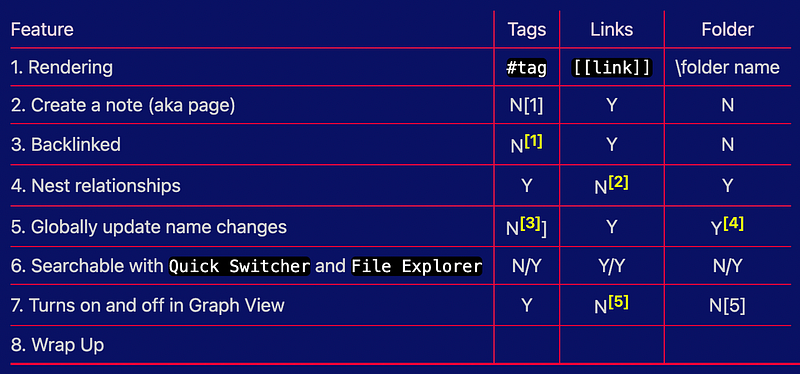
(1) Because a tag does not create a page, there are no backlinks. However, the Plugin Tag Wrangler can turn a tag into a page, and that new page does include backlinks
(2) Links do not inherently nest, but you can force nesting functionality with a consistent naming convention
(3) Tag name changes do not update-globally inherently, but Tag Wrangler’s tag-to-page conversion will mimic a name change
(4) Folder name changes do update globally for notes, but not where a folder name is specified in Obsidian and Plugin Settings
(5) Links and folders can be turned on and off through the use of search exclusions and groups, but that is a bit more advanced
HOUSEKEEPING
Before we get into TLF examples, there are a few housekeeping items.
1) Ensure the following Core Obsidian plugins are turned ON: Go to Obsidian Settings > Core plugins, and turn on:
✅ Backlinks ✅ File Explorer ✅ Graph view ✅ Quick Switch ✅ Slash Command ✅ Tag panes The Obsidian developers maintain Core Plugins, thus you can trust them. So turn on any Core Plugin that you think you will use. The list above is just the Core Plugins specifically mentioned in this article.
2) Install the Community Plugin — Tag Wangler Community plugins, however, are developed by independent third parties and, although they are an invaluable part of the Obsidian community, they potentially open the door for bad actors. So, only download a plugin from a developer you trust. The developer of Tag Wangler plugin can be trusted.
For more details on Tag Wangler (including installation and features) check out:
3) All the examples in this article were created using Obsidian.md with the Minimal Theme. The Style Setting plugin, which works with the Minimal theme, was used to define the color combinations. That said, neither the Minimal theme nor the Style Settings plugin is required for you to reproduce the examples you see here. Your colors may be different.
4) Some folks suggested I include Dataview Attributes in the comparisons. Attributes are specific to the Dataview plugin and act as a variable that Dataview uses to render lists and charts of data from across your vault. Since not all beginners use DATAVIEW, I decided not to include them in this article. If you want to know more, see:
5) A LINK creates a NOTE which is also called a FILE. Thus, this article references LINK/NOTE/FILE interchangeably.
6) The 🤔 thinking emoji — indicates a summary of what’s in it for you.
7) The 🤪 zany face emoji — indicates some fun and helpful facts — albeit somewhat off-topic.
Now let’s dig in
1. Rendering — Visual Differences
Below are examples of how each TLF will look in a note. Both Source mode and Live Preview modes are illustrated.
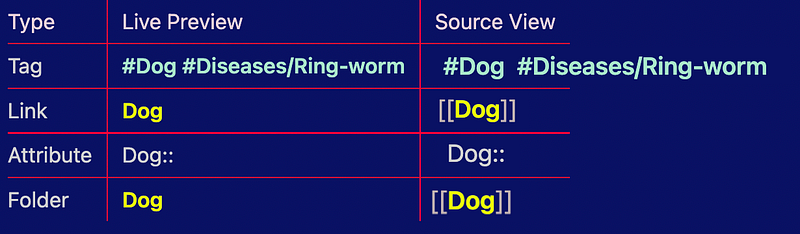
How a folder renders depends on your Obsidian settings. The above example assumes you have “Show Shortest Length” turned on in your Obsidian File Settings.
Another notable visual difference — you can see all your tags and folder at a glance. Tags via the Tag Pane, and Folders in the File Explorer as shown below.
FILE EXPLORER on the left; and TAG PANE on the right:
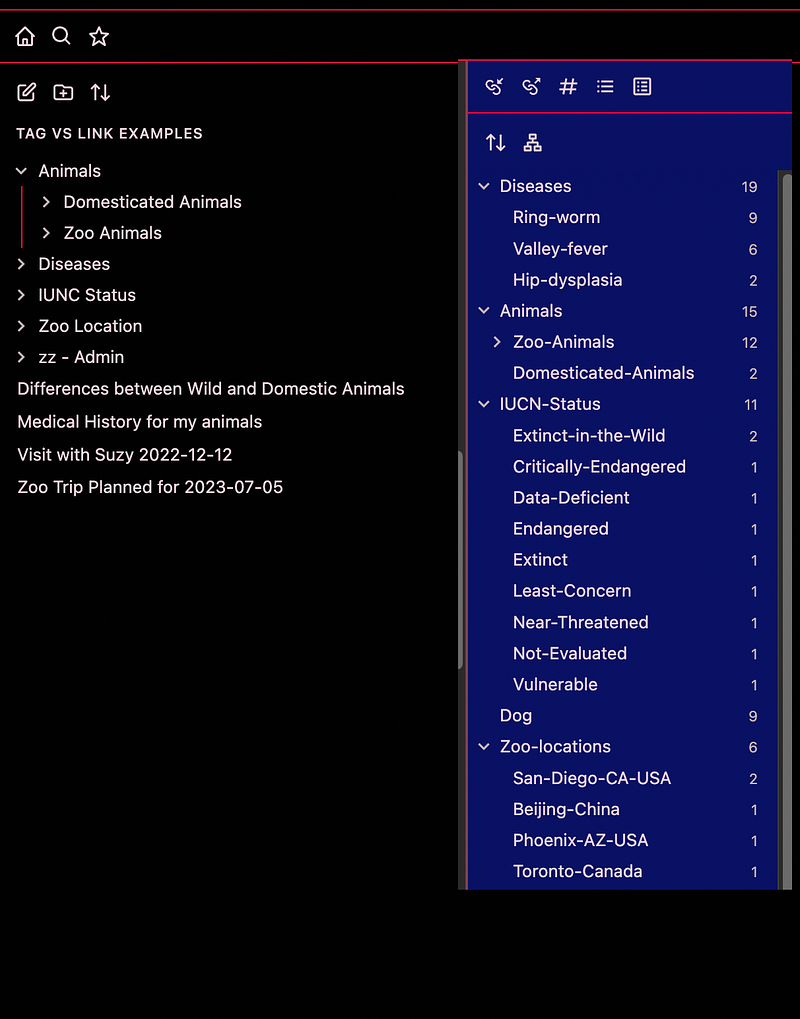
Your notes (aka links), however, are spread across folders so they cannot be as quickly viewed as tags and folders.
🤔 Why do you care?
As evidenced by how many Obsidian themes there are, how things look on a page is important to Obsidian users. If it’s an important criterion for you, you may consider using only links, as tags and especially nested tags can be distracting to type, and to read.
That said, you can change the appearance through CSS, and possibly through settings in your theme, but this article assumes, as a beginner, you don’t want to get into all that.
Copy and Paste
Also, the rending differences impact you if you need to copy and paste information from Obsidian to another source (say Medium for example).
The “#” symbol copies over and could distract or confuse your readers unless you go through and manually delete the “#”’s. And again, the nested tags really disrupt the reading experience. Again, CSS might eliminate this issue, if you’re into that.
Multi-word names
It’s also important to call-out multi-word tags, links, and folders. You can use two plus words in any tag, link, or folder.
However, a tag must have either a dash, an underscore, or the words mushed together — in other words, the tag cannot include any spaces. Note also that tags are not case-sensitive. #BOOK and #book are treated as the same tag. Folders and links ARE case-sensitive.
You can have spaces in folders. However, when you do a search, results may be different than you expected, especially with folders.
For example, in the examples shown throughout, one folder is titled “Zoo Animals”. A text search for the name will result in all files with “Zoo” or with “Animals” or with both “Zoo” and “Animals” next to each other or not. You need to remember to enclose your search in double quotes if you want that exact phrase.
🤪 Did you know?
If you want to copy-and-paste from Obsidian to another source (i.e. Word, Medium, WordPress), a copy from “Editing Mode” will render differently in your destination file, than if you copied while in “Reading” mode. The details around why, don’t matter to most beginners — just know that, in most cases, you want to copy while in “READING” mode to get the best reading experience in your destination format.
2. Creates a note (aka page)
TAGS
When you use a tag in Native Obsidian (meaning without any community plugins), it does not create a page. However, if you are using the Tag Wrangler Plugin, you can convert a tag to a page.
🤔 The Tag Wrangler plugin provides you a lot of flexibility and minimizes the differences between tags and links related to their visual appearances, and some Graph View considerations. Click here for more information on the Tag Wrangler Plug including installation instructions, how it works, what’s happening when it creates a page, and its benefits and drawbacks.
LINKS
When you first type a link [[link]], it does not create a page right away, it creates a “placeholder” for a page, but not physically a page itself.
You’ll notice a slight difference in how each type of link renders (page created and not created). It isn’t until you actually click on that link that a page is created.

🤔 Why do you care?
This functionality (not creating a physical page right away) is important to you because:
- Placeholders keep your vault from getting bloated by pages that aren’t used yet.
- Graph view allows you to show “existing files only” which means you can view only files that have actual knowledge in them (not links to blank pages), thus, keeping the noise down in your graph
- Placeholders give you another way to help organize your vault.
FOLDERS
The use of folders does not create pages. A folder is just a container that holds notes. The only reason a folder name even shows anywhere is to reference the location of the note.
🤪 Did you know?
You can have two notes with identical names when you use folders. You can have a note titled “My First Note” in folder “A”; and a separate and distinct note “My First Note” in folder “B”. You can edit each one independently, thus, two notes with the same name but different content.
As a beginner, I found this very confusing, so I minimized my use of folders and keep all other notes (which is the vast majority of my vault) in the root directory. There are, however, many experienced Obsidian folks who swear by folders. You can read how Eleanor Konig uses folders here.
3. Use of backlinks
Only a LINK that creates an actual page enables backlinks. Native Obsidian tags (without a plugin) and folders do not create backlinks.
Tag Wrangler Plugin, enable you to “convert” a tag to a tag-page and thus, that newly created page will have backlinks.
🤔 Why do you care?
Backlinks are the power of Obsidian. They enable you to find information in your vault and, more importantly, to make connections you might not otherwise.
In the SEO (search engine optimization) world backlinks are where one website (“A”) points to another website (“B”). Many backlinks to website “B” is a search engine’s indicator of quality, useful, and meaningful information.
The same holds true for your pages. If there are many backlinks to the note “Creativity is learned” (as an example), that may be a sign you want to write about or explore this topic more.
🤪 Did you know?
For those of you still stuck in the era of files and folders, you may need to take a leap of faith on this: between backlinks and Obsidian’s search capabilities, you really don’t need folders as much as you think.
It may be hard to grasp in the beginning days of using Obsidian, and many folks felt the same, but over time they realized the power of the backlinks (and Obsidian search) and never looked back!
4. Nested relationships
Nested relationships are like an outline. Or, if you prefer, like a family tree: parents have children, who have their own children (grandchildren).
Nesting helps you organize and provides some additional search functionality.
Both TAGS and FOLDERS can have nested relationships. LINKS cannot “technically” be nested, but nesting-like functionality can be cobbled together but a beginner’s guide is not the place for that conversation.
TAGS
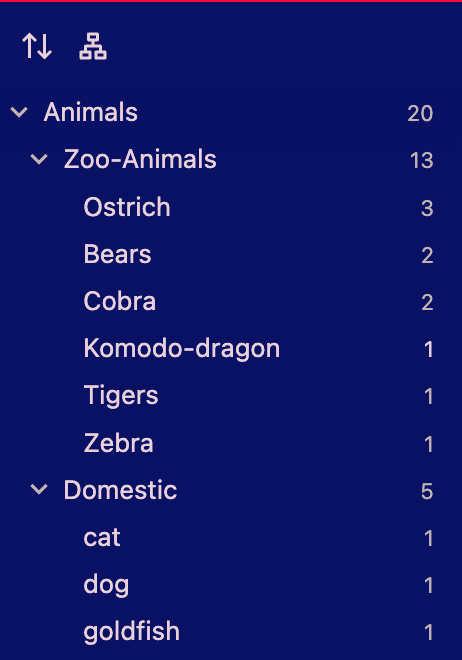
Examples of nested tags are: #Animals/Zoo-Animals/Ostrich #Animals/Domestic/Cat
When you have the tag pane open, with “show nested tags” on (for screenshots see: Tag Pane and Tag Wrangle Plugin) the result of the above nested-tags renders like this:
🤔 Why do you care?
The benefits of nested tags include:
- Enables a simple organization structure to create and maintain your tags
- Leverages most beginners’ familiarity with hierarchical organization methods
- Reduces the likelihood of duplicate tags or multiple tags meaning the same thing
Provides additional searching capabilities (which are discussed in the search section below).
🤪 Did you know?
There are multiple ways you can see all the files that include a tag:
- Click on the tag name on a page
- Click on the tag name from the tag pane
- Type — tag: — into the search box and select the tag you want from the list
- Type — #tagname — into the search box for a specific tag
- From the Tag Pane, with Tag Wrangler enabled, right-click on a tag and select Create a tag page and review the backlinks on that newly created page. For more details and screen shots see: Two Obsidian Plugins you’ll wonder how you lived without Tag Pane and Tag Wrangler
FOLDERS
Nested folders act just like the various parts in your file cabinet. The file cabinet itself is one big folder; it holds separate drawers (think folders), and within each drawer are multiple folders, and with each folder are various documents.
The example below shows the File Explorer folder structure: the top folder is “Animals” and within “Animals” are two folders, “Zoo Animals” and “Domesticated” animals. Within each of those folders, there is a note for each animal.
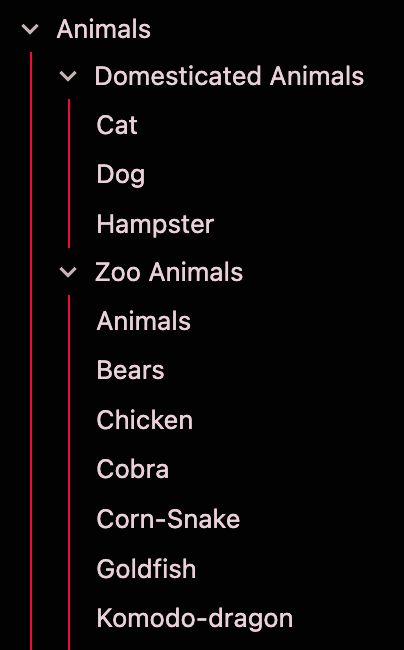
Notice how similar this is to the nested tags shown above. (Just a reminder, in a real vault you generally wouldn’t have pages and tags of the same name).
🤔 Why do you care?
There are advantages and disadvantages to using folders.
Some Obsidian settings and plugin settings leverage folders for functionality:
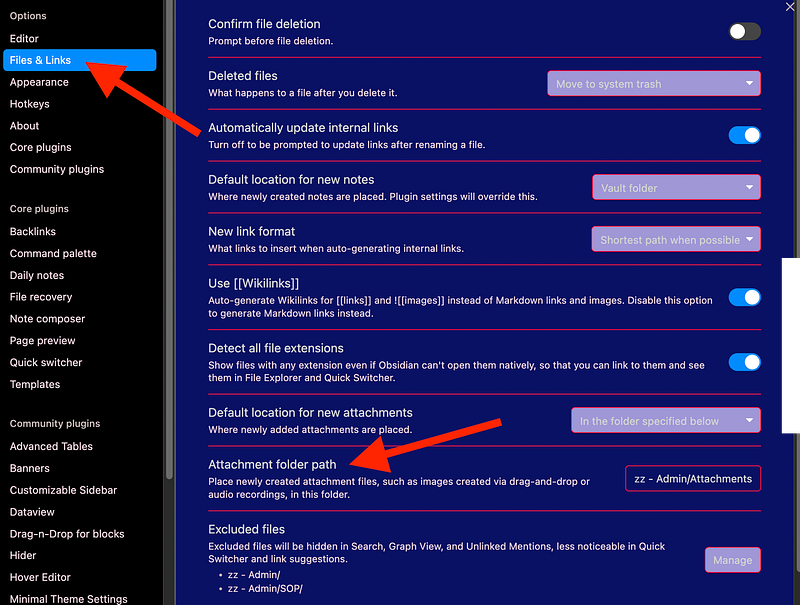
- Obsidian setting: ATTACH FOLDER PATH — defines in which folder Obsidian will automatically store your attachments. You’re not required to add a path name here, but if you don’t, attachments will clutter your root directory. So you’re better off including a folder path specifically for your attachments.
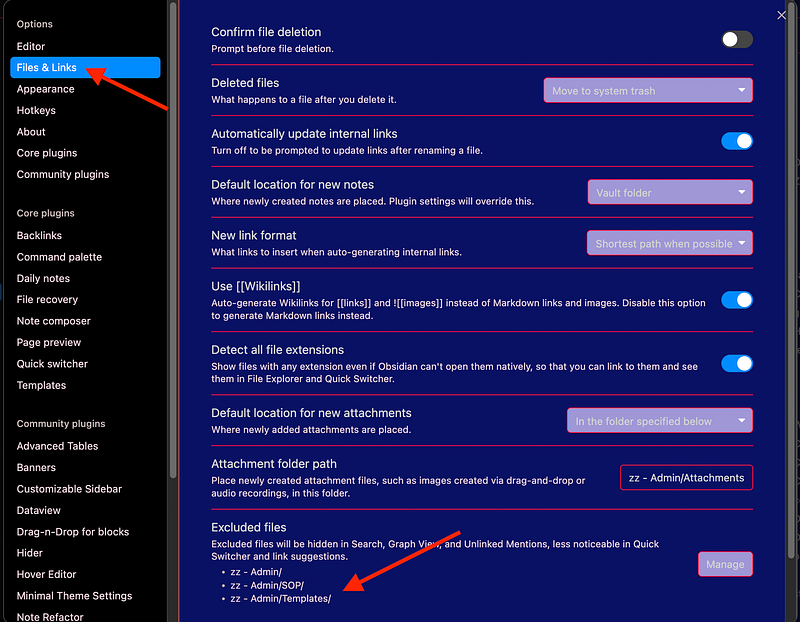
- Obsidian setting: Excluded Files A third Obsidian setting permits certain files and folders to be excluded from Search, Graph View, and unlinked mentions and will be less noticeable in Quick Switcher and link suggestions. You’ll find this in Obsidian settings>Files and Links>Excluded files.
- Obsidian setting: Templates Path A third Obsidian setting relates to templates. A best practice is to use templates to ensure consistency that can leverage Dataview queries, Obsidian queries, searches, etc. The template plugin is a core plugin, but other community plugins such as Templater and Quick Add reference this template folder, as well. Again, you can store them all in your root directory but this is not recommended. This setting is found on the Core Plugin Templates page:
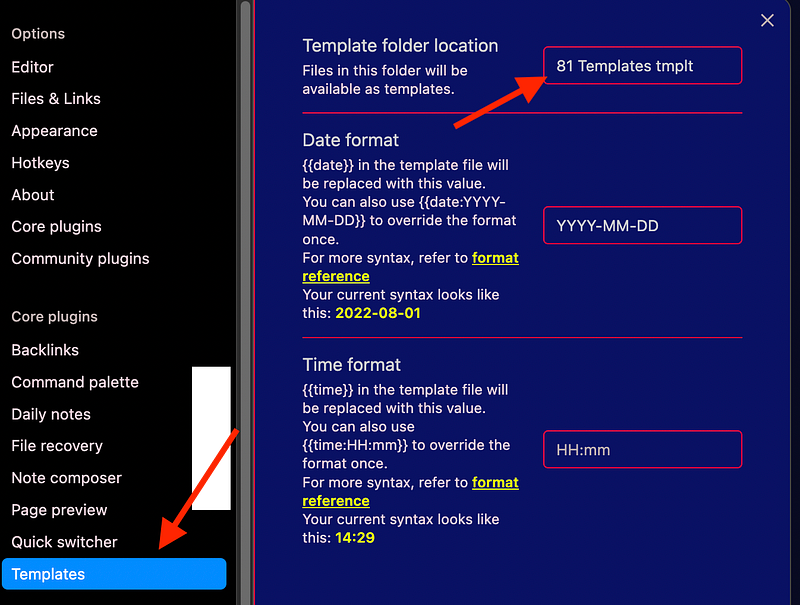
For example, if you’re searching for all notes that have a tag #Dog, you don’t want any templates that have the tag #Dog to show up in your results because those templates are not real notes (just skeleton notes).
Generally, folders and files listed in the Excluded files setting include folders and files for templates, administrative notes, notes for plugin functionality (like Readwise.sync), archived notes, and procedure or process notes. This is not an exhaustive list, just suggestions.
Advantages of using other folders:
- Enables easy access to homogeneous notes. Just click on the folder and it expands to show you all its contents
- Keeps your root directory file explorer more organized and less cluttered
- Comfortable for beginners who are more familiar with folder structures
- Facilitates functionality in many plugins. Dataview and Templater can perform specific functions on just one folder. You aren’t REQUIRED to use folders with those plugins, but it can make things easier in some circumstances. Here’s a link to an article written by someone who loves folders and why
- Reduces the need for pages like a Map of Content or Table of Contents
Disadvantages of using other folders:
- A note can only be in one folder. A note of the same name can exist in a different folder — but that note is completely independent.
- It can be hard to remember in which folder you put note or access it from
- Notes within a folder hierarchy are not associated with notes of like-kind other than they are in the same hierarchy. In our example, we have all Zoo Animals in their own folder. With no other links or tags, you can find all other Zoo Animals by clicking on the folder “Zoo Animals,” or a path search. But, if you have the note “Bears” open, you cannot tell from that note what other zoo animals there might be. Remember from above, that folders don’t have linked or unlinked mentions. Thus, other than they are all in the same folder, there is no association among those notes themselves. And thus, will not be represented as associated on a graph (see more about graph view below).
5. Globally updates when you change its name
When you update something in one place, usually you want it to update across your vault.
TAGS
If you aren’t using Tag Wrangler, you can’t even change a tag name. In fact, in order to delete a tag from your tag list, you’ll need to go into each page (one by one) and remove the tag reference(s). Reason enough to use Tag Wrangler!
With Tag Wrangler installed and enabled, you can change a tag name and it will update all references to that tag across your vault.
LINKS
Let’s say you have a note called: CATS, and you decide that the name CAT is better than CATS (plural). When you change the name to CAT, you usually want all links to that page (on other pages) to change from [[Cats]] to [[Cat]] so you don't lose your backlinks to that page. Obsidian will update CATS to CAT links. In Obsidian settings, you choose whether you want the note name change to update automatically throughout your vault or if you'll be asked before each change.
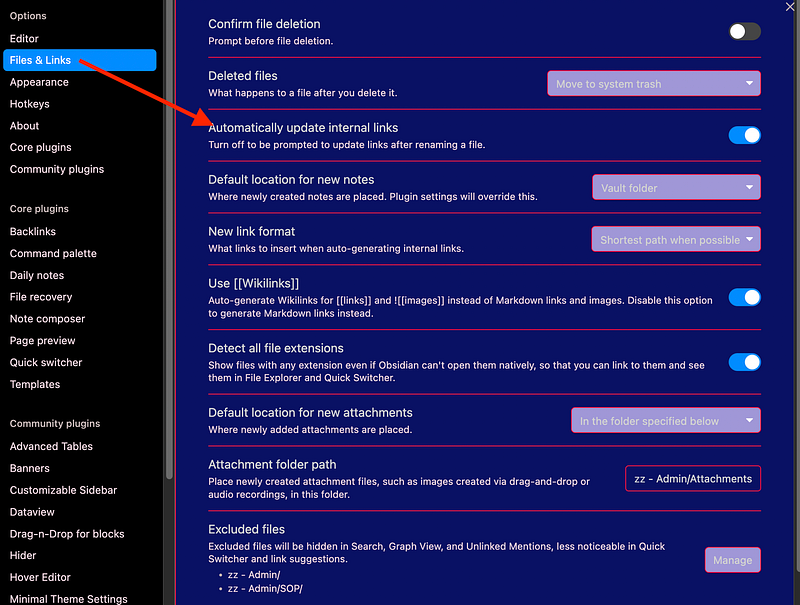
Personally, I have mine turned on, which means to update globally, automatically, and without asking. At my level of experience, I can’t come up with a reason to have this off, but would love to hear your use-case if you do and why.
🤪 Did you know?
If you try to change a note name, and a note already exists of that new name, it will not work (your note just reverts to the original name). In other words, it will not automatically merge the two notes.
However, you can merge two notes by either 1) right-clicking on a note in the file explorer or 2) using the three-dot “more” menu and selecting merge.
Folders
If you update a folder name, it will update internal path names for notes in that folder. However, it does NOT update all Obsidian Settings where that folder is mentioned. So if you change a template folder, excluded folder, or other folder identified in settings — be sure to update those manually as well.
6. Searchable in Quick Switcher and File Explorer search box
Quick Switcher — Overview and Settings
Quick Switcher is a Core Plugin. It’s an efficient way of opening notes, rather than executing a search or scanning through your folders for a specific note.
To access Quick Switcher, on a Mac press CMD-O (COMMAND with the letter “O”). The quick switch pop-up will appear:
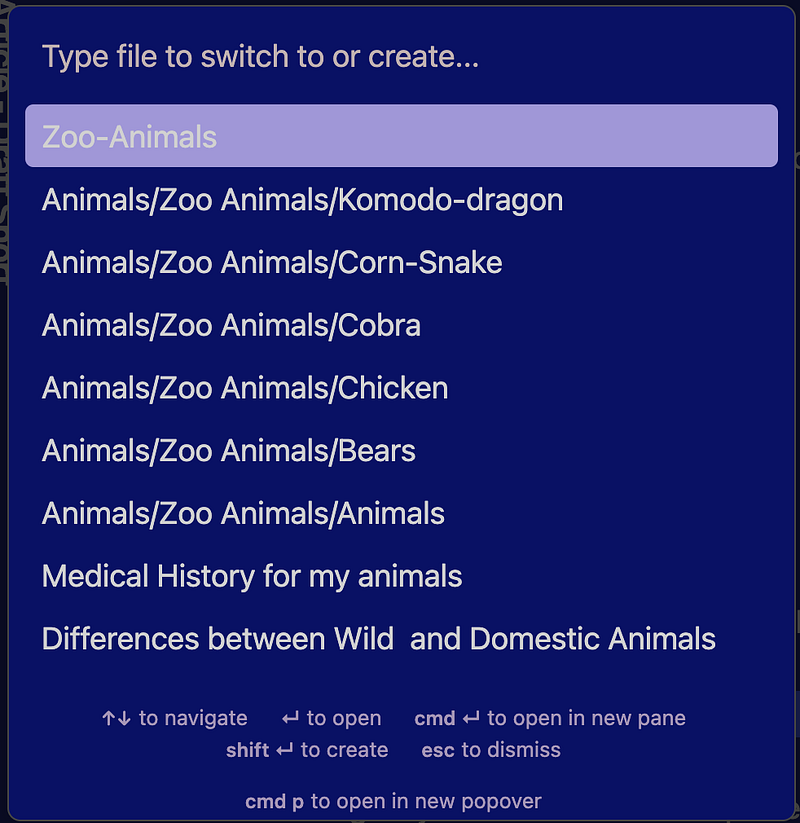
There are three setting configurations for the Quick Switcher Core Plugin.
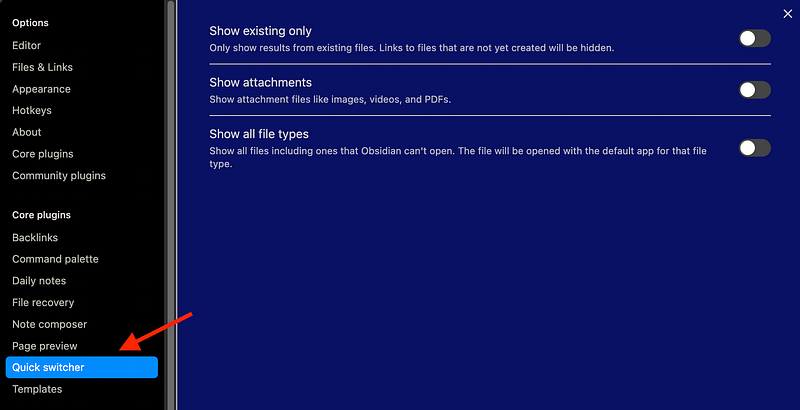
- Quick Switcher setting: Show existing only — relates to a concept we discuss above in Section 2 “Creates a note.” You might recall a physical page is not created until you actually click on a link. Turning this “off” means all notes (created or not) will show, turning it “on” results in only notes in which you’ve actually clicked on the link. For me, in searches, I want to see all notes (created or not), so I have this turned off.
- Quick Switcher setting: Show attachments — means attachments will be listed in the Quick Switcher pop-up. Again, I keep this off. My attachments are attached to the page to which they relate, so I wouldn’t have any need to pull them up via Quick Switcher. One use-case to show attachments might be if you need to pull up PDFs or Videos outside of a specific note or in its own pane, or if you do not want to embed a PDF or Video directly into a note (like I do). I’d love to hear, in the comments, if you have other use-cases for having this turned on.
- Quick Switcher setting: Show all file Types — if turned on, Quick Switcher shows all files within your Obsidian Vault folder including such types as MSWord doc, PDFs, Excel spreadsheets etc. Obsidian will also show these same files within File Explorer. Clicking on these files from Quick Switcher will open that file with the appropriate software (i.e. will open a doc file using Microsoft Word). This feature increases efficiency if you open files outside of Obsidian frequently. However, if you spend most of your time in Obsidian, those extra files in the Quick Switcher only add to the clutter.
Quick Switcher and tags, folders, and notes.
🤔 Why do you care?
Although you can easily access notes via Quick Switcher, it has no utility for tags. Generally, it has no utility for folders either, except that it will highlight if you have two notes of the same name in two different folders, like this:
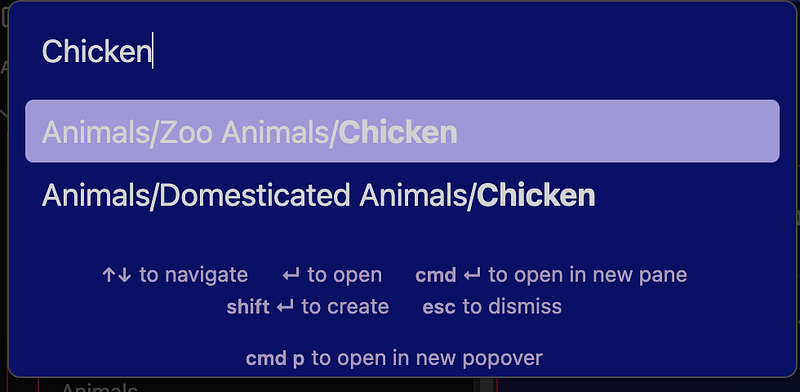
So if you need to reference something frequently, using a link (page) for that something would work best for you (rather than using a tag or folder).
🤪 Did you know?
Files listed within your “Excluded Files” setting will be de-prioritized within the Quick Search list: meaning that those files will still show, but will be at the bottom of the list.
File Explorer Global Search and Query Searches
Accessed File Explorer via the 🔍 icon at the top of your left sidebar. A search box will appear.
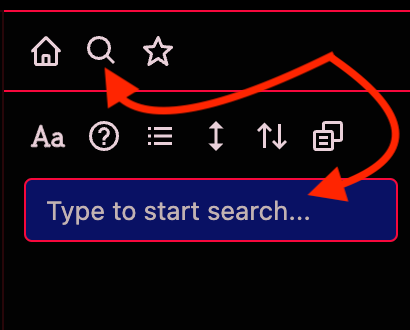
The same search can also be obtained by typing in an Obsidian Query which will “embed” the search results into a note. Both methods use the same “language” and provide the same results. However, the File Explorer guides the beginner in the syntax. Thus, we will focus on File Explorer.
When you click into the search box, SEARCH OPTIONS appear. This is the beginner’s guide I mentioned.
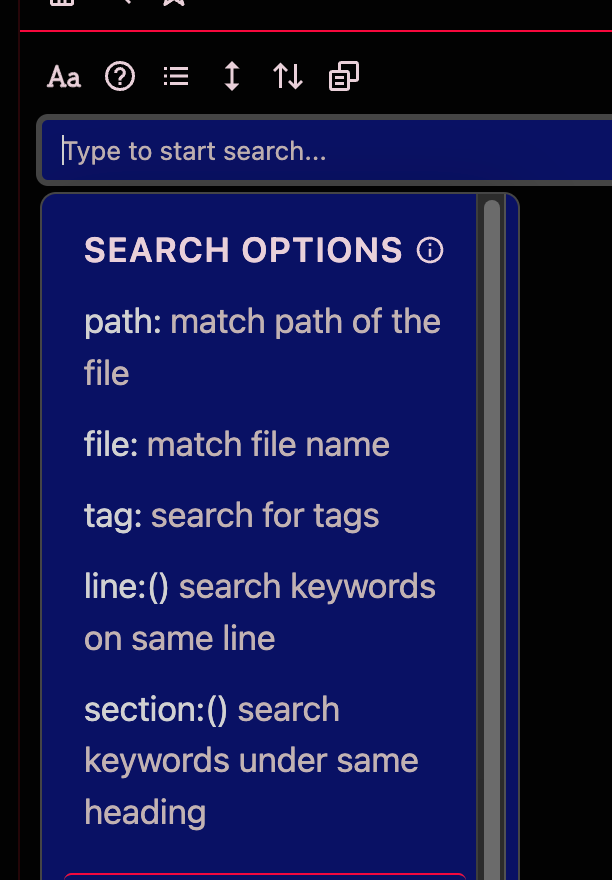
Let’s start with a basic search to compare searching for tags, links, and folders. But first note that in this demo vault we have “Zoo Animals” as both tag and a folder, as well as the individual animals. Most vaults would not be set-up this way, but this set-up highlights the differences between searching on tags, folders, or links.
Example search:
Search for all notes related to any ‘Zoo Animals.’
Let’s discuss the above search using tags, links, and folders.
TAGS
Search Option “Tag” will search through your vault and return all notes that have the tag in the note. It will not return notes that include the tag name within file name but does not reference the tag.
✅ Tag Option 1:
- Select “tag” from the search option drop-down
- Select “Animals/Zoo-Animals” from the tag drop-down list
- A list of pages that include the tag
#Animals/Zoo-Animals come up✅ Tag Option 2: - Click on “Zoo-Animals” in your Tag Pane ✅ Tag Option 3:
- With any note open that includes the tag
#Animals/Zoo-Animals, click on that tag. - Results:
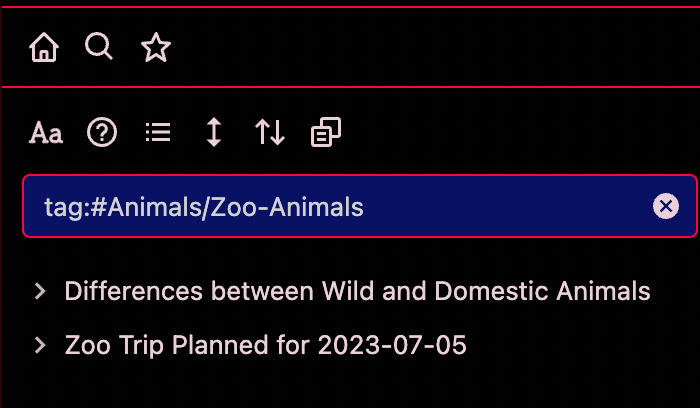
All three options above result in the same search result shown, and meet our desired outcome: all notes that include the tag Zoo-Animals.
One benefit of using Tags to search comes into play with nested tags.
The power of nested tags. Try this:
- From the tag pane — click on the tag #Animals — you get two notes: one related to #Animals/Domestic and another related to #Animals/Zoo-Animals
- Now if you click on #Zoo-Animals from the tag pane, you get only notes referencing #Zoo-Animals including any notes tagged with a specific animal.
Thus, whichever level you choose, you get notes related specifically to that level AND everything below it, but not above it.
For example, if you want notes related to CAT, because that is at the lowest level of the nested tags, you can’t use the tag option but just a general text search (type in CAT without any search options selected). This is because CAT belongs to both #Animals/Domestic and #Animals/Zoo-Animals.
Tags and folders are the most efficient way to see all related notes together.
For example, you can see all zoo animals in the tag pane or by expanding the Zoo-Animal folder. In order to do that with LINKS, you’d need to have a link to [[Zoo Animals]] each animal’s note. And even then you still have to run a search (or look at backlinks) to see the complete list.
LINKS
Since we are talking about LINKS here, you might be tempted to select “file” from the search option drop-down. Let’s see what happens.
With “file” selected: 🚫 typing in “zoo-animals” results in no matches found 🚫 typing in “zoo animals” without the dash results in one file found but not a list of all zoo animals
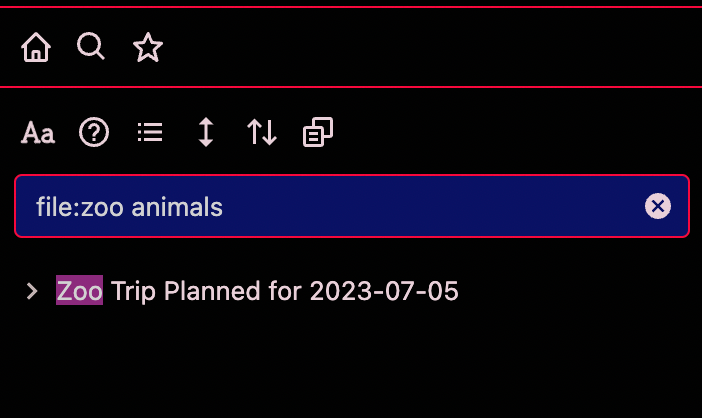
Neither search produced the expected outcome.
However, if you select “line” from the search options and within the parenthesis:
- ✅ type in zoo-animals, you get the same results as shown above for the three tag options. Note that you didn’t have to type in the full tag of
#Animals/Zoo-Animals - 🚫 However, if you type in “zoo animals” without the dash you get three files because it is pulling up not only where the tag itself is referenced but also any note where the phrase “zoo animals” is included.
🤔 Why do you care?
As in the above example, how you name a file, folder, or tag can make a difference in the search, especially if you’re not consistent. In tags, consistency in spaces is forced — you can’t use them. But in folder and file names, it’s up to you. Just remember that a file or folder titled “Zoo Animals” is NOT the same as “Zoo-Animals”
FOLDERS
If, from the search options, you choose 🚫 “Path” and select the folders “Animals/Zoo Animals” you don’t get either of the notes you expect and some you wouldn’t.
So, you can’t find the notes you want using folders.
Selecting Path: ”Animals” will show you all files and folders in the Animal folder. But if you enter Path: ”Animal/Zoo” will show you all of the files in the Zoo Animals folder. This is identical to how the search on nested tags works. Neither Path search will how you notes that reference Animal/Zoo that are not located within that folder.
🤔 Why do you care?
There is LOTS more to search, including combining methods. Arguably, Obsidian’s search functionality is its greatest strength. If you’d like to see an article for beginners that deep dives into SEARCH, let me know in the comments. Let’s sum up what this means to you.
Folders don’t help you much in search. But since they are so easily visible in File Explorer, it doesn’t matter.
Nested tags provide unique search functionally that links do not. Tags also provide efficiencies in that you can just click on a tag and the search results appear in the file explorer.
Searching with the file (aka link, page, note) search option returns all notes with the word or phrase you type in the search REGARDLESS of its position in the title. It will not return files that include the search term in the note but not in the filename itself.
Performing a generic text search is the most flexible. A term of phrase within quotes will return all notes with the term in the title, in the text of a note, or as part of a tag.
🤪 Did you know?
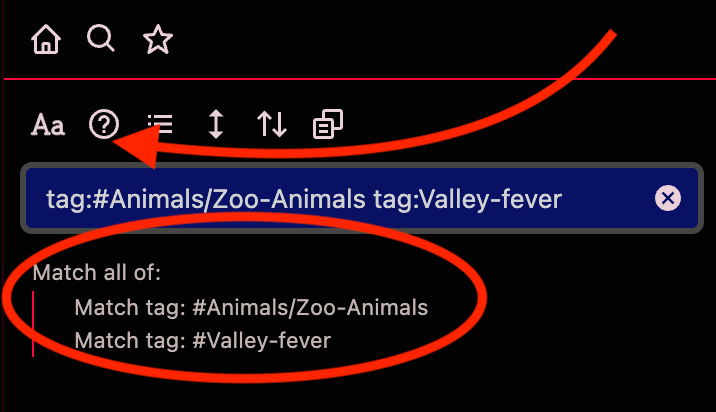
If you click on the question mark icon above the search box, Obsidian interprets your search into an easy-to-read format. This can help if your search becomes complex, and Obsidian has the power and sophistication to do some very complex searches.
7. Turns on and off in Graph View
Graph view is often an under-rated and under-utilized tool. It too deserves its own article.
But as far as tags, folders, and links go…
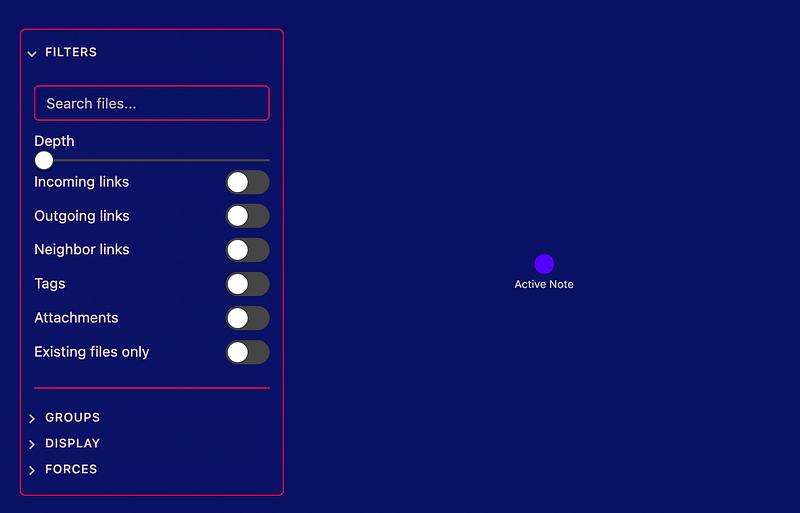
Graph view has four groups of settings: Filters, Groups, Display, and Forces. We are going to discuss the FILTERS settings: Incoming, outgoing, neighboring links, tags, attachments, and existing files only.
Remember there are two types of graphs: Global Graph and Local Graph.
The Global graph depicts your entire graph and you have fewer options to control the graph.
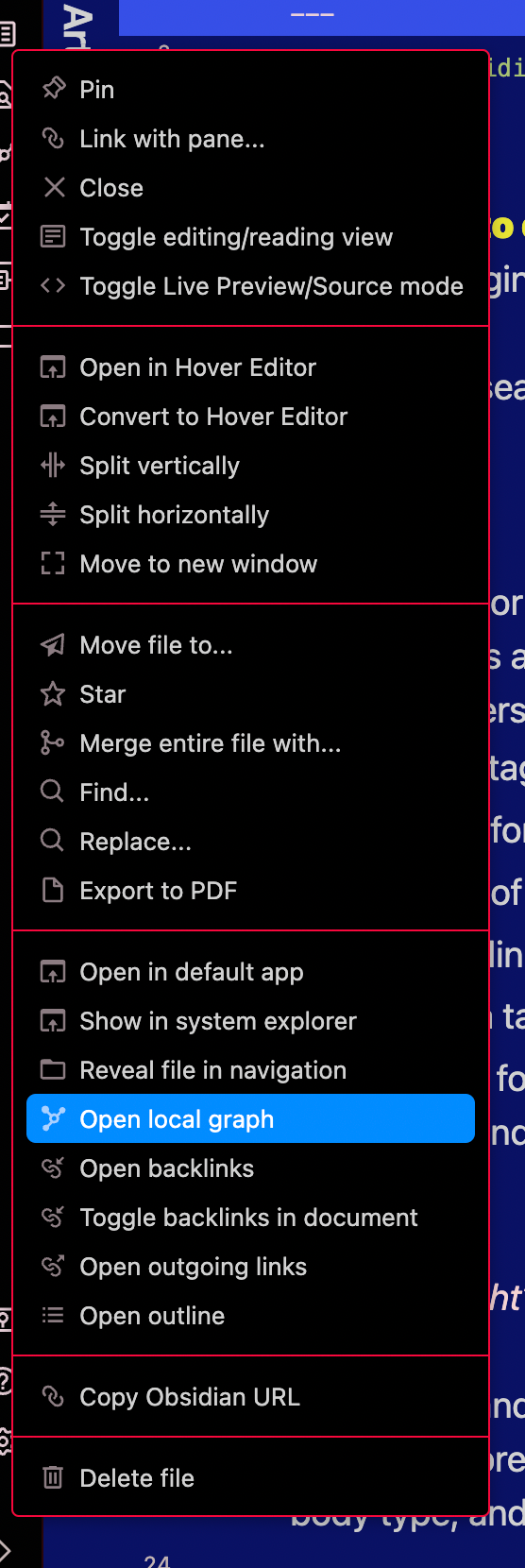
The Local Graph is where the real power sits. To find the local graph you can choose “Open local graph” from the three-dot menu on the page:
Without any Filter options selected the graph shows only the note you were on when you selected local graph. In this example, it's called Active note.
Now let’s take a look at the difference in graph view between notes related because they are in a folder, versus notes related to each other by use of links.
Graph View and Folders
Below is a graph view of the BEAR note within the Zoo-Animal folder:
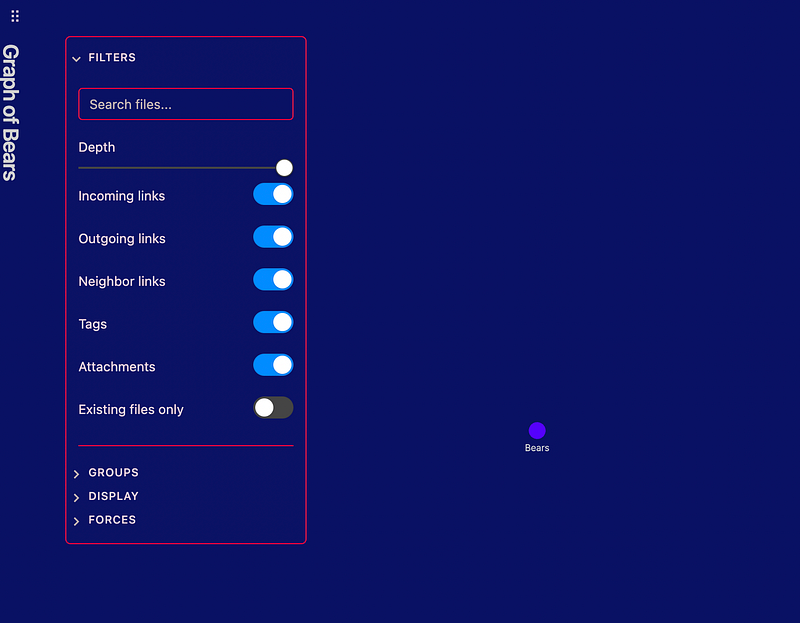
That is not a very useful graph, and confirms what we said earlier about folders not being helpful in search and in graph view. However, folder can be helpful if you want to exclude a folder.
To exclude a folder, in the search box at the top of the Graph View Options:
- type in -path:admin — note the negative sign in front of the word “path” means to exclude that path
Graph View and Links
However, if the files in the Zoo-Animal folder were associated by a LINK [[zoo-animals]], this is what the BEAR graph would look like:
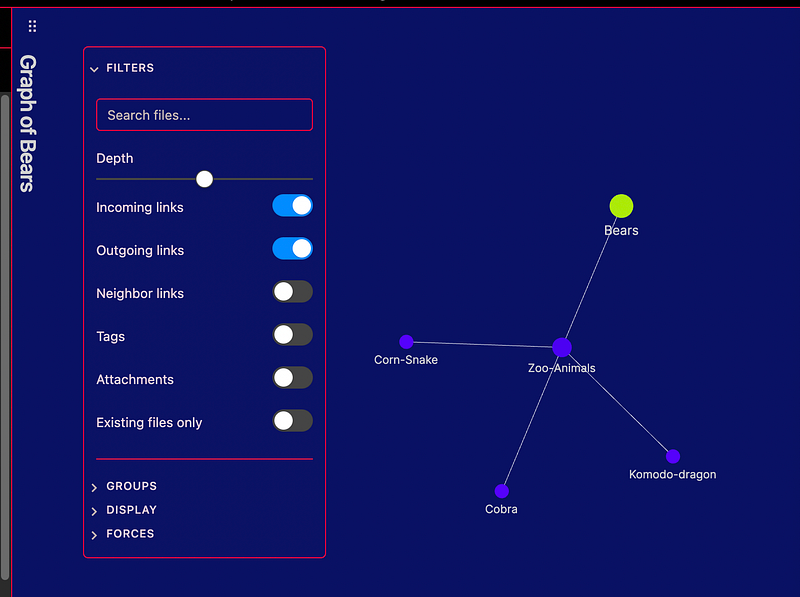
Now, that’s better. Links are a highly effective way to visualize notes on the graph.
Graph View and Tags
Let’s see what happens when we turn on TAGS:
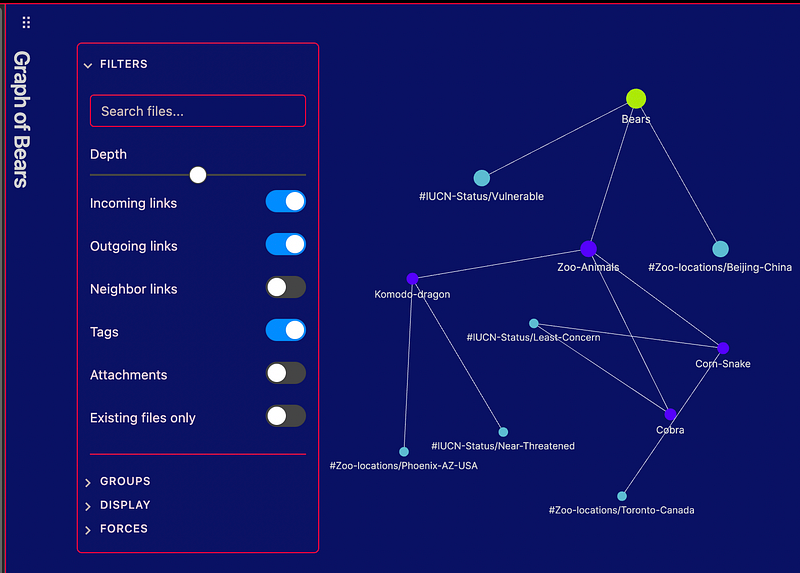
The tags are in the turquoise color. I can quickly determine that two animals, Corn Snake and Cobra, have the ICUN status of “least concern.”
So identifying what you definitely want to see on a graph versus sometimes want to see will help you define what to put in LINKS versus TAGS.
The only utility a folder provides is to exclude notes within a folder using the SEARCH box at the top of the Graph settings popup.
8. Wrap up
The argument of whether to use Tags, Links, or Folders will continue on through the next ice age. But if like me, you have watched numerous YouTube videos, read a multitude of blog posts, scoured Reddit, the Obsidian Forum and the Obsidian Member’s Group for information on this topic — a pattern does begin to emerge. As follows:
Tags are often used for status’ and categories of things.
- Examples: #active, #toread #published/medium, #published/blogpost
- Often want the ability to turn these on and off in the graph
- Don’t need to “write on the page” for a tag
Folders are generally kept at a minimum but are frequently used for:
- templates, administration, plugin requirements, excluded files, and very high level categories of like-kind notes (think projects)
Links are generally used for everything else.
Links as placeholders often denote an area that might evolve into a link with a page. Considered an indicator of importance.
Take heed of the words “generally” and “frequently” as there are many, many exceptions to the above.
To reiterate what was said earlier — YOU. DO. YOU.
And now that you know more about how your choices will impact the aesthetics of your vault, your fault functionality, search capabilities, settings, and graph view, you’re better equipped to use Tags, Links, and Folders to your advantage.
Click here for a condensed PDF version of this article
I hope I’ve offered some value. If so, 🙏 please help me out by 👏 Clap — smash it good 💬 Comment — or questions 🔄 Follow. 😘
Become a member and read every story with a Medium Membership. If you use my link, I’ll earn a small commission, and it costs you nothing. Thanks!
Resources:
Here Is How I Use Tags 🏷️ And Links 🔗️ In Obsidian To Manage My Zettelkasten 📝️ Bryan Jenks A Complete Guide to Tagging for Personal Knowledge Management Tiago Forte A Condensed PDF version of this article by Denise Todd How To Organize Your Notes in Obsidian | Folders, Tags and Links Filipe Donadio Links vs Tags vs Folders in Obsidian: When Should You Use Each? Chris Wilson A Guide on Links vs Tags in Obsidian from realactualprice Tags vs page/link from afen Here Is How I Use Tags 🏷️ And Links 🔗️ In Obsidian To Manage My Zettelkasten 📝️ Bryan Jenks Tag SOPLeah Furguson Obsidian: How to use tagging convention to let your system develop with you Pamela Wang How to use tags to take better notes with David Perell’s essays Heureka Labs How I Use Tags in Obsidian // EP 7 Mastering Obsidian FromSergio How To Use A Tag System In Obsidian Antone Heyward


