avatarGeeky Animals

Free AI web copilot to create summaries, insights and extended knowledge, download it at here

5476

Abstract

ally cut off a head or limb, like a badly cropped image, then use Pan to add the missing details, i.e., add a new head or limb to the poor guy in the photo.</p><p id="822d"><b>(4) Add more drama</b></p><p id="5b78">Like its Outpainting cousins (Zoom Out and Custom Zoom), Pan can add more drama or stir up the atmosphere to create a more intense image.</p><figure id="d3a0"><img src="https://cdn-images-1.readmedium.com/v2/resize:fit:800/1*CITXoU9eOCRwxVHkdSSovg.png"><figcaption>Original image. /imagine prompt: a comic of a lady in shock and surprised, hand covering mouth with disbelief in the style of vintage comic, halftone print</figcaption></figure><figure id="ff31"><img src="https://cdn-images-1.readmedium.com/v2/resize:fit:800/1*Tba_LIEPL98KvW9CvgbQ7Q.png"><figcaption>The original image was panned up to add details/drama on the top. Panning also helped to fix the random noise on the top right of the original image. Additional prompt for Pan: "same lady talking to the phone, multiple screens"</figcaption></figure><figure id="5b52"><img src="https://cdn-images-1.readmedium.com/v2/resize:fit:800/1*QMcFb_2wCJFbbgnCkwYQ7g.jpeg"><figcaption>The lightning effect is extended to the entire canvas in this panned image. /imagine prompt: an evil sorcerer blasting lightning spell, side view, outdoor. Additional prompt: "the lightning kills many flying bats"</figcaption></figure><figure id="0cf1"><img src="https://cdn-images-1.readmedium.com/v2/resize:fit:800/1*1ntfG0tOsC5HJbiXIGU4Ew.png"><figcaption>The original image is good enough, and we can make it even more dramatic with Pan.</figcaption></figure><p id="dd0e">Now for the creative ways to use Pan, which is the fun part:</p><p id="bf9f"><b>(5) Use Pan to churn out unlimited assets in the same artistic style</b></p><p id="ad9d">Like panning for gold, panning can help us gather many valuable digital assets. Clipart, game assets, icons, a character sheet, a list of items, etc., are all digital assets.</p><p id="3241">Here’s how:</p><p id="e85b">(a) Write a prompt for creating many items.</p><p id="f8dd">For example: /imagine prompt: clipart of cute puppies, watercolor</p><p id="fd08">(b) Pick and upscale an image that you like.</p><p id="7290">(c) Pan in all directions — yes, click the left, right, up, and down buttons.</p><p id="9505">d) Then there will be more new puppies everywhere! Just keep panning, and you will get even more!</p><p id="a547">e) Quality control step: remember to turn on /remix mode. Sometimes you have to change or rewrite the prompt after 2–3 pans to ensure the MJ bot keeps making puppies and not something else. You can also add: “isolated on white background” (without quote) in your prompt to help with asset isolation.</p><figure id="8b57"><img src="https://cdn-images-1.readmedium.com/v2/resize:fit:800/1*fOO9KGliypaS6LZTwRLSag.png"><figcaption>Original image of a clipart collection of puppies.</figcaption></figure><figure id="f3fb"><img src="https://cdn-images-1.readmedium.com/v2/resize:fit:800/1*sSchoF7YxRtmfuynawXaZg.png"><figcaption>Panned right for more puppies sharing the same artistic style.</figcaption></figure><figure id="a9d6"><img src="https://cdn-images-1.readmedium.com/v2/resize:fit:800/1*50AHWUSgoSrW3I0KlyksRg.png"><figcaption>Keep panning for even more puppies.</figcaption></figure><p id="5cc3"><b>(6) Make a copy or reflection of the same character</b></p><p id="e572">This is an experimental use of Pan. If Pan can move the original image to a side, why not flip it horizontally or vertically? Even though I still need to perfect the prompt to use it this way, here are some intriguing images I’ve made so far. You’re welcome to try it out and show me what you can make.</p><figure id="1659"><img src="https://cdn-images-1.readmedium.com/v2/resize:fit:800/1*P79miyqgnM9ixgyo7R2DhQ.png"><figcaption>Creative use of Pan. Same photo of the lady (see Point 2). Prompt: A mirror reflection of a photo of the same lady, side view</figcaption></figure><figure id="7b99"><img src="https://cdn-images-1.readmedium.com/v2/resize:fit:800/1*WJSJSGqUQXPx0lsVwPCHpA.png"><figcaption>A ghostly reflection. Additional prompt for Pan: reflection of a photo of the same lady, side view</figcaption></figure><figure id="da79"><img src="https://cdn-images-1.readmedium.com/v2/resize:fit:800/1*_KU9ChUIw7foRs95BEDb2g.png"><figcaption>A mirror dimension. Additional prompt for Pan: reflection view of a photo of a lady, side view</figcaption></figure><figure id="02a1"><img src="https://cdn-images-1.readmedium.com/v2/resize:fit:800/1*yX3AXZjb5c2w5u67EPeyTQ.png"><figcaption>Additional prompt to pan right: reflection of a photo of the same lady who has aged. This concept may have its uses for products related to aging, before-and-after effects, etc.</figcaption></figure><p id="f548"><b>(7) Interact with the subject or object of the original image</b></p><p id="badc">Remember that I said in Point 2 that the bird couldn’t touch the woman’s head in the original picture? The new element can still “touch” the subject, not at the head but at another part of the body made with Pan.</p><p id="00b3">Here’s how:</p><p id="739c">(a) Pan the image in a direction that makes sense for your image. Here, we pan the image down to create more canvas at the bottom.</p><p id="570b">(b) Activate /remix. Add in a new prompt: “a bird resting on the lady’s hand” (without the quotes)</p><p id="13e0">This will create an illusion where the new element (bird) can interact

Options

with or touch the subject in the original image. But in reality, the bird still doesn’t touch the original subject (the lady’s head and shoulder).</p><figure id="05c2"><img src="https://cdn-images-1.readmedium.com/v2/resize:fit:800/1*1YTuBLVgmntlVbnZGvRCOw.png"><figcaption>Creating an illusion in which a newly added element interacts with the original image’s subject.</figcaption></figure><p id="3d84"><b>(8) Use with the other Outpainting features</b></p><p id="3598">You can add more details by using [Make Square], [Zoom Out 2x], [Zoom Out 1.5x], and [Custom Zoom].</p><p id="ba92">MJ’s official announcement says: (quote)</p><blockquote id="b6ff"><p>“If you zoom out on a panned image, its resolution will decrease back down to default size.”</p></blockquote><p id="00ca">That sounds scary, like zooming out on a pannable image is a big sin. Let me tell you something <b>exciting and counterintuitive</b>: zooming out on a pannable image can add (an incredible amount of) details.</p><p id="378c">Yes, it’s true that Zoom Out will make your 10K pixels wide image down to the default 1,024 px wide, but you may not need a panoramic image in all applications. Consider the trade-off for practicality and added details.</p><figure id="2aab"><img src="https://cdn-images-1.readmedium.com/v2/resize:fit:800/1*mX5Vwf3mtJenIOYq6HiyIw.png"><figcaption>A Zoom Out image after panning. Point 1 shows the original panned image. I used [Custom Zoom] and changed to these parameters: --ar 16:9 --zoom 1.5</figcaption></figure><figure id="13f8"><img src="https://cdn-images-1.readmedium.com/v2/resize:fit:800/1*TZCf513i-RTstZdlF8jTxg.jpeg"><figcaption>Zoom Out of a Panned image reduces the image resolution/size while adding incredible details.</figcaption></figure><p id="af05"><b>Pan’s limitations</b></p><p id="fa4a">(1) Pan doesn’t work well with — tile parameter</p><ul><li>Meaning it’s difficult to create <i>seamless </i>patterns using Pan</li><li>Even if the pattern is squarish, like a tile used in home decor, the panned image will not be guaranteed to stay squarish.</li></ul><p id="1741">(2) You don’t have any control over the magnitude of the Pan.</p><p id="4cb6">(3) You must use /remix, or the panned image may contain unexpected elements. <b>Panning is an interactive activity.</b> When panning, you must tell the bot what you want to see in the new canvas. If you don’t, often it will be a bad or weird/funny surprise.</p><p id="c9d5"><b>Conclusion</b></p><p id="d474">Typical use cases of Pan: (1) Make a panoramic photograph or illustration (2) Add new elements to the added canvas (3) Fix a cut-off image (4) Add more drama</p><p id="319c">Creative uses of Pan: (5) Churn out assets with a similar artistic style (6) Make a copy or reflection (7) Create an illusion of interaction with the original subject (8) Combine it with other Outpainting features to add details</p><p id="cff4">Do you find this article interesting? Do you have any additional suggestions to add to the list? Please let me know by leaving a comment.</p><p id="ce13"><b>Related stories</b></p><div id="6ffa" class="link-block"> <a href="https://bootcamp.uxdesign.cc/midjourney-v5-2-ac59c283a81"> <div> <div> <h2>Midjourney V5.2 killer features help you save money, time, energy, and expand your creativity</h2> <div><h3>Midjourney V5.2 includes killer features that can save you money, time, and energy. You can use it to broaden your…</h3></div> <div><p>bootcamp.uxdesign.cc</p></div> </div> <div> <div style="background-image: url(https://miro.readmedium.com/v2/resize:fit:320/1*atki0aiHfq3_VeXBrWQkSA.png)"></div> </div> </div> </a> </div><div id="e35c" class="link-block"> <a href="https://readmedium.com/midjourney-muse-how-to-stay-sane-and-not-drown-in-a-sea-of-captivating-images-963ac908f81"> <div> <div> <h2>Midjourney Muse: How to stay sane and not drown in a sea of captivating images</h2> <div><h3>Stay focused to be more efficient in creating images using Midjourney. Keep your end goal in mind.</h3></div> <div><p>medium.com</p></div> </div> <div> <div style="background-image: url(https://miro.readmedium.com/v2/resize:fit:320/1*slPuruG-Cxbf83flyMSWFA.png)"></div> </div> </div> </a> </div><div id="cd3e" class="link-block"> <a href="https://bootcamp.uxdesign.cc/how-to-invoke-midjourney-archetypes-and-make-a-cat-fly-be36b6effe2d"> <div> <div> <h2>How to invoke Midjourney archetypes and make a cat fly</h2> <div><h3>To create an atypical character, subject, object, or scene, you must invoke or break Midjourney’s archetype using…</h3></div> <div><p>bootcamp.uxdesign.cc</p></div> </div> <div> <div style="background-image: url(https://miro.readmedium.com/v2/resize:fit:320/1*bQwm4hYYxID8tfj9l8HDpQ.png)"></div> </div> </div> </a> </div><p id="64ba">Never miss a story. <b>Follow me</b> on Medium for updates, articles, and tips about Midjourney.</p><p id="eb31"><a href="https://medium.com/@geekyanimals">Geeky Animals — Medium</a></p></article></body>

Midjourney Pan feature: 8 use cases

The Pan function does more than just generate panoramic images.
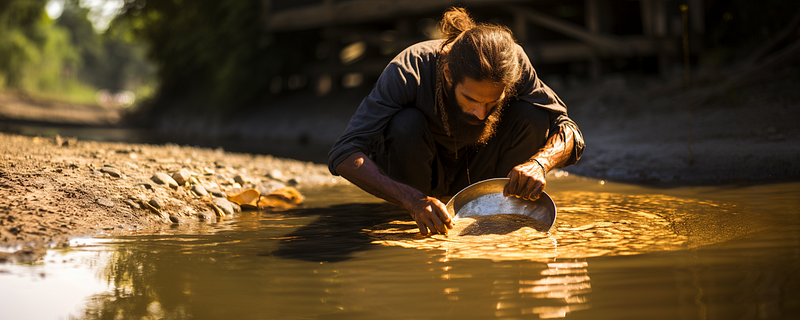
Since the release of the [Pan] feature, I imagine Midjourney fans have been busy "Panning" for captivating images (pun intended).

The new Pan feature in Midjourney allows digital artists to expand the image canvas horizontally or vertically and move the image’s subject.

Pan does more than generate panoramic images. Here are some of my creative (or crazy) use cases of Pan. Yes, I may have more in the near future, so stay tuned!)

If this is the first time you’ve heard of the “Pan” as one of Midjourney’s Outpainting features and want to learn more, you can find a comprehensive guide here:

OK, let’s start with the obvious/typical Pan use cases:

(1) Make a panoramic photograph or illustration

This could be the main reason why people use Pan. One can create a panoramic image entirely in MJ. There is no need to use third-party software to stitch the panned photos together.

Here’re the steps:

(a) Begin by typing the “/imagine prompt: (your prompt)” as usual, then upscale an image of your choice.

(b) 4 arrow buttons will appear below the upscaled image after upscale. These are the left, right, up, and down Pan buttons.

(c) Decide if you want to pan horizontally (left and right) or vertically (up and down). There are only two options — so there is no need to overthink! It is not possible to pan both directions at the same time. Then, click one of the Pan buttons.

(d) Repeat the panning as needed. The panned image will automatically stitch in the newly added canvas and its details. As you keep panning, your image resolution will increase rapidly, and the file size will become enormous!
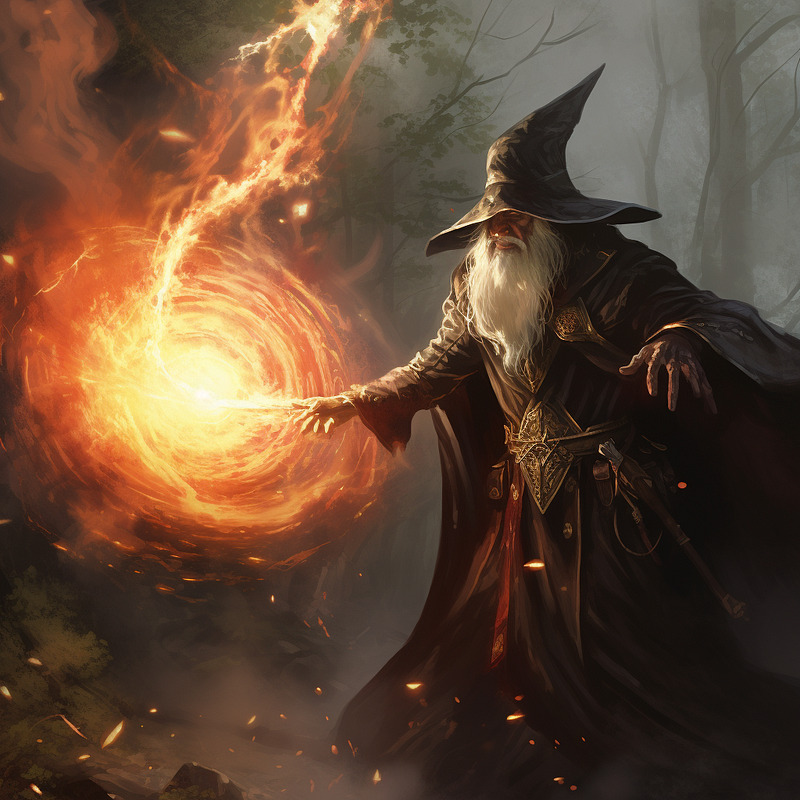
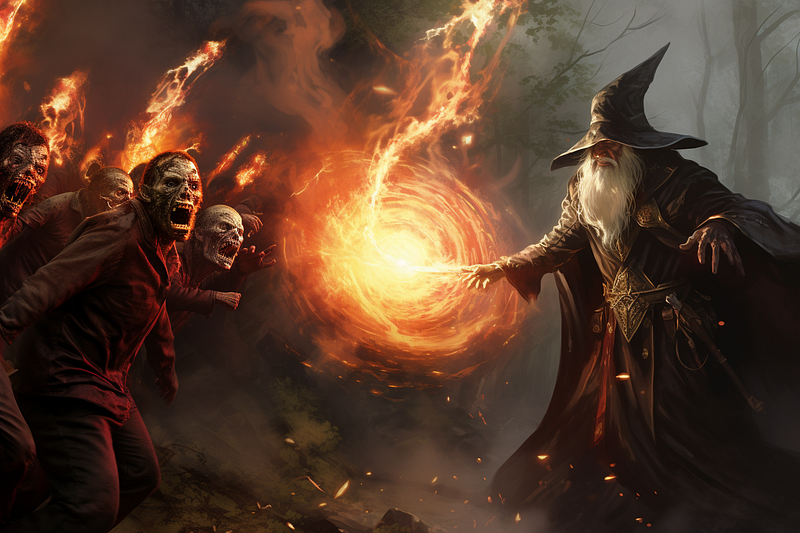
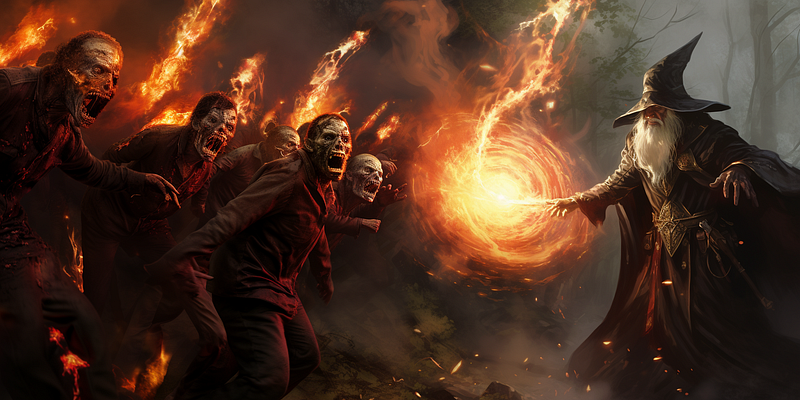
This is the original upscaled image. /imagine prompt: An evil sorcerer blasting a fire spell, side view, outdoor
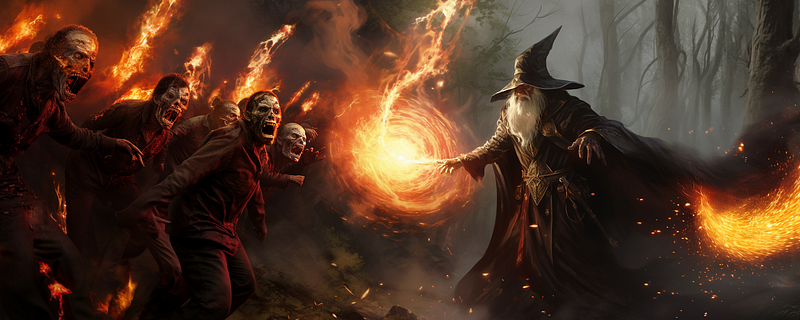
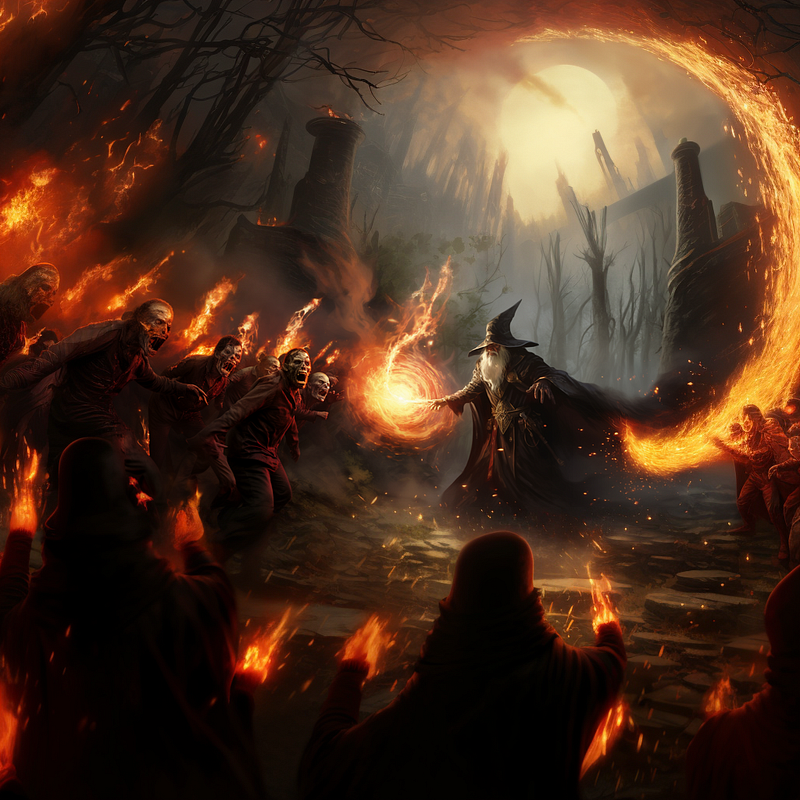
The original image was panned left. /remix mode was activated and I deleted the old prompt and put in "the fire engulfs the walking zombies" (no need to put in "/imagine prompt:" in the dialogue box).
I panned the image left again. Repeat the previous step and put in the same prompt: "the fire engulfs the walking zombies" (without the quotes)
This time I panned the image right to create more canvas at the sorcerer's side. I put in another prompt: "fire surrounding and protecting the sorcerer" (without quotes) to highlight the sorcerer's ability to control fire.

(2) Add new things to the side of the image

That’s where Pan shines. You can quickly “push aside” your main subject or object in the original image, then add new elements and details to the newly created canvas.

You can add a new character from an uploaded image or use an MJ-generated image.

Using Pan to add multiple subjects is a more challenging task that I’ll discuss in another story.

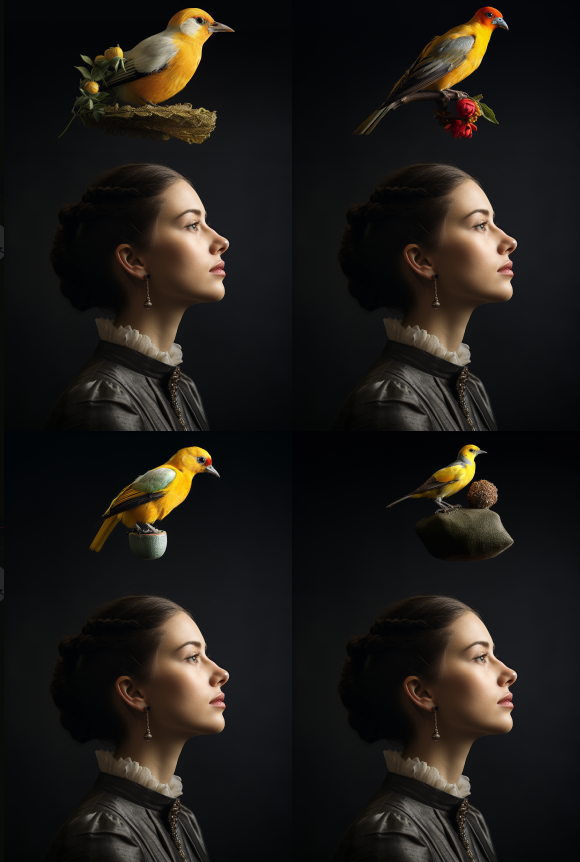
Keep in mind that your original image will not change in any way. In other words, if you add a bird to the panned image, that bird can’t “touch” the head of the subject (lady) in the original image. The bird must stay outside or at the border of the original image.
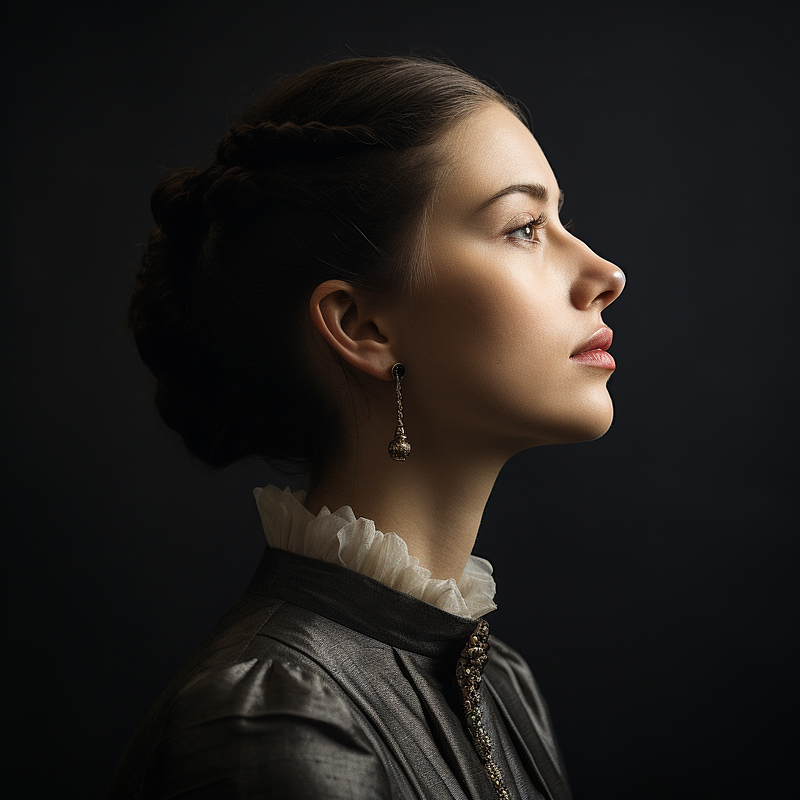
Original image before panning. /imagine prompt: a photo of a lady, side view
I panned the image up. Then typed "a bird standing on the head of the lady" (without quotes) to add the bird. The bird can’t land on the lady’s head because the original image is protected and stays intact when panning.

(3) Fix a cut-off image

This is a no-brainer. If MJ made a photo that accidentally cut off a head or limb, like a badly cropped image, then use Pan to add the missing details, i.e., add a new head or limb to the poor guy in the photo.

(4) Add more drama

Like its Outpainting cousins (Zoom Out and Custom Zoom), Pan can add more drama or stir up the atmosphere to create a more intense image.
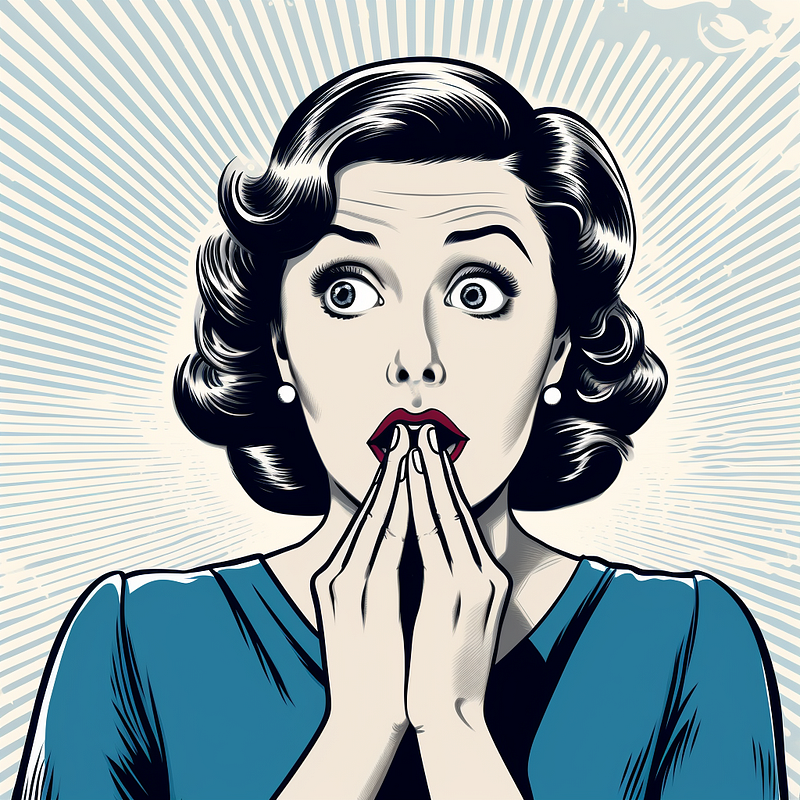
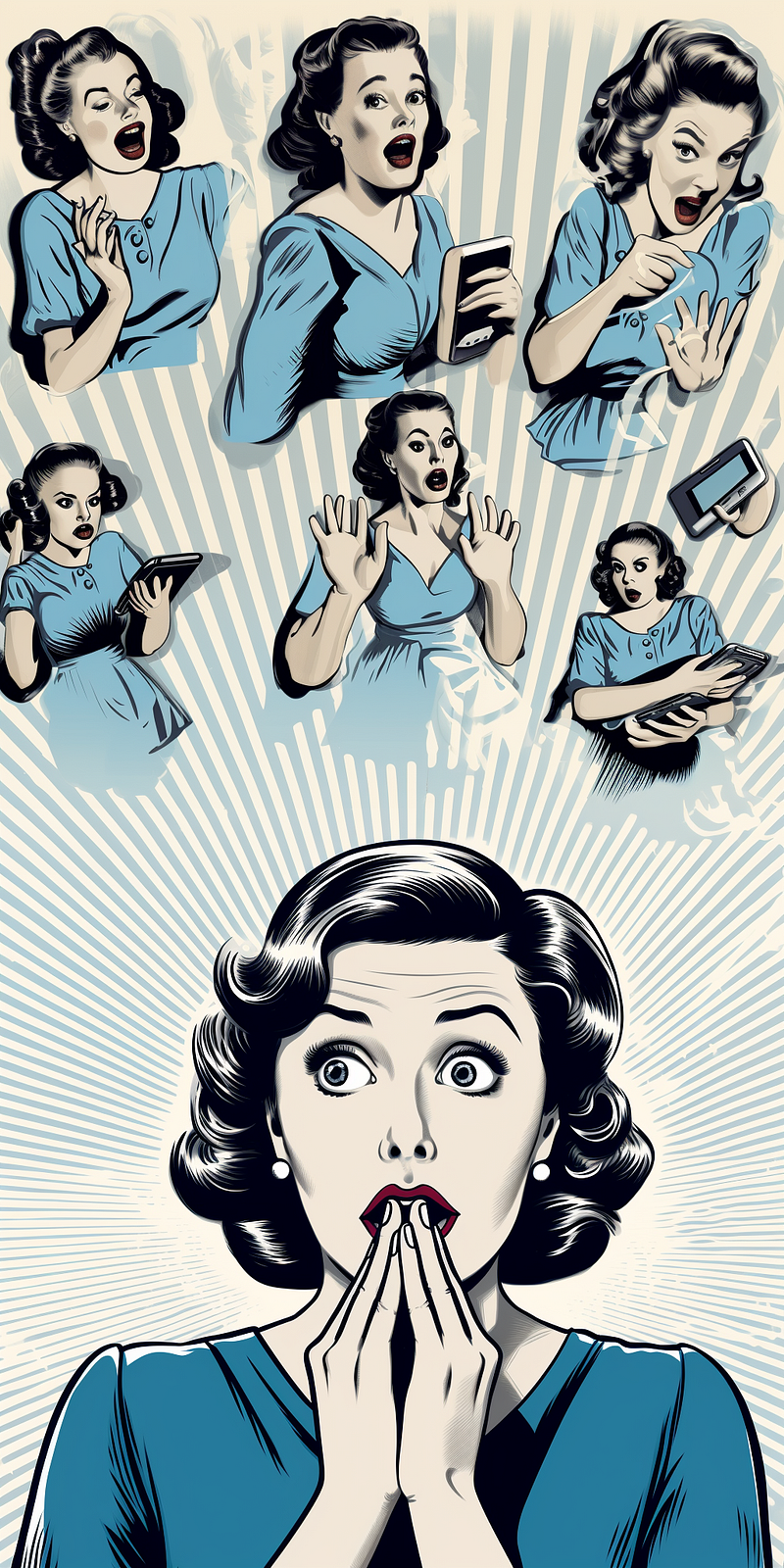
Original image. /imagine prompt: a comic of a lady in shock and surprised, hand covering mouth with disbelief in the style of vintage comic, halftone print
The original image was panned up to add details/drama on the top. Panning also helped to fix the random noise on the top right of the original image. Additional prompt for Pan: "same lady talking to the phone, multiple screens"
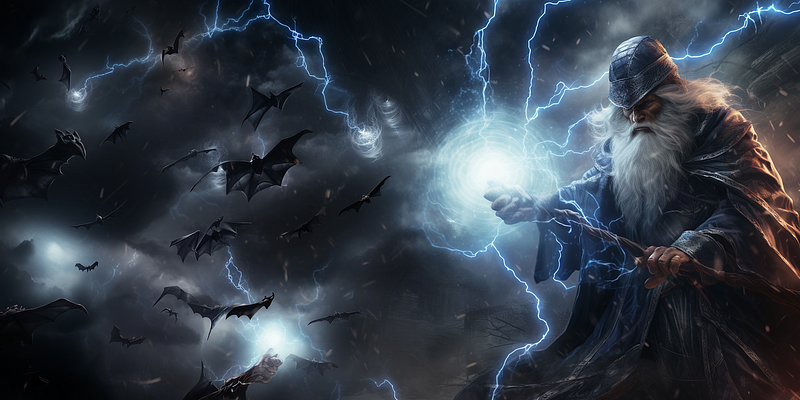
The lightning effect is extended to the entire canvas in this panned image. /imagine prompt: an evil sorcerer blasting lightning spell, side view, outdoor. Additional prompt: "the lightning kills many flying bats"
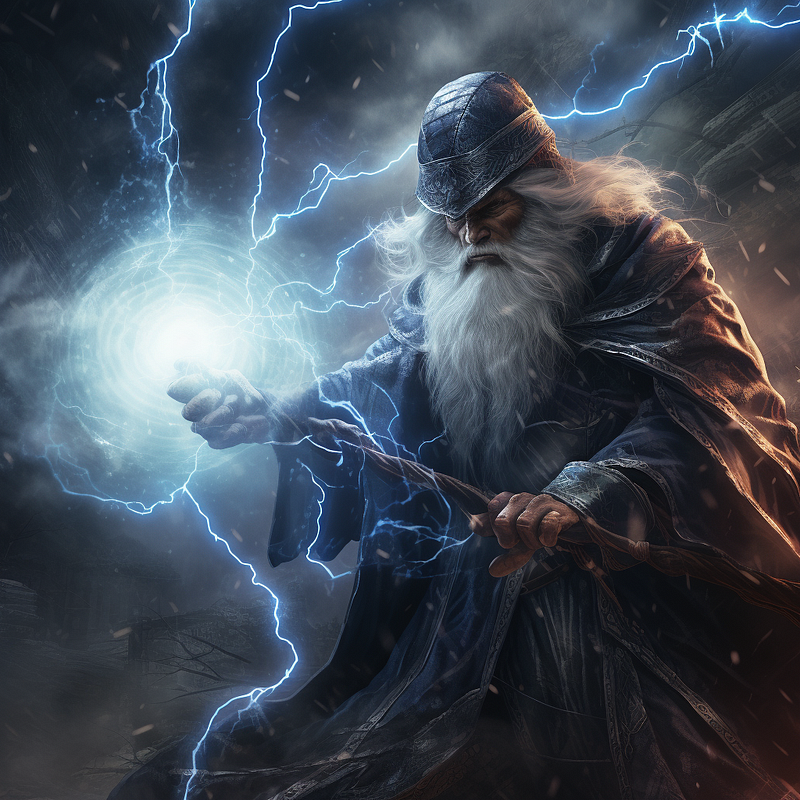
The original image is good enough, and we can make it even more dramatic with Pan.

Now for the creative ways to use Pan, which is the fun part:

(5) Use Pan to churn out unlimited assets in the same artistic style

Like panning for gold, panning can help us gather many valuable digital assets. Clipart, game assets, icons, a character sheet, a list of items, etc., are all digital assets.

Here’s how:

(a) Write a prompt for creating many items.

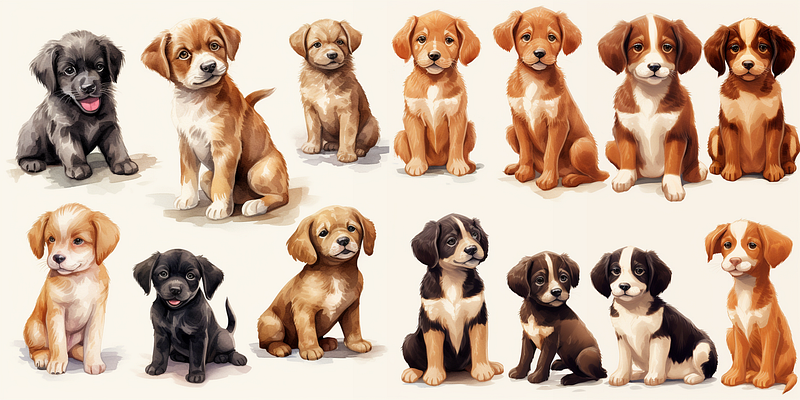
For example: /imagine prompt: clipart of cute puppies, watercolor

(b) Pick and upscale an image that you like.

(c) Pan in all directions — yes, click the left, right, up, and down buttons.

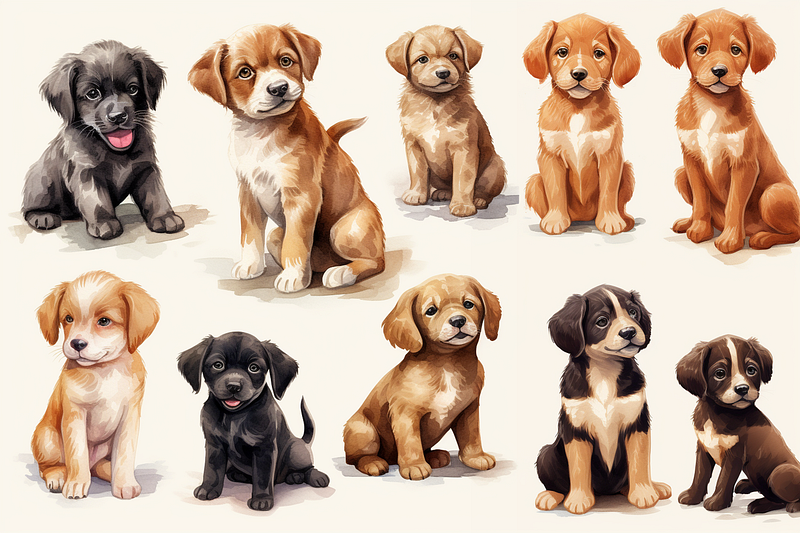
d) Then there will be more new puppies everywhere! Just keep panning, and you will get even more!

e) Quality control step: remember to turn on /remix mode. Sometimes you have to change or rewrite the prompt after 2–3 pans to ensure the MJ bot keeps making puppies and not something else. You can also add: “isolated on white background” (without quote) in your prompt to help with asset isolation.
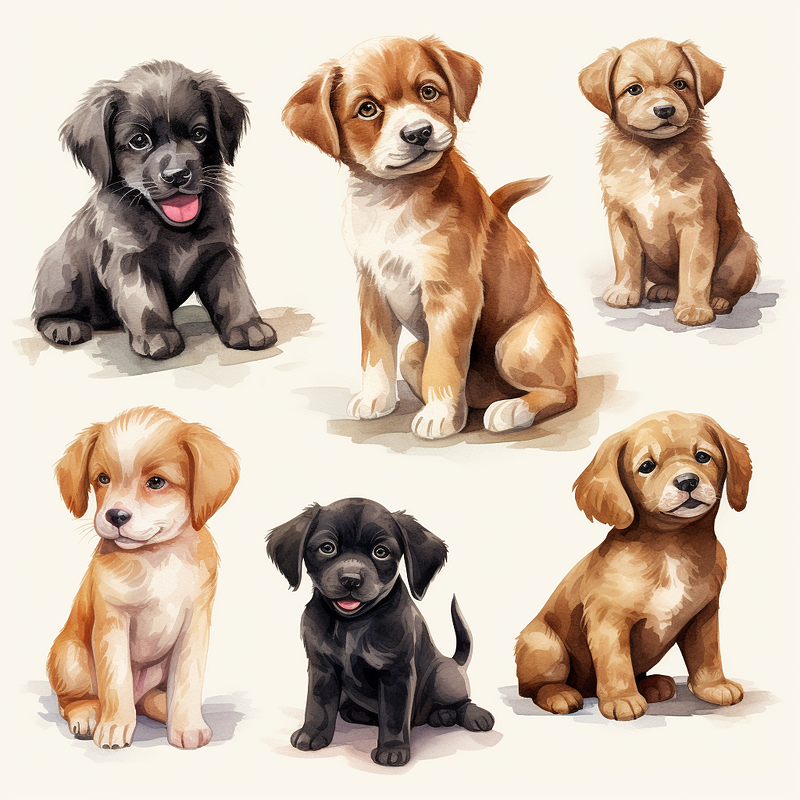
Original image of a clipart collection of puppies.
Panned right for more puppies sharing the same artistic style.
Keep panning for even more puppies.

(6) Make a copy or reflection of the same character

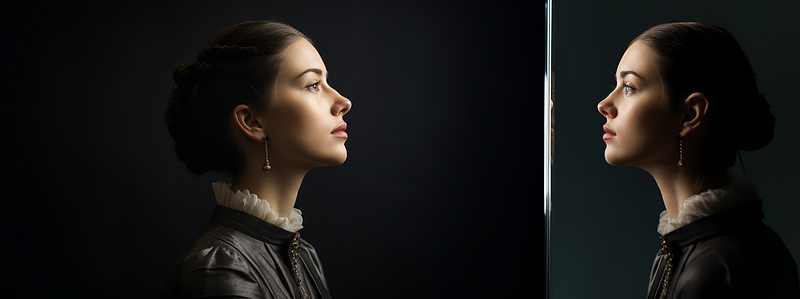
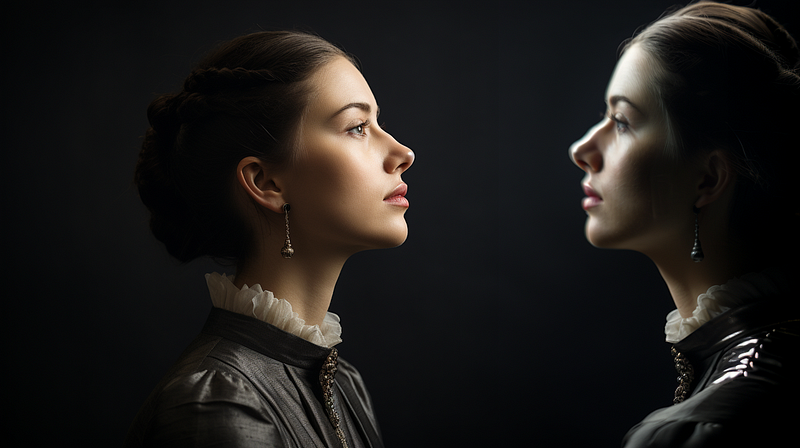
This is an experimental use of Pan. If Pan can move the original image to a side, why not flip it horizontally or vertically? Even though I still need to perfect the prompt to use it this way, here are some intriguing images I’ve made so far. You’re welcome to try it out and show me what you can make.
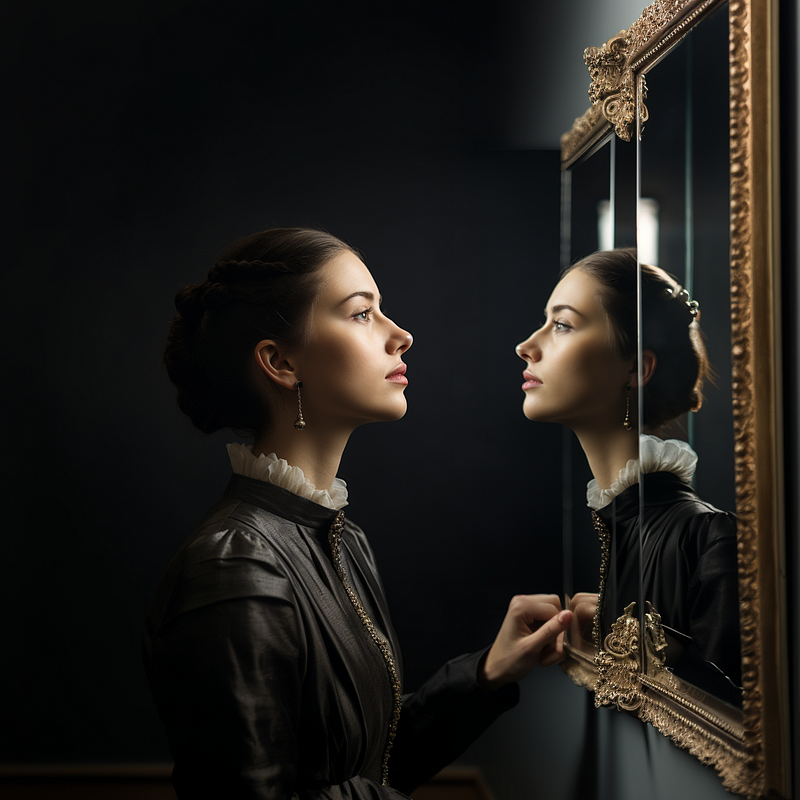
Creative use of Pan. Same photo of the lady (see Point 2). Prompt: A mirror reflection of a photo of the same lady, side view
A ghostly reflection. Additional prompt for Pan: reflection of a photo of the same lady, side view
A mirror dimension. Additional prompt for Pan: reflection view of a photo of a lady, side view
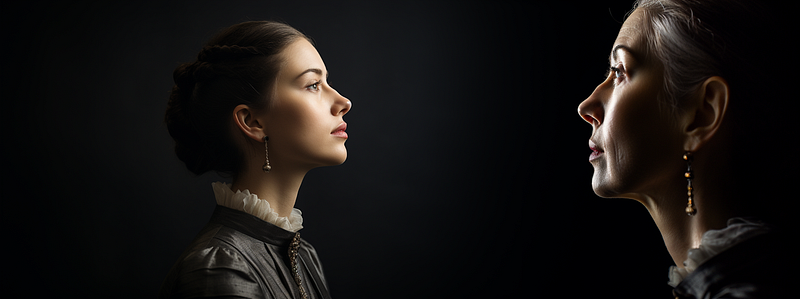
Additional prompt to pan right: reflection of a photo of the same lady who has aged. This concept may have its uses for products related to aging, before-and-after effects, etc.

(7) Interact with the subject or object of the original image

Remember that I said in Point 2 that the bird couldn’t touch the woman’s head in the original picture? The new element can still “touch” the subject, not at the head but at another part of the body made with Pan.

Here’s how:

(a) Pan the image in a direction that makes sense for your image. Here, we pan the image down to create more canvas at the bottom.

(b) Activate /remix. Add in a new prompt: “a bird resting on the lady’s hand” (without the quotes)

This will create an illusion where the new element (bird) can interact with or touch the subject in the original image. But in reality, the bird still doesn’t touch the original subject (the lady’s head and shoulder).
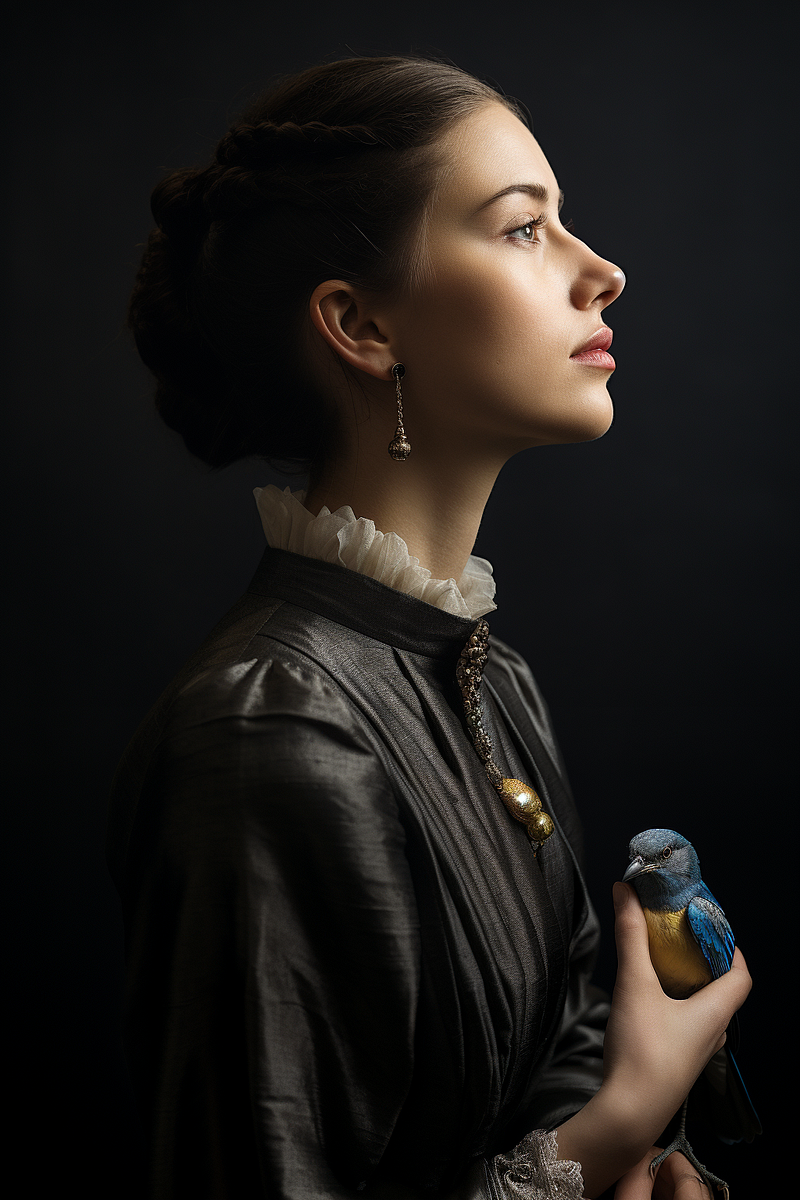
Creating an illusion in which a newly added element interacts with the original image’s subject.

(8) Use with the other Outpainting features

You can add more details by using [Make Square], [Zoom Out 2x], [Zoom Out 1.5x], and [Custom Zoom].

MJ’s official announcement says: (quote)

“If you zoom out on a panned image, its resolution will decrease back down to default size.”

That sounds scary, like zooming out on a pannable image is a big sin. Let me tell you something exciting and counterintuitive: zooming out on a pannable image can add (an incredible amount of) details.

Yes, it’s true that Zoom Out will make your 10K pixels wide image down to the default 1,024 px wide, but you may not need a panoramic image in all applications. Consider the trade-off for practicality and added details.
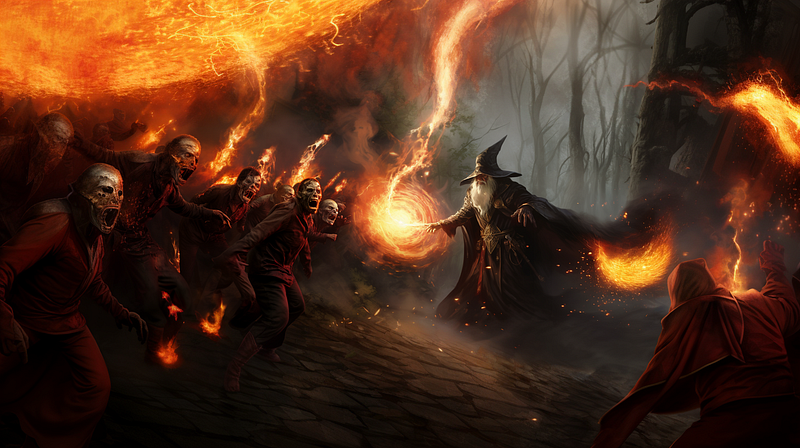
A Zoom Out image after panning. Point 1 shows the original panned image. I used [Custom Zoom] and changed to these parameters: --ar 16:9 --zoom 1.5
Zoom Out of a Panned image reduces the image resolution/size while adding incredible details.

Pan’s limitations

(1) Pan doesn’t work well with — tile parameter

  • Meaning it’s difficult to create seamless patterns using Pan
  • Even if the pattern is squarish, like a tile used in home decor, the panned image will not be guaranteed to stay squarish.

(2) You don’t have any control over the magnitude of the Pan.

(3) You must use /remix, or the panned image may contain unexpected elements. Panning is an interactive activity. When panning, you must tell the bot what you want to see in the new canvas. If you don’t, often it will be a bad or weird/funny surprise.

Conclusion

Typical use cases of Pan: (1) Make a panoramic photograph or illustration (2) Add new elements to the added canvas (3) Fix a cut-off image (4) Add more drama

Creative uses of Pan: (5) Churn out assets with a similar artistic style (6) Make a copy or reflection (7) Create an illusion of interaction with the original subject (8) Combine it with other Outpainting features to add details

Do you find this article interesting? Do you have any additional suggestions to add to the list? Please let me know by leaving a comment.

Related stories

Never miss a story. Follow me on Medium for updates, articles, and tips about Midjourney.

Geeky Animals — Medium

Midjourney
Artificial Intelligence
Design
AI
Creativity
Recommended from ReadMedium