avatarChris McQueen

Free AI web copilot to create summaries, insights and extended knowledge, download it at here

3649

Abstract

t.microsoft.com/en-gb/office/keyboard-shortcuts-for-microsoft-teams-2e8e2a70-e8d8-4a19-949b-4c36dd5292d2?redirectSourcePath=%252fen-us%252farticle%252fMicrosoft-Teams-keyboard-shortcuts-c796cc2e-249a-4ec3-9cd7-00766905aa56&ui=en-US&rs=en-GB&ad=GB">here</a> to get the entire set of shortcuts for Mac OS or Windows.</p><p id="658a">My favourite shortcuts I use all the time are Ctrl + 2 (opens chat), Ctrl + 3 (opens Teams) and Ctrl + Shift + M to mute or unmute.</p><p id="0288">Have a look through those shortcuts and see for yourself what fits your needs best.</p><h2 id="3df0">#3 Meet now lets you meet without an invitation</h2><figure id="6594"><img src="https://cdn-images-1.readmedium.com/v2/resize:fit:800/1*rq_CW_rLCCBS8wAHkVR6Vw.png"><figcaption>Screenshot by Author</figcaption></figure><p id="ae43">This feature is often underrated, as most people use the Outlook calendar integration to join meetings.</p><p id="fc42">An alternative to creating a meeting in outlook is the meet now feature. If you want to meet up with your colleagues, try the following:</p><ul><li>Go to your channel you want to meet up in</li><li>Click the Meet icon at the top left</li><li>Enter a name for your meeting</li><li>Invite people from the participants' tab</li></ul><figure id="516d"><img src="https://cdn-images-1.readmedium.com/v2/resize:fit:800/1*WXFUORHdzA8YiiQwE8zrrA.png"><figcaption>Screenshot by Author</figcaption></figure><p id="6f83">We use this feature for our uni classes quite often, as we don’t have an Outlook calendar integrated to teams. A recent update added the feature to all devices so that you can start a meeting from your phone or tablet.</p><h2 id="2df4">#4 Improve your messaging in chats</h2><p id="b1fe">Unlock the full potential of your messaging in chats.</p><p id="471b">Let’s spice up your chats with some features you probably have never used.</p><p id="f4f8">To begin, click on the A with the paintbrush at the bottom of the screen. The text compose box will expand, and you will have many different options for formatting and the distribution of your post.</p><figure id="0911"><img src="https://cdn-images-1.readmedium.com/v2/resize:fit:800/1*wGxkSJC6iTcVjl68J7ULJg.png"><figcaption>Screenshot by Author</figcaption></figure><p id="df70">Here is a list of the best tools to make your messages more visible</p><ul><li>Use @ to mention colleagues or other students</li><li>Set who can reply from the dropdown at the top of the dialogue</li><li>Insert a code snippet with the “” Symbol</li><li>Add a table by clicking on the grid</li><li>Use the “!” to mark the post as important</li><li>Send a GIF or Meme from the taskbar at the bottom</li></ul><p id="9362">These are the options I find most useful. If you’d like to share your experience, I’m looking forward to a reply in the comments.</p><h2 id="de26">#5 Customise your Teams experience with Apps</h2><p id="6371">MS-Teams has its own “App-Store” for Apps, Bots and many other useful tools.</p><p id="efda">One-click on the Apps icon at the bottom left of the screen, reveals a list of all Apps.</p><figure id="7ba3"><img src="https://cdn-images-1.readmedium.com/v2/resize:fit:800/1*vYtDM2sVjnJ6b9rM8DIeWA.png"><figcaption>Screenshot by Author</figcaption></figure><p id="0873">A list on the left side lets you filter the “App-Store” and execute a custom search.</p><p id="2031">My favourite and most used App is <a href="https://support.microsoft.com/en-us/office/use-planner-in-microsoft-teams-62798a9f-e8f7-4722-a700-27dd28a06ee0">Microsoft Planner integration</a>. We use it for assigning tasks and staying on top of important deadlines. For most Uni

Options

project, we use this Add-on to our Teams channel, and it works beautifully.</p><p id="c179">You can easily add these apps by clicking the “+” icon on your Teams channel and selecting an app from the list.</p><p id="eeba">A great bot for polls is <a href="https://www.polly.ai/microsoft-teams">Polly</a>. Polly lets you create polls with ease and send them off instantly. Now you know who will join you in the cantine for lunch today!</p><h2 id="311e">#6 Upload files to Microsoft SharePoint</h2><figure id="05a9"><img src="https://cdn-images-1.readmedium.com/v2/resize:fit:800/1*DI5G2Zs3PrACDfe0pK_Ifg.png"><figcaption>Screenshot by Author</figcaption></figure><p id="4489">This is a must-do for ideal team collaboration.</p><p id="92dc">If you use Office 365, you are probably familiar with its core concepts. For all the Office 365 programs you use, there is the option to save the file to either OneDrive or locally.</p><p id="875f">My advice to you is to get OneDrive up an running and use it to save your documents. With AutoSave turned on, you will save yourself a lot of hassle, if you forget to save your work manually.</p><p id="8ca1">To share files with others, you can either use the familiar paperclip icon (if you’re in the chat) or you could upload the file to your Teams channel.</p><p id="7633">Try following these steps:</p><ul><li>Go to your channel</li><li>Navigate to the Files tab</li><li>Locate the Upload Option</li><li>Select the file from OneDrive or your local drive to upload to the channel</li></ul><p id="9a20">You should be able to find your new file in the Files tab of the channel. The files are now saved to the SharePoint.</p><p id="4caf">The collaboration starts, as soon as more than one person works on the document. From now on <b>only </b>use the SharePoint for working on the file with others.</p><p id="c08f">I made a mistake to assume OneDrive syncs with the SharePoint. It doesn’t.</p><p id="331a">To work on the same document with others:</p><ul><li>Open the file in the “Files” tab</li><li>Click on “Open in Desktop App”</li><li>Work in realtime with your colleagues</li></ul><h2 id="c9c2">#7 Add multiple Organisations</h2><figure id="ea43"><img src="https://cdn-images-1.readmedium.com/v2/resize:fit:800/1*Cr3cEkLrp1m3cWhthGjckQ.png"><figcaption>Screenshot by Author</figcaption></figure><p id="c238">For all the students and workers who struggle to manage two Teams accounts simultaneously, this feature is for you.</p><p id="24c2">Try the following on the mobile version of teams:</p><ul><li>Open the hamburger menu from the top left corner</li><li>Select your work or school account</li><li>Sign in to the account</li></ul><p id="9cad">You might need to add the account from the bottom of the menu.</p><p id="3831">I find this feature very useful for touching base at work while I’m in university. The switch between both accounts is super quick and easy.</p><p id="c6a3">Sadly, this feature is not available for the Desktop App (yet). I’m hoping this will change soon.</p><h2 id="993a">Final thoughts</h2><p id="a4d3">I truly believe Teams is a great tool for businesses, universities and schools. The easy to use interface and amazing connectivity to different devices, make this App a must-have for all remote work.</p><p id="f05f">Finally, I’ll summarise the seven improvements in one word below:</p><p id="c532"><b>#1 Channels</b></p><p id="5411"><b>#2 Shortcuts</b></p><p id="c019"><b>#3 Meet Now</b></p><p id="82a1"><b>#4 Chats</b></p><p id="4c22"><b>#5 Apps</b></p><p id="253e"><b>#6 Upload</b></p><p id="40f7"><b>#7 Organisations</b></p><p id="4b98">Thanks for reading.</p></article></body>

7 Ways To enhance your Microsoft Teams Experience

This guide isn’t just for the over fifties.

Image by Free-Photos from Pixabay

Imagine the amazement early adopters felt when they used an instant messaging platform for the first time. There was no need for an expensive phone call or an old fashioned e-mail.

ICQ was the first of these instant messaging-programs and launched its debut back in 1996. The Israeli company Mirabilis was among the first to develop a program for the widespread community.

When Skype launched its service, the instant messaging feature was not one of its most popular features. Yet, later in 2011, an integration was added to Skype. Skype-Users were able to see their Facebook friends from the contact list and chat on both Facebook and Skype.

In July 2019 Microsoft announced that their Skype support would run out in 2021. The replacement for Skype was Microsoft (MS)Teams.

In this article, I will be going over my favourite MS-Teams features and share my top five ways you can improve your Teams Calls.

#1 Channels are the way to go
Screenshot by Author

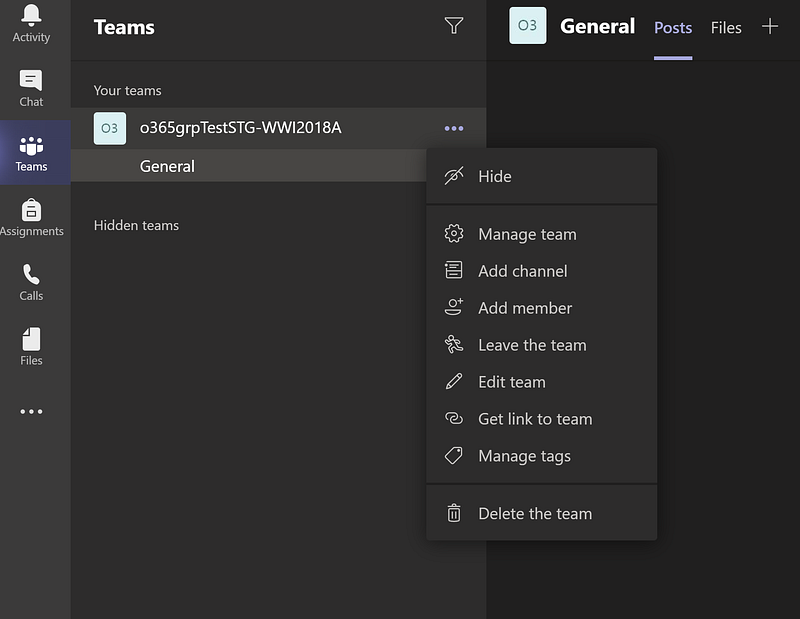
Using channels will break your big team into small sub-sections. If you are the creator of the team or have enough admin rights, you’re ready to go.

  • On the sidebar select the Teams icon
  • Right-click on the Teams name
  • Select add channel

Done!

Channels will let you work in a smaller group of colleagues. You won’t need to discuss all the information in the “General” channel but can outsource the information to different channels.

For example, one of our uni projects was to create a website using microservices. We created a channel for each microservice, ten in all. Every small team could perform collaboration tasks within their channel.

This way, you will know where to find content and not be overloaded with a lot of unnecessary information.

#2 Shortcuts make life easier
Screenshot by Author

Ctrl + c, Ctrl + v. We love that shortcut and use it daily.

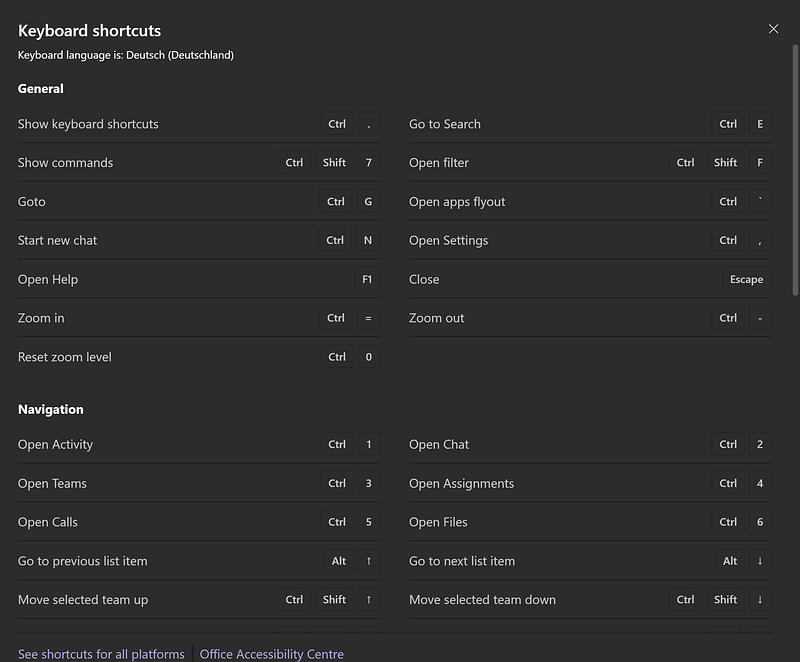
Team has a huge amount of awesome shortcuts. And what is better, than accessing the shortcuts with a shortcut?

Hit Cntrl +.(period) to access the keyboard shortcuts for teams. Click here to get the entire set of shortcuts for Mac OS or Windows.

My favourite shortcuts I use all the time are Ctrl + 2 (opens chat), Ctrl + 3 (opens Teams) and Ctrl + Shift + M to mute or unmute.

Have a look through those shortcuts and see for yourself what fits your needs best.

#3 Meet now lets you meet without an invitation

Screenshot by Author

This feature is often underrated, as most people use the Outlook calendar integration to join meetings.

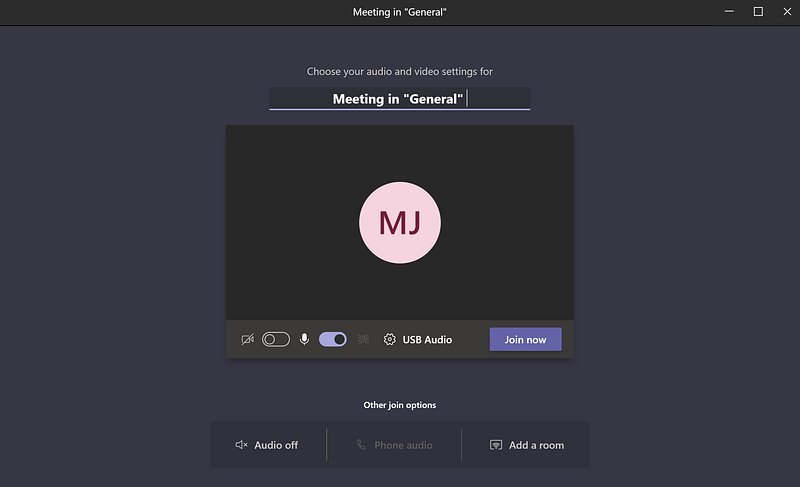
An alternative to creating a meeting in outlook is the meet now feature. If you want to meet up with your colleagues, try the following:

  • Go to your channel you want to meet up in
  • Click the Meet icon at the top left
  • Enter a name for your meeting
  • Invite people from the participants' tab
Screenshot by Author

We use this feature for our uni classes quite often, as we don’t have an Outlook calendar integrated to teams. A recent update added the feature to all devices so that you can start a meeting from your phone or tablet.

#4 Improve your messaging in chats

Unlock the full potential of your messaging in chats.

Let’s spice up your chats with some features you probably have never used.

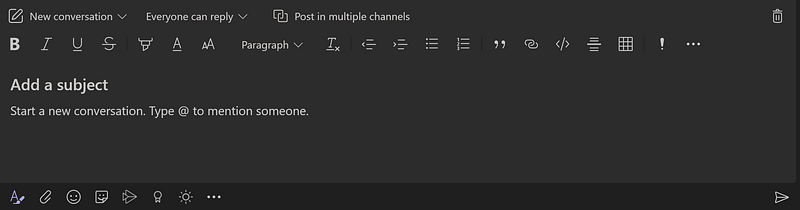
To begin, click on the A with the paintbrush at the bottom of the screen. The text compose box will expand, and you will have many different options for formatting and the distribution of your post.
Screenshot by Author

Here is a list of the best tools to make your messages more visible

  • Use @ to mention colleagues or other students
  • Set who can reply from the dropdown at the top of the dialogue
  • Insert a code snippet with the “” Symbol
  • Add a table by clicking on the grid
  • Use the “!” to mark the post as important
  • Send a GIF or Meme from the taskbar at the bottom

These are the options I find most useful. If you’d like to share your experience, I’m looking forward to a reply in the comments.

#5 Customise your Teams experience with Apps

MS-Teams has its own “App-Store” for Apps, Bots and many other useful tools.

One-click on the Apps icon at the bottom left of the screen, reveals a list of all Apps.
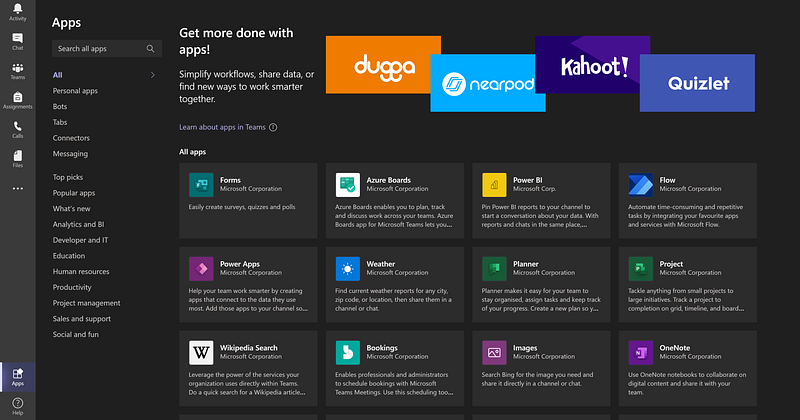
Screenshot by Author

A list on the left side lets you filter the “App-Store” and execute a custom search.

My favourite and most used App is Microsoft Planner integration. We use it for assigning tasks and staying on top of important deadlines. For most Uni project, we use this Add-on to our Teams channel, and it works beautifully.

You can easily add these apps by clicking the “+” icon on your Teams channel and selecting an app from the list.

A great bot for polls is Polly. Polly lets you create polls with ease and send them off instantly. Now you know who will join you in the cantine for lunch today!

#6 Upload files to Microsoft SharePoint
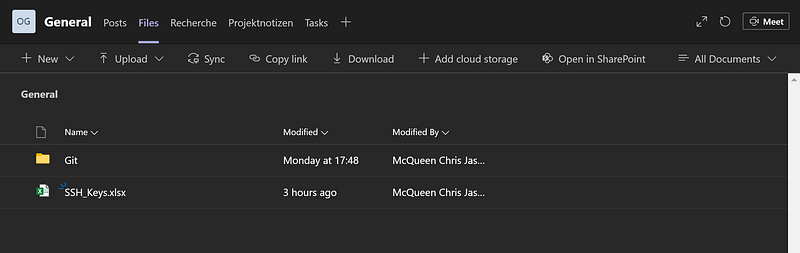
Screenshot by Author

This is a must-do for ideal team collaboration.

If you use Office 365, you are probably familiar with its core concepts. For all the Office 365 programs you use, there is the option to save the file to either OneDrive or locally.

My advice to you is to get OneDrive up an running and use it to save your documents. With AutoSave turned on, you will save yourself a lot of hassle, if you forget to save your work manually.

To share files with others, you can either use the familiar paperclip icon (if you’re in the chat) or you could upload the file to your Teams channel.

Try following these steps:

  • Go to your channel
  • Navigate to the Files tab
  • Locate the Upload Option
  • Select the file from OneDrive or your local drive to upload to the channel

You should be able to find your new file in the Files tab of the channel. The files are now saved to the SharePoint.

The collaboration starts, as soon as more than one person works on the document. From now on only use the SharePoint for working on the file with others.

I made a mistake to assume OneDrive syncs with the SharePoint. It doesn’t.

To work on the same document with others:

  • Open the file in the “Files” tab
  • Click on “Open in Desktop App”
  • Work in realtime with your colleagues

#7 Add multiple Organisations

Screenshot by Author

For all the students and workers who struggle to manage two Teams accounts simultaneously, this feature is for you.

Try the following on the mobile version of teams:

  • Open the hamburger menu from the top left corner
  • Select your work or school account
  • Sign in to the account

You might need to add the account from the bottom of the menu.

I find this feature very useful for touching base at work while I’m in university. The switch between both accounts is super quick and easy.

Sadly, this feature is not available for the Desktop App (yet). I’m hoping this will change soon.

Final thoughts

I truly believe Teams is a great tool for businesses, universities and schools. The easy to use interface and amazing connectivity to different devices, make this App a must-have for all remote work.

Finally, I’ll summarise the seven improvements in one word below:

#1 Channels

#2 Shortcuts

#3 Meet Now

#4 Chats

#5 Apps

#6 Upload

#7 Organisations

Thanks for reading.

Home Office
Guide
Enhancement
Productivity
Life Improvement
Recommended from ReadMedium