
7 Useful macOS Apps You Should Launch As soon as You Login
Open these apps every time you turn on your Mac
Alt Tab
If you have experience using Windows, then you probably noticed that the same shortcut combination used for quickly switching between open apps on Mac exists in Windows as well.
However, things are different and better on the Windows side. While the app switcher on macOS only shows the app icons in Windows, it displays a thumbnail preview of all the open apps and even multiple windows of an app.
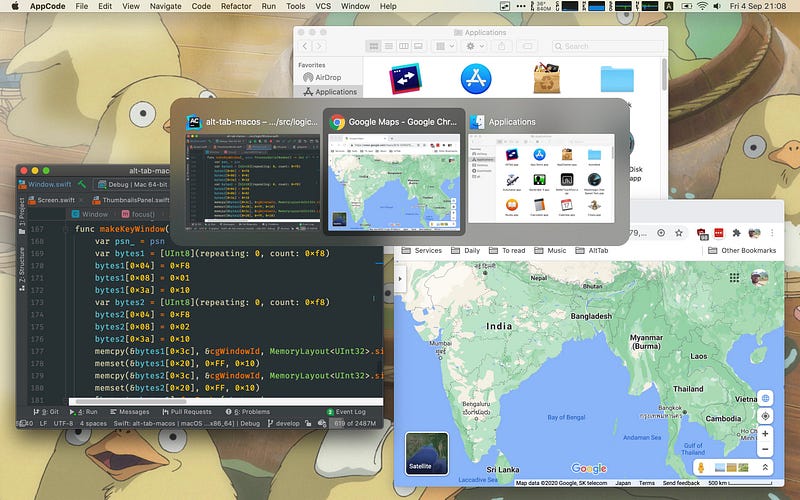
If you would rather have that layout on your Mac, install the Alt Tab app. Apart from the updated app previews, it also adds more cool features to the app switcher like an option to minimise or quit apps, customising the window previews and trigger shortcuts, blacklisting apps from the preview and more.
Why should you install Alt Tab? (Tldr)
If you like the app switcher interface in Windows OS and want to get the same experience on your Mac along with some additional functionality like previews for every window of an app, app window control buttons and customisable shortcuts then install the Alt Tab app.
Little Snitch
Apple devices, including the Macs, are known for having a lot of privacy-focused features that give their users peace of mind that their devices and their data are safe and secure.
There are a ton of built-in privacy features like the privacy dots, private relay, hidden IP address, etc. But, if you are looking for more ways to ensure your online activity will be secure, there are some great third-party apps like Little Snitch that will help you with that.
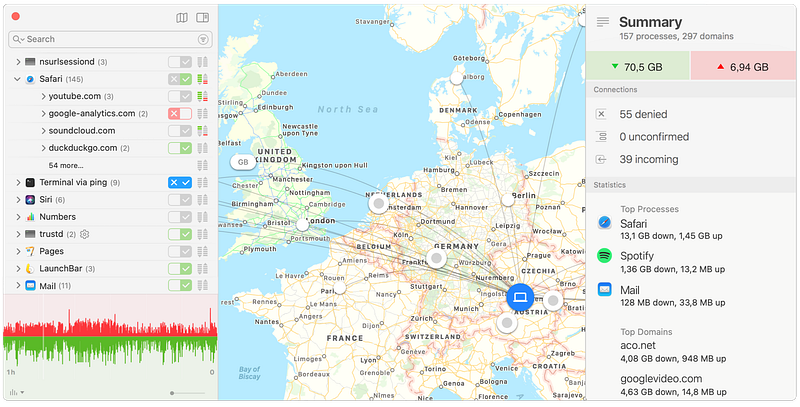
Little Snitch provides you with as much information as possible about the things that are happening on your Mac every time you connect to the internet. It displays a notification whenever an app or a website attempts to connect to a server, giving you an option to either allow or deny the request.
You can also monitor all the incoming connections to your Mac from the app’s main interface, see which apps are using the most data, get geographic information about server connections, signature checks for app codes, etc.
Why should you install Little Snitch? (Tldr)
If you are concerned a lot about your online privacy and want to know what’s going on behind the scenes with the apps and services you use, like which country server they connect to, how much data they use, the number of connections requested by an app, etc, then install the Little Snitch app.
Moom
Because of the poor window management system in macOS, most people stick to using either one or two apps at the same time as it is pretty hard and not intuitive to manually resize and move the app windows around your screen.
If you feel that your multitasking needs are not being met because of this, then you would be delighted to hear about the Moom app. The Moom app makes moving and resizing of windows on your Mac a breeze.
Similar to the Windows 11 concept, you can click on the maximise key in the title bar of an app window to instantly resize and position the app window anywhere on the screen with a single click.
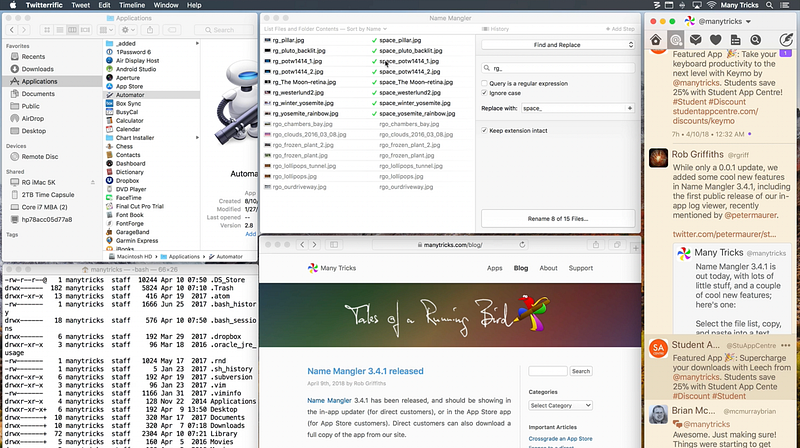
The best feature is that Moom can save the windows positions, so if you have multiple apps open and placed in specific positions and different sizes, you can save the layout and use a shortcut to open them back in the same layout whenever you want even on an external monitor, saving a ton of time.
There are also other useful options like snapping windows to the corners of your screen with a simple drag and drop, assigning keyboard shortcuts for actions like moving, resizing, and positioning windows, and more.
Why should you install Moom? (Tldr)
If you are tired of having to manually resize and move around the app windows whenever you want to do split-screen multitasking, you should install Moom. It allows you to resize and position app windows anywhere on your screen with a single click, save windows layouts, and much more.
Hazel
Hazel is a great utility app if you regularly deal with a lot of files and folders but hate manually organising everything. With Hazel you can set predefined rules on any folders and based on your settings, it will automatically organise the files by name, date added or modified, their source address, file type, etc.
You can also use a combination of attributes for organising your files, sort them into separate subfolders, batch rename files that match specific criteria, automatically delete old files from the trash and so on.
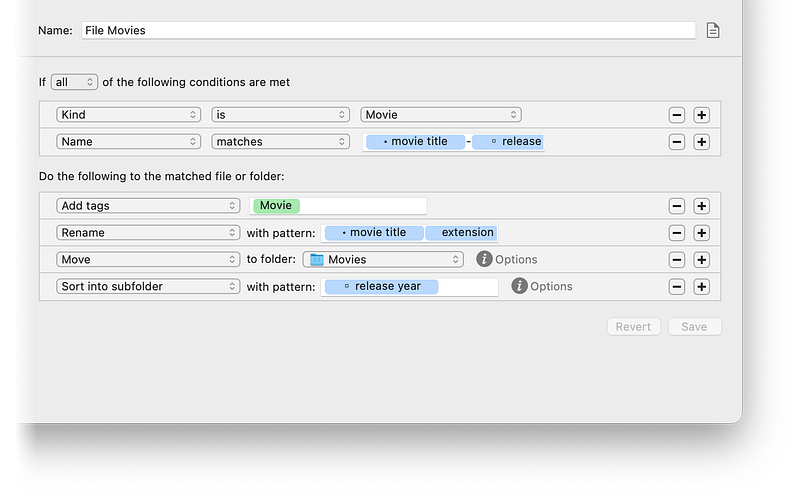
There are more interesting features like automatically moving specific file types to a folder, adding tags to important files, importing or uploading music, movies, and photos to your preferred location, and an app sweep feature that automatically removes any files left behind when you uninstall an app.
Why should you install Hazel? (Tldr)
If manually organising files and folders on your Mac is not your favourite thing, Hazel is a must-have app for you. It not only automatically organises your files, but it also makes things like renaming, batch importing and uploading files, and removing unwanted files and apps much easier.
PopClip
PopClip is one of the most useful apps for Mac I have come across. It works similar to the pop-up menu on the iPhone, but it is way more powerful. The default options that appear when you select a text on your Mac are basic actions including cut, copy, paste, search, spelling check, etc.
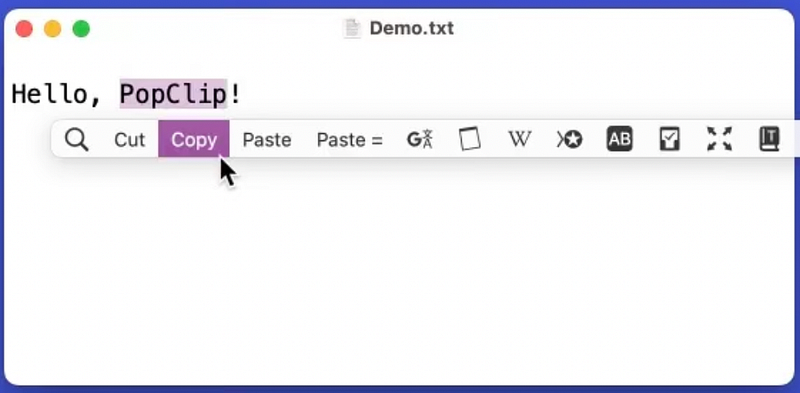
However, that is not all as the app supports over 150 extensions that add unique actions to the pop-up menu. These include formatting, translation options, creating a note in your preferred app, quick web search, content creation on your social media profiles, event creation, and so much more.
Why should you install PopClip? (Tldr)
If you are someone who extensively works with a ton of documents and does a lot of writing regularly, then PopClip is a must-have utility app for your use case. The amount of extensions available in the app is sure to save you a lot of time in your workflow by helping you perform common actions from the pop-menu rather than finding them in the app menus or toolbars.
Sensible Side Buttons
If you use an external mouse with your Mac that has two side buttons but doesn’t come with a customisation app, you need to install the Sensible Side Buttons app to take advantage of the side buttons on your mouse.
By default, the side buttons on most external mice are pretty useless and they do not have any functions assigned to them. The Sensible Side Buttons app aims to change that by assigning navigation options to the side buttons.
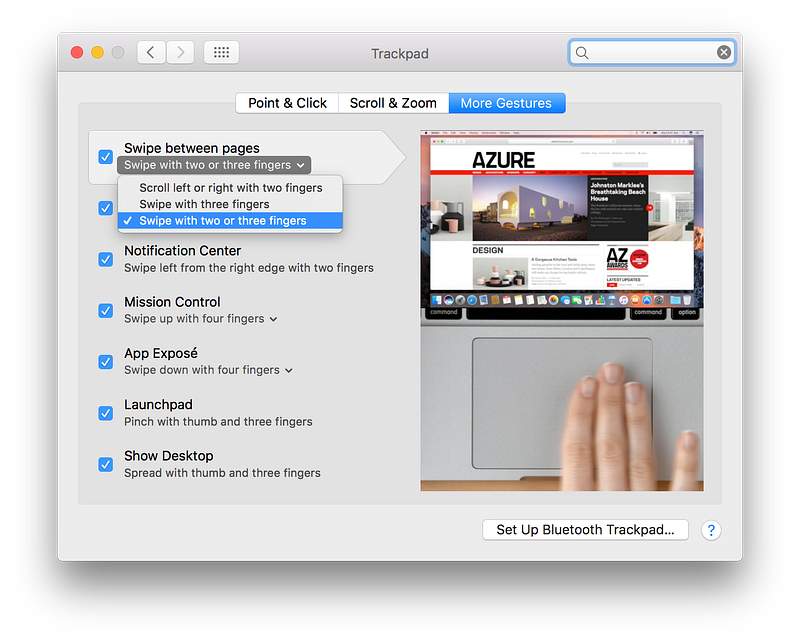
All you need to do is download and install the app and you can see the app icon on the menu bar which means it's enabled and active. You can now use the side buttons on your mouse to navigate forward or backwards by using the top and bottom buttons respectively.
Why should you install Sensible Side Buttons? (Tldr)
If you have an external mouse with two side buttons that you don’t use for anything, because they don’t have a function assigned to them, then install the Sensible Side Buttons app to assign navigation options to them to move forward and backwards between webpages, app windows, folders, and more.
Sound Source
Sound Source is an audio manager app that lets you effortlessly and individually control audio output and input from all the apps currently running on your Mac.
The app allows you to not only individually control the audio levels of different apps, but can also redirect audio output from different apps to different sources. What it means is that you can redirect the audio from Zoom or Teams to your headphones, but use your external speakers for listening to songs and maybe your Mac’s internal speakers for watching a video.
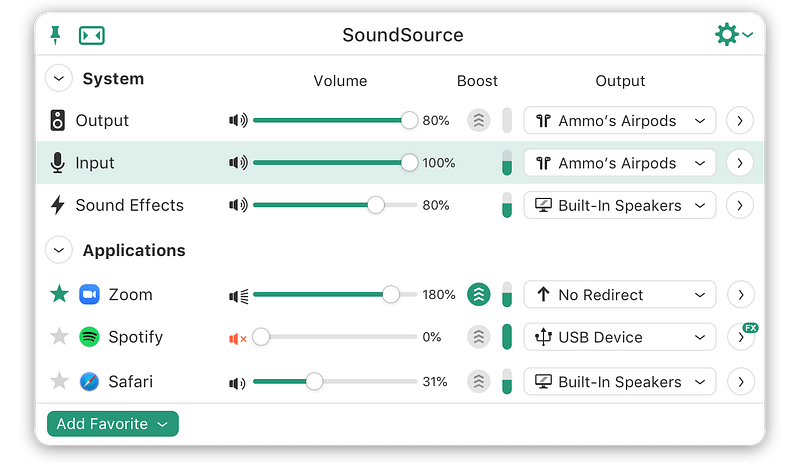
Sound Source also comes with other cool features like a 10-band equaliser, and an option called Magic Boost that is designed to improve the richness and the loudness of the audio playback. You can quickly control both the system volume and the per-app volume from the app’s menu bar icon and even add audio meters for a glance at the audio inputs and outputs.
Why should you install Sound Source? (Tldr)
If you are someone who regularly uses multiple apps with audio outputs at the same time, then you need an app like Sound Source that lets you easily manage the audio output and input from different apps while also allowing you to choose your preferred audio source for each of the apps.
Subscribe to Medium!
Join the Medium membership program to access unlimited articles across Medium on your favorite topics like Tech, Business, and Productivity, and directly support The Useful Tech and all of your favorite publications!
All of this, and it only costs $5 a month, approximately just $0.16 a day. Unlimited knowledge and fun reading about a variety of things for just 16 cents a day? That sounds like an amazing deal to me!


