7 steps 😎👌🔥to configure for iOS Multiplatform Swift package to generate a library in KMP💯🔥?
🐾1. Create a new Kotlin Multiplatform Shared Module🚀
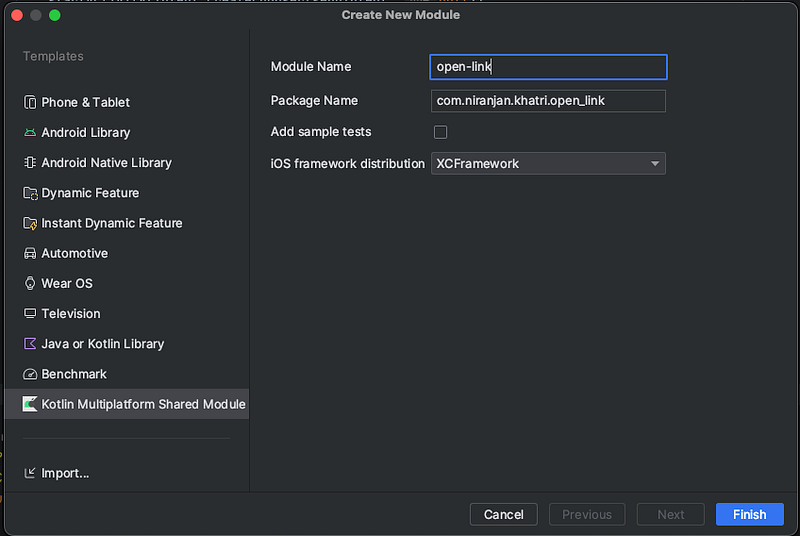
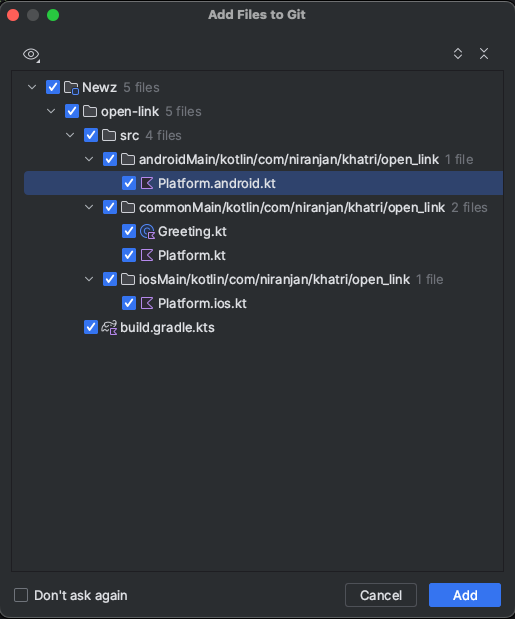
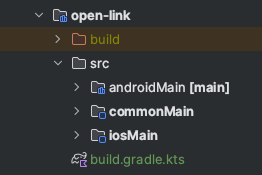
🚀Check if the path of [open-link] shared module is included in your settings.gradle.kts otherwise add it [it should add automatically]

🐾2. Update your build.gradle.kts to configure your publish library variants for Android
@OptIn(org.jetbrains.kotlin.gradle.ExperimentalKotlinGradlePluginApi::class)
kotlin {
    targetHierarchy.default()
android {
        compilations.all {
            kotlinOptions {
                jvmTarget = "1.8"
            }
        }
        publishLibraryVariants("debug", "release") // ADD THIS LINE ********
    }

    val xcf = XCFramework()
    listOf(
        iosX64(),
        iosArm64(),
        iosSimulatorArm64()
    ).forEach {
        it.binaries.framework {
            baseName = "open-link"
            xcf.add(this)
        }
    }
    sourceSets {
        val commonMain by getting {
            dependencies {
                //put your multiplatform dependencies here
            }
        }
        val commonTest by getting {
            dependencies {
                implementation(kotlin("test"))
            }
        }
    }
}
🚀We use : Multiplatform Swift Package plugin
🐾3. Go to settings.gradle.kts and include build
includeBuild("plugins/multiplatform-swiftpackage-m1_support")🐾4. Go to [open-link] build.gradle.kts and add the plugin
plugins {
    kotlin("multiplatform")
    id("com.android.library")
    id("com.chromaticnoise.multiplatform-swiftpackage-m1-support") // add this line
}
🐾5. Define the configuration of your generated Swift package inside [open-link] build.gradle.kts

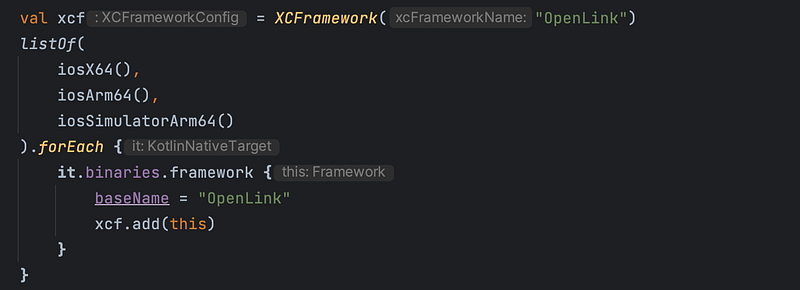
🐾6. Define your XCFramework name and it’s basename inside [open-link] build.gradle.kts
7🐾. Sync your project and run in your terminal this command:

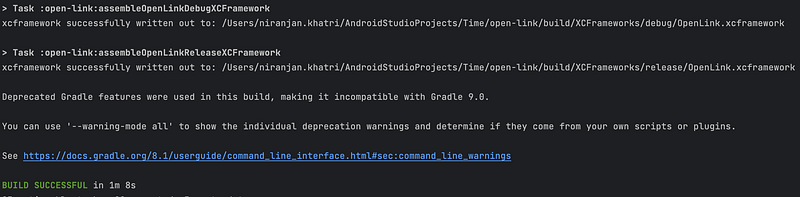
🚀You will see this output as : BUILD SUCCESSFULL
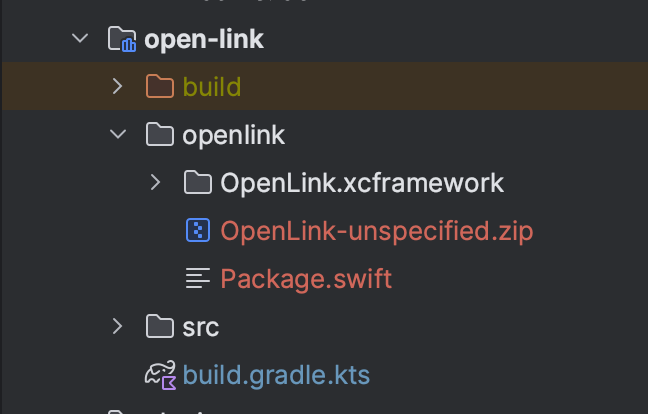
🚀You will also see the new openlink directory generated:
🐾Code:🚀🚀🚀
🚀🚀🚀🚀