
7 macOS Apps With the Best AI Features That I Use Daily
Why spend a lot of time doing things when AI can do it for you?

Like it or not, every app you use daily already incorporates AI features or is going to very soon.
This is the era of AI, and the sooner we embrace it, the easier it will be for us to do specific tasks than for people who don’t use any AI apps.
I use over 50 different apps on my personal and work Mac daily, but not all of them have AI features yet, and some of the ones only have it for the sake of it or to keep up with the competition.
I gathered 7 out of the 50+ apps I use regularly that have AI features baked in that are actually helpful and make my life easier and my work more productive and efficient.
I am going to share with you those 7 apps in this post, along with what role they play in my daily work and personal routine and how the AI features in those apps have enhanced my workflow.
Let’s get started!
Arc Browser
If you have read my most recent post about ‘15 Reasons Why Arc Browser Made Me Ditch Safari on My Mac’, you probably already know how unique the browser is and how its AI features have drastically improved several aspects of my workflow.
In case you missed it, here is a quick recap for you about all of the Arc Browser’s AI-based features and how I use them every day.
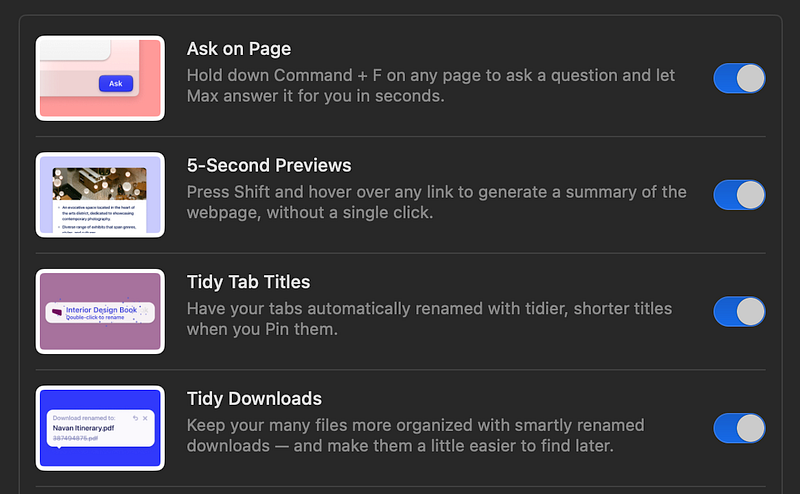
→ Ask on Page — This feature lets you ask any question based on the content of a page you are viewing, and the AI behind the screens will instantly analyze the contents and give you a concise answer. It will even highlight where it got the information from for easy reference.
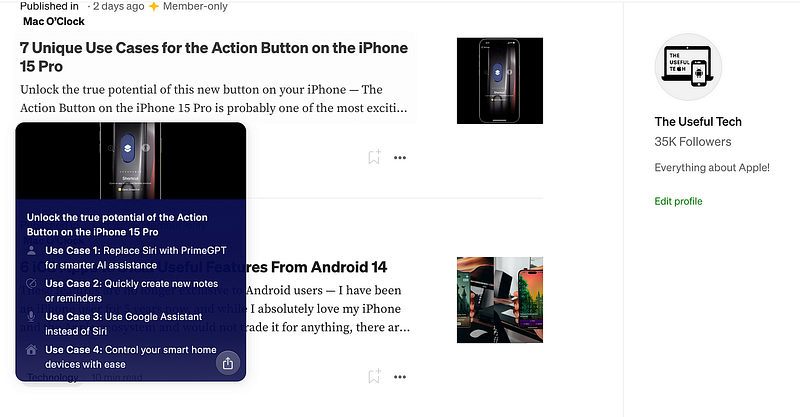
→ 5-Second Previews — This is one of my favorite features of the Arc Browser. It gives you a summary of any link you see on any website you visit, and all you have to do is hold the Shift key and hover over the link. Yes, it is pretty cool.
→ Tidy Tab Titles and Downloads — You know how some webpages you visit have an unnecessarily long title, making it hard to revisit that tab, especially if you have hundreds of tabs open? Well, Arc Browser solves this issue by using AI to tidy up the page title with a shorter one automatically. It does the same for your downloads as well.
I do a lot of research for both my work and my side hustles, which require me to read lengthy blog posts, articles, and news frequently.
While previously I had to spend a lot of time skimming through them, I can now use the Ask on Page or 5-Second Previews features on Arc Browser to get AI to do the work for me.
You have to actually use it to see how much time it can save for you and how much of an impact it has on your daily workflow. The same can be said for the Tidy features, which is incredibly helpful to know which tab is what when I have pinned several important tabs.
Canary Mail
Canary Mail has been my Mail app of choice for a couple of years now, and I have even persuaded some of my friends and coworkers to use it.
The app has improved a lot over the years, and I have enjoyed using features like one-click unsubscribe, read receipts, pinned emails, and more. However, the feature I use the most these days is the AI sidekick feature added recently to Canary Mail.
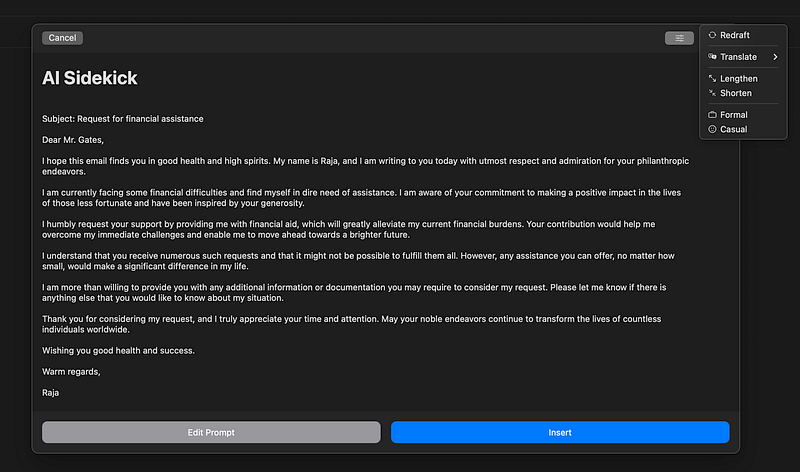
The AI sidekick feature helps you compose and reply to your emails, and all you have to do is type ‘ccc’ in the text box and tell it what kind of email you want to write.
You can also translate the email into ten different languages, including Spanish, Russian, and Chinese, ask the AI sidekick to increase or decrease the number of words, and even change the tone of the email to formal or casual based on who you are sending it to.
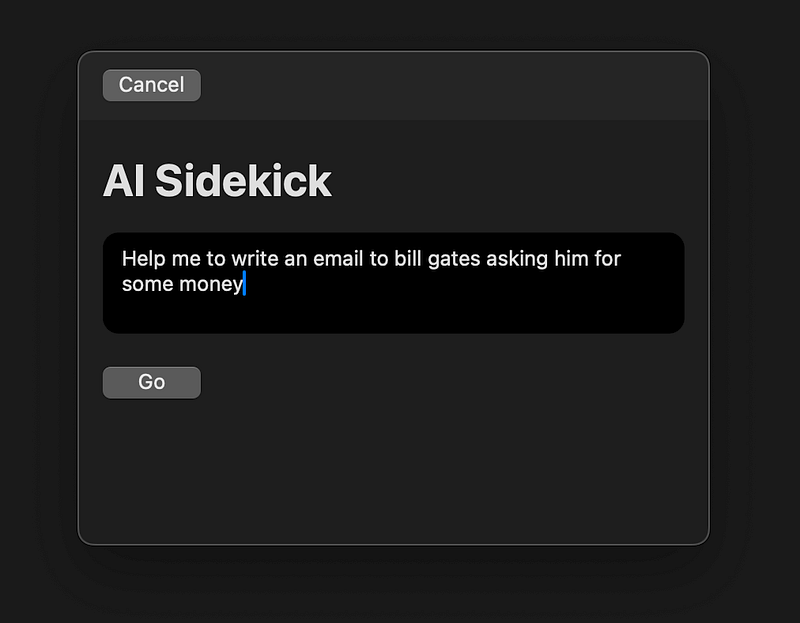
There have been times when I was confused about how to reply to an email to my grumpy coworkers, how to craft a new email to a prospective client, or want to make my email sound a bit more formal, and the AI sidekick in Canary Mail has helped me in every one of those situations.
Canary Mail also comes with an AI summarizer and an AI copilot feature that can be used for summarizing lengthy email threads and to answer your questions about emails, like whether you have any important meetings or did anyone asked you to share something you forgot about.
I cannot overstate how often I have used the AI summariser to get the context of email chains where my name was only mentioned once or have used the AI copilot feature to know about important deadlines.
Official Link — $20 per year
Setapp Link — Free for 30 days with the code ‘usefultech.’
Canva
Canva has been my favorite app for creating blog images, social media posts, YouTube thumbnails, and even for making PPTs or documents related to work for so many years.
If I had written this post a few weeks back, Canva wouldn’t have even made this list, as it is only recently that the makers of Canva added a slew of new AI features to the app dubbed as ‘Magic Studio.’
These new AI features allow you to do anything with Canva but with AI. So, you can use it to write content for your posts, create images, resize them, or even make templates based on your requirements.
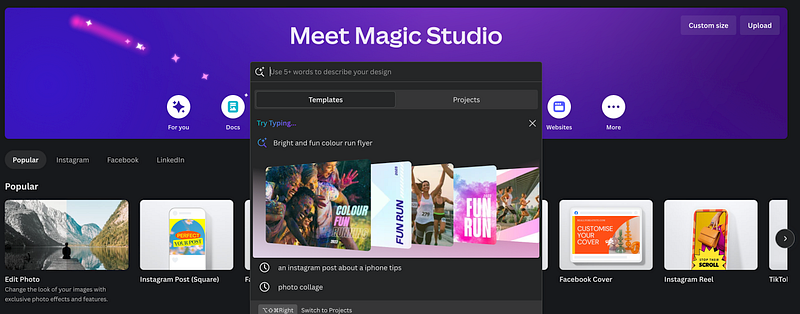
For instance, you can remove things from your images, create videos from your text, move objects within an image to a different place, create an entire presentation with just a few lines of description, make AI write entire documents, and remove background from an image.
I have used these features extensively over the past few weeks to add transitions and animations to my presentations, automatically fill in content to specific sections of my documents, and even help me create Instagram and Twitter posts for my website.
The best part is you can create content in one format for one platform, and then the AI can automatically transform the content to match any other type or format of content you want, saving you boatloads of time.
Craft
Craft is where all of my long-form content live, including my blog post drafts, YouTube video and Podcast episode scripts, eBook content, Newsletter drafts, and more.
Anytime I want to research new content I am crafting across any of the sources, I dump all of the research material to a relevant folder in Craft and then use it to start writing my content or to get inspiration.
I have tried out several document management and creation apps, but something about Craft’s intuitive and beautiful design and well-thought-out features makes me want to keep returning to it.
Another thing I love about Craft is, of course, its AI assistant, which can be invoked in any document by simply selecting a bunch of text and then right-clicking on them and selecting open AI assistant.
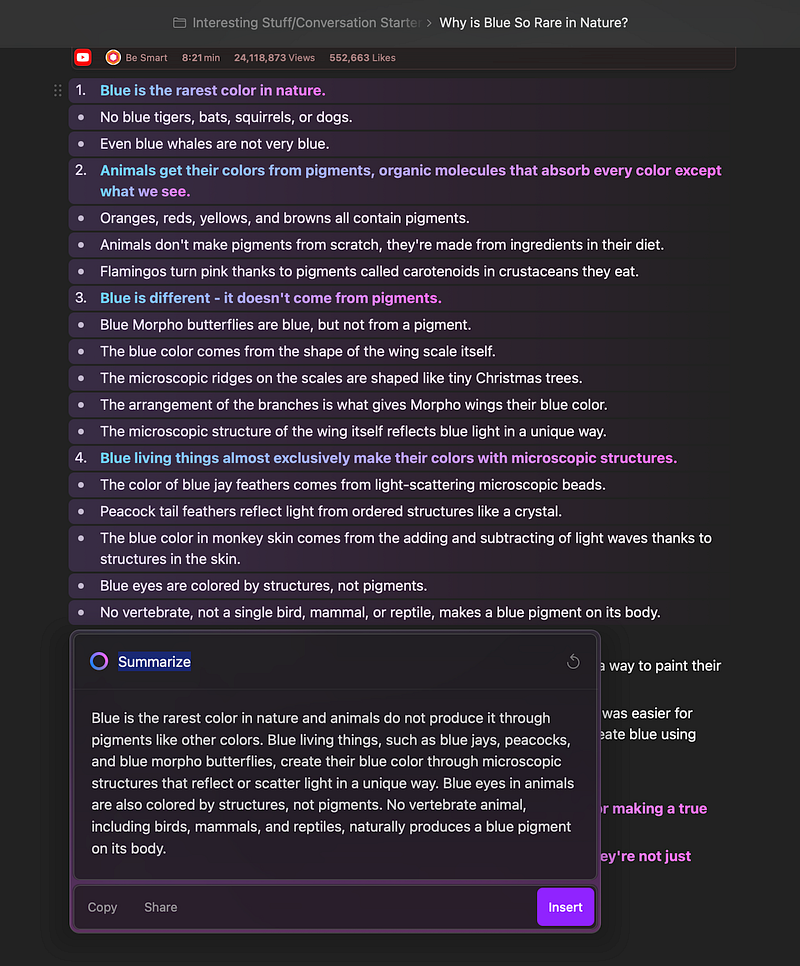
You can then ask the AI to do any text processing you want, like creating an outline for a lengthy document, summarising it, translating it, converting it to bullet points, continuing writing content about a selected paragraph, generating keywords or hashtags, creating a pros and cons list, explain a complex document, and much more.
Seriously, your imagination is your only limit, and the more creative you are thinking, the more time you can save with Craft’s AI assistant when you are working on a piece of content.
I regularly use it to help me create hashtags for my tweets, summarise meeting notes at work, give me talking points for a presentation, change workflow requirements into bullet points for easy understanding, ask it to explain complex API documentation to me, and so on.
Craft has become an irreplaceable app in my daily routine at work and in my side hustles, and it is incredibly convenient to have an AI assistant write where you read and create content rather than having a separate app or website for it and switching back and forth.
Official Link — $5/member/month
Setapp Link — Free for 30 days with the code ‘usefultech.’
Grammarly
I am sure most of you are already aware of what Grammarly is, and even if you are not a content writer or creator, you probably still use Grammarly daily to help with your emails, messages, documents, etc.
For the few who are unaware, Grammarly is an AI-writing assistant that helps you to write anything without grammar, spelling, sentence, or punctuation errors. It can also help you rewrite sentences, change the tone of your writing, and even remove unnecessary phrases or sentences.
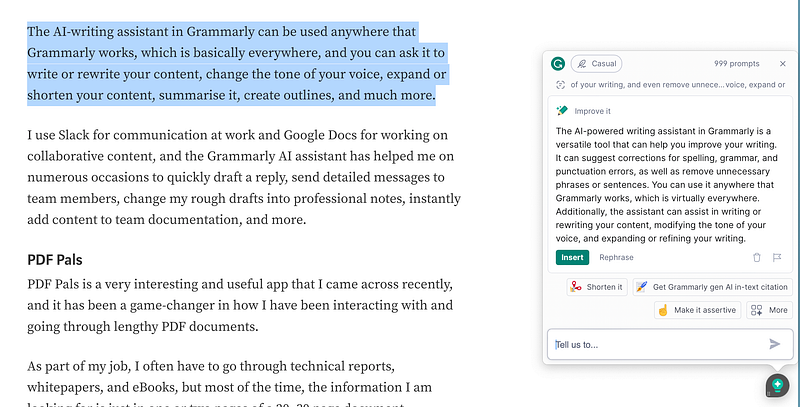
The AI-writing assistant in Grammarly can be used anywhere that Grammarly works, which is basically everywhere, and you can ask it to write or rewrite your content, change the tone of your voice, expand or shorten your content, summarise it, create outlines, and much more.
I use Slack for communication at work and Google Docs for working on collaborative content, and the Grammarly AI assistant has helped me on numerous occasions to quickly draft a reply, send detailed messages to team members, change my rough drafts into professional notes, instantly add content to team documentation, and more.
PDF Pals
PDF Pals is an exciting and helpful app that I came across recently, and it has been a game-changer in how I have been interacting with and going through lengthy PDF documents.
As part of my job, I often have to go through technical reports, whitepapers, and eBooks, but most of the time, the information I am looking for is just in one or two pages of a 20–30 page document, sometimes even in just one sentence, or sprinkled across multiple pages.
As you can imagine, it takes a ton of time to skim through an entire document or a lengthy eBook to get the information you want, and it is excruciating if you have to do this regularly.
Before I discovered PDF Pals, my only solution was to search for the keyword related to the information I sought and then review the results. However, this was not very effective, and sometimes, I won’t know what to search for if I am researching a new topic.
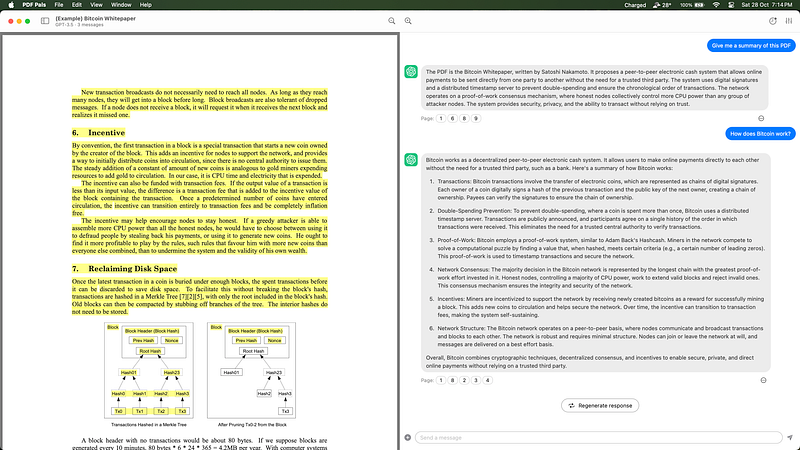
This is precisely why I am glad that I discovered PDF Pals when I did because it uses AI to scan through a PDF document and answer any questions you have about it. The best part about PDF Pals is that there is no size limit on the PDF you can add. You can even add multiple PDFs at once and ask questions about them.
PDF Pals uses the GPT 3.5 model to answer all your questions; this means that while it is quick to give responses, sometimes it does not provide the kind of responses you are looking for, as it is not as efficient as the GPT 4 model. I hope the developers behind the PDF Pals app soon update the app to use GPT 4 instead of 3.5.
One cool thing I love about PDF Pals is that the app automatically redacts any sensitive information in the PDF files you add. It supports OCR, which means you can also upload scanned PDFs and eBooks, and it would still be able to recognize them and answer your questions.
Official Link — $29 for personal license
Setapp Link — Free for 30 days with the code ‘usefultech.’
Setapp
If you are a regular reader of my blog, you already know how much I love Setapp and how many apps I use from them. Setapp is an app library filled exclusively with premium or paid apps.
But instead of paying for each app individually, you can pay one monthly fee of $9.99 to access their entire library of 200+ premium apps without any extra charge, and trust me, there are some amazing ones.
Setapp has recently included an AI assistant in their app that has been specifically trained with the information about all of their apps.
You can ask the AI assistant any questions about their apps like ‘Give me a list of apps to edit photos,’ or ‘How do I speed up my Mac?’ or ‘I want an app to help me focus,’ and it will instantly give you the perfect apps for your use case.
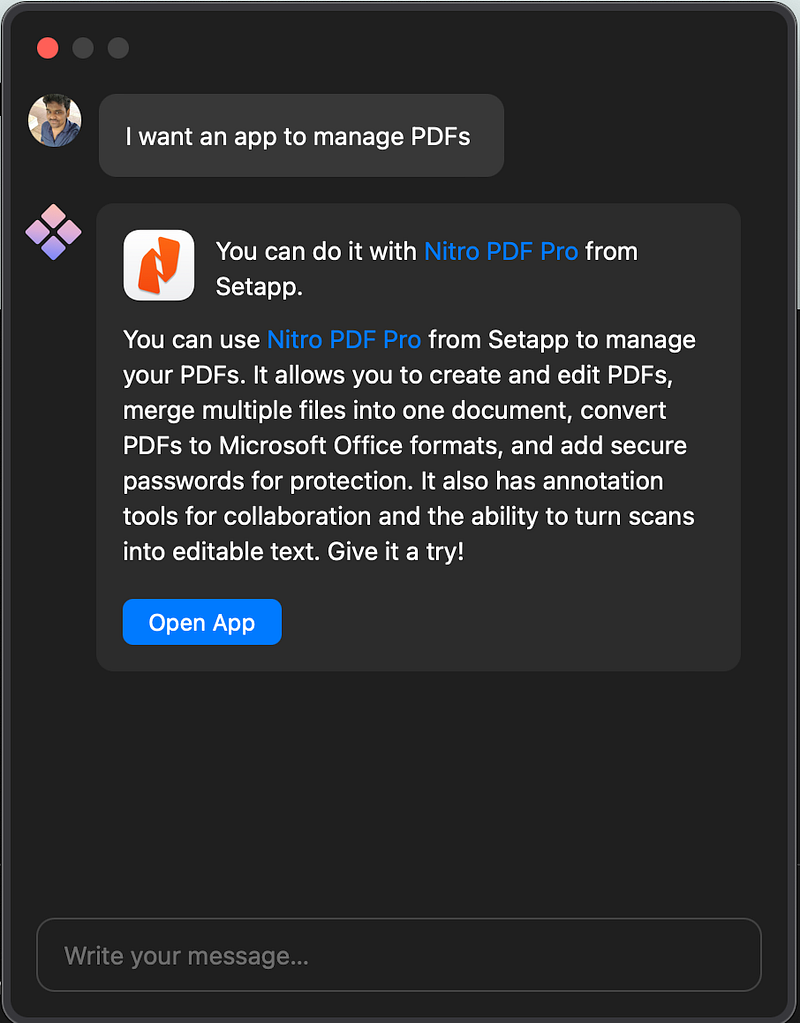
Given the vast variety of apps, Setapp has in their library, the AI assistant is very useful in helping you find the best app for your requirements, saving you a ton of time that you would have otherwise spent browsing through every app if not for the AI assistant.
If you want to try Setapp, you can use my affiliate link below to use it for free for 30 days! If you love trying out new apps on your Mac, I am sure you would love Setapp, as they regularly keep adding premium apps to their library! Use the code ‘usefultech’ to avail of the offer.
You can use Canary Mail, Craft, and PDF Pals in this list and 200+ more premium apps from Setapp for free for 30 days with the below link.
Which one of the apps in this list would you like to try? Are you already using any apps in or not in this list with AI features that help you a lot in your daily workflow? Let me know in the comments!


