
7 Hot HomeBrew Tools for Mac That Feel Like Superpowers
No-UI tools for minimalist Mac users

All commands listed below are to be used in Terminal.#1. Cask
Cask is the App Store of HomeBrew. It makes installing, updating, and even uninstalling popular apps as easy as ABC — by simple commands!
It’s only after I discovered Cask, I escaped the fusses of:
- dragging app icons into Applications to install, (you know it)
- updating apps individually,
- the weary process of uninstalling apps.
It made my life a lot easier. And after such a blithe, I don’t feel like using App Store anymore.
I’m not exaggerating.
- Install Cask tool:
brew install cask - Search for an app (sample):
brew search skype - Install an app:
brew install skype - Un/Reinstall an app:
brew un/reinstall skype - Update all apps:
brew upgrade - View all installed apps:
brew list --casks
Here’s the list of all apps you can install via Cask:
#2. tmux
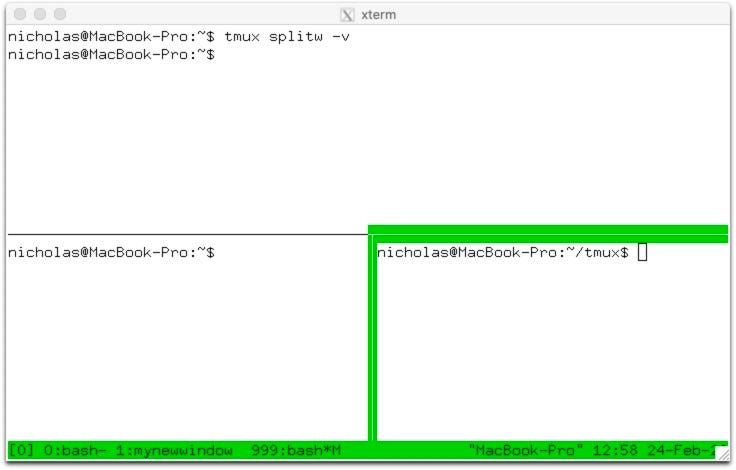
tmux expands to Terminal Multiplexer.
Similar to a multiplex with several separate screens, tmux splits your Terminal into multiple separate, and independent Terminals — enabling you to run several sessions concurrently.
How cool! Never knew this could be possible.
- Install tmux:
brew install tmux - Start tmux:
tmux - *Split a session vertically: ⌃ + b %
- *Split a session horizontally: ⌃ + b “
- Switch to left/right/top/bottom pane: ⌃ + b ←/ →/↑/↓
Note, you can’t switch panes using mouse.
I tried it. Nadda.
*These might be confusing, so giving better explanation.• ⌃ + b % means ⌃ + b, wait, shift + 5
• ⌃ + b " means ⌃ + b, wait, shift + "#3. tldr 📄
As you know, every command and HomeBrew tool comes with a man page.
It’s a highly descriptive page that explains everything a tool could do — often consisting of hundreds of lines.
The description could be too complex to read, especially for newbie folks who come to explore a tool’s basic functionality.
To help such people, an online community started tldr — a tool that simplifies man pages and offers practical examples for better eurekas.
For example:
The man page of tmux consists of over 5600 lines. So HUGE.
Now, see its tldr →
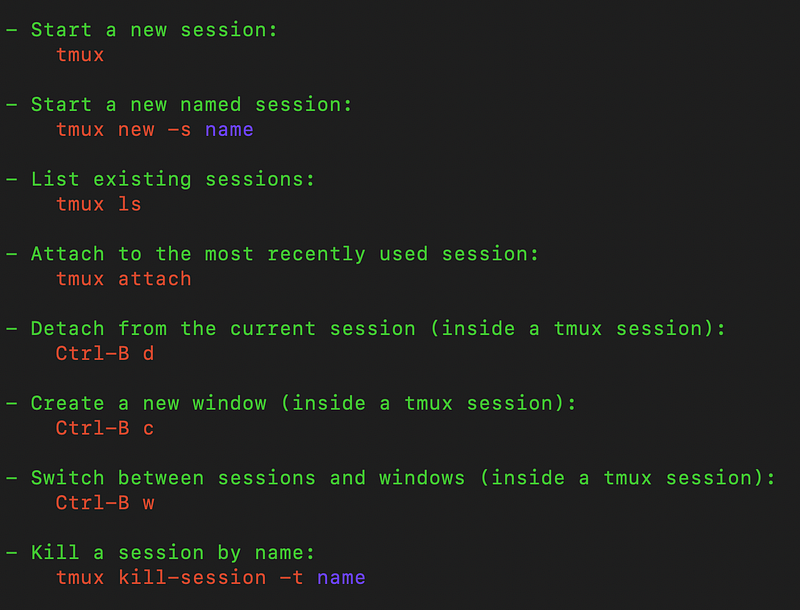
— Just 16 lines explaining its basic capabilities. How awesome! You NEED to use this.
- Install tldr:
brew install tldr - View tldr of a tool (sample):
tldr tmux - View its man page:
man tmux
Tldr: Forget man, use tldr.
#4. Pandoc 📑
Pandoc is a universal doc format converter that beats other similar apps in lightweight-ness — coz it’s not an app, it’s a HomeBrew tool.
It supports conversion across dozens of doc formats, ranging from
- most popular — .doc, .pdf, .csv, .epub to
- lesser-used — .ipynb, .odt, .tsv
with output quality on par with that of popular apps.
- Install Pandoc:
brew install pandoc - List all supported in/output formats:
pandoc --list-in/output-formats - Convert file (sample):
pandoc -o output.pdf [DRAG INPUT FILE HERE]
#5. Calc 🧮
Calc is a powerful UI-less calculator that provides quick answers to complex math problems.
- Install Calc:
brew install calc - Start Calc:
calc - Quit Calc:
quit - List all built-in functions:
help builtin
After starting Calc, here are some quick things you can try:
- calculate simple math expressions:
3 * (4 + 1) - use popular arithmetic operators and built-in functions:
3 * 19^43 — 1,sin(1), - complex numbers:
(2+3i) * (4-3i) - variables:
curds = 15
whey = 7 + 2 * curds
whey- and functions:
define sc(a,b) = a^3 + b^3
sc(31, 61)Bonus feature
Say you’d like to calculate 3 + 4 (one-off). You don’t need to start Calc to do that — as starting and quitting Calc takes a bit of time.
Instead, use calc 3+4 . This will give out the answer without starting Calc.
#6. aria2 ⬇️
aria2 is a lightweight download manager that downloads a linked file when fed with its URL.
Best part, it can even resume incomplete downloads that might’ve got interrupted by network issues or accidental shut-downs.
- Install aria2:
brew install aria2 - Download a file:
aria2c [url](Observe the extra ‘c’) - Resume an interrupted download:
aria2c -c [url]
Supported URLs: Direct weblinks, FTP links, torrents, torrent magnet urls, metalinks etc.
Bonus feature:
If you have multiple files to download, paste their urls into a text file and feed it to aria2 in the place of URL.
#7. rar 🗜️
Ever heard about the app WinRAR? I know you did.
rar is its cmd-line version that (obviously) lacks a UI but is equally effective in compressing and extracting .rar files.
- Install rar:
brew install rar - *Compress file/s:
rar a archive.rar [DRAG FILE1 HERE] [DRAG FILE2 HERE] ... - Compress file/s with password:
rar a -pPassword archive.rar [DRAG FILE1 HERE] ... - Extract a rar:
unrar x [DRAG RAR HERE]
*Note, the resulting .rar files will be stored in Home folder. To access, open Finder and use ⇧ + ⌘ + H.
For more a‘macOS’zing terminal commands, read these.
Join 285+ others to get notified whenever I publish a new story.


