avatarNancy Blackman

Free AI web copilot to create summaries, insights and extended knowledge, download it at here

3324

Abstract

<figure id="0d3e"><img src="https://cdn-images-1.readmedium.com/v2/resize:fit:800/1*kl55rw_Qyd_Y_FlP9DNBHw.png"><figcaption>Screenshot by <a href="undefined">Nancy Blackman</a></figcaption></figure><p id="3520">Click on the small T and it will automatically format your kicker. Your headline and subtitle formatting will return.</p><p id="da55">4 <b>Add an image: </b>Hit return after adding a subtitle. You will see the same icon of the circle with a plus sign in the center, just as you did before:</p><figure id="9fd5"><img src="https://cdn-images-1.readmedium.com/v2/resize:fit:800/1*5F2InDbJE_YzHLBHuLzmSQ.png"><figcaption>Screenshot by <a href="undefined">Nancy Blackman</a></figcaption></figure><p id="03cf">When you click on that icon, you will see this:</p><figure id="5e72"><img src="https://cdn-images-1.readmedium.com/v2/resize:fit:800/1*mR4hnm4J_LttY4rrDoS7tA.png"><figcaption>Screenshot by <a href="undefined">Nancy Blackman, MASF</a></figcaption></figure><p id="16ba">If you click on the <b>first icon (camera in the circle</b>), you are able to add an image from your computer. If you click on the <b>second icon (solid square sitting on top of a block-style U)</b>, you will be taken to Unsplash, where you can search for images that will automatically drop into place with proper attribution. The <b>third icon (arrow in a rectangle within the circle)</b>, is for adding a video, the <b>fourth icon (arrows pointing in opposite directions)</b> is to add an embed. The <b>fifth icon<i> </i>(the two curly cue parentheses pointed in opposite directions — { }) </b>will allow you to add a code block, and the <b>last icon (two short lines with 3 dots in the circle)</b> is for adding a simple page separation of three dots.</p><p id="fce3">Make sure to have proper image credit. If not, an editor will send you a private note, which will cause delays in publishing. If your image credit is not clear, an editor will also reach out. If you are new to Medium, the partnership between Unsplash and Medium makes adding images super easy.</p><p id="2d42">5 Remember that all The Shortform submissions have a 150-word maximum for body copy ONLY. The best way to <b>check word count </b>is to highlight all of your body copy (including that which might be at the base of your article to advertise) then use the CTRL-A function on your keyboard. Look to your upper left-hand corner, and you will see the word count.</p><figure id="bc0e"><img src="https://cdn-images-1.readmedium.com/v2/resize:fit:800/1*8LaXKTqpJHD-4rSHQ8Dplg.png"><figcaption>Screenshot by <a href="undefined">Nancy Blackman</a></figcaption></figure><p id="4674">6 <b>Embed Links: </b>You are allowed to add 2 embed links at the end of your story.</p><p id="011a">7 <b>How to Submit to a Publication: </b>When you’re ready to submit, look to the upper right-hand corner of your computer screen where you will see this:</p><figure id="4184"><img src="https://cdn-images-1.readmedium.com/v2/resize:fit:800/1*6xIprZ34jHiZKuDvsr0GPw.png"><figcaption>Screenshot by <a href="undefined">Nancy Blackman</a></figcaption></figure><p id="8943">Click on the three dots, where you will then see this:</p><figure id="321c"><img src="https://cdn-images-1.readmedium.com/v2/resize:fit:800/1*_6ADtYBqGaSzbu4mPzeE6A.png"><figcaption>Screenshot by <a href="undefined">Na # Options ncy Blackman</a></figcaption></figure><p id="e9c1">Click on “Add to publication,” and you will see a list of publications you are a writer for. It should look something like this:</p><figure id="258a"><img src="https://cdn-images-1.readmedium.com/v2/resize:fit:800/1*TL-M_SAbrsrH7OpNEivAcA.png"><figcaption>Screenshot by <a href="undefined">Nancy Blackman</a></figcaption></figure><p id="a87a">Scroll down until you see The Shortform. Click on the circle to the left of the name and then scroll down to also click the <b>Select and continue button</b>. This will automatically turn your green Publish button to Submit:</p><figure id="7020"><img src="https://cdn-images-1.readmedium.com/v2/resize:fit:800/1*aOO-ZAwPmLOzoGAeYMMRow.png"><figcaption>Screenshot by <a href="undefined">Nancy Blackman</a></figcaption></figure><p id="d086">When you click on the green Submit button, it will take you to this page:</p><figure id="c778"><img src="https://cdn-images-1.readmedium.com/v2/resize:fit:800/1*7kC1zUdamUfCzPR_aZG8qA.png"><figcaption>Screenshot by <a href="undefined">Nancy Blackman</a></figcaption></figure><p id="752a">Make sure to add all five tags. I’ve added two as suggestions for The Shortform.</p><p id="bb55">Then click the green “Submit to publication” button at the bottom and it will be submitted to the publication. You should see this as a final confirmation:</p><figure id="a306"><img src="https://cdn-images-1.readmedium.com/v2/resize:fit:800/1*PbvznRVc4qwvpxYVYlJu_g.png"><figcaption>Screenshot by <a href="undefined">Nancy Blackman</a></figcaption></figure><p id="db71">Have fun. Enjoy yourself and be kind to the editors and your fellow writers.</p><p id="553a">If you’re not already a writer for The Shortform, follow the link below to read the submission guidelines. Please do not leave a comment asking to be added as a writer. Thanks!</p><p id="b47e">Have a great day!</p><div id="9aa6" class="link-block"> <a href="https://readmedium.com/you-need-to-know-that-shortform-is-excited-to-welcome-new-writers-e94c10f77567"> <div> <div> <h2>You Need to Know That Shortform Is Excited to Welcome New Writers</h2> <div><h3>Empower yourself and come and write for us here</h3></div> <div><p>medium.com</p></div> </div> <div> <div style="background-image: url(https://miro.readmedium.com/v2/resize:fit:320/1*AO6XVhqy7cORWAbA6mnSNQ.jpeg)"></div> </div> </div> </a> </div><figure id="b738"><img src="https://cdn-images-1.readmedium.com/v2/resize:fit:800/1*semEsOEqUqd3ikS_5Wrobw.png"><figcaption></figcaption></figure><div id="4153" class="link-block"> <a href="https://nblackman.medium.com/list/3c6eb8e65b56"> <div> <div> <h2>SHORT FORM</h2> <div><h3>Want a quick read? Here it is -- 150 words or less on all sorts of things.</h3></div> <div><p>nblackman.medium.com</p></div> </div> <div> <div style="background-image: url(https://miro.readmedium.com/v2/resize:fit:320/0*a8d41d0cccdfa2182e608c4c64c5b30015fee3cb.jpeg)"></div> </div> </div> </a> </div></article></body>

MEDIUM TUTORIAL

7 Easy Steps to Submitting a Draft to The Shortform

Don’t sweat the small stuff — you can do this!
Created in Canva by Nancy Blackman

Starting Point

From your home page, look to the upper right-hand corner of your screen, where you will see 2 icons and your profile image.

Screenshot by Nancy Blackman, MASF

1Click on the Write icon that looks like a pen on paper.

Screenshot by Nancy Blackman, MASF

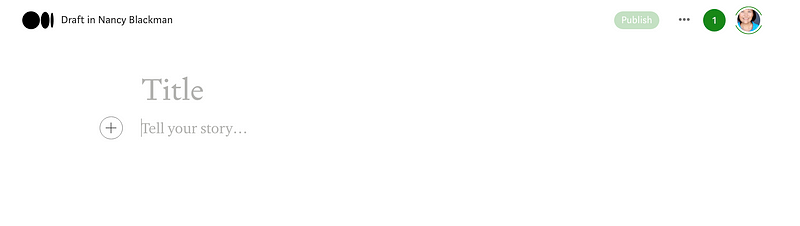
This will open a new window:

Screenshot by Nancy Blackman

2 Use the Title area to write your headline. Once you type your headline into place, hit Return, and you will notice your cursor move to the next line. It should look like this:
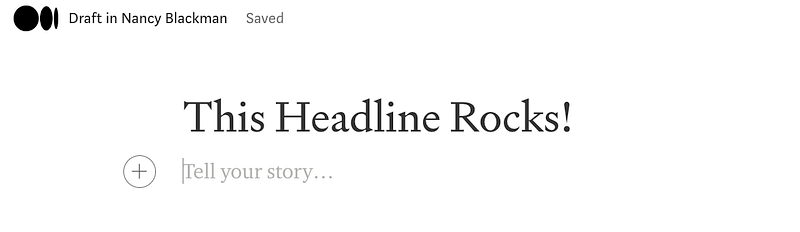
Screenshot by Nancy Blackman

3Add a Subtitle and Kicker, if you wish. To add a subtitle, type your words in the area “Tell your story…” (shown above in #2). Once you type your subtitle in, highlight one word, and this box will pop up:

Screenshot by Nancy Blackman

Choose the small “T” and it will automatically format your subtitle. Once completed, it should look like this:

Screenshot by Nancy Blackman

Adding a Kicker

Place your cursor above the headline and hit return. You will see this:
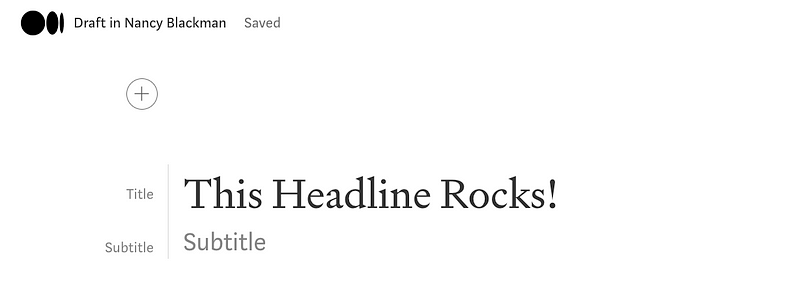
Screenshot by Nancy Blackman

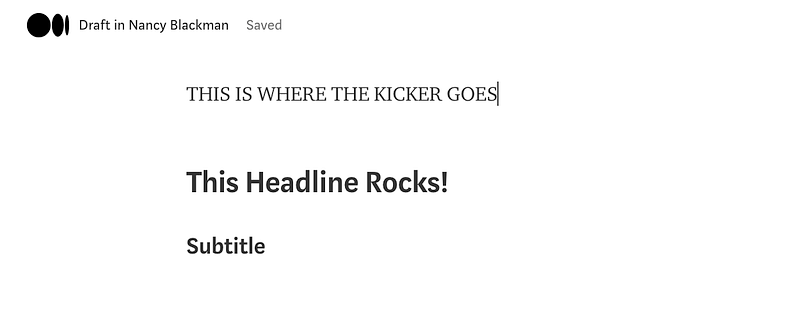
Start typing your Kicker or Shoulder (a supplement to your headline) where the icon looks like a circle with a cross in the center. You will then see this:
Screenshot by Nancy Blackman

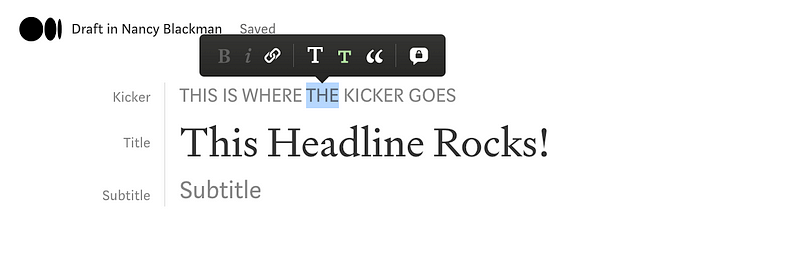
Don’t panic! Once you have finished typing your kicker, highlight one word or the whole kicker, and you will see this box pop up:
Screenshot by Nancy Blackman

Click on the small T and it will automatically format your kicker. Your headline and subtitle formatting will return.

4 Add an image: Hit return after adding a subtitle. You will see the same icon of the circle with a plus sign in the center, just as you did before:

Screenshot by Nancy Blackman

When you click on that icon, you will see this:

Screenshot by Nancy Blackman, MASF

If you click on the first icon (camera in the circle), you are able to add an image from your computer. If you click on the second icon (solid square sitting on top of a block-style U), you will be taken to Unsplash, where you can search for images that will automatically drop into place with proper attribution. The third icon (arrow in a rectangle within the circle), is for adding a video, the fourth icon (arrows pointing in opposite directions) is to add an embed. The fifth icon (the two curly cue parentheses pointed in opposite directions — { }) will allow you to add a code block, and the last icon (two short lines with 3 dots in the circle) is for adding a simple page separation of three dots.

Make sure to have proper image credit. If not, an editor will send you a private note, which will cause delays in publishing. If your image credit is not clear, an editor will also reach out. If you are new to Medium, the partnership between Unsplash and Medium makes adding images super easy.

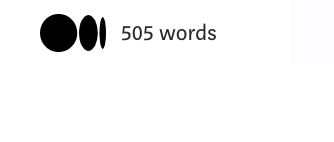
5 Remember that all The Shortform submissions have a 150-word maximum for body copy ONLY. The best way to check word count is to highlight all of your body copy (including that which might be at the base of your article to advertise) then use the CTRL-A function on your keyboard. Look to your upper left-hand corner, and you will see the word count.
Screenshot by Nancy Blackman

6 Embed Links: You are allowed to add 2 embed links at the end of your story.

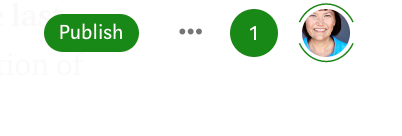
7 How to Submit to a Publication: When you’re ready to submit, look to the upper right-hand corner of your computer screen where you will see this:
Screenshot by Nancy Blackman

Click on the three dots, where you will then see this:
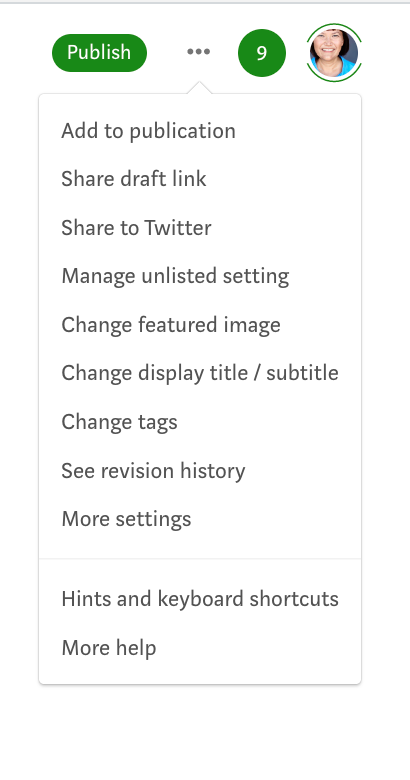
Screenshot by Nancy Blackman

Click on “Add to publication,” and you will see a list of publications you are a writer for. It should look something like this:
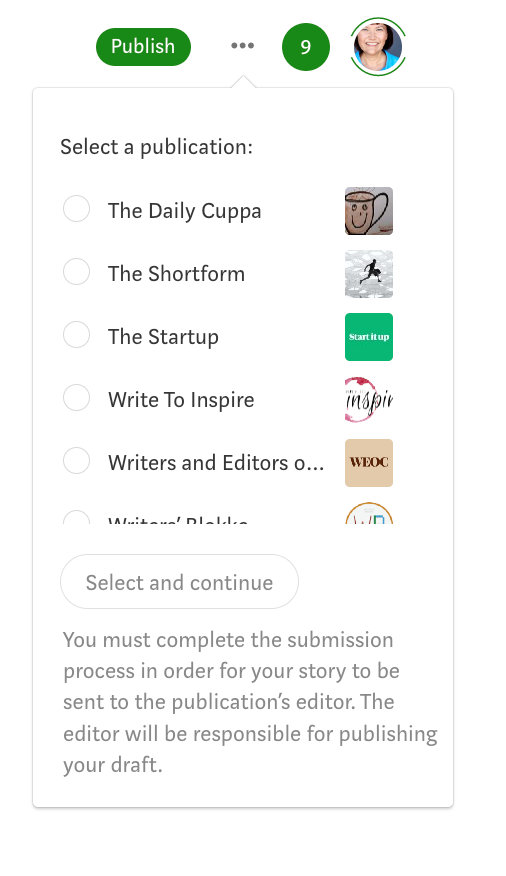
Screenshot by Nancy Blackman

Scroll down until you see The Shortform. Click on the circle to the left of the name and then scroll down to also click the Select and continue button. This will automatically turn your green Publish button to Submit:
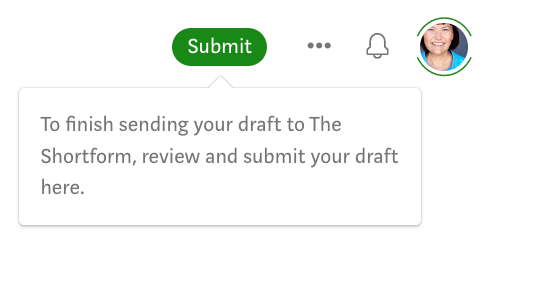
Screenshot by Nancy Blackman

When you click on the green Submit button, it will take you to this page:
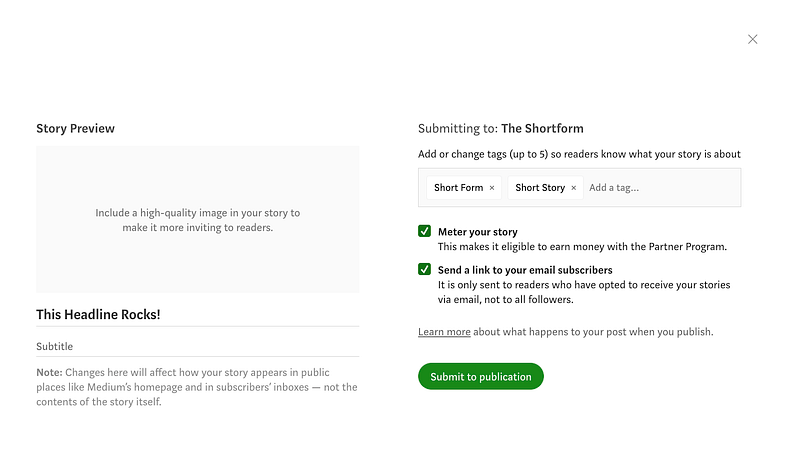
Screenshot by Nancy Blackman

Make sure to add all five tags. I’ve added two as suggestions for The Shortform.

Then click the green “Submit to publication” button at the bottom and it will be submitted to the publication. You should see this as a final confirmation:
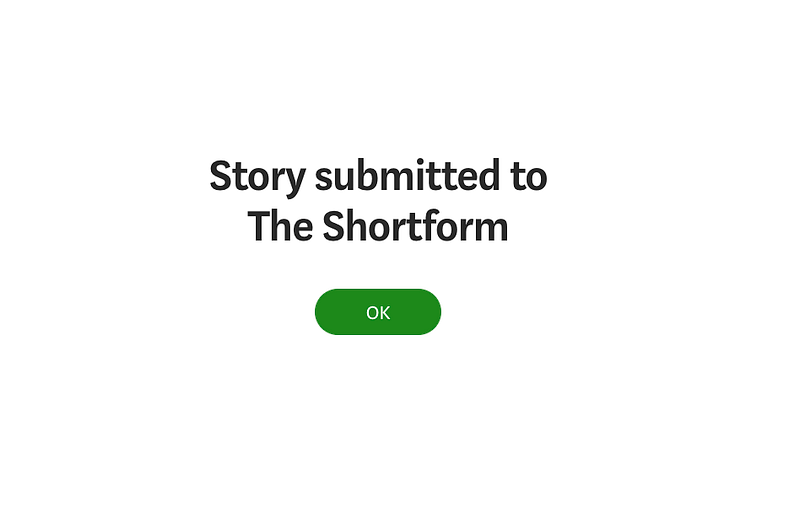
Screenshot by Nancy Blackman

Have fun. Enjoy yourself and be kind to the editors and your fellow writers.

If you’re not already a writer for The Shortform, follow the link below to read the submission guidelines. Please do not leave a comment asking to be added as a writer. Thanks!

Have a great day!
Writing Tips
Medium
Writing
Writers On Medium
Writers On Writing
Recommended from ReadMedium
avatarMartynas Justina SWEET.pub
1, 2, 3… Just Write!

And we will do the rest! 🧡

5 min read
avatarDon Martin, real-life writer, author, journalist.
HOW CAN A JOURNAL HELP ME?

Let’s look at different types of journals

9 min read