
7 Amazing Hidden iPhone Features I Bet You Didn’t Know About
These can be a game-changer in your daily usage
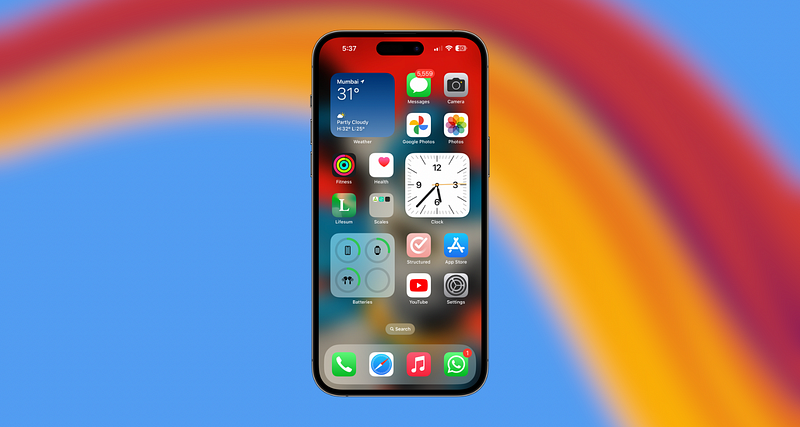
Confession time! Even as a self-proclaimed Apple devotee, I was taken aback by these amazing features my iPhone unleashed after I updated it to iOS 17 last year. Can you believe it?
So, who is to blame here? It’s surely Apple’s fault. Now Apple did address some of these features in their WWDC event in 2023, but not all features. If the company had been vocal about all these hidden features instead of letting us, its users, discover them on our own, we could’ve taken great advantage of them by now. But I guess it’s never too late.
Here is a list of 7 amazing hidden iPhone features I bet you didn’t know about:
1. Use Apple Maps Without the Internet
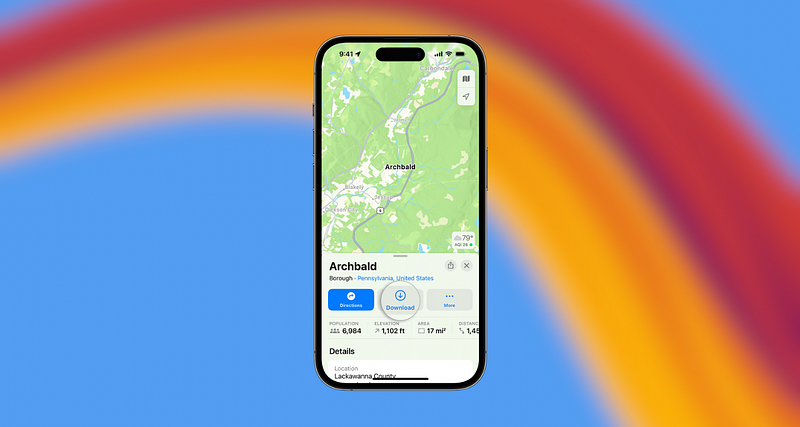
It took some time for this capability to become available, but Apple now enables users to download and utilise offline maps within the Maps app on iOS 17. This enhancement allows for smoother navigation of roads, highways, and tunnels, even without an internet connection.
In iOS 17 and later, the inclusion of offline maps in Maps allows us to access information and navigate without needing a Wi-Fi or mobile data connection. Offline maps can provide us with comprehensive details like opening hours and ratings of locations, turn-by-turn directions for driving, walking, cycling, or public transport, as well as estimated arrival times.
To download offline maps, do these steps:
- Within the Maps app, locate a destination by performing a search, then select the desired place from the search results.
- If the option is available, tap the Download button. Otherwise, tap More and then select Download Map.
- If required, adjust the area you wish to include in your offline map. Then, tap Download.
2. Use Camera For Laundry Codes
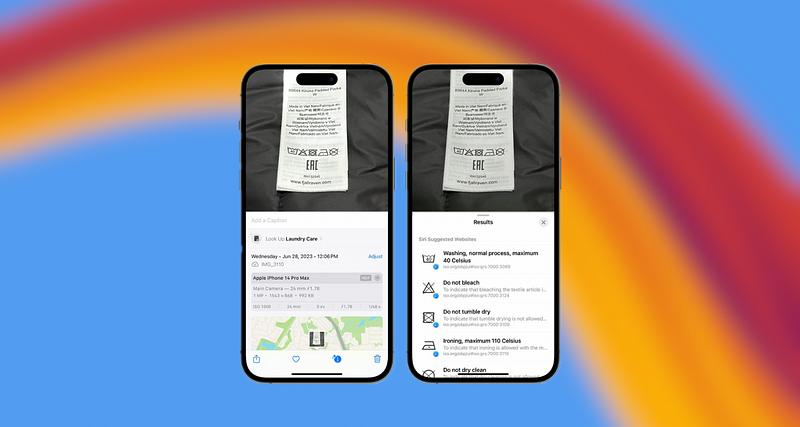
The laundry care symbols found on clothing labels are meant to assist you in washing and drying, but if you’re unfamiliar with their meanings, they might seem like hieroglyphics.
iOS 17 introduces a new feature that simplifies the process of deciphering laundry codes. Simply take a photo of the tag and utilise Visual Look Up, a built-in tool within Photos that can recognise words, plants, monuments, and various objects, providing you with relevant information.
The iPhone will furnish an explanation for each symbol present on the tag, and tapping on the explanation will offer further details sourced from the website provided by Apple. Apple retrieves laundry instruction information from the Online Browsing Platform managed by the International Organisation for Standardisation.
Visual Look Up seems adept at recognising a wide array of laundry symbols, including washing machine temperatures, bleaching recommendations, dryer restrictions, ironing temperatures, and others. It should be capable of identifying nearly any laundry tag, though it’s worth noting that the image needs to be sufficiently zoomed in for the iPhone to detect the symbols accurately.
3. Use Camera to Know What’s Wrong With Your Car
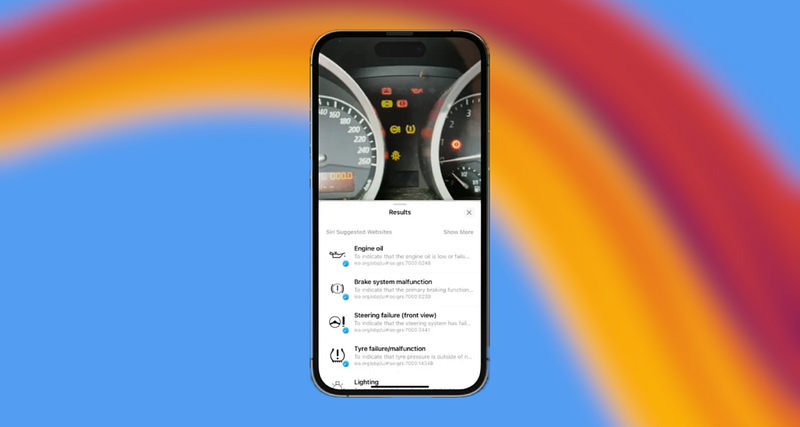
Visual Look Up goes beyond just laundry codes; it can also analyse any potential warning lights displayed on your car’s dashboard. Once more, simply take a photo and see what Visual Look Up has to offer regarding your warning lights. Perhaps it’s a reminder to schedule that brake inspection.
Following Visual Look Up’s identification of the symbols in your image, iOS 17 offers quick links to learn more about each symbol in Safari. Within the Photos app itself, it presents the name of the icon along with a brief description of its meaning.
The auto symbols feature in iOS 17 demonstrates proficiency in recognising various symbols, encompassing dashboard warning lights, climate control indicators, headlight options, defrosting symbols, and a host of others.
4. Listen to the Web Articles Instead of Reading Them
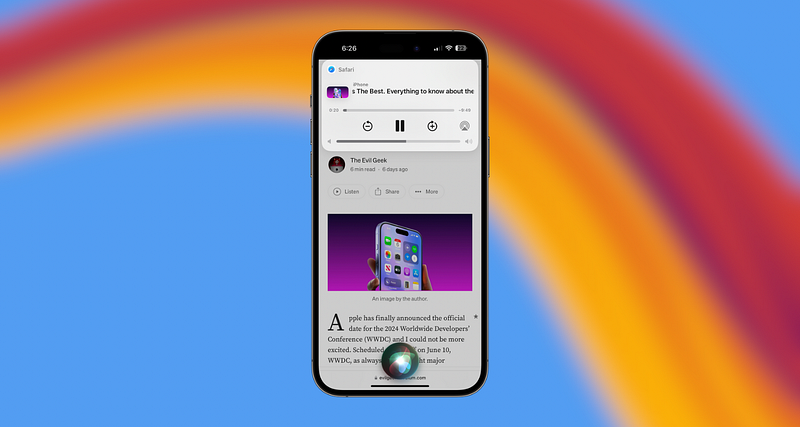
Over the last decade, podcasts have steadily risen in popularity, and for good reason. They’re easy to digest, and you can listen to a podcast anywhere, even while driving.
If you’re a fan of podcasts, you’ll probably enjoy a new iOS 17 feature that lets you ask Siri to read news articles, informational sites or anything else in Safari out loud. No reading is required.
However, keep in mind that for the webpage to be read aloud to you, it must be compatible with Reader View. Fortunately, the majority of news articles on contemporary websites are compatible with Safari’s Reader View, including this one. This feature removes images, ads, and other superfluous webpage elements, presenting you with a clean page of easily readable text.
You can identify pages that support Reader View by searching for the phrase “Reader Available” and observing the document icon that momentarily appears in the address bar during page loading. If you tap on the ”Aa” icon that replaces it, the Show Reader option will be accessible (i.e., not greyed out), indicating compatibility.
If the page is compatible with the reader mode, you can tell Siri to read you the web article. After that, you can exit Safari and even lock your iPhone. Doing so will not pause the narration as it will continue to playback.
Another way to get Siri talking is to tap the “Aa” icon in the address bar, then choose the Listen to Page option in the pop-up menu. Siri will immediately begin reading the page to you.
5. You Can Now Keep Your Private Browsing Private
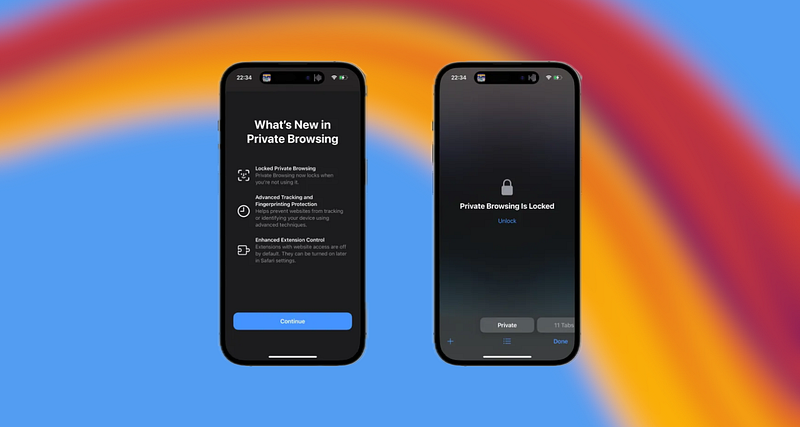
In situations where you lend your phone to a family member, especially a child, you may desire to monitor their browsing activity. Some particularly evil kids might be aware that private browsing doesn’t keep a history.
With iOS 17, you now have the option to activate a setting that mandates Face ID or a passcode for accessing private browsing in Safari. Sorry kids.
To view your Private Browsing tabs, the user needs to authenticate using biometrics — either Face ID or Touch ID — within Safari. Once biometrics are successfully authenticated, the tabs become visible.
As soon as you exit the Private Browsing section and return to your regular list of tabs, Private Browsing locks itself again, requiring authentication to reveal the tabs.
This added authentication layer is necessary even if the phone has already been unlocked. Consequently, you can confidently lend your phone to someone else without worrying about unauthorised access to your private browsing tabs.
6. Zoom to Crop Your Images
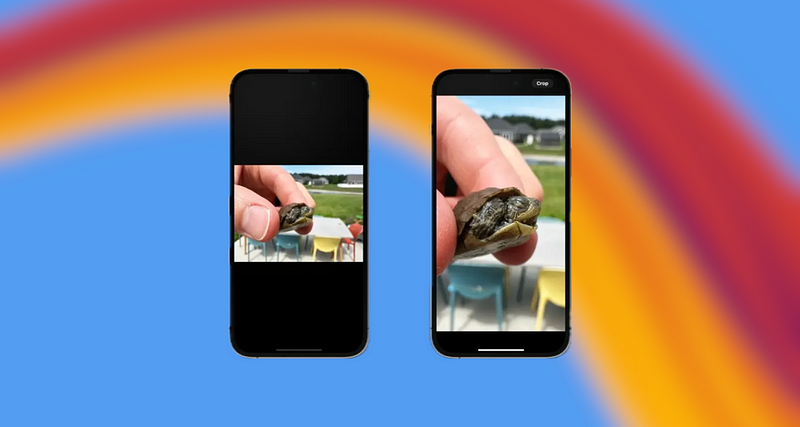
Cropping a photo or video on the iPhone has always been straightforward, but with iOS 17, the process is even more streamlined. Rather than entering edit mode, you can now directly zoom into a photo and then tap the new Crop button that appears. This allows you to resize the image precisely to match what you see on your screen.
7. Auto-Clear Verification Codes
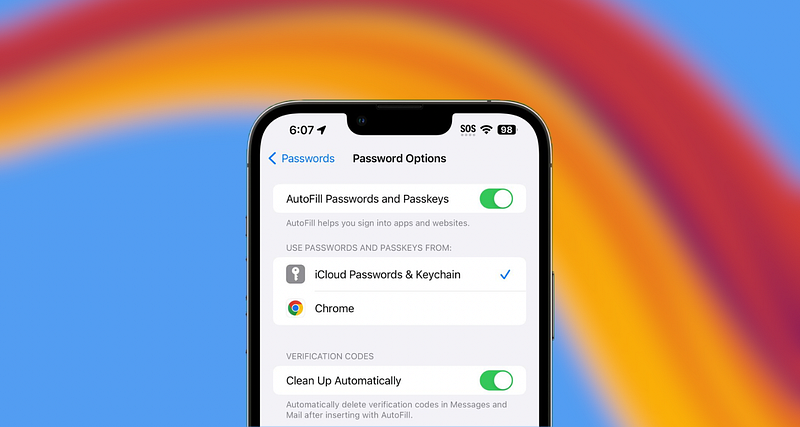
The verification codes you receive while attempting to sign in to your different accounts can easily clutter up your text messages and email. Although you can manually delete each code, this process can be time-consuming. In iOS 17, there’s a new setting that automatically removes your verification codes after you’ve entered them.
Clean Up Automatically can be toggled on for verification codes in the Settings app under Password Options.
“iPhone is as mysterious as your spouse. An entire lifetime won’t be sufficient to know all its hidden aspects.” — Lord Evil Geek IV (1452 B.C.)
If you found this article interesting, you can appreciate my work by clapping and subscribing to my email notifications below. Your engagement helps me reach a wider audience. Thanks in advance.
I’ll soon publish a second part of this story as there are more secret iPhone features to unveil. The only reason I didn’t include them here is because, A — I didn’t want the story to be equivalent to a novella, and B — my fingers started to hurt after a while. Bye!


