
OPENING THE VAULT
5 Obsidian Note Templates (That Aren’t Daily Note Templates)
Keeping notes on books, recipes, people, and more
Virtually every note I create in the Obsidian note-taking app has a pre-set template. Not only do templates help by automatically filling in repetitive information (like tags or headings) across similar notes, but they also ensure consistency in note format and metadata.
A daily note template is often one of the most common templates leveraged by Obsidian users, and is likely one of the first to be created by new users. But there is certainly no need to stop there.
Here, I highlight five different templates I personally use in my vault, with links to the markdown files for each one. I hope that they might help inspire and inform your own note-taking habits, and I welcome you to copy, use, and remix them in anyway.
Note that while I do use the Templater community plugin, these specific templates only use a minimal amount of Templater code. You can simply remove or replace these snippets to use the files with Obsidian’s core Templates plugin.
So, let’s take a look:
Book Reviews
The first template is one I use to write quick reviews about books that I read. These are not extensive notes by any means, simply some metadata about the books, and a few spots for notes.
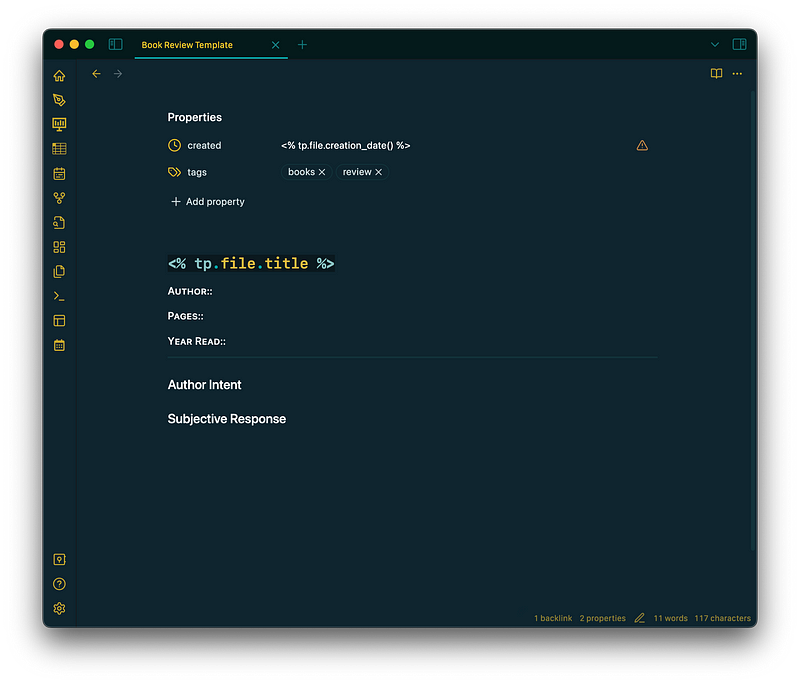
The note begins with some pre-defined front-matter, and then uses templater code to grab the filename for the first H1 header. As you’ll see in the other templates as well, whenever I include a filename, especially when using templater code to input it, I add it as a link. This just makes it so the H1 header automatically updates if I change the filename later on.
The metadata I have here are for the author, the page count, and the year I read the book. I don’t give books a number score, but that’s something that could easily be added. I also don’t personally include a lot of images in my notes, but if you’re someone who does, you could consider adding a piece of metadata for the book cover. You could then make a nice table of contents/dashboard for all of your book reviews using the Minimal theme’s card feature, like this (but for books):

After the metadata, I have two separate sections for open notes. In the first, I write a few sentences about what I thought the author’s intent was in writing the book. I think about what they were hoping to accomplish, and some of the main messages or key takeaways they were trying to get across.
The second section is for my subjective response to the book. Here, I write about what the book made me feel, if I thought the book was effective, and if I felt the author accomplished what they set out to do.
Normally, these reviews are only 200–300 words or so, and I use them primarily as a way to reflect on what I had just read. Secondarily, they are also helpful in remembering what books were about, and in recommending books to others.
Get the Book Review Template markdown file here!
Recipes
I also use Obsidian to keep track of recipes:
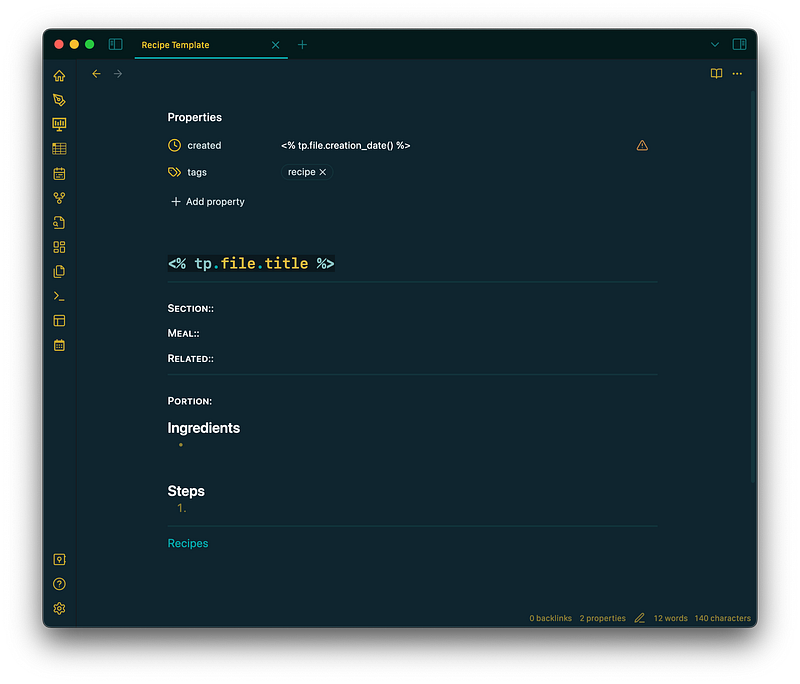
As with the book review template, I have pre-set some front-matter, added the filename as an H1 link to the first line, and then start off the note with some metadata values. You’ll note here, and in the previous (and next) template, that I often use the H4 heading class for metadata. This is just because I like the way it looks in small caps with my style settings, and it helps make the data stand out a bit.
For the first set of metadata, I ask for the “section” that the recipe is in (e.g., Pasta, Veggies, Sides, Soups, etc.), the meal (e.g., Breakfast, Lunch, Dinner), and then any related recipes (such as components of a larger dish), which I add as a link to the relevant note.
I then have a section break to denote the start of the actual recipe, where I call for one more piece of metadata related to the portion size. Following that, I have a bullet list for ingredients, and a numbered list for the steps.
I end with a link to my “Recipes” note, which just consists of dataview tables for recipes in different sections and for different meals. You can learn more about creating these index notes in my previous article.
Get the Recipe Template markdown file here
People
Another template I use with regularity is one for notes I take on people. These notes are primarily used to keep track of certain data, like birthdays and addresses:
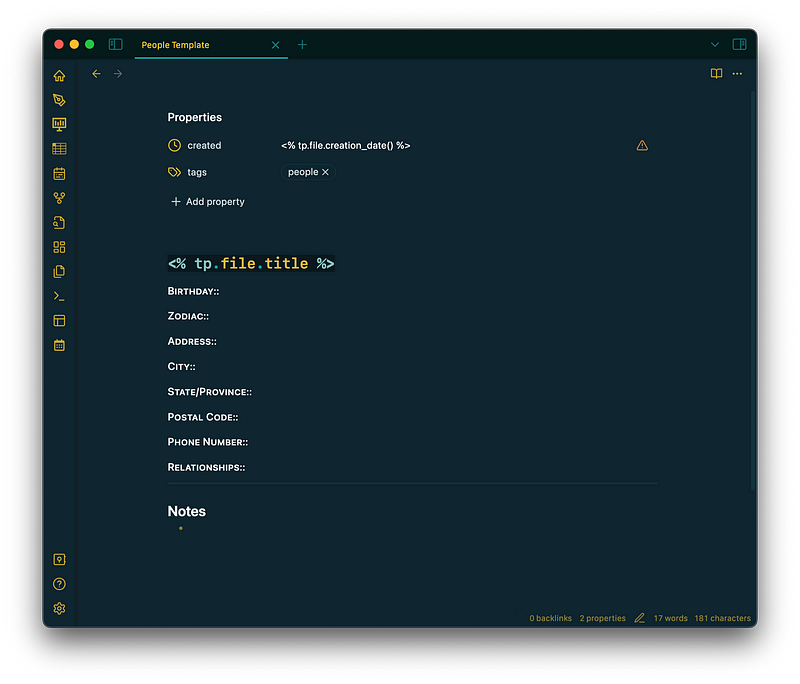
After some basic front-matter and the file title, I have a series of metadata values. You’ll note that I’ve divided the address up into its parts (street address, city, state, postal code). This is just so I can sort dataview tables displaying these notes by any one of these factors, if I wish.
I also include a value for “Relationships”, where I add links to notes on other people who are related to the current note subject.
After this metadata, I just have a blank bulleted list for some notes. For me, this typically incudes things like dietary restrictions or other kinds preferences that I might need to consider.
If you’re looking to have more complete or detailed notes on people, you could easily add a dataview query to call up notes or tasks that link to a particular person file. Nicole van der Hoeven has a great video on taking people notes further, if you’re interested.
Get the People Template markdown file here
(Nature) Collection
Now for a more personal note template. As a long-time nature nerd and one-time geology student, I have amassed a small collection of natural objects, like pine cones, rocks, fossils, and bark. I’ve always liked to keep notes about the origin and provenance of my collection, and have found Obsidian to be a useful tool in storing this information. For each specimen, I create a note:

Again, we start the note with some front-matter and the file title, which in this case is the specimen ID that I assign. Following that, I have a few metadata values for taxonomic information, like kingdom, genus, species, and common name (I use “Specimen” as a value for the sequence of the item in my collection).
Then, some metadata values about the collection of that specimen, like the date, the latitude/longitude I collected it at, and whether it was “captive” or not. “Captive” is just a label that applies only to organisms, and denotes whether it is maintained by human intervention (such as a tree in a park) or is “wild” (such as a tree in a forest). Note also I include a metadata value for the ID number, though this is just pulled from the file name using templater code.
After the metadata, I have open bullet lists for a description of the location the specimen was collected, and a physical description of the specimen itself. Finally, I have another inline metadata value where I include a photo of the specimen. This is set as a key so I can call it in a dataview table and display my collection with the Minimal cards feature.
While this template is suited specifically for the collection of natural items, and thus calls for taxonomic classifications, it can easily be updated to better suit any kind of collection.
Get the Nature Collection Template markdown file here
Basic Notes
Last, but certainly not least, is a “basic note” template. I use this template for any note created in my vault that isn’t already using another template. This means that essentially every note in my vault is based on some kind of template, even if it is just a bare bones default one.

The template itself just contains some front-matter. In this case, it’s the file creation date, pulled in through templater code, an empty space to add tags, and a TRUE/FALSE for whether or not the note is “refactored”.
Refactoring is a process I go through on notes that are taken quickly, such as during a lecture or when watching a video. Usually, I don’t focus much on the structure of these notes while I am taking them. At a later point, I then go back to these notes and add sections, headers, more information, links, etc.. By using this TRUE/FALSE indicator, I can maintain a list, using dataview, of all notes that still need to be refactored in my vault.
Get the Basic Note Template markdown file here
Final Thoughts
And there you have it, five templates I use regularly in my vault, alongside my daily note template, of course. I chose these five as I think they are more generic than some of my others, and I hope you can either use them directly or be inspired by them to create new templates of your own.
The Templates core plugin and the Templater community plugin are powerful tools in Obsidian, allowing you to save time and ensure consistency across your vault. With the right templates in place, your notes will be more useful and the note-taking process will be more enjoyable!


