
5 Levels of Using Chmod Commands in Linux
Precisely control the access permissions of your files

If you need to pick out one command in Linux that is essential but confusing for beginners, which one you will choose? 🤔
For me, it is the chmod command.
I started to use Linux many years ago. But something like the following made me confused many times:
chmod 664 file_namechmod u+w,go-w file_name
What’s the number 664 mean? What’s the messy characters u+w or go-w mean? What’s the …?
Basically, they are just some rules and syntax of the chmod command. They are not hard to understand, but may scare newbies.
This article will explain the design and uses of the chmod command in a beginner-friendly and example-led way. After reading, you never need to google something about it again. 🙂
0. Understand the Basic Concepts of File Permissions in Linux
The name “chmod” is an abbreviation of “change mode”. It’s used to control the access permissions of files or directories from different users in Linux.
On the one hand, there are 3 types of permissions for a file:
- Read
- Write
- Execute
On the other hand, there are 3 types of users:
- The owner of the file
- The group (including all its members) which owns the file
- Other users (who are not the file’s owner and not members of the group)
Therefore, file permissions management in Linux is just about how to assign the 3 types of permissions to the 3 types of users.
1. Know How To Check File Permissions
Of course, before changing a file’s permissions, we need to check its current status firstly. The ls -l command can help us.
For example, I just created a file named testDir and use ls -l testDir to display its information. The results are as follows:

All permissions information is in the first part.
The first character represents the file’s type: “-” stands for a regular file which is our case, and another two possible characters are “d” for a directory and “l” for a symbolic link.
And the following 9 characters can be separated into 3 parts:rw-, r--, and r--.
The rules are:
- Every part represents the permissions for one type of user
- Every character in a part represents one type of permission
ris for “read” permission,wis for “write”,eis for “execute” and-means no permission.
Therefore, the permissions of the testDir file are super clear:
- The owner of this file (“yang”) has the “read” and “write” permissions.
- The members of the owning group only have the “read” permission.
- Other users only have the “read” permission.
2. Change File Permissions Through Numerical Format
To change the permissions of a file, Linux provides us with a convenient numerical format.
It uses 4 numbers to represent the 3 types of permissions and the no permission situation:
- 0 for no permission
- 1 for “execute”
- 2 for “write”
- 4 for “read”
So, as the following table shows, there are 8 possible situations in total:
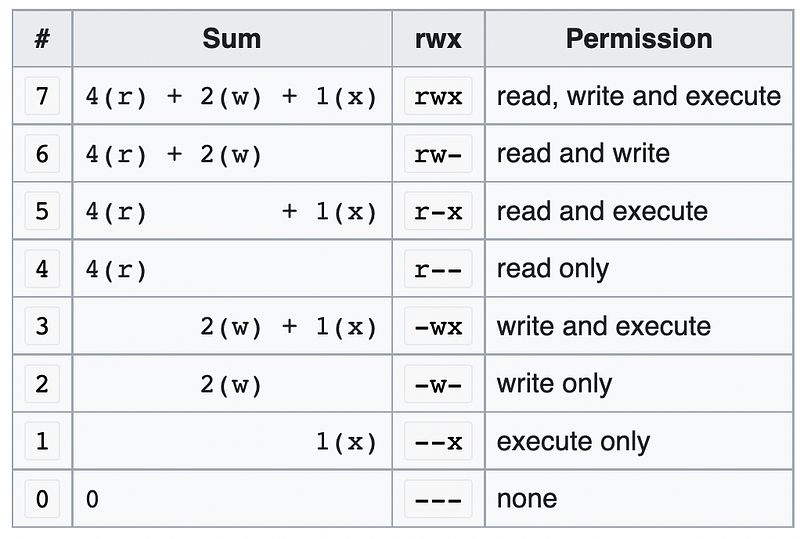
Based on the above table, eight numbers are enough to represent all possible permissions.
Since there are 3 types of users, all the chmod command needed are 3 numbers to define 3 permissions.
Now, let’s go back to the command mentioned at the beginning and figure out what it means:
chmod 664 file_nameAll clear now:
- The first
6means the owner of the file has the “read and write” permission. - The second
6means the owning group has the “read and write” permission. - The last
4means the other users only have the “read” permission.
3. Change File Permissions Through Symbolic Format
Besides the numerical style, there is another way called symbolic format.
As its name implies, the chmod command can use some symbols to represent different types of users and permissions.
For users,
u: file ownerg: owning groupo: other usersa: all of the above (the same asugo)
For permissions,
r: readw: writex: execute
In addition, there are 3 types of operators:
=: To assign the exact permissions-: To remove permissions+: To add permissions
Now, it’s time to demystify another command mentioned at the beginning:
chmod u+w,go-w file_nameIt means giving the owner “write” permission and removing the “write” permission from the group and other users.
4. Add Options to a chmod Command
Last but not least, there are some options you can add when using the chmod command:
-Ror--recursive: Apply the same permissions to all the sub-files recursively of a directory.-vor--verbose: Print the information about the permissions changes (from which permission to which permission)-f: Ignore all error messages.
And like lots of other commands, the chmod command also supports --help and --version options to check its manual and version.
Conclusion
The chmod command is about how to assign 3 types of permissions to 3 types of users. It provides two convenient ways: numerical style or symbolic style. Mastering it can help us precisely control the access permissions of your files.
Thanks for reading. If you like it, don’t forget to follow me to enjoy more great articles. 🙂
More articles about Linux: