5 Hidden Features in JupyterLab You Should Start Using
These 5 features will simplify your JupyterLab workflow. No third-party extensions required.

If you work as a Data Scientist, you probably also spend the majority of your workday analyzing data in JupyterLab. So it makes it a good time investment to learn a few built-in JupyterLab features that will simplify your analysis workflow.
In case you’ve missed my other articles about JupyterLab:
Here are few links that might interest you:
- Complete your Python analyses 10x faster with Mito [Product]- Free skill tests for Data Scientists & ML Engineers [Test]- All New Self-Driving Car Engineer Nanodegree [Course]Would you like to read more such articles? If so, you can support me by clicking on any links above. Some of them are affiliate links, but you don’t need to buy anything.
1. Window Management
Did you know that JupyterLab has a built-in window manager (no third party extension needed)?
You can organize Jupyter Notebooks side by side (or even three Notebooks vertically or horizontally). You can also move Jupyter Notebooks (or any window) so that it takes less visual space — useful for the Console.
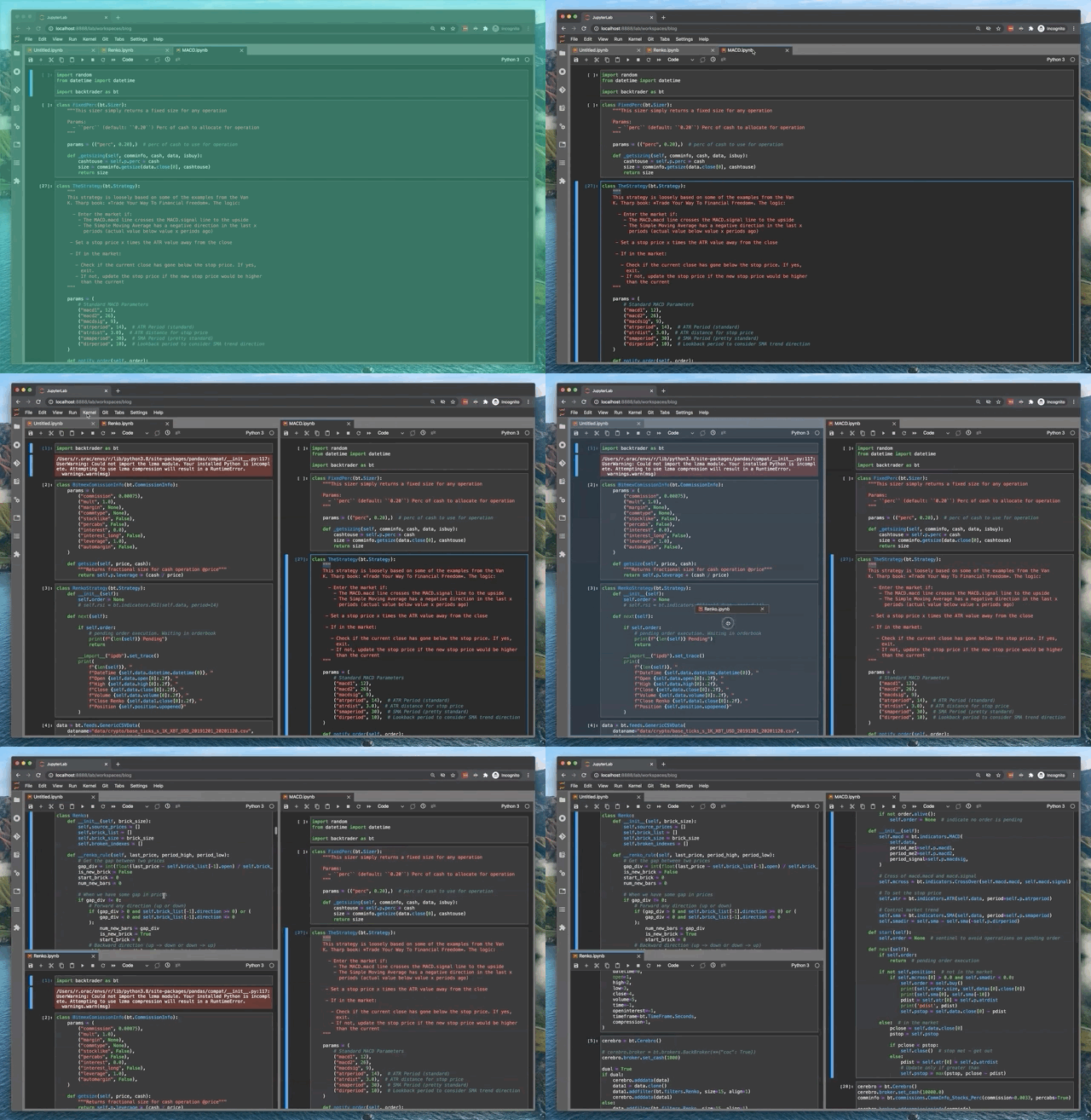
To code without distractions try Full-Screen editing with JupyterLab. It works great on macOS. When using it, it is hard to distinguish JupyterLab from a full-fledged IDE.
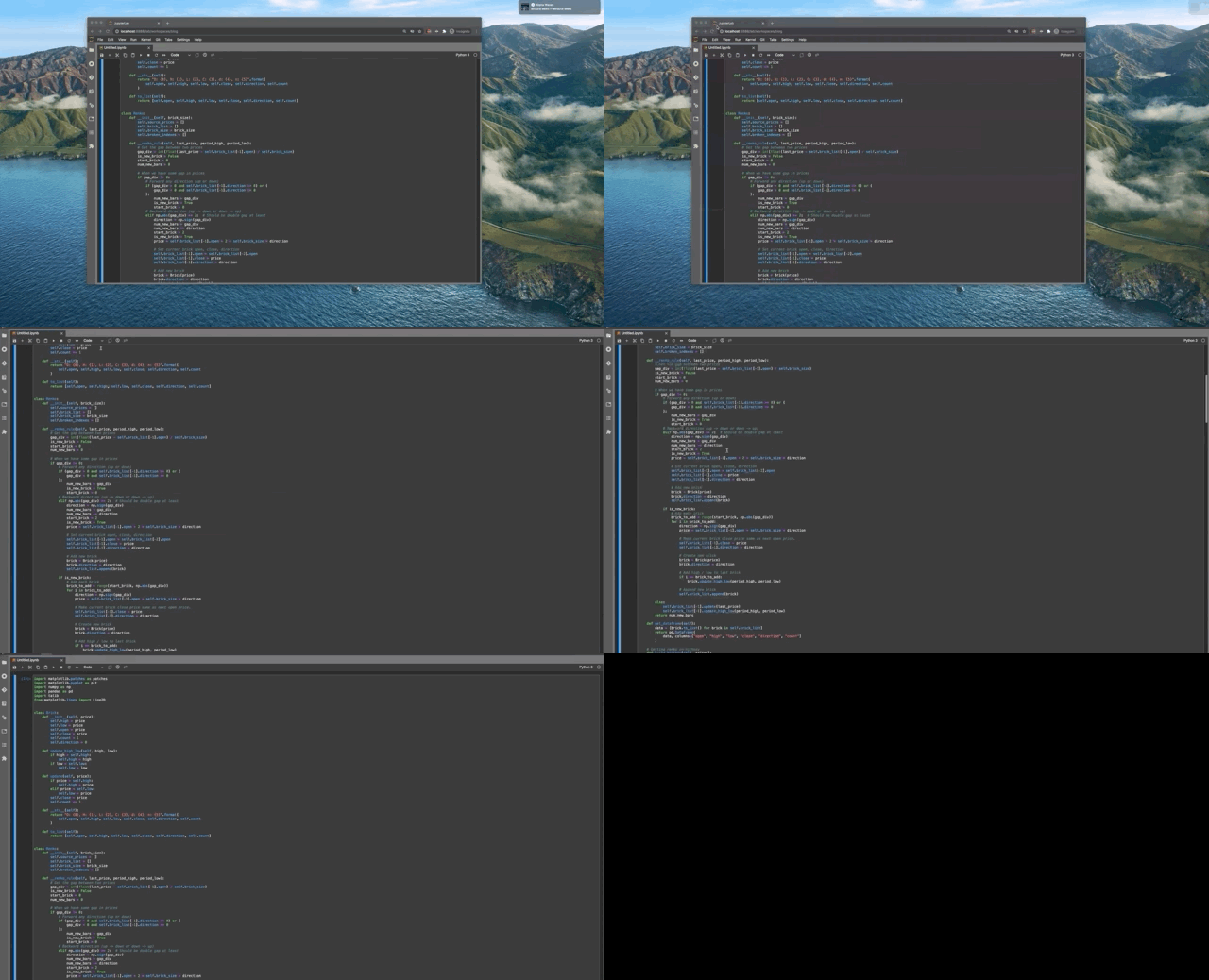
While Full-Screen editing in JupyterLab looks great, I rarely use it as it hides browser tabs, which makes browsing the web difficult. Multiple screen setup might help to overcome this issue.

2. Side by Side
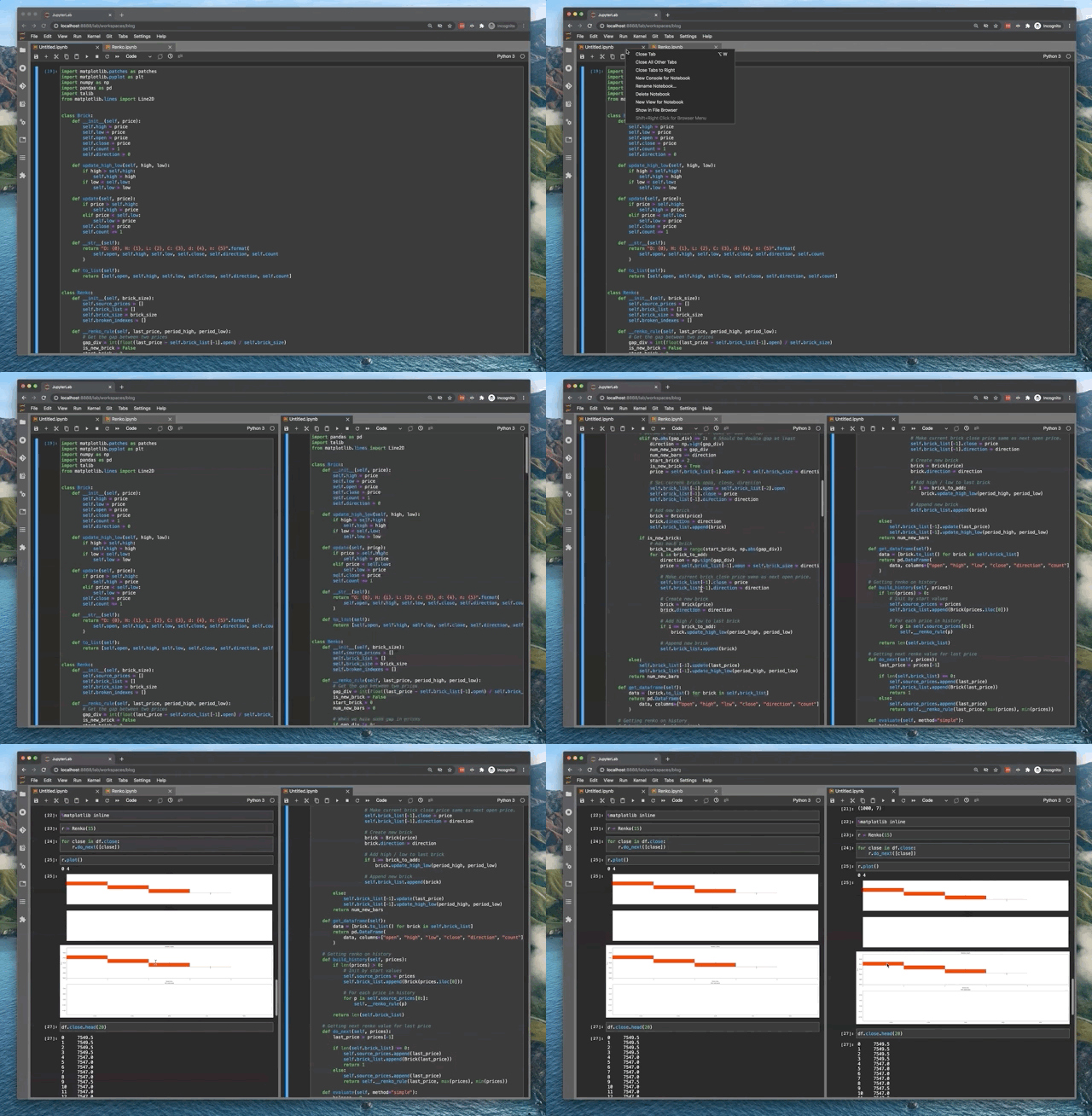
Side by side view comes in handy when working on a bigger Jupyter Notebook with many plots or many lines of code.
Side by side enables having two views of the same Jupyter Notebook side by side. This reduces unnecessary scrolling.
To view a Jupyter Notebook side by side, simply right click on the title of the Notebook and select “New view for Notebook”.
3. Workspaces
JupyterLab’s Workspaces comes in handy when working on multiple projects at the same time. Workspaces come builtin with JupyterLab so no third-party extensions are needed.
With Workspaces, you can organize your projects into Workspaces. Then you switch between a Workspace for project A and a Workspace for project B.
Before using Workspaces, I had to close all Notebooks from one project and open the Notebooks for the project I intended to work on. I prefer a clean work environment.
Workspaces make your work environment in JupyterLab cleaner and more organized.
Using Workspaces is really simple. Unknowingly you were already using Workspaces. You start with a default Workspace: http://localhost:8888/lab.
To create a new Workspace (or access the existing one) simply add to the URL: /workspaces/blog. With this, you would access (or create) a blog Workspace. A full URL is http://localhost:8888/lab/workspaces/blog.
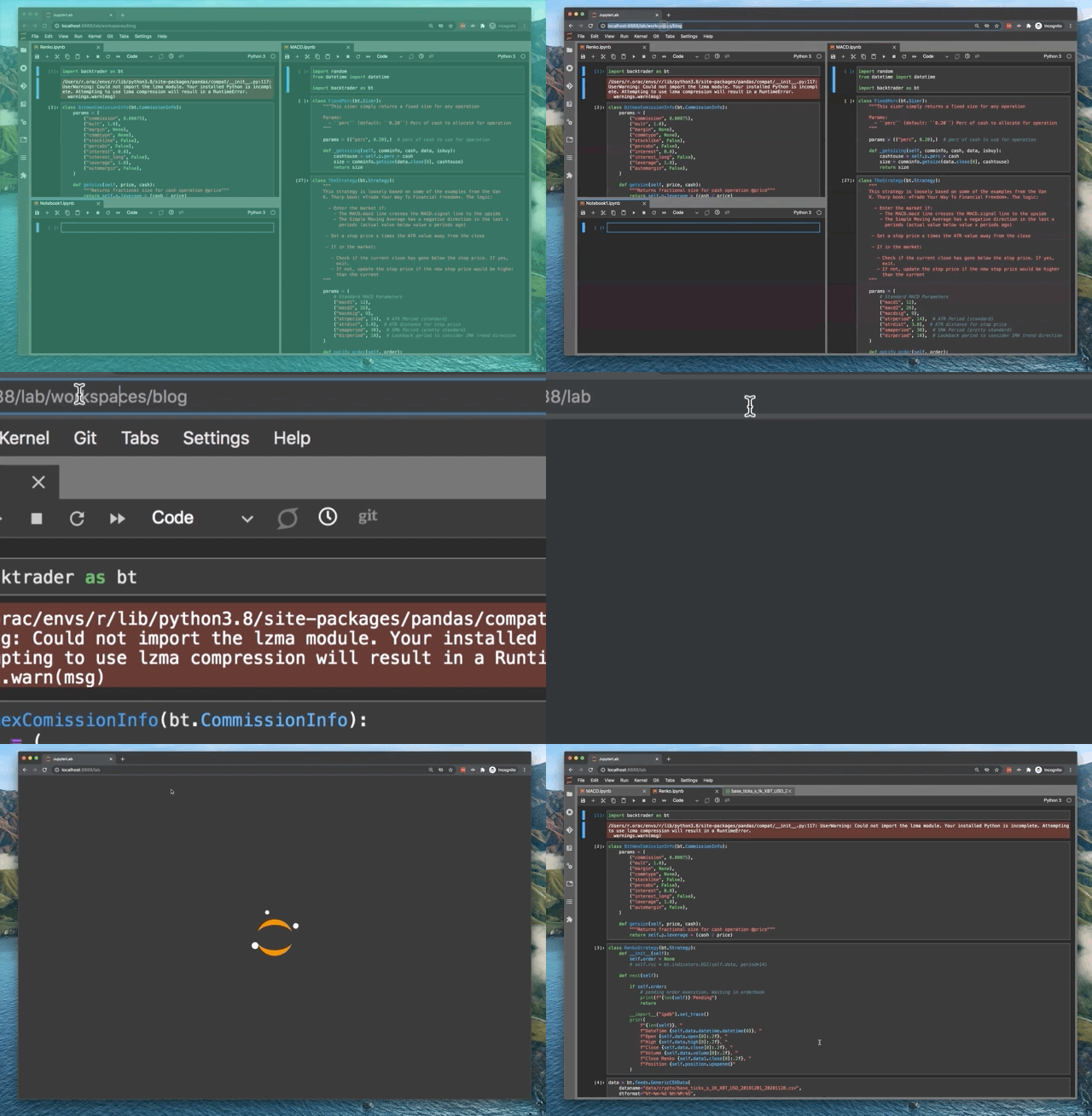
Workspaces have many powerful features, which are beyond the scope of this article. See JupyterLab URLs to learn more about Workspaces.
4. Show Active File in File Browser
Usually, we organize related Notebooks together in a folder. In order to access them, we need to go through the directory structure in the File Browser, which is cumbersome.
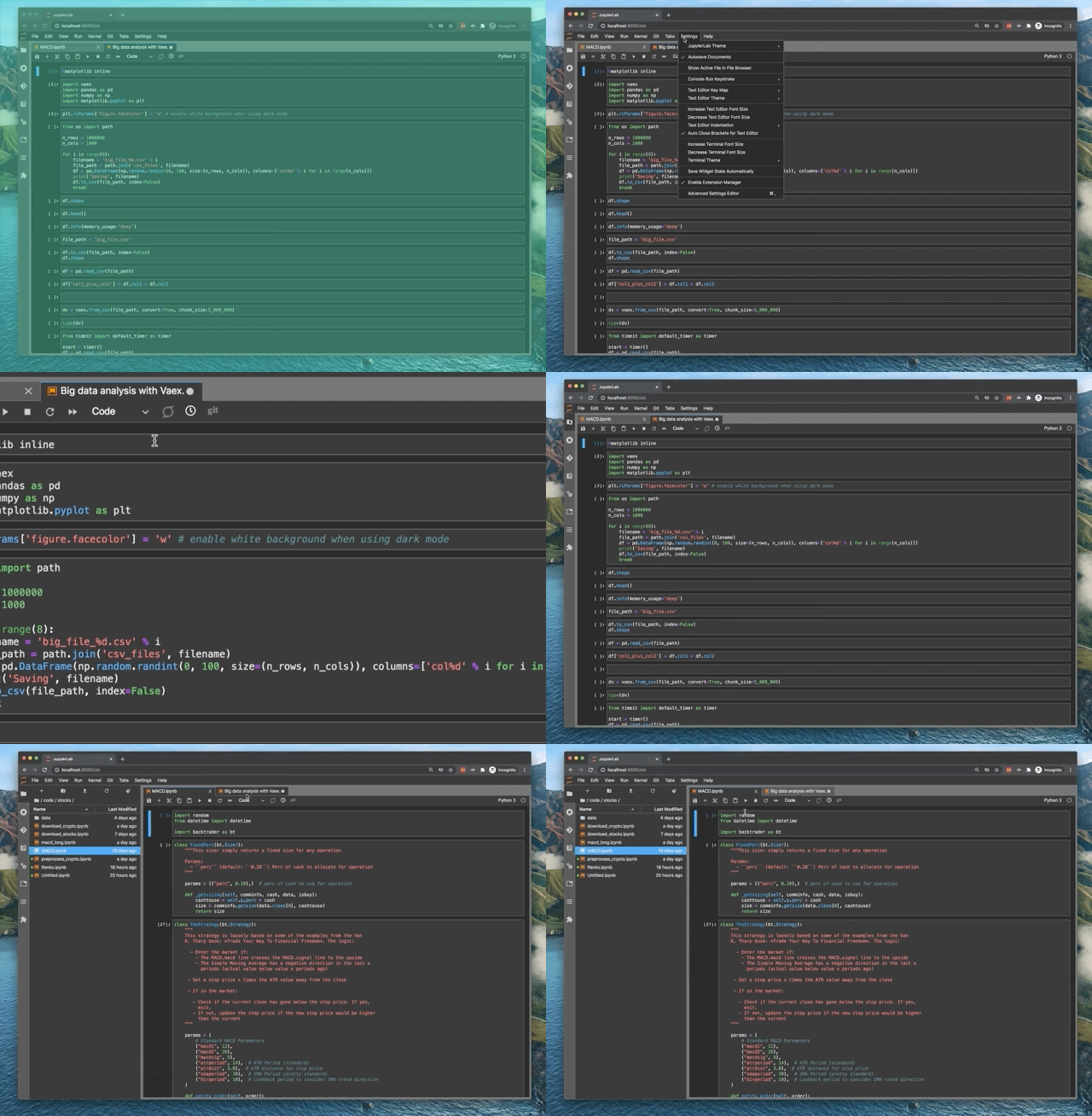
JupyterLab has a neat feature, which automatically lists the folder in the File Browser of the active Jupyter Notebook.
To enable this feature, click on settings and “Show active file in File Browser”.
5. Use CLI in Jupyter Notebook
Did you know you can access Command Line Interface (CLI) directly from a Jupyter Notebook? You can run CLI commands with ! prefix.
Let’s say you have a missing Python package. You can simply install it from Jupyter Notebook by running in the cell:
!pip install numpy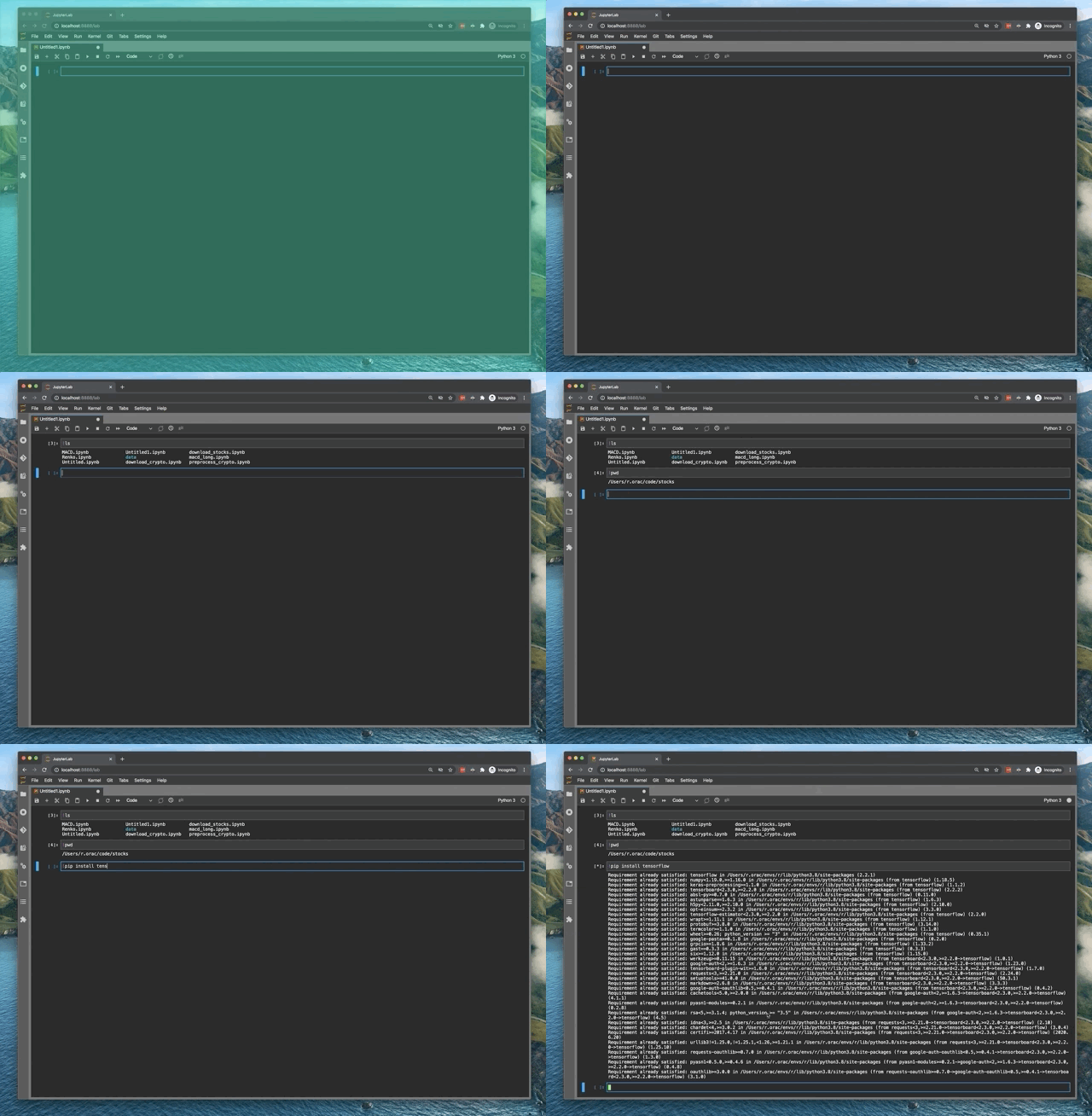
Before you go
Follow me on Twitter, where I regularly tweet about Data Science and Machine Learning.