
4 Ways to Create a Multi-Page Streamlit App
Streamlit may not have been designed for full-blown websites, but it is fairly straightforward to create multiple pages in a single app
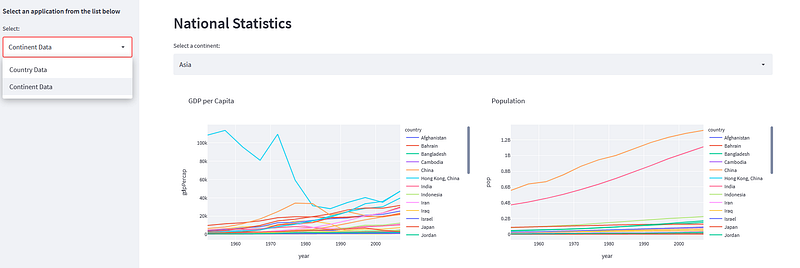
There are two aspects to creating multi-page apps: how to select the one you want from the user interface and how to select which code to run.
The UI could be an option menu, drop down, buttons, or other UI element. Here we will use a Streamlit selectbox in a sidebar to select which part of the app to run.
To determine which code to run we will look at 3 different techniques that you can implement yourself plus the new native implementation of multi-page by Streamlit:
- Use a select statement such as
if... else...or 3.10 pattern matching to choose which page to display. This is the easiest method and works well for a small number of pages. - Structure apps as a library package. A more sophisticated way of delivering multiple pages that is also easy to use — just follow the pattern.
- A generic launcher app for a library of apps. This launcher will automatically pick up the apps stored in a library but is still easy to create and use.
- The Streamlit native method
The pages
In each case, we will use the same two blocks of code that display data about a country or continent from the Gapminder data that is included with Plotly. So let’s look at that code first.
First let’s get the data:
df = pd.DataFrame(px.data.gapminder())The following code displays two graphs, one for the GDP per Capita for a country and the second for the Population Growth. The data is in the Pandas dataframe df and we first construct a unique list of country names from the dataframe. The country is then selected from a Streamlit selectbox. We then draw the graphs in two columns so that they appear side by side.
The next block of code is very similar but displays data for all countries in a continent.
So those are the two code blocks that will be our two ‘pages’. For the three solutions, I’ll show you the framework and indicate where those blocks of code go.
Simple selection
The first technique is very straightforward, we simply use an if... else... or Python 3.10 match statement to select the code to run. This is very easy but is probably better used for a small number of pages like the two we will use here.
In this solution we define the pages as the functions countryData() and continentData() and we put an st.selectbox in a st.sidebar as the mechanism for choosing which code we will run. We then simply call the appropriate function depending on the value returned from the st.selectbox.
If you are using Python 3.10 or above you can replace the if... else... with a match statement something like this:
match page:
    case 'Country data': countryData()
    case 'Continent data': continentData()
This construct is a bit neater particularly if you have more than a couple of pages.
Implement as a library
If you have several pages that you would like to choose from then putting all of the code in a single file gets a bit cumbersome. A better approach is to use the Python package mechanism to hold functions that can be imported into a main program.
The first thing you need to do is create a folder in which your pages will reside and configure this as a library. So first create a subfolder called stlib and then inside that create a file __init__.py. This file can be empty, it just needs to be there to mark the folder as a library.
Now create two more files in the subfolder, one for the country data page and the other for the continent data page. We’ll call these files countryData.py and continentData.py.
The main code is coded as a function called run(). It could be named anything but it helps to have a standard name to invoke the function as we shall see later.
The last if statement is optional but if you include it you can run the module as a stand-alone program.
Now that we have the ‘pages’ implemented as Python modules, we can import them and call the run() function for each one.
A generic solution
The library approach is quite attractive as it means we can devolve the functionality of ‘pages’ to a library of functions. However, we can go a step further by storing the module information in an external file (in the library) and construct a generic ‘main’ program that will read this file and construct the selection menu and call whichever modules are available.
The first thing to do is to create a file with the list of the available modules in the library folder. I’ve called it libContents.py and it looks like this:
# Return a list of the modules in this package
    def packages():
        return ['countryData','continentData']
It’s a single function that returns the names of the modules as a list.
There is a bit more code in this solution but it is much more flexible and you only need to write it once.
The code is shown below and the first thing to note is that we import libContents explicitly and later we declare the global arrays that will hold the list of modules (names, descriptions and module references). moduleNames is assigned directly fromlibContents, the others we will deal with in the loop that follows. The first thing is to get the module reference from its name using importlib.import_module. We then look for a description of the module in a global string description. If this exists we store it in the descriptions list, otherwise, we store the module name instead.
This means that the module can now contain a description like this:
description = "Continent Data"def run():
import streamlit as st # etc.It’s not compulsory but if it is there it will be used in the drop-down menu.
We are going to use the description in the st.selectbox. This is similar to what we've seen before but it uses a function to define the text that is displayed rather than the actual value passed to it (this is very neat).
So the function format_func(name) takes the name of the module, finds its index in the moduleNames list and then uses this index to select the correct text to be displayed for the descriptions list.
Finally, the line
modules[moduleNames.index(page)].run()runs the selected module by retrieving the module reference, again by using the index of the module name.
Streamlit native method
Within hours of me writing this article, Streamlit announced a native multi-page feature which is simple to use.
You need to structure your app as a hierarchy of files. In your home directory there must be a main file which is the entry point of the app. The there must be a sub-folder called “pages”. You place your additional page files in this sub-folder and the main program will automatically pick them up and display them in a sidebar. Selecting one of the entries will load that page. Simple!
Below is the complete code for this implementation.
And there we have it! Three… no four, ways to implement multi-page apps in Streamlit. The first is simple, the second better for more pages, the third is a generic solution that can be reused in any app and the fourth is a very simple solution newly provided by Streamlit.
While the Streamlit version is simple (although, a word of warning it does not, at the time of writing, appear to work in Python 3.10), my favourite solution is number three because once the main function has been written this solution is as easy to use as the native one but is more flexible in that a description can be added and the ordering is determined by the author (Streamlit orders them alphabetically). Also it could be further customised.
Thanks for reading and I hope this has been useful. Please do leave a comment if you find any errors, have any suggestions, or simply want to say ‘hello’.
You can find the code for this article and my other work on my Github page
and you can subscribe to my occasional newsletter on Substack.


