
3 macOS settings you should change immediately
macOS offers a wide range of preferences for your computer. Most of them are predefined and have predefined values that Apple has chosen for you. However, many of these predefined selections may impact your Mac’s performance and drain your battery (in case you own a MacBook).
Apart from that, many times we, the users, also probably change the settings without even noticing it or giving them the proper attention. For example, a new app that you just installed requests access to location service, after a couple of months you stop using the app, however the app may still use location services in the background draining your battery and wasting computing power.
Thus, it is important to carefully review our Mac’s preferences from time-to-time and make the proper adjustments in order to keep our computer optimized.
1. Location Services
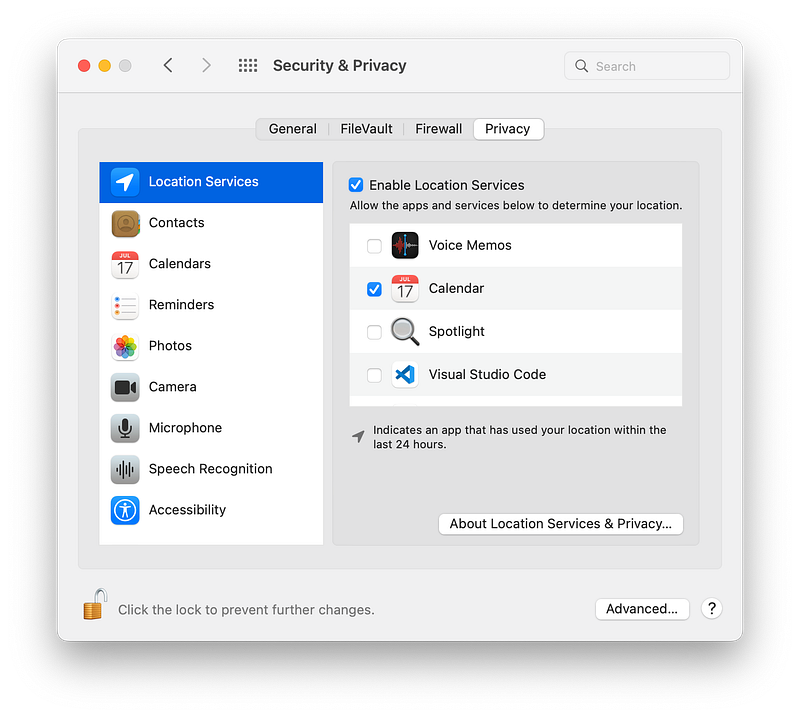
By selecting System Preferences > Security and Privacy > Location Services you can view all the apps that have access to your computer’s location. You will probably be astonished by how many apps use location services and you had not realized it until now. For example, I cannot understand why VS Code, which is a coding IDE needs access to location, so I revoke location access for this app.
You can uncheck from the list the apps that you do not want to have access to location services. With this move, you both save computing power and battery life, as less apps are “asking” the operating system “Where am I?”.
2. Analytics and Improvements
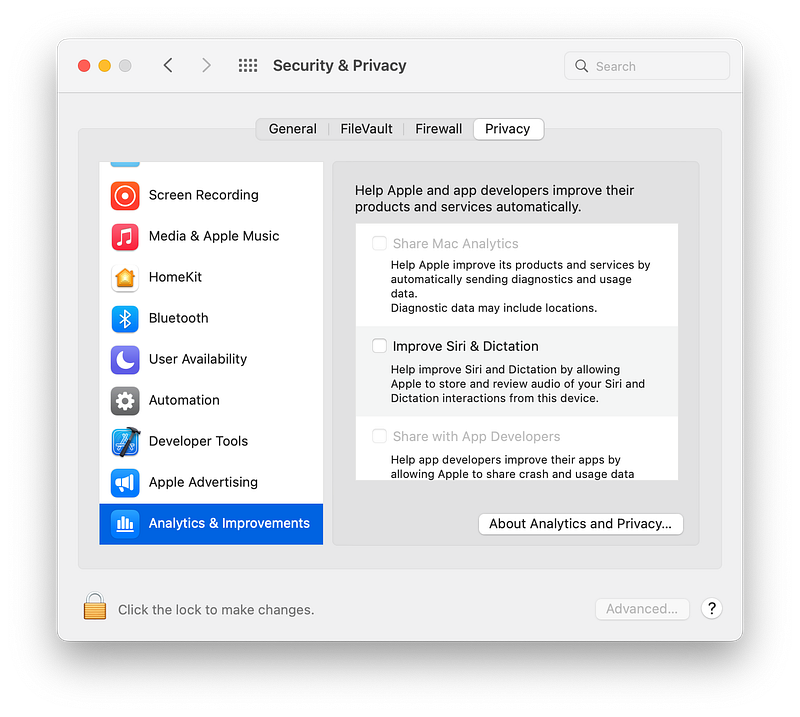
Apple by default has set the Mac computers to share Analytics (diagnostics and usage data, the first ones may also include location). Despite this setting probably helps Apple offer to us better products and user experience, its is probably a setting that you do not need to be enabled as it consumes battery and other system resources.
By selecting System Preferences > Security and Privacy > Analytics and Improvements you can manage if you want analytics to be shared with Apple or not.
3. Login Items
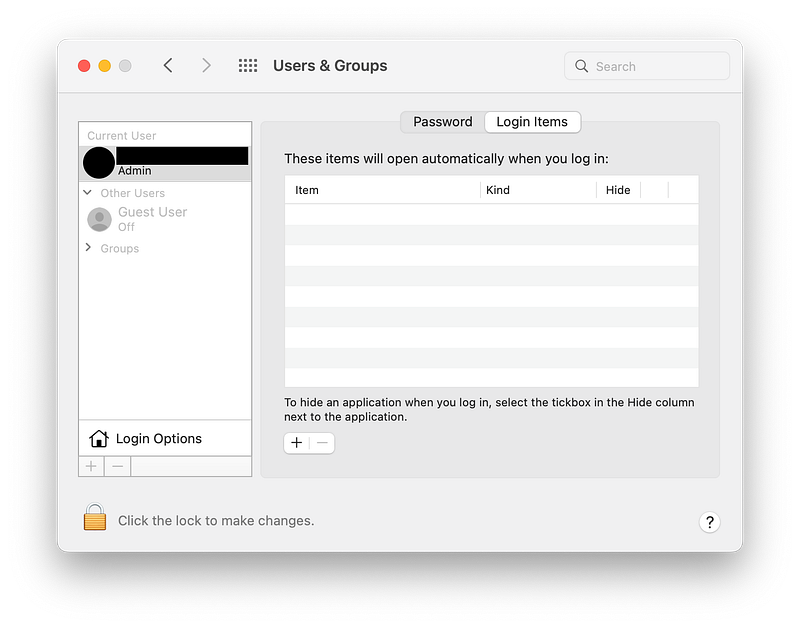
Some apps and extensions may create what we call “Login Items”. This kind of software starts running automatically (many times in the background). As you can easily understand, these items may slow the startup process of your Mac.
By selecting System Preferences > Users and Groups > Login Items (2nd tab) you can select which items from the list you really need start running when your computer starts and which are not essential and should probably be removed.
That’s All
I hope you find it interesting, and it will be useful to keep your Mac fresh and healthy.


