
How to Use Obsidian Dataview: A Complete Beginners Guide
A Non-technical Guide
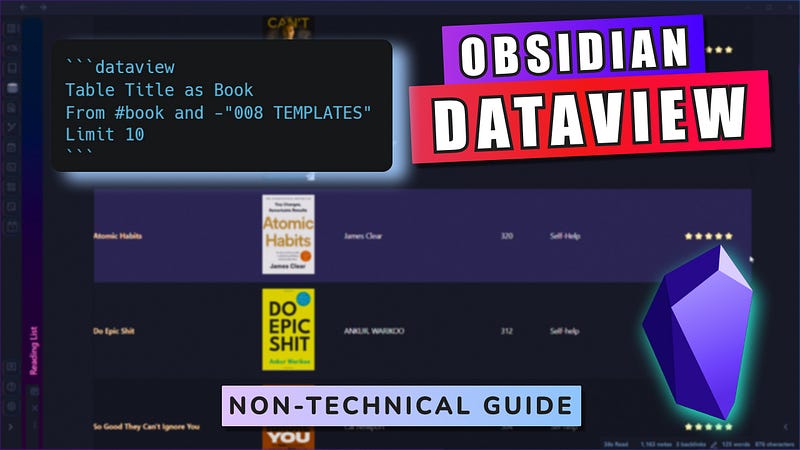
Obsidian dataview is one of the most widely used community plugins in obsidian. It turns your knowledge base into a database that you can query from.
If you are a non-technical person, dataview can scare you. But it doesn’t have to. This non-technical guide will help you to go from scratch to building your own database of personal knowledge in obsidian.
Using the dataview plugin in obsidian is like using obsidian on steroids. Before we begin the guide, let me show you some of the possibilities of obsidian. The setups I’ve used in my obsidian vault:
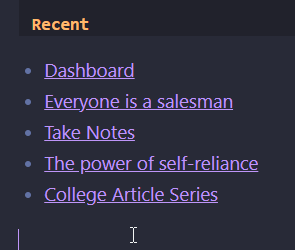
View the most recent notes
```dataview
List
From ""
Sort file.mtime DESC
Limit 5
```
It searches my entire vault and lists the recently modified 5 notes:
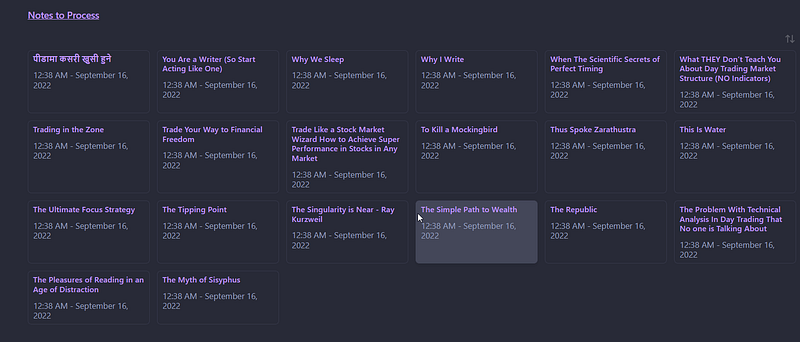
View notes that need to be processed
```dataview
Table file.ctime as created
From #todevelop and -"008 TEMPLATES"
sort ASCE
Limit 20
```
It searches my vault with notes tagged #todevelop and lists them in ascending order excluding notes from the Templates folder. Here’s the result:
View books that I’m reading currently
```dataview
Table (" as Cover, author as Author, total_page as "Pages", category as Category, Bar as Progress
From #book
where contains(status,"Reading")
```It searches my vault for #book and where the status is reading. It is rendered in table format with a cover, author, pages, category, and progress bar. Here is the result:
Reading list
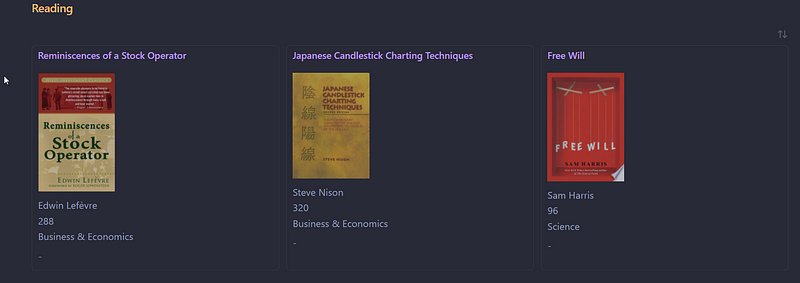
Similarly, there’s another query that shows me all the books that I’ve on my reading list on my obsidian vault.
```dataview
Table (" as Cover, author as Author, total_page as "Pages", category as "Category"
From #book
where contains(status,"To Read")
```
Now you’ve got a glance at what is possible with the obsidian dataview plugin, let’s learn how to use it. But before that, we need to understand YAML.
What is YAML
YAML stands for Yet Another Markup Language. It is also called frontmatter which is designed to add metadata to your notes. The metadata is readable to humans as well as obsidian.
This metadata is what is used by obsidian dataview to query notes.
Metadata is the data about data. Here’s an example of metadata.
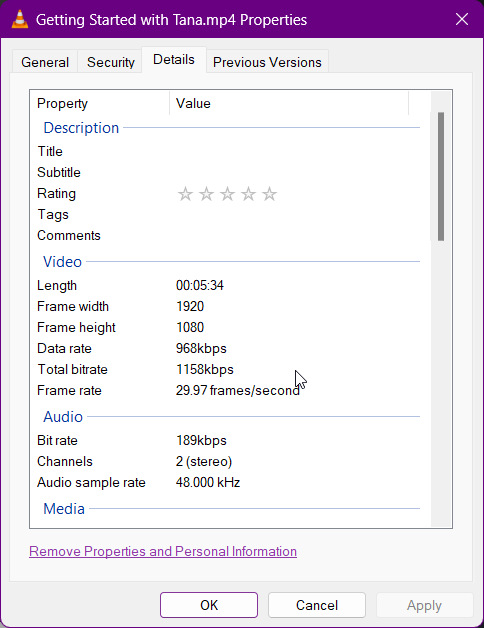
Here is a video file I took from my PC. If you go to the properties and details section, everything you see is metadata. The data about this particular video. The length, resolution, bitrate, and everything. All of this is added automatically.
In obsidian also, notes have some metadata such as the creation date, and modification date that is added automatically. But if you want to create an advanced database or search queries, you have to manually add metadata to your notes.
How to add YAML/Frontmatter?
As the name itself suggests, frontmatter should be added at the top of your notes. To add metadata, you must add three dashes in two separate lines.
---
---
Now everything you write in between these dashes will be metadata. For example:
---
tag: book
Author: Pax
status: Reading
Rating: ⭐⭐⭐⭐⭐
---
This is a simple example of adding metadata in markdown notes. This metadata is used by the dataview plugin for querying your vault.
Here’s an example of the YAML frontmatter of one of my book notes. We will be using book notes in my obsidian vault for examples.

Installing Dataview
If you haven’t installed the dataview plugin, install it from the community plugins section. Go to options and check the settings.

How to use Dataview
To use obsidian dataview you will have to start with ```(three backticks). This will create a code block. Then write dataview after three backticks.
```dataview
```
Dataview will work now. But it won’t show any result because we haven’t added any parameters.
Different query formats available in obsidian
List
Simply write the following code:
```dataview
List
```
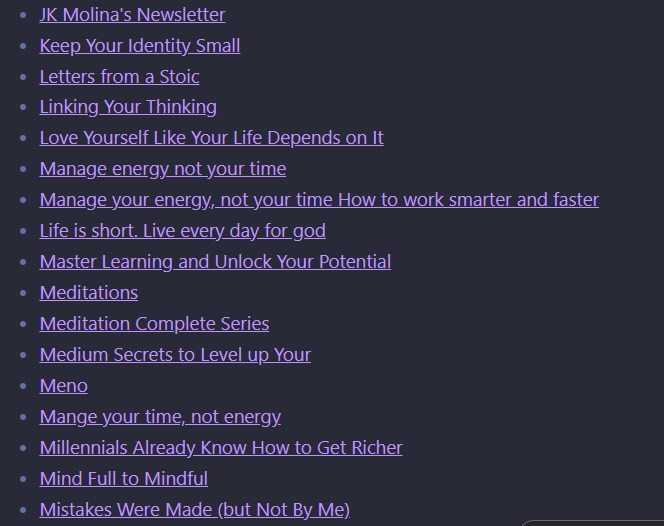
It will render all the notes that you have in your obsidian vault as a list.
Result:
Table
The table format is similar to the list. The only difference is that it uses multiple columns.
```dataview
Table
```
This will render a table but with only one column. To add columns, add this:
```dataview
Table author,category, my_rate, status
```
Remember: While creating table headers, the table column should be exactly the same as you have in your notes metadata(No uppercase or lowercase difference). This is the result:

If the notes don’t have the metadata for what you specified, it will return ‘ — ’ in the table.
If you want to use a different header, use the code as follows:
```dataview
Table author as Author,category as Category, my_rate as Rating, status as Status
```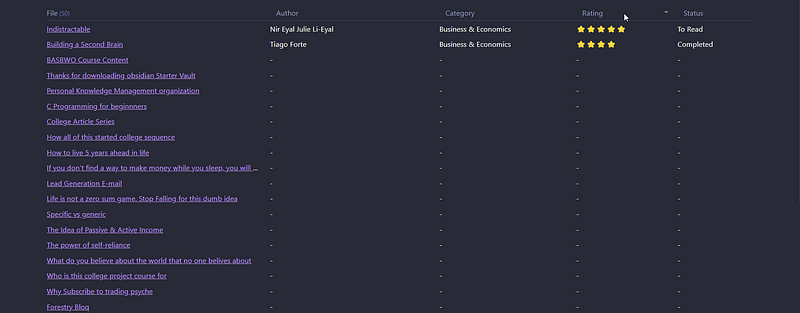
The header has changed as we specified.
Tasks
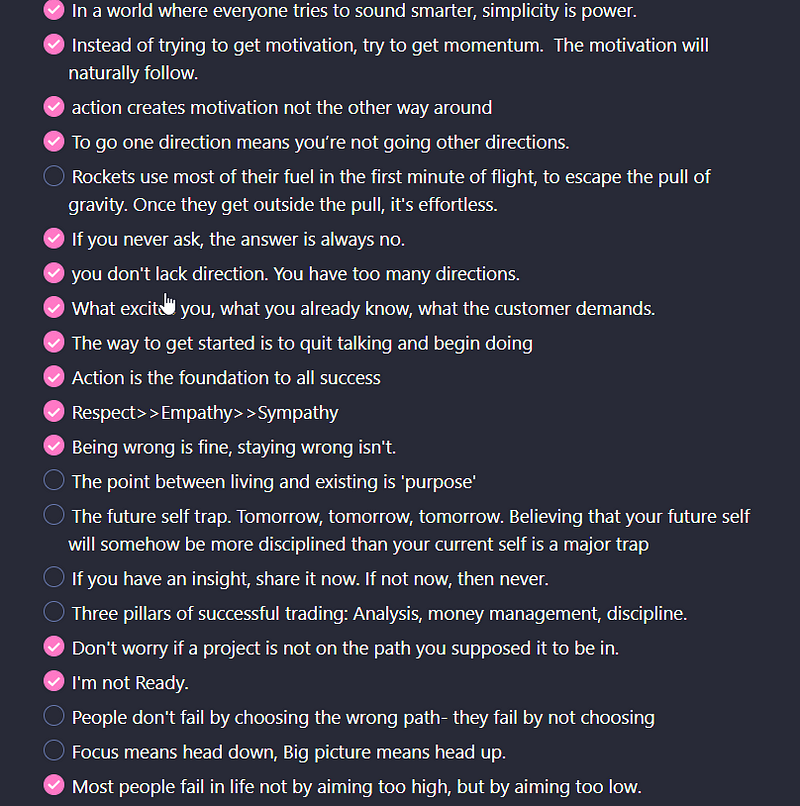
I don’t use obsidian as a task manager. But if you want to use it, the obsidian dataview plugin can become handy. Here’s the dataview code you need and how it will render:
```dataview
Task
```
Calendar
The calendar dataview query will display a dot per file on the date that file was modified or created.
```dataview
Calendar file.ctime
```
The large number of dots is because I had to do the setup of my vault due to an error.
Advanced Query (From)
I will show all of the advanced queries in a table format. Because understanding this will help you to use this in almost all other query formats.
The from query helps you to specify what you are looking for. Notes from a particular folder? Notes with a particular hashtag? Notes excluding a particular folder, etc.
Here’s an example of the previous table format query:
```dataview
Table author as Author,category as Category, my_rate as Rating, status as Status
From #book
```
This will query notes with #book only. The results?
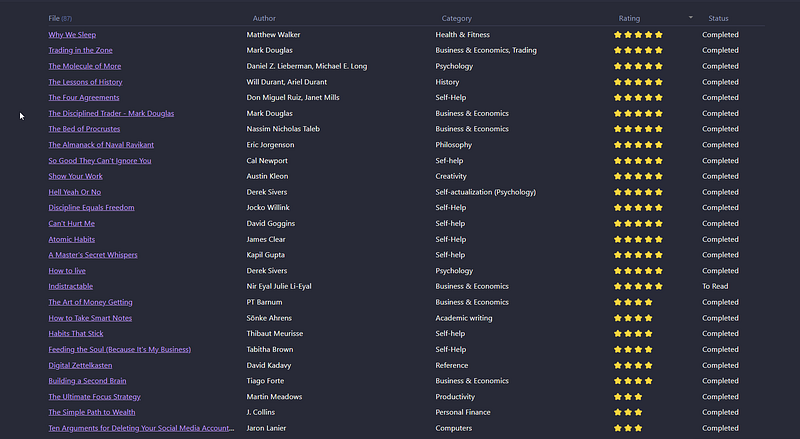
If you want to query from a particular folder, use this: From “FOLDER_NAME”
```dataview
Table author as Author,category as Category, my_rate as Rating, status as Status
From "003 RESOURCES"
```
To query from a sub-folder use this: From “FOLDER_NAME/SUBFOLDER”
From "001 PROJECTS/Twitter"To query notes with an incoming link:
From [[Note 1]]To query notes with outgoing link:
From outgoing([[Note1]])Multiple queries
If you want to query a note with multiple metadata: use this
From #book and "003 RESOURCES"This will query notes with #book and which are inside the “003 RESOURCES" folder.
From #book or "003 RESOURCES"This will query notes that either has a #book or are inside the “003 RESOURCES" folder.
To exclude particular notes you can use — sign
From #book and -"008 TEMPLATES"To conclude from queries, look this:
- For tag: From #tag
- For folder or subfolder: From “Folder”
- For Single files: From “path/to/file”
- For links: From [[Notes]]
- For Outgoing links: outgoing([[Note]])
Advanced Query(WHERE)
Where filter can be used to further improve your notes database. Let’s say I want to query the books that I’ve finished reading. Here’s how the where filter would be used:
```dataview
Table author as Author,category as Category, my_rate as Rating, status as Status
From #book and -"008 TEMPLATES"
Where contains(status,"Completed")
```
Look at the metadata I’ve in my book notes for reference in “How to add YAML section?”
Here’s how the query result will appear:

Note: The notes in your metadata are used for all the queries. If you don’t have proper data, it will cause errors.
Let’s say you want to exclude all the notes that contain completed status. To do that you need to add the ‘!’ mark before contains like this:
```dataview
Table author as Author,category as Category, my_rate as Rating, status as Status
From #book and -"008 TEMPLATES"
Where !contains(status,"Completed")
```
This will exclude notes that contain completed status:
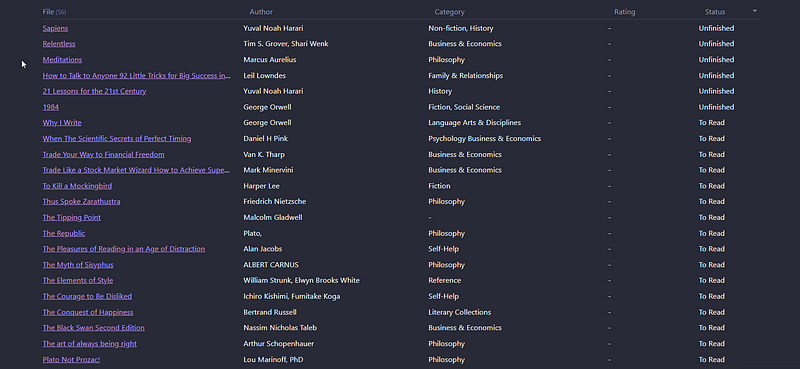
Another example:
Find the notes that you created recently. This will list the notes that have been created in the last 1 day.
```dataview
List
From ""
Where file.ctime >= date(today) - dur(1 day)
```
Sort your notes
There is another great community plugin called sortable. It allows you to sort your database without editing it every time you want to sort it. If you don’t want to use it, you can use the code as well:
```dataview
Table author as Author,category as Category, my_rate as Rating, status as Status
From #book and -"008 TEMPLATES"
Where contains(status,"Completed")
Sort file.mtime DESC
This will sort the files according to their modified time. You can use different other metadata too. For example, I’ve book notes in my vault and they also have metadata for no. of pages. I can sort them by pages using the dataview code:
```dataview
Table author as Author,category as Category, my_rate as Rating, status as Status, total_page as Pages
From #book and -"008 TEMPLATES"
Where contains(status,"Completed")
Sort total_page Asc
```
Limit the queries
You may have a lot of notes in your vault. If you don’t want to see all of your notes. If you want to restrict the results to a particular number you can use the limit function.
```dataview
Table author as Author,category as Category, my_rate as Rating, status as Status, total_page as Pages
From #book and -"008 TEMPLATES"
Where contains(status,"Completed")
Sort total_page Asc
Limit 7
```
The result?

The obsidian dataview plugin is simple. Don’t let the large setups scare you. Start with simple dataview queries like a list or table. Then slowly start using other dataview functions as required.
Not a Medium Member Yet?
If you liked this story, you will love the medium subscription. With only $5 a month(less than the price of a cup of coffee), you get unlimited access to the best stories and articles written on the web.
This is my referral link. If you sign up using this link, I earn a small commission with no additional charges to you.


