
Dual Boot is Dead: Windows and Linux are now One
Turn your Windows machine into a developer workstation with WSL 2.

I used to have an Apple laptop as my daily driver. I could do almost everything there; development, proposal writing, music composition etc. But the fear of vendor lock-in, the concern that I am depended on Apple’s whims and vices — which are arguably very expensive — led me to seek a new solution.
See Part II here:
I started building a machine learning workstation; a great CPU, lots of RAM and a competent GPU, among others. My OS of choice for almost anything was Ubuntu, except I needed Microsoft Office for proposal writing. Office online is just not there yet and, let’s face it, LibreOffice is a disaster. So, the solution was to dual boot Ubuntu and Windows 10. The freedom you experience moving from Apple to Ubuntu is unparalleled, and the options you have building your own PC are almost infinite.
Dual boot was the answer for a long time. One million of context switches later, WSL came. Thus, I started moving a portion of my workflow to Windows. But still, there were many things missing. However, WSL 2 seems to be a game-changer. In this story, I will show you how to move your development workflow to Windows 10 and WSL 2, its new features and what to expect in the near future.
Learning Rate is my weekly newsletter for those who are curious about the world of AI and MLOps. You’ll hear from me every Friday with updates and thoughts on the latest AI news, research, repos and books. Subscribe here!
What is WSL 2
WSL 2 is the new version of the architecture in WSL. This version comes with several changes that dictate how Linux distributions interact with Windows.

With this release, you get increased file system performance and a full system call compatibility. Of course, you can choose to run your Linux distribution as either WSL 1 or WSL 2, and, moreover, you can switch between those versions at any time. WSL 2 is a major overhaul of the underlying architecture and uses virtualization technology and a Linux kernel to enable its new features. But Microsoft handles the nitty-gritty details so you can focus on what matters.
Installation
Microsoft promises a smooth installation experience in the near future for WSL 2 and the ability to update the Linux kernel via Windows updates. For now, the installation process is a bit more involved but nothing scary.
In this example, we will install Ubuntu 20.04 on Windows 10. But the process is the same for any distribution available in Microsoft store. First, you should enable the Windows Subsystem for Linux optional feature. Open PowerShell as Administrator and run the following command:
dism.exe /online /enable-feature /featurename:Microsoft-Windows-Subsystem-Linux /all /norestart
On the next step, we will update our system to WSL 2. For this, Windows 10 must be updated to version 2004 and Intel’s virtualization technology must be enabled in BIOS settings. Launch PowerShell as Administrator and run the following command:
dism.exe /online /enable-feature /featurename:VirtualMachinePlatform /all /norestart
Restart your machine to complete the WSL install and update to WSL 2. Then, you need to set WSL 2 as our default version when installing a new distribution. For this, open PowerShell as Administrator and run the following command:
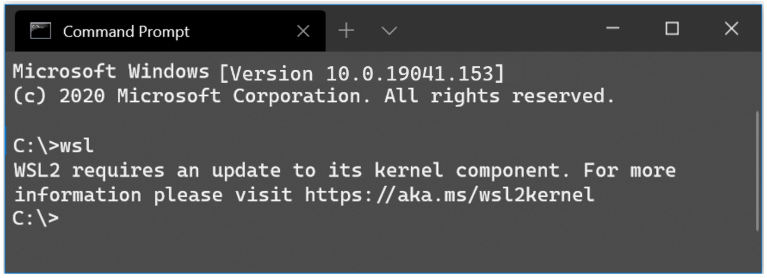
wsl --set-default-version 2You might see this message after running that command: WSL 2 requires an update to its kernel component. For information please visit https://aka.ms/wsl2kernel. Follow the link and install the MSI from that page to install a Linux kernel on your machine for WSL 2 to use. Once you have the kernel installed, run the command again and it should complete successfully without showing the message.
Last but not least, we should install a Linux distribution. Open the Microsoft store and search for Ubuntu 20.04 LTS. After installing it, you should be able to find a new Ubuntu app on our start menu. Launch it and follow the instructions (mainly create a new UNIX user) to finalize the installation.
To check whether your Linux distribution is installed on WSL 2 run wsl --list --verbose. If the result indicates that it uses WSL 1 you can change it by running wsl --set-version <distribution name> <versionNumber>.
And that’s it. You now have a complete Ubuntu distribution running inside Windows 10!
A Developer Workstation
Having Ubuntu up and ready, you can now install whatever you need. For example, you can install the latest Anaconda distribution if you are a data scientist, angular and npm if you are a front-end engineer and many more. But there are two tools I would like to focus on: Visual Studio Code and Docker + Kubernetes.
Visual Studio Code
Visual Studio Code is the IDE of choice for many developers. Now that we have WSL 2 enabled, the absolutely necessary extension for VS Code is Remote Development.
This plug-in enables remote development against source code that exists on WSL 2, a container image or even a remote VM via SSH. Thus, we can now create our project folders inside our Linux distribution running on WSL 2 and use the Visual Studio Code editor installed on Windows 10 as our IDE.
All the features are there: full language support with IntelliSense, git integration, Visual Studio Code extensions we know and love, the debugger and the terminal. So, get your hands dirty and start coding!
Docker + Kubernetes
Docker for Windows is good but not great. That was the thing that I was missing the most, the thing that was making me switch between Windows and Ubuntu whenever I needed to build a docker image for my code. But WSL 2 comes with full docker support which, in my opinion, is even better than the pure Linux experience.
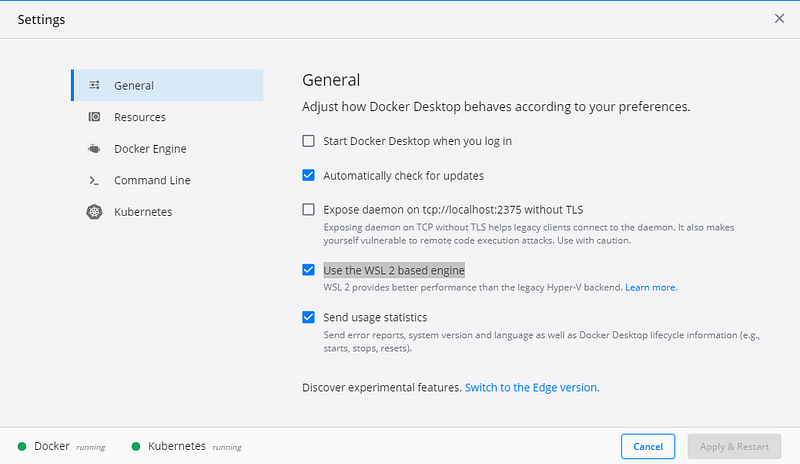
To enable it, navigate to your Docker Desktop settings and enable the Use the WSL 2 based engine option.
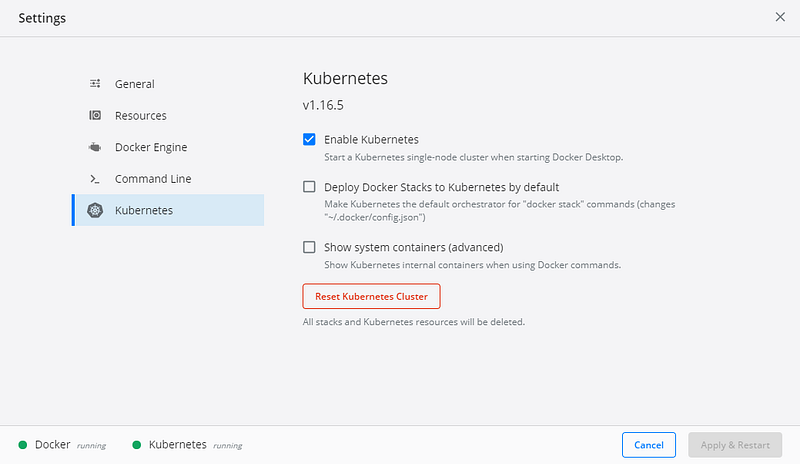
Moreover, you can run a local Kubernetes cluster, by navigating to the Kubernetes section of the settings and ticking the box.
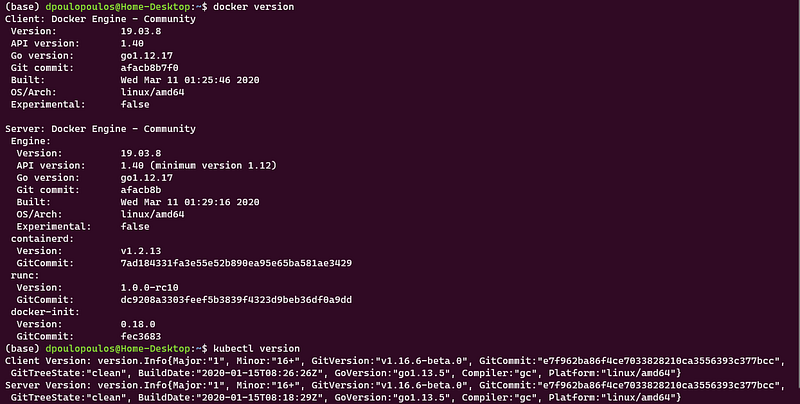
You can now return to Ubuntu on WSL 2, run docker version or kubectl version and see that the two are up and running.
Bonus: The new Windows Terminal
For an added bonus, you can install the new Windows Terminal. The store description defines the new Windows Terminal as a modern, fast, efficient, powerful, and productive terminal application for users of command-line tools and shells like Command Prompt, PowerShell, and WSL. Its main features include multiple tabs, panes, Unicode and UTF-8 character support, a GPU accelerated text rendering engine, and custom themes, styles, and configurations.
Moreover, it is very beautiful and you can style it however you want, through its accessible settings that are just a JSON file. Look here for inspiration! More on the new Windows Terminal here:
Roadmap
There are still some features missing, but WSL 2 is on the right path. In the upcoming months, you will be able to install WSL with a single command. Just open a Windows Terminal and enter wsl.exe --install. Also, WSL 2 will be the new default when installing for the first time.
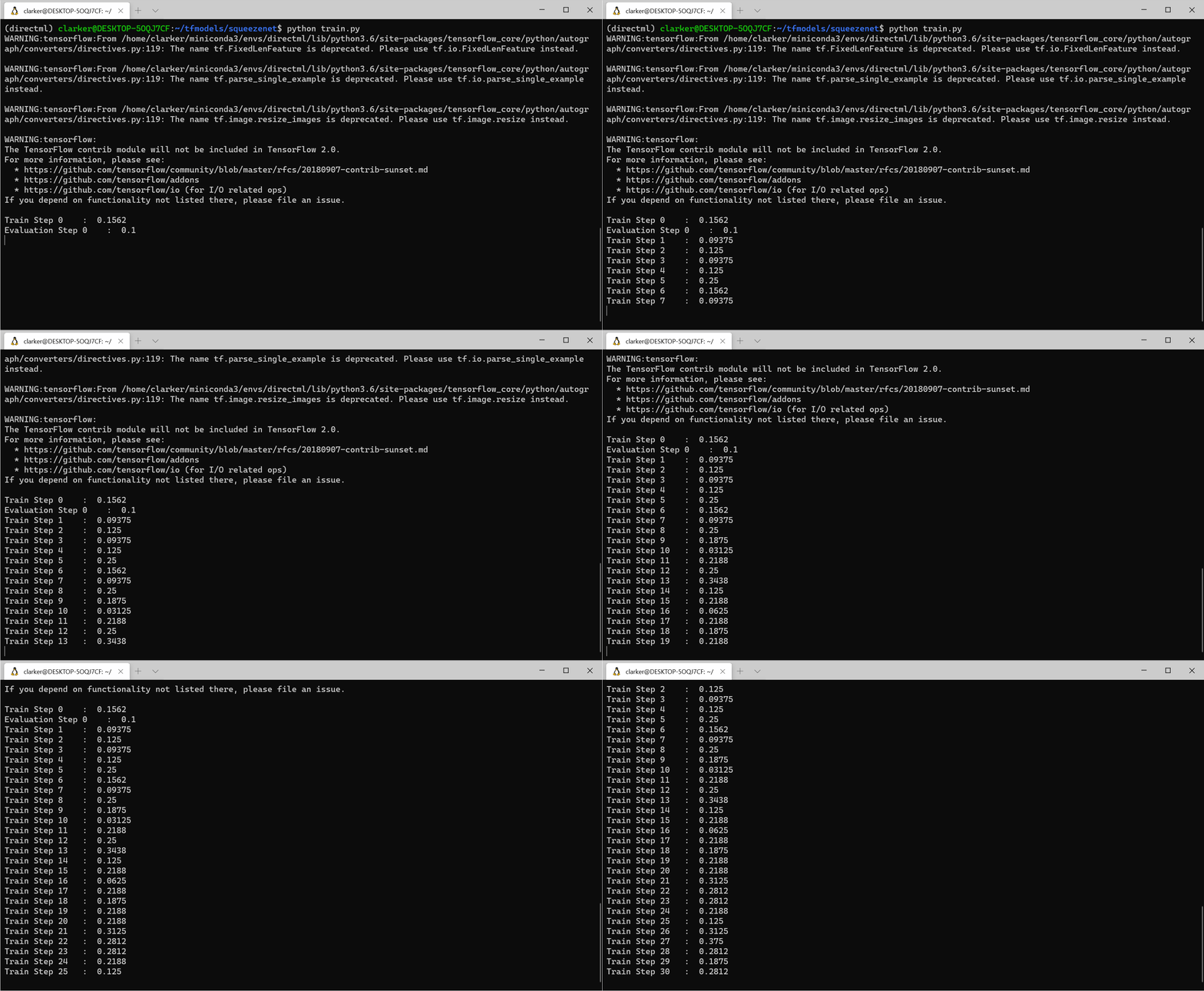
But there are two features that developers expect the most: GPU support and GUI app support.
Adding CUDA and/or GPU Compute support to WSL is the most requested feature since the release of WSL 1. Over the last years, the WSL, Virtualization, DirectX, Windows Driver teams, and other partners have been working hard on this engineering feature. So stay tuned!
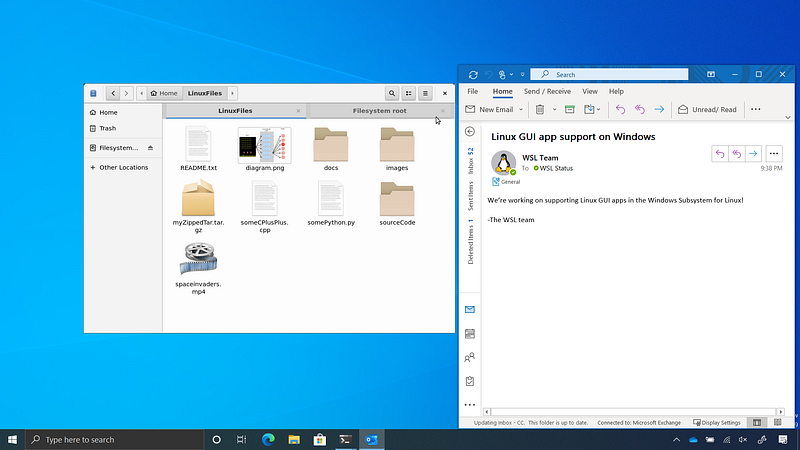
Furthermore, support for Linux GUI apps is coming as well. For example, you will be able to run your preferred Linux GUI text editor or IDE in the Linux environment you have installed. You will be able to even develop Linux GUI apps, all in your Windows machine!
Conclusion
In this story, we saw how WSL 2 can turn your Windows PC into a developer workstation running a Linux distribution. The speed is there, the features are there, more are coming up, thus, I would argue that dual boot is dead!
Learning Rate is my weekly newsletter for those who are curious about the world of AI and MLOps. You’ll hear from me every Friday with updates and thoughts on the latest AI news, research, repos and books. Subscribe here!
About the Author
My name is Dimitris Poulopoulos and I’m a machine learning researcher working for BigDataStack. I am also a PhD student at the University of Piraeus, Greece. I have worked on designing and implementing AI and software solutions for major clients such as the European Commission, Eurostat, IMF, the European Central Bank, OECD, and IKEA.
If you are interested in reading more posts about Machine Learning, Deep Learning, Data Science and DataOps follow me on Medium, LinkedIn or @james2pl on twitter.