
2023, 2024 & Beyond Google Sheets Expense Tracker & Budgeter (FREE Template) — Digital Household Booklet Spreadsheet
Track your expenses and spend within your budget per category in 2023 and beyond
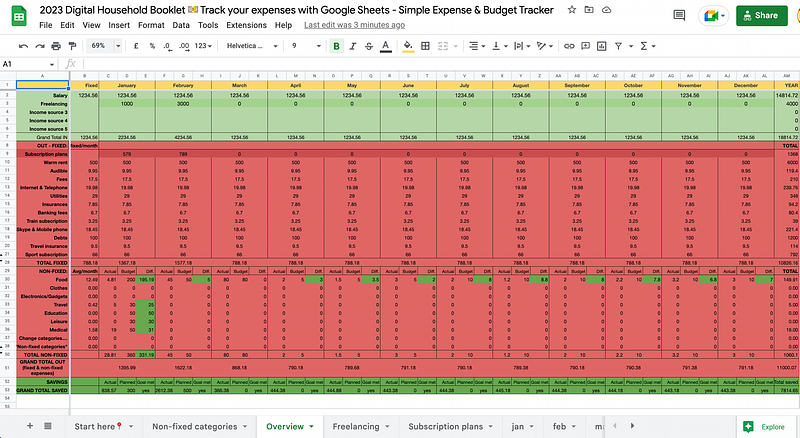
Want to get a grip on your finances, but you’re not quite ready to switch to an app?
This spreadsheet template helps you track all your expenses, set budgets, see your total fixed and non-fixed costs, and know how much you’ll have left to save (or spend).
From 2023 onwards, you won’t need to wait for me to update the template.
- Bookmark this blog.
- Click the link below to get a new copy of the template.
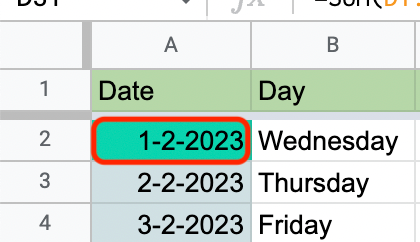
- And in the monthly tabs, double-click on the turquoise box to adjust the date. All the dates below will update automatically.
Get your free copy of the template
Make sure you’re logged into your Google account.
Click this link to make a copy of the template. It will be saved straight to your Google Drive. Once you’ve made a copy, you can edit the template.
I don’t mind anyone peeking at the template before making a copy. However, please do not request edit access. All requests for edit access will be ignored and deleted.

How to set up the template
Let’s go through the tabs one by one.
There are no major edits to last year’s version. Here’s the — although somewhat older — YouTube video.
Start here📍
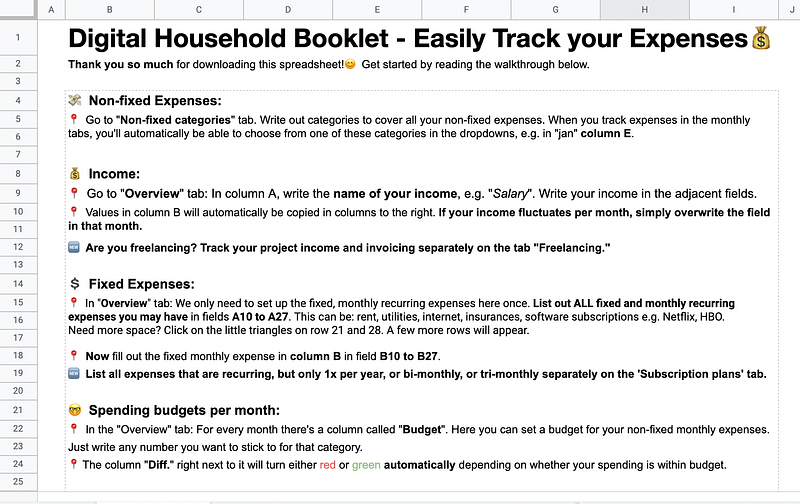
To set up the template, continue reading this blog, or follow the instructions in the “Start here📍” tab.
Non-fixed categories
In what non-fixed categories do you tend to spend your hard-earned cash? Beauty, shopping, travel or education, books, courses, and workshops? You decide.
Some examples are provided inside the grey, bordered box in B3 to B22. Feel free to keep those you can use or overwrite and tailor them to your spending habits.
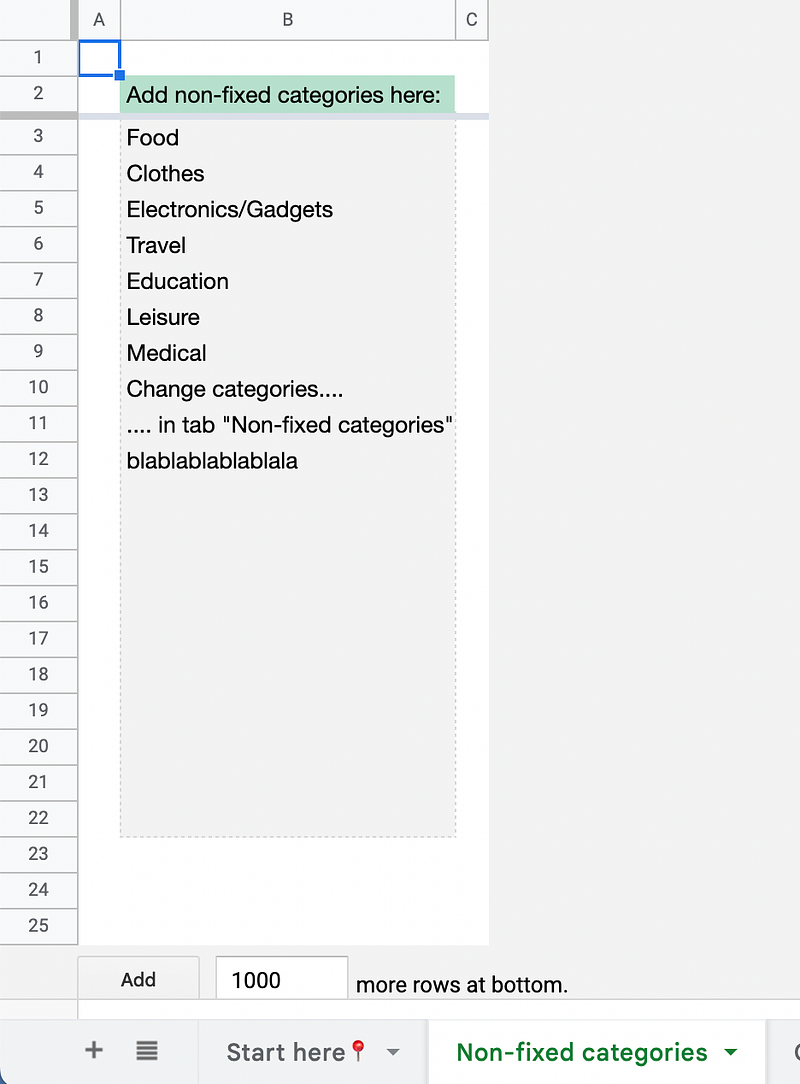
These non-fixed categories will appear automatically on:
- Your “Overview” tab from field A30 downward
- And in column E of the dropdown menus in the monthly tabs
Overview
The grand overview shows your total income, spending, and savings.
Green area: IN
- Salary: Input your fixed salary in field B2. All adjacent fields towards the right in that row will show the value in B2. Should your income change in a given month? You can always overwrite the value for that month.
- Income source 3–4: Some extra rows for other income sources. If the income is fixed every month, add the value of each income stream to column B. Otherwise, add the amounts as you go per month.
- Freelancing: The total income from your freelancing adventures per month. You track your freelancing income on the separate tab named “Freelancing.” I know, so original, right?
- Grand Total IN: The sum of all your earnings for the month.
Red area: OUT
The dreaded expenses section.
FIXED:
- Subscription plans: Nothing to do in row 9. You probably have a few individual subscriptions that are deducted once per year, twice per year or quarterly. Note each subscription in the separate tab named “Subscription plans.” In row 9, you’ll see only the total sum of what to pay per month.
- Fixed expenses: Go through all your accounts and write down all fixed expenses, with the name in column A and the amount in column B. The adjacent cells toward the right will copy the numerical value from column B automatically. The current categories are mere examples. Do you need more space for your fixed categories? Click on either of the tiny triangles in rows 21 and 28 to unhide hidden rows.
NON-FIXED:
An array formula in A30 displays all non-fixed categories you wrote up earlier in the “Setup” tab.
Don’t see all categories you added to the “Setup” tab? You may need to unhide hidden rows. Click on either of the tiny triangles on rows 38 or 50.
You’ll notice the “Budget” columns. If you need to give yourself budget constraints for a given category, write that down here. As long as your spending is below the threshold, the “Diff.” field stays green. If you overspend in this category, the field turns red.
At the bottom, we have two rows to display your savings.
- Actual: Your total income minus total fixed and non-fixed expenses. This is calculated automatically.
- Goal: Write out a savings goal.
- Goal met? Will show either a “yes” or “no” and change colors to green or red accordingly.
Freelancing
Use the “Freelancing” tab to track your freelancing income. The totals will automatically show up on the “Overview” tab in row 3.
Delete the dummy data — except for column F. That one extracts the month from the dates in column E. It’s also how the “Overview” tab knows how to sum your earnings.

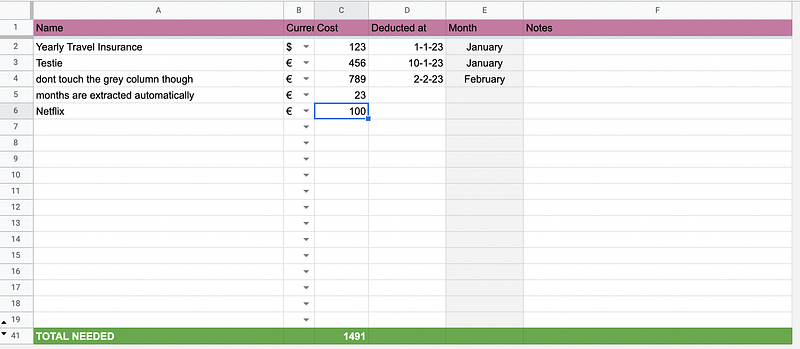
Subscription plans
Manually go through your accounts and list all your subscriptions, insurances, annual memberships, and so on.
Delete all dummy data — except the values in column E. The months are extracted from the dates in column D.
Monthly tabs
Here is where you’ll do the actual expense tracking.
On any given date, add the name of your expense, how much it cost, and under which category you’d like to track it. You’ll notice you can choose here from the “Setup” tab’s categories from earlier.
Delete the dummy data in columns C to E.
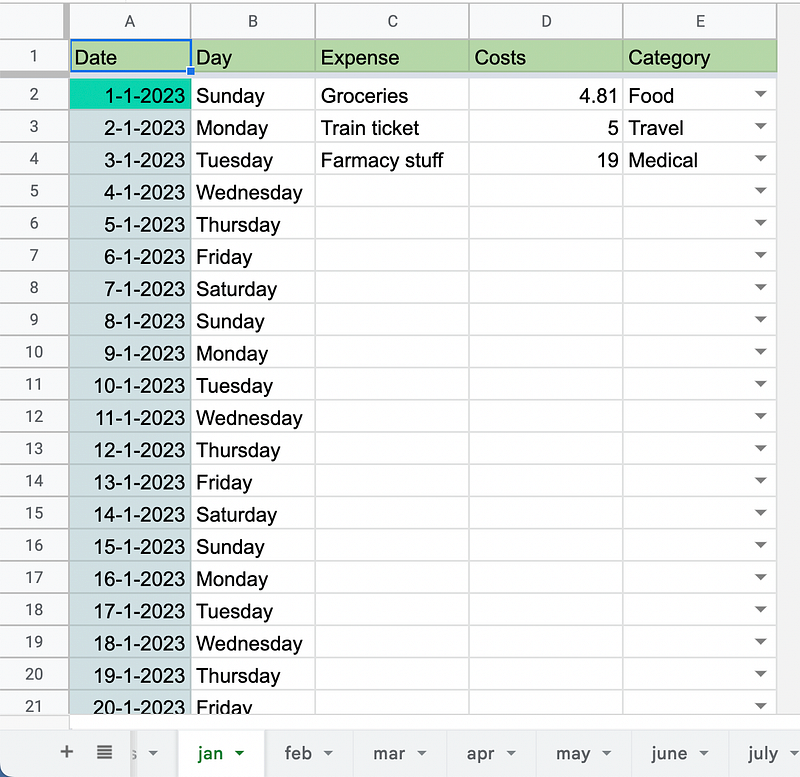
You’ll probably spend your money more than once per day. For each expense, insert a new row.
Click on a row number > Right click > insert one above or below. Input your expense. Done!
Final thoughts
Got questions? Drop them in the comments.
Want to share your own Google Sheets with 1.6K+ readers? Come write for us! We’re accepting submissions at Google Sheets Geeks!
Good luck with budgeting and expense tracking!


