
2023 Couples and 2-Person Shared Household Expense Tracker — Free Google Sheets Template
Sharing living expenses with a partner or flatmate? This spreadsheet helps you track who paid for what.
Avoid arguments over toilet paper or who covered the weekly grocery bill last time. Use this shared expense tracker in Google Sheets to know who paid for what. So that you can argue about more important matters from now on.
How to get started
Make sure you’re logged in to your Google account.
Click this link to make a copy of the couples & 2-person household expense tracking template.
Afterward, you’re able to edit your template. Make sure to share the template with your flatmate or significant other. Click the green “Share” button in the upper-right corner > add your expense buddy’s email address > Send.
I don’t mind sneaky peeking. However, for the love of spreadsheets, please do not request edit access. All requests for edit access will be ignored and deleted.

The template in a nutshell
- The “Start here📍” tab is an alternative to this blog to get you set up.
- Fill the “Setup” tab with your names, fixed and variable expenses, and main payment methods.
- Type your salaries in the grey boxes on the “Overview” tab.
- Track annual, bi-annual, or quarterly subscriptions in the “Subscriptions” tab.
- There’s a separate tab for you both to track your freelancing incomes.
- Track expenses in the monthly tabs.
Refer to your “Overview” tab to view how much of the fixed costs you still need to pay. Set savings goals and budgets per non-fixed category.
Prefer a video walkthrough? Here you go.
Minor update. The following columns contain a formula that automatically extracts the month from a date in the adjacent field. No more manual editing in:
- “Subscriptions” tab column E and
- “Freelancing” tabs column F
Now. Let’s go through the tabs in a bit more detail.
Start here
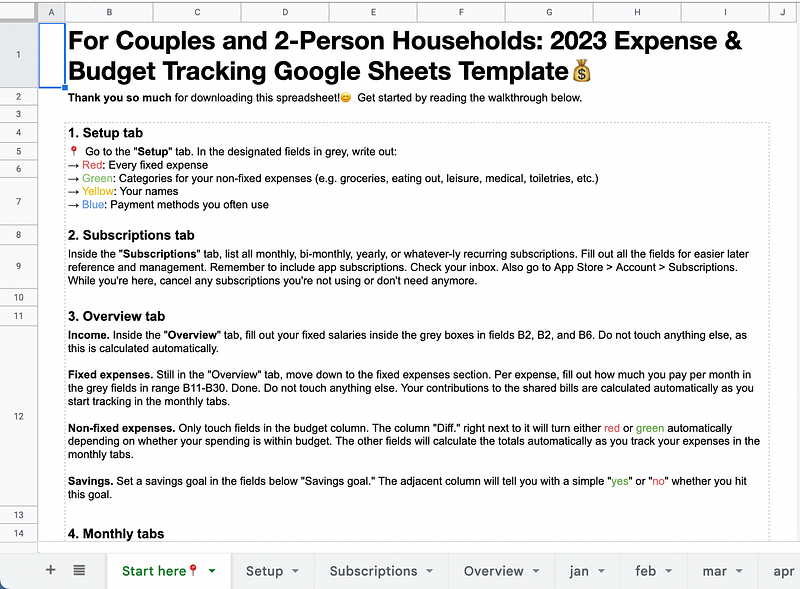
Read this tab as an alternative to this blog post. It explains how to quickly set up your template and start tracking shared expenses.
Setup
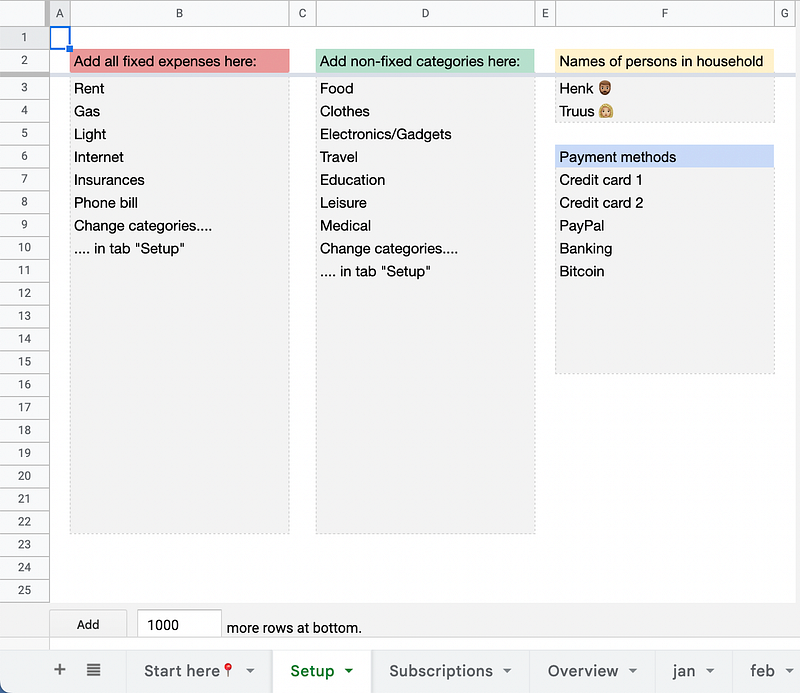
Fill out the requested values in this tab. We do this only once. When you’re done, these values will appear throughout your template in nearly all tabs.
- Take the time to sift through all of your fixed expenses. List them in the grey box in column B.
- Determine under which categories you’ll want to track non-fixed expenses. Delete or expand upon the dummy data.
- Write both of your names.
- And the payment methods you typically use, so you’ll know where to look for your transactions.
Subscriptions
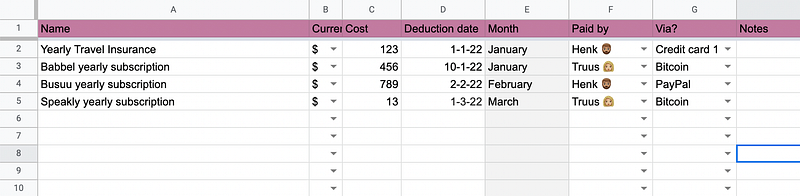
List here all your annual, bi-annual, or quarterly subscriptions and other payments due in irregular intervals.
Fill out all fields and select values from the dropdown menus. The months in column E are extracted from the dates in column D.
The total money spent on subscriptions for each of you will appear in the “Overview” tab in row 10.
Overview
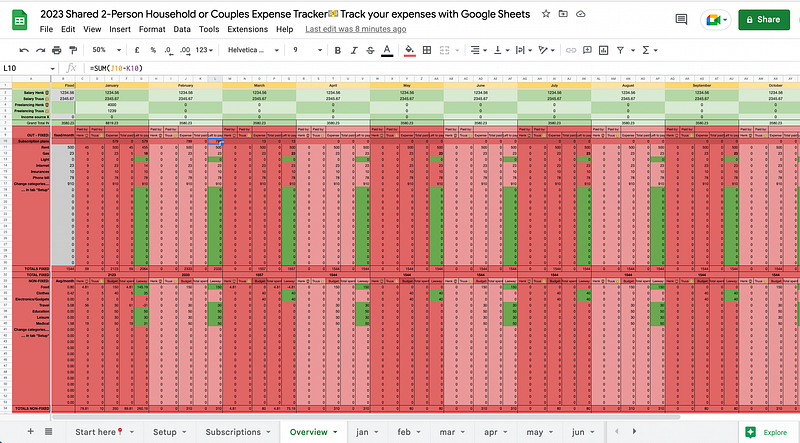
This tab gives you a birds’ eye view of all your in- and outgoing money streams.
Assuming you both have a fixed salary, fill this out in the grey boxes in B2 and B3. Fill out a secondary income source in B6.
There’s a freelancing template where you separately track your income. The totals per month will appear below.
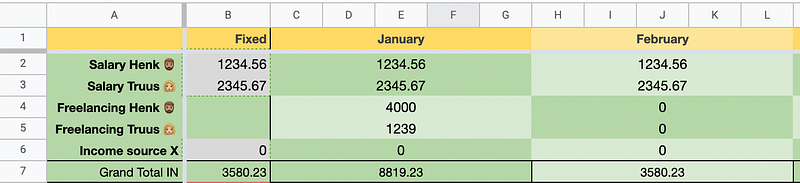
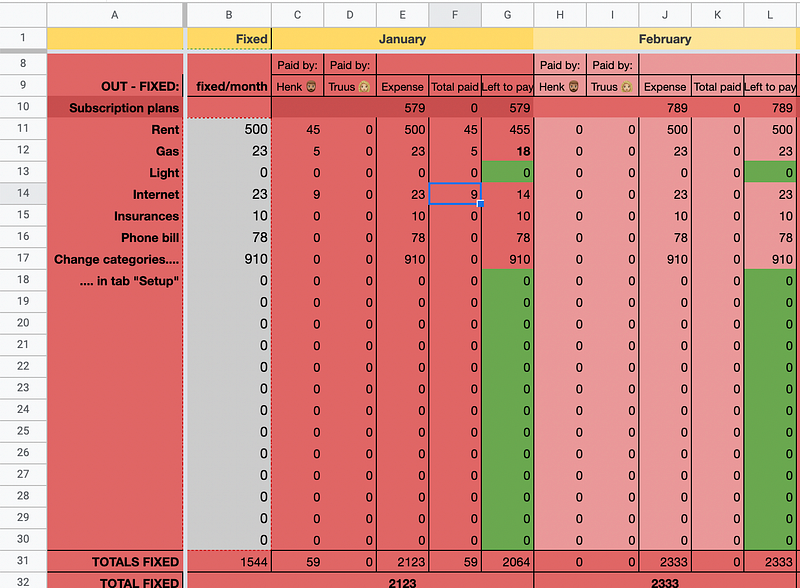
Field A1 has an array formula that displays all fixed expenses you listed earlier in the “Setup” tab. Next to each fixed expense in column B, write out how much is due for each fixed expense.
Done! The spreadsheet calculates what you contribute to the shared fixed expenses. This is all based on what you track in the monthly tabs.
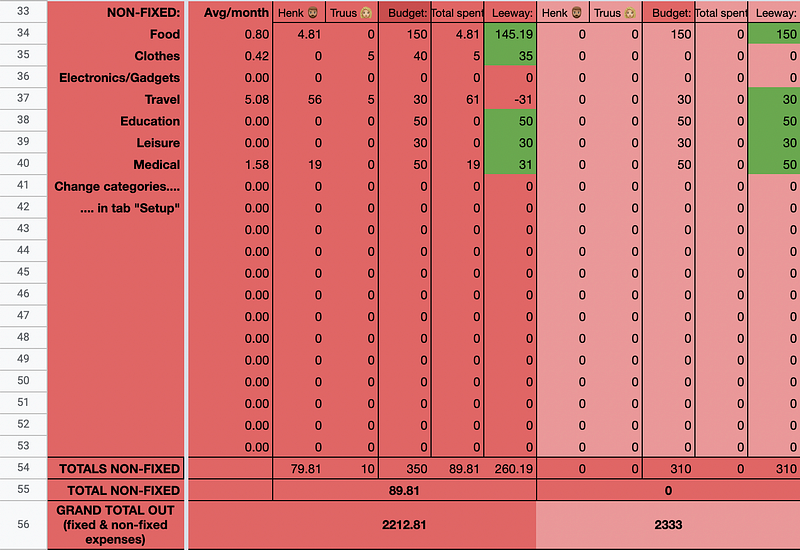
Field A34 also has an array formula that displays the non-fixed expenses you listed in the “Setup” tab earlier.
The columns show you:
- The average spend per category
- How much person 1 spent per non-fixed category
- How much person 2 spent per non-fixed category
- Budget: Want to restrict your spending in a particular category? Only edit the values inside this column.
- Leeway: This column shows you how much there is left to spend, should you want to stick to the category budget.
All the way at the bottom of the “Overview” tab, there’s a savings section. “Actual saved” is your combined income minus all costs.
Set a savings goal inside the respective fields. As long as you meet the goal, the “Goal met?” column displays a “yes” in green or a “no” in red.

Monthly tabs
Here you’ll both track fixed and non-fixed expenses. Delete the dummy data in columns C to J.
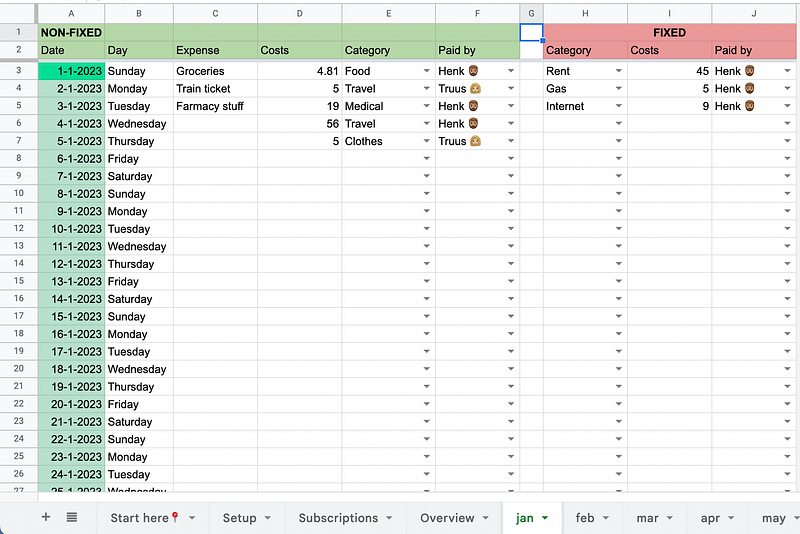
Green section — non-fixed
Write the name of the non-fixed expense, then select the category you want to track it under and who paid for it.
Red section — fixed
Switch to the “Overview” tab.
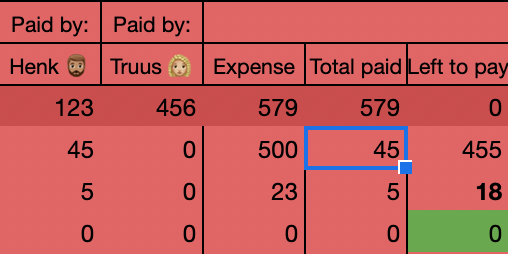
In the column “Left to pay” you see how much there’s due per fixed expense. Manually transfer however much you can or want based on ability. Select the category, how much you’re transferring, and who’s paying.
The values in the “Overview” tab will update accordingly.
Freelancing
There are two separate tabs to track your freelancing income. Rename them as you please.

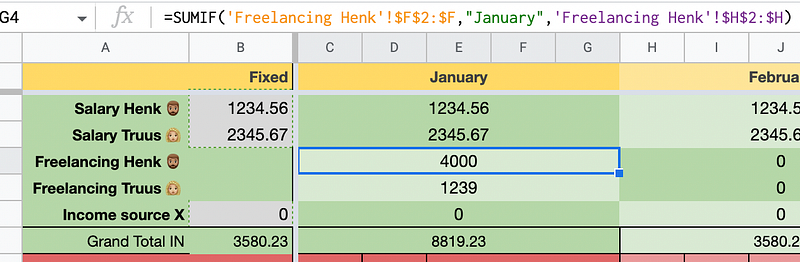
Fill out your freelancing income. Important are column E “Date invoice sent” and column H “Total earnings.” No need to touch column F.
A SUMIF formula in the “Overview” tab shows your total earnings per person — based on the month extracted from the date in column E ⤵ ️
Things to take into account
- To track payments for fixed expenses, you have to switch back and forth between the “Overview” and monthly tabs. This is not ideal. Also, if you pay more than “what’s left to pay,” there is no warning or disclaimer. So you’ll need to pay close attention yourself to make sure you’re not overpaying.
- On the “Subscriptions” and “Overview” tabs, a column currently allows you to select the currency. It would make more sense to treat all amounts in the same currency. When a payment is in a different currency than most of the others, it may make more sense to wrap it in a currency conversion formula. Example: =47.8*GOOGLEFINANCE(“CURRENCY:USDEUR”) to transfer dollars into euros.
Final thoughts
Feel free to tweak or improve the template. Have questions or feedback? Drop them in the comments below.
Did you modify an existing one or make a template the public can benefit from? Come write for us! We’re accepting submissions at Google Sheets Geeks.


