
[2023] How to set up your SSH key for GitLab on Windows 10/11
One of the most common issues while getting started with Git and GitLab is setting up the private and public keys.
Last updated: February 2023
Background
The most common error you may get when trying to close a Git repository over SSH is this one:
[email protected]: Permission denied (publickey,keyboard-interactive). fatal: Could not read from remote repository.
What is SSH?
SSH is a way to authenticate without exposing your username and password.
SSH stands for Secure Shell and is a cryptographic protocol based on the concept of public-private keys.
We are using SSH with Git because it is much easier than typing your username and password all the time, and it is also more secure.
You have probably noticed that GitLab is complaining that you don’t have an SSH key.
You won’t be able to pull or push repositories via SSH until you add an SSH key to your profile
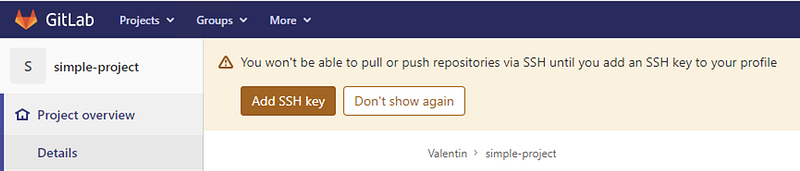
Let’s fix that.
Step 1 — Installing Git
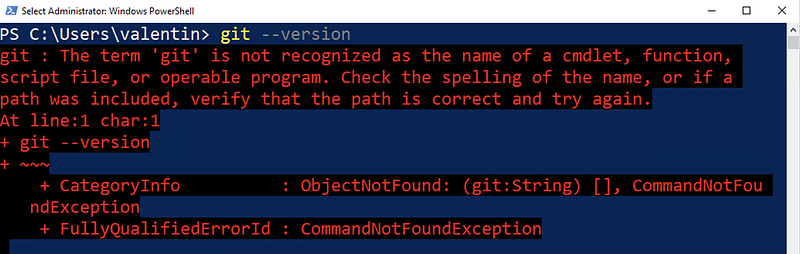
Open any terminal and check if you already have Git installed by typing:
git --version
If you are getting back an error message, you need to install Git. I would anyway recommend installing/updating Git anyway.
Go ahead and open https://git-scm.com/. The latest version I see is 2.30.0.
Now open the installer you have downloaded and go through the installation process. Unless you know what you are doing, leave all settings to their defaults.
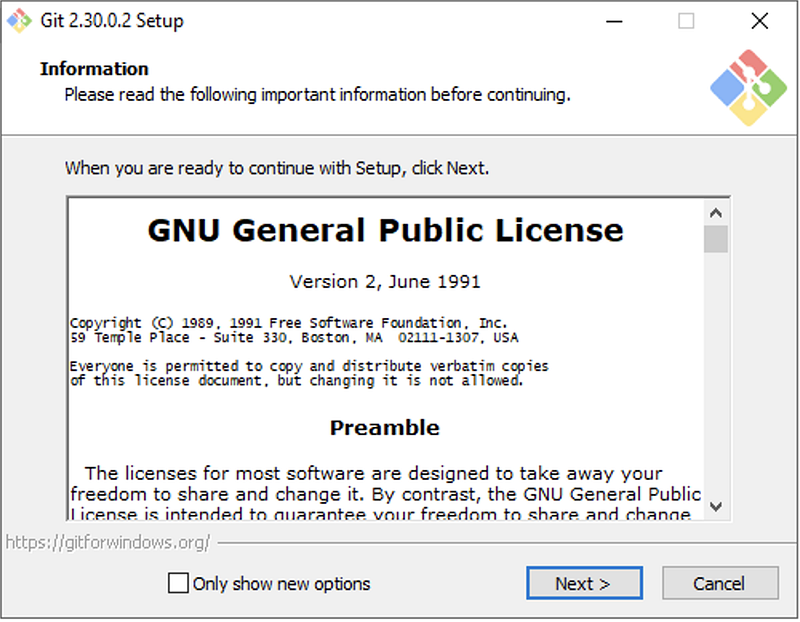


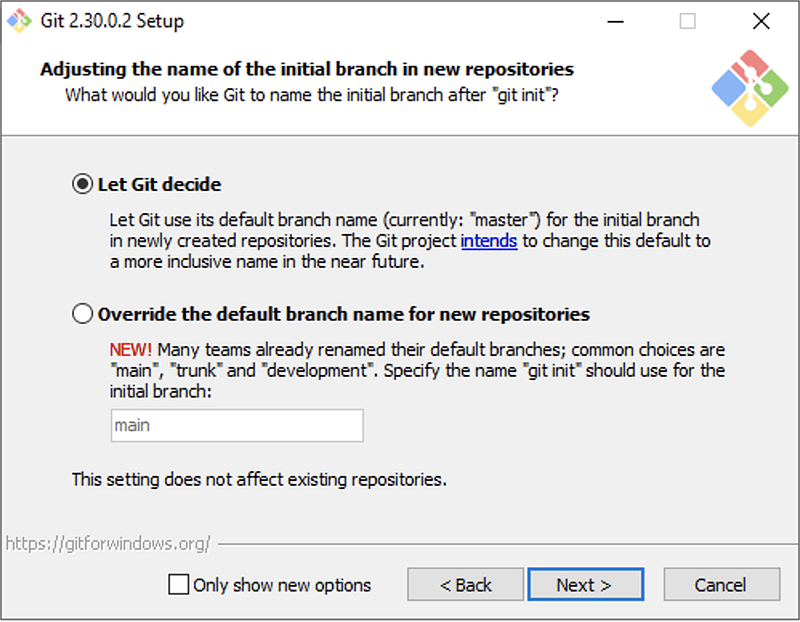


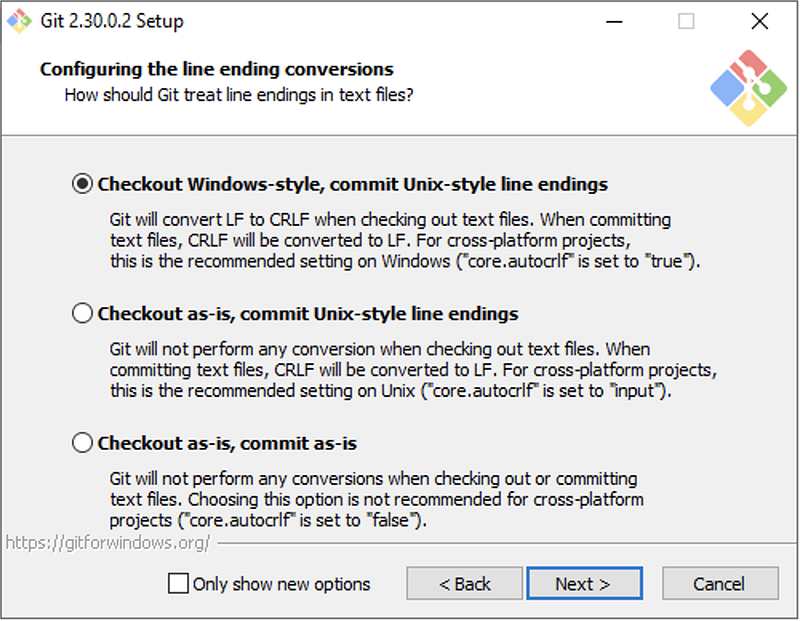

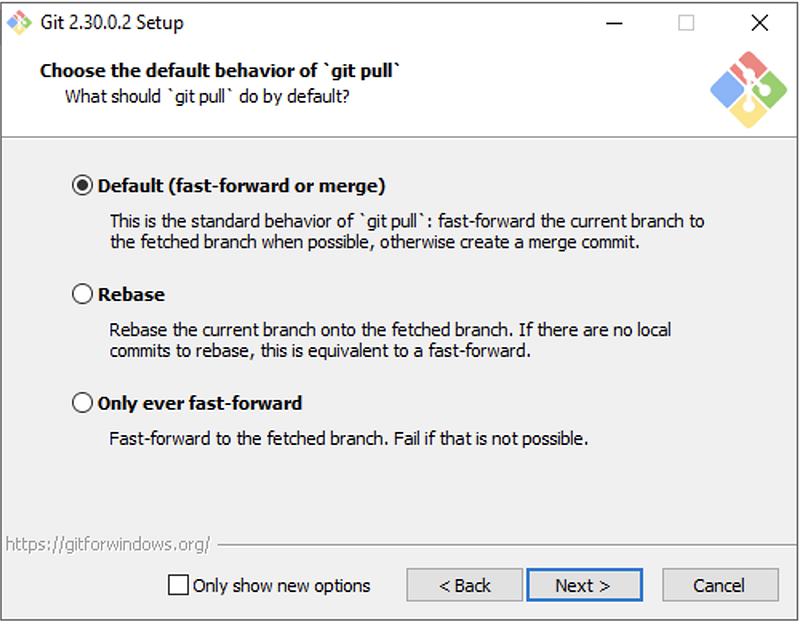

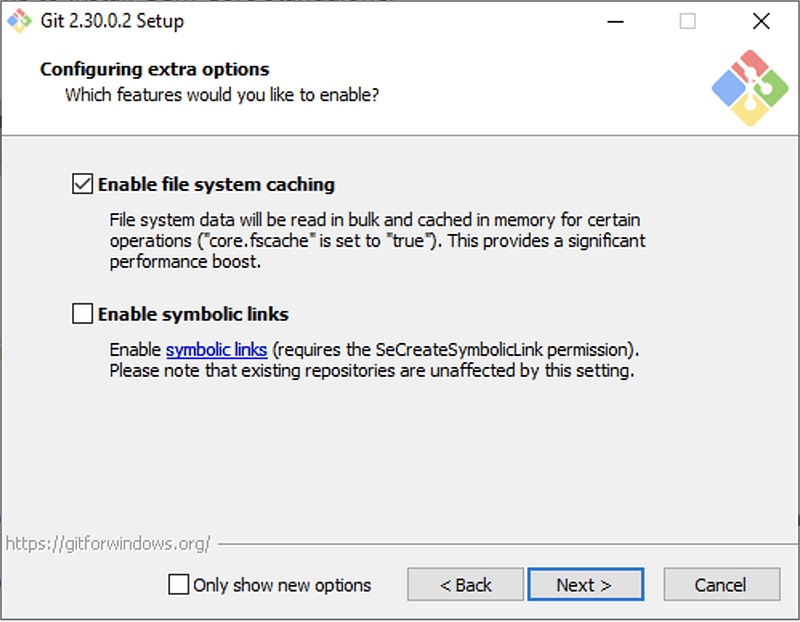

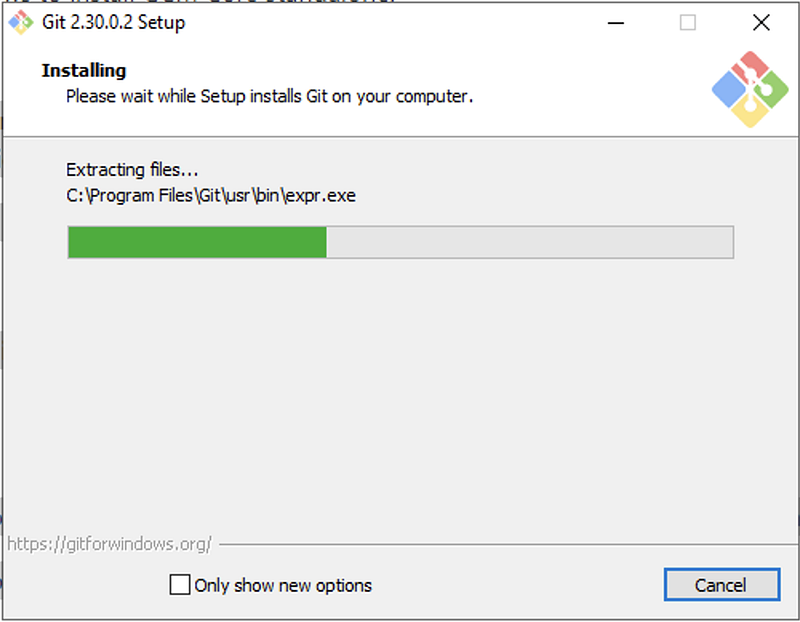
This wizard has also installed a new tool called Git Bash, a terminal alternative for Cmd or Powershell. I will use it to demonstrate the upcoming steps.

From Git Bash or your terminal of choice, run the following command.
git --version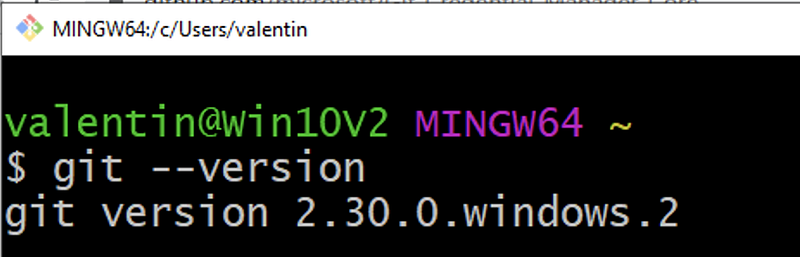
If you enjoy content like this and it helped you solve a problem, help me create more. Please leave a comment, share, and press that 👏 a few times (up to 50 times).
Step 2 — Configuring Git
Before we move forward, adapt the following commands with your name and email. They will be part of any changes you make to any Git repository. Do it now, otherwise, your work colleagues will give you a minus point.
git config --global user.name "First name Last name"
git config --global user.email “[email protected]”
Step 3 — Cloning a GitLab repository
Log in to your GitLab account and go to the repository you want to clone.

Click on the Clone button and the address under Clone with SSH.
Run the command
git clone (PASTE HERE YOUR ADDRESS)
Getting this error is normal. We will fix it in a moment.
If this is the first time you connect to this server, you may also get this warning. Type yes and it won’t bother you again.

Step 4 — Generating an SSH key
We will be using a tool called ssh-keygen. So open a terminal and run this command:
ssh-keygenFirst, you will be asked about the location where the keys should be stored. By default, your user folder will contain a folder called .ssh. Leave it as it is and hit the Enter key.

Next, you will be asked to set a password to protect your private key. Without a password, anyone having your private key can impersonate you.
While it is a good practice to set a password, it is very hard in Windows to store that password in a way that you don’t have to type it every time you run a command in Git. For that reason, leave it empty for now and simply hit Enter two times.
If you want to learn how to build pipelines in Gitlab CI, I have created an online course that starts with the basics of Gitlab CI and YAML and helps you understand the fundamentals of CI/CD. Learn more about the course.

Congrats! Your public/private key pair has been generated.

Let’s recap what you now have:

id_rsa— this is your PRIVATE key. DO NOT SHARE this with anyone else. This is your secret.id_rsa.pub— this is your PUBLIC key. This contains no secrets. You can share it with others.
Step 5 — Adding your SSH key to GitLab
With your favorite text editor, open your public key. I will use the terminal and the cat command to view the contents of the file.

If you are not using Git bash, you may want to use type and pipe it to clip, like:
type id_rsa.pub | clipCopy the entire contents of the file.
In GitLab, go to your profile settings.
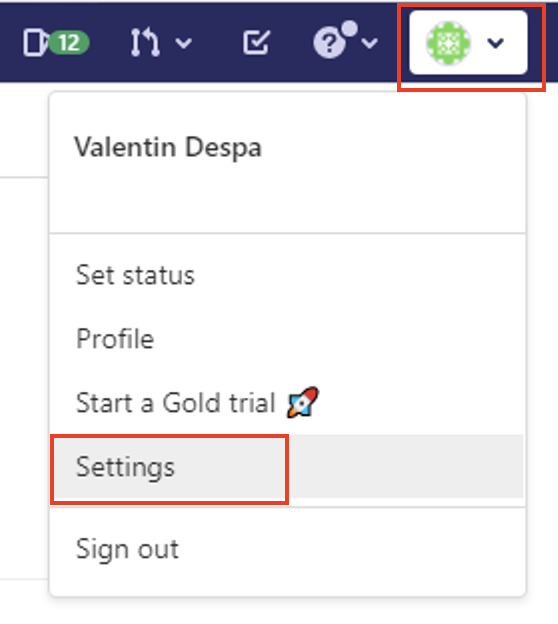
From the menu on the left-hand side, select SSH Keys.

Paste your public key in the big text box you see on the screen and finally click Add key. Optionally, you may also give your key a name so that you can easily identify it later.

If you want to learn how to use Git in GitLab projects, I have created an online course that starts with the basics of Git and helps you understand the fundamentals of working with GitLab. Learn more about the course.
Step 6 — Cloning a GitLab repository (again)
Now it is time to run the clone command again.
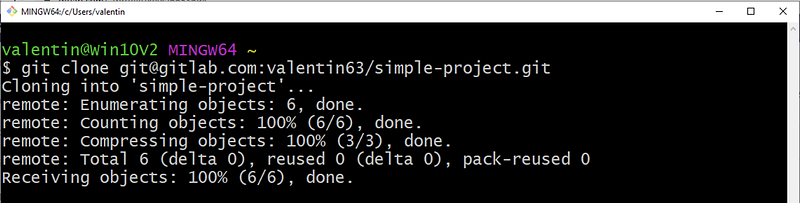
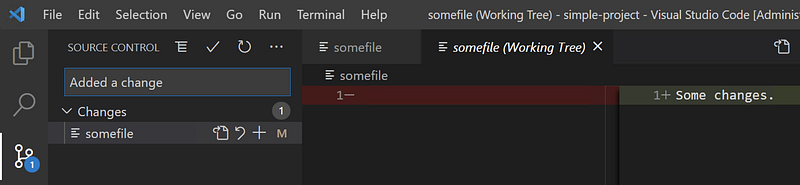
Now Git is integrated with any tools or code editors that you may be using. You can push and pull changes from GitLab without issues.
Conclusion
I hope this tutorial helped you get started with configuring your Git installation in Windows 10 to work with GitLab CI. Leave a comment in the section below if you have any questions. I would love to hear from you!
Thank you for sticking with this article until the end. If you enjoyed it, please leave a comment, share, and press that 👏 a few times (up to 50 times). It will help others discover this information, and maybe it will help someone else as well.
Follow me on Medium and YouTube if you’re interested in more tutorials like this one.
Want to learn how to use Git for Gitlab?
To take full advantage of GitLab, you need to know Git. So if you are interested in learning more about how you can use Git for your Gitlab projects, maybe you want to take a look at my Introduction to Git for GitLab online course.


