
20 React Tips From A Code Review
Practicing is a great way of learning. Not everyone however has a mentor that can guide them through the corridors of programming. That’s why today I’ll review some open source hello world React projects and give you some advice how these could be improved.
I’m sure the authors of these projects are already more proficient, and I always really appreciate when someone does their own projects. Also, we have to consider these are just test/initial projects, so it’s not like the authors didn’t know that, but it was not a requirement for them. So great work, and we can also learn a little bit from it!
I’ll be just describing things that can be improved in the projects I’ve found. I’m picking some low-hanging fruits, so join in if you find anything more!
If you like to see the whole code you can use links provided!
⚠️ If you’re not an entry level developer you can skip this article
1. Limit Lines To 100–120 Characters
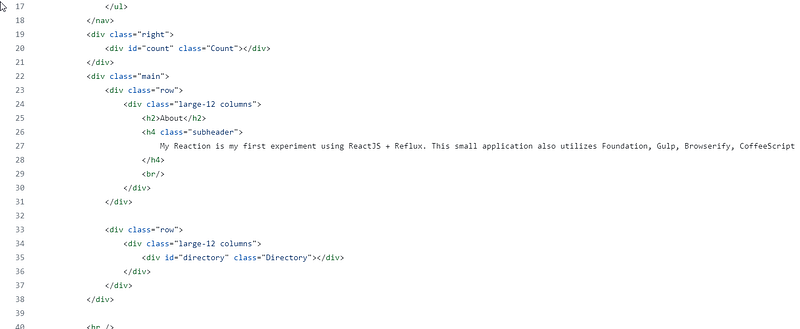
That’s a really long line. We tend to keep lines in the limit of 100–120 characters, so you can do split view. An IDE with a linter will wrap the code for you, or you can do it on your own.
2. Use Proper Descriptions For Numbers
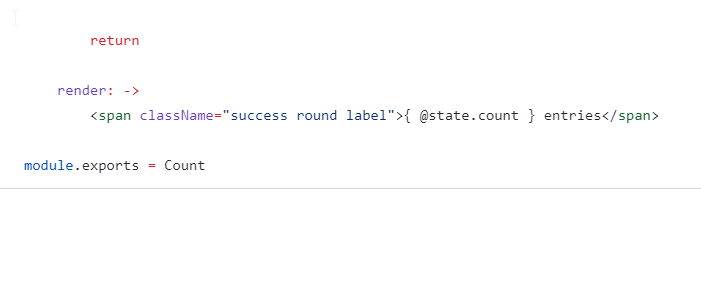
When the state is 0, it will say “0 entries”. That's ok. But for state=1 it will be “1 entries”, while it should be “1 entry”. In the real world app that should be handled.
3. Don’t Limit Zooming
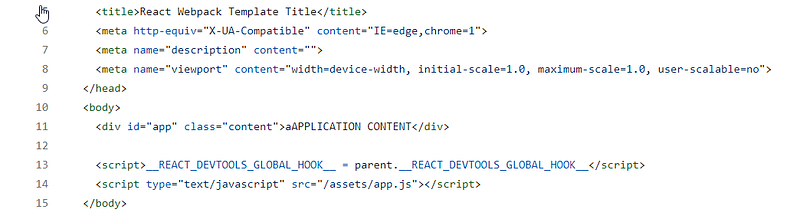
I guess the application intentionally disables zooming. It happens when you want to offer a “fullscreen” experience and adjusting elements absolutely. But I’ll just use this as a reminder that you shouldn’t disable zooming and limiting zoom scale in most use cases.
Users should be able to zoom in and out depending on their needs. For some people it’s difficult to see small elements and type data into small fields, so the best is to keep the zooming functionality for the user discretion.
4. Enjoy New Lines
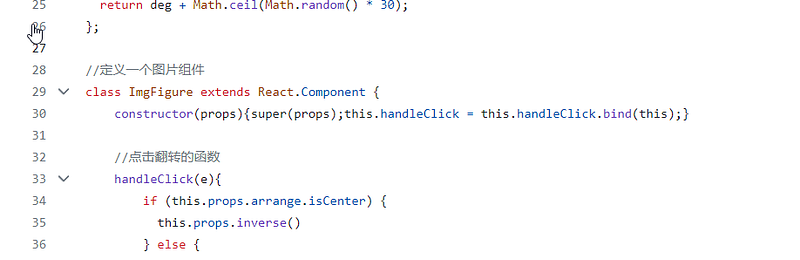
It looks like an accident. But not a happy one. The constructor, super and binding should be in separate lines. One line — one task.
5. Stop Propagation And Bubbling Immediately
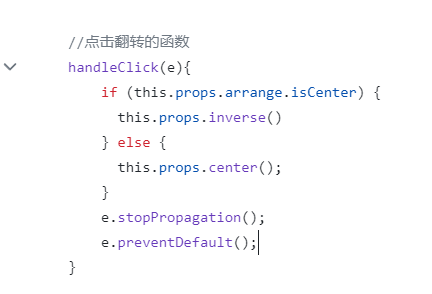
In this code its author is handling clicking and stopping propagation and bubbling. Meaning that no other element (for example underneath) won’t additionally handle the click. It’s nice, because it prevents unintentional double handlers.
But, what happens when inverse() or center() throws an error? or “this.props.arrange” is null?
In this case disabling propagation and bubbling (stopPropagation and preventDefault) won’t be executed.
That’s why we put these two guards on top of the event handler, before any other code.
6. Try To Use CSS Files When You Use Them
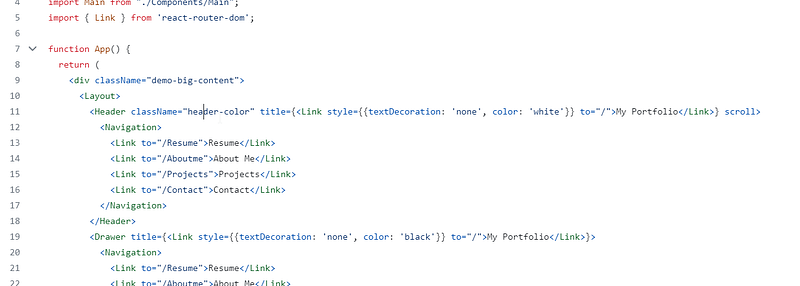
I’m not really against using CSS styles inline anymore so much since we have CSS frameworks that actually do the same. But if you have CSS file (as in this example), it’s nicer to keep styles there. Just to keep the template light and fresh.
7. Use Lowercase Routes
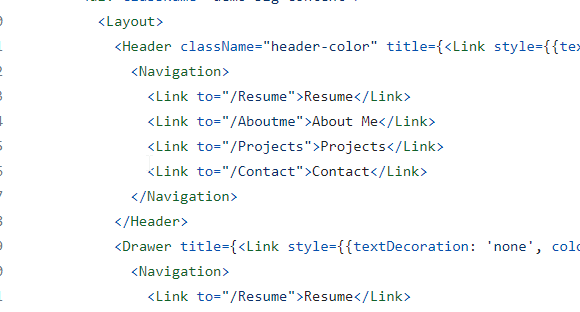
It’s safest to define routes in lowercase. In this example we see “Resume”, “Aboutme” routes. These may break in some occasions and doesn’t look that good in the URL. Also, it’s nice to divide words, I’d go for “about-me” for the first route.
8. Use <a href tel: and email:
Did you know you can use a href tel: and email:, so that the user can actually call or open an email client to email you? More! You can also provide the title and initial content of the e-mail with email: field!
9. Avoid Lengthy Ifs
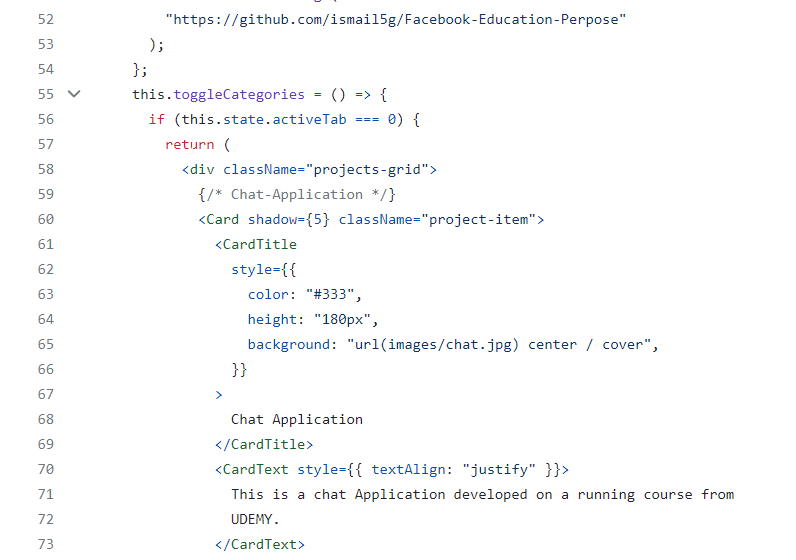
That is a very long if. Moreover, it ends in line 159 to start an “else if”, and so on. We tend not to use such long ifs. Because it’s hard to spot where they end, and it usually indicates that what we see is multiple components combined into one. In that case you’d separate every tab into separate component.
10. Instead, Copying And Pasting Refactor Small Components
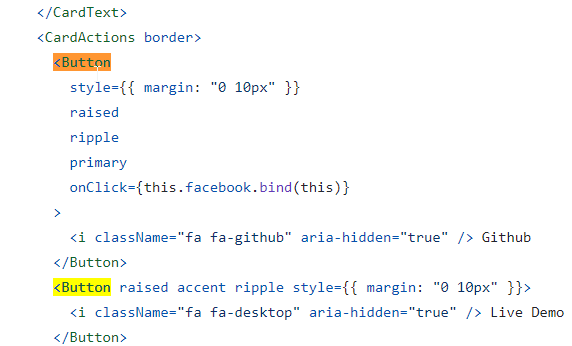
The first Button displayed above is copied around five times in this template. Maybe it’s also copied into other files as well. What we tend to do in this situation, we refactor the button to a separate component. Thanks to that you can encapsulate style and behavior in it. If you’ll like to change the style you do it in one place rather than in five.
Very good, very good:
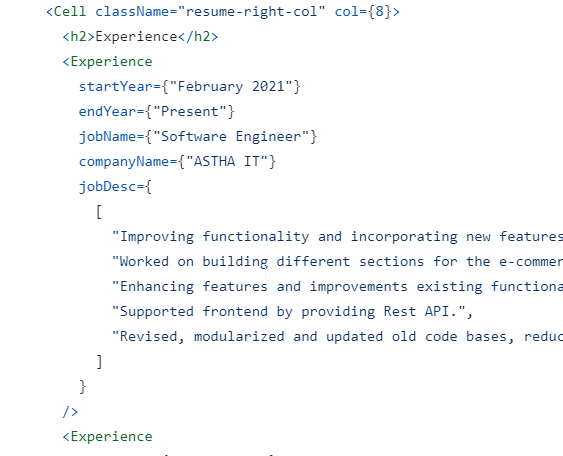
11. Use “0” Instead Of “0px”
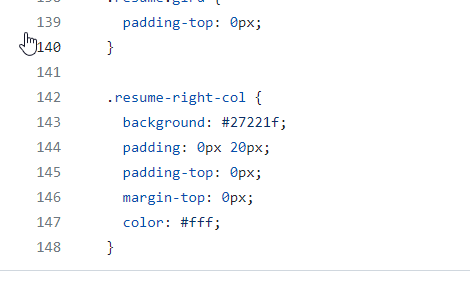
I hate myself for pointing that out. It’s not really a bug, it’s more of a nitpicking. Instead of writing “0px” you can write “0”. It doesn’t matter really.
12. Use Const And Let Instead Var
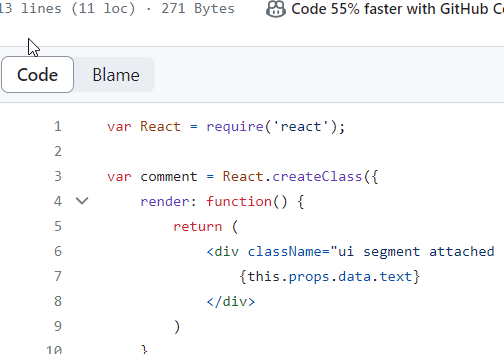
“const” and “let” offer so many benefits compared to “var”, that we should really use the former way of defining variables anymore. I’ve just noticed this project is really old.
13. Optimize Images
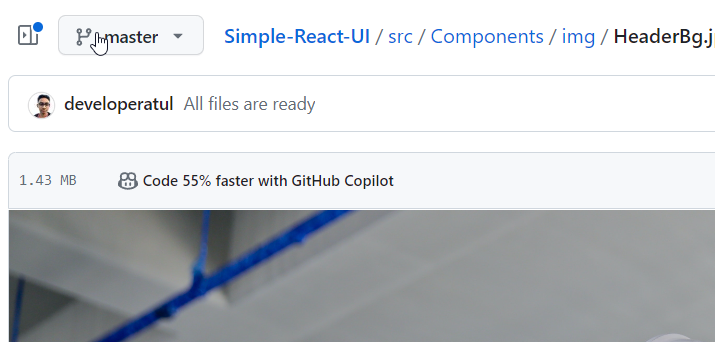
There is one background image in the project that’s 1.43 MB. By using some tools like Tiny PNG, you can save space and transfer, in this case 69%:


As of now (2023) I don’t recommend WebP and other modern formats, because these have very poor support outside browsers and controversial gains. They are not always better than PNG, JPG, GIF, and sometimes the gain is so small, it can be ignored.
14. Don’t Disable Dragging An Image
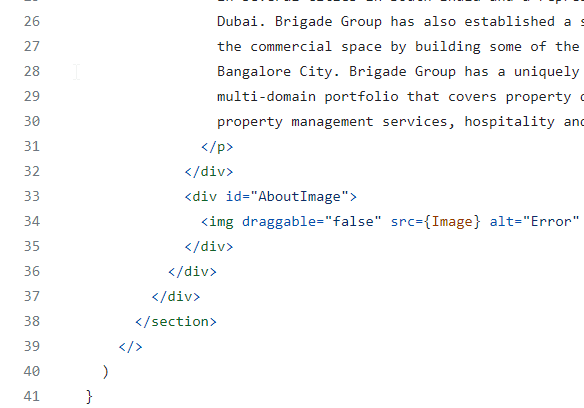
It’s just another example where a developer disables a built-in web feature. There’s no sense to do it. Sometimes people want to be able to drag and drop the image. It doesn’t prevent you from ppl copying the image, because they can make a screenshot etc. So, nope, just don’t disable it.
15. Don’t Use Two Functions For The Same Stuff
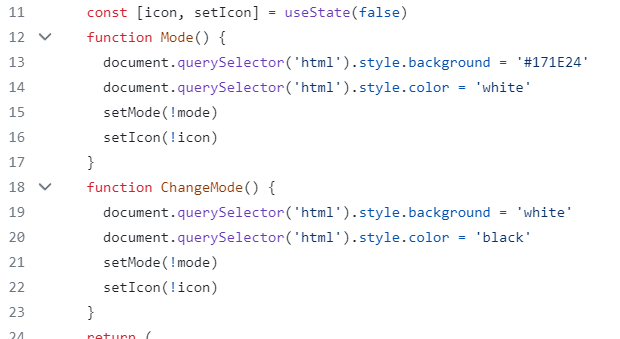
Here we see two functions that basically do the same, toggle mode. We can easily combine them into one function called toggleMode that takes a parameter, for example “enable”. Also, we could use a functional name for the function, and call it togglePrivateMode etc. describing what the function actually does in the context of the application. Thanks to that the code will be easier to read.
16. Don’t Overuse Ternary Operator In JSX Template
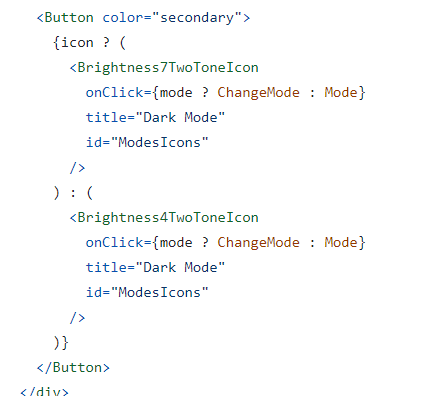
In the example above we see a condition. If there’s an icon we display something, and if not, something else. Let’s ignore the content of both cases for now.
What’s important here is the use of JS condition in the JSX template. It’s ok. For one component it’s fine.
But often we tend to grow our apps, so the inside of the condition will get more and more complex. Meaning, it will become very difficult to find where condition ends, where else begins. Especially if you’ll nest more conditions inside.
One solution is to refactor as your component grows. But if you don’t want to do this, or feel it would be too early, I really recommend to not use the ternary operator. Instead, use the trick with && operator. Something like:
{icon && <Brightness7…}If icon is true, the component will be rendered. If icon is false, nothing will be rendered.
To handle the “else” part you can write:
{!icon && <Brightness7…}Much nicer!
17. Use lowercase-names For CSS Classes
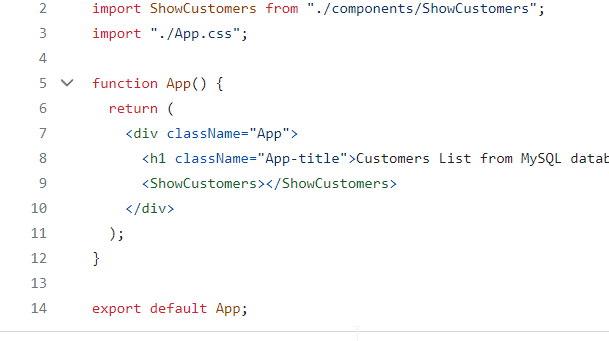
You can see className here. It’s “App” and “App-title”. We tend to use lowercase names for CSS classes. It’s also described in BEM conventions.
18. Differentiate Loading, Empty Response And Error State When Loading Data
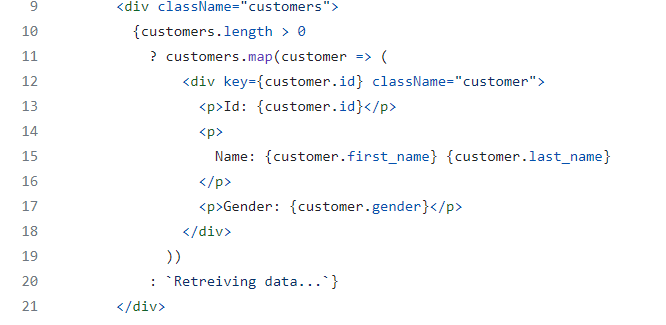
Here’s an interesting snipped of code that shows a mistake more popular than expected. We’re checking if customers.length is greater than 0. If yes, we display customers. If customers.length = 0 (we can see in other file it starts with an empty array) we display a message saying “Retrieving data”.
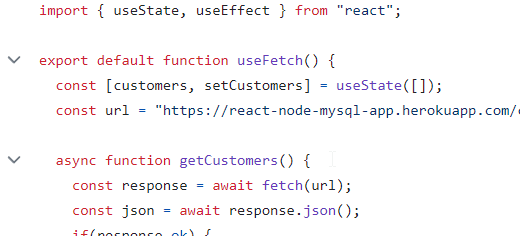
But what happens when there’s an error? The endpoint doesn’t work properly, returns wrong data, or the useFetch is working improperly? What if the endpoint returns no data at all (empty array)?
We’ll also see “Retrieving data…” message indefinitely. The user won’t know there was an error.
To fix it, we can use another state called loaded. Initially, and when useFetch is executed, we set it to false. After loading data we set it to true.
If loading=true we can display “Retrieving data”. While when loading=false we can check the size of the array. If there’s something — we display it. When the array is empty, we can display “No data” message.
If it comes to handling data, I usually use global interceptors that handle them and display snackbars. For a simple app, you can introduce another state called fetchSucceeded, and setting it to false when there’s an error.
That way you can handle the error in the template with a nice message as well.
19. Use A Linter, Or Format Code Uniformly
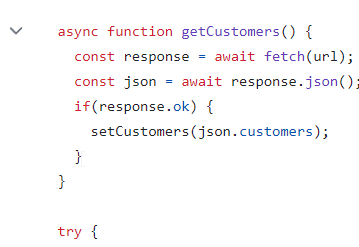
In the example above you can see that there is no space between “if” and “(“. It’s not a big deal, but using space in this please improve readability. If you’re using a code prettier extension, or linter improving code formatting, it will format the code according to some standards making it look nice.
That way you won’t have to think about it yourself.
20. Use console.error For Errors
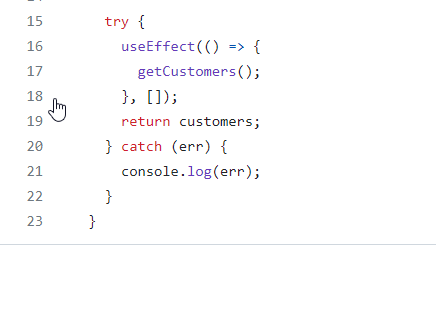
Usually I use console.log for messages that I use for debugging. In the example above it seems to be used the same way. In production code, you’d rather use console.error. There are two reasons for that.
First, the error will be formatted as an error in the console, making it more visible.
Secondly, you’ll differentiate it from console.log (temporary codes you want to remove eventually). That way you can configure your linter to indicate places where console.log is used to make a nice reminder what temporary codes you’d like to remove before making a merge request.
Aside, you’d also have to consider if you want to silence an error at all (it may not be caught by interceptors or error logging software). And also consider if you really want to display errors in the console, where users don’t go. Maybe a snackbar would be better.
That’s all for today. Let me know if you like this format, maybe I’ll make another episode!
Like, share, clap, subscribe and follow for more!