avatarGary McBrine

Free AI web copilot to create summaries, insights and extended knowledge, download it at here

3432

Abstract

resize:fit:800/0*1KOL6bBX_gBNUZ7c"><figcaption>Photo by <a href="https://unsplash.com/@raphaeldas?utm_source=medium&amp;utm_medium=referral">Raphael Andres</a> on <a href="https://unsplash.com?utm_source=medium&amp;utm_medium=referral">Unsplash</a></figcaption></figure><h1 id="f65a">Short panoramas</h1><p id="cbcc">Have you taken panorama pictures with your smartphone?</p><p id="c230">Usually, you hold the camera vertically and put the camera in panorama mode. Then press the button and move the camera left to right until the camera stops taking the picture. Or you can press the button again to stop it early.</p><p id="0d0f">A panorama picture is a long narrow, usually horizontal, picture. It’s popular for landscape pictures.</p><p id="cb3b">The resolution of a panorama picture is better than a normal picture. Why? Because you’re holding the camera vertically. This means the long side of the sensor is the short side of the picture.</p><p id="afb9">By moving the camera left to right, you control how wide the picture will be. This changes the aspect ratio. The ratio of height to width of the image.</p><h2 id="a33a">For higher resolution do this:</h2><ul><li>Use panorama mode and stop when the image reaches a normal aspect ratio (width).</li><li>You decide when the picture is wide enough.</li><li>Move the camera left to right with a steady hand. Watch something in the frame as you move to make sure you <i>do not move up and down</i> while panning.</li><li>Press the button again to stop when you feel it is wide enough.</li></ul><h2 id="4465">An example:</h2><p id="244d">My iPhone 6 camera pictures are 3264 wide x 2448 high (8 megapixels). This is a ratio of 4:3.</p><p id="61db">When I <b>use panorama mode</b>, the height becomes 3264 pixels. So for a normal (4:3) ratio, my resolution will be 4352 x 3264 (14 megapixels).</p><p id="bc99"><b>75 percent increase in picture resolution!</b></p><p id="00bb">I hope I didn’t lose you with the techno-jargon. What’s important is you notice the change in resolution when you do this.</p><h2 id="c9a7">From 8 megapixels to 14 megapixels.</h2><p id="366c">The number of megapixels increases by making your panorama wider.</p><h1 id="6d05">Lightroom panorama stitching</h1><p id="931c">This method requires using <a href="https://www.adobe.com/products/photoshop-lightroom.html">Adobe Lightroom</a> on your computer. You can also use <a href="https://www.adobe.com/products/photoshop.html">Photoshop</a>. If you don’t have these, you can get a subscription to the Adobe Photography Plan. The plan includes both Lightroom and Photoshop (and more). It’s well worth the low monthly cost, but I prefer to pay for the year at a discount.</p><p id="53df">Lightroom is an excellent way to organize your photos. It’s also a great way to improve your photos with editing. Built into Lightroom is a feature to create panorama images from separate pictures.</p><p id="c37a">Lightroom stitches the pictures together for you like a jigsaw puzzle. Many pictures combine to make one big picture.</p><p id="8307">The resulting panorama doesn’t have to be long and narrow either. It can be any group of pictures with overlapping parts. The overlap can be in any direction so the picture can be especially tall and wide.</p><p id="3169">Have you thought about using Lightroom with your smartphone pictures? Most people haven’t, but it’s a great way to get the most from your shots.</p>

Options

<h2 id="523b">This is how it’s done:</h2><ul><li>Take several pictures of the same scene.</li><li>Each picture must overlap so Lightroom can know how to piece it together.</li><li>Feel free to take 15 to 20 pictures if needed.</li><li>You can take pictures left to right, or up and down. As long as there is some overlap, Lightroom will put together the puzzle.</li></ul><p id="9918"><b>Here is an example (in Lightroom) with photos taken with my iPhone 6</b></p><p id="cc91"><i>(Images by the author)</i></p><figure id="5521"><img src="https://cdn-images-1.readmedium.com/v2/resize:fit:800/1*UKOiNm6cPsF9u8OLBm3HxA.png"><figcaption><b>First, select 8 pictures taken from left to right</b></figcaption></figure><figure id="f626"><img src="https://cdn-images-1.readmedium.com/v2/resize:fit:800/1*r4hPLaP7J-lADjwpRSCgUA.png"><figcaption><b>Choose Photo — Photo Merge — Panorama</b></figcaption></figure><figure id="41f6"><img src="https://cdn-images-1.readmedium.com/v2/resize:fit:800/1*CYXk3k6GCEk18_rlxvpyNA.png"><figcaption><b>Wait a few minutes</b></figcaption></figure><figure id="7923"><img src="https://cdn-images-1.readmedium.com/v2/resize:fit:800/1*0qy2kfwnaCikT17Y0_HRJQ.png"><figcaption><b>Panorama merge preview</b></figcaption></figure><p id="5588">This preview shows the 8 images combined into 1, but without cropping. Notice the 3 options for Spherical — Cylindrical — Perspective. You can experiment with that, but I found Spherical (default) usually is best.</p><figure id="c7ff"><img src="https://cdn-images-1.readmedium.com/v2/resize:fit:800/1*reIoI8YyFpFmODYhDGkr3w.png"><figcaption><b>Auto Crop selected</b></figcaption></figure><p id="5fc5">When you <b>select Auto Crop</b> it begins to look like a new picture.</p><figure id="e130"><img src="https://cdn-images-1.readmedium.com/v2/resize:fit:800/1*rgZz2W2mV3Urr6YyRYFJXw.jpeg"><figcaption>Final result — 17.4 Megapixels.</figcaption></figure><p id="88f1">The final resulting image is now 6496 x 2682.</p><p id="3265"><b>Now it’s a 17.4 megapixel picture from an iPhone 6 designed to take 8 megapixel pictures.</b></p><p id="753a">This a just an example to show you the possibilities. This image wasn’t edited much. You can still do more to improve the picture in Lightroom.</p><p id="acf6">You can see how Lightroom does the work for you. It can stitch many pictures together to create one high resolution picture. <b>All from an old iPhone.</b></p><p id="9aae"><b>The more pictures you take, the higher the resolution.</b> Shoot from left to right, above and below. Shoot rows of images like pieces of a jigsaw puzzle. Lightroom will do the work for you as long as you have enough overlap.</p><h1 id="e9fd">Summary</h1><p id="2664">You can now create higher resolution images from any smartphone camera.</p><ul><li>Use Panorama mode for high resolution pictures in-camera</li><li>Use Lightroom to create higher resolution pictures from multiple images in your computer</li></ul><p id="0905"><b>How are you going to use your new skill?</b></p><p id="8300" type="7">“It doesn’t matter if you use a box camera or you use a Leica; the important thing is what motivates you when you are photographing.” — Eve Arnold</p><p id="91f0">I’ve used this technique with my DSLR with amazing results. That will be the topic of a future article.</p><p id="f031"><a href="https://fantastic-writer-3965.ck.page/3e8e2fab92">Sign up here for my Newsletter</a></p></article></body>

2 Simple Ways to Improve Your Smartphone Picture Quality

You can have higher resolution pictures from your old smartphone
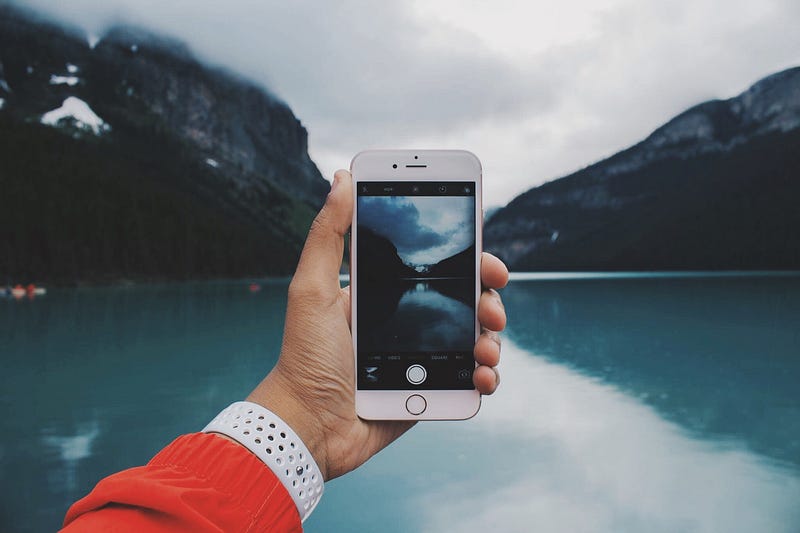
Photo by Nadine Shaabana on Unsplash

The newest cameras brag about having higher resolution.

Some professional cameras now have resolutions of up to 100 megapixels or more!

Most new smartphone cameras are also increasing their megapixels. The new iPhone 12 has a camera with 12 megapixels. Some smartphones are more than that.

This article explains 2 simple ways to improve your pictures with your old smartphone. It also includes some technical explanations.

If you’re not into the technical side of things, don’t worry, look for the method, and try it. The quality results will surprise you.

What is a megapixel and why does it matter?

To understand megapixels let’s first define a “pixel” and then what we mean by “megapixel”.

Pixel — a picture (pix) element (el). This is the smallest part of the sensor in your camera. If you look close enough, the picture is made up of many dots. Those dots are from separate little sensors that make up the main sensor. More pixels will give you finer detail and the ability to print a larger picture with good quality.

Megapixel — A megapixel is 1 million pixels. This term describes the number of elements (pixels) making up the picture. It’s also used to describe the number of elements on the sensor in your camera. You can determine the megapixels by multiplying the vertical by the horizontal pixels.

My phone is an iPhone 6. It has a resolution of 8 megapixels with the back camera, as opposed to the front camera used for selfies, which I never take.

I don’t want to buy the newest iPhone 12. The phone I have is fine for me (for now), but I often find myself taking a lot of pictures with my phone.

Why? Because it’s the camera I have with me all the time.

So how can I take better quality pictures with my smartphone?

I learned 2 simple methods of increasing the picture resolution from my old iPhone 6.

The first method is something anyone can do. It’s accomplished in-camera, and your pictures are ready to use immediately.

The second method requires Adobe Lightroom CC Classic on your computer. This is the computer version, not the app on your phone. This method can increase resolution as big as you want to go.

These two methods will increase the pixel count. Pixels are not the only measure of picture quality, but when using a smartphone every bit helps.

Both of these methods are best used for subjects that don’t move, like scenery. If you use these methods for moving subjects, results may not be the best.
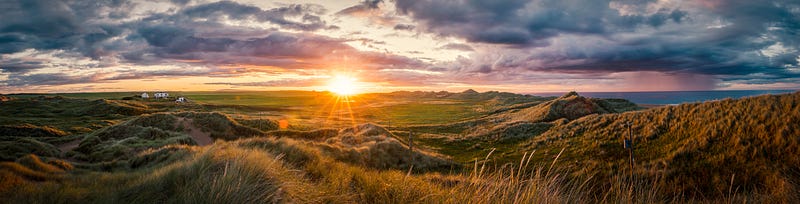
Photo by Raphael Andres on Unsplash

Short panoramas

Have you taken panorama pictures with your smartphone?

Usually, you hold the camera vertically and put the camera in panorama mode. Then press the button and move the camera left to right until the camera stops taking the picture. Or you can press the button again to stop it early.

A panorama picture is a long narrow, usually horizontal, picture. It’s popular for landscape pictures.

The resolution of a panorama picture is better than a normal picture. Why? Because you’re holding the camera vertically. This means the long side of the sensor is the short side of the picture.

By moving the camera left to right, you control how wide the picture will be. This changes the aspect ratio. The ratio of height to width of the image.

For higher resolution do this:

  • Use panorama mode and stop when the image reaches a normal aspect ratio (width).
  • You decide when the picture is wide enough.
  • Move the camera left to right with a steady hand. Watch something in the frame as you move to make sure you do not move up and down while panning.
  • Press the button again to stop when you feel it is wide enough.

An example:

My iPhone 6 camera pictures are 3264 wide x 2448 high (8 megapixels). This is a ratio of 4:3.

When I use panorama mode, the height becomes 3264 pixels. So for a normal (4:3) ratio, my resolution will be 4352 x 3264 (14 megapixels).

75 percent increase in picture resolution!

I hope I didn’t lose you with the techno-jargon. What’s important is you notice the change in resolution when you do this.

From 8 megapixels to 14 megapixels.

The number of megapixels increases by making your panorama wider.

Lightroom panorama stitching

This method requires using Adobe Lightroom on your computer. You can also use Photoshop. If you don’t have these, you can get a subscription to the Adobe Photography Plan. The plan includes both Lightroom and Photoshop (and more). It’s well worth the low monthly cost, but I prefer to pay for the year at a discount.

Lightroom is an excellent way to organize your photos. It’s also a great way to improve your photos with editing. Built into Lightroom is a feature to create panorama images from separate pictures.

Lightroom stitches the pictures together for you like a jigsaw puzzle. Many pictures combine to make one big picture.

The resulting panorama doesn’t have to be long and narrow either. It can be any group of pictures with overlapping parts. The overlap can be in any direction so the picture can be especially tall and wide.

Have you thought about using Lightroom with your smartphone pictures? Most people haven’t, but it’s a great way to get the most from your shots.

This is how it’s done:

  • Take several pictures of the same scene.
  • Each picture must overlap so Lightroom can know how to piece it together.
  • Feel free to take 15 to 20 pictures if needed.
  • You can take pictures left to right, or up and down. As long as there is some overlap, Lightroom will put together the puzzle.

Here is an example (in Lightroom) with photos taken with my iPhone 6

(Images by the author)
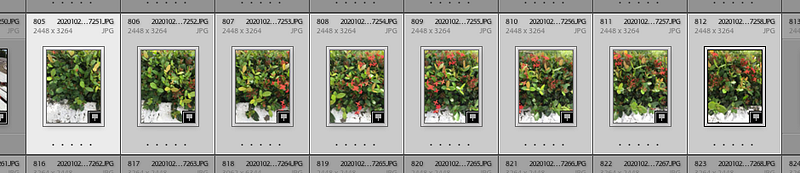
First, select 8 pictures taken from left to right
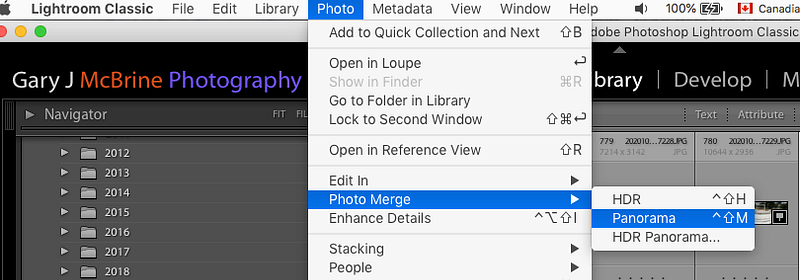
Choose Photo — Photo Merge — Panorama
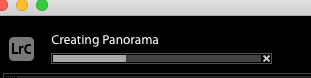
Wait a few minutes
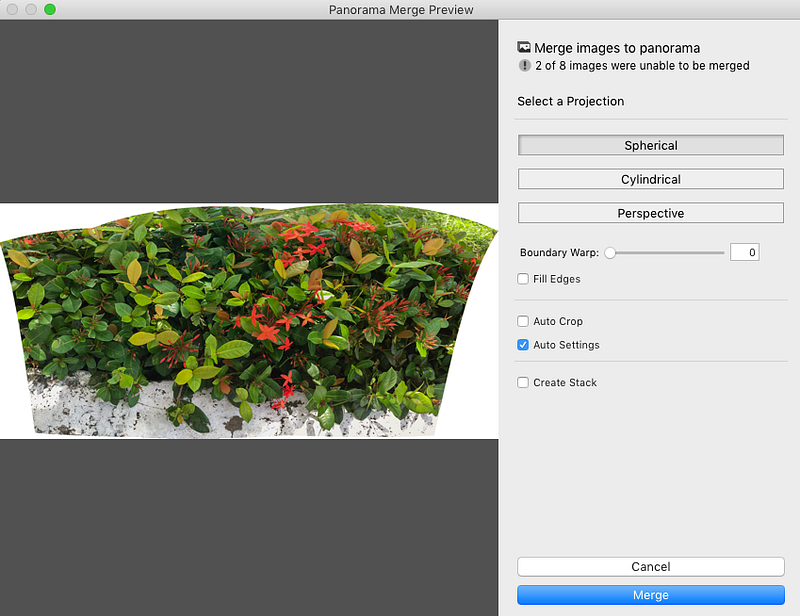
Panorama merge preview

This preview shows the 8 images combined into 1, but without cropping. Notice the 3 options for Spherical — Cylindrical — Perspective. You can experiment with that, but I found Spherical (default) usually is best.
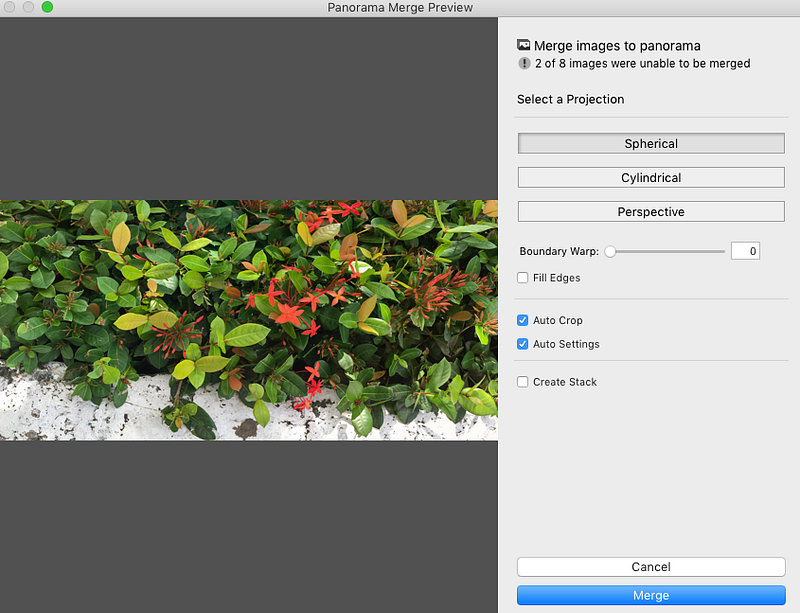
Auto Crop selected

When you select Auto Crop it begins to look like a new picture.
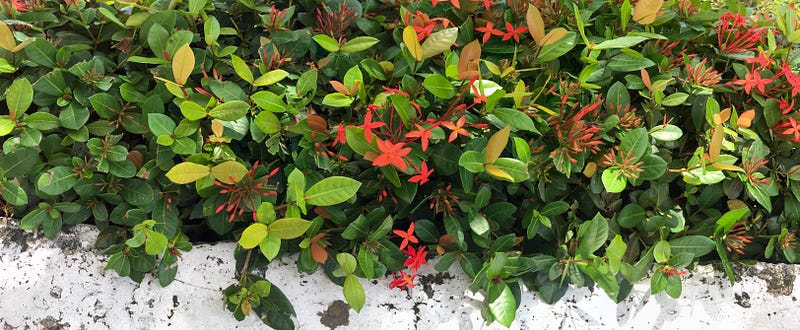
Final result — 17.4 Megapixels.

The final resulting image is now 6496 x 2682.

Now it’s a 17.4 megapixel picture from an iPhone 6 designed to take 8 megapixel pictures.

This a just an example to show you the possibilities. This image wasn’t edited much. You can still do more to improve the picture in Lightroom.

You can see how Lightroom does the work for you. It can stitch many pictures together to create one high resolution picture. All from an old iPhone.

The more pictures you take, the higher the resolution. Shoot from left to right, above and below. Shoot rows of images like pieces of a jigsaw puzzle. Lightroom will do the work for you as long as you have enough overlap.

Summary

You can now create higher resolution images from any smartphone camera.

  • Use Panorama mode for high resolution pictures in-camera
  • Use Lightroom to create higher resolution pictures from multiple images in your computer

How are you going to use your new skill?

“It doesn’t matter if you use a box camera or you use a Leica; the important thing is what motivates you when you are photographing.” — Eve Arnold

I’ve used this technique with my DSLR with amazing results. That will be the topic of a future article.

Sign up here for my Newsletter

Photography
Photography Tips
Art
Creative
Technology
Recommended from ReadMedium