
2 Simple Tips to Kill 2 Major Web Distractors
Avoid these traps. Your workflow will thank you.

If you happen to be active on Facebook and YouTube, as I am, you know how easy it can be to simply lose yourself in them.
Even so, these two websites certainly aren’t without their merits. For instance, YouTube can be a great source of information and I often head there while working to look things up. Similarly, I sometimes need to engage in short bursts of communication on Facebook.
But for the unsuspecting, that can be like walking into a trap.
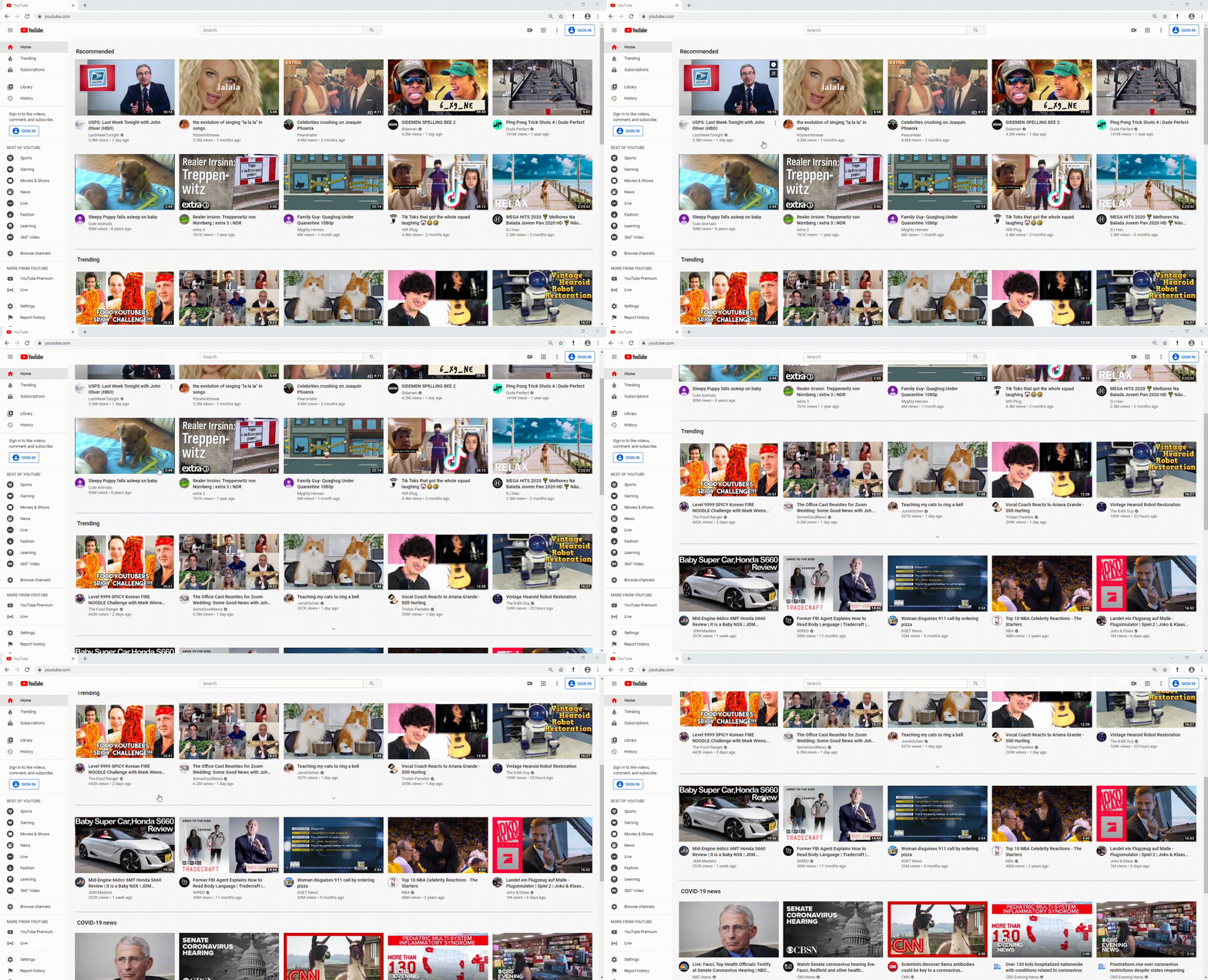
You’re probably familiar with the image above: YouTube’s fabled home screen. In this case, I’m not even logged in, so the videos being presented aren’t necessarily relevant to me. Still, it’s pretty damn hard to resist the temptation to move my cursor away from the search bar, i.e. find what I actually came here to see, and towards one of the shiny thumbnails!
On Facebook, it’s no different. By default, in order to get to your messages, you’ll need to pass by your News Feed. And few passages have ever been as perilous.
So here, I’ll share some solutions that help me avoid getting distracted and allow me to get straight to what I actually want to do.
Circumvent YouTube’s home screen by using bangs!
Bangs are shortcuts you prepend to search terms in the browser’s address field that take you directly to the respective website’s search results.
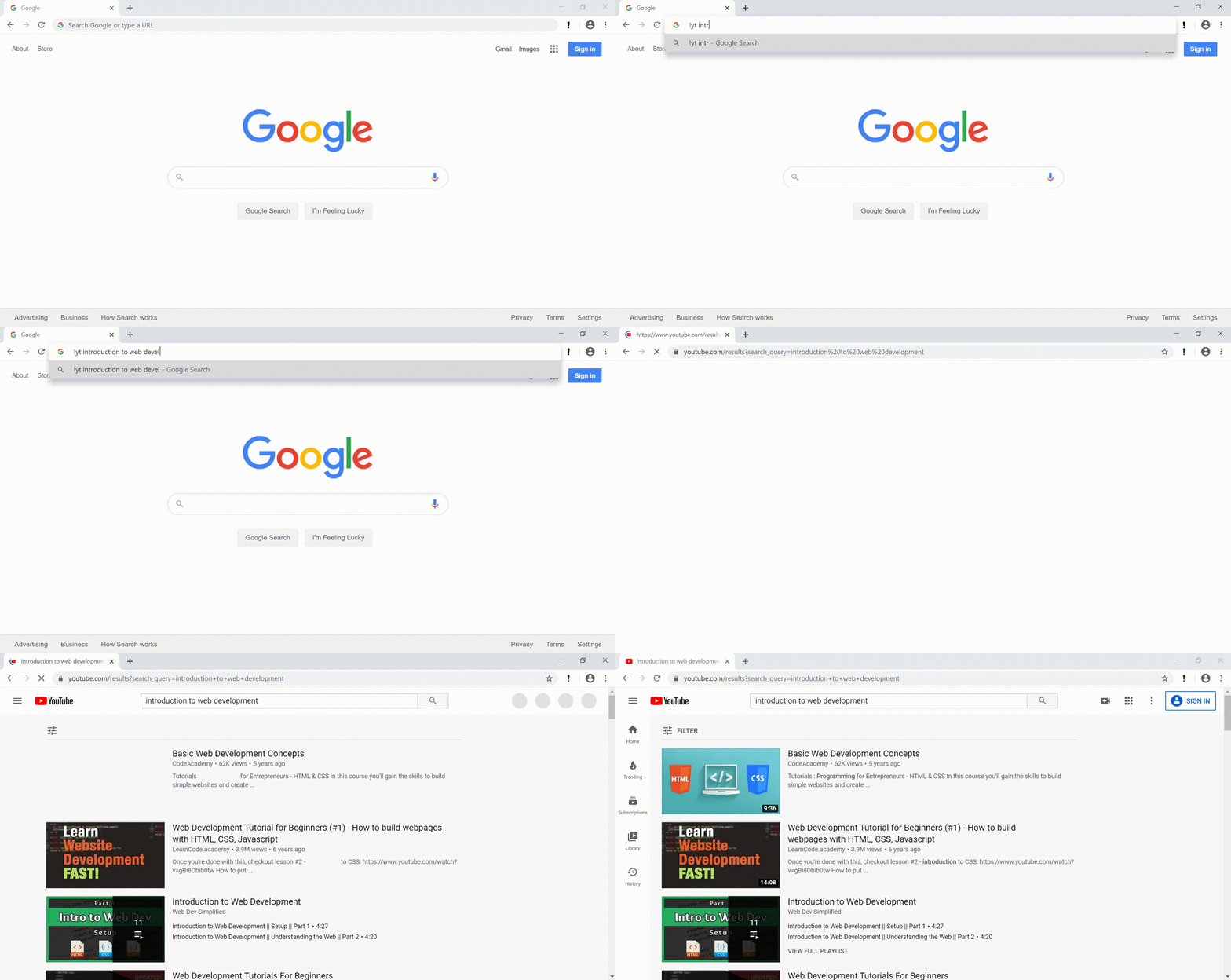
DuckDuckGo, that “other” search engine you probably don’t use, has this built-in by default. The downside is you’d have to set it as your default search engine, which you, understandably, might not want to do. Luckily, if you’re a Chrome user and have your default search engine set to Google or Bing, there’s an extension that does exactly the same thing. For a full list of bangs click here.
Tip: If you only wish to target YouTube, type youtube.com in your address field then hit the Tab key. Entering the search term you’re looking for then hitting Enter will now take you directly to the YouTube search results.Go around Facebook’s News Feed
There’s more than one way to avoid your News Feed on Facebook. Let’s take a look at some:
- Create a bookmark: By far the simplest way to do this is to create a bookmark and access your Facebook messages through it. When doing this, make sure to set the target URL to
facebook.com/messages - Changing your browser’s URL suggestions: If you prefer to navigate using the keyboard, directly typing
facebook.com/messagesinto the address bar may be more familiar. You may, however, run into the problem of wrong URL suggestions by your browser forcing you to explicitly type out the whole address. On Chrome, you can solve this by pressingshift+deletewhile highlighting the unwanted suggestion in the address bar. On Firefox, simply pressingdeleteshould do the trick. For other browsers, you can take a look here. Repeat this process until all that shows up as soon as you start typing the wordfacebookis the address you want. In this case,facebook.com/messages - Messenger for desktop: If you’re on Windows 10, you can use Facebook Messenger’s desktop app to access your messages instead of having to do so in your web browser. You can download the app here.
Leverage the power of AutoHotKey
Finally, a solution to both problems that is a bit more involved uses AutoHotkey. In their own words,
AutoHotkey is a free, open-source scripting language for Windows that allows users to easily create small to complex scripts for all kinds of tasks such as: form fillers, auto-clicking, macros, etc.
I wrote a short AutoHotkey script that essentially achieves the two main tasks we discussed here and simply maps them to two separate keyboard shortcuts. For the time being it’s limited to Chrome.
To use it, simply download and install AHK. Then, create a new file and give it any name you like (make sure it ends with .ahk). For example, fb-yt-hotkeys.ahk
Tip: Once AHK is installed, you can create a new script with Right-click → New → AutoHotkey Script. In this case, remove anything already in the script before pasting the code above.Use your favorite text editor to copy and paste the above code into the file, save, then double click the file itself to run the script. The script is now running in the background and you should be able to use Alt+Shift+1 to go straight to your Facebook messages or Alt+Shift+2 to make a YouTube search query. Feel free to change the keyboard shortcuts to something you’re more comfortable with. An overview can be found here.
If you wish to end the script, you can do so from the system tray.
Note: You may need to change the browser path to reflect where your browser is actually installed on your machine.This is just a taste of what AutoHotkey can do. If you’re curious, check out the documentation. AutoHotkey also has a very active community where you can find answers to questions that may come up or simply ask your own.
I’ve learned the hard way that, if used without mindfulness, these websites can become content whirlpools that can sometimes take a significant amount of time before they spit you out, wondering what it was that actually pulled you in in the first place.
Hopefully, you can use some of the tricks here to help you avoid that and get more done.
Thanks for reading! I’d love to hear your feedback and do let me know if you have any questions.


