PYTHON
2 Easy Ways to Get Tables From a Website with Pandas
An overview of pd.read_html and pd.read_clipboard

The pandas library is well known for its easy-to-use data analysis capabilities. It’s equipped with advanced indexing, DataFrame joining and data aggregation features. Pandas also has a comprehensive I/O API that you can use to input data from various sources and output data to various formats.
There are many occasions when you just need to get a table from a website to use in your analysis. Here’s a look at how you can use the pandas read_html and read_clipboard to get tables from websites with just a couple lines of code.
Note, before trying any of the code below, don’t forget to import pandas.
import pandas as pd1. pandas.read_html()
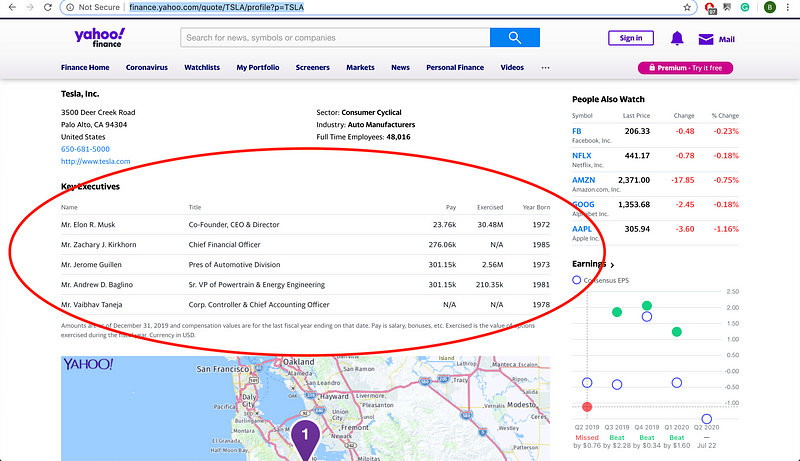
Let’s try getting this table with key Tesla executives for this example:
The read_html function has this description:
Read HTML tables into a
listofDataFrameobjects.
The function searches for HTML <table> related tags on the input (URL) you provide. It always returns a list, even if the site only has one table. To use the function, all you need to do is put the URL of the site you want as the first argument of the function. Running the function for the Yahoo Finance site looks like this:
pd.read_html('https://finance.yahoo.com/quote/TSLA/profile?p=TSLA')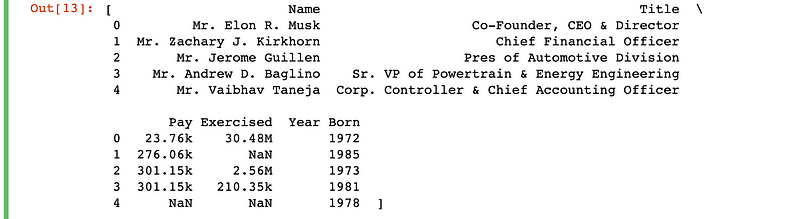
To get a DataFrame from this list, you only need to make one addition:
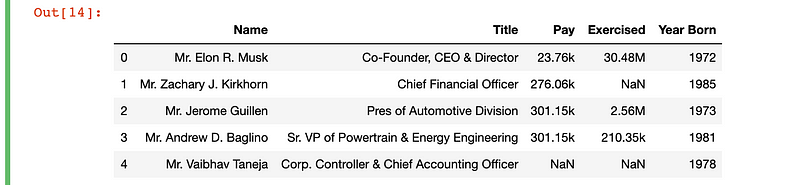
pd.read_html('https://finance.yahoo.com/quote/TSLA/profile?p=TSLA')[0]Adding the ‘[0]’ selects the first element in the list. There is only one element in our list, and it is a DataFrame object. Running this code gives you this output:
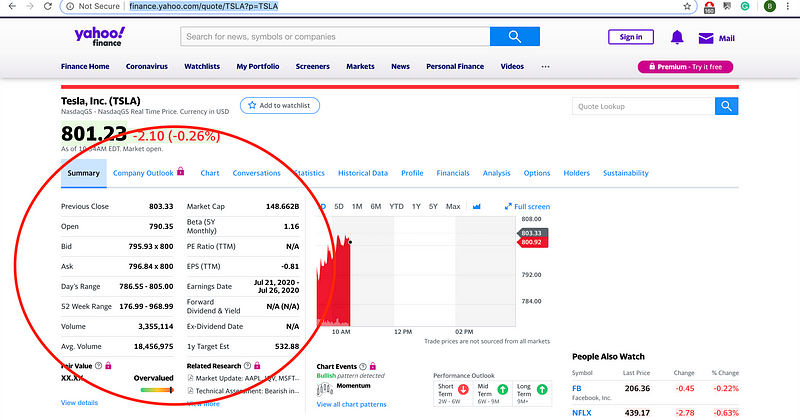
Now, let’s try getting this table with summary statistics for the Tesla stock:
We’ll try the same code as before:
pd.read_html('https://finance.yahoo.com/quote/TSLA?p=TSLA')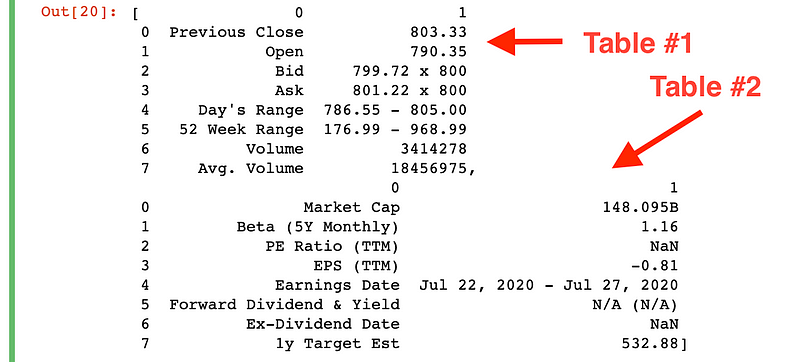
It looks like we got all the data we need, but there are two elements in the list now. This is because the table we see in the screenshot above is separated into two different tables in the HTML source code. We could do the same index trick as before, but if you want to combine both tables into one, all you need to do is concatenate the two list elements like this:
separate = pd.read_html('https://finance.yahoo.com/quote/TSLA?p=TSLA')
pd.concat([separate[0],separate[1]])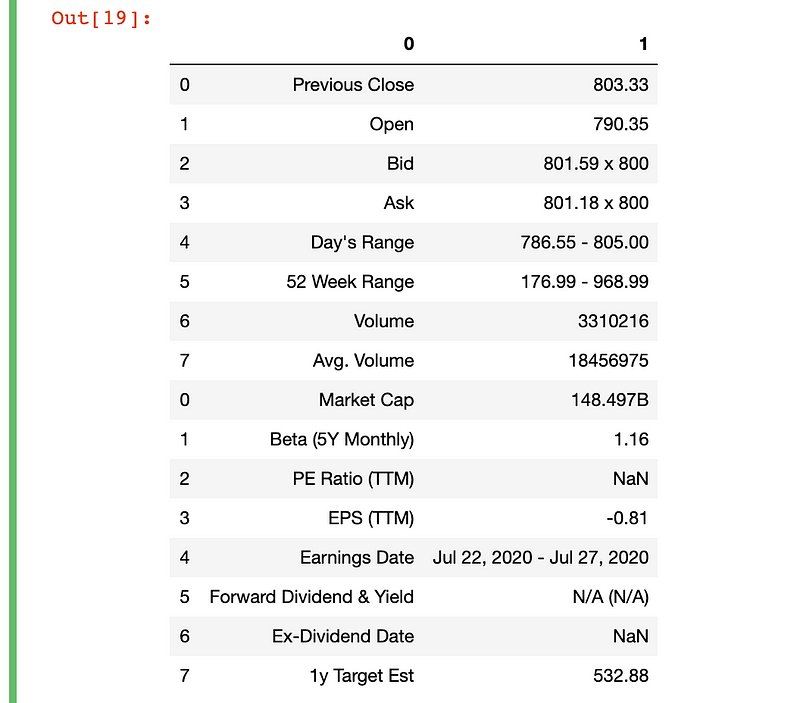
There’s plenty more you could do to process this data for analysis- just renaming the column headers would be a great start. But getting this far took about 12 seconds, which is great if you just need test data from a static site.
2. pandas.read_clipboard()
Here’s a table with S&P 500 company information we can try to get:
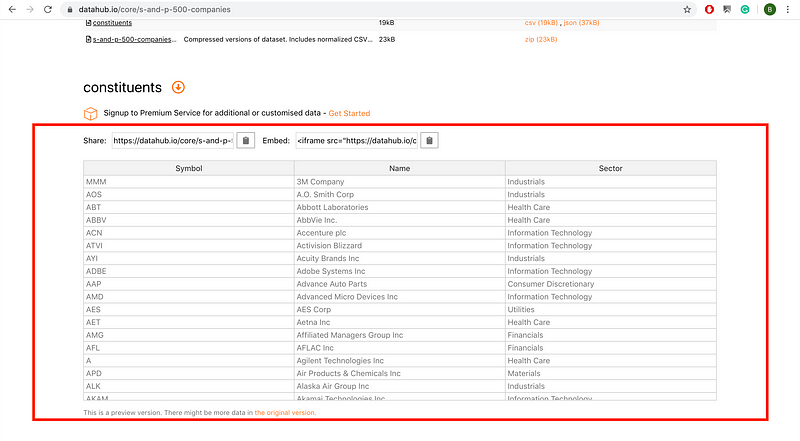
The data is distributed under an ODC license, which means it’s free to share, create, and adapt the data on the site. I was initially going to use this site for my read_html example, but after I ran the function for the third time, I was greeted with an error.
pd.read_html('https://datahub.io/core/s-and-p-500-companies')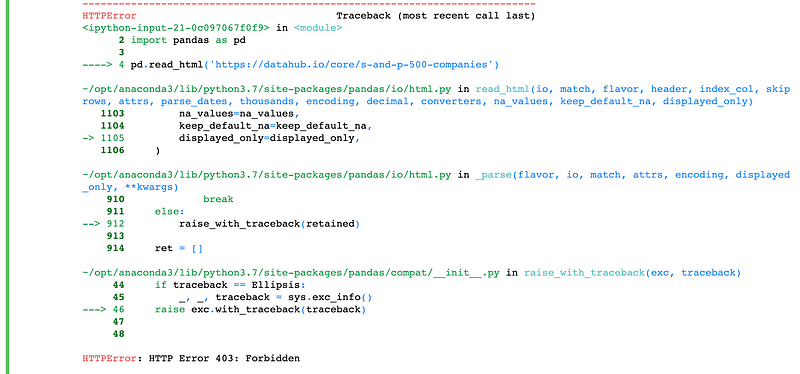
The HTTP 403 error happens when you try to access a webpage and the site successfully understands your request, but will not authorize it. This can occur when you try to access a site that you don’t have access to.
In this case, you can access the site from your browser, but the site won’t let you access it from a script. Many sites have rules about scraping on their “robots.txt” file, which you can find by appending “/robots.txt” after the top-level domain of the site’s URL. For example, Facebook’s would be “https://facebook.com/robots.txt”.
To avoid an error like this, you might be tempted to copy the data onto an Excel sheet, then load that file with the pd.read_excel function.
Instead, pandas offers a feature that allows you to copy data directly from your clipboard! The read_clipboard function has this description:
Read text from clipboard and pass to read_csv
If you’ve used pandas before, you’ve probably used pd.read_csv to get a local file for use in data analysis. The read_clipboard function just takes the text you have copied and treats it as if it were a csv. It will return a DataFrame based on the text you copied.
To get the S&P 500 table from datahub.io, select and copy the table from your browser, then enter the code below.
pd.read_clipboard()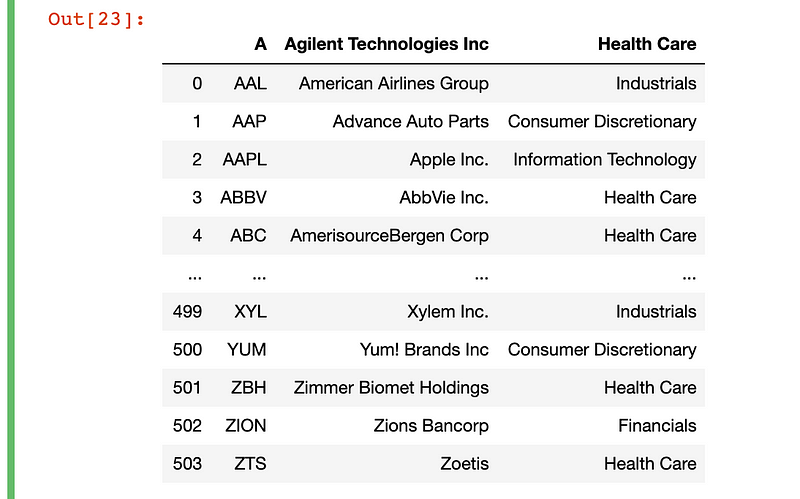
Perfect! We’ve got a ready to use DataFrame, exactly as seen from the website!
You can check out the read_html and read_clipboard documentation for more information. There, you’ll find that there’s a lot more you can do with these functions to customize exactly how you want to input data from websites.
Good luck with your I/O!


