
Python, Dash, Flask Sessions, and Callbacks — Building an Interactive Calendar with Dash Part 1 /3
Welcome to our article series on building a dynamic and user-friendly calendar with Python, Dash, and other technologies, exploring web development, user interactivity, and responsive design. The calendar offers two views: yearly and monthly. Users can can switch between layers for a comprehensive yearly overview or detailed monthly insights.
In this first article — Part 1/3: Python, Dash, Flask Sessions, and Callbacks, our focus is on unraveling the foundational elements, encompassing user management and multiple callbacks, ensuring a user experience.
Feel free to explore the component design & additional insights and techniques in these articles. - Part 2/3: Dash, Design, Button, Hover, CSS HTML for the Yearly Calendar - Part 3/3: Python, Dash, Tailwind CSS, and Responsive Web Development for the Monthly Calendar.
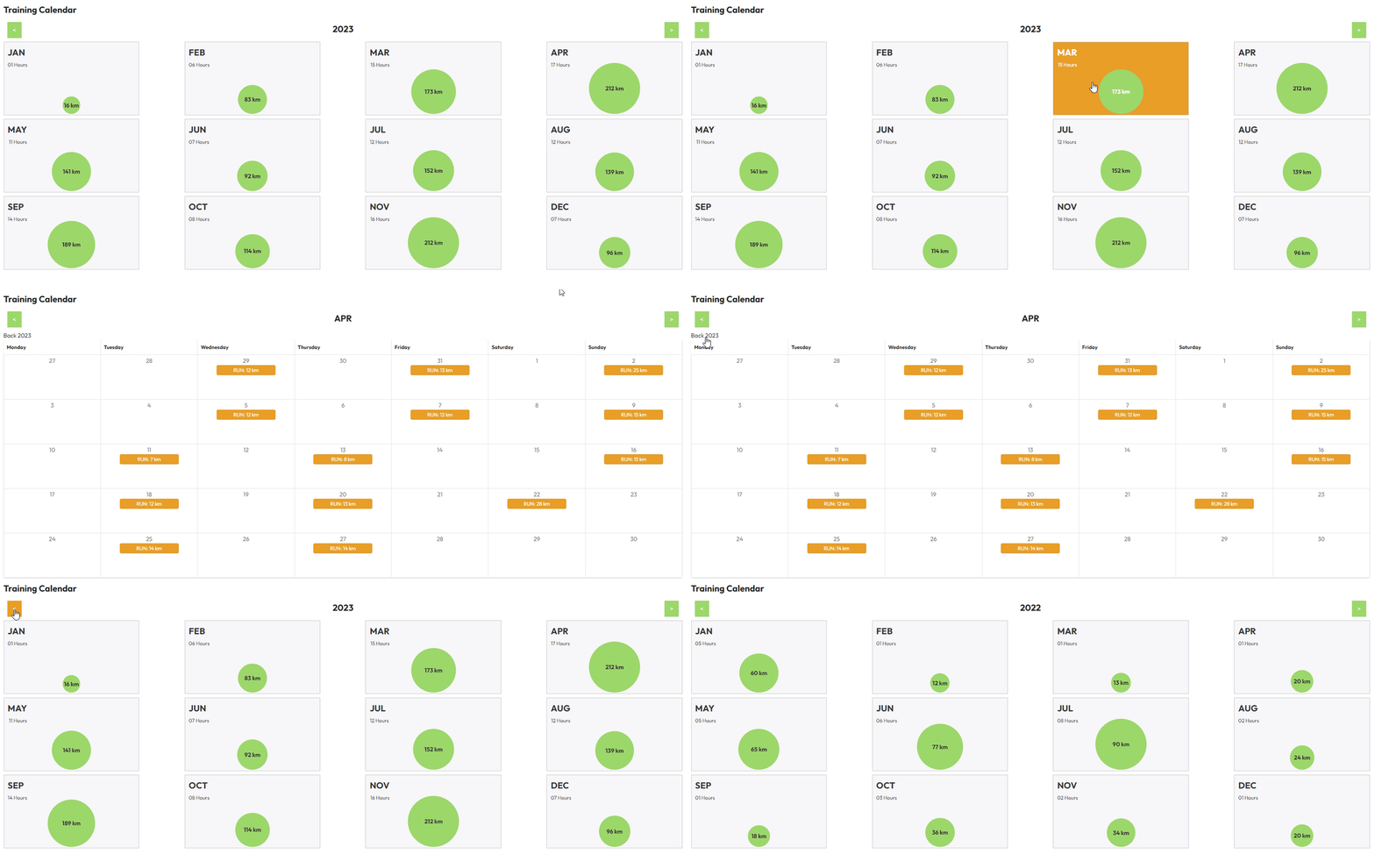
- Integration of an Interactive Calendar
- How It’s Organized
- Interactive Dash Callbacks
- Managing Multiple Output Callbacks
- Leveraging Flask Sessions
- Summary and What’s Next
Integration of an Interactive Calendar
The calendar draws its data from STRAVA since the primary focus of this calendar is within a running application, emphasizing the relevance and specificity of the data for tracking running program progress. Create a Running Dash App with Strava Authentication
Theses article focuses on incorporating an interactive calendar into the ongoing project. The above calendar is constructed within a Dash application, utilizing Python, HTML, and CSS exclusively. Dash applications consist of two essential elements:
- Layout serves as the foundational structure that defines how the application visually appears to users. The layout includes the arrangement of HTML elements, CSS styles, and other visual elements that collectively contribute to the overall look and feel of the application.
- Callbacks define the interactivity of the app by specifying the relationship between input and output components. They play a vital role on updating the content dynamically based on user interactions.

How It’s Organized
The application follows a multi-Dash structure with a traditional architectural design. This design adheres to established coding principles, organizing the application into modular components for enhanced maintainability and readability.
├── run_together <!-- Root folder of the application -->
│  │
│  ├── dash_apps
│  │   └── run_together
│  │      ├── layout
│  │      │   ├── body.py <!-- Manages the body content for the application. -->
│  │      │   ├── footer.py <!-- Manages the footer content for the application. -->
│  │      │   └── header.py <!-- Manages the headercontent for the application. -->
│  │      │
│  │      ├── pages
│  │      │   └── home.py <!-- Manages the layout for the home page. -->
│  │      │
│  │      ├── strava_manager.py  <!-- Class and functions to manage connection and data. -->
│  │      ├── training_calendar.py <!-- Function to return the calendar elements. -->
│  │      └── run_together_app.py  <!-- Register pages and integrates callback-->
│  │
│  ├── static <!-- Directory containing static assets -->
│  │  ├── css
│  │  │   ├── calendar-training-style.css <!-- css file for the calendar. -->
│  │  │   ├── typpography.css <!-- css file for the calendar. -->
│  │  │   └── style.css <!-- overall application css style file. -->
│  │  │
│  │  └── img
│  │  │   ├── favicon.ico
│  │  │   └── running_shoe.png
│  │
│  └── app.py <!-- Initialization and configuration (external script & stylesheets) of the Flask application. -->
│
├── README.md
├── requirements.txt
├── .env
└── .gitignore
To implement the interactive calendar, certain modifications are required:
run_together_callbacks.pyto register the pages and layout, orchestrating callbacks for user navigation through the calendar.body.py&home.pyto display the elements on the home page application.training_calendar.pyto generate the visual representation of the interactive calendar.calendar-training-style.cssto centralize the CSS style of the of the calendar element..
Interactive Dash Callbacks
Implement an interactive calendars require understanding of callbacks methodology:
In the context of web applications, callbacks are commonly used to update the content of a web page dynamically without requiring a full page reload. They play a crucial role in building interactive and responsive user interfaces.
User Interaction: A user interacts with a component on a web page, such as clicking a button or selecting an option from a dropdown.
Callback Definition: A callback is defined in the application code. This callback specifies the relationship between the input component (the one the user interacts with) and the output component (the one that updates based on the user’s action).
Function Execution: When the specified event (e.g., button click) occurs, the callback function is executed. This function can perform computations, fetch data from a database, or execute any other necessary tasks.
Update Output: The callback function updates the content or properties of the specified output component based on the computations or data fetched
Every HTML component in the code is distinguishable by its unique ID. When na user interacts with a component, the respective callback (with the HTML element as input) is triggered. Subsequently, the associated function updates a specific section of the application linked to the output of the callback.
In the context of this application, the calendar-training-container element can be dynamically modified based on user interactions through callbacks and associated functions.
from dash import Input, Output, html

# HTML component of the apllication
layout = html.Div(
    children=...,
    id="calendar-training-container" #id use in our callbacks
)

# Callback Definition
@dash_app.callback(
        Output("calendar-training-container", "children"),
        Input({"type": "select-month-btn", "index": ALL}, "children"),
        prevent_initial_call=True,
    )
# Function Execution
def update_calendar_training_container(month_n_clicks)
  return calendar_training_container # update Output Children
In our scenario, users have the option to explore two layers of the calendar:
A yearly calendar: This layer features a card for each month, showcasing the total distance and hours run by the user. Users can navigate between previous and next years by clicking on the arrows on both sides of the currently selected year. Additionally, clicking on a card displays a detailed monthly calendar.
A monthly calendar: This layer presents a table with a row for each week. Each day within a week can accommodate multiple events, representing the run exercises fetched from Strava. Users can navigate between previous and next months by clicking on the arrows on both sides of the currently selected month. Furthermore, clicking on back to {year} allows users to return to the yearly calendar.
Managing Multiple Output Callbacks

Dash allows the multiple output callback, having different callbacks which are updating the same component. Documentation on Dash Multiple callback. However, based on experience, it’s generally advisable to avoid this approach due to a crucial reason:
Where you have multiple callbacks targeting the same output, and they both run at the same time, the order in which updates happen is not guaranteed.
To address this issue, we employ two methods in this exercise to orchestrate callbacks and user interactions effectively:
- The first method known as
callback contextenables us to determine theIDof the component that triggered the callback. As a result, depending on user interactions, a conditional statement within the same callback can initiate distinct outputs. Documentation on Dash Advance Callback. - The second method,
pattern-matching callback, provides dynamic utilization of multiple components. - In our scenario, it resolves the problem of “a nonexistent object was used in an `Input` of a Dash callback”. This problem occurs when the application initialize an element that is not yet displayed on the page. For instance, an element in the monthly calendar when the yearly calendar is being displayed. To address this, we group all interactive components by a type, and then identify the specific element by its index, as
html.Button(“<”, id={“type”: “calendar-btn”, “index”: “prev-month”}). Documentation on Patter Matching Callback.
They are two group of buttons in this interactive calendar.
- The
id=select-month-btnandindex={month}where the index is implemented for each month card with the month name associated. The month card in the yearly calendar allow the user to navigate to the monthly details. - The second group,
id=calendar-btnincludes all the other user interactions in the calendar.
We are using the n_clicks property in the callbacks to detect when a button or element has been clicked.
The
n_clicksproperty represents the number of times a component has been clicked, and it helps trigger the callback function when the user interacts with a button or a clickable element.
from dash import Dash, Input, Output, ctx, callback
from run_together.dash_apps.run_together.training_calendar import get_monthly_calendar
from run_together.dash_apps.run_together.training_calendar import get_yearly_calendar


# HTML component of the apllication
layout = html.Div(
    children=...,
    id="calendar-training-container" #id use in our callbacks
)

def run_together_app(
        dash_app: DashProxy,
) -> object:
    dash.register_page(
        __name__,
        layout=get_home_layout,
        path="/home"
    )


  @dash_app.callback(
      Output("calendar-training-container", "children"),
      # Triggered the function when user click on it
      Input({"type": "select-month-btn", "index": ALL}, "n_clicks"),
      Input({"type": "calendar-btn", "index": ALL}, "n_clicks"),
  )
  def update_calendar_training_container(month_n_clicks, calendar_n_clicks):
      triggered_id = ctx.triggered_id

      # Case: the user select the months on the monthly calendar
      if triggered_id.type == "select-month-btn":
          return get_monthly_calendar(year=year, month=triggered_id.index)

      # Case: the user click on the previous month on the monthly calendar
      if triggered_id.index="prev-month":
          return get_monthly_calendar(year=year, month=month)

      # Case: the user click on the next month on the monthly calendar
      if triggered_id.index="next-month":
          return get_monthly_calendar(year=year, month=month)

      # Case: the user click on the previous year on the monthly calendar
      if triggered_id.index="back-yearly-calendar":
          return get_yearly_calendar(year=year)

      # Case: the user click on the previous year on the yearly calendar
      if triggered_id.index="previous-year":
          return get_yearly_calendar(year=year)

      # Case: the user click on the next year on the yearly calendar
      if triggered_id.index="next-year":
          return get_yearly_calendar(year=year)
Leveraging Flask Sessions
In a web-application, user behaviors can be tracked by recording their interactions in a session. This not only helps understand how users utilize the application but also allows for the storage of information to be shared across different files and functions.
What is the Flask Session:
- The Session is the time between the client logs in to the server and logs out of the server.
- The data that is required to be saved in the Session is stored in a temporary directory on the server.
- The data in the Session is stored on the top of cookies and signed by the server cryptographically.
- Each client will have their own session where their own data will be stored in their session
In our application, specifically in different parts such as home.py and run_together_callbacks.py, it is essential to know the current year/month displayed on the web application. Whenever the user updates the year and month, we update the selected values in the session accordingly. By default, the application displays the monthly calendar of the current year.
from dash import Dash, Input, Output, ctx, callback
from run_together.dash_apps.run_together.training_calendar import get_monthly_calendar
from run_together.dash_apps.run_together.training_calendar import get_yearly_calendar


# HTML component of the apllication
layout = html.Div(
    children=...,
    id="calendar-training-container" #id use in our callbacks
)


def run_together_app(
        dash_app: DashProxy,
) -> object:
    dash.register_page(
        __name__,
        layout=get_home_layout,
        path="/home"
    )

  @dash_app.callback(
      Output("calendar-training-container", "children"),
      # Triggered the function when user click on it
      Input({"type": "select-month-btn", "index": ALL}, "n_clicks"),
      Input({"type": "calendar-btn", "index": ALL}, "n_clicks"),
  )
  def update_calendar_training_container(month_n_clicks, calendar_n_clicks):
      triggered_id = ctx.triggered_id

      # Case: the user select the months on the monthly calendar
      if triggered_id.type == "select-month-btn":

          session["selected_month"] = triggered_id["index"]
          return get_monthly_calendar(
              year=session["selected_year"],
              month=session["selected_month"]
         )

      # Case: the user click on the previous month on the monthly calendar
      if triggered_id.index == "prev-month":

          # If Month is JAN, update the year to the previous one
          if session["selected_month"] == "JAN":
              session["selected_month"] = "DEC"
              session["selected_year"] = session["selected_year"] - 1
          # Else get the previous month in the correct format JAN, FEB etc
          else:
              month_number = datetime.strptime(
                session["selected_month"], '%b'
              ).month - 1
              session["selected_month"] = datetime.strftime(
                  date(session["selected_year"], month_number, 1),
                  '%b'
              ).upper()
          return get_monthly_calendar(
              year=session["selected_year"],
              month=session["selected_month"]
          )

      # Case: the user click on the next month on the monthly calendar
      if triggered_id.index == "next-month":

          # If Month is DEC, update the year to the next one
          if session["selected_month"] == "DEC":
              session["selected_month"] = "JAN"
              session["selected_year"] = session["selected_year"] + 1
          # Else get the next month in the correct format JAN, FEB etc
          else:
              month_number = datetime.strptime(
                  session["selected_month"], '%b'
              ).month + 1
              session["selected_month"] = datetime.strftime(
                  date(session["selected_year"], month_number, 1),
                  '%b'
              ).upper()

          return get_monthly_calendar(
              year=session["selected_year"],
              month=session["selected_month"]
          )

      # Case: the user click on `back to yearly calendar` from the monthly calendar
      if triggered_id.index == "back-yearly-calendar":
          return get_yearly_calendar(year=session["selected_year"])

      # Case: the user click on the previous year from the yearly calendar
      if triggered_id.index == "previous-year":
          session["selected_year"] = session["selected_year"] - 1
          return get_yearly_calendar(year=session["selected_year"])

      # Case: the user click on the next year from the yearly calendar
      if triggered_id.index == "next-year":
          session["selected_year"] = session["selected_year"] - 1
          return get_yearly_calendar(year=session["selected_year"])
Summary and What’s Next
Handling user interaction effectively is a critical aspect of application development. Callbacks can become intricate and challenging to read if the structure of our application is not well-maintained. In this article, we’ve explored techniques for managing complexity, such as using if statements and Flask Session.
Key Takeaways:
- Dash applications are composed of two essential parts: the layout, defining the app’s appearance, and callbacks, governing interactivity.
- We implemented a multi-layered interactive calendar, allowing users to seamlessly switch between a comprehensive yearly view and a detailed monthly perspective.
- Callbacks played a crucial role in dynamically updating the calendar based on user interactions, providing a responsive and engaging user experience.
- The integration of Flask sessions facilitated the tracking of user behaviors, enhancing the application’s ability to store and share information across different components.
Next Steps: However, we haven’t delved into the details of the two functions, get_yearly_calendar and get_monthly_calendar. To explore further facets of calendar development, head directly to the next articles in the series:
- Part 2/3: Dash, Design, Button, Hover, CSS HTML
- Part 3/3: Dash and Tailwind CSS — Responsive HTML & Python
All the code used in this article is available on my GitHub: Matthieu Ru: https://github.com/MatthieuRu/run-together Future Unicorn


