
123 Magic! Tricks with Writer Tags
Capturing ALL your pub’s writers' tags and pasting them into a story
Ever wish you could copy all of your pub’s writers in a story, so you could tag the whole crew?
There’s a bit of abracadabra in making this happen, but it’s doable, and you can automate most of the steps.
Because I hate long intros in how-to articles, let’s dive right in and take a look at how to do this, using Muddyum and a Macbook.
Step One: Go to your pub’s settings page

Step Two: Scroll down to “Writers”
Step Three: Copy your list of writers
This can be tricky. You probably will have to include the word “Writers” but you can easily delete that in a subsequent step.
Most pubs will have a scroll bar. Make sure you select all of the writers after the writers' box is fully scrolled to the bottom.
Copy the selected text.
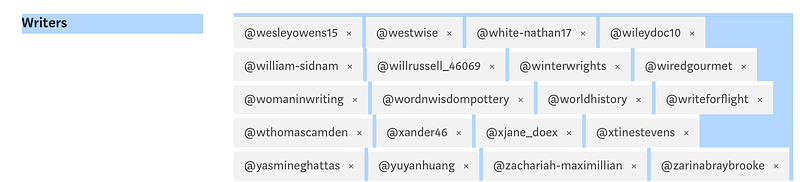
Step Four: Copy the text to an editor
Use an editor that has robust replace capabilities. I like Sublime.
Create a new file. Paste the copied text into the file.
You’ll get something that looks like this.

Step 5: Delete everything before the first @ sign
It should look like this.

Step 6: Do a global replace
There are two things we need to do here.
- We need to delete those little ×characters. NOTE: They’re not the letter X.
- Also, we need to put in some blank lines.
This step will vary depending on your editor. Let’s look at it in Sublime.
In the Sublime menu, pick the Find pulldown and choose Replace.
You’ll see this at the bottom of your editor screen.

We want to find “×@” in the file every time it occurs, and replace it with a new string where the × is gone but two newlines occur before the @ sign.
To do this, copy an occurrence of “×@” from your file into the Find: box. Don’t use the letter X. It won’t work.
Then, in the replace box, you want two newlines followed by an @ sign. To generate a newline, hold down the command key while you type the return key. Since we need two newlines. Do this twice. Then put an @ sign.
Your editor should look like this.

Now, click Replace All.
Your file should look like this.
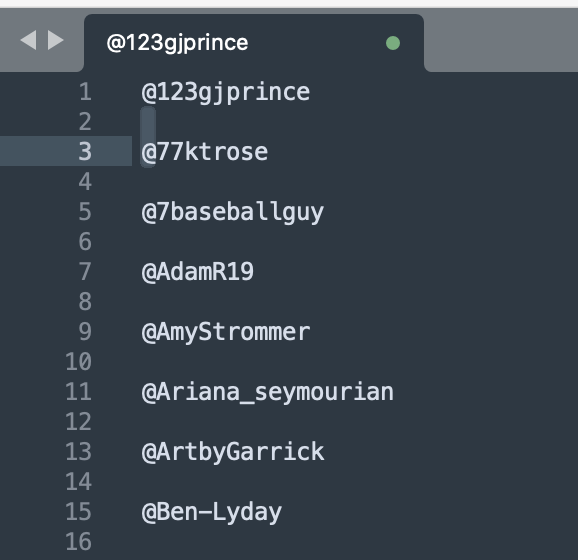
Step 7: Copy the text into a Medium story
This could be an extremely long list. MuddyUm has hundred of writers. We’re going to illustrate this for a small subset.
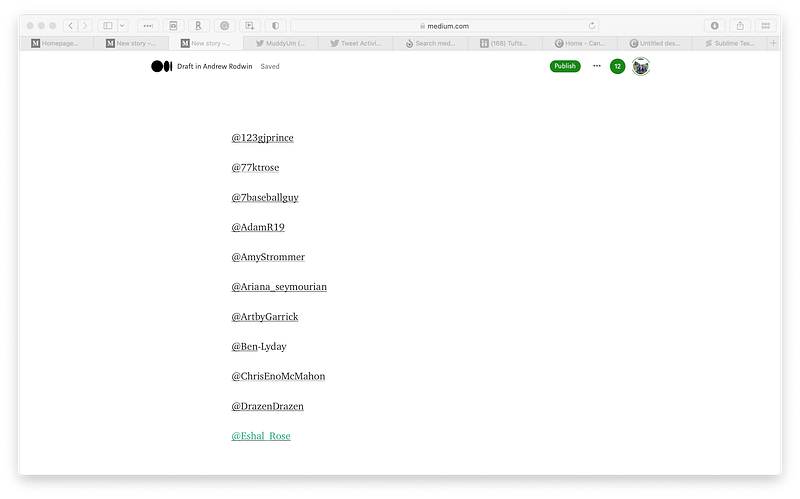
Step 8a: Change the tags into Medium writer tags manually
If your list is short, you can do this manually. If your list is long, that would be painful, so we’ll automate it.
To do this manually:
- With your cursor at the first character, hold down the Command key and press the right arrow key. You will see this.
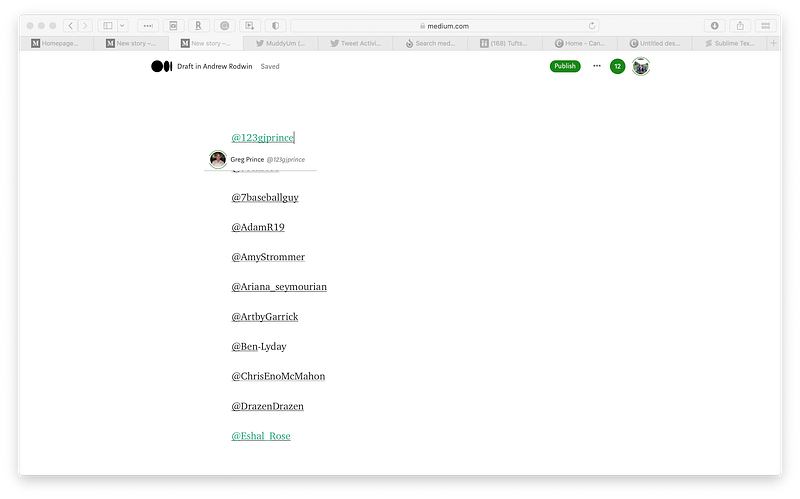
- Select the name which Medium prompts. You will see this.
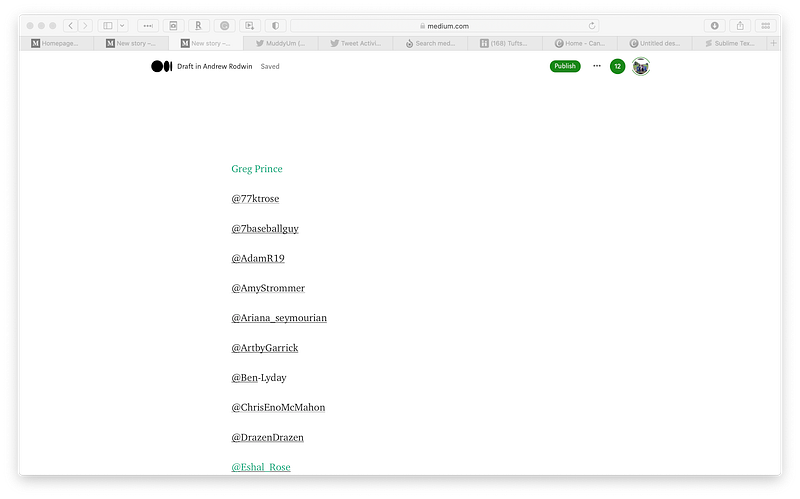
You could now cut and paste that first tag into any Medium story.
Step 8b: Change the tags into Medium writer tags using automation
We are going to automate a series of keystrokes to process all of the tags in the Medium story. To do this, we’ll use software called Keyboard Maestro, which you can get here. You must be running MacOS 10.13 or higher. The software costs $36, but you can get a free trial just by clicking a button.
After you install this application, which you do by double-clicking the file you downloaded from the website link above, open it. It will look like this.
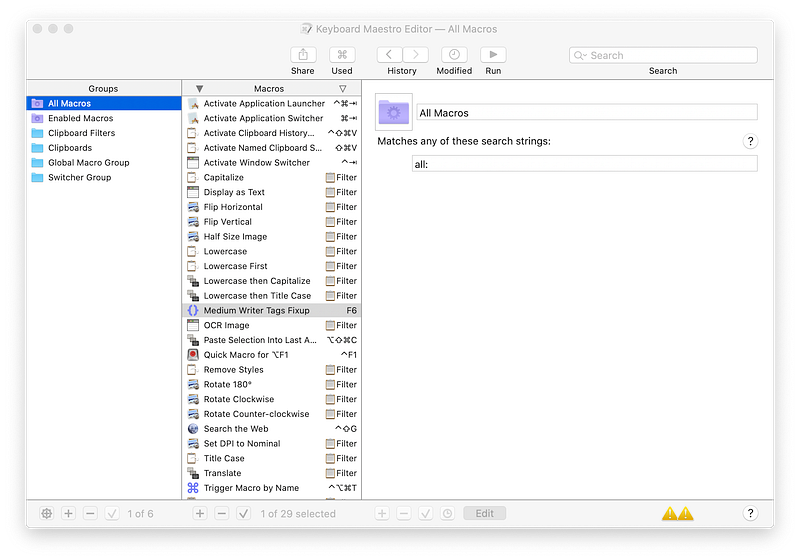
The highlighted macro shown above — Medium Writer Tags Fixup — is the one I created to automate this task. So you won’t see that one.
That macro looks like this.
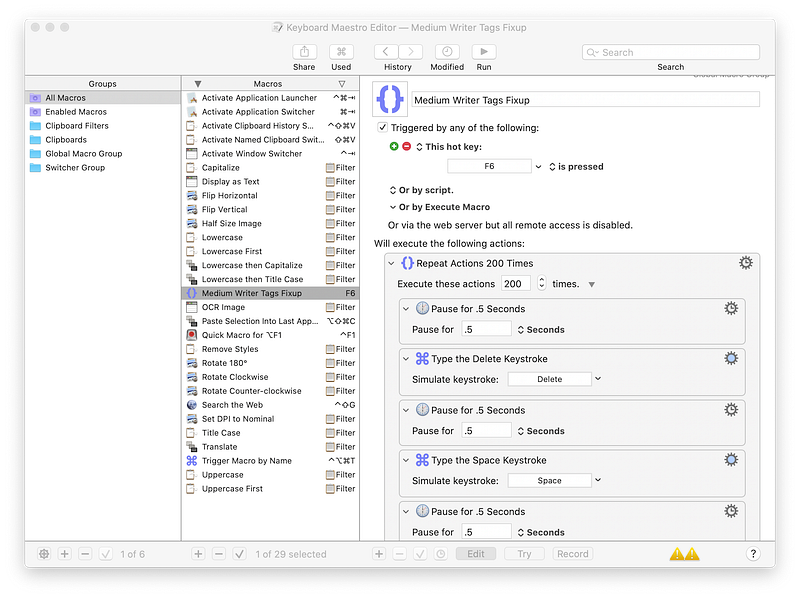
You don’t have this macro, since I created it. You could create it on your own, but then you have to learn more about this application than you probably want to know. If you’re geeky, go for it.
I put the macro on my Google Drive here. You can download it to your Mac. If you open it in the Finder, it should get imported automatically to your list of macros in the Keyboard Maestro application.
Let’s copy the first 20 names from the editor file into the Medium story. We have 20 writer tags to process in the file, so I am going to change Repeat Actions 200 Times to Repeat Actions 20 Times.
Position the cursor in the first column on the line with the first writer tag.
To execute the macro, press F6.
After the macro is done executing, we should see something like this.
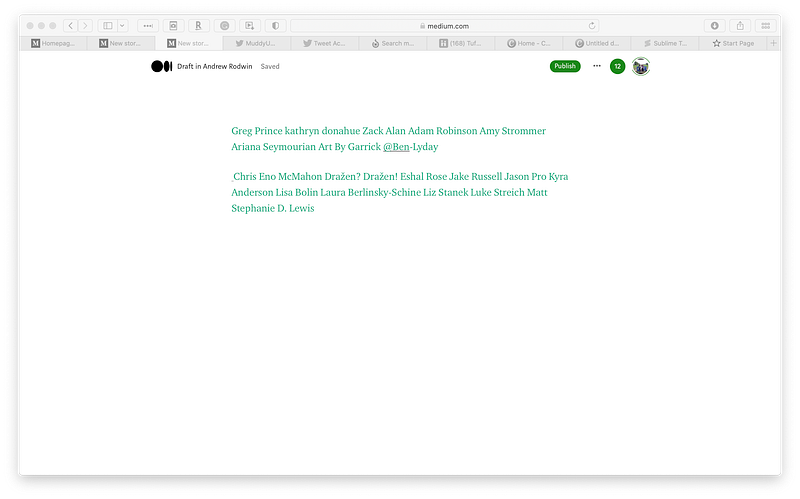
It didn’t run perfectly. That seems to happen. We can easily clean it up manually.
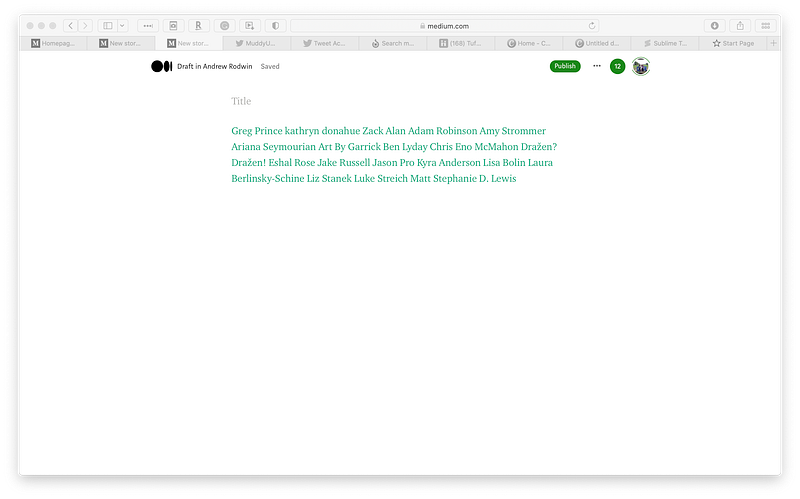
Caveats
- If you copy a long list of names from your editor into Medium, that webpage tab will be very sluggish.
- There are delays in the macro steps. I found that without the delays, the macro execution results in more errors. But the delays do mean that if you have a long list of names, the macro can take a long time to execute. Good time to get some coffee. You can also experiment with tweaking the delays.
- Your mileage may vary when you use this procedure. Feel free to let me know via comments or private notes if you get stuck or run into issues.
- If you get really stuck, I can do this for you. You could temporarily make me an editor, or copy the list of writers’ names and send them to me. I could do the rest of the procedure and share a file with you that you can use to copy/paste the names.
Tagging some people I know who run pubs and might be interested: Carol Lennox, Amy Sea, Lindsay Rae Brown, Aimée Gramblin, Jessie Waddell, Christine Stevens, Michael Burg, MD (AKA Medium Michael Burg), Jason, Smillew Rahcuef, Reuben, Susan Brearley.


