
12 mind blowing things you didn’t know you could do with your iPhone
Your iPhone is about to become much more useful
Use it for calculating heart rate
While we all know that smartwatches like Apple Watch can be used for detecting your heart rate, did you know that you can do the same using just your iPhone?
Install the Instant Heart Rate: HR Monitor app from the App Store on your iPhone. This app can be used to almost instantly calculate your heart rate by monitoring your pulse.
All you need to do is place your index finger on the top of your iPhone’s camera or the flashlight. After a few seconds, the app will accurately calculate and show your heart rate.
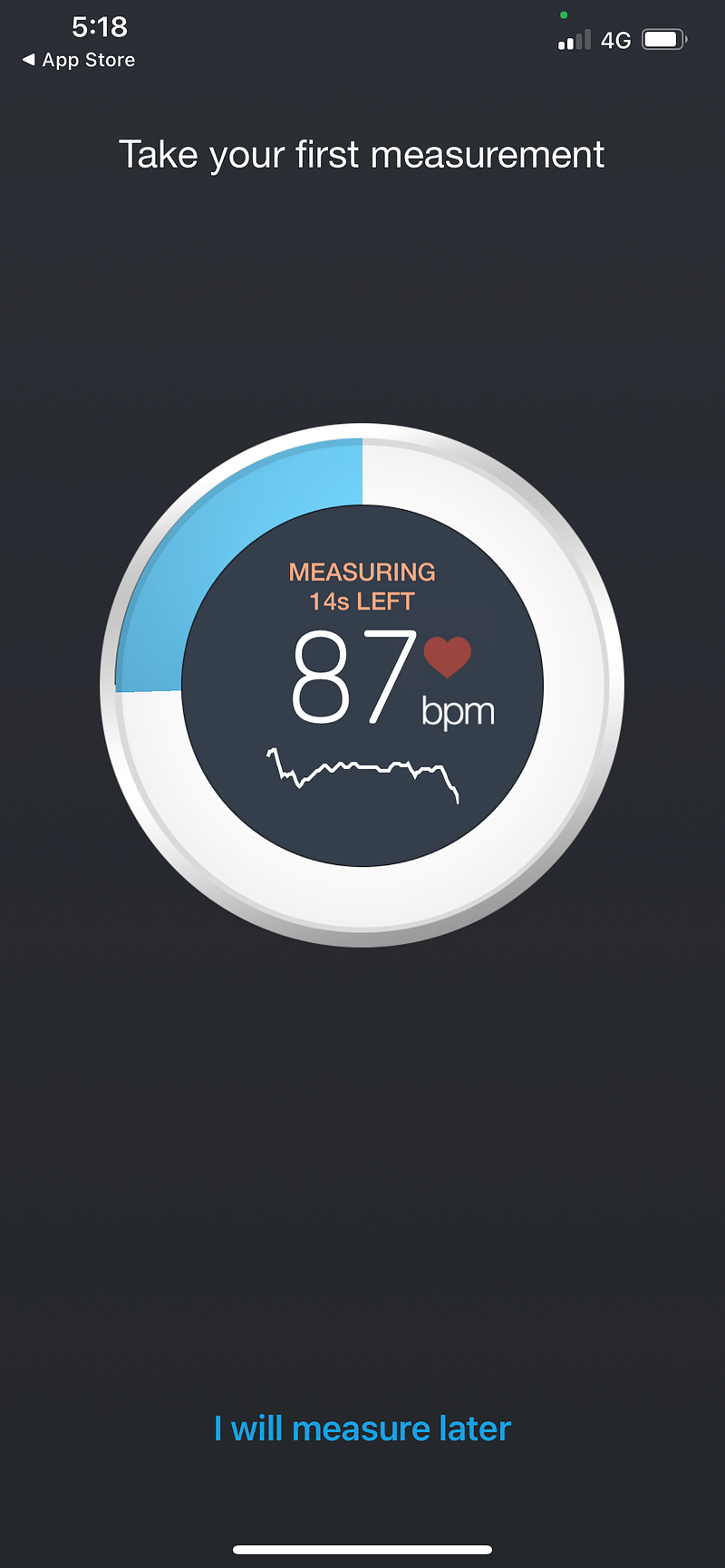
I also used my Apple Watch to calculate my heart rate to compare the results with the app, and they were surprisingly similar.
Use it as a security monitor
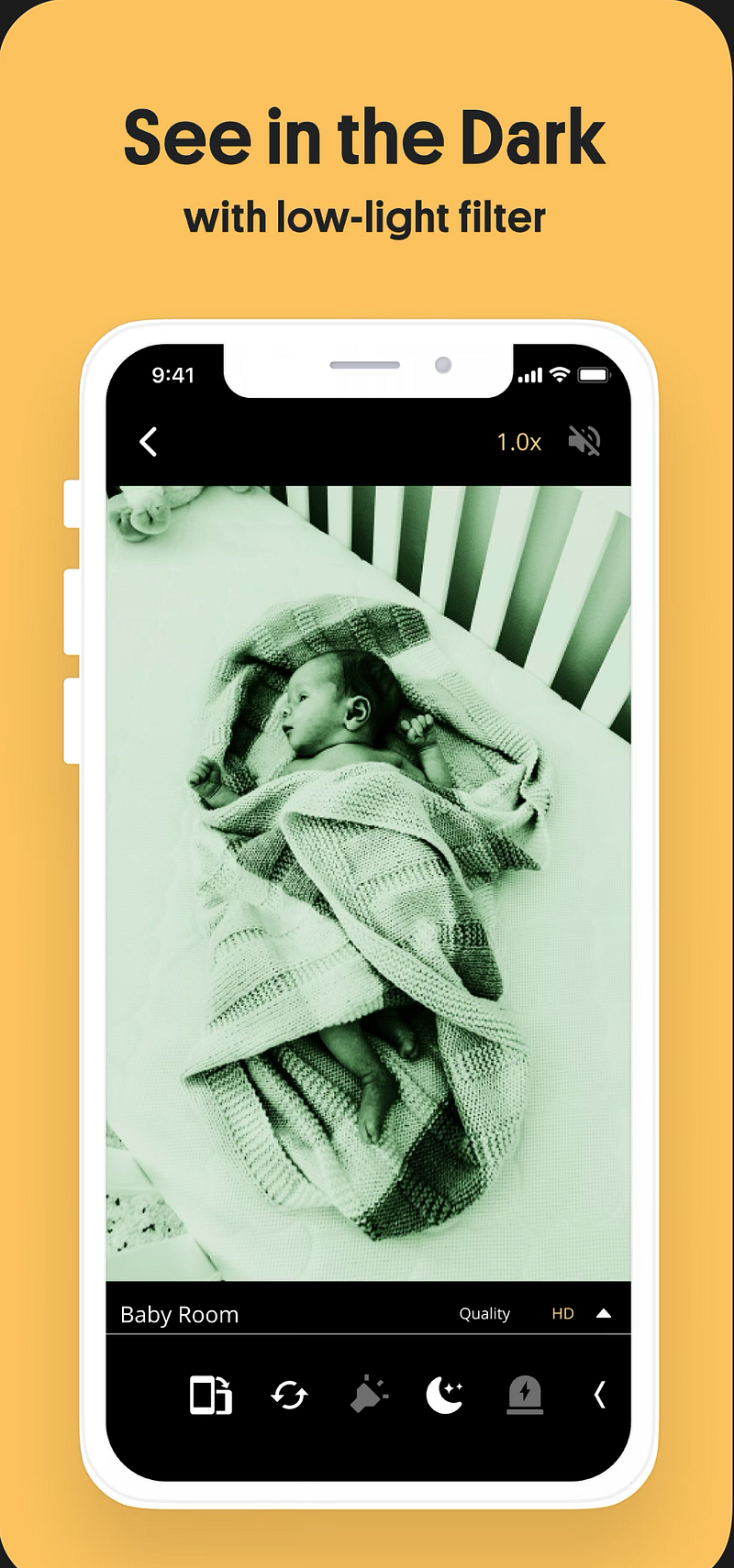
If you ever wanted to purchase a CCTV camera for your house or a baby monitor but opted out because of the added expense and maintenance cost, then you will be delighted to know that you can use your iPhone as a CCTV camera and a security monitor with no additional charge.
To turn your iPhone into a free security camera, just install the DIY CCTV Camera app from the App Store on your iPhone. After you go through the easy 3 minutes setup process, you can instantly start using your phone as a security camera, baby monitor, or even a pet cam.
The app has fantastic features like 24*7 live monitoring, free unlimited storage of recorded footage, motion alert, and walkie-talkie support. This is a genuinely incredible and helpful way to use your iPhone.
Use it as a TV remote
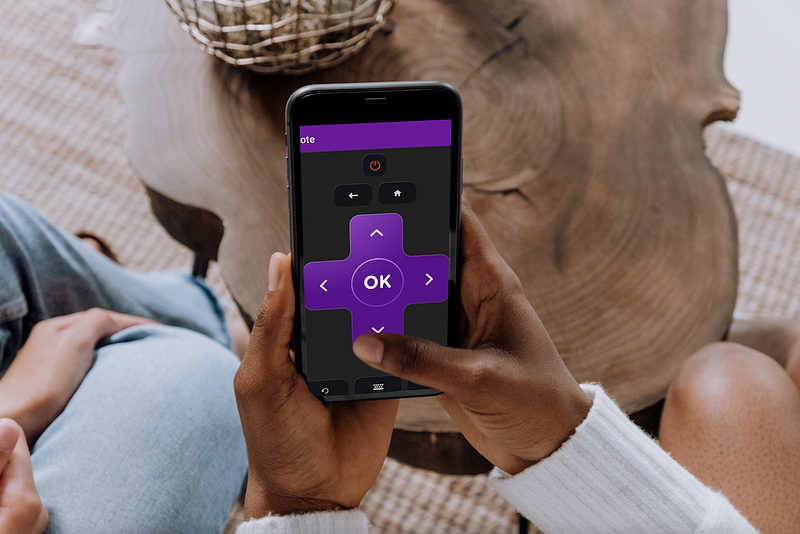
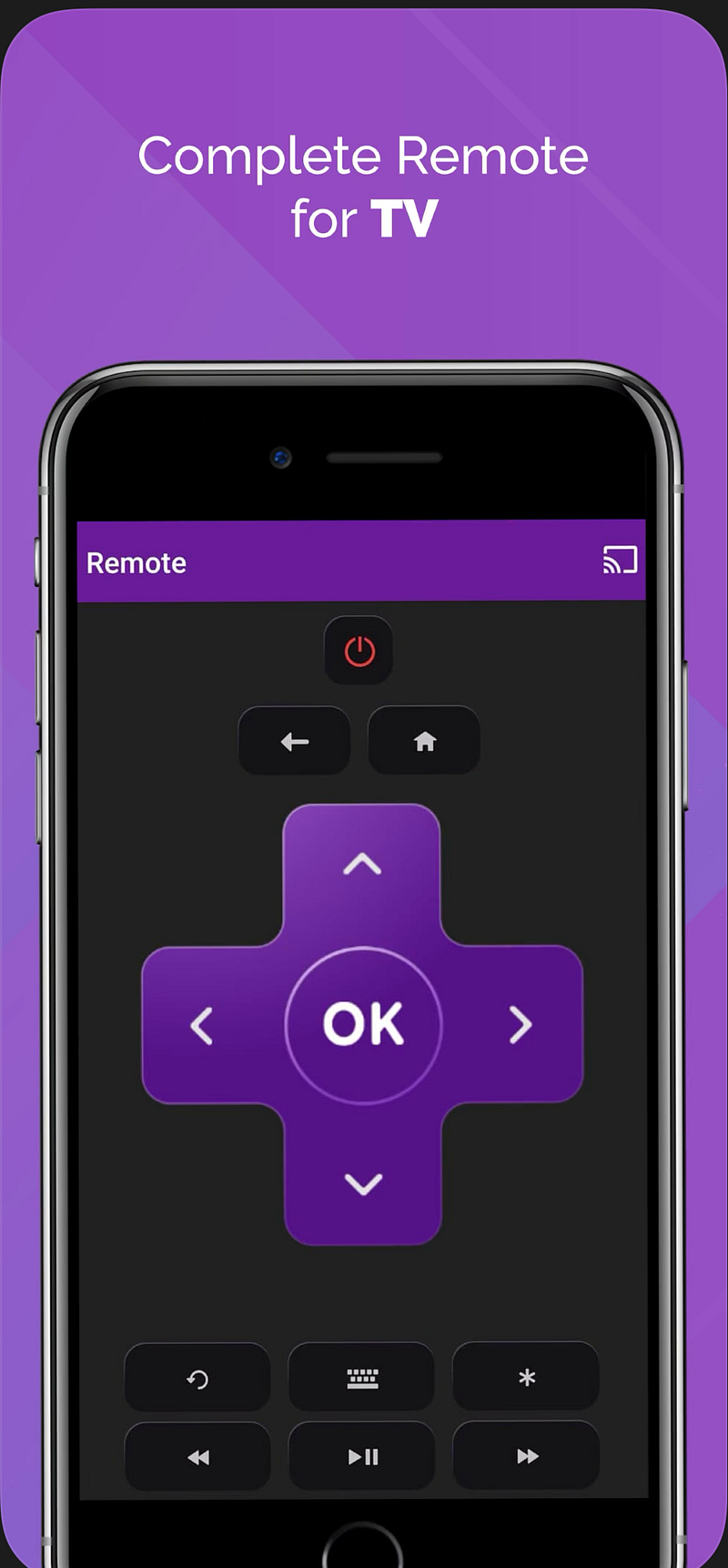
There are several Universal remote apps available for free on the App Store on your iPhone. These apps use the WiFi connection between your phone and smart TV and enable you to replace your TV remote with your iPhone. Most of these remote apps automatically detect your smart TV as long as it is connected to the same WiFi network as your iPhone.
Once the app has detected and added your TV, you can then use the virtual remote from your iPhone to control your TV, including turning it off and on, controlling the volume, and even using your iPhone as a virtual keyboard. Pretty cool, isn’t it?
Use it as a Sleep tracker
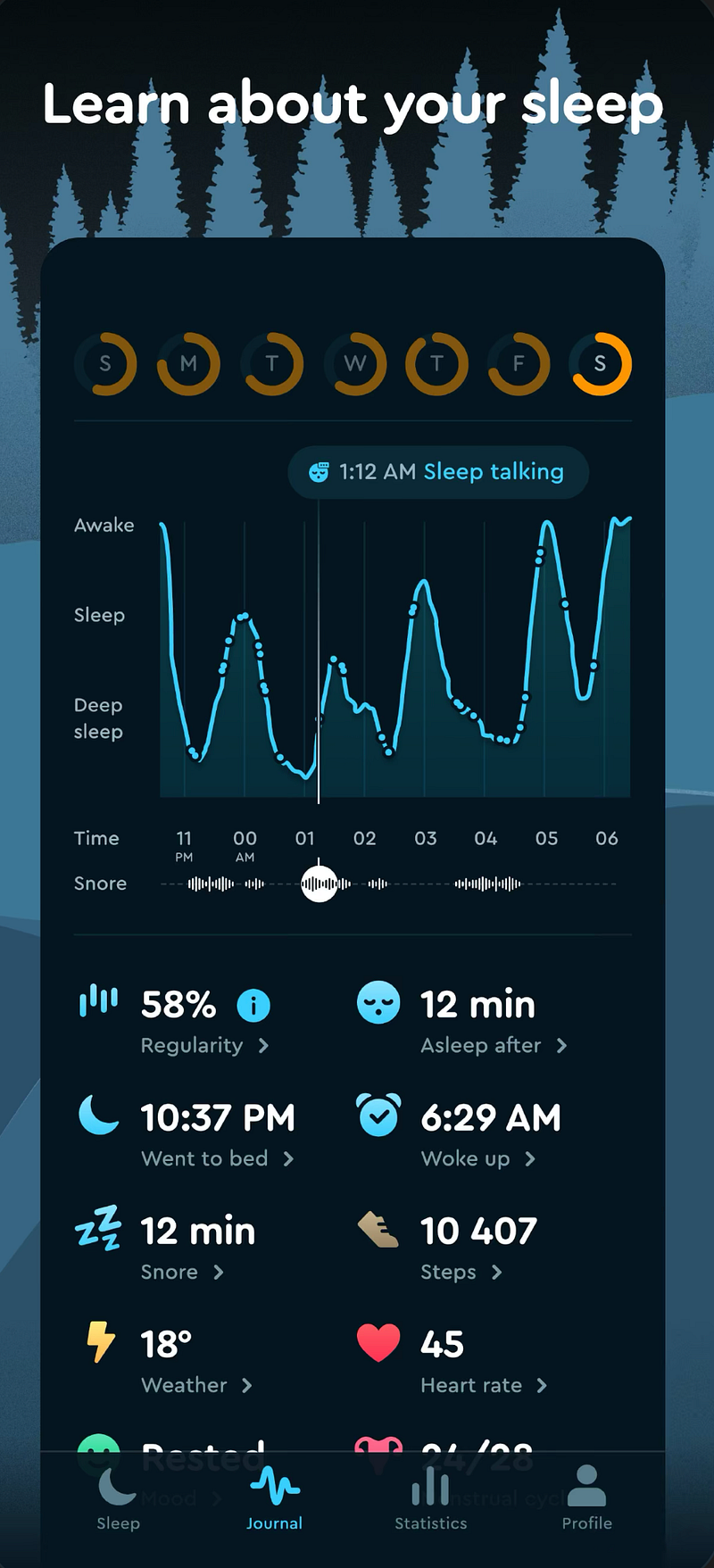
Similar to the heart rate monitoring feature, even sleep tracking is not exclusive to smartwatches or wearable devices as you can accurately track your sleep and even metrics like when you were snoring, did you talk during your sleep, and your REM cycle using just your iPhone.
While several free and premium apps are available for tracking your sleep using your iPhone, we mention the app Sleep Cycle here. It is the highest-rated app in this category in the App Store.
The Sleep cycle app can be used to accurately track several factors of your sleep including, sleep patterns, snoring, sleep talking, and will also automatically wake you up when you are in your lightest sleep phase.
Use it as a webcam for your computer
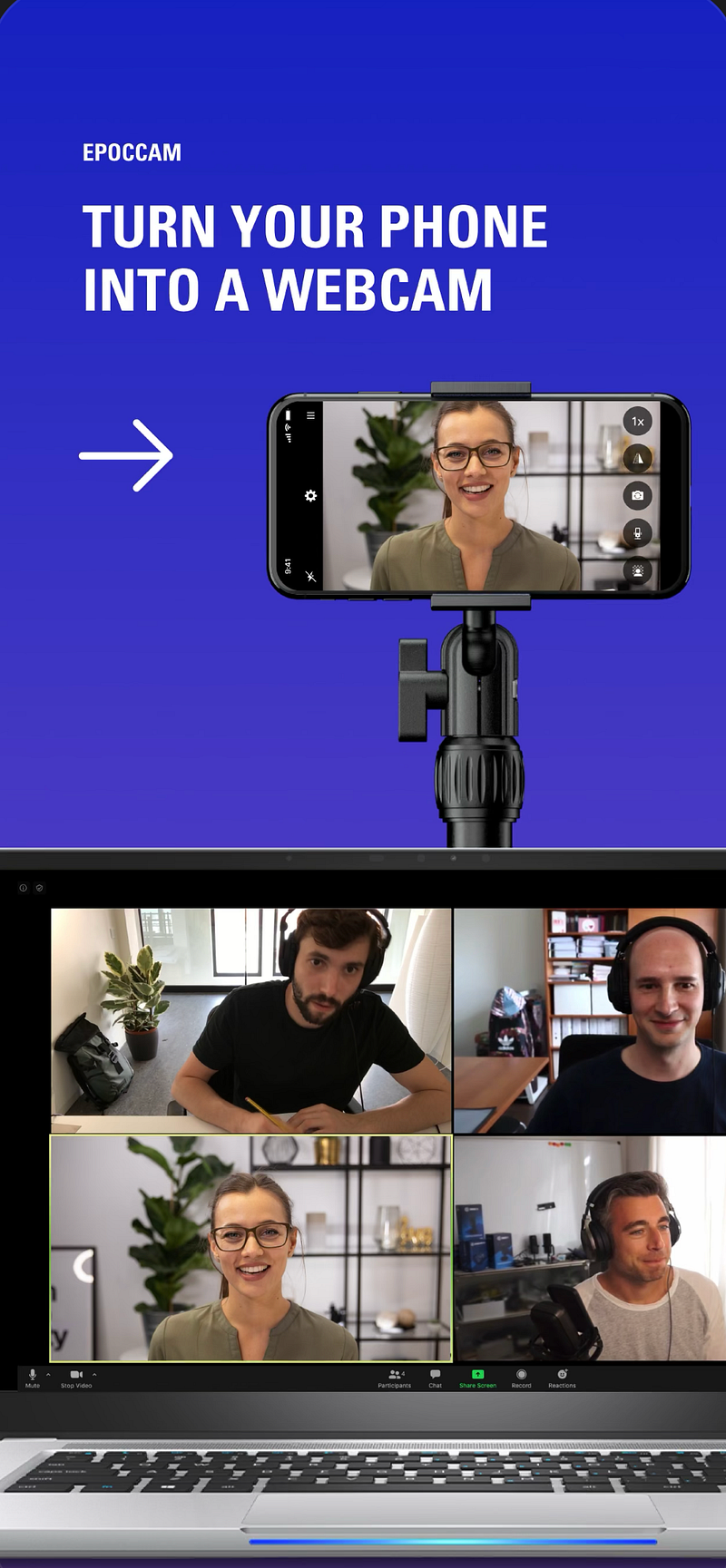
We all know that compared to the front cameras on smartphones, most webcams on modern computers and laptops are subpar. Well, what if you can use your iPhone’s front camera as a webcam for your computer? You can actually do this, and here is how.
First, install the EpocCam app from the App Store on your iPhone and then install the PC or Mac client of the app from the link below.
Once you have installed both apps, just launch the app on your computer. After this, initiate a video call or record a video and select the webcam source as EpocCam. It would automatically use your iPhone’s camera as the input source for your computer’s webcam. Your video call quality will be instantly improved drastically, and it is as simple as that.
Use it for checking hidden cameras
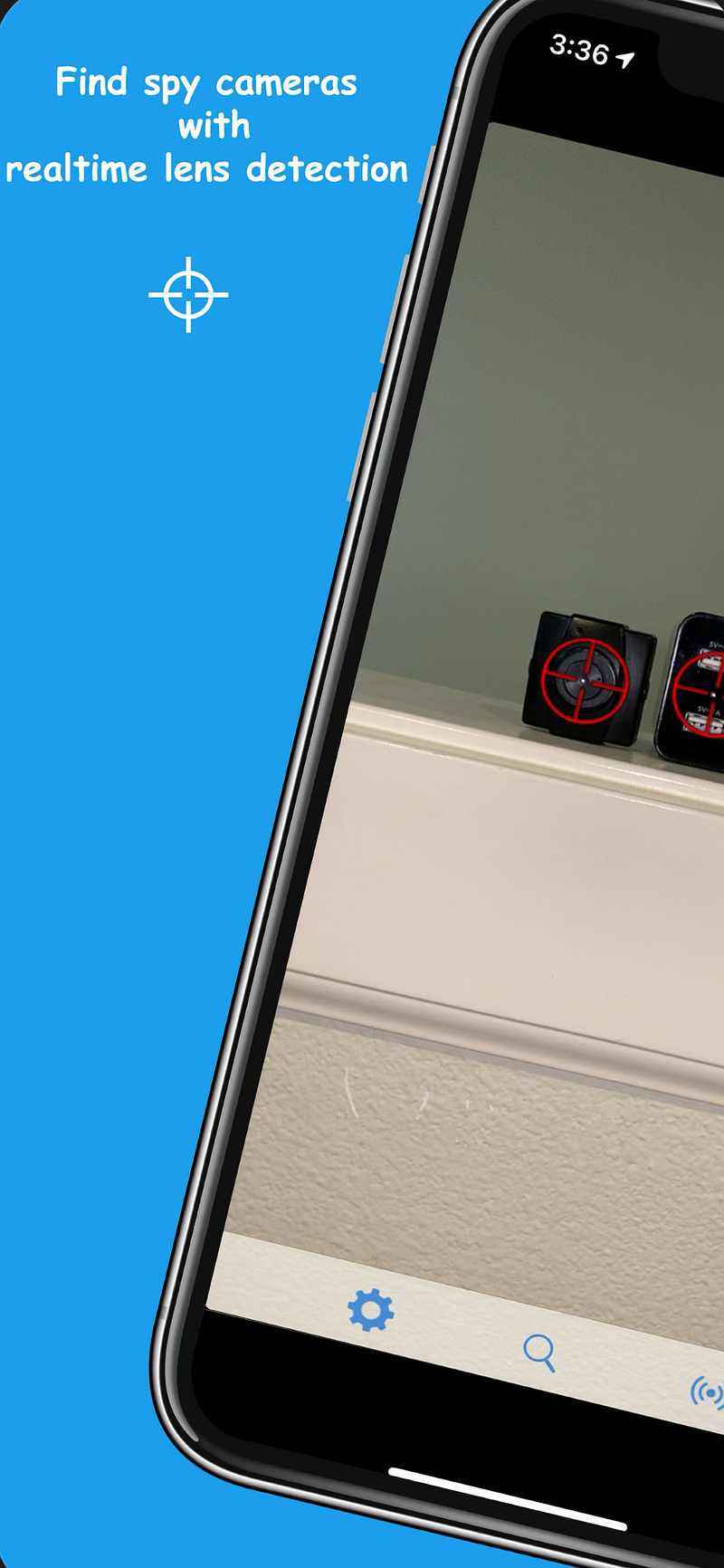
Your iPhone camera can not only be used for taking pictures but also for detecting hidden cameras, GPS trackers, and listening devices in any room you want. To use your iPhone to detect hidden cameras, first install the Hidden Camera Detector app on your iPhone from the link below.
The app has been developed by real-life security experts. It can be used to find the spy and hidden cameras with real-time lens detection using red crosshairs. It can also scan and detect hidden cameras connected to the local WiFi networks and even those that work through Bluetooth.
This app would be handy if you travel a lot and stay in random hotels and Airbnbs. You can also use it in trial rooms and public restrooms to ensure no hidden cameras spy on your actions and secretly record you.
Use it to mine Bitcoin
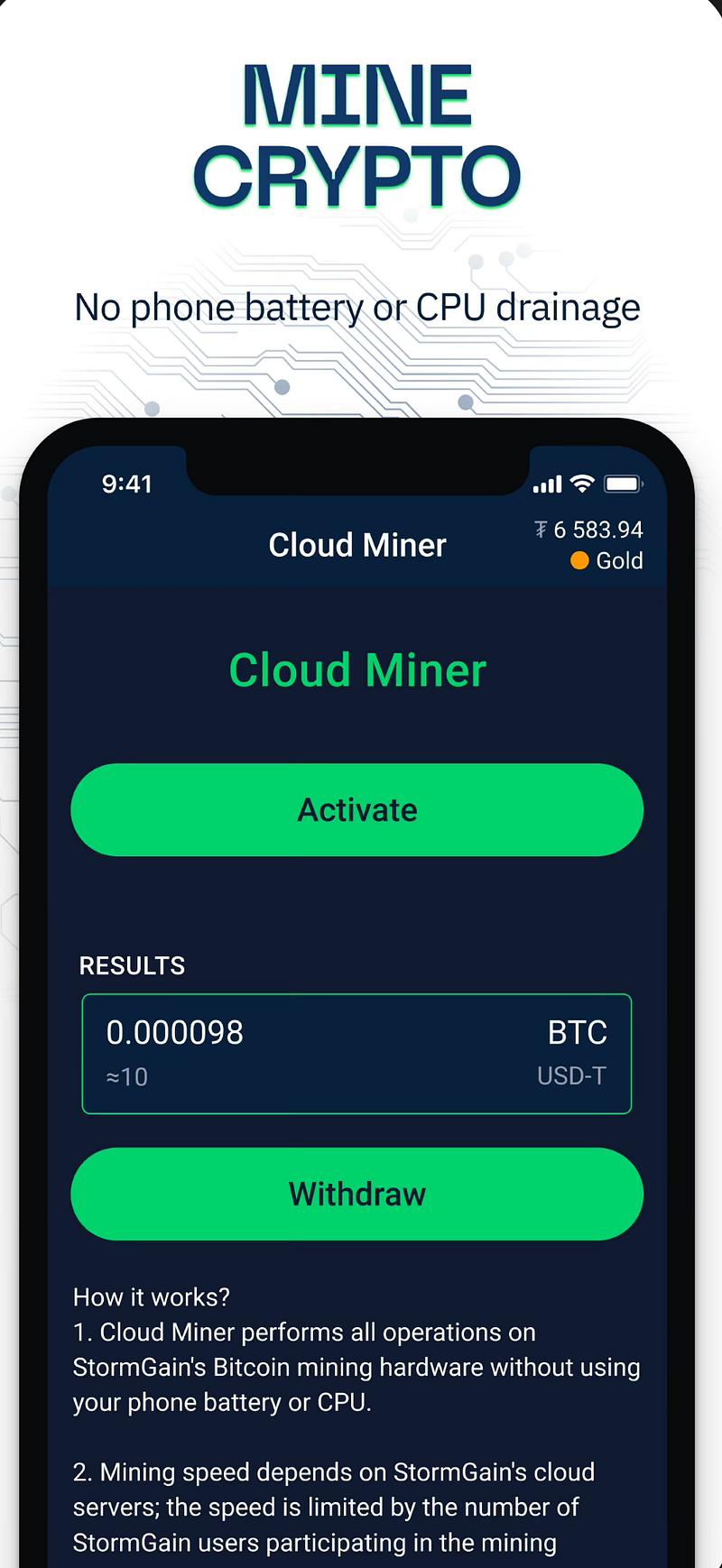
Bitcoin mining and cryptocurrency mining has been on the rise for the past couple of years. So naturally, everyone wants to dive in on this trend and get their share of Bitcoins by mining from any device they have. You can even use your iPhone to mine Bitcoins.
Just install the app called StormGain from the App Store on your iPhone, and you can proceed to mine Bitcoins straight from your iPhone. Don’t worry; this mining process won’t affect your phone’s performance or battery life, as it is cloud-based mining. The entire process would be performed on StormGain’s servers and not locally on your iPhone.
You will get paid in USDT called Tether from this mining process. You can then convert it into Bitcoins and withdraw the profit whenever you want or hold till the price of Bitcoin increases significantly.
Use it as a mouse and a keyboard for your computer
We all regularly watch movies or YouTube videos or listen to music on our computers from a distance. But, more often than not, we feel very lazy to get up and go near the computer to perform an activity like changing the song, controlling the volume, or opening something else.
Well, wouldn’t it be cool if you could do all of these and more, right from your iPhone, without having to get up and walk towards the computer? That is precisely what the app Unified remote does. It is a remote control app for your Mac or PC on your iPhone that lets you control your computer’s media, power, browser, files, and more.
The best part about Unified remote is that it can also be used as a remote mouse and a keyboard on your Mac or PC. This means that you can remotely control the cursor on your computer from your phone and type whatever you want using your iPhone’s keyboard.
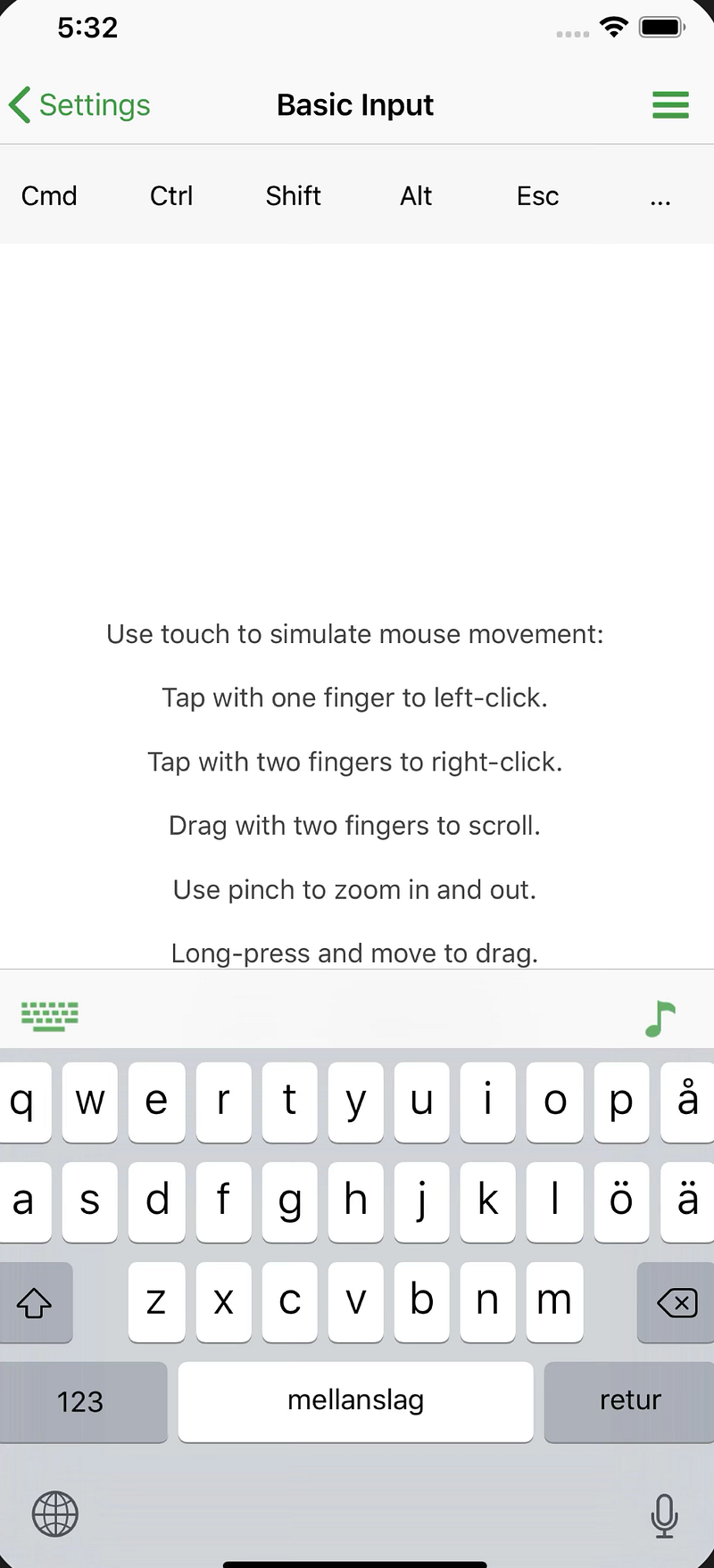
In fact, it is much faster to do it this way as you get gesture-based typing and even an autocorrect feature on your iPhone. So try the Unified remote app and continue to be lazy.
Use it to try out virtual things
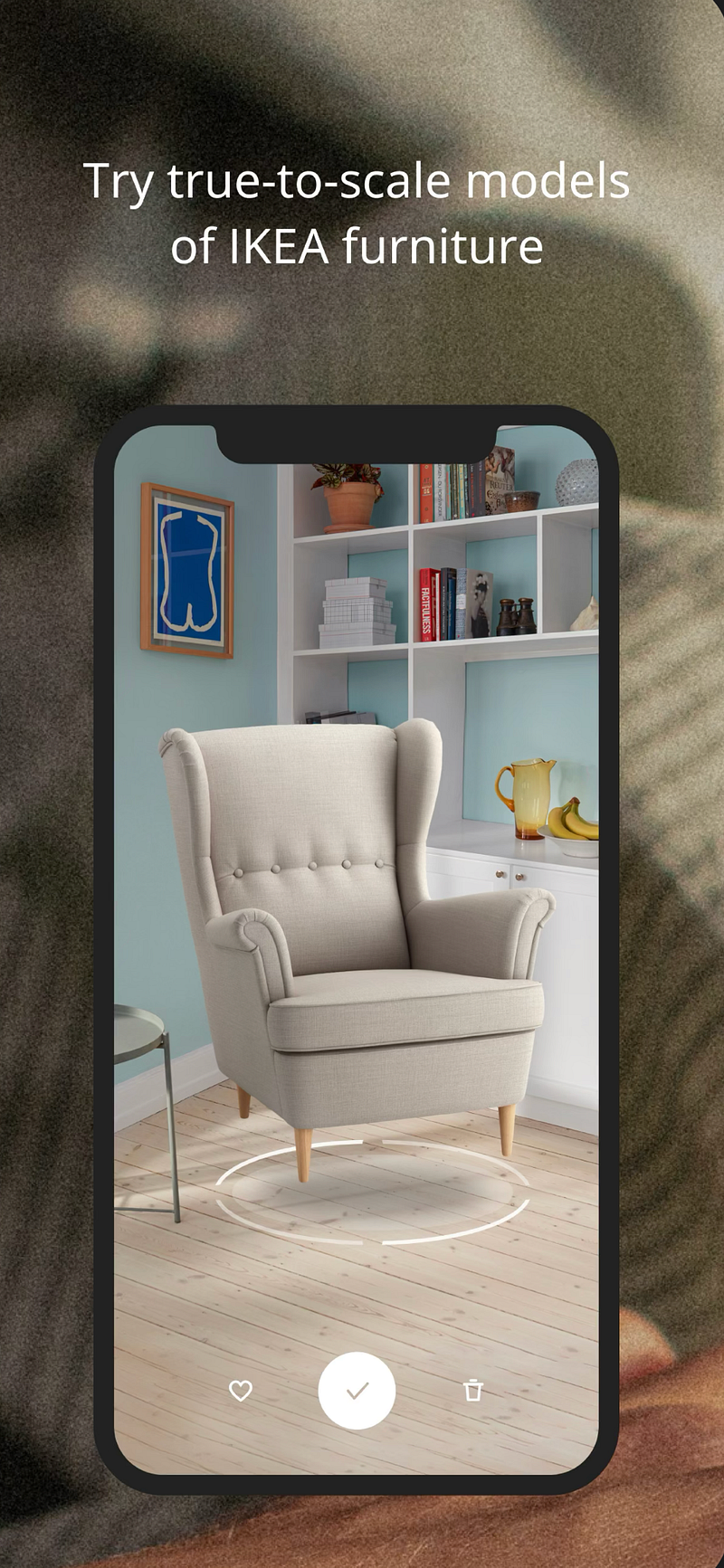
Most modern iPhones have incredible apps that use their LiDar scanner and AR capabilities. Still, unfortunately, not many of us know about these apps. For example, apps like Ikea Place allow you to virtually place true-to-scale models of their furniture in your house to see how they fit; even Apple’s own website allows you to virtually experience 3D models of their products.
Another app called Wanna kicks allows you to virtually try any shoe available on their app to see how it looks on you. Several other apps use the AR feature of the iPhone in unique ways for both education and entertainment purposes serving truly incredible purposes for your iPhone.
Use it as a ruler, tape measure, and a compass
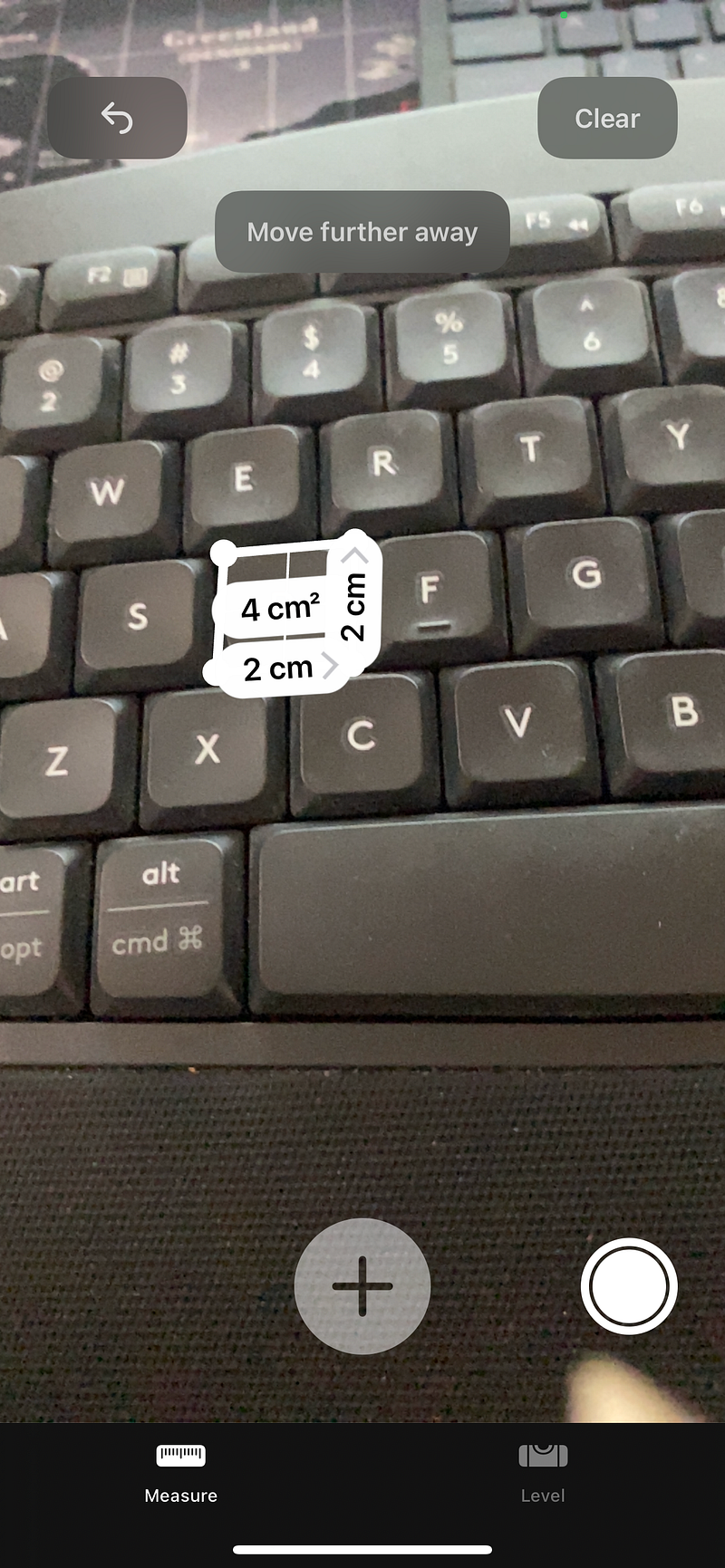
Apart from third-party AR apps, your iPhone has a couple of built-in apps that use the AR functionality, namely the Compass and the Measure apps. The measure app even serves multiple functions like measuring the distance between two surfaces, recognizing the shape of objects and measuring their dimensions, calculating the bubble level of surfaces, etc. You can even use the app as a ruler or a tape measure based on your needs.
Use it to solve math problems
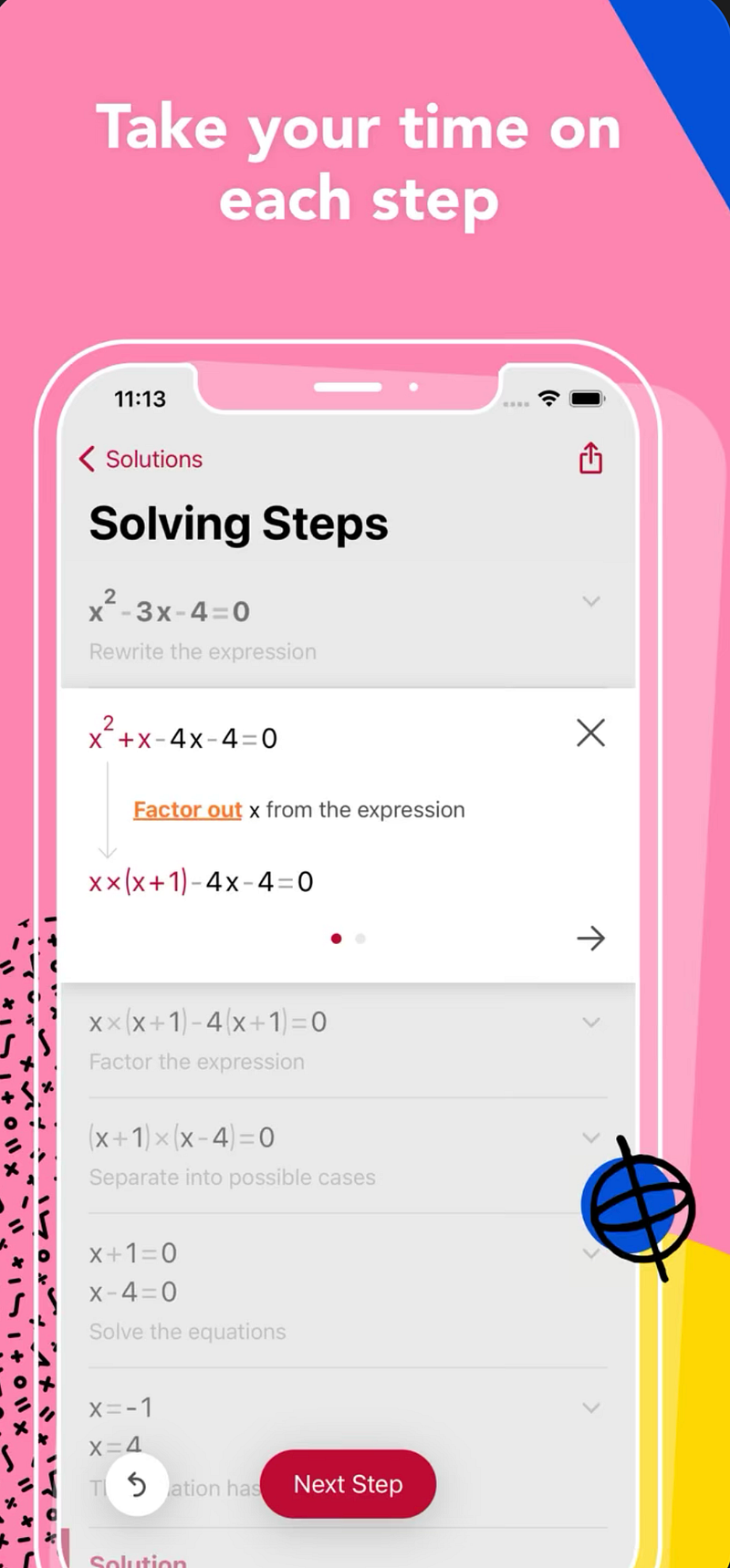
Photomath is one of the highest-rated and most popular education apps for the iPhone. It helps you quickly solve complex math problems and equations with step-by-step solutions for Algebra, Arithmetic, Geometry, graphs, and more.
Just point your iPhone’s camera on the equation or the question. The app will automatically recognize the characters, variables, and numbers. It will then provide you with a step-by-step solution with cool animations and how-to tutorials.
Use it as an external mic for your computer
Just like how you can use your iPhone’s camera as a replacement for the webcam on your computer, you can also use your iPhone’s mic as a replacement for your computer’s mic using the app called Wo Mic on your iPhone’s App Store.
Once you install the Wo Mic app on your iPhone, follow the link below to install the PC client on your computer to use your iPhone as a mic for your computer. You can also follow the step-by-step instructions on the website to set up the app if you are unsure how to proceed.
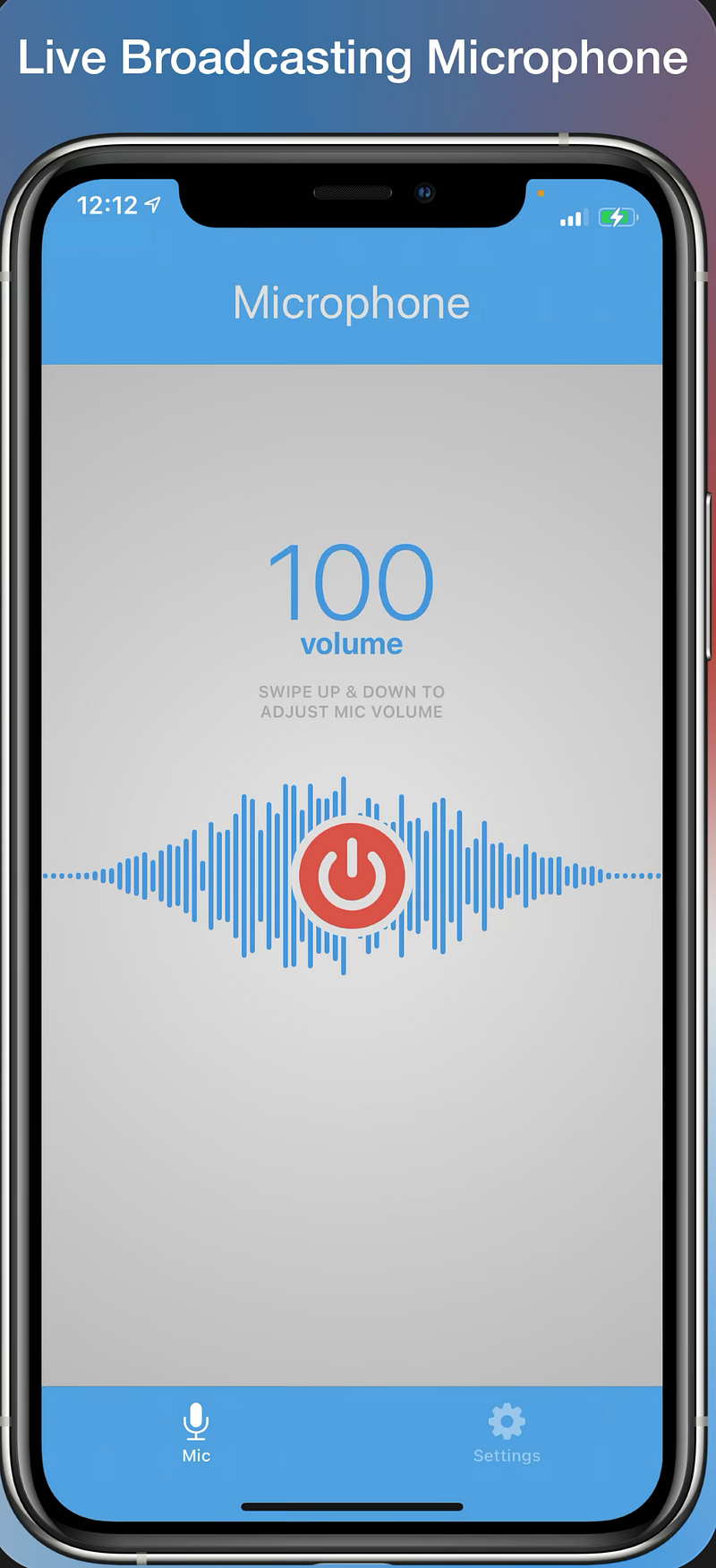
If you are trying to use your iPhone’s mic on your Mac, you need to install a different app called Microphone Live from the App Store on your iPhone, and you will be good to go.
Join the Medium membership program to get access to unlimited articles across Medium and to support your favourite publications!


