
12 Exclusive macOS Apps That Will Make You Feel Lucky to Own a Mac
Powerful Apps You Won’t Find Elsewhere

One of my favourite quotes about using a Mac is, ‘Once you go, Mac, you never go back,’ and as a long-time Mac user and enthusiast, I cannot agree more with that phrase.
And today, I am going to share 12 exclusive macOS apps with you that will make you also agree to the phrase and leave you feeling very lucky to own a Mac as your laptop or desktop of choice.
So, go ahead and grab a cup of your favourite drink, and let’s dive in.
Arc Browser — A fresh new browsing experience 🌐
While popular browsers like Chrome, Safari, and Firefox largely have remained the same over the years in terms of looks and functionality, Arc Browser aims to change the game and is designed to reimagine the way you browse the internet by offering a ton of unique and innovative features.
Arc uses a concept called spaces that lets you create collections of tabs for different purposes like work, personal, or for some crazy DIY project, you are secretly working on. The browser also tries to make use of the horizontal screen space by providing a left sidebar to organise your spaces and manage your tabs.
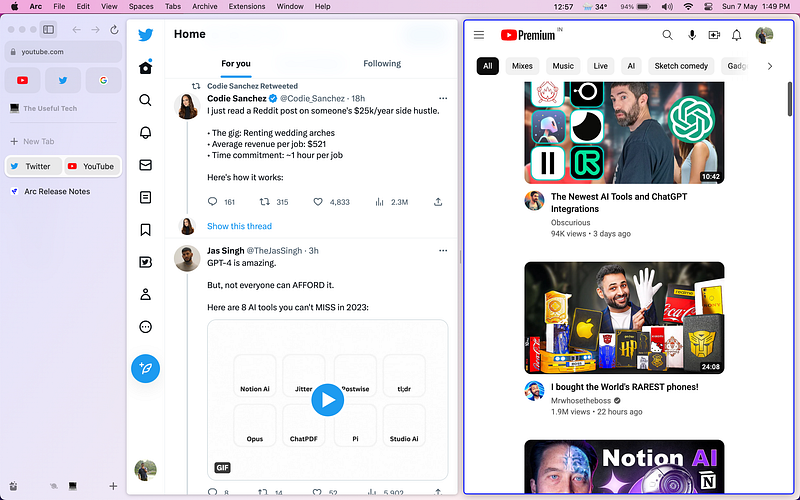
Arc also offers many other cool features like a picture-in-picture window to watch videos while sending an email, a ‘Little Arc’ mini browser window to check out a website while working on something else, and even a multi-tasking layout to simultaneously work on 2 tabs.
You can also preview links and webpages as overlays to quickly check out their content without opening them. It even has a powerful search feature similar to Spotlight search on Mac that lets you search for open tabs, extensions, browser settings, and more.
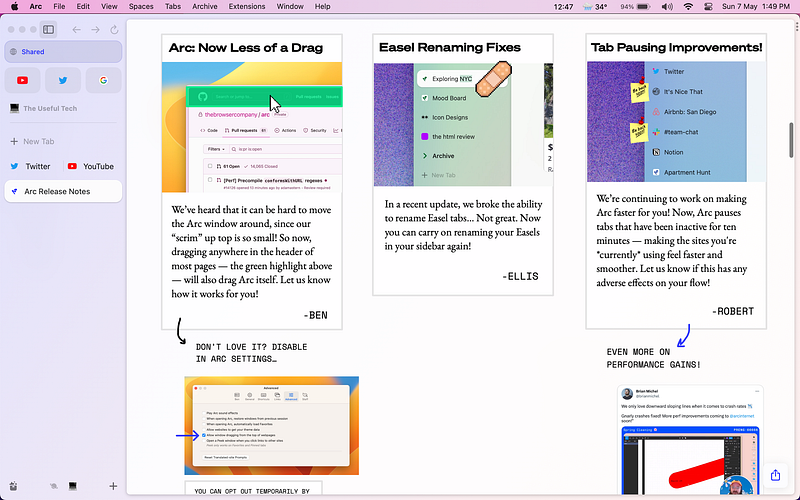
My favourite feature is the ‘auto archive’ that automatically archives tabs that you have not visited in a while and have not pinned, so your browser remains clutter free and helps you to focus better.
Why you should install Arc Browser? (TLDR)
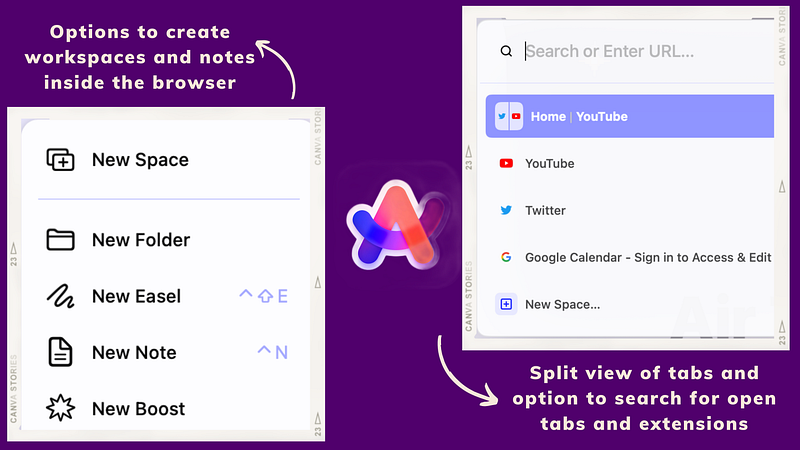
If you are bored of using the same old browsers and are looking for a fresh browsing experience, you have to try out Arc Browser. It offers excellent organisation capabilities with a feature called spaces, that lets you organise your tabs within folders, a powerful search function, picture in picture mode, mini browser window, split screen multitasking, and more.
Carrot Weather — A sassy and accurate weather app ☔️
I was very happy when Apple finally added a dedicated weather app to Mac in the latest macOS update. However, my experience with the app so far has not been ideal and it has been inaccurate and unreliable on several occasions.
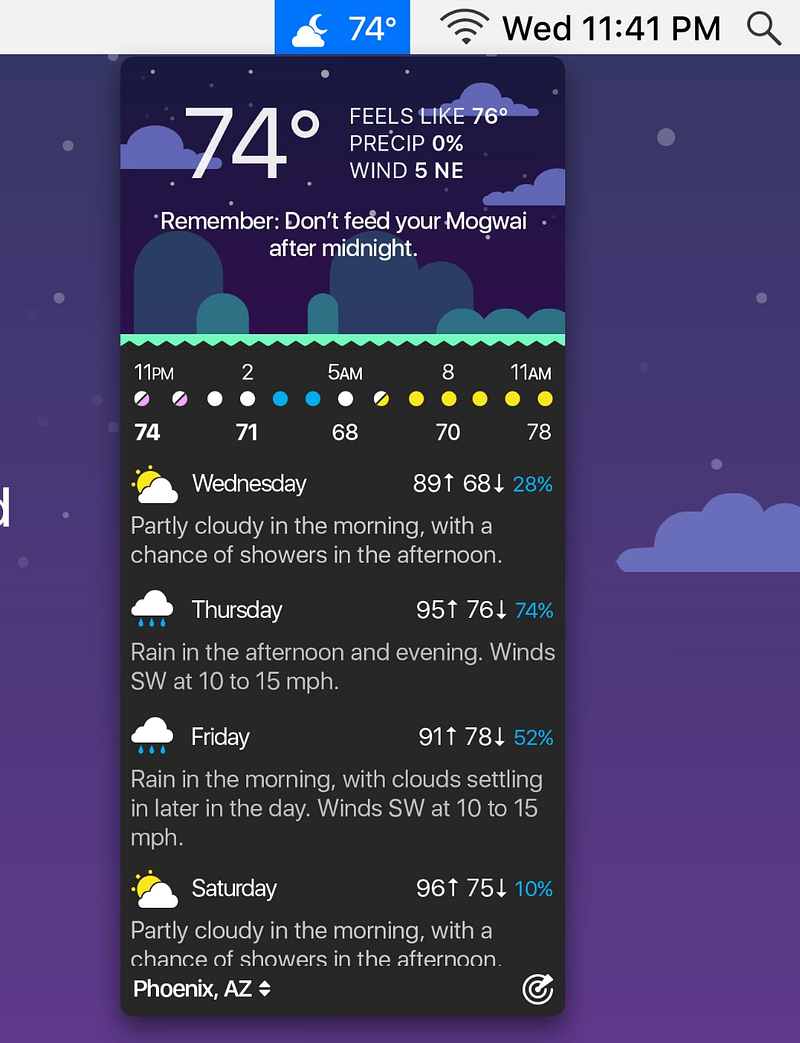
So, I began hunting for a replacement weather app and came across Carrot Weather, and it is probably one of the most accurate and data-rich weather apps I have used and it is unusually funny and sassy for a weather app.
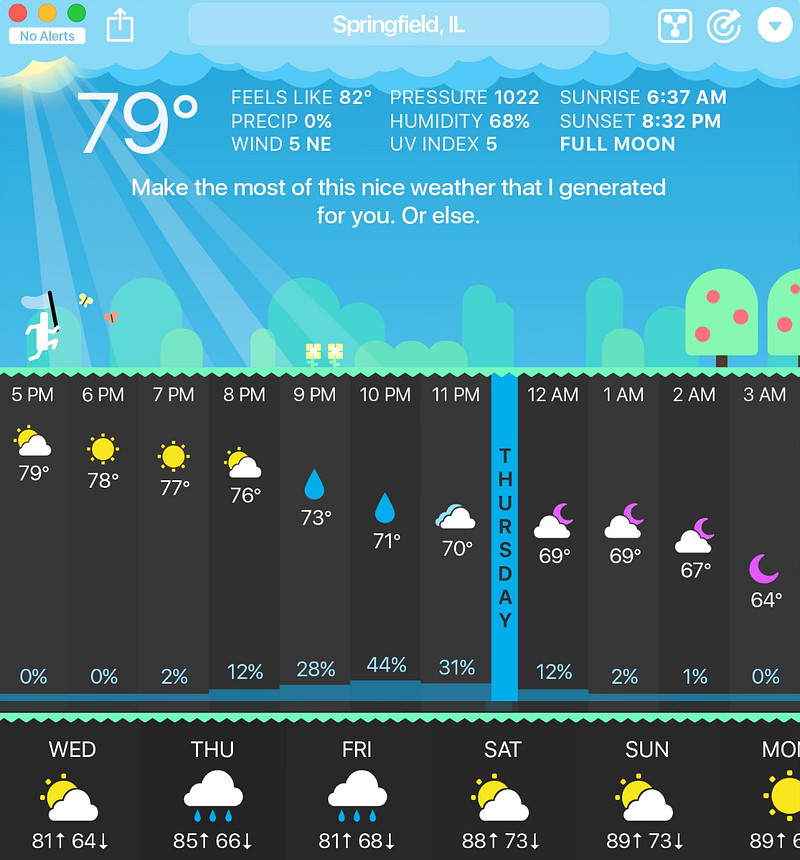
The app provides all the essential information including current weather conditions, hourly forecasts, radar maps, precipitation notifications to the minute, animated maps, and even a menu bar icon to display the weather.
You can customise the app to choose your preferred weather source, and even view the historical weather of up to 70 years for any location. My favourite feature is that you can tailor the app’s personality to your taste.
You can choose from ‘friendly,’ ‘snarky,’ ‘homicidal,’ or ‘overkill’, each bringing its unique style to weather your forecasts and it is one of the things that makes the app very enjoyable to use and makes it hard to think about switching to a different weather app.
Why you should install Carrot Weather? (TLDR)
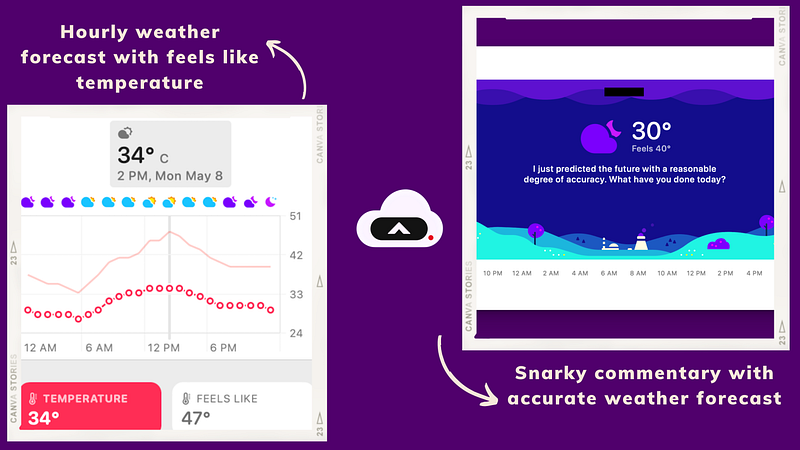
If you are looking for a fun, feature-packed weather app with a unique, snarky twist, and one that provides accurate weather forecast information, minute-by-minute precipitation details, historical weather data, various weather providers, severe weather alerts, lightning strike and storm cell notifications, and more, you cannot go wrong with Carrot Weather.
Day One — Journaling made easy ✍️
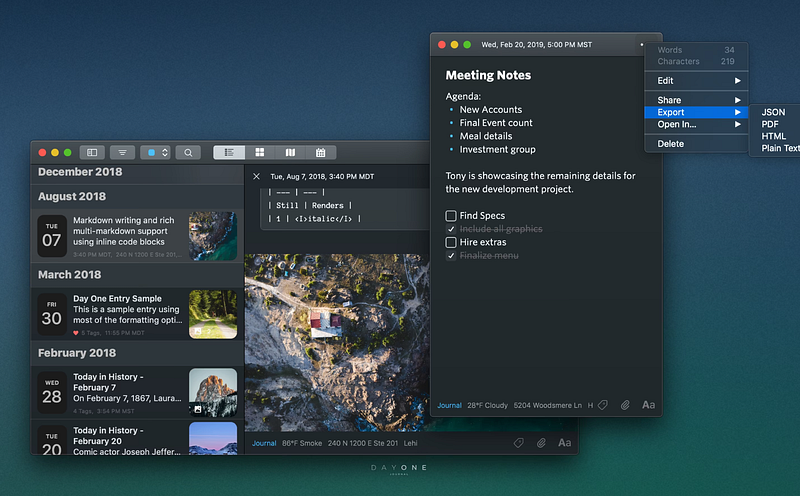
If you are a fan of journaling and jotting down your thoughts and ideas every day, then you will love Day One. It is a clean and elegant journaling app that makes writing enjoyable and encourages you to pen down your daily experiences and memories without any distractions.
But it doesn’t stop there, you can also add your photos, videos, and even audio recordings of your favourite moments to Day One. If you have an iPad and an Apple Pencil, you can even add drawings to your daily journals.

One of the standout features of Day One is the powerful organisation options it offers. With its versatile tagging and searching features, and the ability to create multiple journals for different aspects of your life like travel, personal growth, work, etc, it makes keeping track of your journal entries a piece of cake.
Day One offers various templates that make it easier to put your thoughts into words, and it even sends you helpful reminders in case you forgot to create your journal for the day. And of course, all your journals are secured with end-to-end encryption and can be locked with a password or touch ID to ensure the utmost privacy and security of your precious memories.
Why you should install Day One? (TLDR)
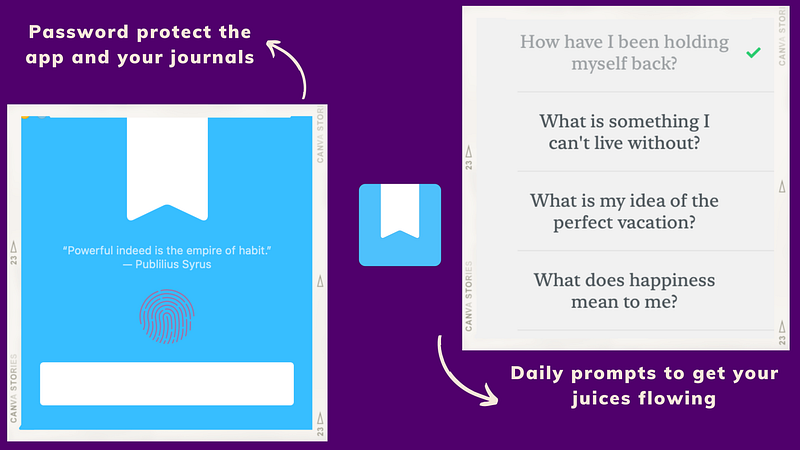
If you are looking for an intuitive, beautifully designed journaling app that helps you capture and organize your thoughts, memories, and experiences, enrich them with photos, videos, audio recordings, and drawings, encrypts all your entries, and allows you to protect them with a password, then Day One is a great app to start your journaling journey.
DropZone 4 🗳️ — Supercharge your productivity
DropZone is probably one of the most unique apps I use on a fairly regular basis and it has saved me a ton of time, and effort, and has supercharged my productivity by cutting down a multi-step process into a single step.
DropZone aims to transform how you handle files and interact with different apps with a menu bar icon that opens up an array of options whenever you drag files, text, or links to it. DropZone is also highly customisable, allowing you to add or remove actions, and rearrange them.
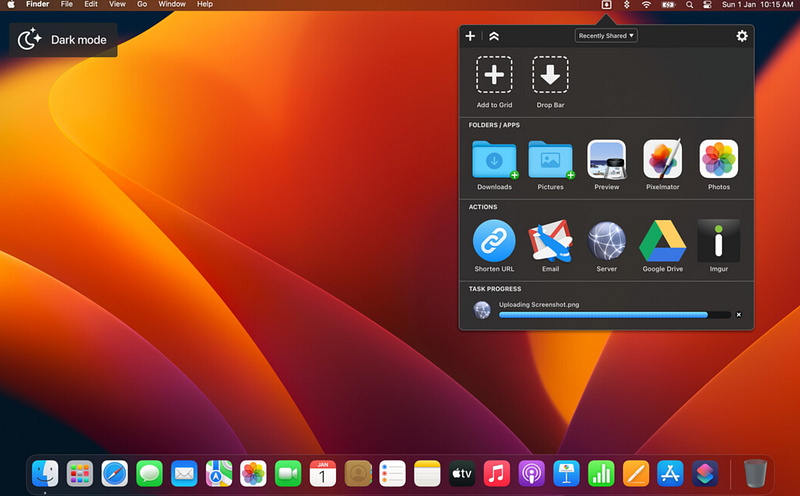
DropZone also has a bunch more tricks under its sleeve. You can drop images on an extension to convert them, zip and unzip compressed files, search for an image, create an email, and so much more.
DropZone 4 also offers a powerful list of shortcuts that lets you perform quick actions like launching apps, opening folders, sending a message or a file, uploading files to the cloud, shortening URLs, downloading YouTube videos, and basically doing anything that would save you a ton of time.
Why you should install DropZone 4? (TLDR)
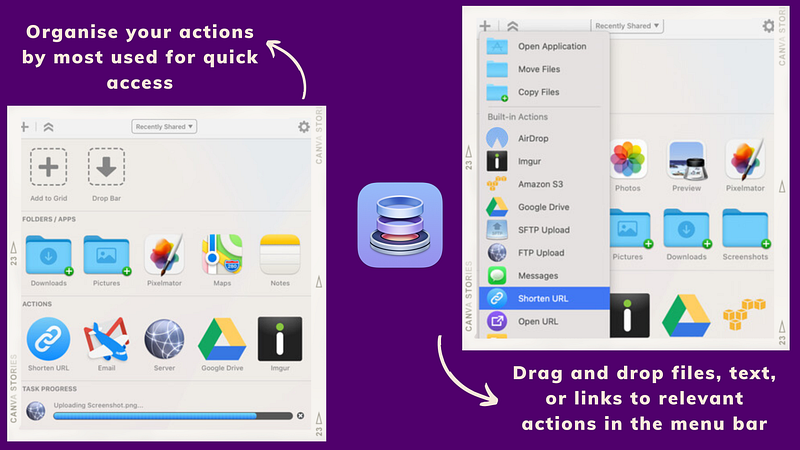
DropZone 4 is a powerful productivity tool that streamlines your workflow with quick actions like converting images, compressing files, downloading videos, sending messages, and more. If you want to save a ton of time and reduce the number of steps taken to perform a task, start using DropZone. Use my affiliate link below to try DropZone and many other apps for free for 30 days in Setapp, an app subscription service.
Hammerspoon — Unlock your Mac’s full potential 🔨
Hammerspoon is a versatile automation tool for macOS that can just about automate anything on your Mac with a simple configuration file. It has the potential to replace multiple utility apps.
With Hammerspoon you can create custom shortcuts for basically anything like launching apps, rearranging windows, triggering actions based on an event, switching between multiple displays, and much more.
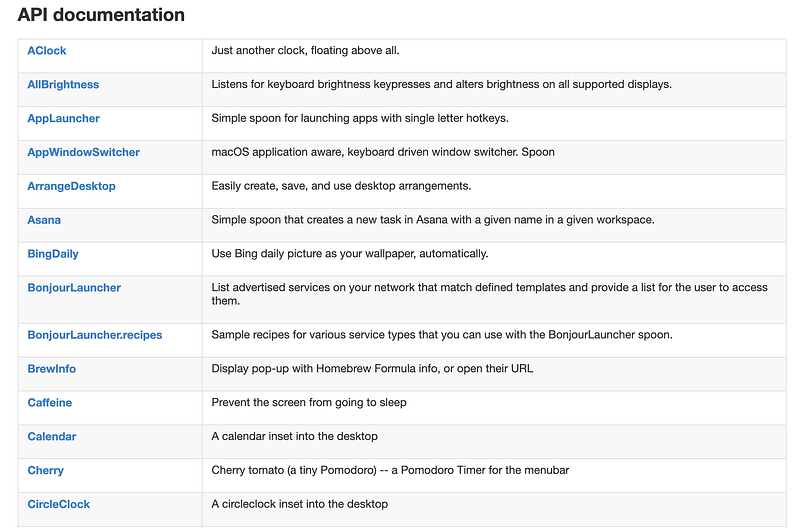
For example, you can automate actions like enabling DND mode, opening an app, rearranging app windows, starting a Pomodoro timer, and even displaying your internet speed or backup status on the menu bar, based on an event like connecting to a WiFi Network or closing an app.
Even if you don’t have prior experience in scripting or cannot come up with cool ways to automate stuff, don’t worry, the Hammerspoon community is very supportive, and have detailed documentation to help you get started. The website also boasts a huge list of pre-made plugins to choose from.
Why you should install Hammerspoon? (TLDR)
Hammerspoon is a powerful automation tool for your Mac with the ability to automate just about anything based on the triggering of an event like connecting to a WiFi network or opening an app. You can configure it to open apps, start a timer, adjust brightness across displays, create a to-do list, translate a copied text, and much more based on your configs.
Homebrew — Install anything with ease 🤖
Homebrew is one of the must-have apps for Mac. It has the potential to completely transform your workflow for installing apps, packages, and tools to your Mac, updating or uninstalling them.
If you are a software developer or someone who loves to try out new apps, you should definitely install Homebrew as it simplifies the process of installing software on your Mac and will install all the dependencies of an app and the latest updates with just a simple command, so you don’t have to about manually look for and install each required component.
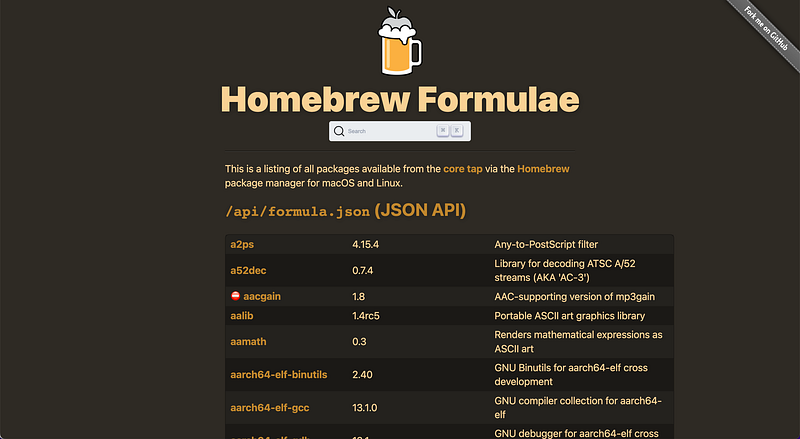
Homebrew has a massive list of packages and utilities, all of which can be installed with a simple command and can be used for any use case in your development workflow. This list includes everything from essential command line tools and niche apps.
Some of the most useful and popular Homebrew packages include:
wget: A command-line utility for downloading files from the internet, supporting HTTP, HTTPS, and FTP protocols.youtube-dl: This command-line program allows users to download videos from YouTube and other video platforms easily.tldr: A simplified, community-driven version of the traditional Unixmanpages, offering practical examples and quick usage information for various command-line tools.imagemagick: A powerful command-line tool for image manipulation, including resizing, cropping, converting between formats, and applying various effects.ffmpeg: A versatile command-line utility for converting, streaming, and processing audio and video files, supporting a wide range of codecs and formats.
Why you should install Homebrew? (TLDR)
Homebrew is an easy-to-use package manager for Mac that simplifies software installation and management, updates packages, and uninstall apps completely from your Mac. It saves you a ton of time by eliminating the need to look for and individually install all the packages and dependencies that might need for software to work properly, thus significantly improving your productivity.
Later — De-Clutter Your Mac Desktop Effortlessly 🖥️
If you are one of those people who have way too many windows and apps open on your Mac at all times, you should start using the Later app.
Having too many things open at once at all times might make you feel swamped and could even affect your productivity. Later, is a nifty tool that is designed to help you quickly clear your desktop and focus only on the most important tasks at hand.
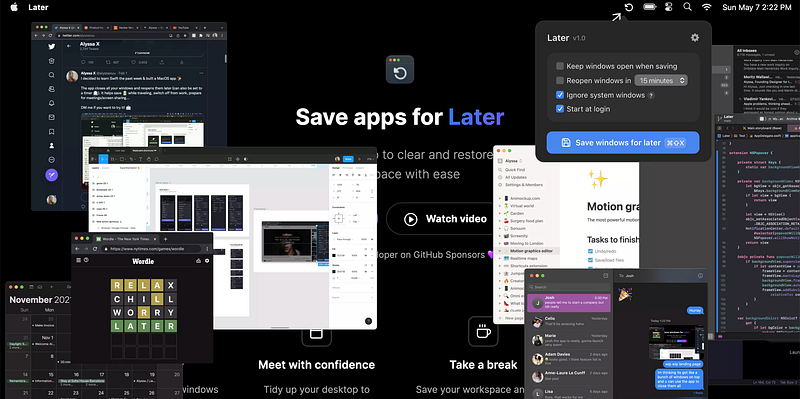
With Later, you can hide all open windows and apps with one single click on the menu bar icon and restore them exactly where they were on your screen just as easily. Later is a great way to quickly declutter your desktop when you want to focus or when you are sharing or recording your screen.
You can use the shortcut ‘Cmd + Shift + L’ to hide the open windows and the shortcut ‘Cmd + Shift + R’ to restore them. The app also comes packed with other useful features like automatically restoring windows after a specified time, quitting apps instead of hiding them, and leaving system apps untouched when hiding or quitting.
Why you should install the Later app? (TLDR)
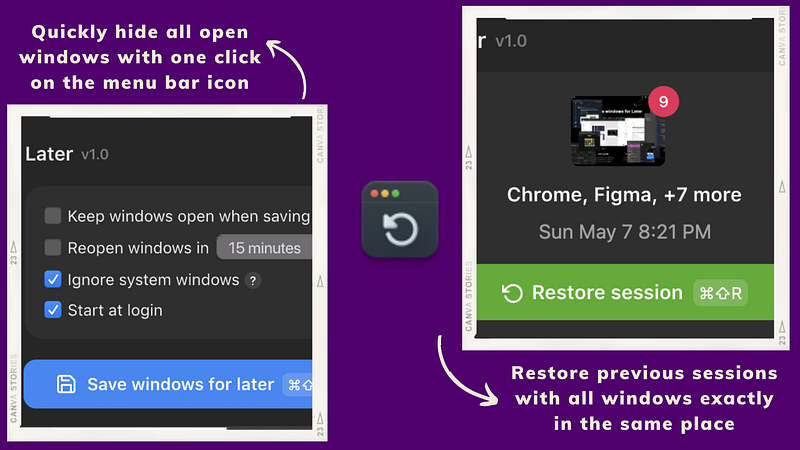
Later is a utility app that helps you quickly hide or quit open windows and apps on your Mac with just one click or a simple shortcut, allowing you to bring them back later for a clutter-free, focused experience. You can use this to quickly hide all of your hundred open windows and apps when you have to share your screen during a meeting, or to record your screen.
OmniFocus — Master Your Task Management Like a Pro 📋
OmniFocus is an intuitive task management app that helps you to stay on top of your to-do lists and stay organized and productive by efficiently managing your tasks.
The app flaunts a robust and customisable interface that allows you to tailor the app to match your specific needs and comes with options to organize your tasks into different projects, assign tasks to specific contexts, and set due dates and reminders to the priority tasks in your list.
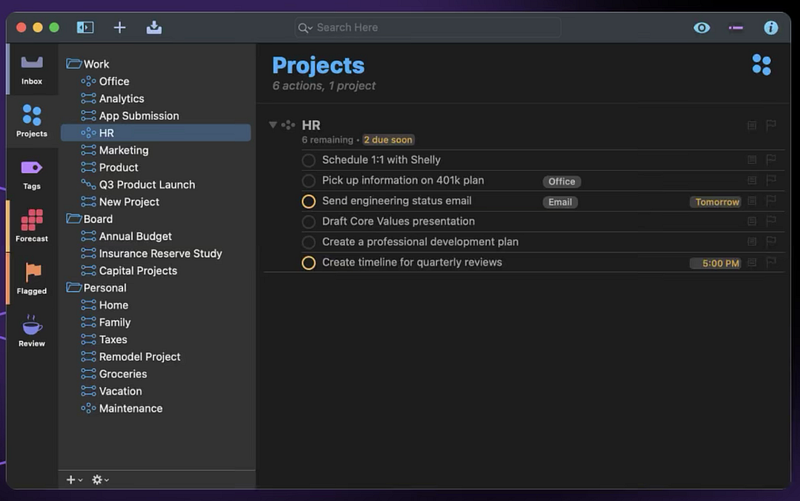
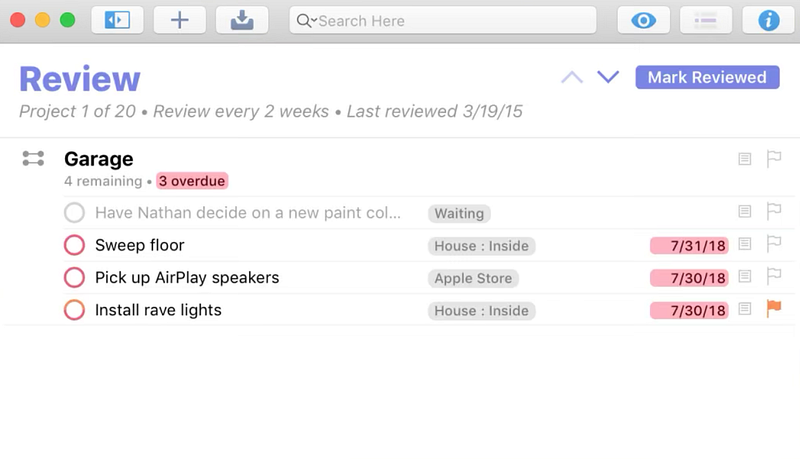
Some of the unique features of OmniFocus include the option to use your own server to encrypt your projects, add notes, images, and audio to give context to your tasks, use the review feature to make sure your projects are on track, batch edit tasks to set due dates, reminders, and more.
OmniFocus does have a bit of a learning curve and it might take some time to get used to its plethora of features and options, however, once you have familiarised yourself with the app, you will wonder how you ever managed to keep track of your tasks efficiently without the app.
Why you should install OmniFocus? (TLDR)
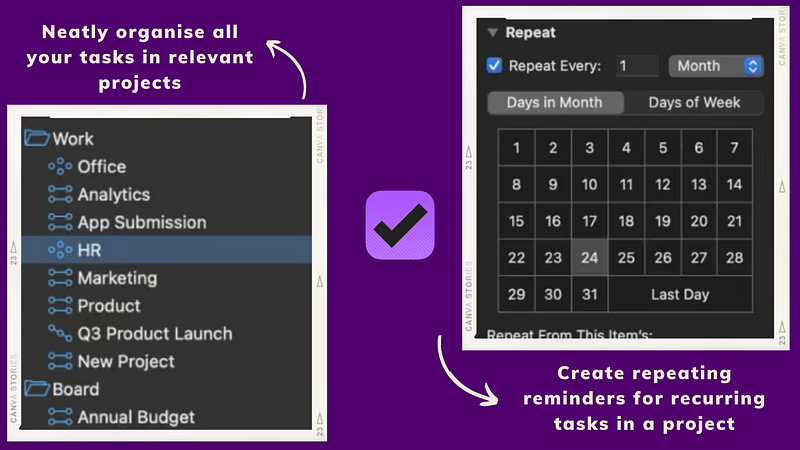
OmniFocus is a robust task management app that helps you stay productive by effectively managing your to-dos. It lets you organise your tasks into relevant projects, sends timely reminders, allows you to add notes, images, and audio to your tasks, and even does a review of your projects to ensure you stay on track. Give OmniFocus a try if you want to take your task management skills to the next level.
Raycast — Fast-track typical tasks on your Mac 🏃🏻♂️💨
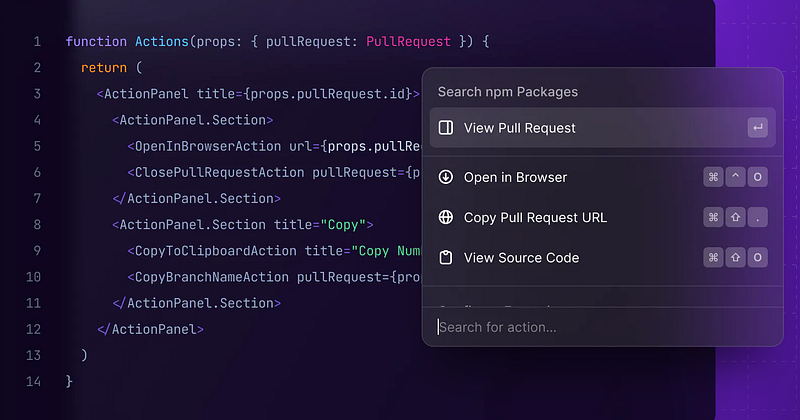
Raycast is a unique and powerful macOS app that is like a supercharged version of the Spotlight search on your Mac. With Raycast, you can quickly perform tasks and access information without ever lifting your hands from the keyboard.
You can quickly launch Raycast with a custom shortcut and it will bring up a search bar which you can use to search for apps, and files, open URLs, create reminders, and calendar events, control your music, check your internet speed, search within your apps like Notion, restarting your Mac, and so much more.
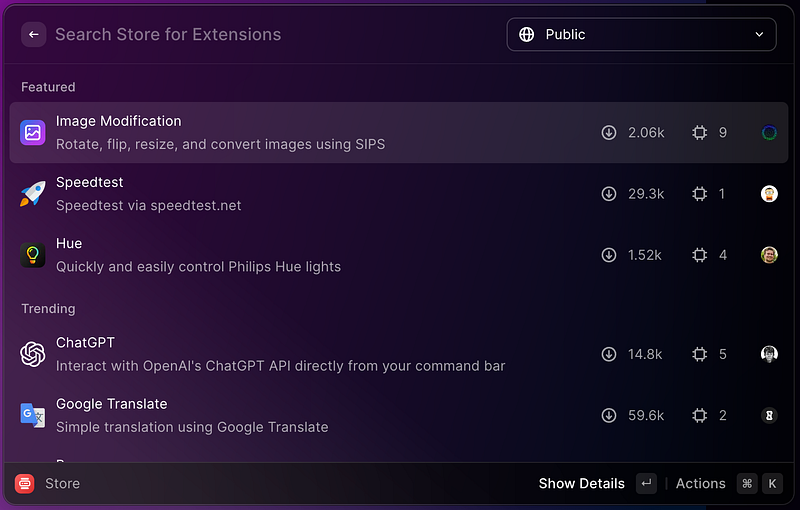
On top of this, Raycast also supports extensions allowing you to integrate with popular third-party apps and services like GitHub, Spotify, Jira, and even ChatGPT. One of my favourite features about Raycast is that it even stores your clipboard history allowing you to search for and retrieve any text, image, link, or file you copied earlier and use them.
Apart from these, Raycast can also be used to manage your windows, add floating notes to your screen, control your Mac’s volume, run macOS shortcuts, and more. It even has an option to build your own extensions and you can also choose to install from a huge list of custom extensions built by the Raycast community.
Why you should install Raycast? (TLDR)
Raycast is a powerful replacement for the Spotlight search on your Mac that has a command-line-inspired interface, making it fast and efficient to perform tasks and access information. You can use it to quickly search the web, launch apps, search for files, create reminders, restart your Mac, and even use custom extensions to integrate with third-party apps.
Setapp
Setapp is a subscription-based app that offers access to 250+ curated selections of premium macOS apps for a monthly fee of $9.99. I have been a Setapp subscriber for a while now and it has been a game-changer. In fact, a lot of the apps I use on a daily basis are from the Setapp library.
With over 250 apps, Setapp has apps in every category you can imagine right from productivity apps, to creative tools, and utilities, Setapp has got you covered. Instead of purchasing each app separately, you can access all of them with a single subscription.

Apart from the massive app collection itself, Setapp also has a clean interface with the apps neatly organised alphabetically and based on their relevant categories. It also makes it very easy to manage all the apps you installed through Setapp and completely uninstall the ones you longer use.
If you want to check out Setapp, you can use my affiliate link below, and try out all 250+ apps in Setapp completely for free for 30 days. Use the code ‘usefultech’ to avail this exclusive offer.
Why you should install Setapp? (TLDR)
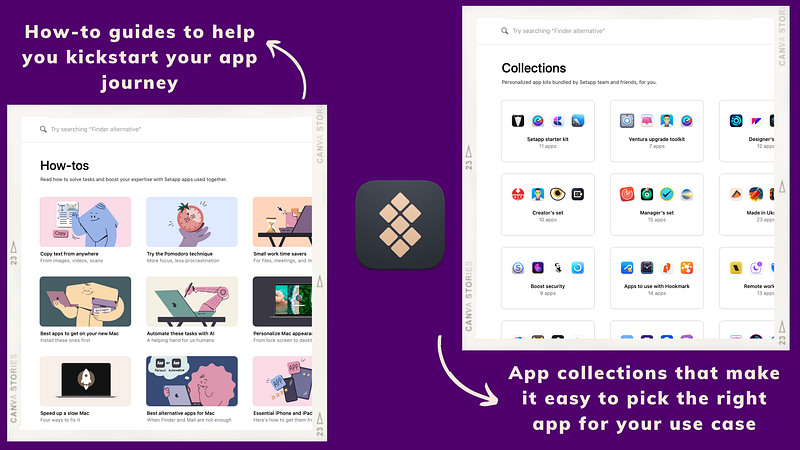
Setapp is a subscription service that provides access to a curated collection of 250+ premium Mac apps for a monthly fee of $9.99, allowing users to discover and use various apps without paying for each app individually. If you love discovering new apps and want to get the most out of your Mac, Setapp is a must-try to enhance your Mac experience.
Text Sniper
The Live text feature in macOS is pretty amazing and it allows you to select and copy text from images and videos. However, it is very limited in its functionality right now and it only works in a select few apps like Safari, Preview, Photos, etc.
Text Sniper, on the other hand, is an advanced version of the Live text feature on your Mac that allows you to basically select and copy any text and even recognize the link behind QR codes anywhere on your screen. Whether it is a presentation, a YouTube video, or even a local video, or a photo from any app, Text Sniper can effortlessly recognise the text.
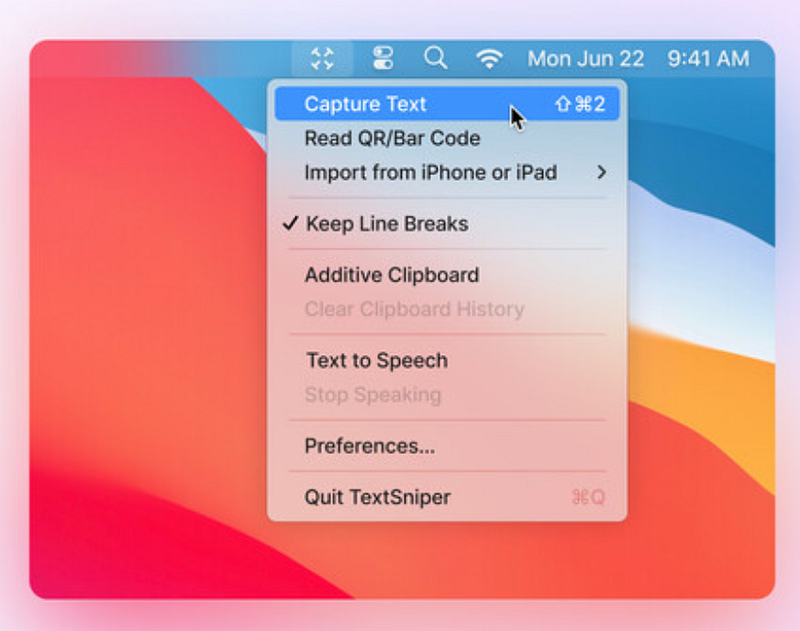
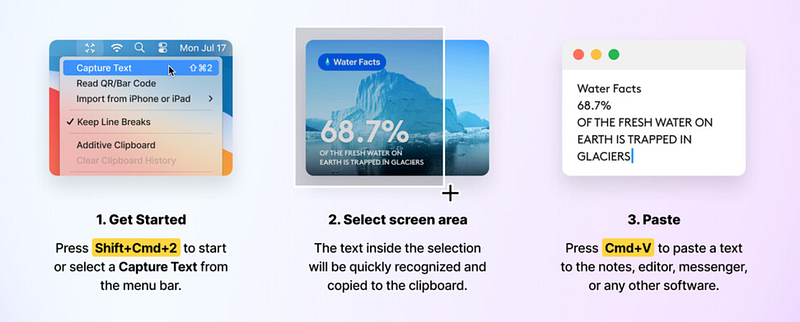
To use Text Sniper, simply use the shortcut Cmd+Shift+2 and then select the part of the screen that has the text you want to extract. The app will then automatically recognise the text in the selected area and will also copy the text to your clipboard which you can then edit or directly paste anywhere.
The best part about using Text Sniper instead of Live Text, apart from the ability to extract text from anywhere on your screen is that its OCR technology is very powerful and is able to even accurately detect and extract text from most blurry images or videos.
Why you should install Text Sniper? (TLDR)
Text Sniper is a handy Mac app that allows you to quickly extract and copy text from images, videos, and other non-selectable sources from anywhere on your screen with a simple keyboard shortcut. If you regularly work with text in images or videos, it is an invaluable tool. Its ease of use, accuracy, and time-saving capabilities make it a fantastic addition to your toolkit.
Ulysses
As someone who writes a lot of text every single day, I have found Ulysses to be an indispensable tool in my daily workflow. Ulysses has a clean and minimal interface that lets me focus on my writing and its organizational capabilities help keep all my ideas and content neatly in one place.
Ulysses largely makes use of an intuitive markup language called Markdown for formatting and organising your text, which lets you save a ton of time without getting bogged down in complicated formatting tools and a seemingly infinite list of options provided by most writing apps.
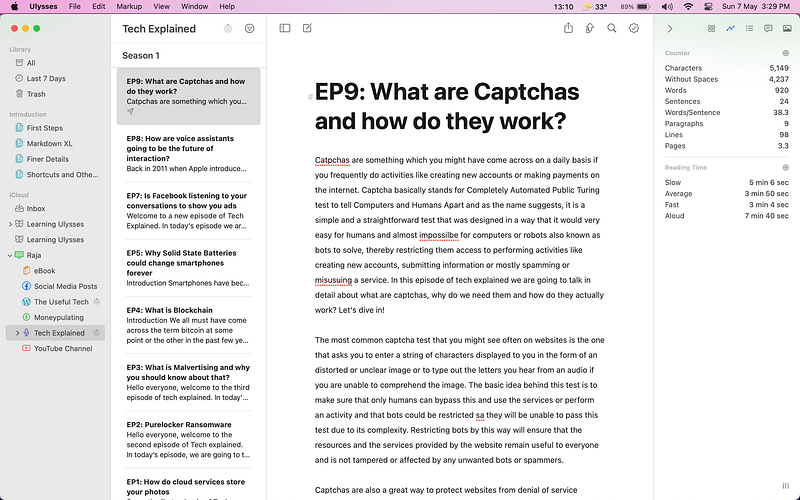
The app allows you to export your writing in various formats including PDF, word, and even HTML, and you can also quickly preview how your writing will look in each format, it even has options to extract your content directly to publishing platforms like Medium, Ghost, WordPress, and even as an ePub format if you want to publish an eBook.
Apart from the extensive export options Ulysses also offers other cool features like a typewriter mode which always keeps your current sentences in the centre of your screen, quick statistics about your content like number of words, reading time, etc, customisable themes, and goal tracking to track your progress on writing a book or a simple blog post.
Why you should install Ulysses? (TLDR)
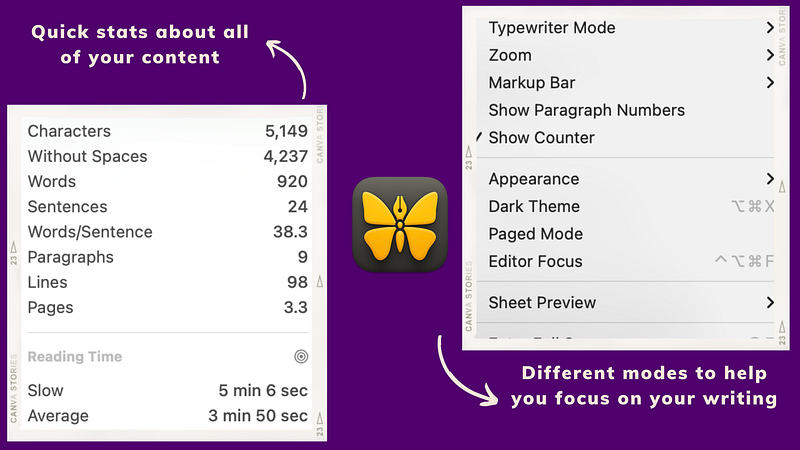
Ulysses is a distraction-free writing app for Mac that offers a robust set of features, organization tools, detailed stats about your content, and goal-tracking features. It is a perfect fit for authors, bloggers, students, or anyone who needs a dedicated space for their writing projects. Give Ulysses a try and it might just be the writing app you have been searching for.
Subscribe to Medium and support The Useful Tech!
Join the Medium membership program to access unlimited articles across Medium on topics like Tech, Business, and Productivity, and support The Useful Tech and all of your favourite authors for only $5 a month!


