
11 Mind-Blowing AI Apps for macOS to Get Mundane Tasks Done Quicker
These apps, no doubt, will level-up your productivity game

Apps included in this article
1 — Elephas (Complete writing toolbox) 2 — TypingMind (ChatGPT with plugins) 3 — Plus (ChatGPT prompt box) 4 — Craft (AI-backed doc editor) 5 — Canary Mail (Email client) 6 — Luminar Neo (AI-backed image editor) 7 — PhotosRevive (Brings back b/w photos to life) 8 — PDF Search (Finds exact & relevant matches) 9 — Diarly (Journaling app) 10 — Structured (Day planner) 11 — Taskheat (Flowchart creator)
#1. Elephas
($4.99 a month | Available on Setapp)
If you find yourself writing something everyday (like emails, blogs, DM replies) and wanna be assisted by AI to lighten your burden, Elephas is your next app.
There’s a lot to tell about it — coz it’s incredibly powerful.
Lemme explain everything it can do in brief:
(1) Rewrite ✏️
If you’re not sure how your writing will appeal to the reader, & wanna rewrite it in a specific tone, use ‘Rewrite’.
Once you select some text and trigger ‘Rewrite’, Elephas prompts you to choose the style from
• Professional
• Friendly
• Zinsser Mode
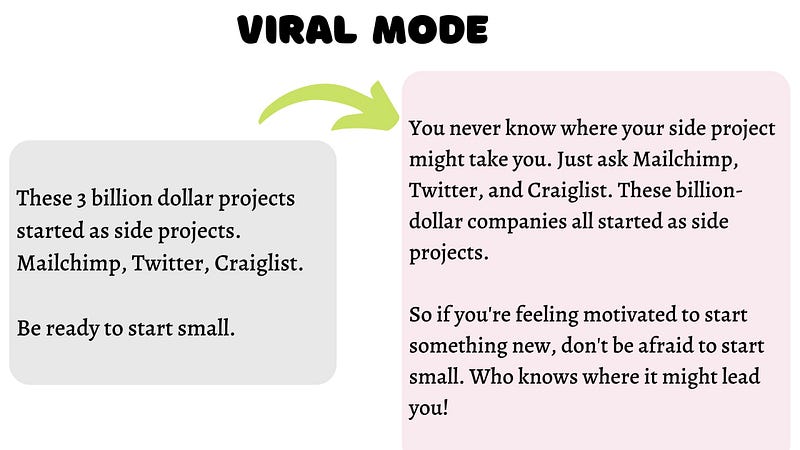
• Viral Mode
• Persuasive Mode
Just choose your preferred mode for the context, and Elephas will rephrase your text in a few seconds.
(2) Continue writing…
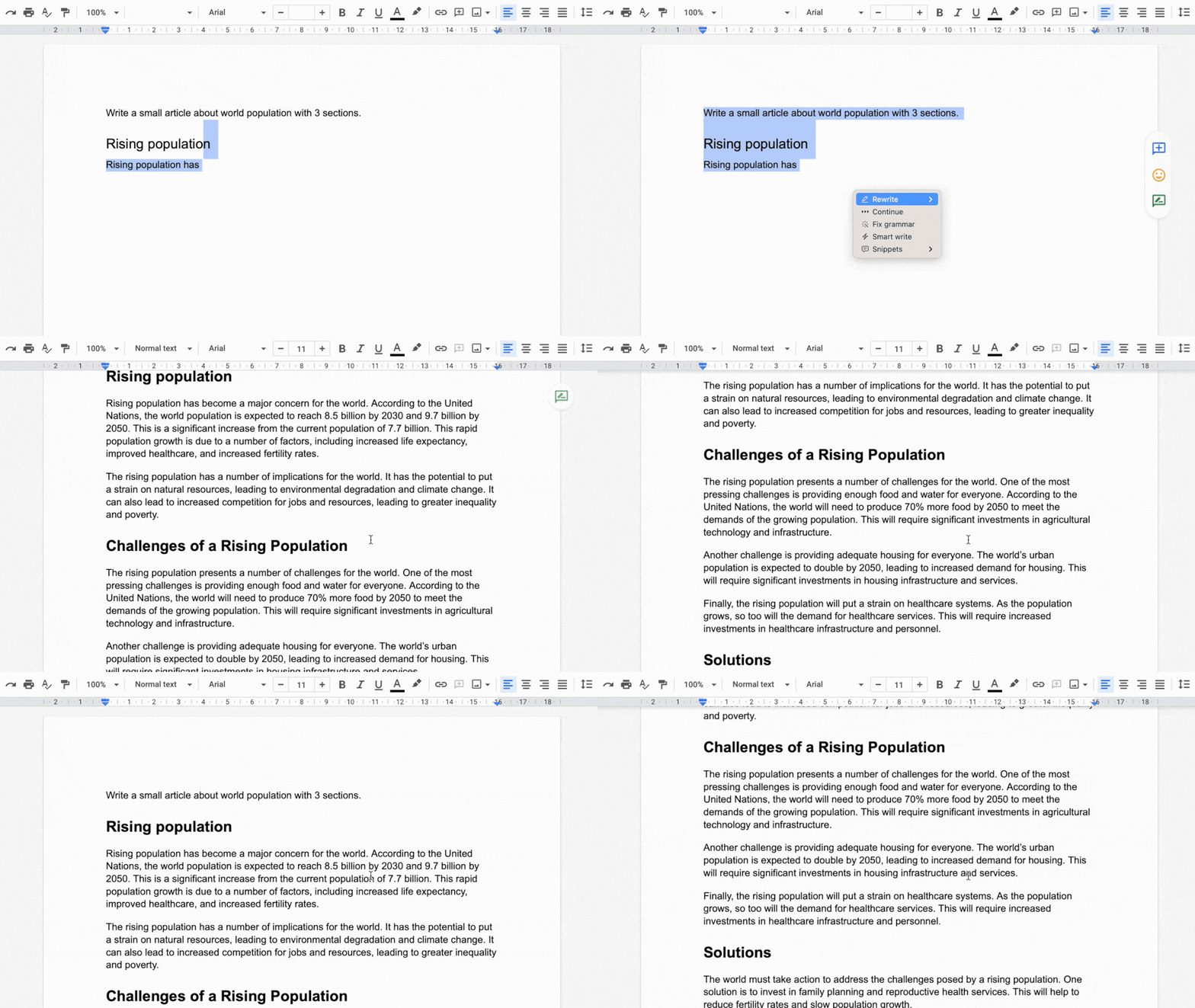
If you’ve encountered writers’ block while on the flow, and are not finding words to continue, use ‘Continue writing’. For example, you’d use this feature on:
- Air Pollution is
- The 3 best universities in the US are (It notices the ‘3' and only suggests three)
And Elephas would make a complete blog post on the topic. Isn’t it AMAZING?
(3) Smart write ⚡️
This is an open-ended feature that requires a few inputs from you.
For example, you wanna write an email accepting someone’s request for 15% discount on your product. Now you type:
Write an email accepting discount request.Discount: 15%
Company: Nik Software
Coupon Code: NIK15Use ‘Smart Write’ feature on the text, and it types this:
Dear [Customer],Thank you for reaching out to us with your discount request. We appreciate your interest in our products and are happy to inform you that we have accepted your request for a 15% discount.As a valued customer, we understand the importance of providing you with the best possible pricing. Therefore, we have applied the discount to your purchase with the coupon code "NIK15". You can use this code during the checkout process to avail the discount.We hope that this discount will make your purchase more affordable and meet your budget requirements. If you have any further questions or need assistance with anything else, please do not hesitate to reach out to us.Thank you once again for choosing Nik Software. We look forward to serving you and providing you with a great experience.Best regards,[Your Name]
[Your Position]
Nik SoftwareHow cool! Lots of brain energy saved.
More features
- Fix Grammar does that using AI
- Super Chat lets you chat with ChatGPT without your OpenAI API key or logging in.
- Brains take in your own data (text, images, docs, url), to help you with writing tasks. This is similar to PrivateGPT.
- Utils help you write and explain code, read a book, and create presentations in a snap. They also help you create tailored Excel, GSheet formulae, and Unix commands.
- Translate lets you do that across 9 languages using AI.
- Tones can mimic your or someone else’s writing style. All you need to do is to feed their existing writing samples.
There are still a handful features left. And you’re already saying Wow!
Best part,
- Almost every action on Elephas has a hotkey.
- Elephas integrates well with popular tools like Gmail, Outlook, Slack, Excel, Safari etc.
- It offers iOS keyboard for equal productivity on the little device.
#2. TypingMind
(Starts $39 a month | Available on Setapp)
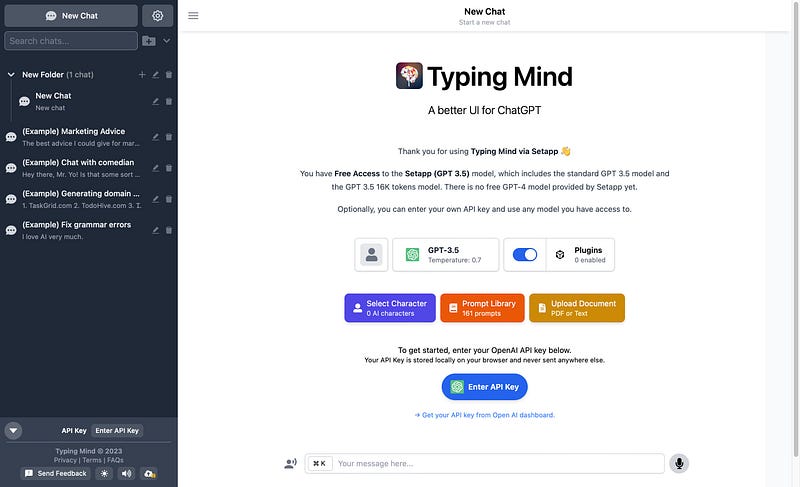
TypingMind — as the app suggests — is the better UI for ChatGPT.
Just a heads up, unlike Elephas, you can’t chat with ChatGPT for free here. To get started, you’ll need to setup paid OpenAI account and paste your API key.
“Oh, then I’ll go use ChatGPT.” Wait, I still have more to tell you about the app.
What makes the app special is:
- It’s got native Plugins like
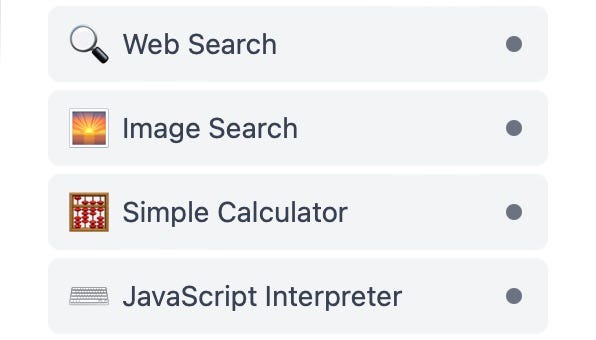
- Or if you’re a savvy coder, you can create a plugin for yourself or even import or export one from community plugins.
- You can adjust settings like Model, Context Limit, Temperature etc.
- There are a lot of inbuilt AI roles like

- Also, there are a lot of inbuilt prompts that help you with grammar, translation, plagiarism checking etc.
- You can upload a pdf or doc and ask related questions.
- You can create folders to segregate your chats, unlike in web ChatGPT.
- Your cost estimation is displayed real-time as you chat with TypingMind.

- Your chats are import/exportable and can be backed up to Google Drive.
Best part, you don’t even need to download the app to use it. It’s available as webapp too!
#3. Plus
(Available only on Setapp)
Plus is a little treasure toolbox that keeps (& applies) all your favourite ChatGPT role prompts — like:
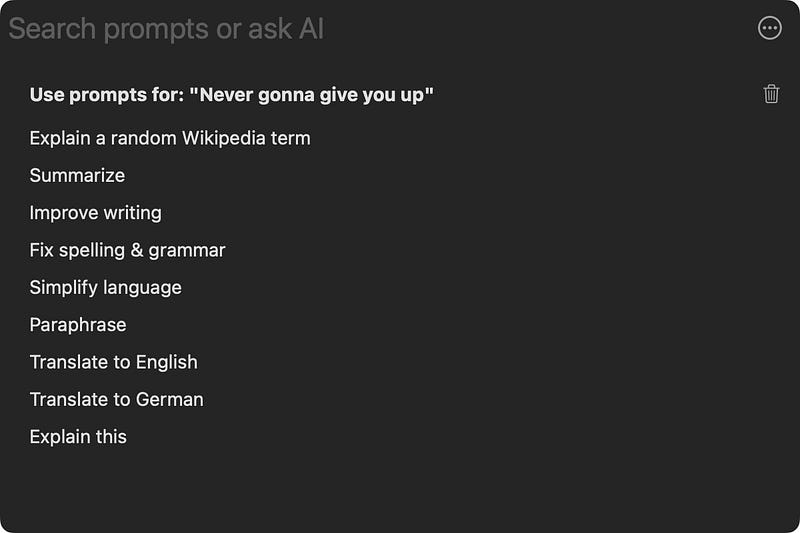
So that you don’t need to type them everytime you wanna use.
Best part, you don’t need to pay anything extra or bring your API keys to use Plus. It’s completely free. All you have to do is to select some text and trigger some preset prompt to operate on it.
Plus (conjunction, not app), all the prompts given above are preset by the Plus team. But if you’d like, you can create new prompts by yourself too. For example:
- Explain a random Wikipedia term:
Provide an explanation of a randomly selected Wikipedia term related to nature. Only respond with the explanation.- Summarize:
I will give you text content, you will rewrite it and output that in a short summarized version of my text. Keep the meaning the same. Ensure that the revised content has significantly fewer characters than the original text, and no more than 100 words, the fewer the better. Only give me the output and nothing else. Now, using the concepts above, summarize the following text. Respond in the same language variety or dialect of the following text:
"""
{{ SELECTED TEXT }}
"""
I mean… Who could type bulky prompts everytime they wanna use them? So I’m glad Plus exists.
Plus++ Productivity++
App by Igor Stefurak.
#4. Craft
(Free | Pro starts at $5/mo | Available on Setapp)
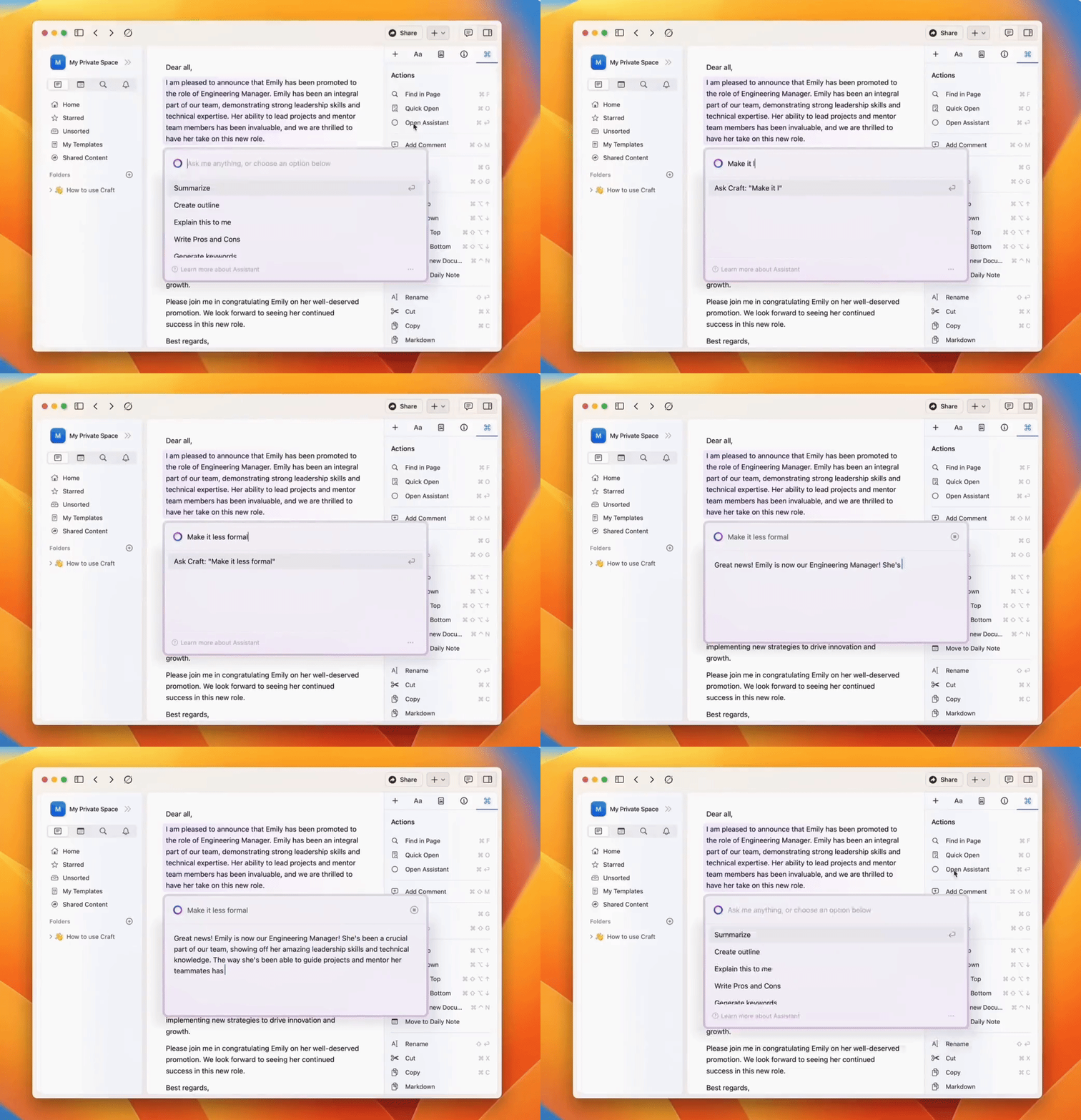
Craft is a doc editor — just like Word or Pages.
Apart from offering everything an ideal doc editor does, it’s lately integrated AI into itself to get you 10x more productive.
To open (AI) Assistant, simply hit ⌘ + ⏎ anywhere on a Craft doc. You can then ask it to
- Change the tone
- Write a social media post about a topic
- Write a template
- Continue writing something
- Translate across 9 languages
Cool, right?
Note, you can make upto 250 requests in a 30-day period, after which the limit resets back to 250 again.
PS: It offers iOS app too.
App by Balint Orosz.
#5. Canary Mail
(Free | Pro starts at $5/year | Available on Setapp)
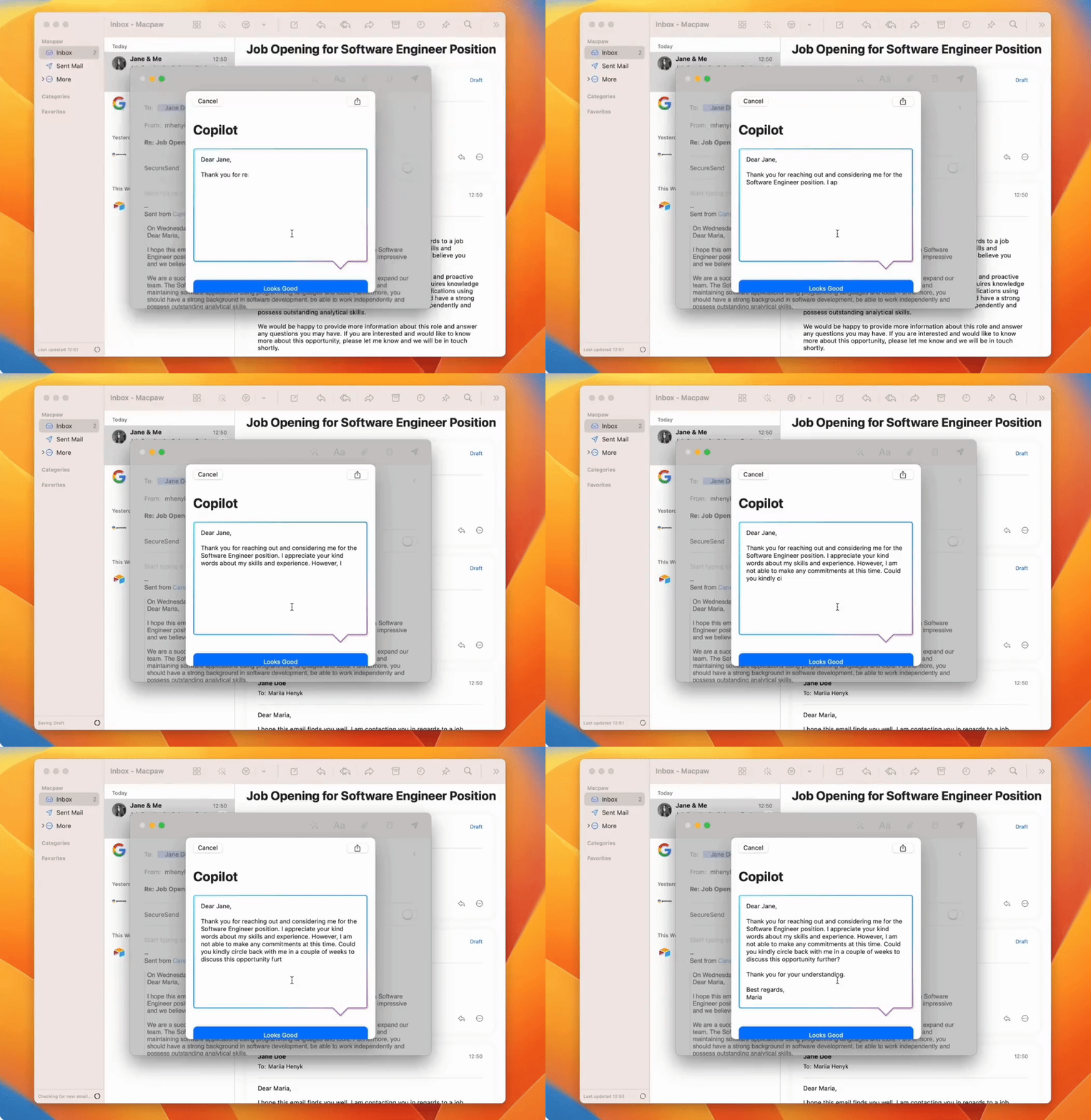
Shh… listen carefully. Coz Canary might gonna be your next email client.
Canary’s just like any other Desktop Email client, except for its game-changing Copilot feature. How it works is below.
While you’re replying to an email or typing out a fresh draft, click on the magic wand symbol at the top of the window to trigger Copilot.
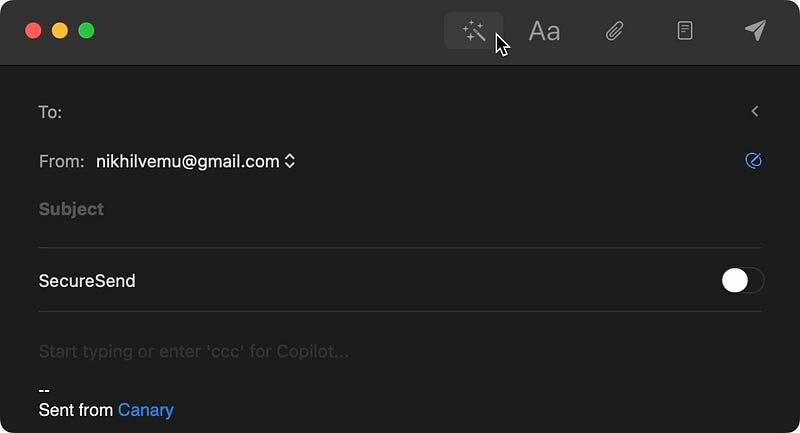
Now prompt something five words or more and Canary will write the complete email for you. Examples:
- Email boss, say I quit. Make it funny.
Subject: Quitting with a Twist - Farewell, Boss!Dear [Boss's Name],I hope this email finds you jumping with joy, just like I am, as I share an outrageous announcement with you! After careful consideration, countless cups of coffee, and surrendering to the call of adventure, I have reached an alternate dimension of decision-making.In plain (or rather, funny) terms, I quit!Believe me, it wasn't easy to bid farewell to the incredible team and the exciting challenges we face together. But alas, the comedic forces of nature have conspired to lead me down a different path, filled with punchlines and hilarious mishaps.To express my gratitude for the fantastic time spent here, I have prepared a small montage of our most memorable moments, accompanied by clown-themed background music. Please find the link attached... just kidding! I'm not that sadistic! 🤡I wanted to take a moment to thank you, [Boss's Name], for your unwavering support, guidance, and for never getting tired of my incessant, yet delightful, jokes during office meetings. You have truly been the source of inspiration behind my witty one-liners and whoopee cushion pranks.As I embark on this comedic journey, earnestly hoping to make the world laugh a little louder, I fondly look back at our time together, filled with laughter, camaraderie, and many inside jokes that only we understand - like the mystery of disappearing office supplies!May your days be filled with uproarious laughter, even in my absence, and may the spirit of humor guide you through every challenge. Who knows, maybe one day we'll meet on stage, performing dual stand-up comedy routines that leave everyone in tears... of laughter, of course!With laughter-infused regards,Nikhil- Write cover email for web dev job.
- Decline mom-in-law’s dinner invite. Be nice.
Ikr, emails are already exhausting at a full-fledged workday. And carefully typing kind-sounding replies is soul-sucking. That’s where Canary comes in to your rescue :)
Best part, you can use Canary on your iPhone too!
App by Dev Sanghani.
#6. Luminar Neo
(Various pricing options | Available on Setapp)
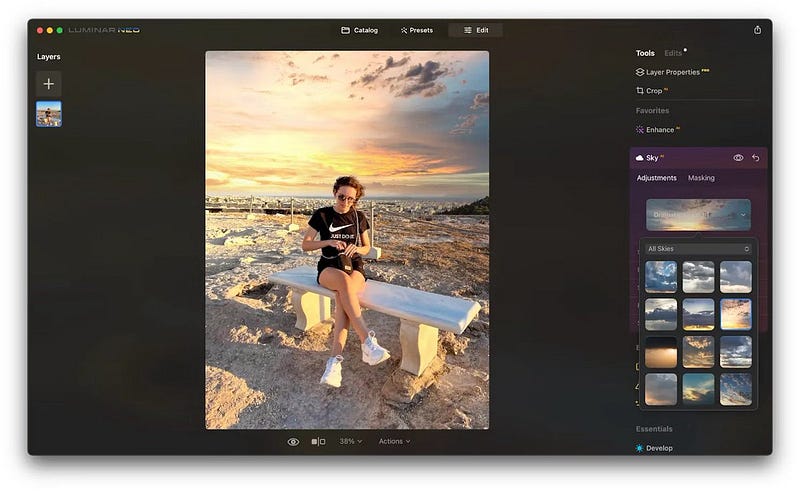
This is the biggest app I’ve ever used — 6.77 GB! But it’s completely worth the storage and your data plan exhaustion. Why?
It’s an AI image editor that offers everything you’d expect from a decent one, plus AI enhancements!
But before I explain you its AI capabalities, lemme introduce you to our friend Jason. Say hi.

Now, using Luminar Neo, lemme
- Change the sky:

- Cut his fat at abdomen and face:

- Couldn’t the sky be bluer?

Looks perfect.
I’ve sent this image to Jason and he wants to post it on Instagram immediately :)
Now you get an idea of how incredible of an app Luminar Neo is.
The features I’ve tried above are just lying at the surface. Dig deeper for yourself, and you’ll find a truckload of AI and non-AI features to the app you’d enjoy using — like:
- Change backgrounds
- Fix colours
- Make stunning edits with presets
- Recude noise
- Remove unwanted items
App by Dmitry Sytnik.
#7. PhotosRevive
($18.99 for lifetime | Available on Setapp)

This could be the coolest app you’ve ever seen.
As its name suggests, PhotosRevive brings back old b/w photos from 70’s or 80’s (or 40’s) by adding them natural colour.
How? AI.
It intelligently detects every single object in the vintage photo you provide, and then colourises everything appropriately.
Just look at how meticulously it colours every little detail!

CREDITS:Moon: Photo by Andrea Sonda on Unsplash
Leopard: Photo by Geran de Klerk on Unsplash
Zebra: Photo by Vincent van Zalinge on Unsplash
Man: Photo by ben o’bro on Unsplash
Rope: Photo by Saskia van Manen on UnsplashBest parts,
- The 533 MB app has AI built-in, so it doesn’t use the internet for detection and colours.
- The app integrates into Share Sheet, so it’s easy to import old photos from local or ‘Photos’ into PhotosRevive.
- It supports Continuity so you can scan your old photos and transfer them to Mac instantly.
- Or, you can also install PhotosRevive on iOS!
#8. PDF Search
($49.99 for lifetime | Available on Setapp)
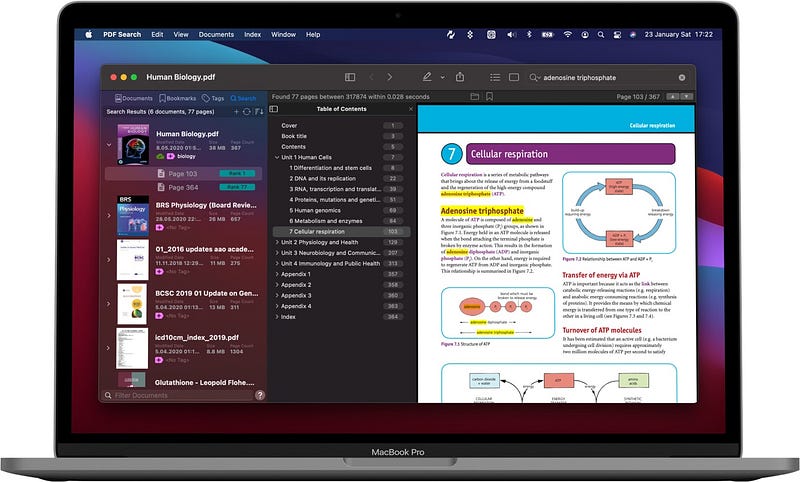
If you work with PDFs regularly (especially searching for text in PDFs), this app is a one-stop shop.
It not only analyses your pages and spits out matches, but also processes your search terms using NLP (Natural Language Processing) and gives relevant matches.
For example, if you search for “work with mouse”, it also displays results for “work with mice”.
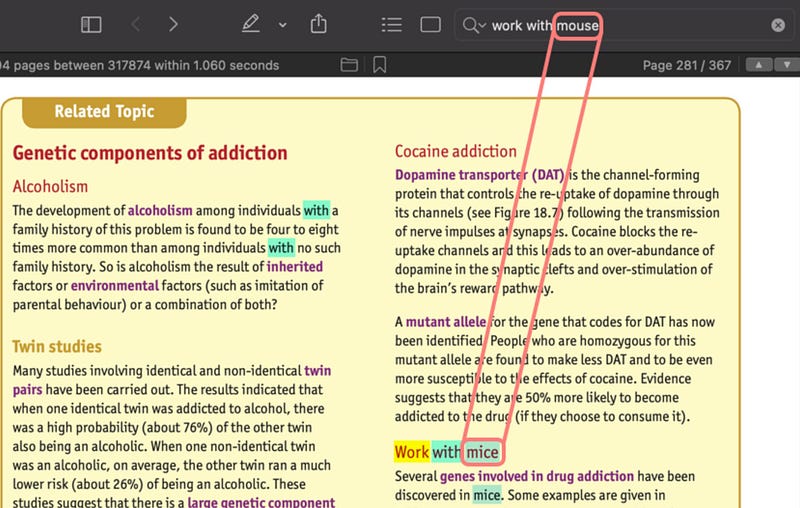
When you search for a term, it also takes into account their plurals and lemmas. Say you search for “children went to schools”, it also finds results similar to “child go to school”.
Best part, you can also feed it an image PDF. It does the text recognition (OCR) job by itself before giving out the results.
So use PDF Search if you wanna squeeze the max out of your PDF jobs. It’s also available on iOS for searching on the go!
#9. Diarly
(Free. For Pro, less than $2/mo | Available on Setapp)
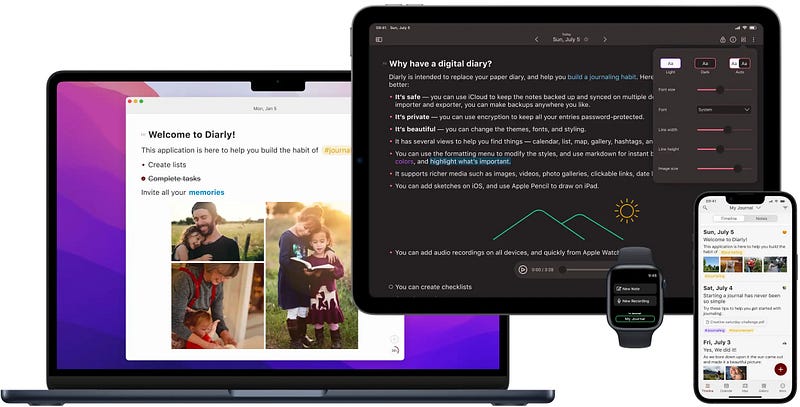
Diarly is a journaling app (like Day One).
It’s a very simple & straight-forward app where you can add a new journal or diary entry every day, to reflect on yourself or to practice gratitude.
Simply use ‘/ask’ while writing to trigger the built-in AI Assistant for brainstorming ideas for your diary entries or simply to know how to better use the app.
It uses OpenAI’s GPT-3.5-turbo model as the assistant’s backend tech.
You’re offered a certain number of credits every week — whether you use them or not. Or, if you have an OpenAI account, you can link it, and use those credits instead.
Best part, you can introduce yourself briefly to the Assistant so it can generate responses more personalised to you.
#10. Structured
(Free. For Pro, $2.99/mo or $9.99/y or $29.99 one-off | Available on Setapp)
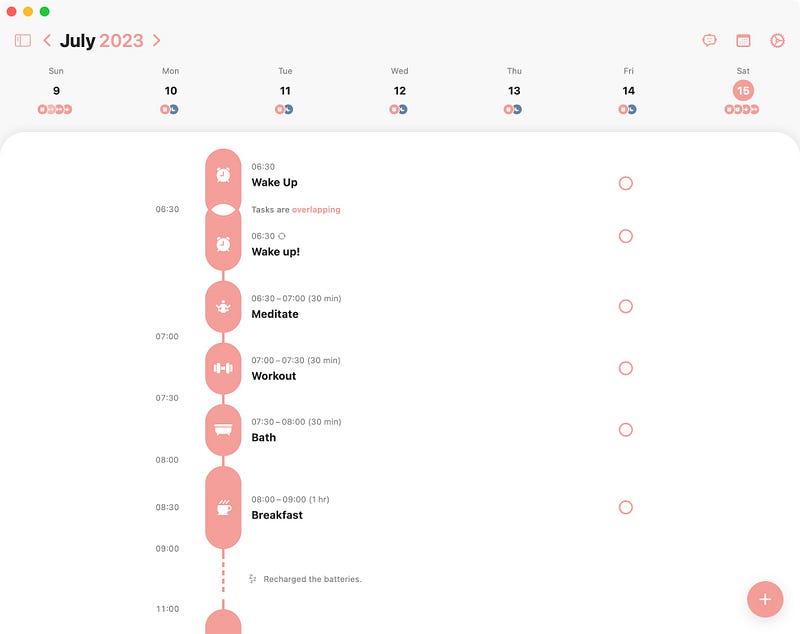
Structured is the day-planner app for the ultra-productive.
Just tell it briefly how your day looks like, and it automatically generates your optimum day plan using AI.
For example, I gave (in no good grammar):
i wake up at 6:30 am everyday. I meditate, workout, bath, and have breakfast totally for 3 hours. i go to office at 11 am and stay till 7 pm. i take a lunch break of 1 hour. i return back at 7:30. i relax, bath, and have dinner for 1.5 hours totally. i read a book for 1 hour and then sleep.And it planned my day like this:
Wake Up ........ - 06:30
Meditate ....... - 06:30-07:00 (30 min)
Workout ........ - 07:00-07:30 (30 min)
Bath ........... - 07:30-08:00 (30 min)
Breakfast ...... - 08:00-09:00 (1 hr)
Go to Office ... - 11:00-19:00 (8 hrs)
Lunch Break .... - 13:00-14:00 (1 hr)
Return to Office - 19:30
Relax .......... - 19:30-20:00 (30 min)
Bath ........... - 20:00-20:30 (30 min)
Dinner ......... - 20:30-21:00 (30 min)
Read Book ...... - 21:00-22:00 (1 hr)
Sleep .......... - 22:00
How cool! If I really could execute my day like this, I’d be in my most productive version ever.
Also, you could
- Sync your calendars events & appointments from Google or Apple.
- Plan recurring tasks — like regular health checkups (daily, weekly or monthly).
- Receive timely notifications of your tasks.
- Use 550+ icons for your tasks
- Sync Structured across iPhone, iPad, & Mac.
#11. Taskheat
($14.99 one-off | Available on Setapp)
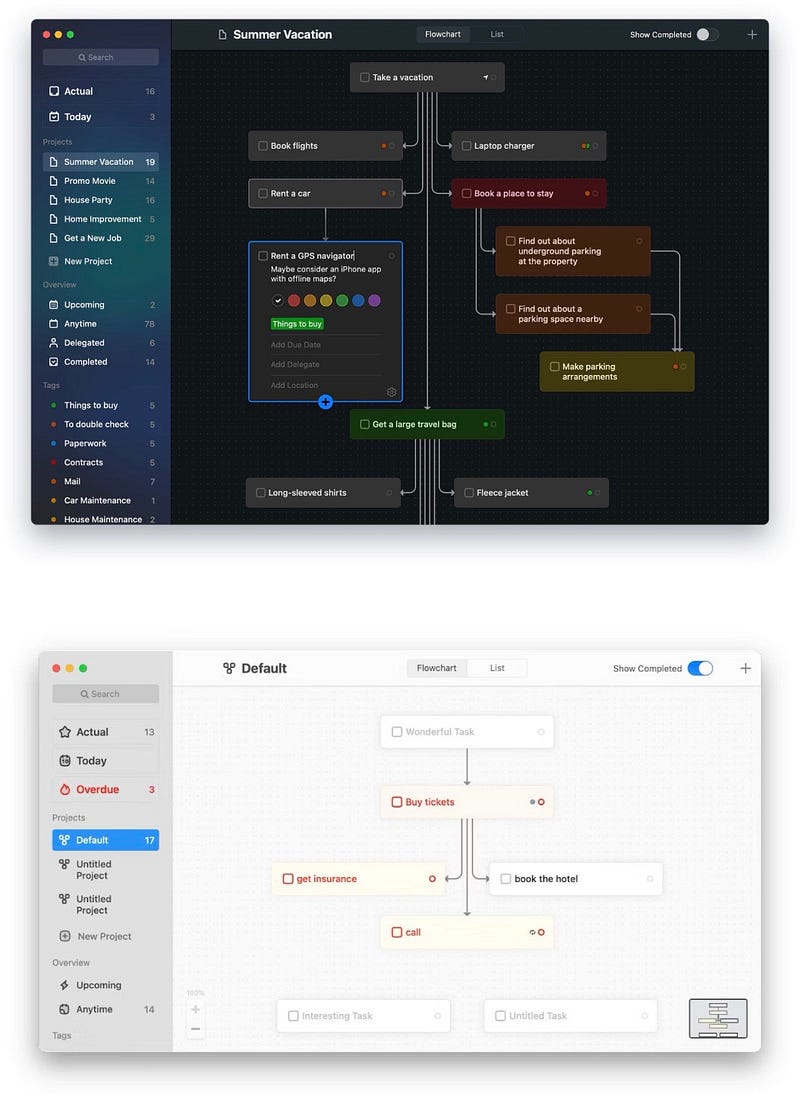
Taskheat is basically is flowchart creator for your project to-dos.
You can manually create step-by-step flowcharts by yourself, or add a few first and then use AI to build the prereqs or dependent tasks.
Lemme explain with an example:
I’ve added this task:

Lemme generate its prerequisite tasks (in a snap):
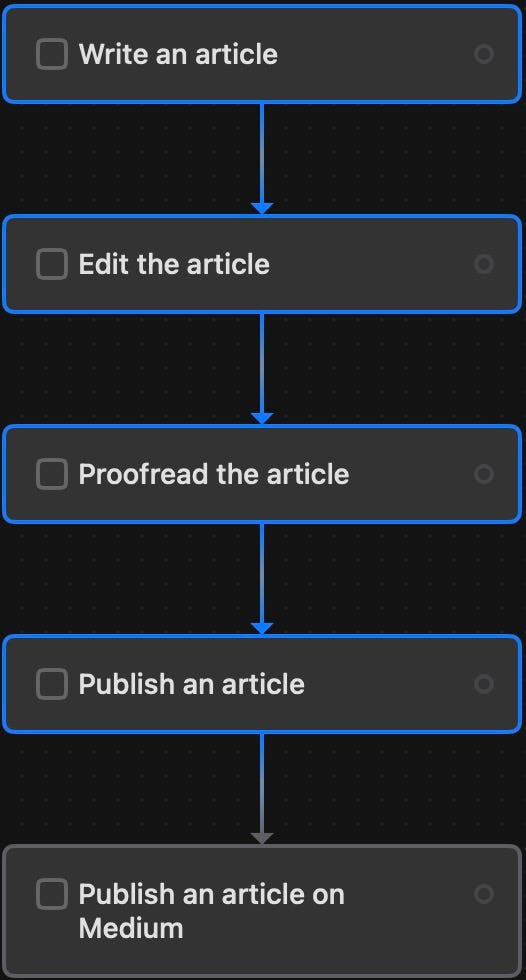
Now lemme generate dependent tasks (tasks that come after):
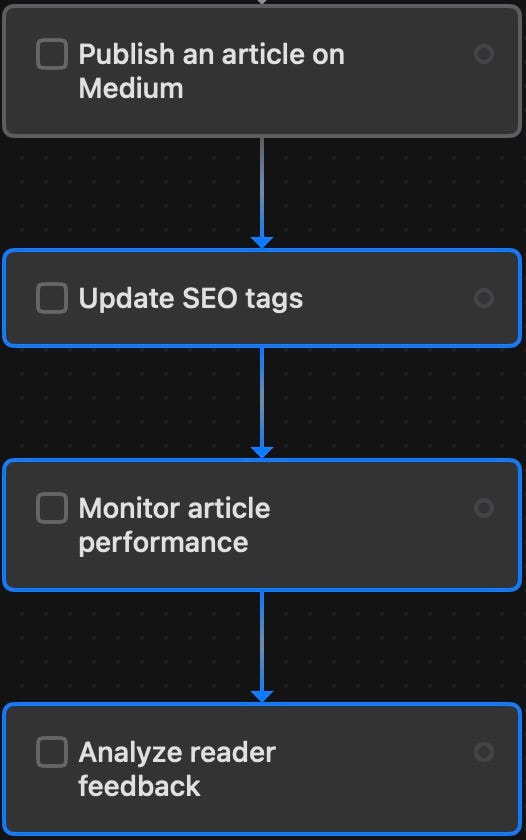
Yep, that’s how it works! Isn’t it amazing?
Sometimes we get too involved into completing a task that we forget to consider the prerequisites and dependent tasks. And that’s where Taskheat comes to the rescue!
PSst: It’s on iOS too!
For more a’macOS’zing apps, read these
Finally,
If you love exploring new Mac apps (like me), consider subscribing for Setapp. You’ll get access to a curated collection of 240+ amazing apps for just $9.99 a month, which rather cost hundreds of dollars if purchased individually.
Use my affiliate link to start your Setapp journey! (It’s free for 30 days)
If you enjoyed this story, join 405+ others to get notified whenever I publish a new story.
This post contains affiliate links.


