
10X Your Productivity in Excel with ChatGPT
You no longer have to be an Excel wizard to become super productive.
As a casual Excel user, I sometimes struggle to recall the name of formulas and how they work, so I end up wasting time trying to figure it out and searching on Google.
Fortunately, ChatGPT can now save time not only for casual Excel users like me but also for experts!
We only need to learn how to create effective prompts to make the most of ChatGPT. In this guide, we’ll use ChatGPT to generate Excel formulas and macros. We’ll start with simple tasks and then challenge ChatGPT with more complex tasks in Excel.
First Things First: Create an account
In case you’re new to ChatGPT, you have to create a new account using this link. You’ll have to give your email address and phone number to start using ChatGPT.
Once you successfully signed up, you’ll see the image below. In the box at the bottom, you can write the prompts we’ll create in this guide.

Write Formulas with ChatGPT
You can make ChatGPT create Excel formulas for you. You only need to describe what you want to accomplish.
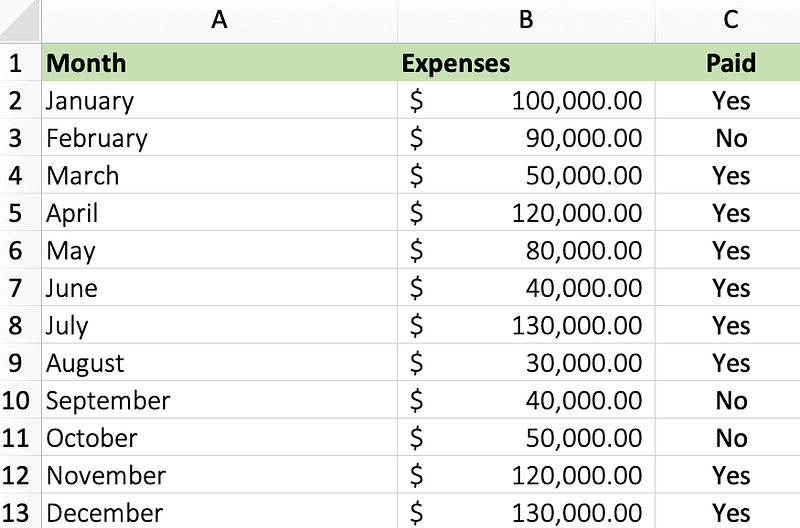
Let’s have a look. We’ll use the table below as an example (download this Excel file here)
SUM
Say we’re completely new to Excel and we don’t know how to sum the values in the “Expenses” column. Well, we only need to explain to ChatGPT what we want to do in plain English.

Simple, right?
If I copy/paste the formula in cell B14, I’ll get the sum of the expenses.
COUNTIF
What if now we want to count how many times the monthly expenses were greater than $100,0000? Again, we only need to describe our problem to ChatGPT, but this time, we’re going to add more details.
We’ll tell ChatGPT in which cell range is our data. This will help us with this and the next examples (ChatGPT remembers what we said earlier in the conversation, so we don’t have to repeat this again).

SUMIF
Now let’s sum only those expenses that have the status “No” in the “Paid” column.
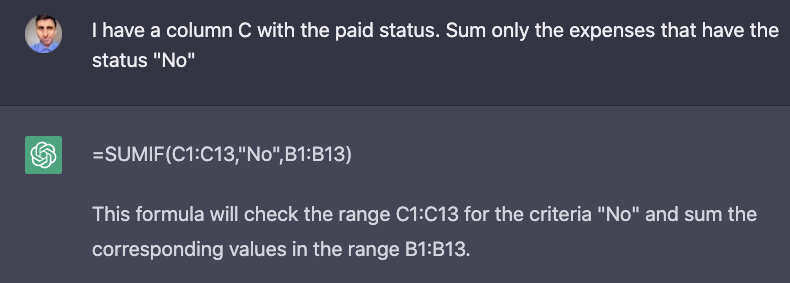
Here’s the formula generated by ChatGPT:
=SUMIF(C1:C13,"No",B1:B13)VLOOKUP
One function I have trouble remembering its syntax is the VLOOKUP. Now we can simply describe what we want to accomplish and that’s it!

Here’s the formula generated by ChatGPT:
=VLOOKUP("December",A1:B13,2,FALSE)Extract Data
Let’s challenge ChatGPT with more difficult tasks.
Say we have the list of phone numbers below and we want to extra the area code.
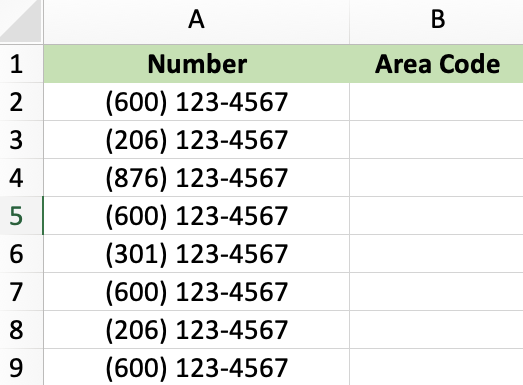
Let’s describe this task to ChatGPT.
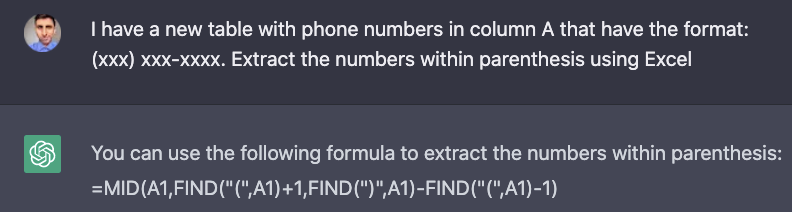
Here’s the formula generated by ChatGPT:
=MID(A1,FIND("(",A1)+1,FIND(")",A1)-FIND("(",A1)-1)The only fix I had to do was replace A1 with A2 and then it did the job!
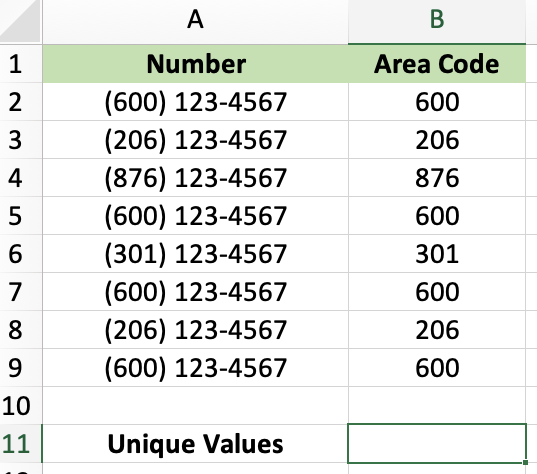
Count Unique Values
Now let’s count how many unique area codes are in column B.
This one gave me a lot of trouble because ChatGPT generated very complex formulas that didn’t work. I believe the reason for such complex formulas is that it remembers every detail of our conversation.
The solution? Ask a general question.
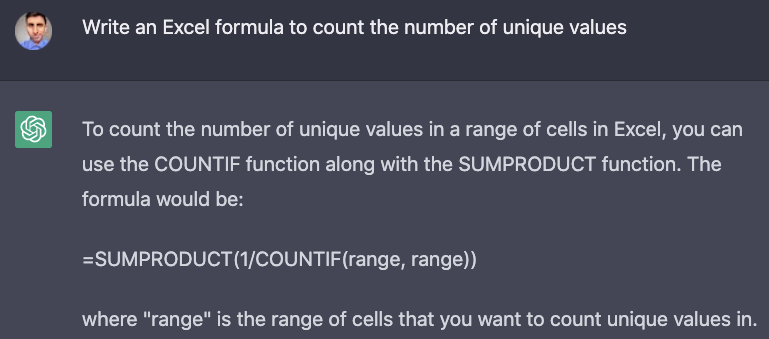
Here’s the formula generated by ChatGPT:
=SUMPRODUCT(1/COUNTIF(range, range))If we add the range where the area code is located, we get our solution.
=SUMPRODUCT(1/COUNTIF(B2:B9, B2:B9))Creating Macros with ChatGPT
When it comes to producing code with ChatGPT, the code generated sometimes needs some fixes.
Let’s try to make a simple macro that sorts sheets by tab name using VBA.
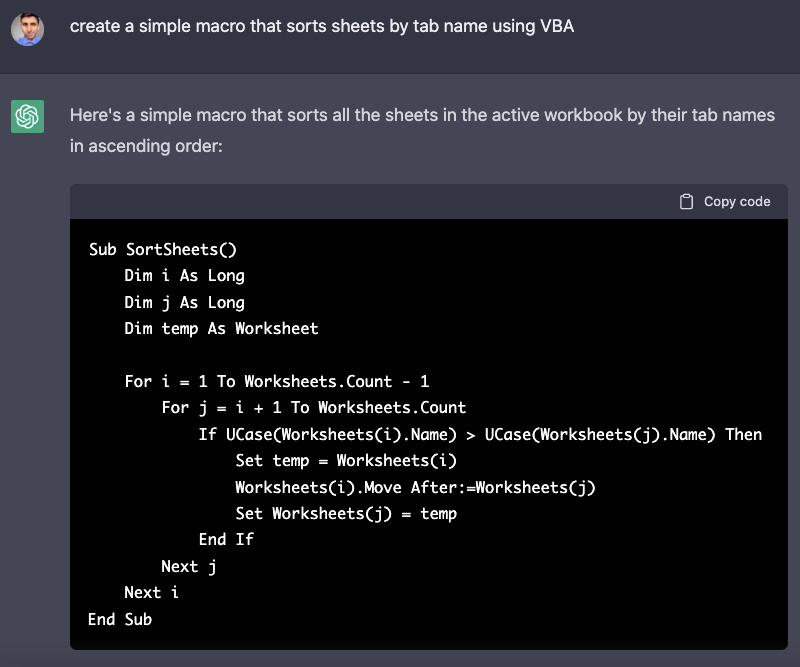
In this case, ChatGPT didn’t get it right. The code threw an error in VBA. I’m not a VBA expert, so I described the error to ChatGPT and it debugged the code.
Sub SortSheets()
    Dim i As Long
    Dim j As Long
    Dim temp As Worksheet
    Dim tempName As String

    For i = 1 To Worksheets.Count - 1
        For j = i + 1 To Worksheets.Count
            If UCase(Worksheets(i).Name) > UCase(Worksheets(j).Name) Then
                Set temp = Worksheets(i)
                tempName = "temp" & Format(Now, "yyyymmddhhmmss")
                temp.Name = tempName
                Worksheets(j).Move Before:=Worksheets(i)
                temp.Name = Worksheets(j).Name
            End If
        Next j
    Next i
End Sub
After running the code, it did the job but not as expected. Besides, sorting the sheets by tab name, it changes one of the tab names to “temp”
The lesson? ChatGPT can make you more productive but watch out for its mistakes.
Join my email list with 20K+ people to learn how to use AI to improve your everyday life.
If you enjoy reading stories like these and want to support me as a writer, consider signing up to become a Medium member. It’s $5 a month, giving you unlimited access to thousands of Python guides and Data science articles. If you sign up using my link, I’ll earn a small commission with no extra cost to you.


