
10 Visual Studio Code Extensions Every Developer Needs

Ready to upgrade your Visual Studio Code experience with some fantastic extensions designed for web development?
In this article, I’ll introduce you to my top 10 favorite extensions for Visual Studio Code.
Here’s a concise guide for installing extensions in Visual Studio Code:
- 🚀 Open Visual Studio Code: Launch Visual Studio Code on your computer.
- 🧩 Access the Extensions Tab: Click on the Extensions icon in the left sidebar. It looks like stacked squares.
- 🔎 Search for an Extension: Use the search bar at the top to find the extension you want. Enter the extension name or relevant keywords.
- 🔎 Select the Extension: When you find the extension you want to install, click on its name in the search results.
- ⬇️ Install the Extension: Click the “Install” button on the extension’s page.
🛠️ The extension is now installed and ready to use in Visual Studio Code. You can repeat these steps to add more extensions to customize your development environment.
1. Auto Close Tag
Automatically add HTML/XML close tag.
After typing in the closing bracket of the opening tag, the closing tag will be inserted automatically.
⚙ Features :
- Automatically add a closing tag when you type in the closing bracket of the opening tag
- After the closing tag is inserted, the cursor is between the opening and closing tag
- Set the tag list that would not be auto-closed
- Automatically close self-closing tag
2. Auto Rename Tag
Automatically rename paired HTML/XML tag
When you rename one HTML/XML tag, automatically rename the paired HTML/XML tag
3. Better Comments
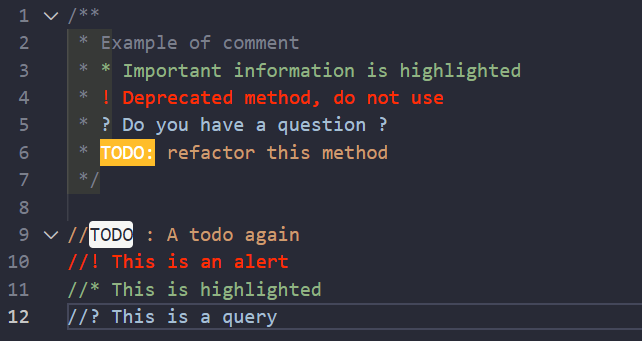
The Better Comments extension will help you create more human-friendly comments in your code.
With this extension, you will be able to categorize your annotations into :
- Alerts
- Queries
- To-dos
- Highlights
- Commented-out code can also be styled to make it clear the code shouldn’t be there
- Any other comment styles you’d like can be specified in the settings
- Bracket Highlighter
4. Indent Rainbow
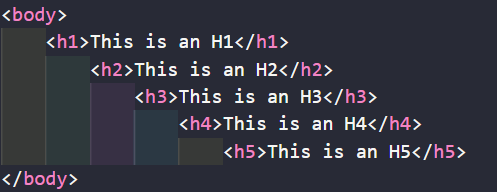
This extension colorizes the indentation in front of your text, alternating four different colors on each step
5. Live Server
Launch a local development server with live reload feature for static & dynamic pages.
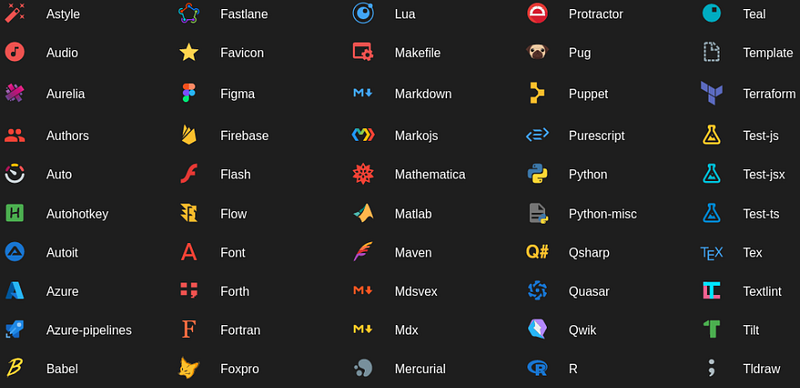
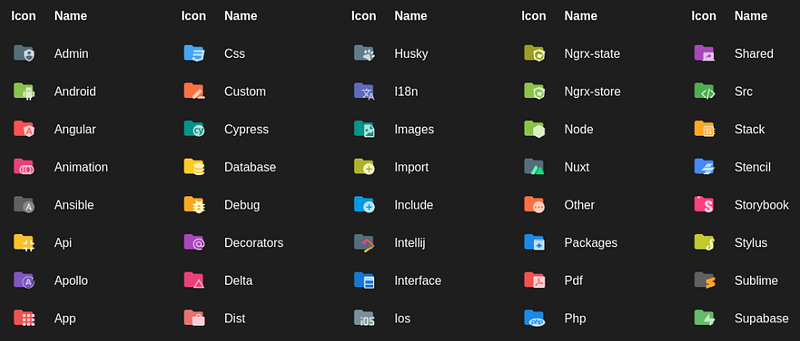
6. Material Icon Theme
Get the Material Design icons into your VS Code.
7. Path Intellisense
Visual Studio Code plugin that autocompletes filenames.
8. Polacode
Polaroid for your code.
9. Todo Tree
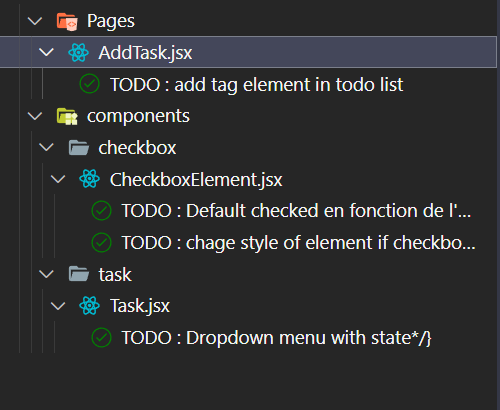
Todo Tree : This extension quickly searches your workspace for comment tags like TODO and FIXME, and displays them in a tree view in the activity bar.
10. Todo Highlight
Todo Highlight : Highlight TODO, FIXME, and other annotations within your code.
😊 Thank you for taking the time to read this article!
I hope you’ve discovered some exciting new extensions to enhance your development experience in Visual Studio Code 🚀
✒ Feel free to drop your own favorite extensions in the comments below.
💻 Happy coding !